 Mrs Eliza
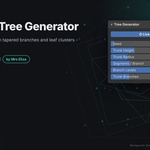



Procedural Tree Generator – User Documentation
1. Overview
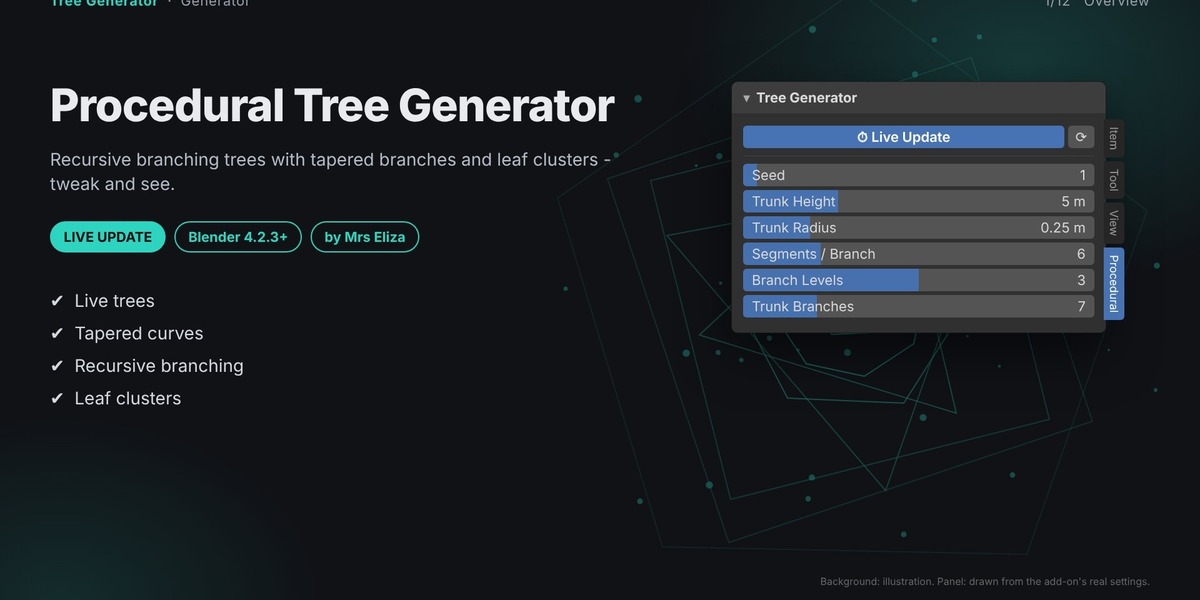
The Procedural Tree Generator creates realistic and stylized trees using a recursive branching system. Branches split into smaller branches based on your chosen angle, length, and spread, with natural tapering toward the tips.
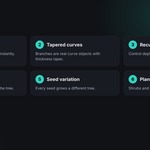
Each tree is generated using curve objects, with adjustable thickness and optional leaf clusters as separate child objects.
All settings update the tree automatically, allowing you to experiment and see changes instantly.
Key Features:
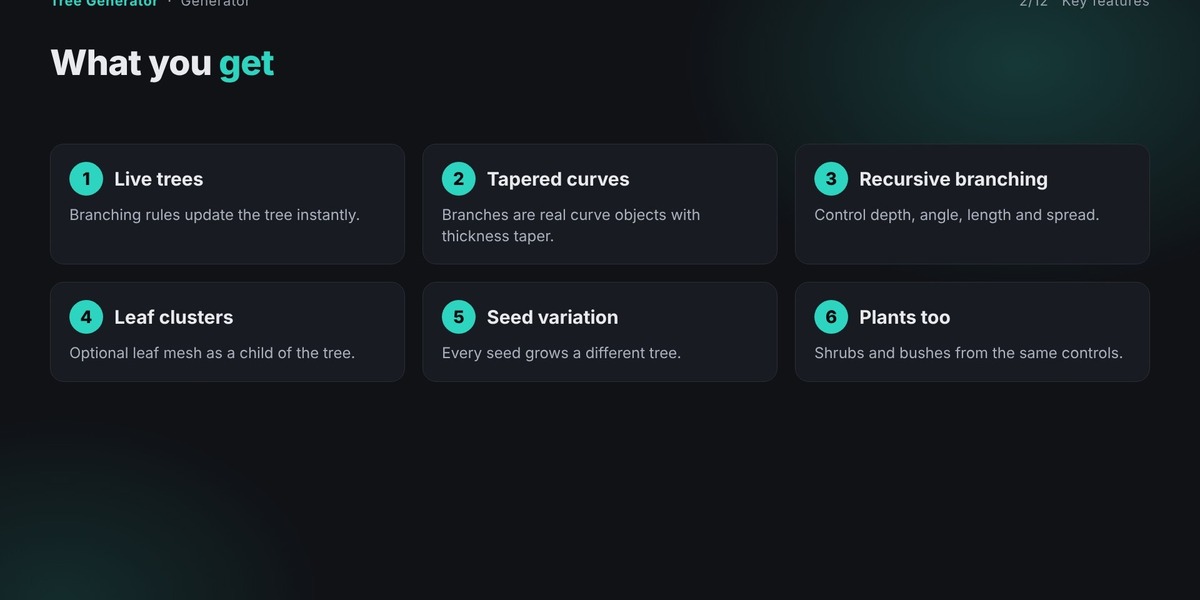
Recursive procedural branching.
Adjustable trunk and branch thickness.
Customizable branching depth and angles.
Multiple leaf types and adjustable density.
Roots, trunk lean, fruit, and blossom controls.
Built-in presets and custom preset saving.
Procedural materials, textures, and animation.
2. Installation
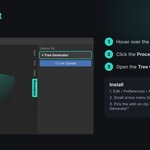
Download the add-on ZIP file.
Open Blender 4.2.3 or newer.
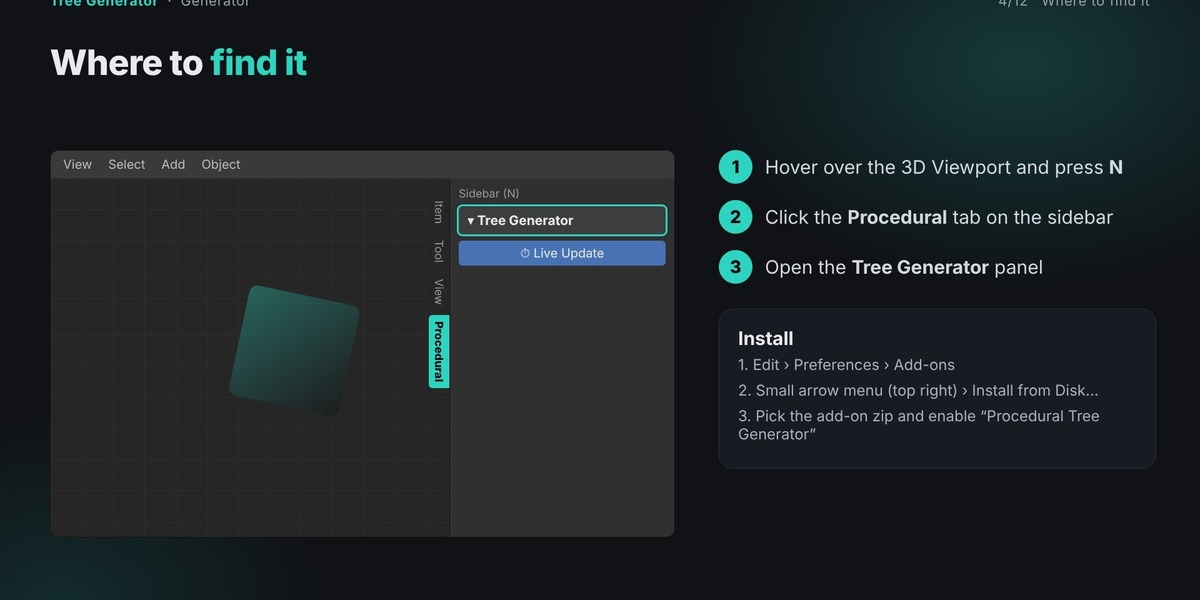
Go to Edit → Preferences → Add-ons.
Open the small arrow menu in the top-right corner.
Select Install from Disk and choose the downloaded ZIP file.
Enable the add-on using the checkbox next to its name.
Important: Do not extract the ZIP file before installation. Make sure you select the individual add-on ZIP rather than a bundle containing multiple add-ons.
3. Opening the Add-on Panel
Move your cursor over the 3D Viewport.
Press N to open the sidebar.
Select the Procedural tab.
Find the Tree Generator panel and expand it.
All Mrs Eliza procedural add-ons share the same Procedural tab.
4. Live Update and Tree Generation
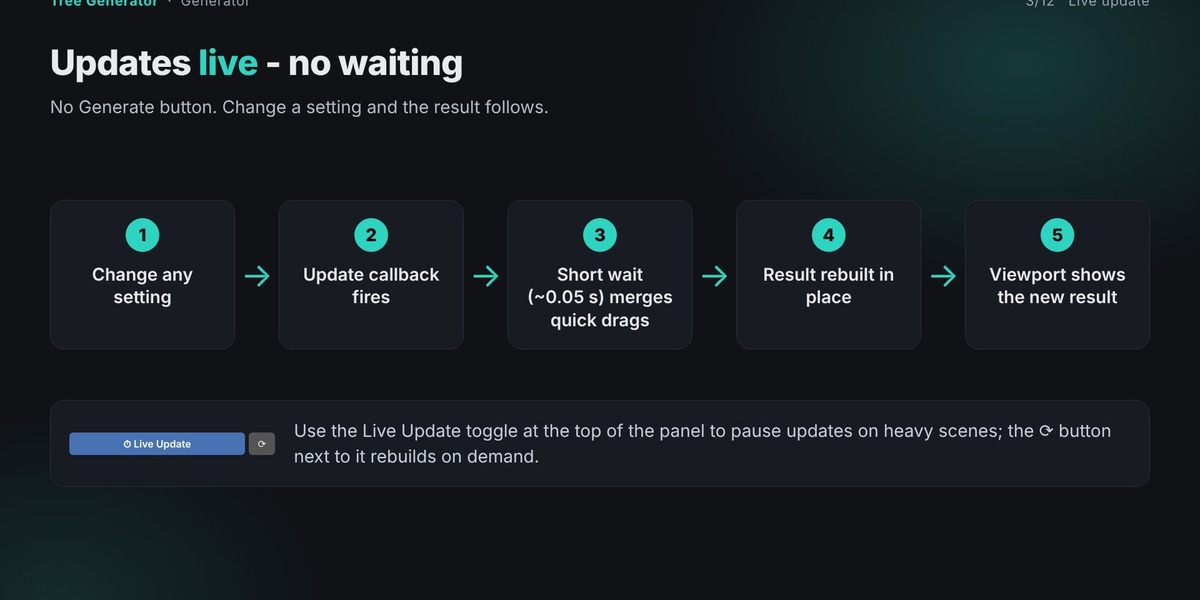
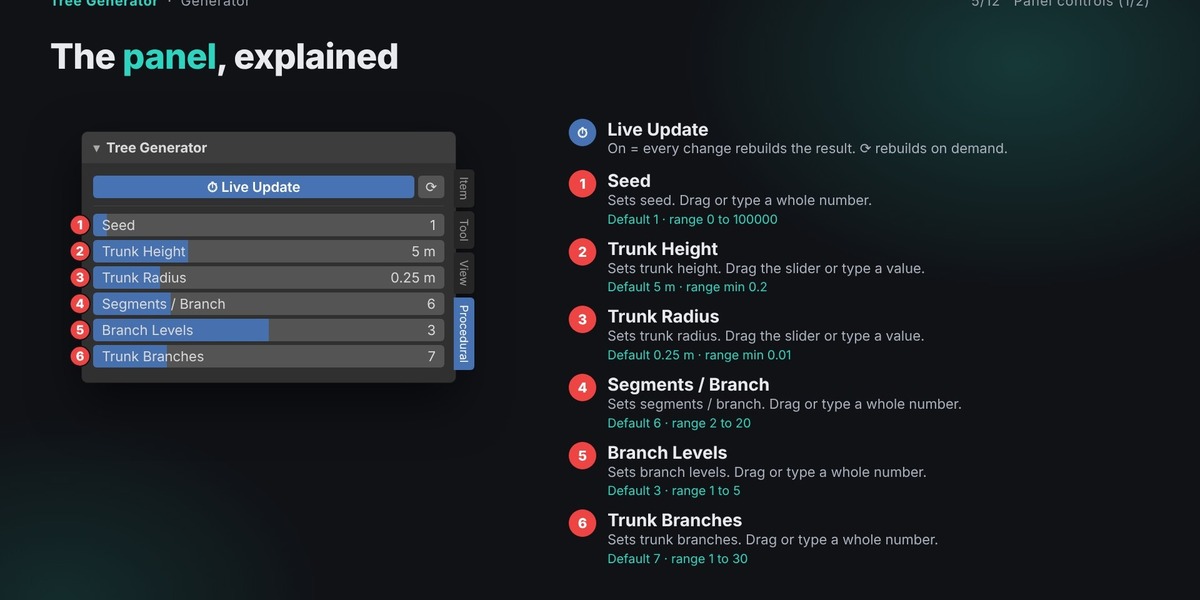
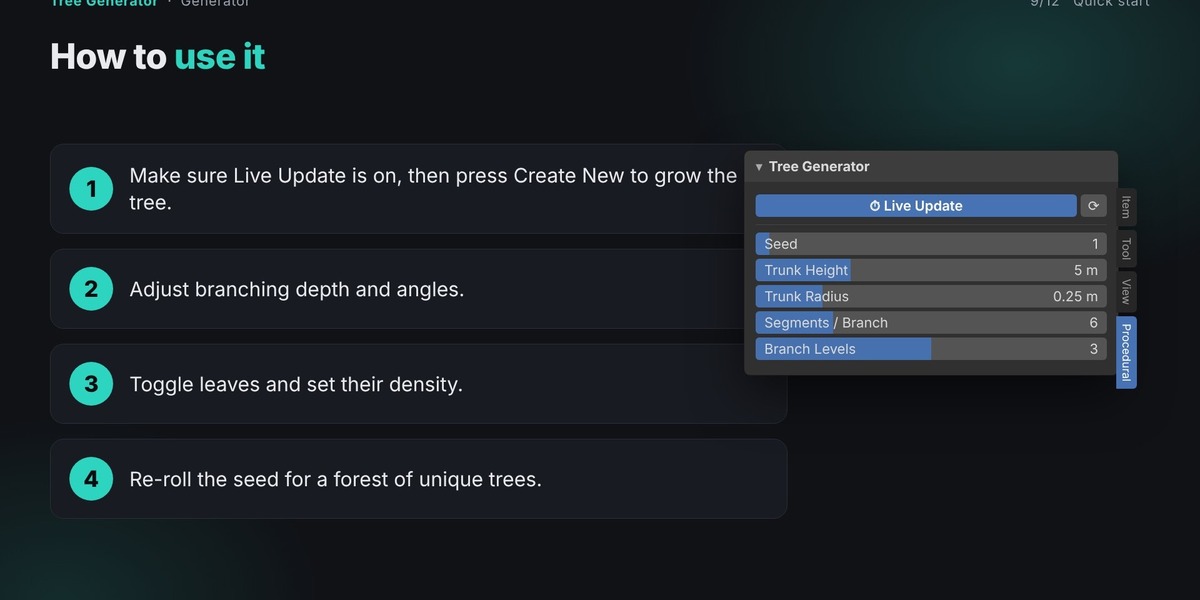
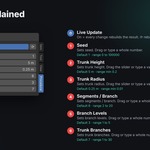
The Live Update option is enabled by default. Whenever you change a setting, the tree automatically rebuilds after a short pause.
You can also use the refresh button beside Live Update to rebuild the tree manually when automatic updating is disabled.
The add-on maintains a single live object during rebuilding, preserving its position, rotation, scale, parent, and existing modifiers.
Create New: Creates another tree at the 3D cursor without changing your existing tree.
Randomize Seed: Generates a different tree using the same settings. You can enter a previous seed to reproduce an earlier design.
5. Creating Your First Tree
Follow these steps to generate your first procedural tree:
Enable Live Update.
Click Create New to generate a tree.
Adjust Trunk Height and Trunk Radius.
Change Branch Levels and Branch Angle to control the tree's overall shape.
Enable Leaves and adjust their density and size.
Use Randomize Seed to explore different variations.
Experiment with wide branching angles for spreading trees or narrow angles for tall, narrow shapes.
6. One-Click Setup and Presets
The Presets & Scene section provides ready-made tree designs and scene setup options.
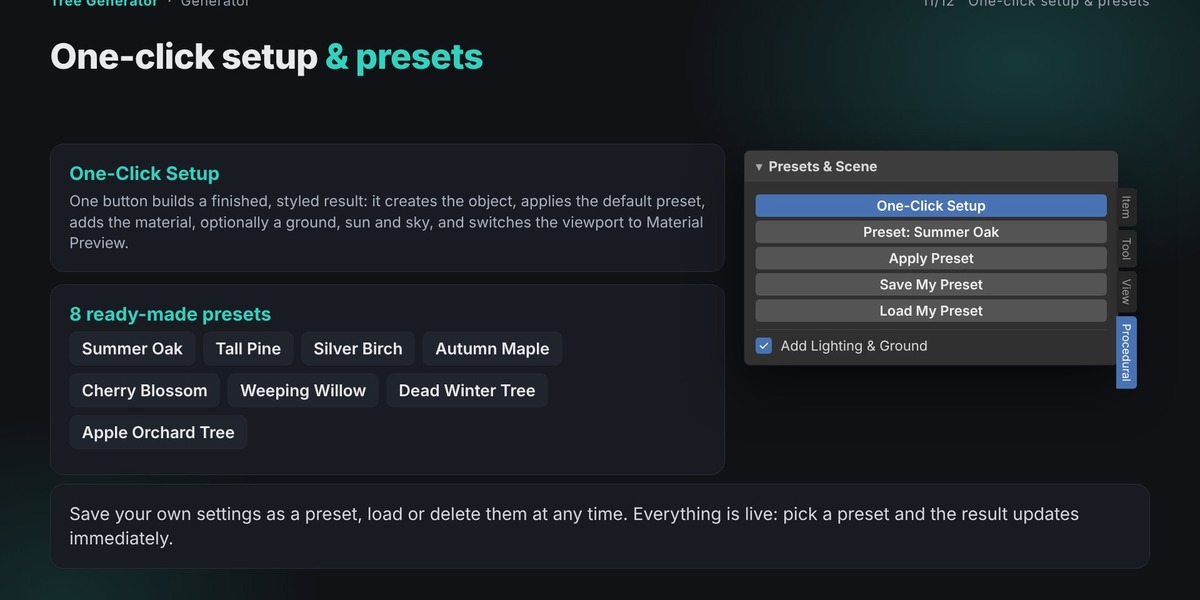
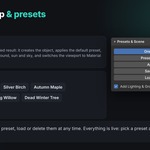
Click One-Click Setup to generate a complete example using the default Summer Oak preset. It can also create materials, ground, lighting, and sky color, and switch the viewport to Material Preview.
Built-in Presets
The add-on includes eight ready-made presets:
Summer Oak
Tall Pine
Silver Birch
Autumn Maple
Cherry Blossom
Weeping Willow
Dead Winter Tree
Apple Orchard Tree
Select a preset and click Apply Preset to generate its settings and appearance. You can continue adjusting the tree afterward.
Custom Presets
You can save your own tree configurations:
Save My Preset: Save your current settings under a custom name.
Load My Preset: Restore a previously saved preset.
Delete My Preset: Remove a saved preset.
Custom presets are stored in Blender's configuration folder and remain available across projects.
7. Colors, Materials and Textures
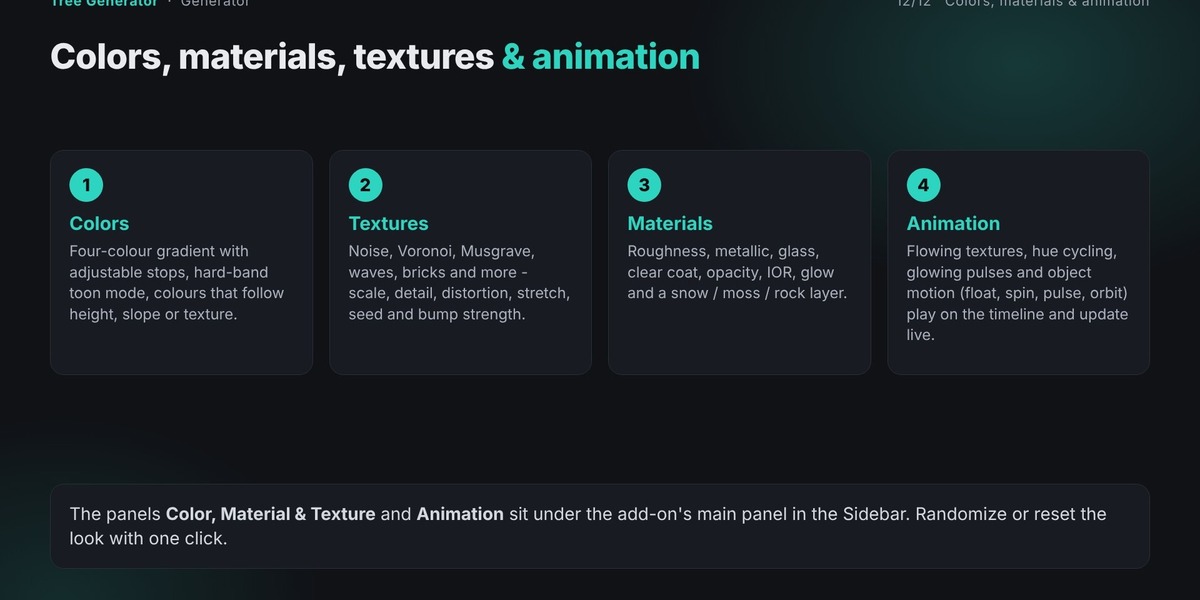
The Color, Material & Texture section lets you customize the appearance of your trees using procedural shader nodes. No external image textures or UV unwrapping are required.
Colors
Create smooth color gradients using four adjustable color stops. Enable Hard Bands for a stepped, toon-style appearance.
The gradient can be controlled by texture, object height, or surface slope.
Textures
Choose from different procedural textures, including Noise, Voronoi, Wave, and Brick. Adjust scale, detail, distortion, stretch, seed, and bump strength.
Layer Effects
Add secondary color effects such as snow, moss, or dust using adjustable thresholds and breakup controls.
Surface Settings
Customize roughness, metallic, glass, clear coat, opacity, and IOR.
Glow and Color Adjustment
Control glow color and strength, along with hue variation, saturation, and brightness.
Random Look generates a new material combination, while Reset Look restores the default appearance.
8. Animation
The Animation section provides material and object animation controls that work with the timeline.
Material Animation
Flowing Texture: Moves the texture in a selected direction.
Color Cycle: Continuously changes the material's hue.
Glow Pulse: Creates a pulsing glow effect. Set Glow Strength above zero to see the effect.
Object Animation
Choose from four motion types:
Float
Spin
Pulse
Orbit
Adjust speed and amount to control the animation.
Click Stop All Animation to disable all material and object animations.
9. Settings Guide
The following controls determine the tree's shape, structure, and appearance.
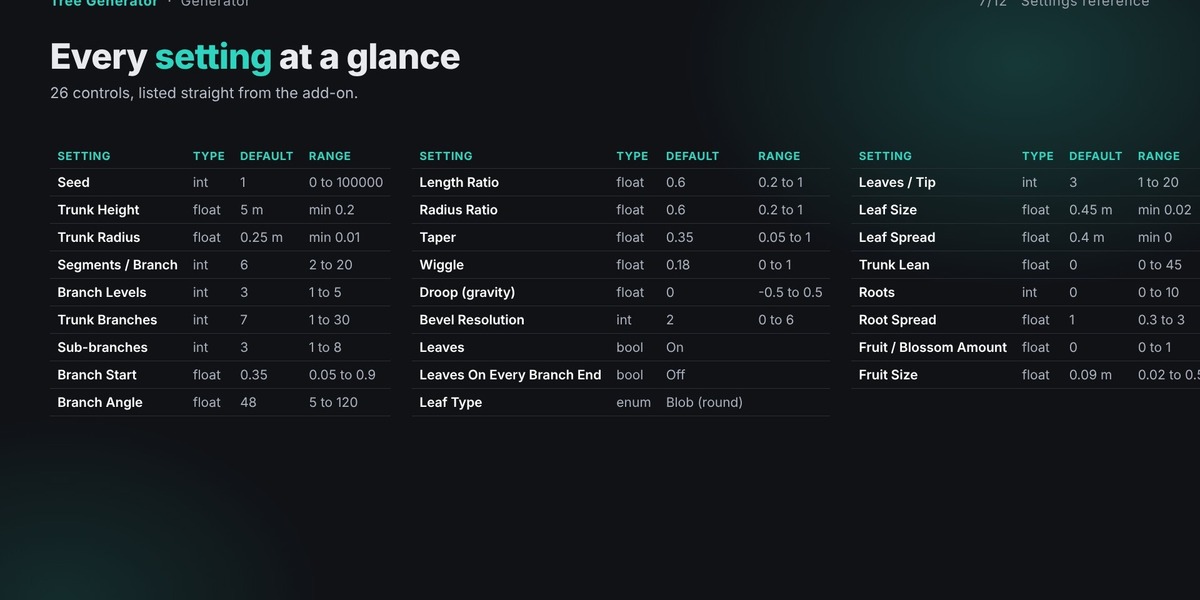
Main Tree Settings
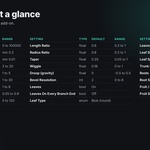
Seed: Controls random generation. Default: 1.
Trunk Height: Sets the trunk height. Default: 5 m.
Trunk Radius: Controls the trunk thickness. Default: 0.25 m.
Segments / Branch: Sets the number of segments per branch. Default: 6.
Branch Levels: Controls recursive branching depth. Default: 3.
Trunk Branches: Sets the number of main branches. Default: 7.
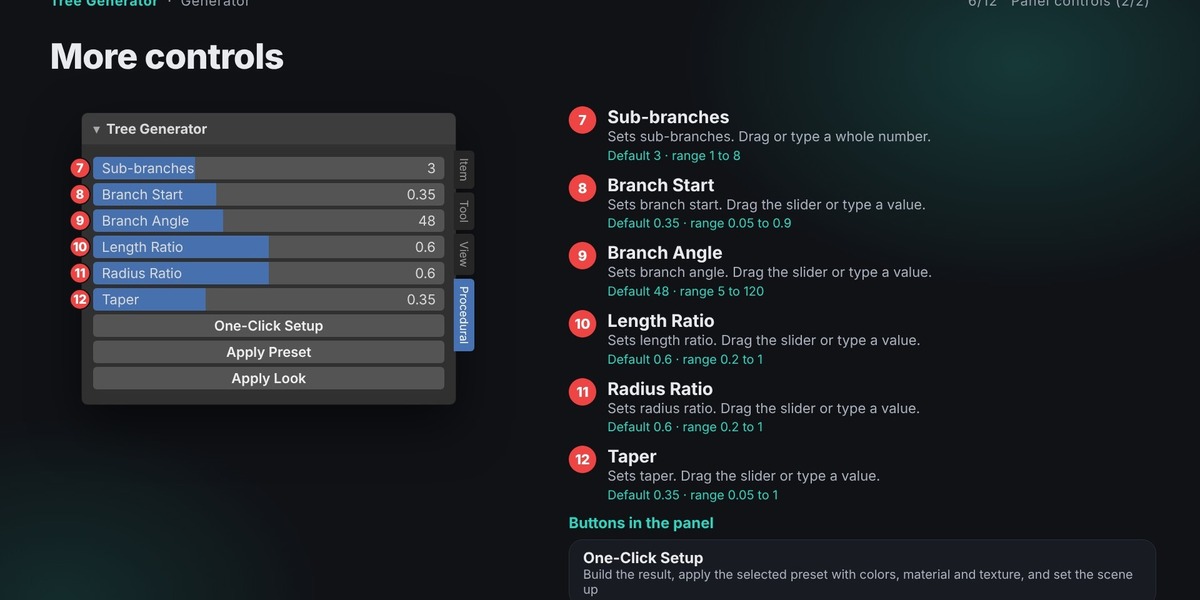
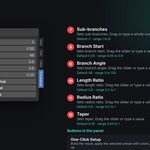
Sub-branches: Controls secondary branches. Default: 3.
Branch Start: Determines where branches begin along the trunk. Default: 0.35.
Branch Angle: Controls branch spreading direction. Default: 48°.
Length Ratio: Determines the length of smaller branches. Default: 0.6.
Radius Ratio: Controls thickness reduction between branches. Default: 0.6.
Taper: Controls how branches become thinner toward their tips. Default: 0.35.
Wiggle: Adds natural curves to branches. Default: 0.18.
Droop (Gravity): Controls downward or upward branch bending. Default: 0.
Bevel Resolution: Controls branch curve smoothness. Default: 2.
Leaves Settings
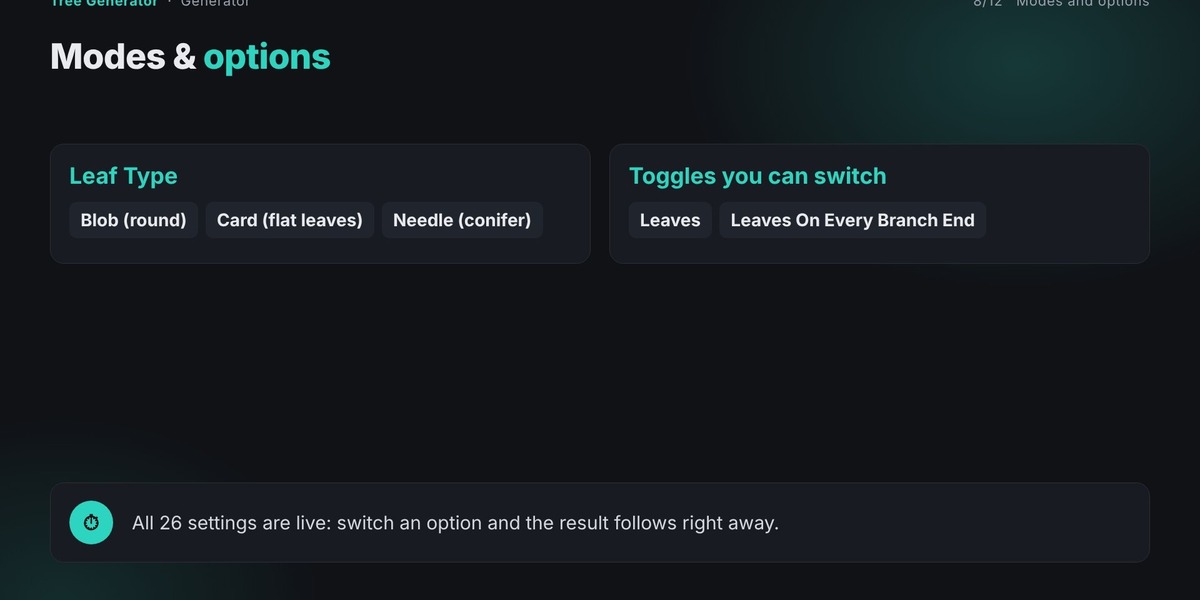
Leaves: Enables or disables leaves. Enabled by default.
Leaves On Every Branch End: Adds leaves to every branch tip.
Leaf Type: Choose Blob, Card, or Needle.
Leaves / Tip: Sets the number of leaves per tip. Default: 3.
Leaf Size: Controls leaf dimensions. Default: 0.45 m.
Leaf Spread: Controls how far leaves extend from their tips. Default: 0.4 m.
Additional Tree Settings
Trunk Lean: Tilts the trunk by up to 45 degrees.
Roots: Sets the number of visible roots. Default: 0.
Root Spread: Controls how far roots extend. Default: 1.
Fruit / Blossom Amount: Controls fruit or blossom quantity. Default: 0.
Fruit Size: Sets fruit dimensions. Default: 0.09 m.
10. Buttons and Their Functions
The add-on includes several useful actions:
One-Click Setup: Generates a tree with a preset, materials, and optional scene setup.
Apply Preset: Applies the selected built-in preset, including its settings, appearance, and animation.
Apply Look: Applies procedural materials to the selected objects.
Random Look: Generates a new color and texture combination.
Reset Look: Restores the add-on's default color, texture, and animation settings.
Stop All Animation: Disables all active animations.
Add Lighting & Ground: Adds a ground plane, sun light, and sky color.
Save My Preset: Saves your current configuration.
Load My Preset: Loads a previously saved custom preset.
Delete My Preset: Deletes a saved custom preset.
11. Tips for Better Results
Increase branching depth gradually, as higher values create more complex trees and require additional processing.
Use wide branch angles for oak-like crowns and narrow angles for tall, poplar-like trees.
Experiment with Wiggle and Droop to create more natural branch shapes.
Create multiple trees using different seeds for forests and outdoor environments.
The tree is generated as a curve object, so you can convert it to a mesh later if needed.
12. What Can You Create?
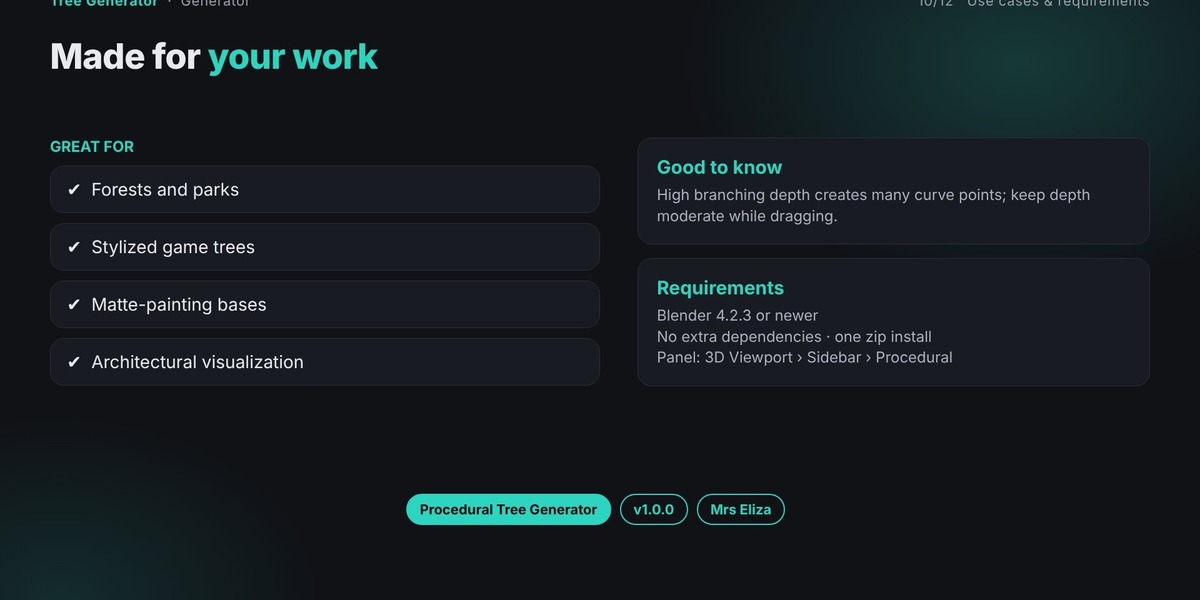
The Procedural Tree Generator is suitable for:
Forests and natural environments.
Parks and landscaping scenes.
Stylized trees for games.
Architectural visualization.
Matte painting and background environments.
Seasonal environments with different tree variations.
13. Support
If you encounter any problems, please provide the following information when contacting support:
Blender version.
Add-on name and version.
Steps to reproduce the problem.
Full error message from the Info Editor or system console.
Providing these details will help identify and resolve the issue more quickly.
Thank you for using the Procedural Tree Generator!