 Hangzhou JupiterShot Technology Co., Ltd.


Product Introduction
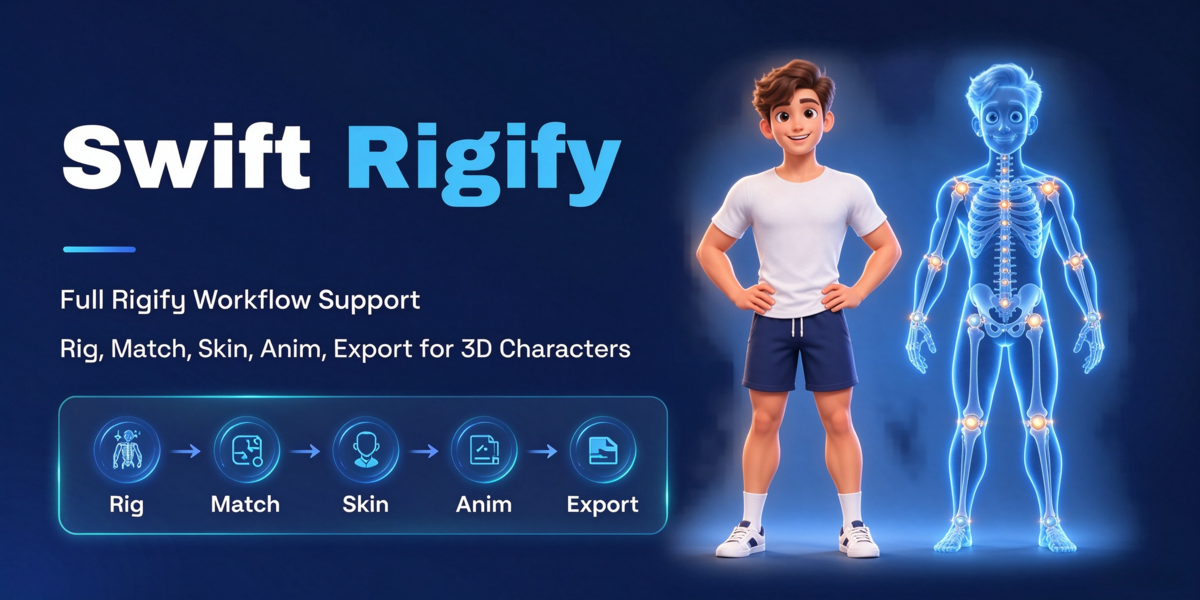
Full workflow for Rigify Auto-Rigging System.
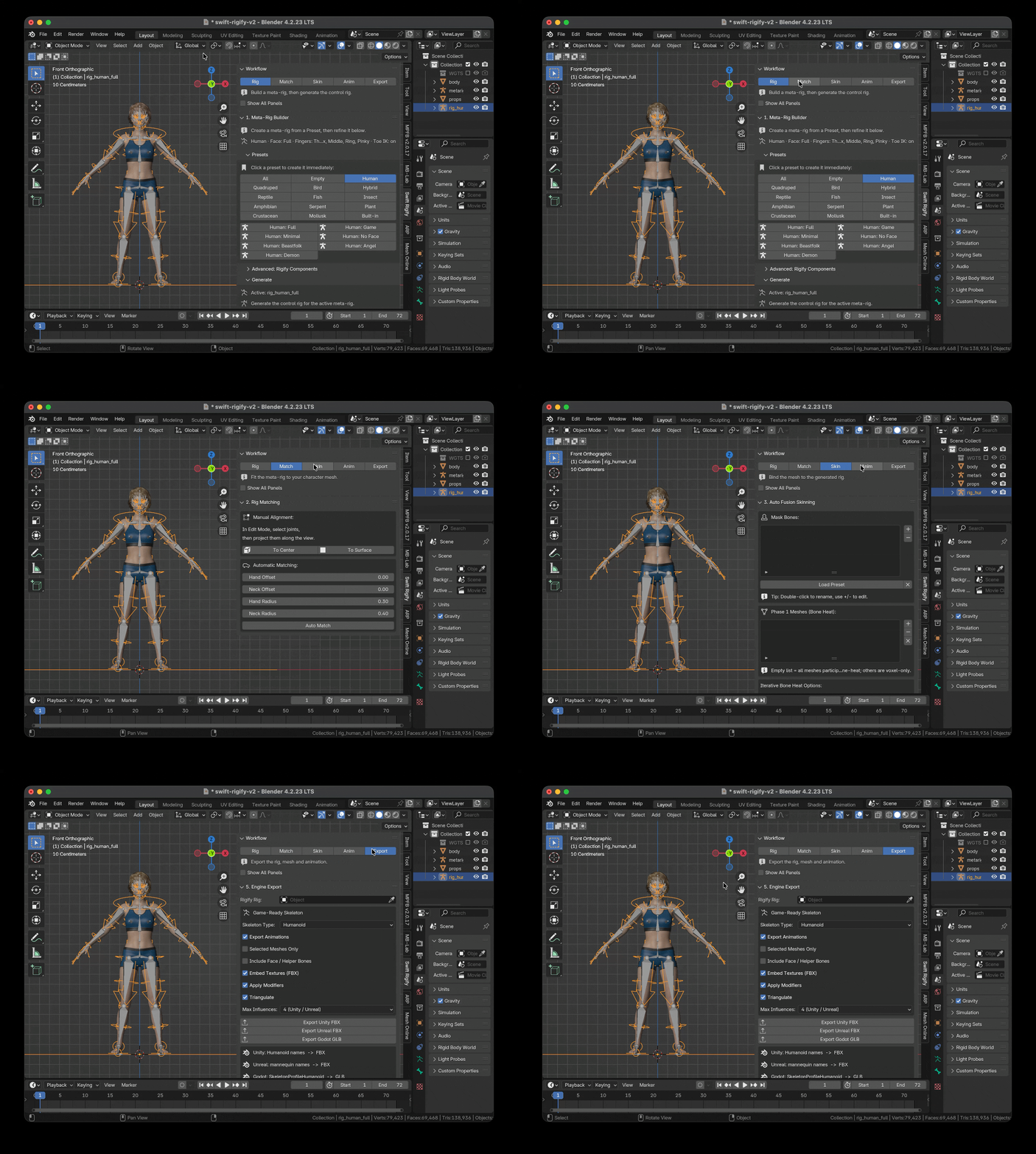
This Blender extension contains 'Meta-Rig Builder' module, 'Rig Matching' module, 'Auto Fusion Skinning' module, 'Animation Retargeting' module, and 'Engine Export' module.
Automatic rig matching based on AI technology that can automatically match the Rigify humanoid meta-rig to a realistic 3D human model with just one click, saving animators a ton of time on manual rig alignment, and boosting rigging efficiency.
The Rigify workflow didn't have automatic rig matching for digital humans before, so animators had to spend a lot of time posing rigs for digital humans. It was really tedious, which held back the popularity of the Rigify workflow.
So we spent six months developing our own C++-based deep learning training and inference framework, and trained the AI models from scratch that can automatically generate correct bone positions for almost any realistic digital humans, including hand bones and facial bones, all with just one click.
We’ve already tested this product with Daz models, MakeHuman models, MB-Lab models, CC Character Bases models, Sloyd models, Mixamo models, and MetaHuman models, and the results show that the Rigify meta-rig matches realistic 3D human models really accurately. After that, you only need to do some simple tweaking.
This Blender extension supports full workflow for Rigify Auto-Rigging System, using Rigify is no longer painful, but rather a fun experience.
Features
-
Meta-Rig Builder module
- Rig Matching module
- Lightweight local AI models.
- Super fast auto-matching speed.
- Supports automatic matching of body bones.
- Supports automatic matching of hand bones.
- Supports automatic matching of facial bones.
- Supports both T-pose and A-pose.
- Fits all body types, whether tall, short, thin, or chubby.
- Auto Fusion Skinning module
- Animation Retargeting module
- Engine Export module
- Full workflow for Rigify Auto-Rigging System
Supported Platform
Linux(arm64/x86_64)
Windows 10-11(arm64/x86_64)
macOS 10.15+(arm64/x86_64)
How To Install
Download the new version of the product.
Launch Blender, navigate to 'Edit->User Preference...->Get Extensions', click the small triangle besides the 'Repositories' dropbox to expand the contents, click the 'Install from Disk...' button, a pop up dialog will appear, select the downloaded zip file, click the 'Install from Disk' button on the pop up dialog, the extension will be installed to Blender's 'extensions->user_default' directory.
How To Upgrade
Download the new version of the product.
Before installing the new version, you must uninstall the current version.
Launch Blender, navigate to 'Edit->User Preference...->Get Extensions', click the small triangle besides this extension to expand the contents, click the 'Uninstall' button to remove the current version of this extension.
After having uninstalled the current version, install the new version of the product.
Quick Start
Watch Online:
Video Package: Download the HD version of the video(Format:zip,Size:23.7MB,Date:Nov 22,2026).
Showcase
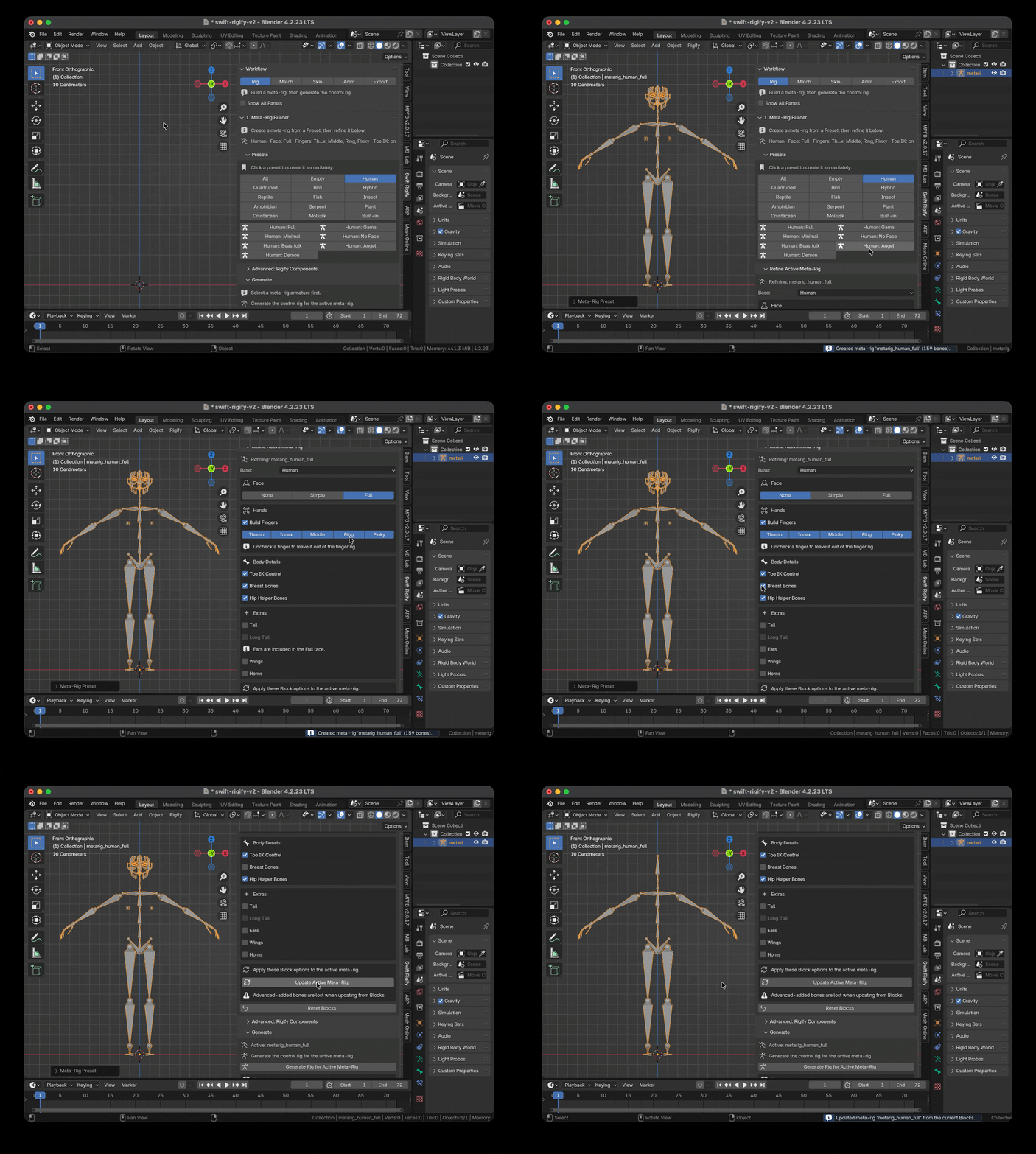
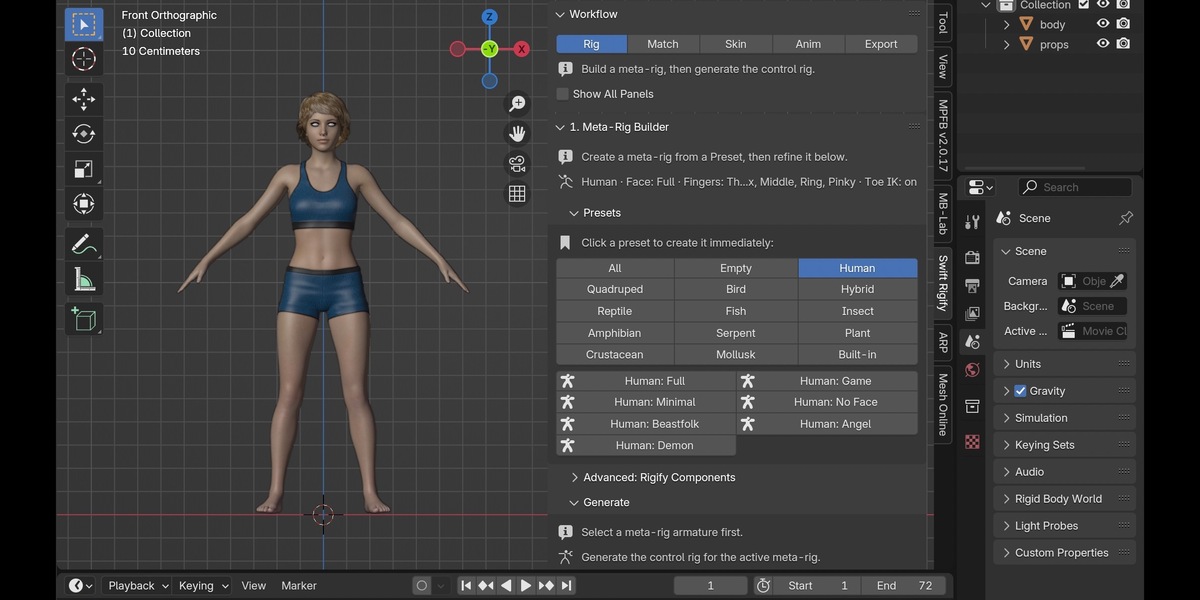
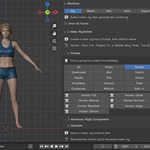
The above picture illustrates the 'Meta-Rig Builder' module. I clicked the 'Human: Full' preset to add a Rigify meta-rig to scene, then I began to customize the Rigify meta-rig, I changed 'Full' face type to 'None' face type, and unchecked the 'Breast Bones' option, finally I clicked the 'Update Active Meta-Rig' button to finish customizing the Rigify meta-rig.
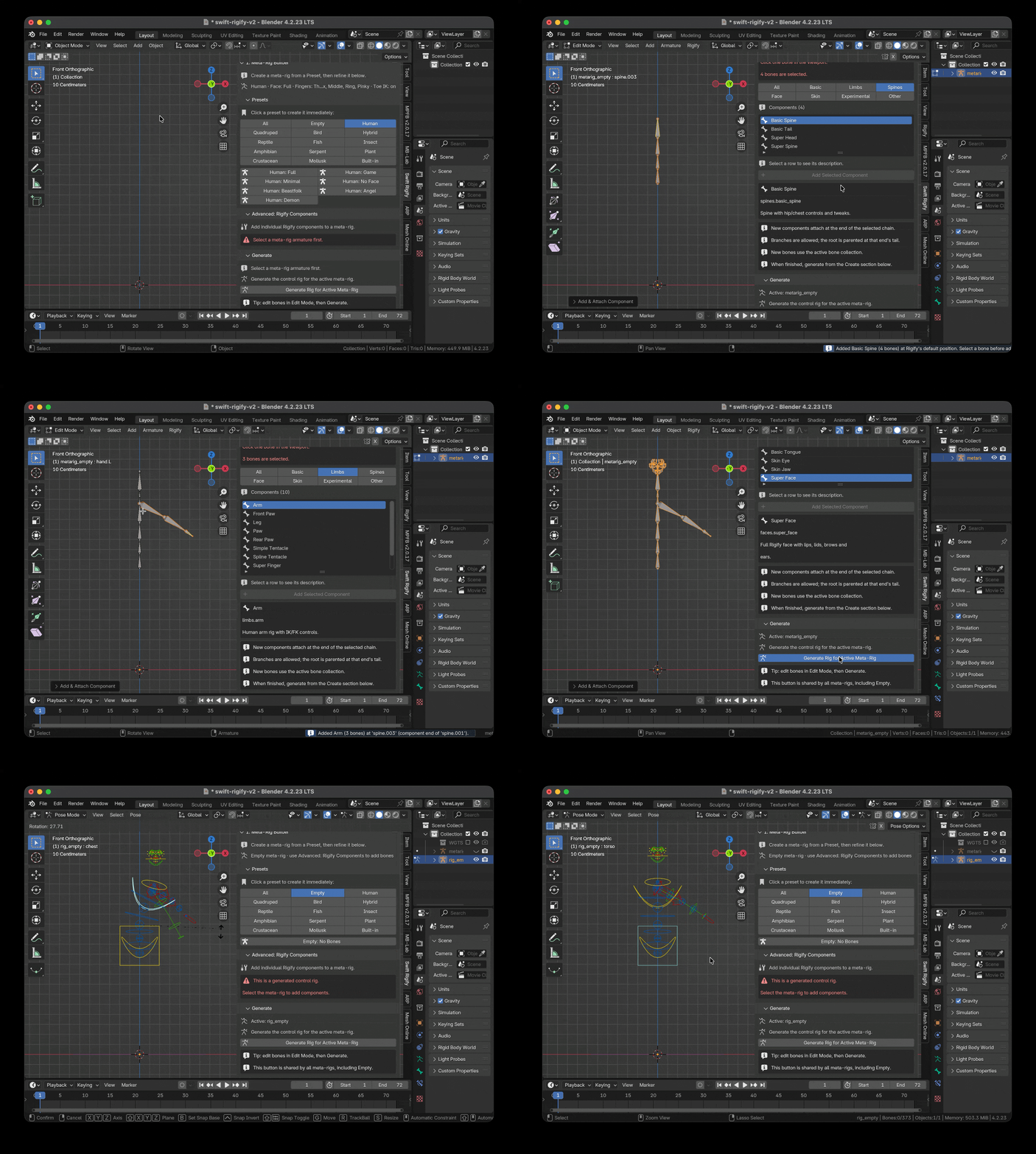
For expert users, there is a 'Advanced: Rigify Components' section.
You can select an existing meta-rig to modify, enter 'EDIT' mode, delete some Rigify components, or add new Rigify components to the end of current Rigify component, you can click to select any bone in a Rigify component to set it current, finally back to 'OBJECT' mode to finish building the meta-rig.
You can also build your meta-rig from scratch: Add an empty preset, enter 'EDIT' mode again, add the first Rigify component, then add more Rigify components one by one, each new Rigify component will attach to the end of current Rigify component, you can click to select any bone in a Rigify component to set it current, you can also delete current Rigify component, so you can build hierarchy naturally, finally back to 'OBJECT' mode to finish building the meta-rig.
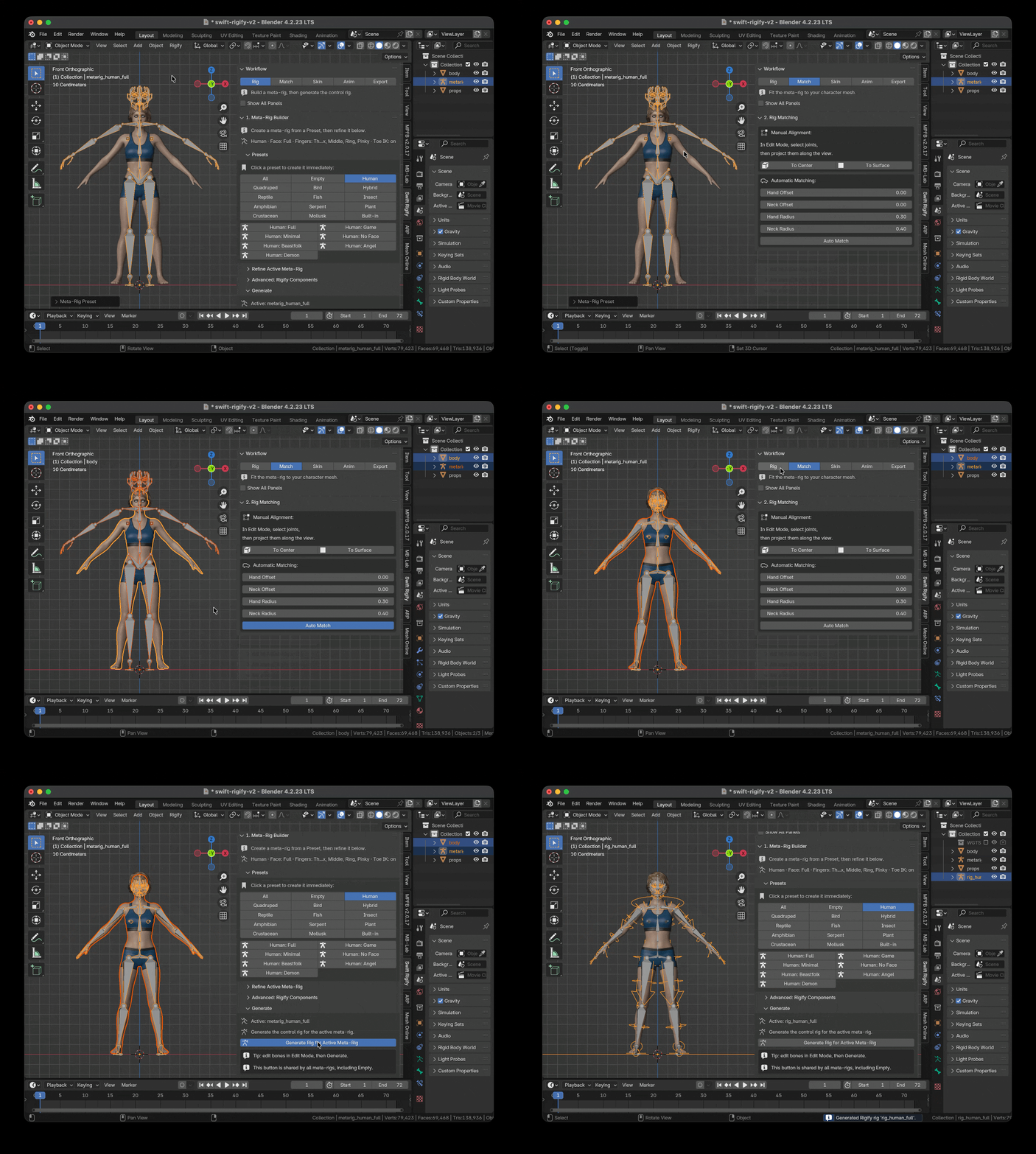
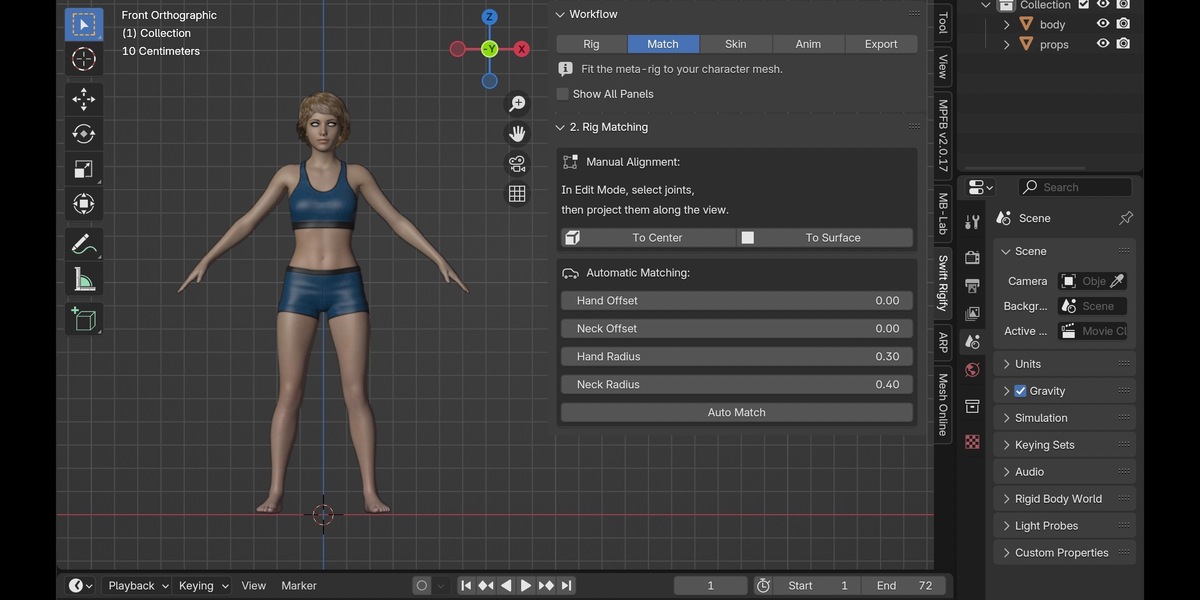
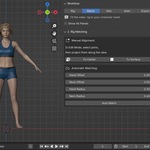
The above picture illustrates the 'Rig Matching' module, there are both manual alignment sub-module and the automatic matching sub-module. I selected the meta-rig and the body part and click the 'Auto Match' button, all meta-bones were matched to the body exactly instantly; then I switched back to the 'Meta-Rig Builder' tab, clicked the 'Generate Rig for Active Meta-Rig' button to generate the Rigify rig.
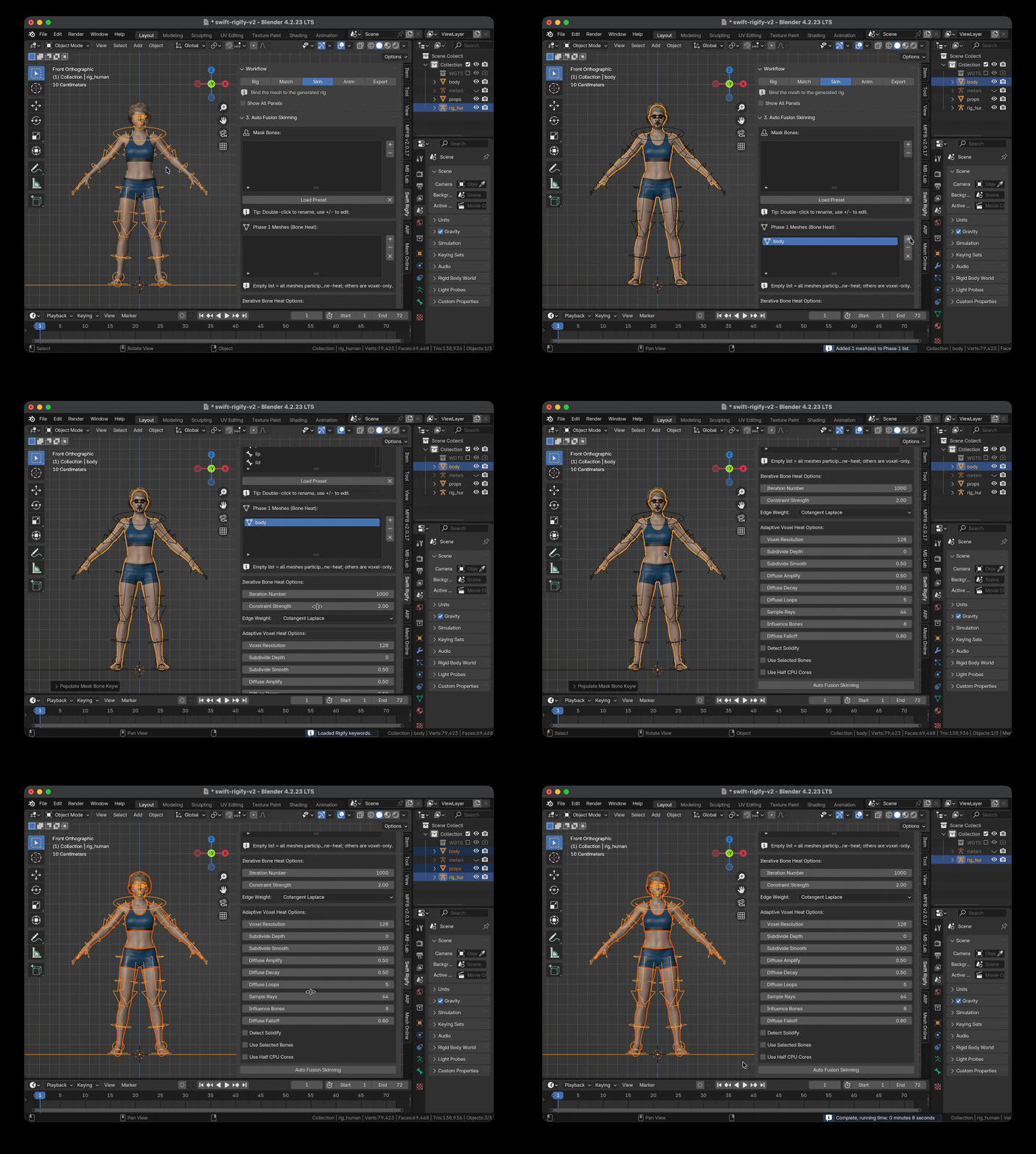
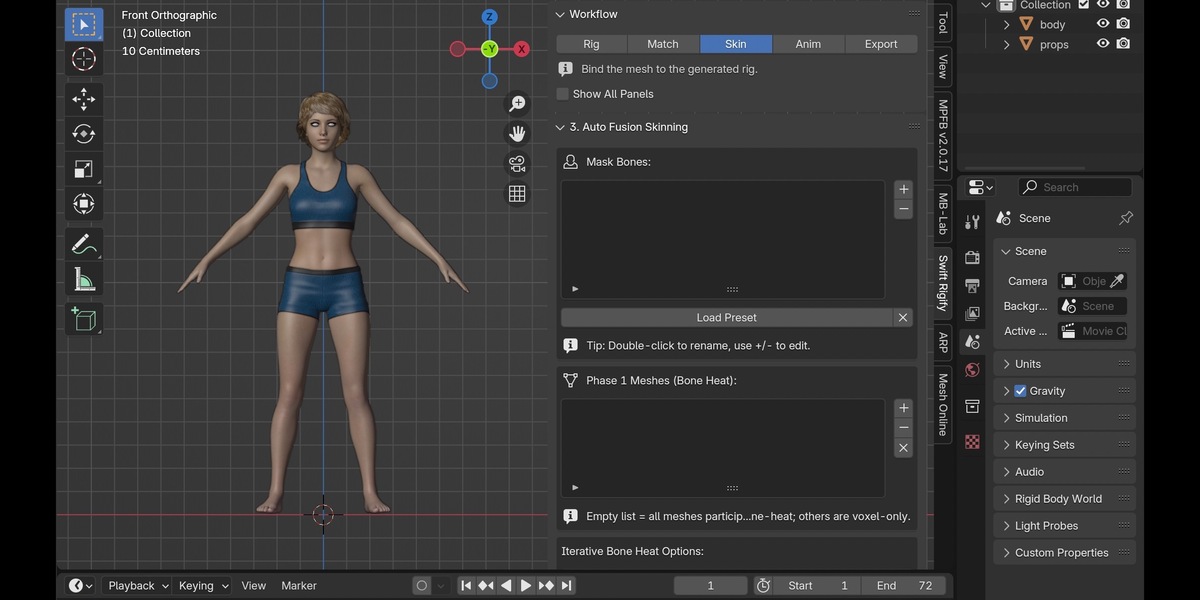
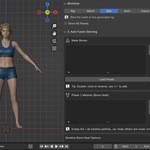
The above picture illustrates the 'Auto Fusion Skinning' module, this is the simplified version of the Voxel Heat Diffuse Skinning extension, which is customized by my father (The author of the full featured product) for Rigify workflow, this skinning module can generate good vertex weights for clothes and fingers, details refer to the full featured product.
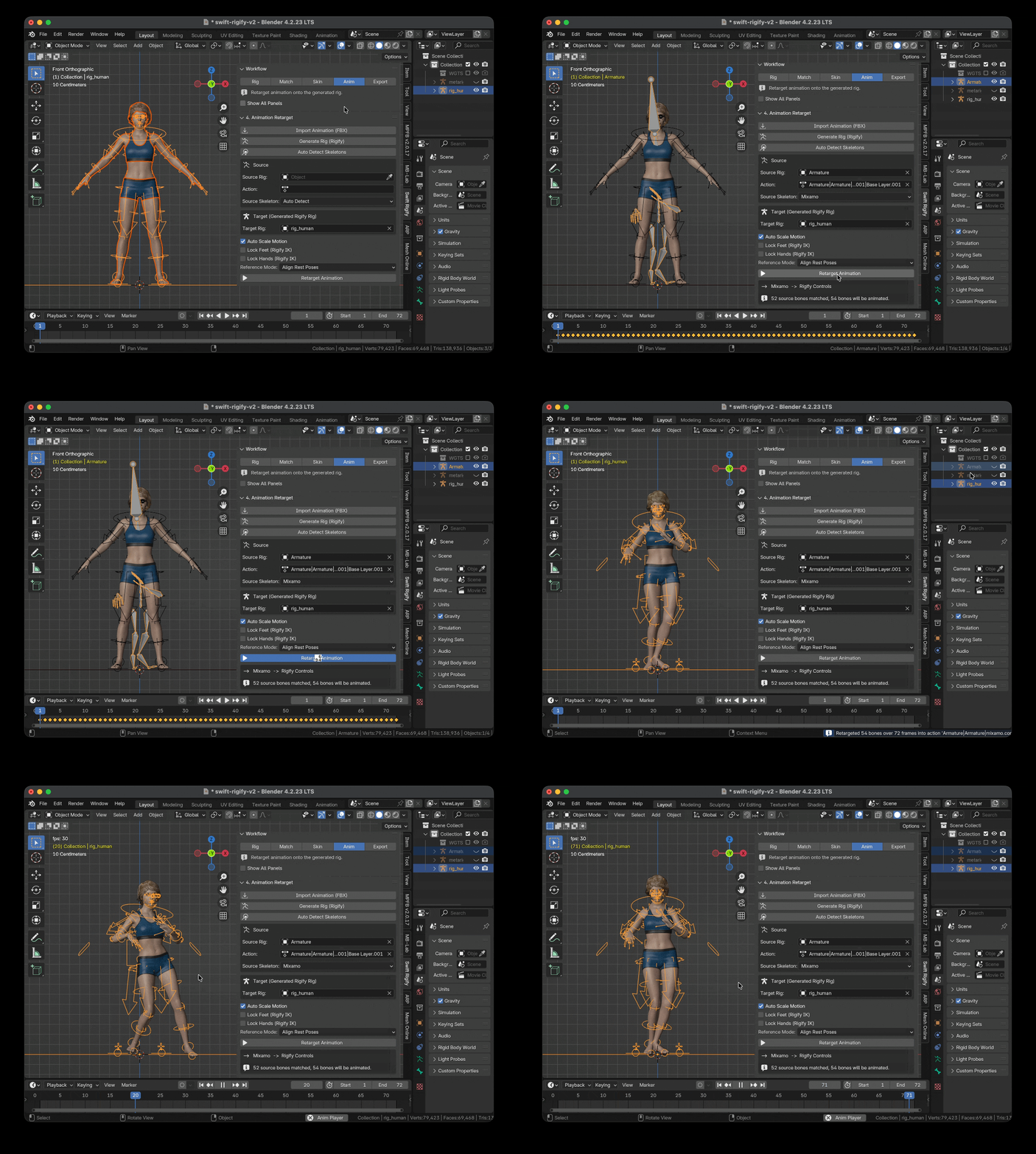
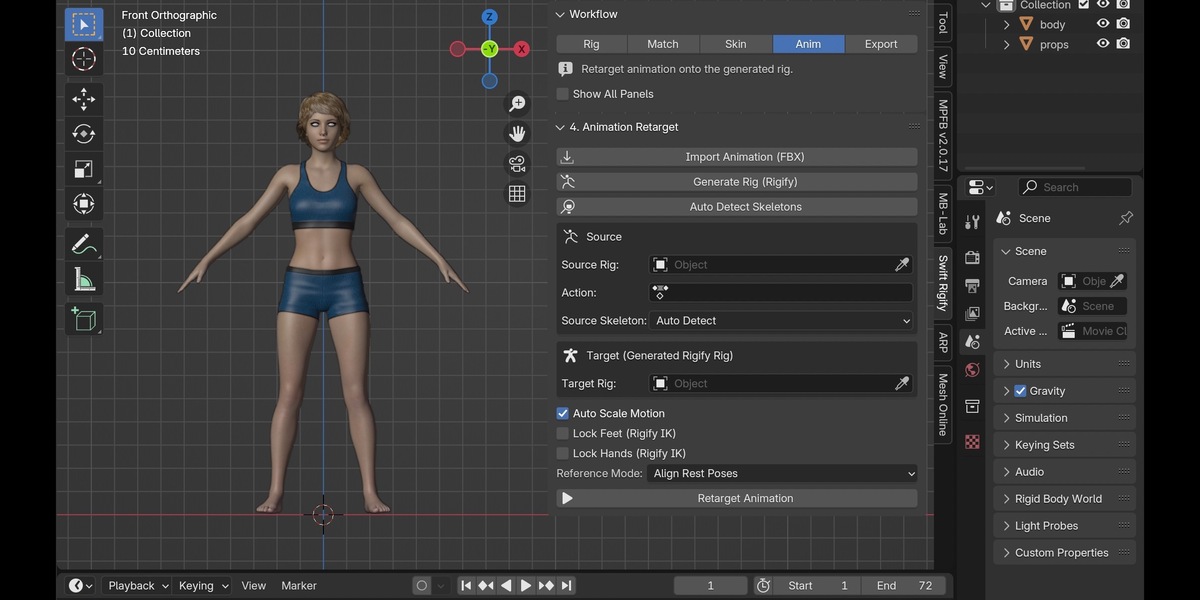
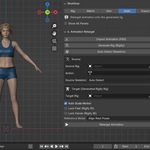
The above picture illustrates the 'Animation Retarget' module, you can import animation FBX file of 'Mixamo', 'Unity Humanoid', 'Unreal Engine', 'Daz Genesis', 'Character Creator', 'Rigify Meta-Rig', 'Rigify Controls', 'Generate Humanoid'.
The source rig and the target rig can be in different poses, for example: the source rig is in 'T' pose, while the target rig is in 'A' pose, you don't need to align bones manually, it will align bones automatically and generate correct animation.
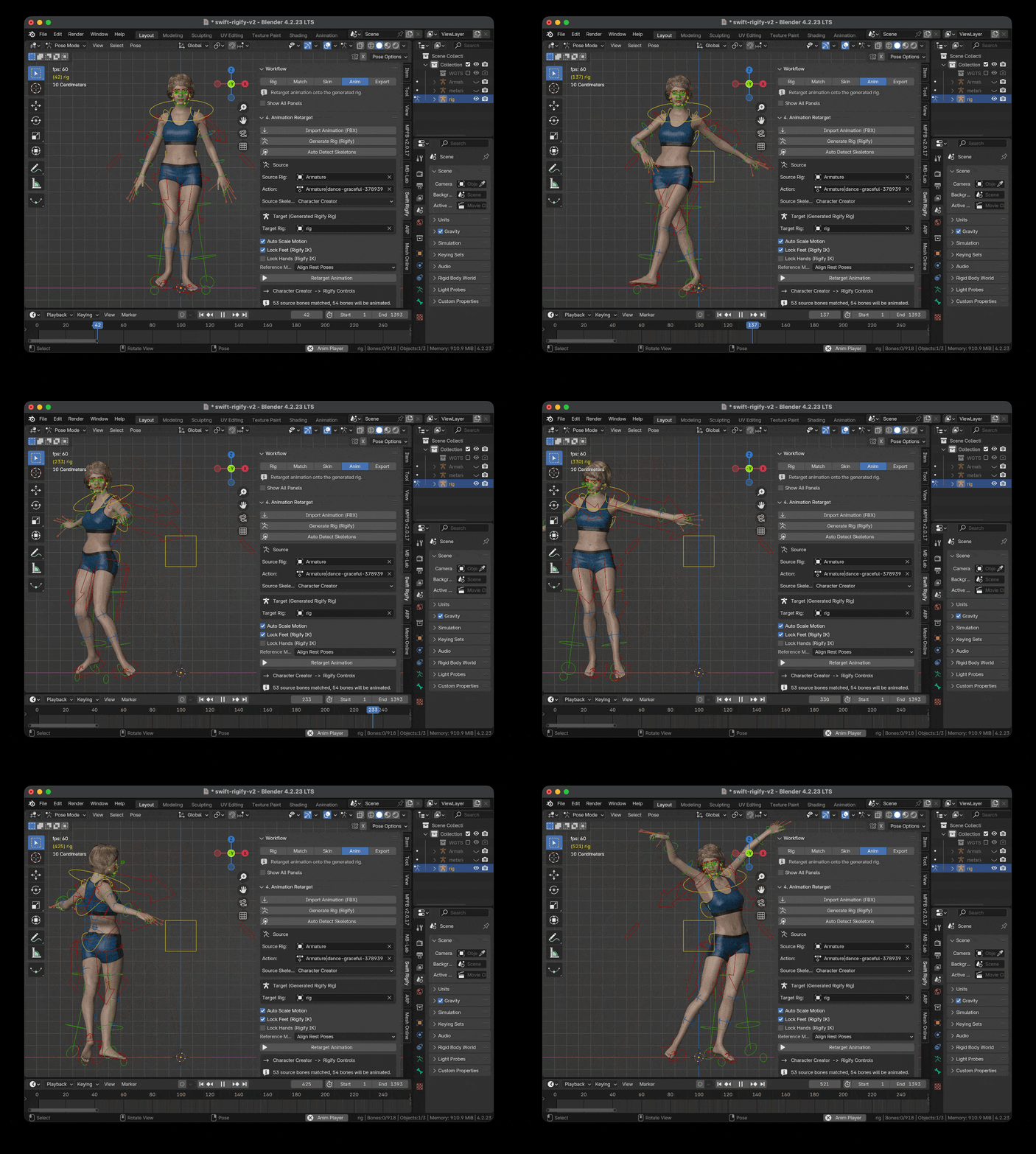
The above picture illustrates that I imported 'Character Creator' rig in 'T' pose, and my Rigify rig was in 'A' pose, and I enabled 'Lock Feet (Rigify IK)', it generated correct animation for the Rigify rig, the feet were locked by feet IK bones, avoid falling under the floor.
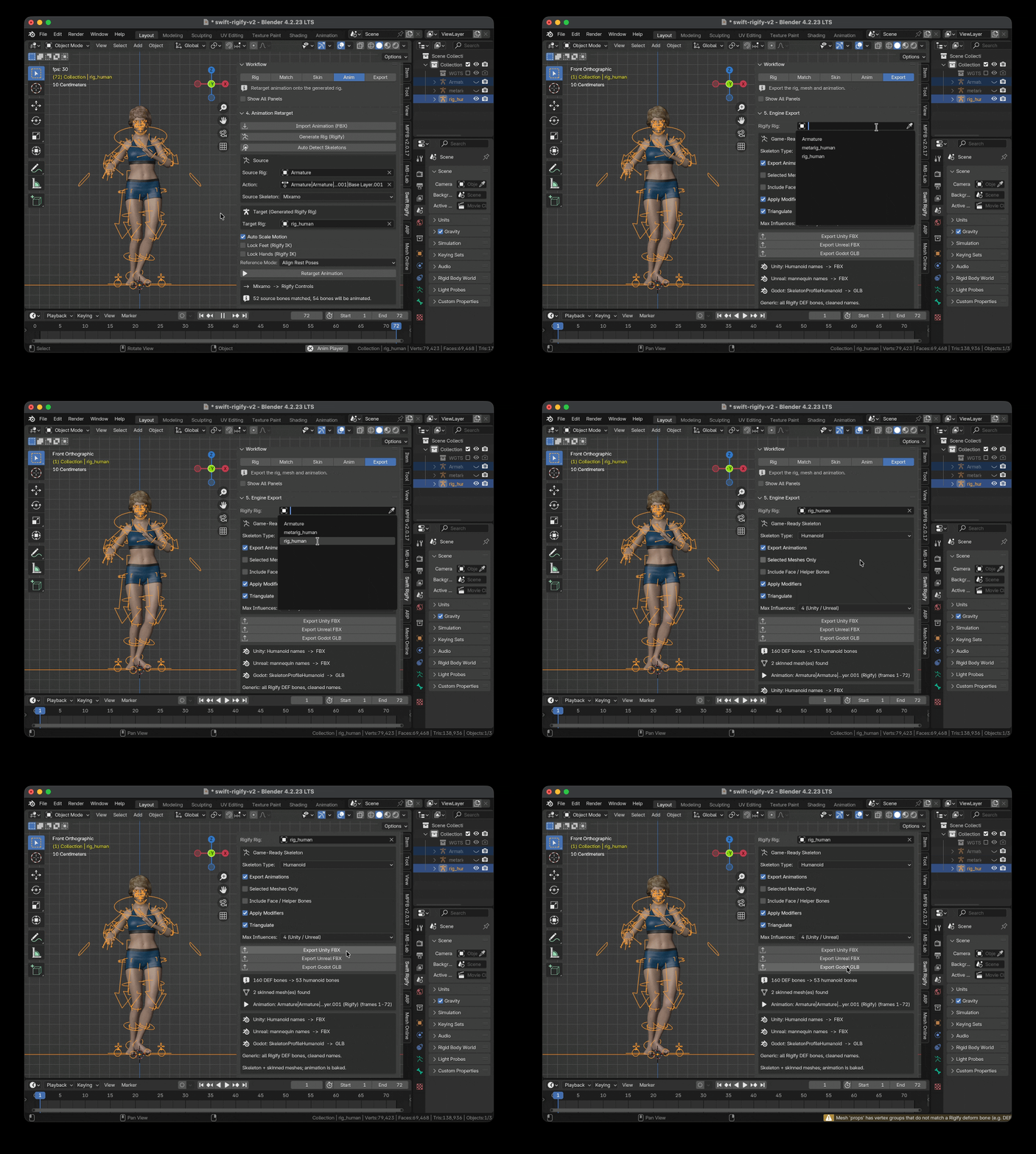
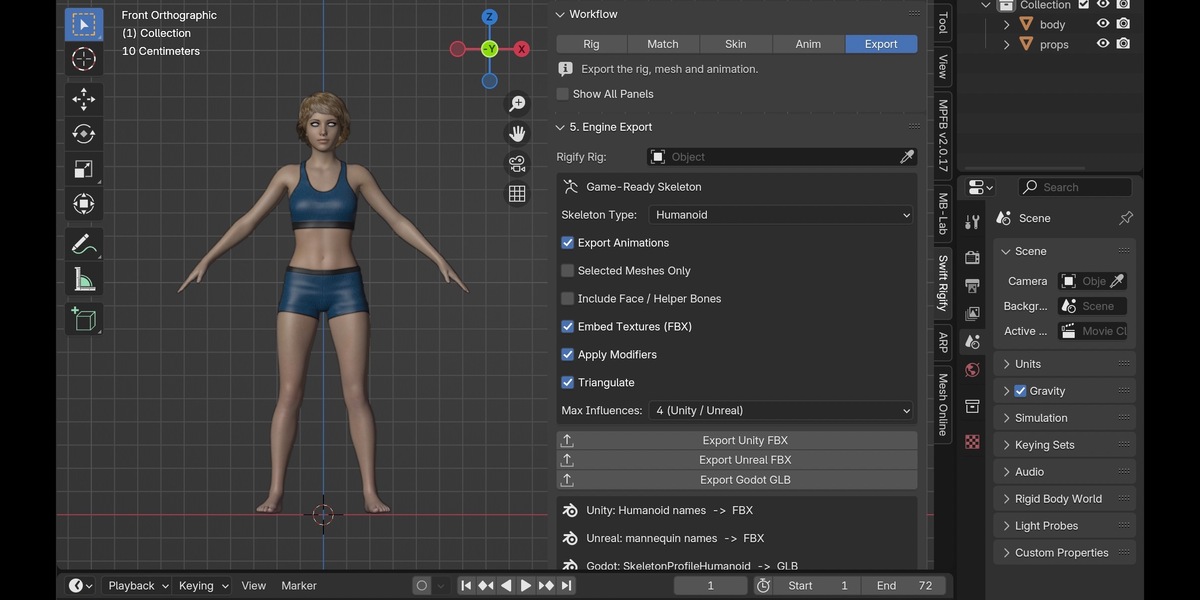
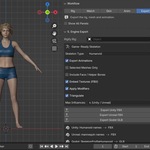
The above picture illustrates the 'Engine Export' module, you can export game engine friendly FBX file for 'Unity' and 'Unreal Engine' or GLB file for Godot Engine.
Setting 'Skeleton Type' to 'Generate Rigify DEF' for other game engines, such as your own game engines.
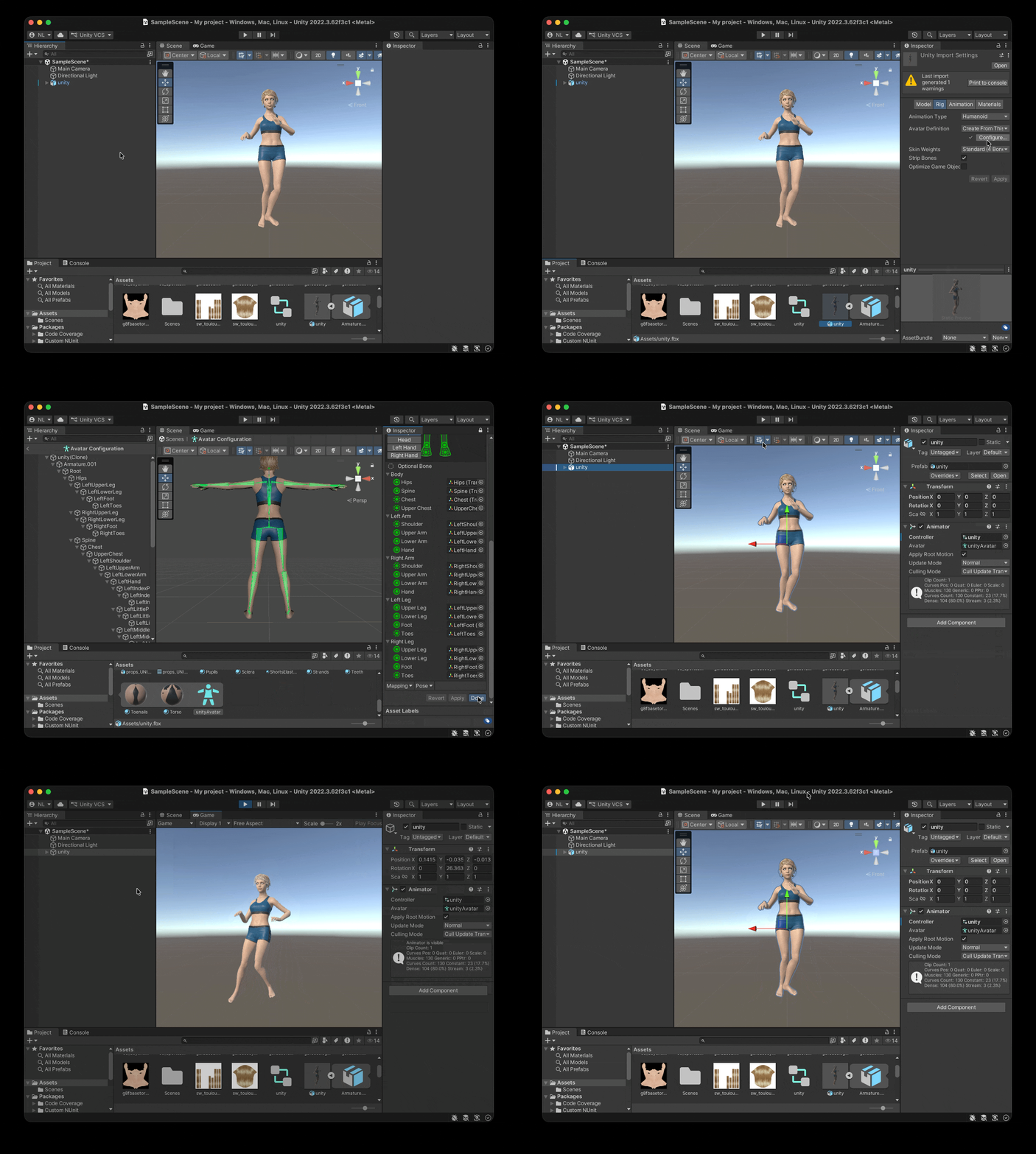
The above picture illustrates the exported animation in Unity.
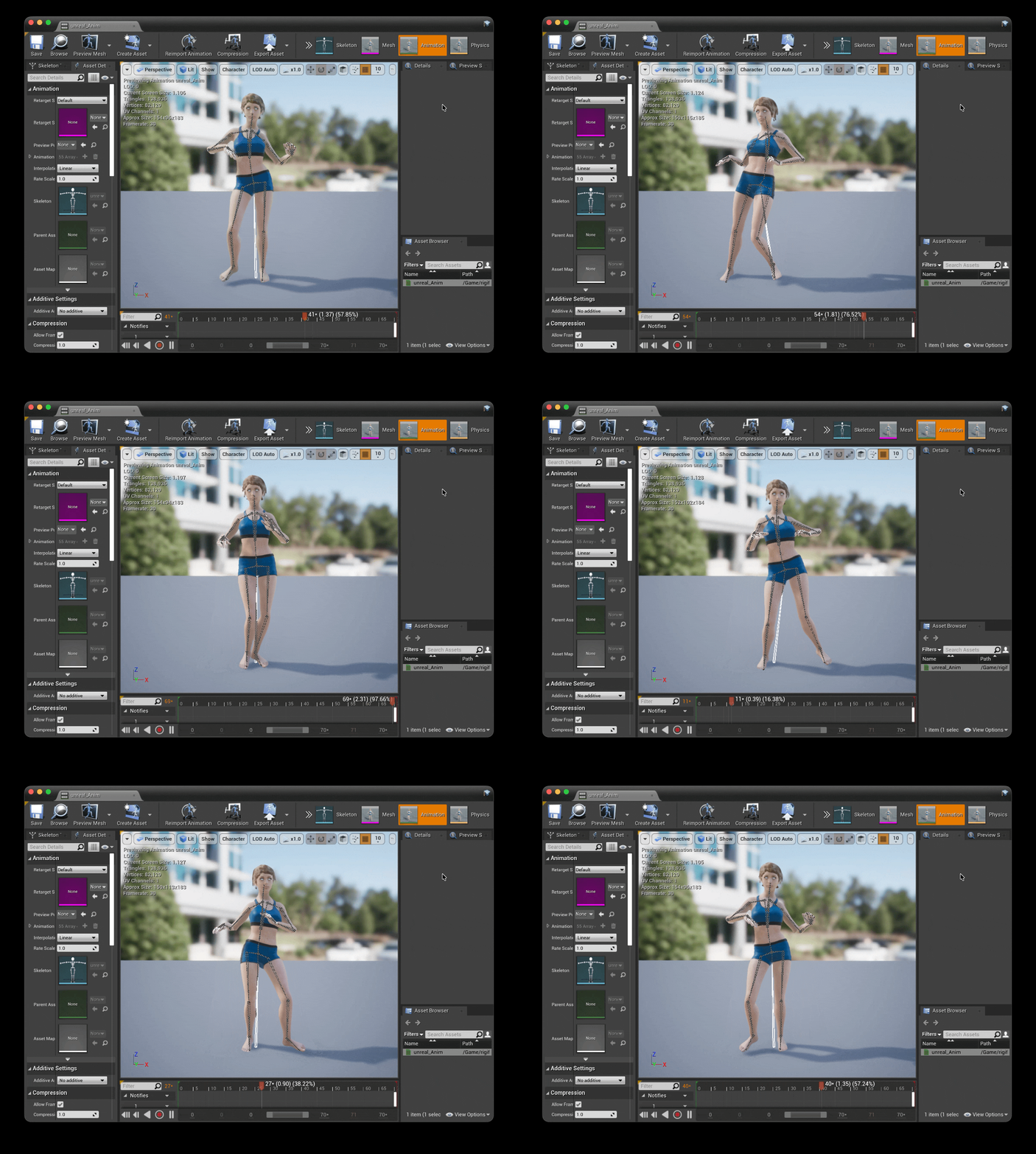
The above picture illustrates the exported animation in Unreal.
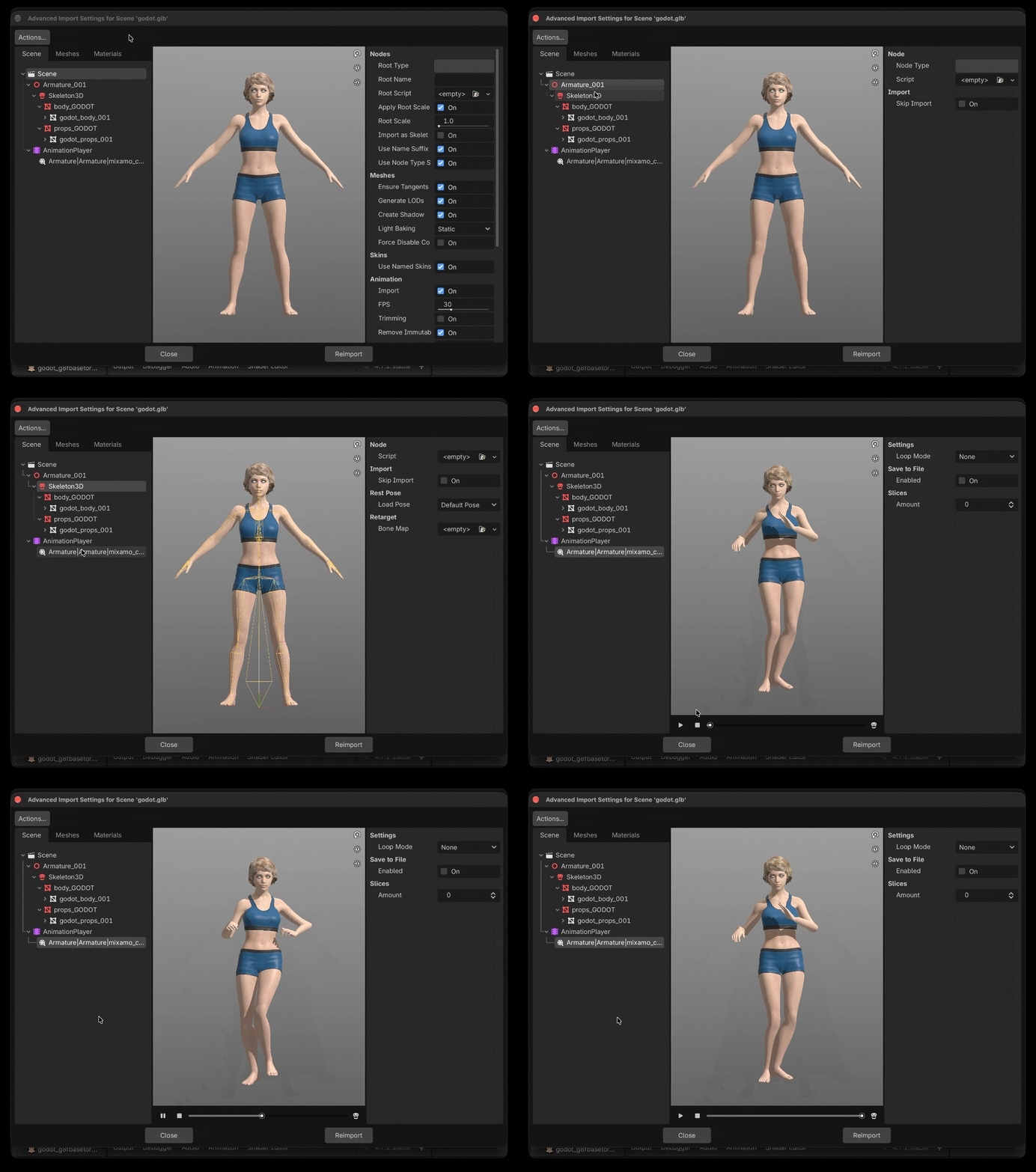
The above picture illustrates the exported animation in Godot.
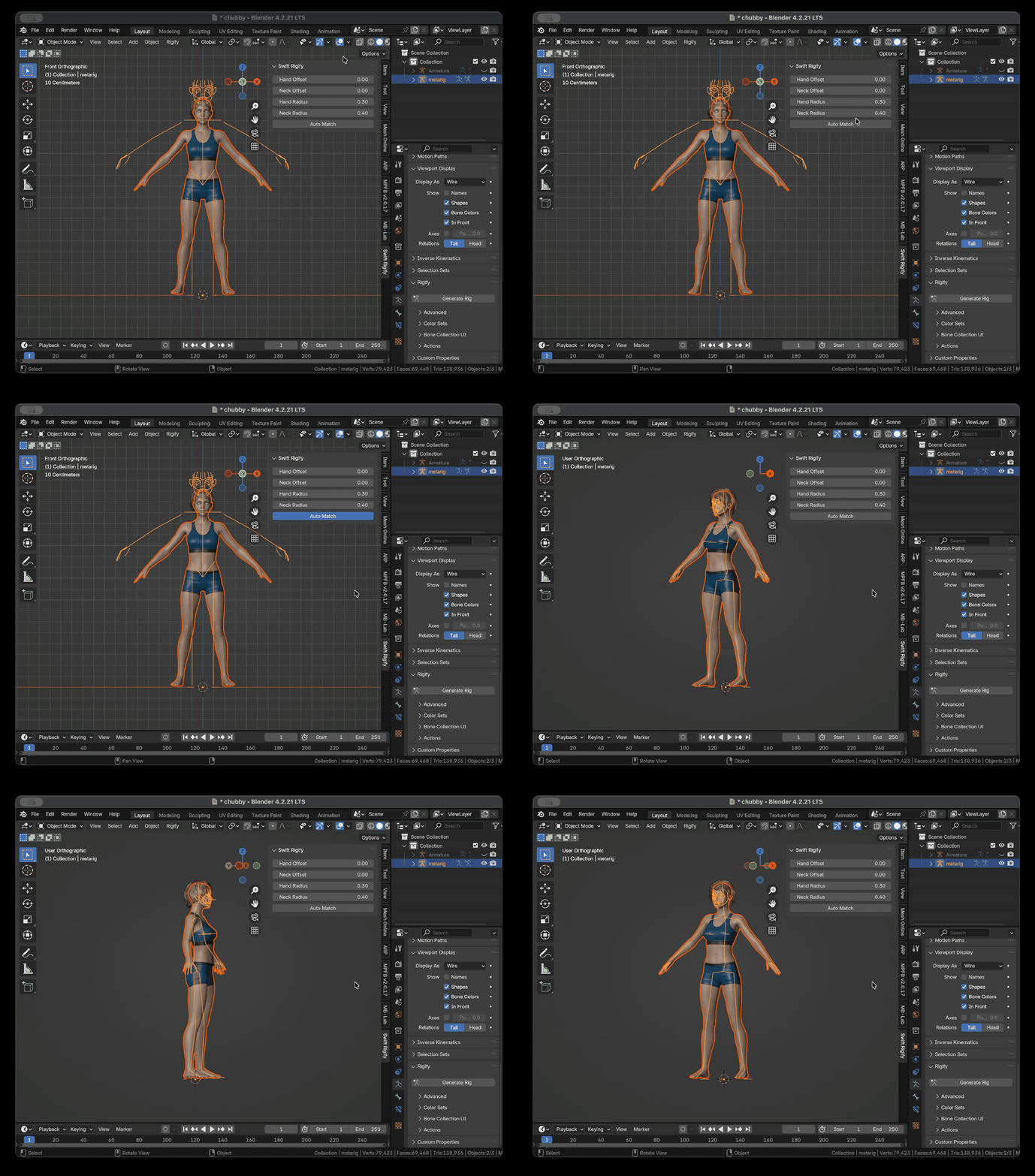
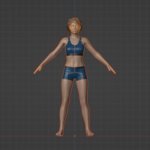
Raw result of automatic A-pose matching for Daz model
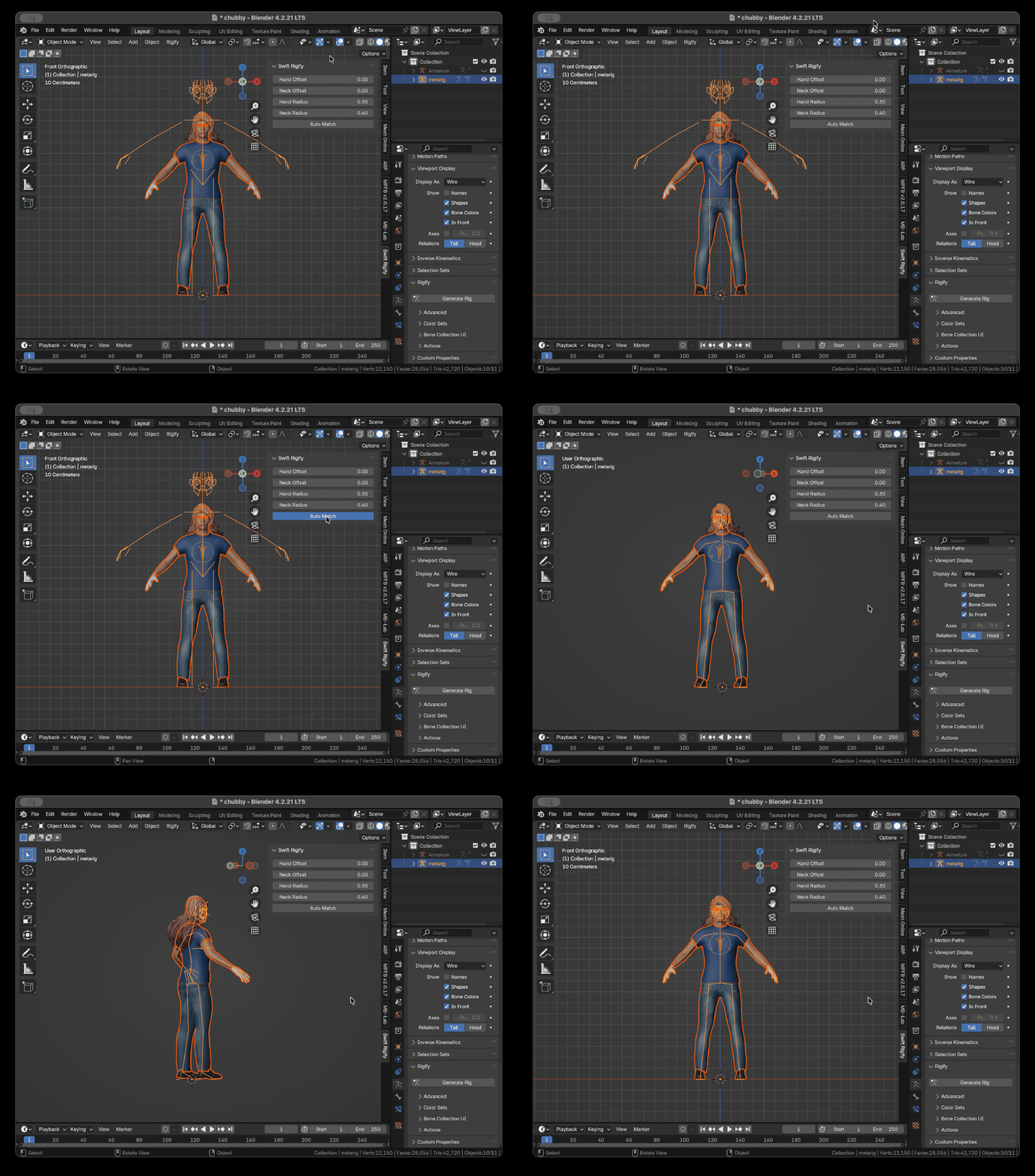
Raw result of automatic A-pose matching for MakeHuman model
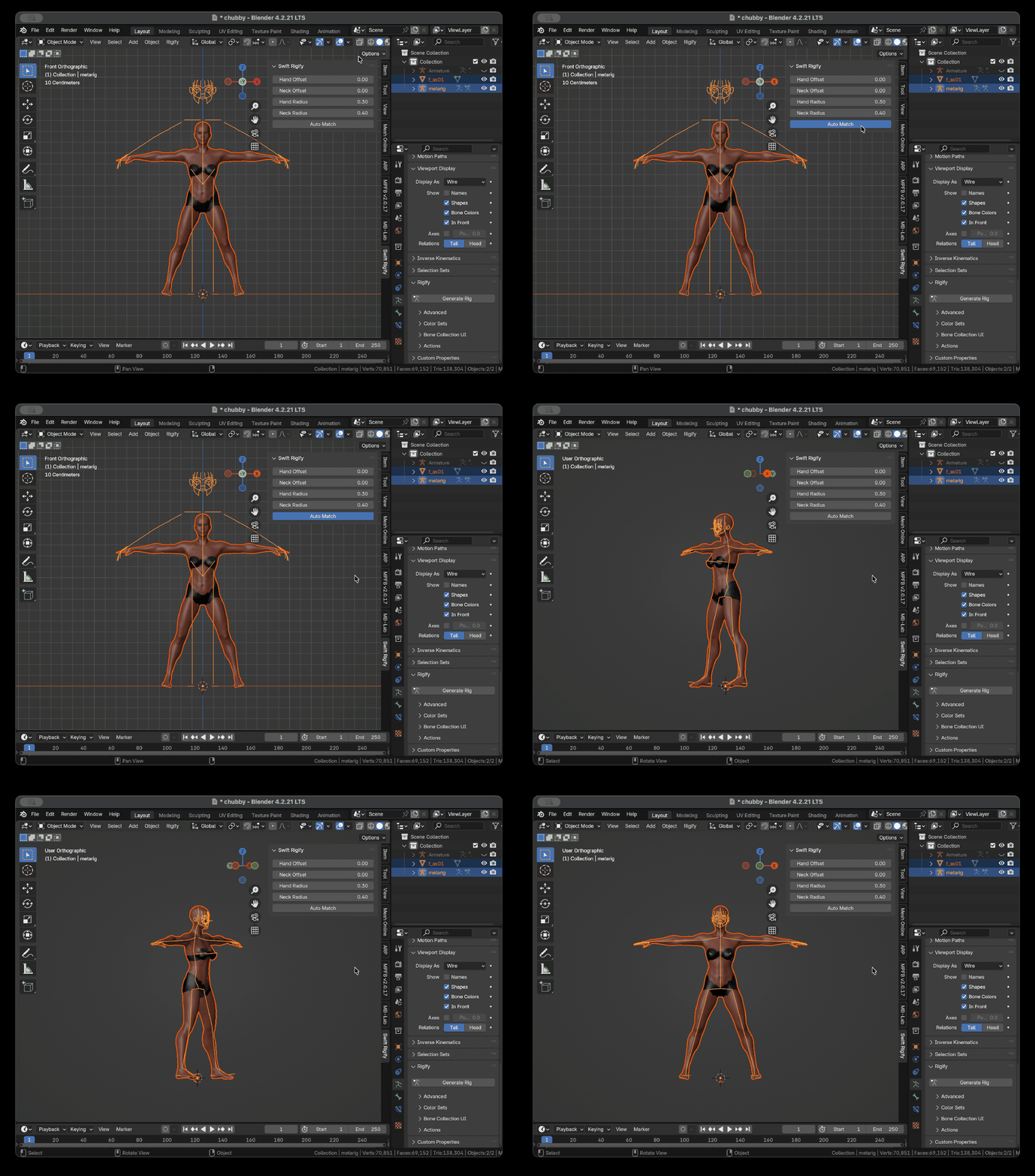
Raw result of automatic Star-pose matching for MB-Lab model
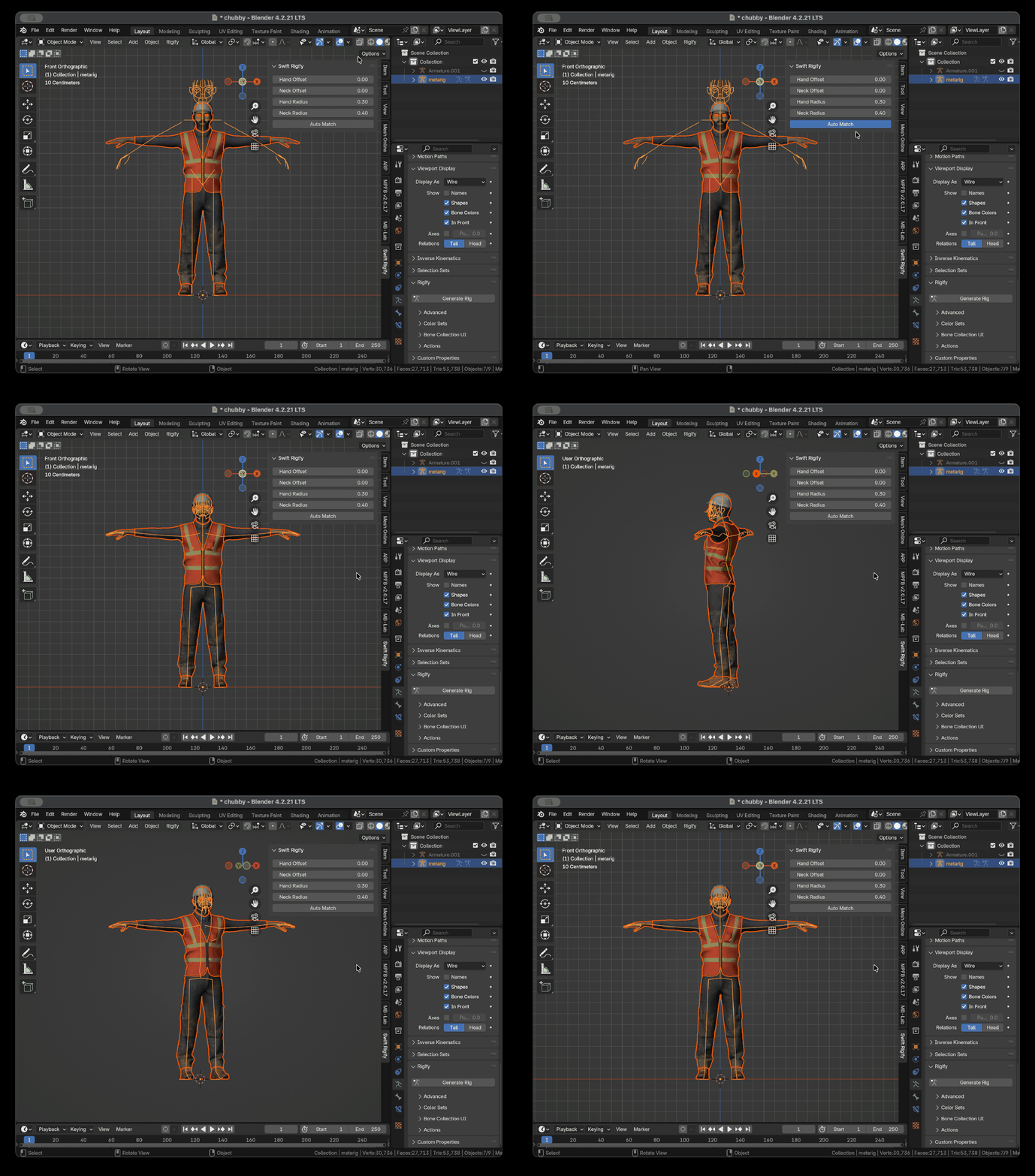
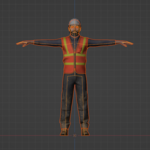
Raw result of automatic T-pose matching for Mixamo model
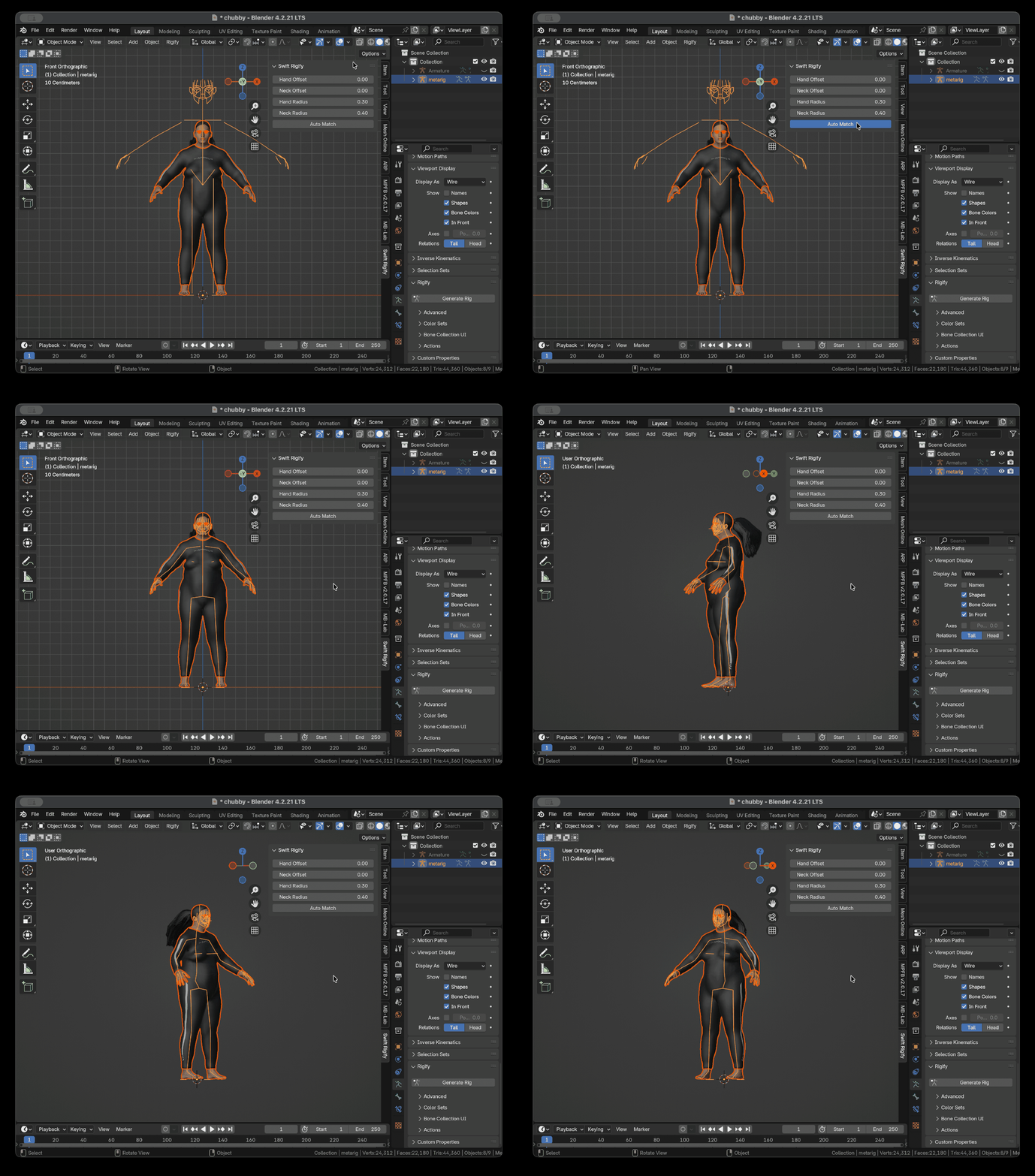
Raw result of automatic A-pose matching for MakeHuman chubby model
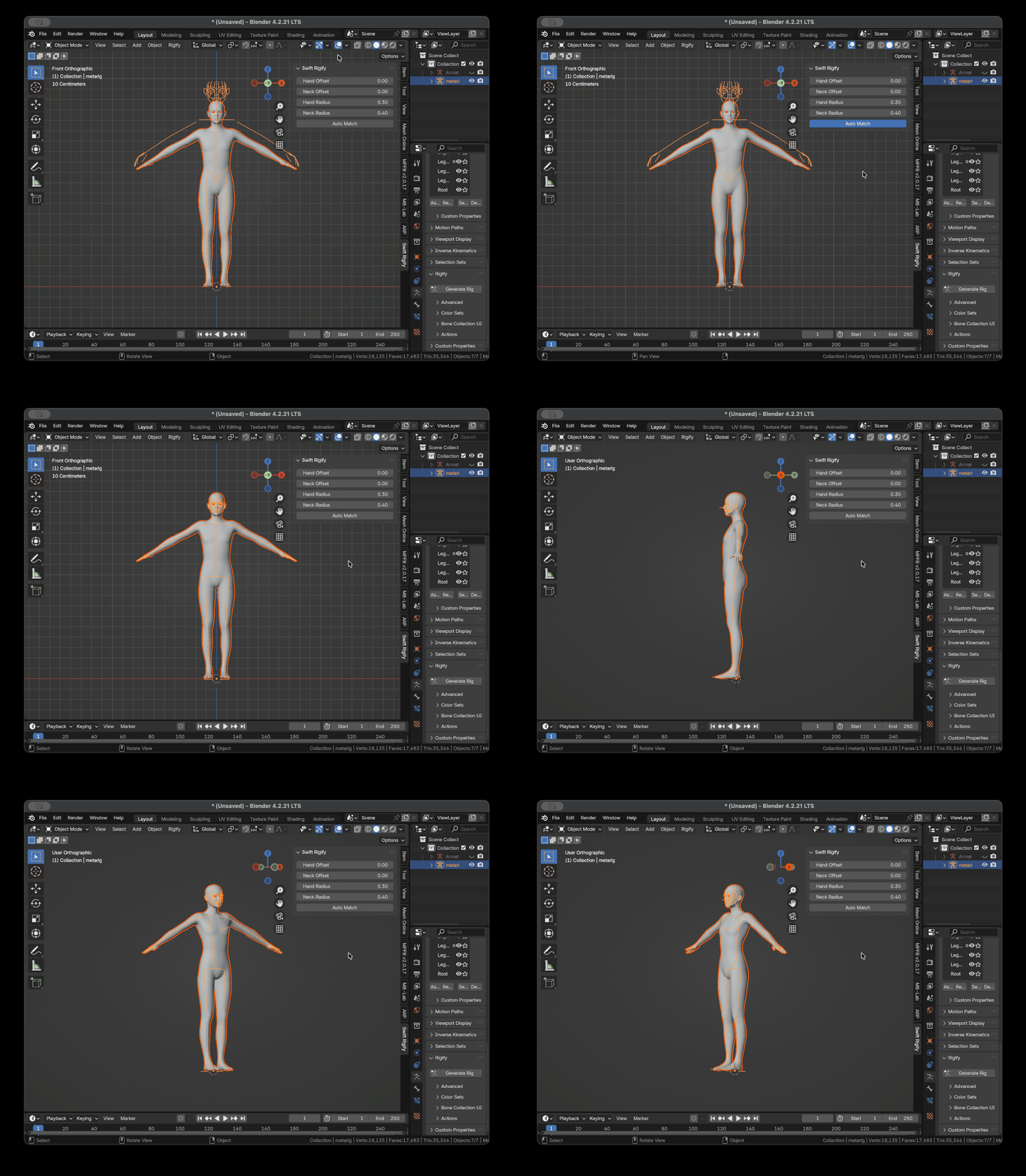
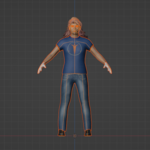
Raw result of automatic A-pose matching for CC Character Bases model
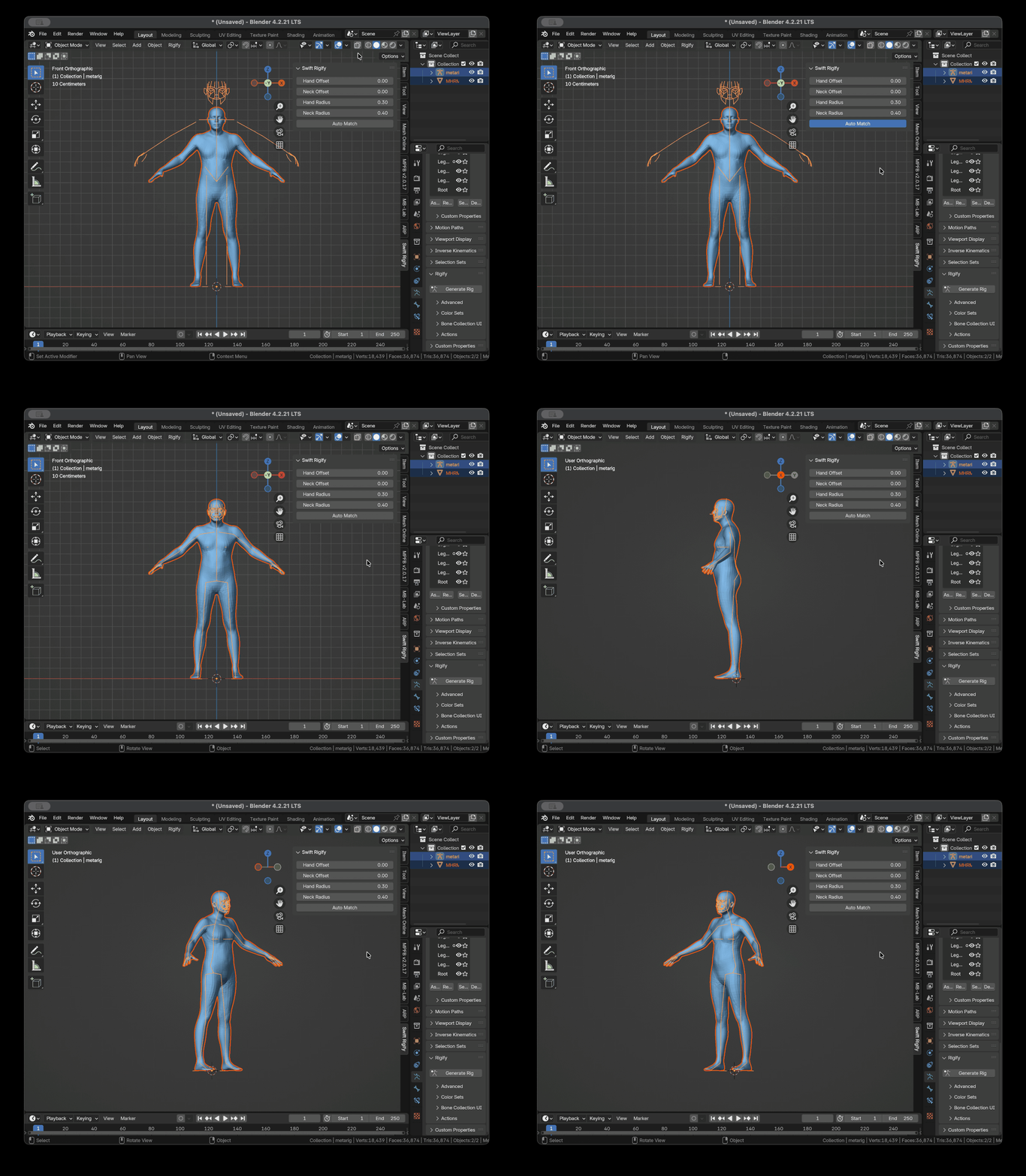
Raw result of automatic A-pose matching for Sloyd model
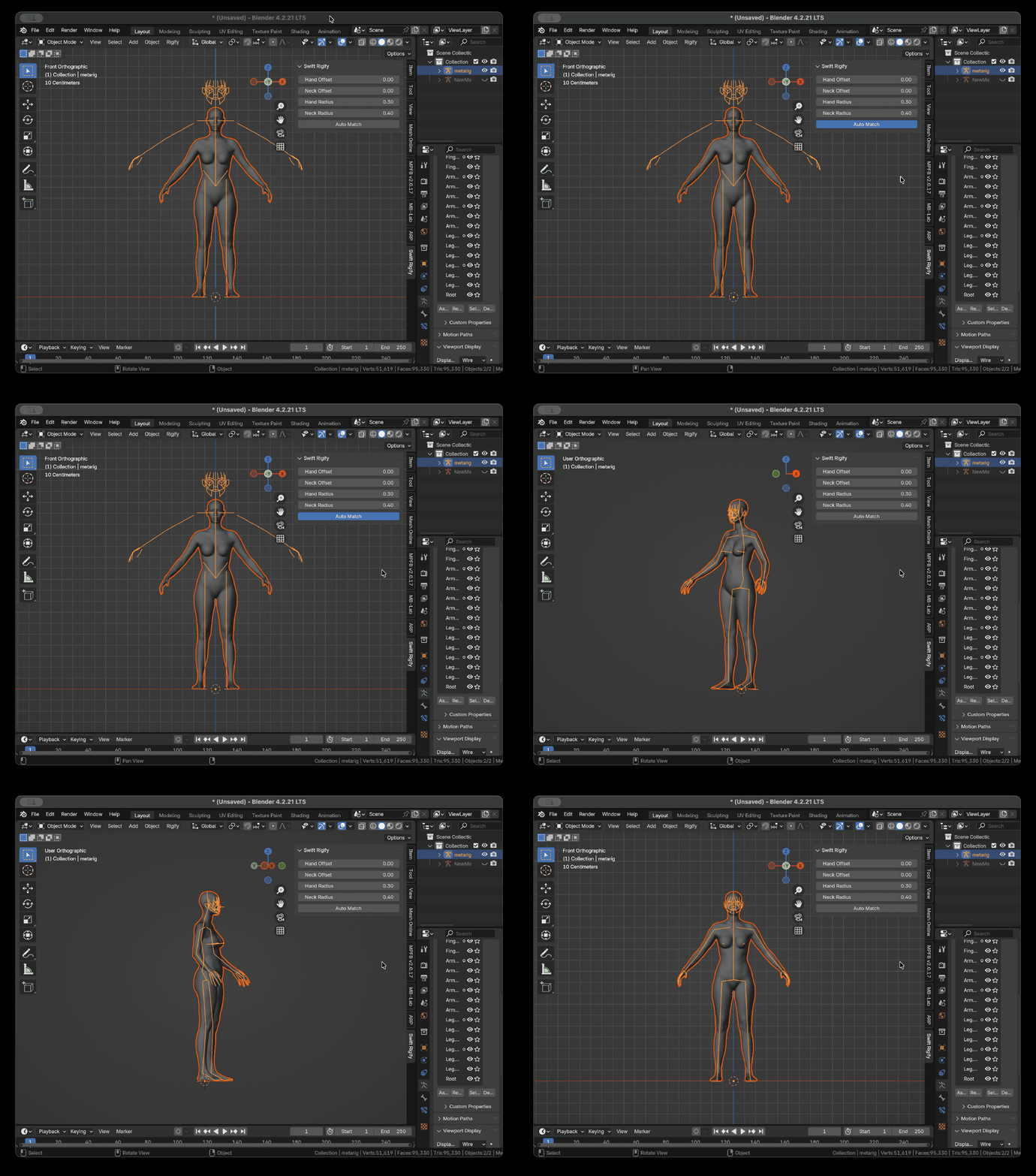
Raw result of automatic A-pose matching for MetaHuman model
License
The add-on is under a dual-license.
The Python code of this add-on is under the GPL license.
The product package also includes a command-line utility.
The command-line utility is written in c++, which links to c++ libraries to generate the binary file.
The add-on uses the command-line utility via a simple system call.
Note: The command-line utility is NOT under GPL license.
Frequently Asked Questions
Q: How to use automatic rig matching?
1. First, you need to import the realistic 3D human model, move the character so that its heels align with the origin of the coordinate system, as shown in the picture below:
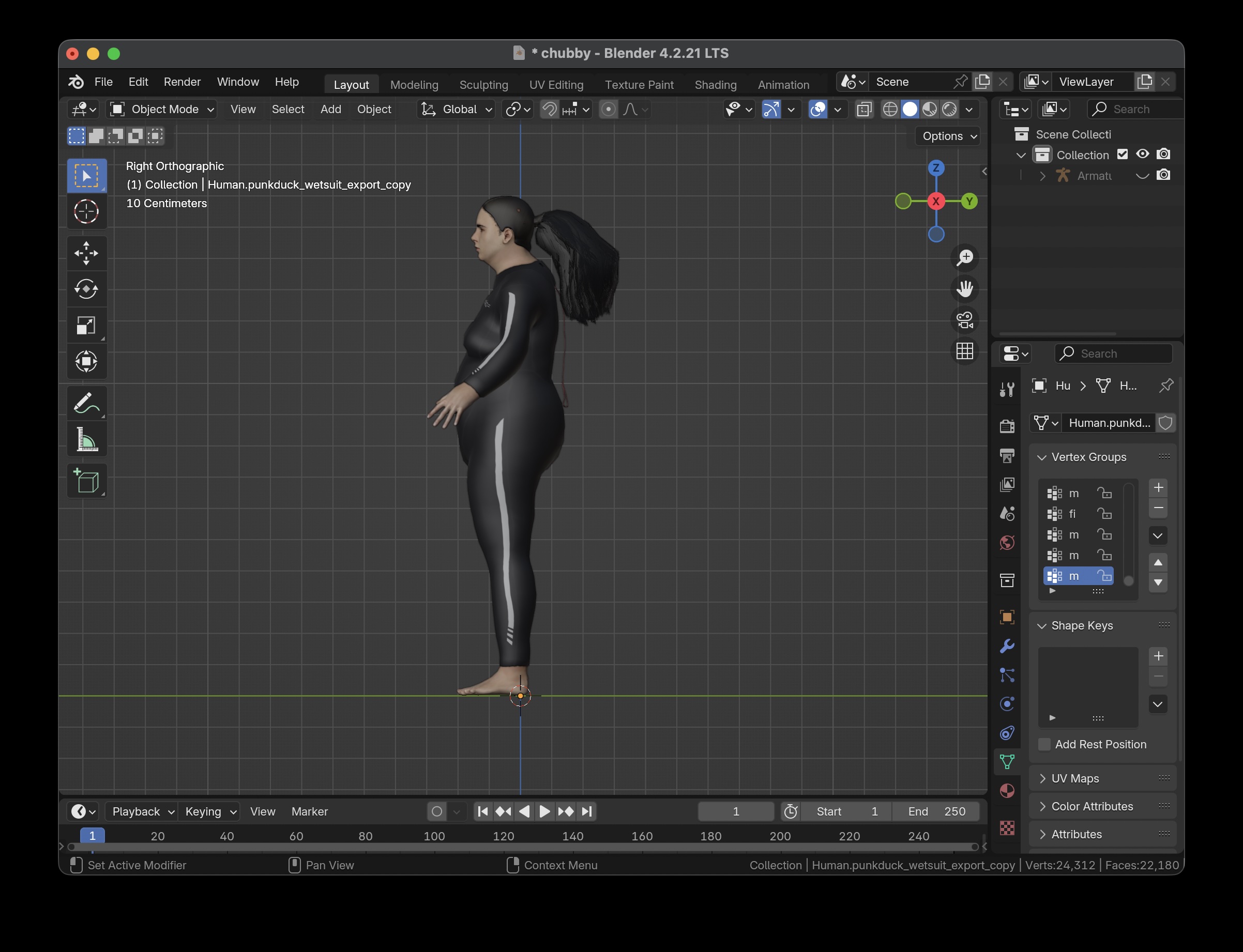
Side view
2. Then apply the transformations (Ctrl A -> Apply -> All Transforms).
3. Add a basic Rigify humanoid meta-rig or a humanoid meta-rig with facial and hand bones.
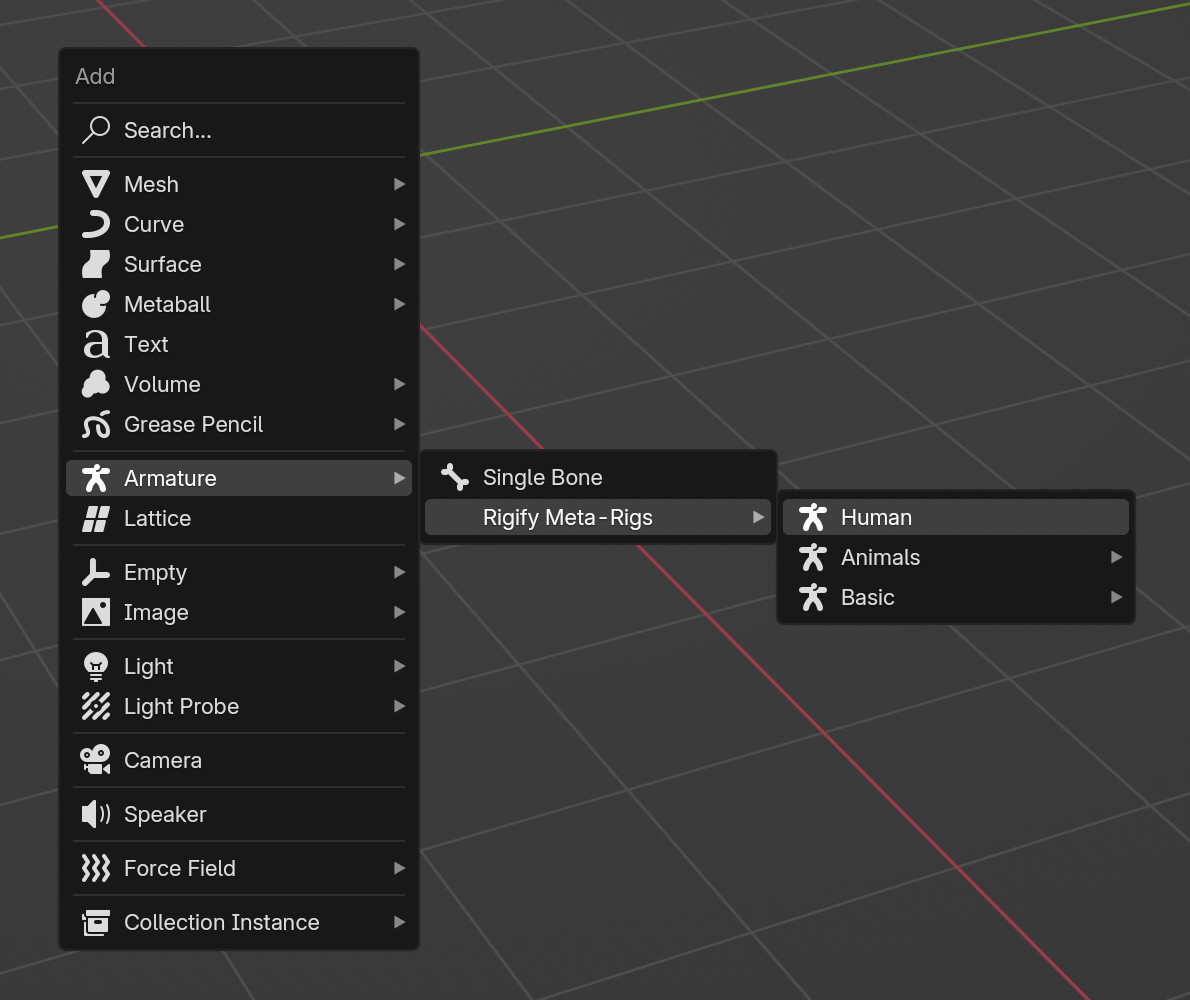
Note: Rigify is a very powerful pre-installed Blender add-on, you just have to enable it in the add-on section, as shown in the picture below:
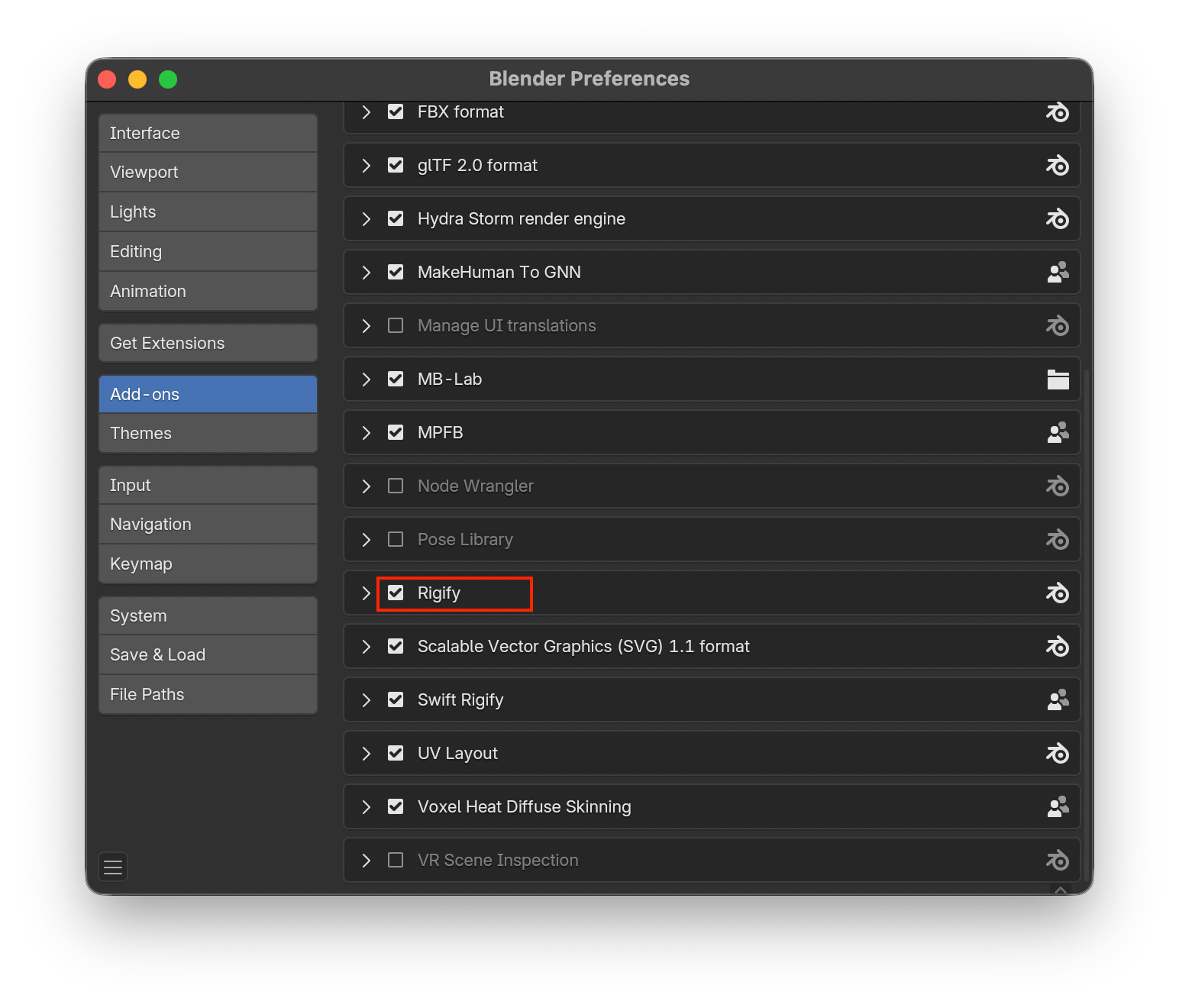
4. Select both the realistic 3D human model and the Rigify meta-rig, switch to the 'Swift Rigify' tab on the right sidebar, and click the 'Auto Match' button, and the meta-rig will instantly auto-match to the realistic 3D human model.
5. Finally, just fine-tune the bone positions.
Q: Does it need to be online to run automatic rig matching?
No internet connection is needed at runtime; all the data is handled locally.
Q: What do the four parameters of automatic rig matching mean?
Hand Offset: The offset from the wrist joint outward along the hand, measured in fractions of the hand’s length. It can be fine-tuned based on the automatic matching result.
Neck Offset:The offset from the neck joint going up along the head, measured in fractions of the head's height, can be fine-tuned based on the automatic matching result.
Hand Radius: The radius to detect the hand from the wrist joint, measured in meters, usually doesn't need adjustment.
Neck Radius: The radius to detect the head from the neck joint, measured in meters, usually doesn't need adjustment.
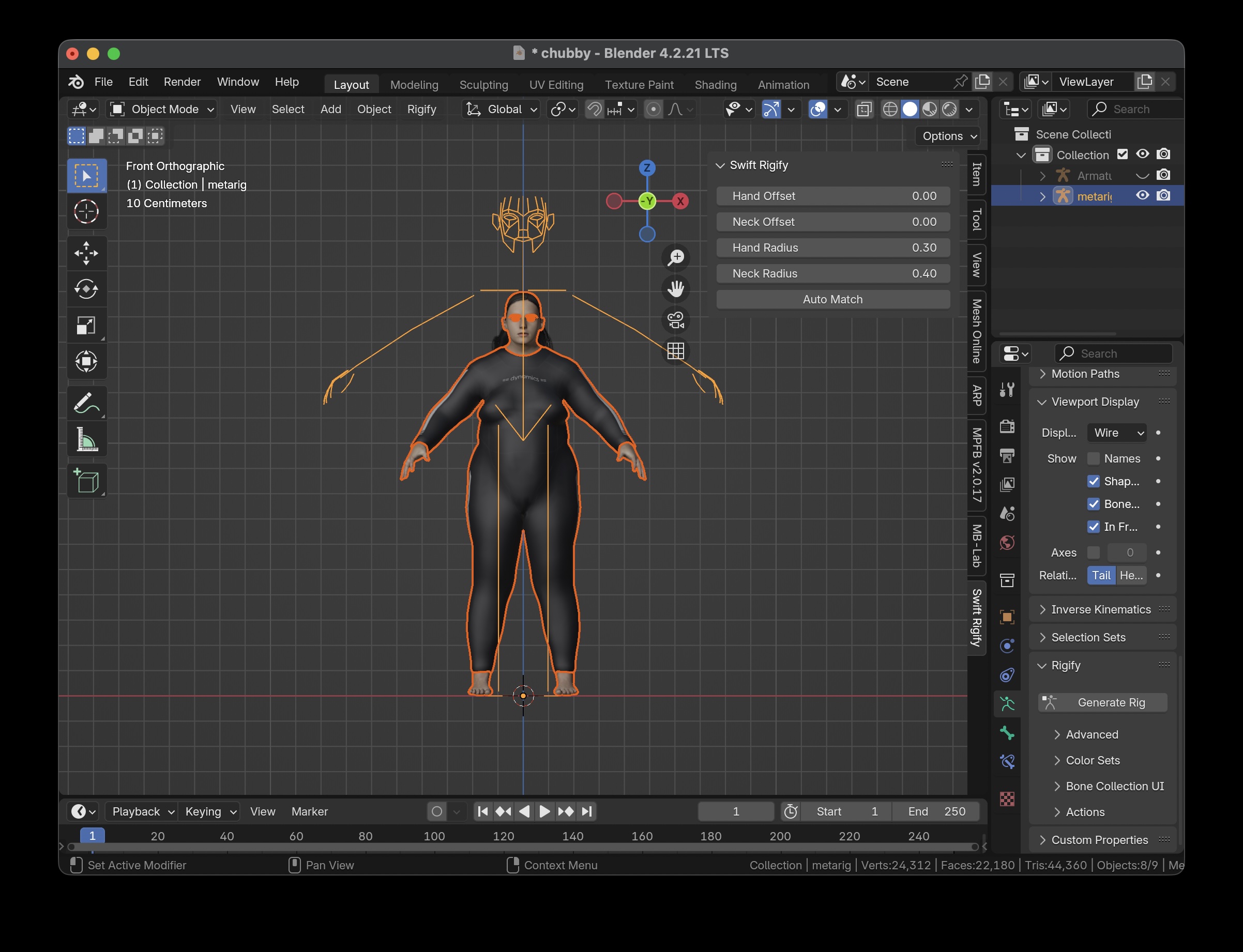
If you find that the automatic matching positions for the hands or head are inaccurate, you can adjust the corresponding offset. After running the automatic matching again, the matching positions for the hands or head can be moved to a more accurate spot.
Q: Is it okay if the model is made of several parts and isn’t watertight?
Yes, absolutely.
Q: How can I improve the accuracy of head matching for people with hair or wearing hats?
Don't select the hair and hat, just select the body part and the Rigify meta-rig, then run auto-match, and you'll get the best result.
Q: Are 3D cartoon models okay?
Nope, because the AI models were only trained on realistic 3D human models.
Q: Why is the result slightly different every time?
This is a normal phenomenon of AI automatic matching. You can choose the best result from multiple automatic matching results.
Change Log
[2026-11-26]
Release version 2.3.0
- Fix 'Scaling' bug for Unreal export.
- Fix 'Button Grey' bug for 'Advanced: Rigify Components'.
- Fix 'Manual Alignment' bug.
- Keep shape key for engine export.
- Optimize animation retargeting speed.
[2026-11-22]
Release version 2.2.0
- More Meta-Rig presets.
- Refine current Meta-Rig preset.
- Delete current Rigify component.
- Manual Alignment module.
[2026-11-21]
Release version 2.1.0
- 'Advanced: Rigify Components' section presents as tabs.
- Fix 'Animation Retargeting' bugs.
- Fix 'Engine Export' bugs.
[2026-11-20]
Release version 2.0.1
- Add 'Advanced: Rigify Components' section in Meta-Rig Builder.
[2026-11-19]
Release version 2.0.0
-
Meta-Rig Builder
-
Auto Fusion Skinning
- Animation Retargeting
- Engine Export
[2026-08-13]
Release version 1.0.0
-
Automatic Rig Matching
