Drag and Drop Into Blender: Announcing Remote Extension Support
-
 Written by Jonathan Williamson
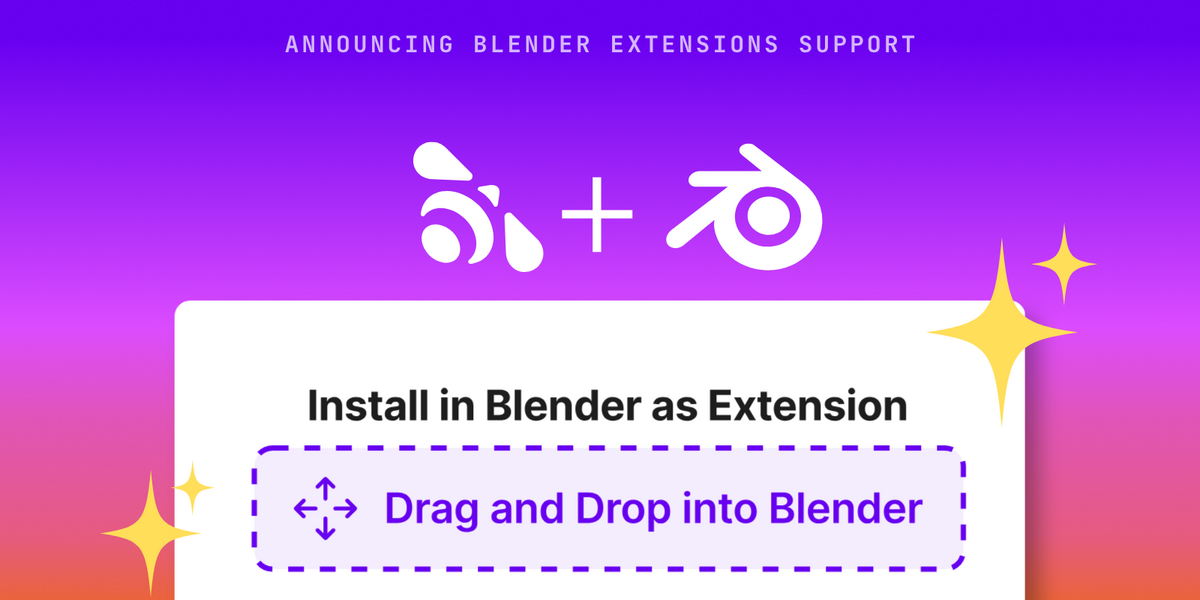
Starting today you can now download and install any extension-compatible add-on or theme that you've purchased on Superhive directly in Blender!
Installing new add-ons after purchasing is now as simple as drag & dropping from your orders page or by navigating to the Extensions section of your Blender presences and clicking Install. This also means that updating add-ons with new releases from your favorite creators is as simple as clicking Update, no manual downloading required.
The first time you drag an extension into Blender you'll need to enter your API Token in order to add Superhive as a remote extension repository. From then on you'll be able to drag and drop new purchases directly into Blender or simply navigate to Preferences > Get Extensions in Blender to see your available extension purchases.
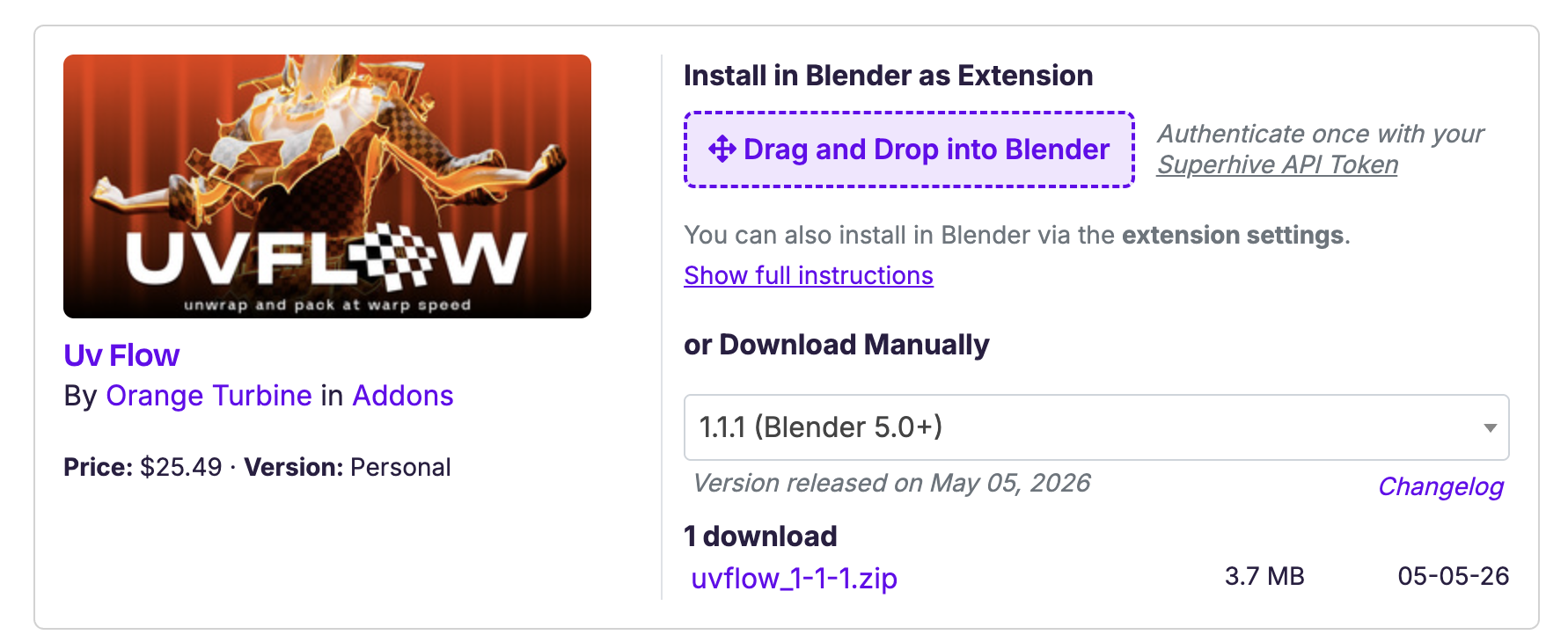
Any Add-on or Theme product that is listed as Blender Extension Compatible will be available to install remotely within Blender. Those products (including versions of products) that are not yet extension compatible will not show the purple drag & drop element on the orders page. If your favorite add-on/theme is not yet compatible we encourage you to reach out to the Creator; we've put together a guide on making products extension compatible here: https://support.superhivemarket.com/article/303-extensions-support
In addition to installing extensions you'll now also receive updates directly in Blender any time a creator publishes a new version of the extension on Superhive 🎉