 Blender Procedural


100 Ultimate Terrains Bundle Addon
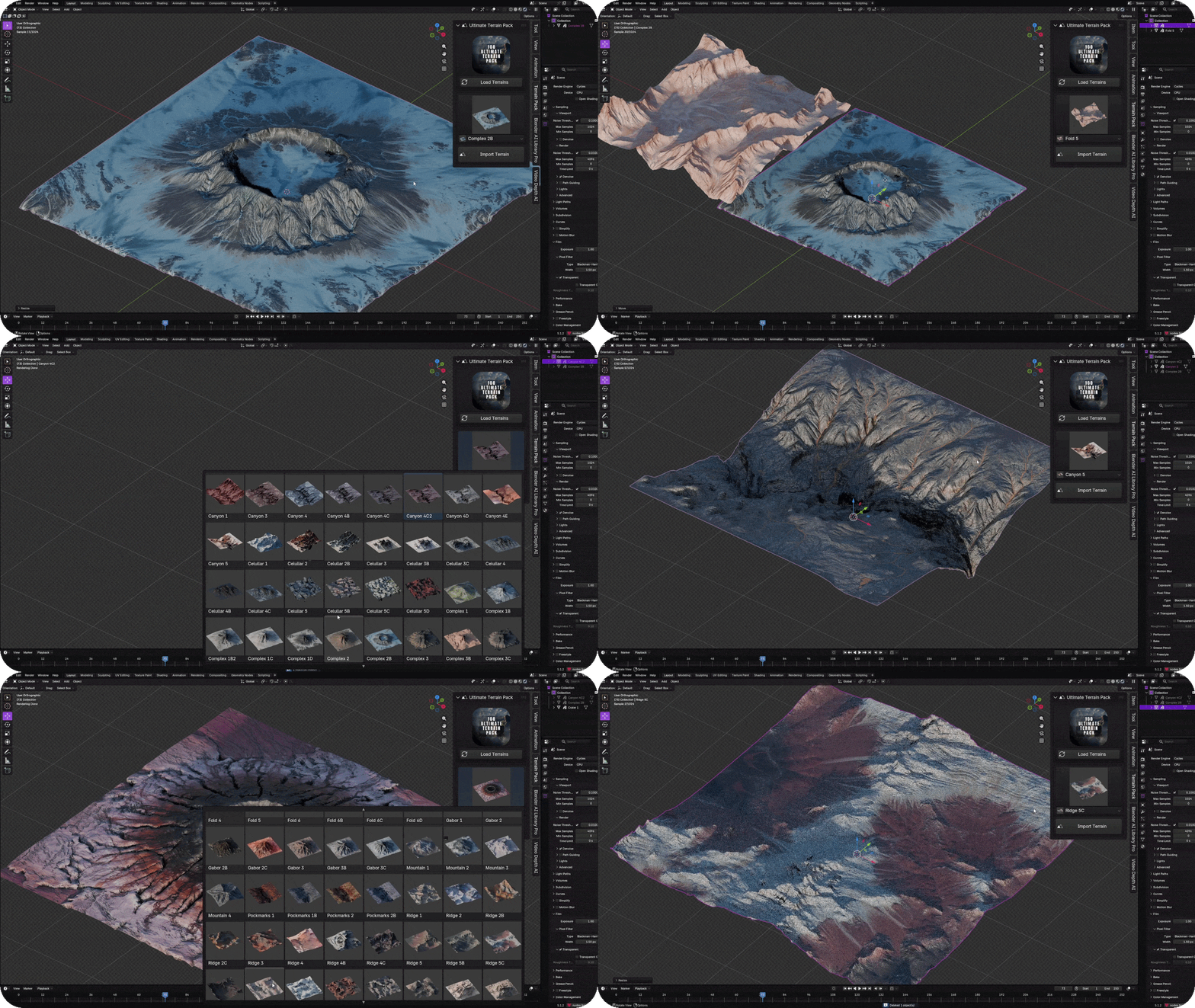
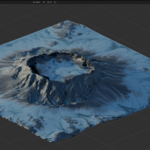
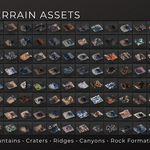
100 Ultimate Terrains Bundle Addon is a ready-to-use terrain asset addon for Blender.It includes a large collection of high-quality terrain models with automatic material and texture setup.Browse the terrain library, choose the terrain you want, and import it into your scene with just a few clicks.
Main Features
- 100 ready-to-use terrain assets
- One-click terrain importing
- Automatic base color and normal map setup
- Built-in terrain browser panel
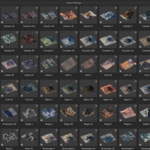
- Preview image support for terrain selection
- Great for landscapes, canyons, mountains, valleys, deserts, rocky areas, and cinematic environments
- Fast workflow for environment artists, game developers, and Blender creators
Easy Terrain Browser
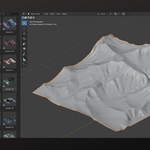
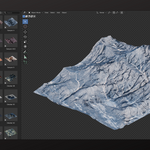
The addon includes a simple and clean panel inside Blender. Click Load Terrains to refresh the terrain library,select a terrain from the dropdown menu, then click Import Terrain to add it into your scene.
Automatic Material Setup
When a terrain is imported, the addon automatically creates the material and connects the correct texture maps.You do not need to manually search for base color maps, normal maps, or rebuild shader nodes.
Perfect For
- Environment design
- Game level backgrounds
- Cinematic landscapes
- Concept art scenes
- Nature renders
- Mountain and canyon scenes
- Quick terrain prototyping
Documentation
Installation
- Open Blender.
- Go to Edit > Preferences > Add-ons.
- Click Install.
- Select the addon ZIP file.
- Enable the addon by checking the checkbox.
- Open the 3D View sidebar by pressing N.
- Go to the Terrain Pack tab.
How to Use
- Open the Terrain Pack panel from the right sidebar.
- Click Load Terrains.
- Select a terrain from the dropdown list.
- Check the preview image.
- Click Import Terrain.
- The selected terrain will be imported into your scene automatically.
Load Terrains Button
The Load Terrains button refreshes the terrain library and loads all available terrains into the addon list.Use this button after installing the addon, opening a new Blender file, or if the terrain list is empty.
Import Terrain Button
The Import Terrain button imports the selected terrain into your active Blender scene.The addon will automatically add the terrain mesh and apply the correct material setup.
File Structure
Please keep the addon files, terrain files, texture folders, and preview images in their original structure.Moving or renaming folders may cause missing textures or an empty terrain list.
FAQ
Q: The terrain list is empty. What should I do?
A: Click Load Terrains. If the list is still empty, make sure the terrain files are in the correct folder.
Q: The terrain imports but textures are missing.
A: Make sure you did not move or rename the texture folders. Keep the original folder structure.
Q: Can I import multiple terrains?
A: Yes. Select another terrain from the list and click Import Terrain again.
Q: Can I edit the terrain after importing?
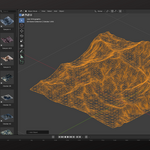
A: Yes. After importing, the terrain becomes a normal Blender object. You can move, scale, rotate, edit materials, or add modifiers.
Q: Do I need to manually set up materials?
A: No. The addon automatically creates and assigns the terrain material.