 Medicraft


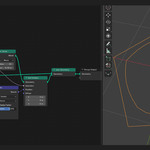
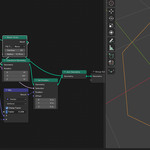
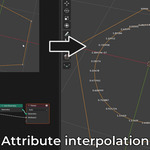
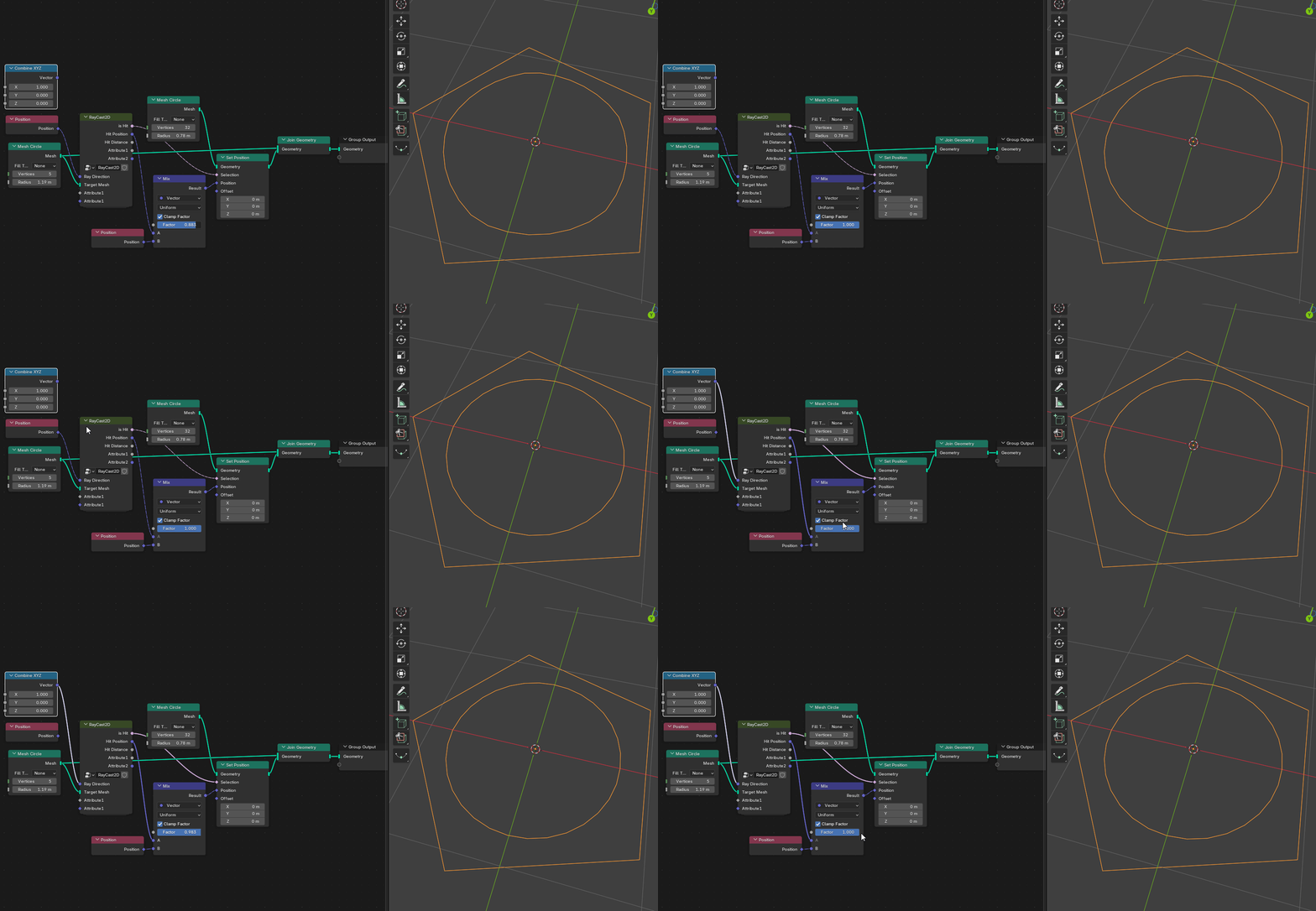
A Geometry Nodes utility that brings raycasting capabilities specifically to 2D planar geometry. While Blender's native Raycast node is designed to evaluate hits against 3D faces, this setup calculates ray intersections against 1D edges on a 2D plane.
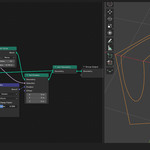
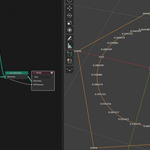
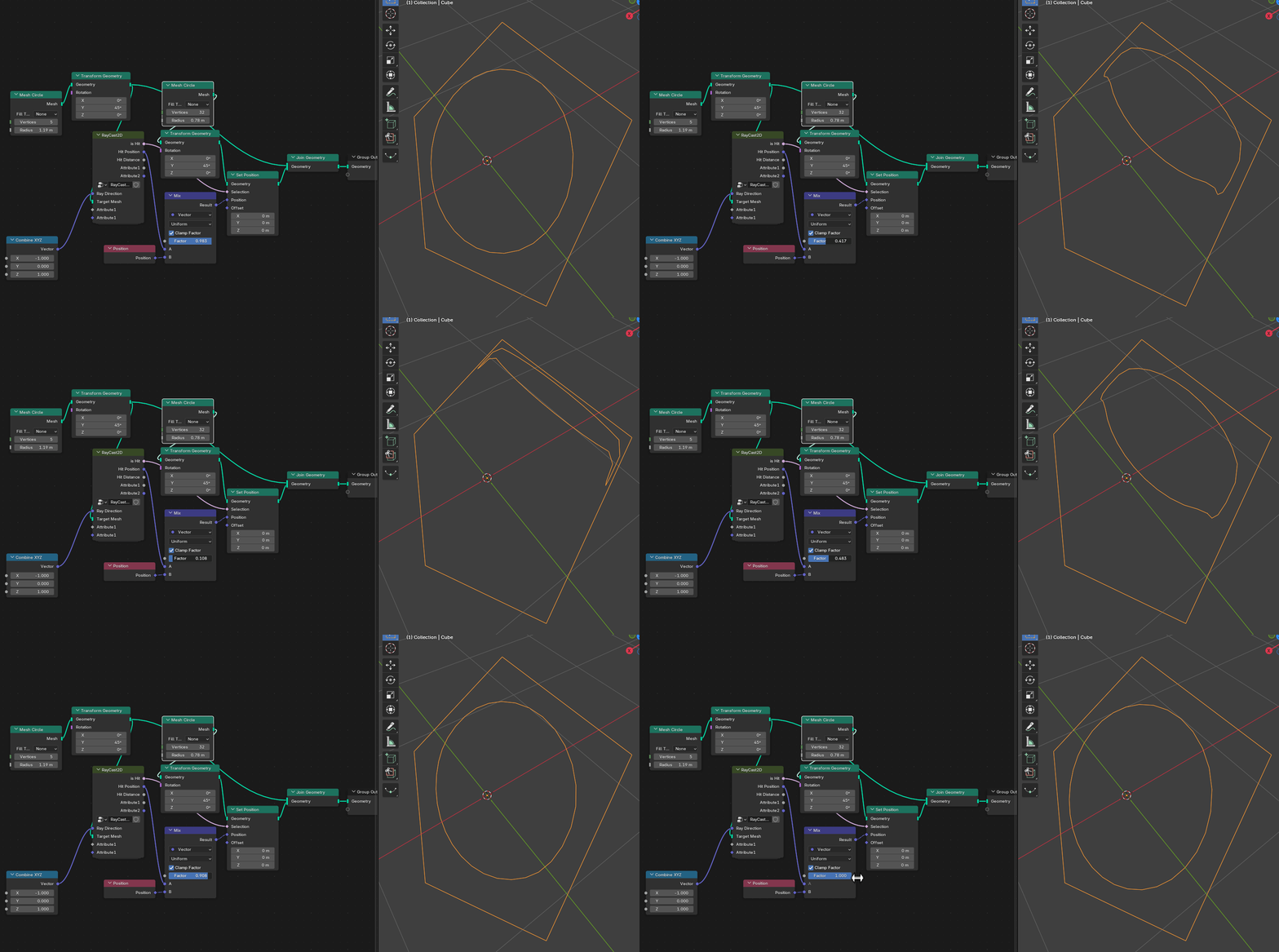
The node is completely plane-agnostic; the geometry does not need to be oriented to the standard XY (Z-up) axis. As long as the ray caster and the target geometry (and the ray direction of course!) exist on the same arbitrary plane in 3D space, the node will work:
Key Features
Planar Independence: Cast rays against 2D wireframes or boundaries on any arbitrary axis or custom plane.
Edge-Based Intersection: Evaluates hits directly against edges rather than requiring filled faces, making it ideal for 2D logic, boundary detection, and custom curve operations.
Attribute Interpolation: Passes through and perfectly interpolates optional float and vector data between the two vertices of the hit edge, allowing for complex data transfer across 2D boundaries.
Parameter Reference
Inputs
Ray Direction: A vector defining the trajectory of the cast ray.
- Ray length: the length of the cast ray. Default is 100 m.
Target Mesh: The planar geometry (edges) that the ray will be evaluated against.
Attribute 1 (Float): An optional float attribute from the target mesh to be sampled and interpolated at the hit location.
Attribute 2 (Vector): An optional vector attribute from the target mesh to be sampled and interpolated at the hit location.
Outputs
Is Hit (Boolean): Returns true if the ray successfully hits an edge on the target mesh.
Hit Position (Vector): The exact coordinate in 3D space where the intersection occurred.
Hit Distance (Float): The distance from the ray origin to the hit position.
Attribute 1 (Float): The interpolated float value evaluated at the exact point of intersection along the hit edge.
Attribute 2 (Vector): The interpolated vector value evaluated at the exact point of intersection along the hit edge.
Usage Instructions
Append the downloaded node group into your Blender project.
Inside your Geometry Nodes tree, drop in the RayCast 2D node.
Connect your boundary or obstacle geometry into the
Target Meshinput. Ensure that the target geometry and the geometry casting the rays share the same plane.Provide a vector for the
Ray Direction.(Optional) Plug in any custom float or vector attributes you wish to sample from the target edge into the
Attribute 1andAttribute 2inputs, and read the interpolated results from the corresponding output sockets.
