3000+ Blender Sculpting Brushes. Asset Browser.
 VK Gamedev
in Wood
VK Gamedev
in Wood


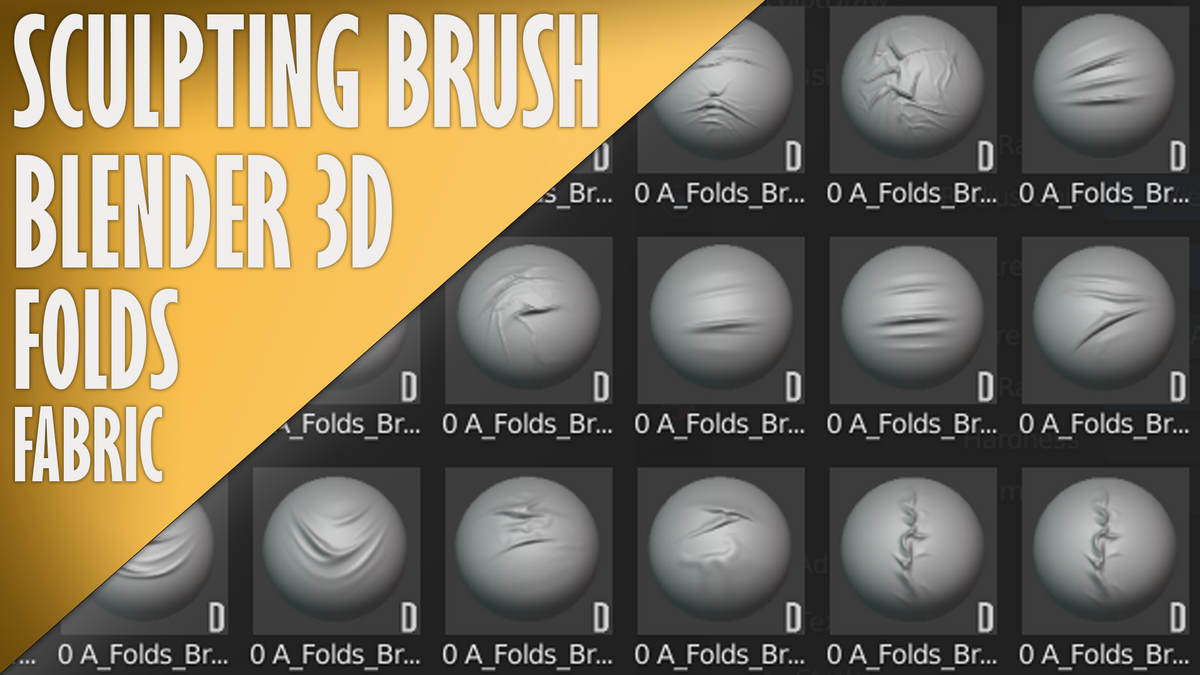
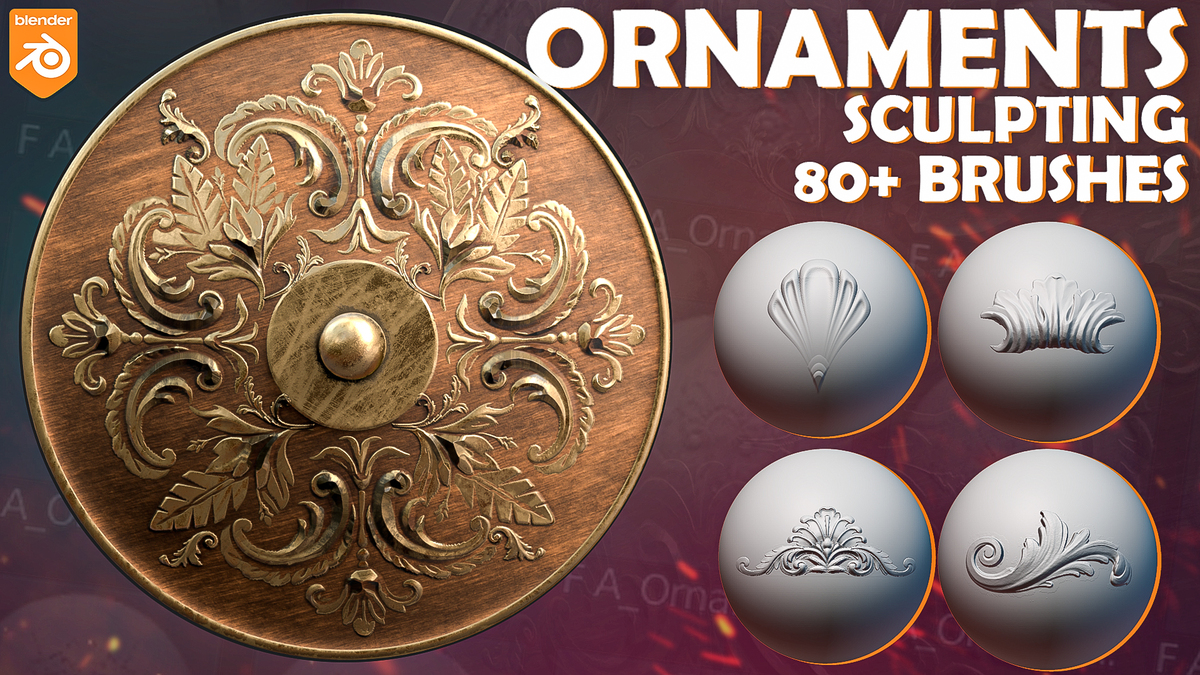
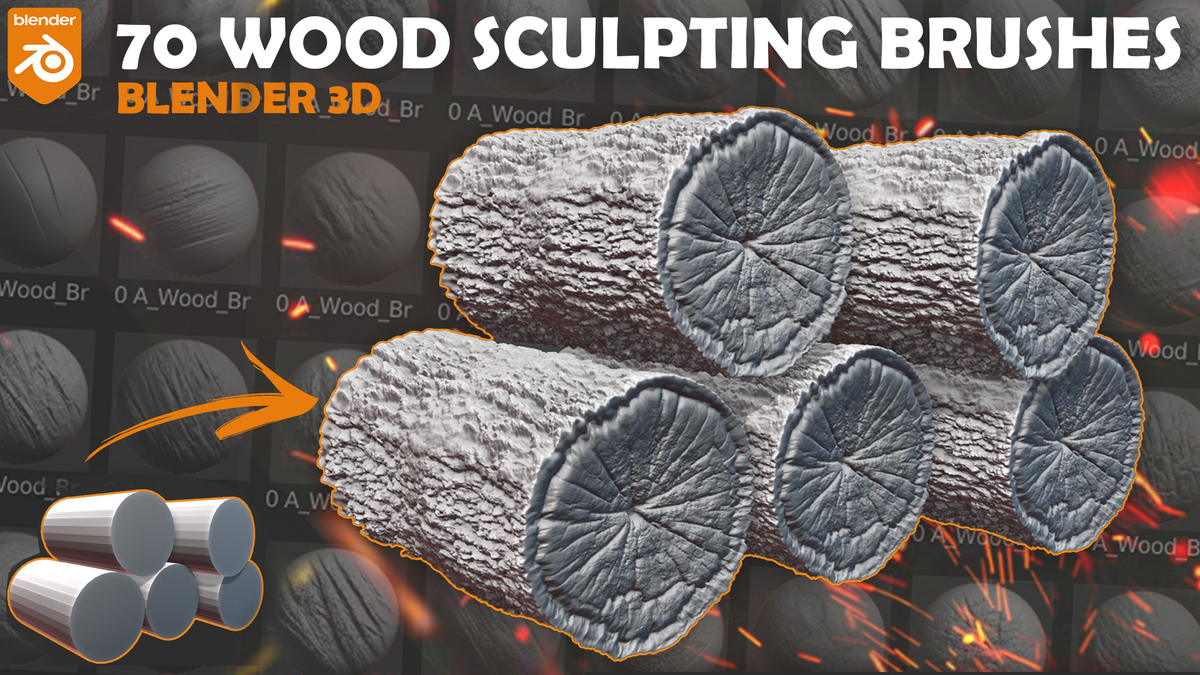
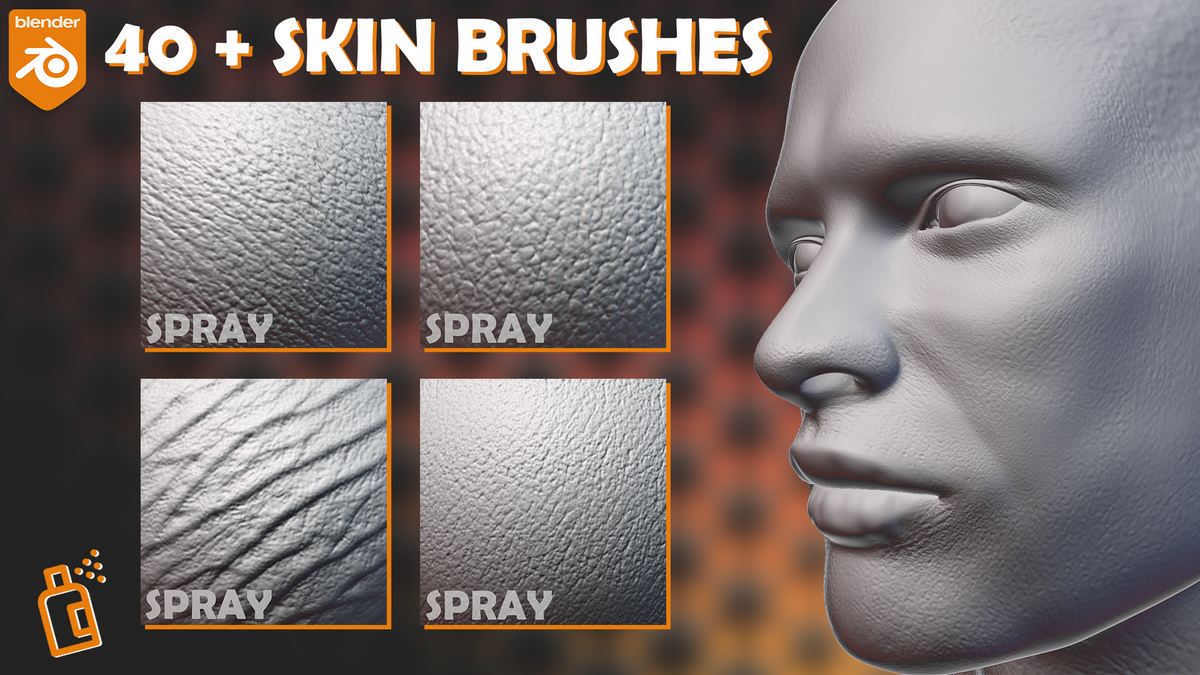
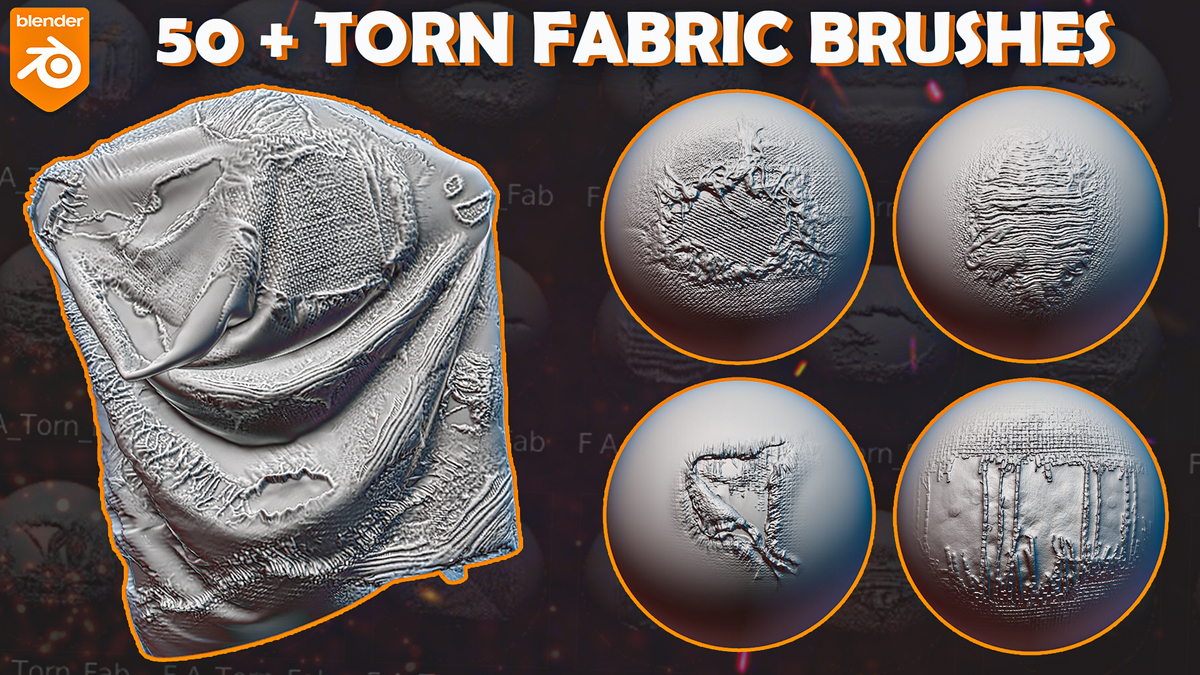
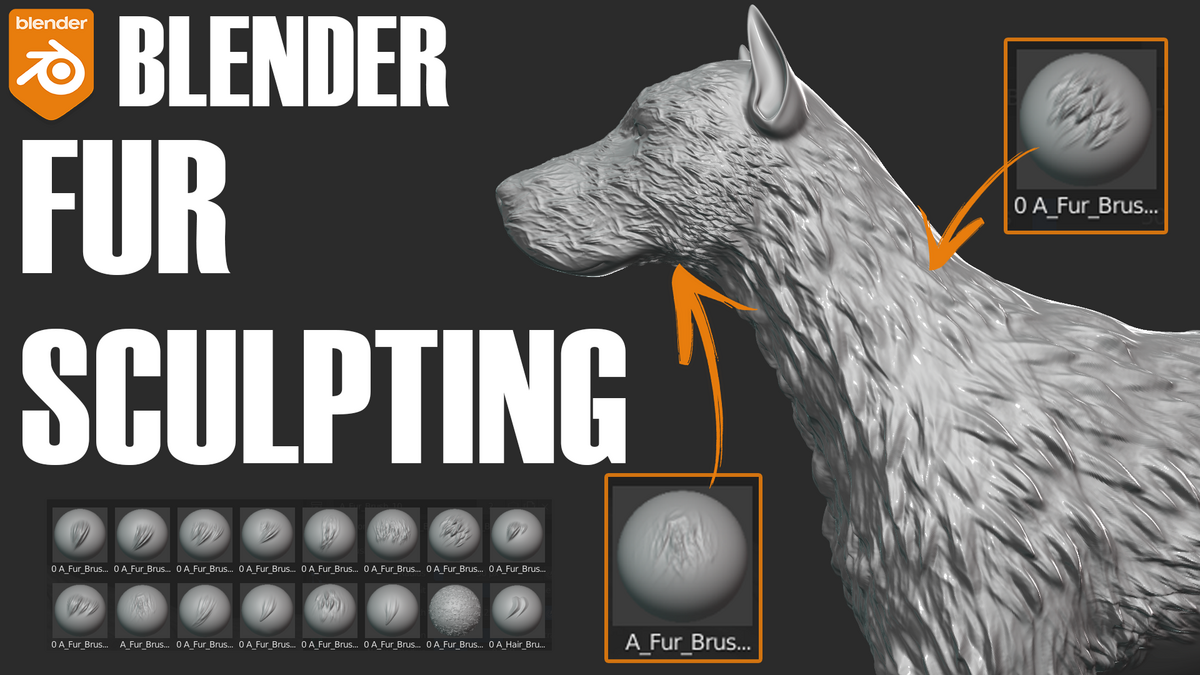
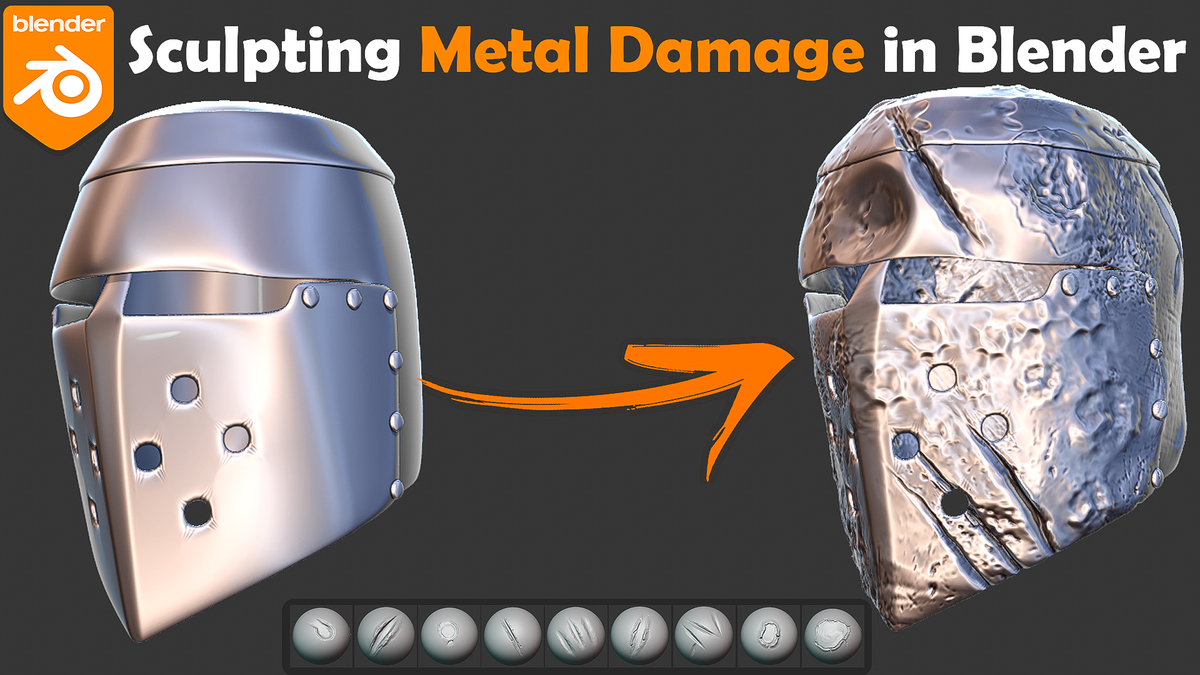
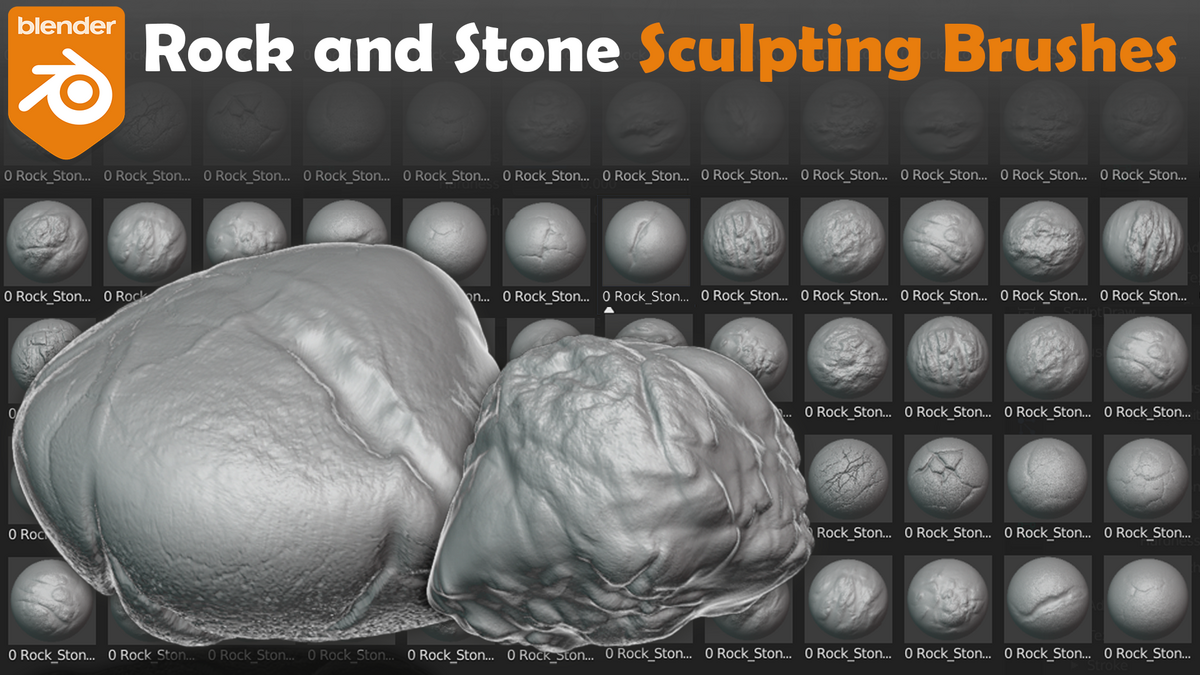
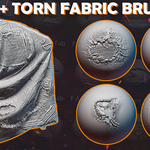
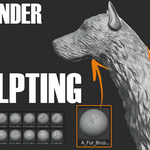
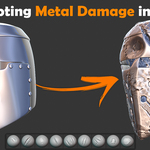
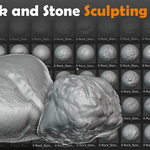
How to install?
First unpack the downloaded archive.

Open Blender and append the brushes. Find the path where the archive was unpacked. In this folder, find the blender file. Next, open the Brush folder and select all brushes with the prefix A_. Enjoy sculpting!)

Frequently Asked Questions
What is included in the 3000+ Sculpting Brushes Bundle?
The bundle includes more than 3,000 Blender sculpting brushes from VK Gamedev brush packs, including the original 600+ brush collection and subsequently added product packs.
What types of brushes are included?
The collection covers a wide range of sculpting categories, including:
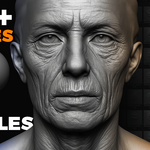
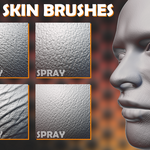
Human skin, pores and wrinkles
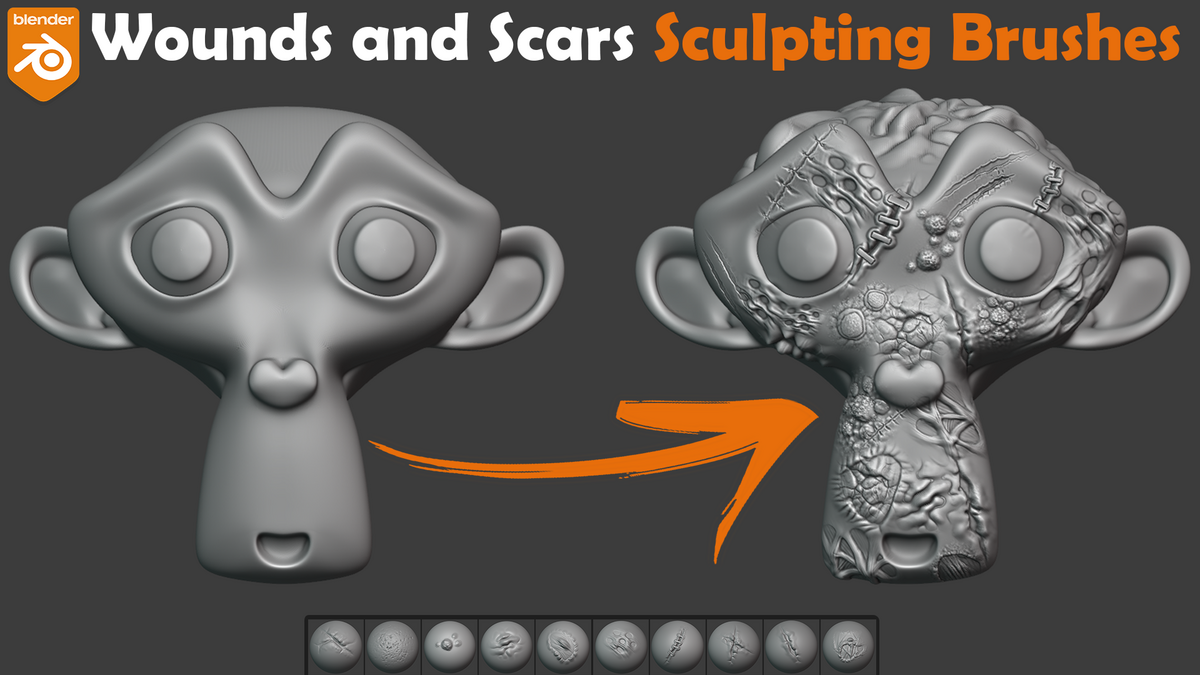
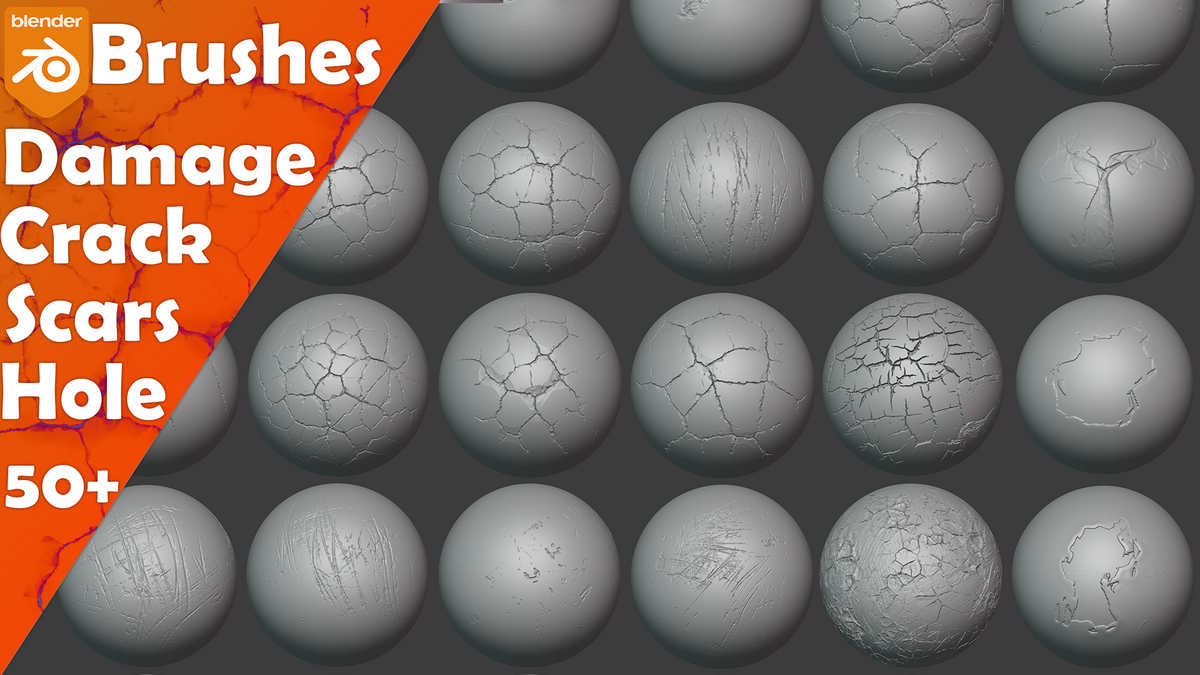
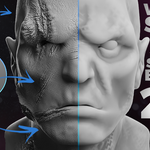
Wounds, scars and damage
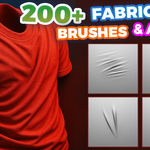
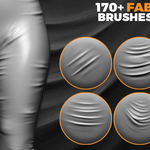
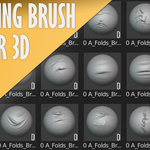
Cloth, fabric, folds and stitches
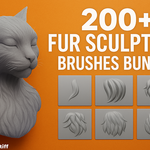
Fur and hair
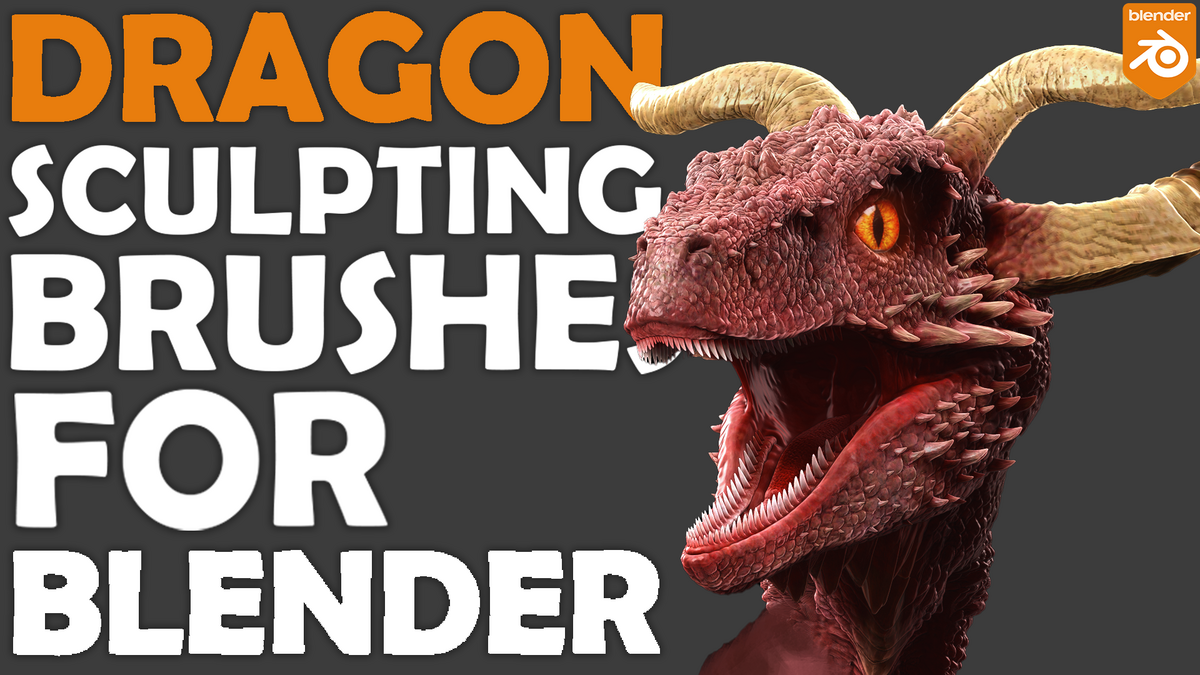
Dragon and reptile skin
Creature and animal surfaces
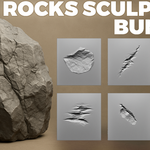
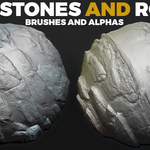
Rocks, stones and terrain
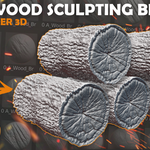
Wood and damaged wood
Metal and hard-surface damage
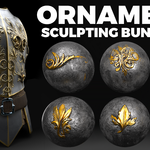
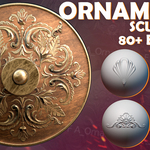
Ornaments, buttons and rivets
VDM brushes and raised details
What is the difference between the 600+ and 3000+ options?
The 600+ Sculpting Brushes Bundle contains the original collection of more than 600 brushes.
The 3000+ Sculpting Brushes Bundle contains the expanded library with more than 3,000 brushes, including the original 600+ collection and the additional brush packs listed on the product page.
Make sure you select the correct product option before purchasing.
Is this an add-on?
No. This is a collection of configured sculpting brush libraries and assets for Blender. It does not require a separate add-on to use the brushes.
Does the bundle work with ZBrush?
This product is primarily a Blender brush collection. It does not automatically include all ZBrush versions or every separate alpha product unless they are explicitly listed in the selected package.
Which Blender versions are supported?
The product supports Blender versions from 2.8 through 5.0, depending on the included brush pack. Blender 4.3 or newer is recommended for the best Asset Browser workflow.
How do I install the brushes in Blender 4.3 or newer?
Download and extract every archive.
Keep each brush pack in its own permanent folder.
Open Blender.
Go to Edit → Preferences → File Paths.
Find the Asset Libraries section.
Add the folder containing the brush library.
Save your preferences and restart Blender.
Open Sculpt Mode or the Asset Browser to access the brushes.
Why should each archive be extracted into a separate folder?
Different brush packs may contain their own library structure, textures, previews and supporting files. Keeping each pack in a separate folder prevents missing textures, incorrect paths and Asset Browser conflicts.
What should I do if the brushes do not appear?
Check the following:
Make sure the downloaded ZIP or RAR archive has been fully extracted.
Do not add the archive file itself as an Asset Library.
Add the folder containing the actual
.blendbrush library.Keep all included textures and supporting files in their original folders.
Save Blender preferences after adding the library.
Restart Blender.
Confirm that you downloaded the latest product version.
Check that the included pack supports your Blender version.
Do I need a high-poly model?
Yes. Detailed skin, scales, wrinkles, fabric, damage and surface patterns require a dense or sufficiently subdivided mesh. Low-resolution geometry cannot reproduce fine sculpting details correctly.
Are VDM brushes included?
Yes. The collection includes VDM brushes for raised three-dimensional details, including selected dragon, creature and human facial forms.
Are alpha maps included?
Some included brush packs contain texture or alpha resources used by their configured Blender brushes. Separate alpha-only products are included only when they are specifically listed as part of the selected package.
Can I organize the brushes into separate Asset Libraries?
Yes. This is recommended. You can create separate Asset Libraries for skin, fabric, rocks, creatures, damage and other categories to make the collection easier to navigate.
Will installing 3000+ brushes slow down Blender?
The brushes do not all need to be loaded into a scene at once. Organizing the packs into separate Asset Libraries allows Blender to access them when needed and keeps the workflow manageable.
Can I change brush strength, size and texture direction?
Yes. The brushes work like standard Blender sculpting brushes. You can adjust radius, strength, spacing, direction, stroke method and other settings depending on the brush type.
Can the brushes be used for stylized sculpting?
Yes. The collection can be used for realistic, stylized, fantasy, horror and science-fiction projects. Adjust brush strength and scale to match the style of your model.
Can I use the brushes for game assets and 3D printing?
Yes. The brushes are suitable for game characters, environments, cinematic assets, concept sculpts, miniatures and 3D-printing projects. Make sure the final geometry is prepared correctly for the intended production workflow.
I already purchased an older VK Gamedev brush bundle. Can I upgrade?
Yes. Eligible previous customers can upgrade to the full 3000+ Sculpting Brushes Bundle by paying only the difference instead of purchasing the complete collection again.
Are product updates included?
Updates added to the product can be downloaded from your Superhive account. Always download the latest version when moving to a newer Blender release or when an installation issue has been fixed.
Can I use the brushes commercially?
Commercial use depends on the license you select. Redistribution, resale, repackaging or sharing of the original brush files, textures and source resources is not permitted.
Is installation support available?
Yes. If the brushes do not appear or you have questions about installing the Asset Libraries, send me a message through Superhive.
-
$0
10 Blender Brushes + 2 VDM Brushes. Updated for Blender 4.3.
-
$39.99
1 User - Commercial Use: unlimited projects. It includes packs of all the brushes (over 3,000) from my store, including the old pack of 600 brushes.
-
$19.99
1 User - Commercial Use: unlimited projects. It includes packages of 600 sculpting brushes from my store.
-
$149.99
Up to 5 users - For use on an unlimited number of commercial projects.
-
$249.99
Up to 100 users - For use on an unlimited number of commercial projects.
Have questions about this product?
Login to message
| Sales | 3100+ |
| Downloads | 25700+ |
| Rating | 32 ratings |
| Published | about 4 years ago |
| Blender Version | 2.8 - 5.2 |
| License | Royalty Free |
