ActionPro
 DudeStudioz
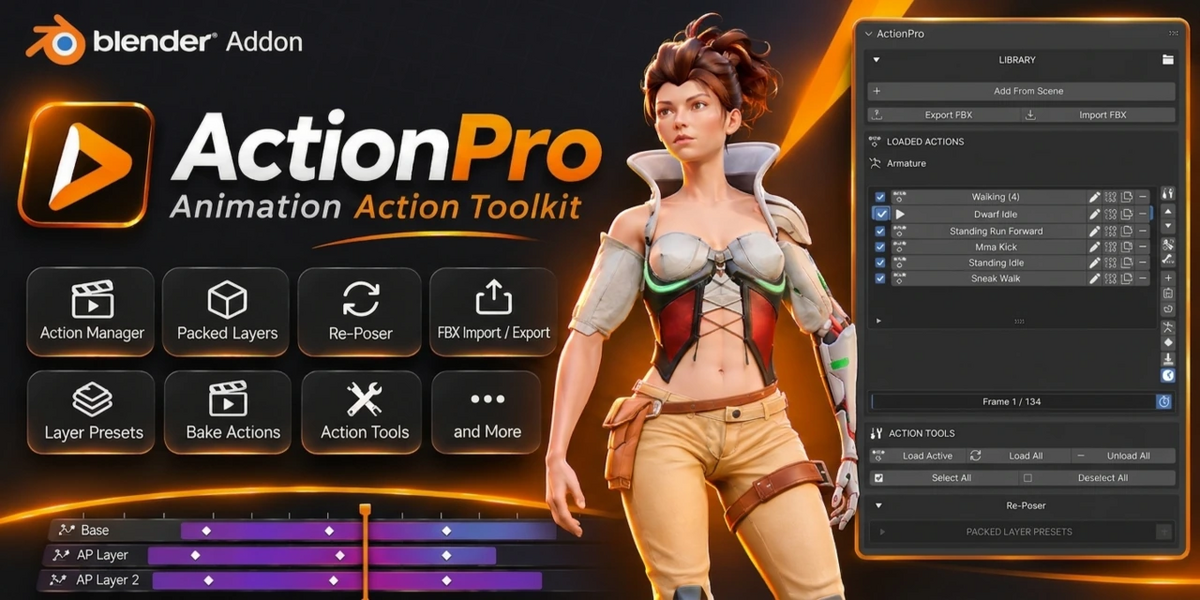
ActionPro
User Documentation
Blender animation tools • Version 0.14.1
ActionPro brings animation Action management, layered editing for animaton or mocap data , animation importing, and exporting controls into the 3D Viewport.
1. Installation
1. Download the ActionPro ZIP package and keep it compressed unless your distribution instructions say otherwise.
2. In Blender, open Edit > Preferences > Get Extensions or Add-ons (the label depends on Blender version).
3. Use Install from Disk / Install, select the ActionPro ZIP, and confirm.
4. Enable ActionPro in Preferences if it is not enabled automatically.
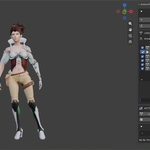
5. In the 3D Viewport, press N to open the sidebar and choose the ActionPro tab.
The package metadata identifies ActionPro as a View3D sidebar panel. Menu wording differs between Blender releases, so use the equivalent install option in your version.
2. Interface Overview
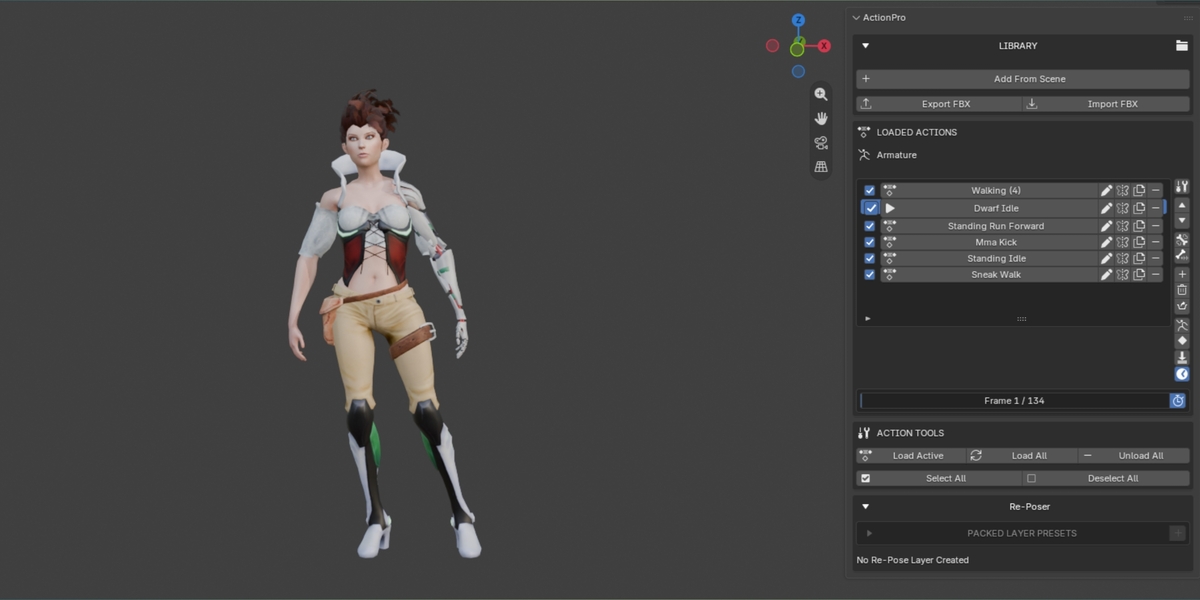
Open the 3D Viewport sidebar (N) and select the ActionPro tab. The panel is organized into these areas:
Library
Expand the Library section to access Add From Scene, Export FBX, and Import FBX.
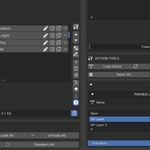
Loaded Actions
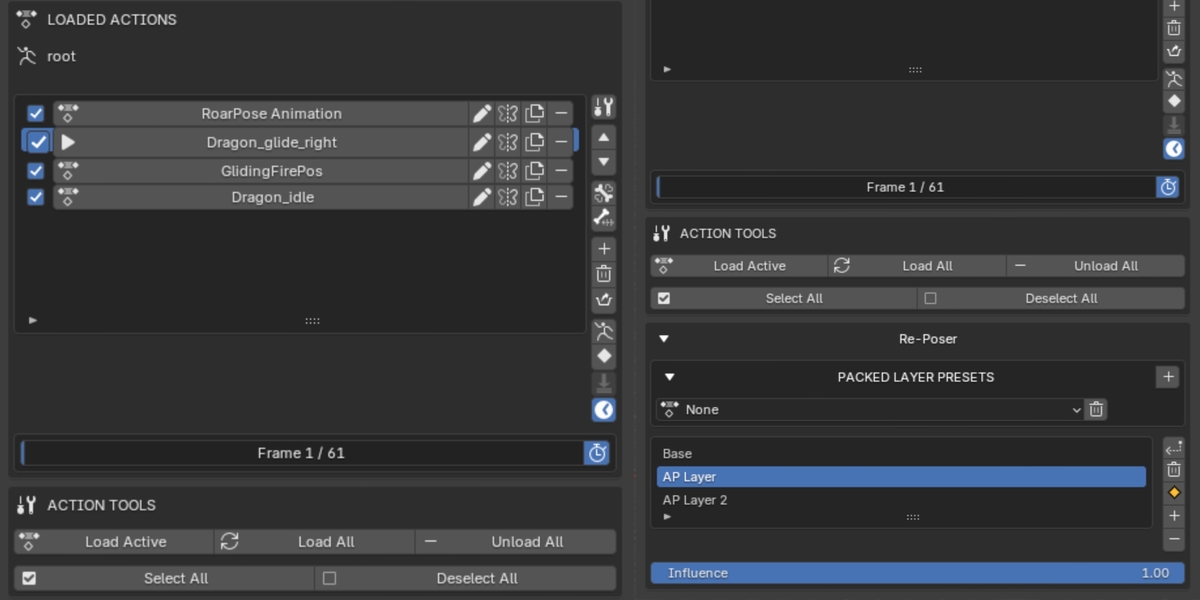
View the Actions loaded into ActionPro for the active object. The active Action is marked with a play icon.
Action toolbar
Use the compact toolbar beside the list for helper tools, reordering, keyframed-bone selection, creating or deleting Actions, clearing a pose, baking, and starting a Re-Poser layer stack.
Action Tools
Load the active Action, load all Actions, unload the list, or select/deselect entries in the available Action list.
Re-Poser
Expand this section to create and manage animation layers and packed layer presets.
3. Managing Actions
Add Actions From the Current Scene
1. Select the object whose animation Actions you want to manage.
2. Expand Library and click Add From Scene.
3. Use the import/selection controls to choose Actions to add to ActionPro's list.
Load, Reload, and Unload
• Load Active: add the currently active Action to the managed list.
• Load All: refresh the list from Actions in the current file.
• Unload All: clear the ActionPro list without deleting the Actions from the Blender file.
• Select All / Deselect All: toggle the list entries selected for supported batch operations.
Apply an Action
Click an Action's name in the Loaded Actions list to assign it as the active Action on the selected object. Use the active-action indicator to identify the Action currently assigned.
Shapekey Action
if the mesh have shapekey animation use the same name for the key action as the rig action with (_meshkey) suffix, ActionPro will apply the each corresponding key action with the armature action.
Rename, Duplicate, Mirror, and Remove
Each listed Action has controls for renaming, mirroring, duplicating, and removing it from the ActionPro list. Removing an Action from the list is different from deleting it from the Blender file. Use the dedicated delete control when you intend to delete an Action completely, and verify the confirmation dialog before proceeding.
Reorder Actions
Use the up/down arrow controls beside the list to change the displayed order.
Create, Clear, and Bake
• Add Action: create a new Action.
• Unassign Action: remove the current Action assignment from the object.
• Clear Pose: reset the pose of the armature.
• Bake Action: bake animation using the operator's frame range and frame-step options when shown.
4. Helper Tools
The tool popup contains animation cleanup helpers.
Currently Available Helpers:
• Make Animation In Place: Finds And Removes The Root Location Fcurves And Makes The Animation In Place.
• Fix Scaled Animation: adjust bone location keyframes using a chosen scale value and target.
• Delete Scale Data: remove scale animation data according to the selected target/options.
Other toolbar helpers select bones with keyframes in the active Action or bones keyed on the current frame. The exact result depends on the active rig, Action, and current frame.
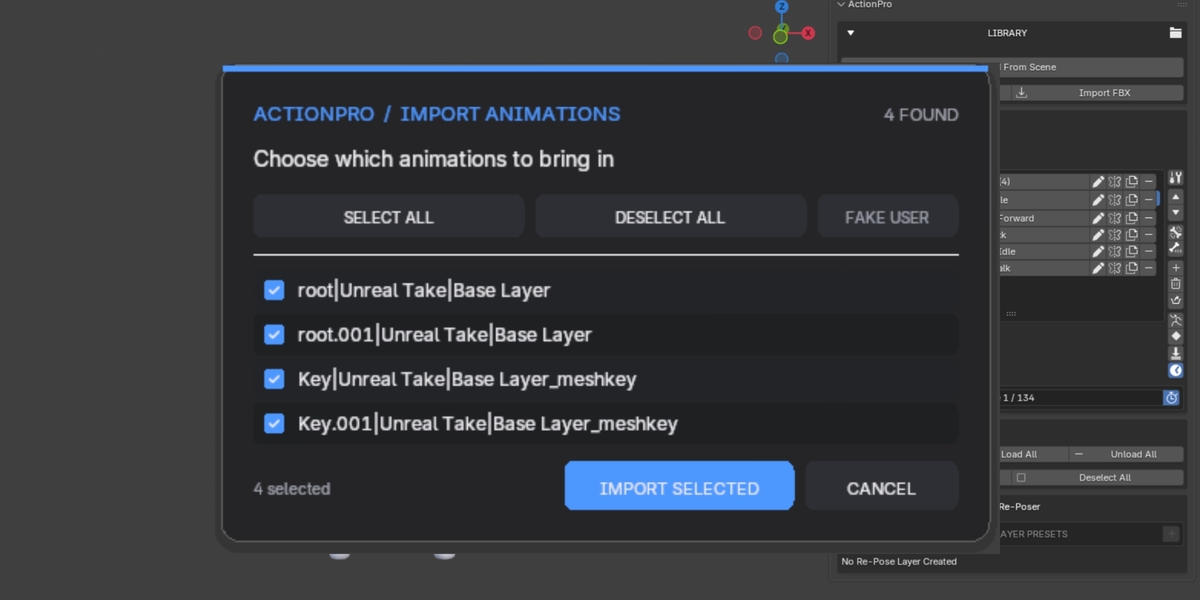
5. Importing Animations
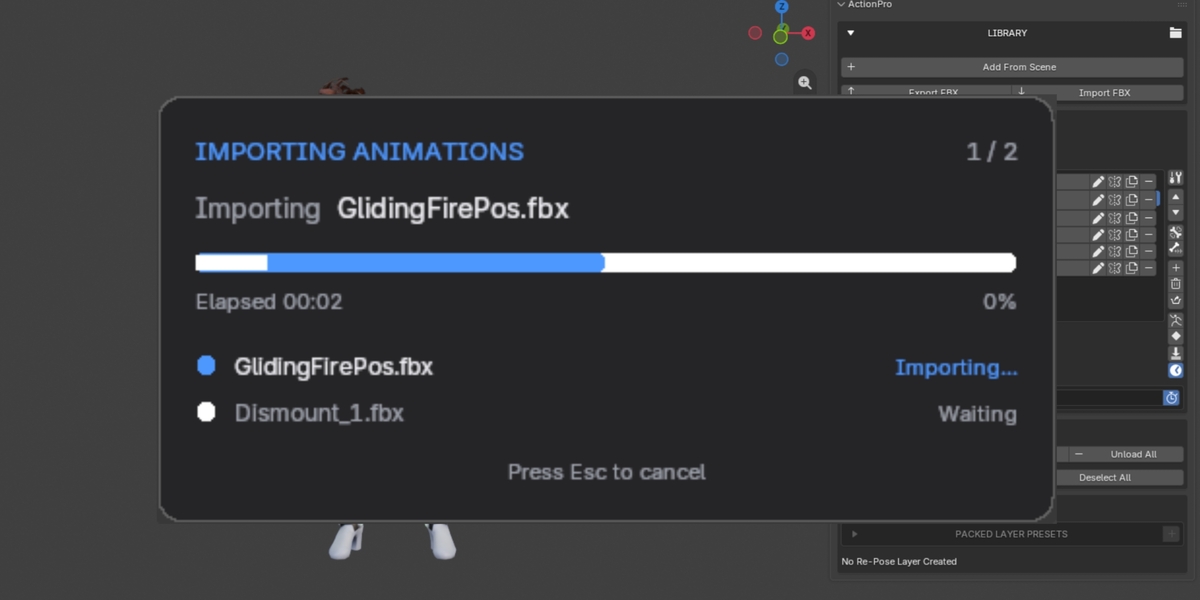
1. Select the target object/rig and open Library > Import FBX.
2. Choose an FBX file or Blender file supported by the importer and scan its available animations.
3. Before scanning, review the available options:
• Auto Bone Orient: use the importer's automatic bone-orientation option where applicable.
• Rename Actions From File: control whether imported Action names are based on the source file.
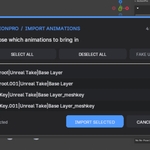
4. After scanning, select the animations you want to import. Use Select All or Deselect All to manage the selection.
5. The Fake User toggle can preserve imported Actions from being removed as unused data.
6. Confirm the import and check the resulting Actions in the Loaded Actions list.
Tip: test a small import first when working with rigs that use different bone orientations or naming conventions.
6. Exporting FBX
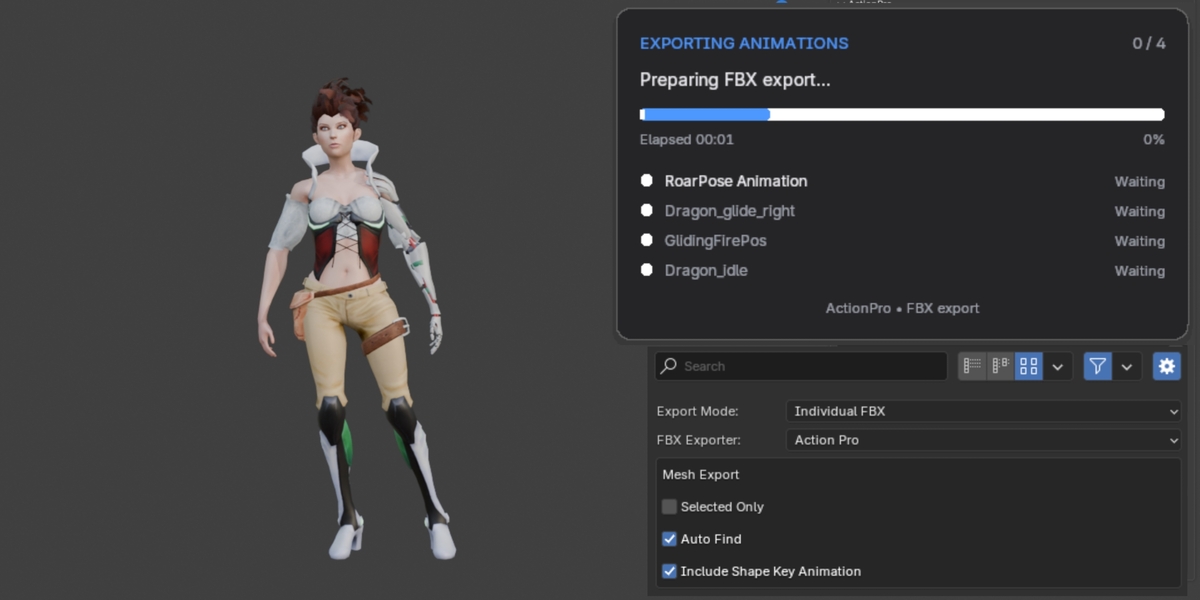
1. Select the armature whose Actions you want to export. Export is enabled when an armature is selected and the ActionPro list contains Actions.
2. Expand Library and click Export FBX.
3. Choose the export mode:
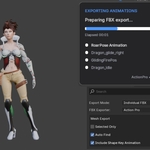
• Single FBX: export all selected/managed Actions into one FBX file.
• Individual FBX: export each Action separately.
4. Choose the exporter when available:
• ActionPro: the addon's dedicated exporter; selected by default.
• Blender Internal: Blender's built-in FBX exporter.
5. Configure Mesh Export:
• Selected Only: export only the selected mesh objects.
• Auto Find: let ActionPro find associated meshes automatically.
• Include Shape Key Animation: include shape-key animation in the export. When disabled, ActionPro forces its own exporter and disables exporter selection.
6. Choose the output path and complete the export.
Export results depend on the selected rig, associated meshes, Action data, and the destination application's FBX support. For Unreal Engine, test one animation and inspect the imported rest pose, skeletal motion, and any shape-key animation before batch-exporting a large library.
7. Re-Poser: Animation Layers
Re-Poser lets you create a layered setup for refining an existing animation. Work on a separate tweak layer rather than directly editing the base motion.
Create a Re-Poser Stack
1. Select the animated armature and ensure it has an active Action.
2. In the Loaded Actions toolbar, click the push/Re-Poser button (Create Repose Layer).
3. If the rig already has NLA tracks, review any cleanup prompt carefully before continuing.
4. Expand Re-Poser to see the layer list and influence control.
Add and Edit Tweak Layers
• Add Tweak Layer (+): create another layer for additional pose adjustments.
• Select a layer in the list to make it active.
• Influence: adjust the strength of the selected non-base layer.
• Reset Bones From Base: reset selected bones to their base-action state when refining a layer.
• Remove Layer: remove the selected tweak layer.
• Clear Animation Layers: remove the ActionPro layer setup. Read any confirmation prompt before proceeding.
• Bake Animation Layers: bake the layered result into a single Action.
Recommended workflow: create the stack, play the base animation, select a tweak layer, make and key the desired adjustments, adjust influence to check the result, and bake only after reviewing the animation across its full frame range.
8. Packed Layer Presets
Packed Layer Presets save a Re-Poser layer/NLA setup so it can be restored later.
1. Expand Re-Poser and open PACKED LAYER PRESETS.
2. Click the plus (+) button to pack the current layer setup and give the preset a meaningful name.
3. Choose a saved preset from the dropdown.
4. Use Restore to restore the saved setup.
5. Use Push Preset to Loaded Actions to bake the preset into a standalone Action and add it to the loaded Action list.
6. Use the trash control to remove a preset. Review the dialog carefully: options may include removing Actions created by Re-Poser, while original Actions and Actions still used elsewhere are intended to be preserved.
Keep a backup of important work before deleting presets or their associated generated Actions. Avoid manually renaming or replacing Actions referenced by a preset unless you understand the effect on that preset.
9. Playback Preview and Timeline Sync
• Playback Preview: toggle the live preview status shown near the Loaded Actions area.
• Auto Sync Timeline: toggle ActionPro's timeline synchronization helper.
Use these controls when reviewing the active Action. If the displayed pose does not match expectations, verify the active object, active Action, current frame, and layer influence.
10. Troubleshooting
The ActionPro tab is missing.
Open the 3D Viewport, press N, and check for the ActionPro tab. Confirm the addon is enabled in Blender Preferences.
No Actions appear in the list.
Select the correct object, then use Load Active or Load All. The list is an ActionPro management list; unloading it does not delete Actions from the file.
Export FBX is disabled.
Select an armature and add at least one Action to the Loaded Actions list.
An imported Action is missing later.
Consider enabling the Fake User option during import so the Action is retained as unused data.
The layered result looks wrong.
Confirm the correct object and active Action, select the intended layer, check its influence, and review the result across the timeline before baking.
Imported motion does not match the target rig.
Check bone naming, bone orientation, and rig compatibility. Test a single animation before importing a large batch.
The destination application shows an unexpected result.
Test a single FBX, verify the selected meshes and export mode, and check the destination application's import settings.
11. Safe Workflow Recommendations
• Save a new version of your .blend file before major layer operations, baking, or deleting generated Actions.
• Use descriptive Action and preset names.
• Test import/export settings with one animation before processing a full library.
• Keep original Actions intact until the baked or exported result has been checked.
• Blender's interface labels can vary slightly between Blender versions.
A visual Documentation which will cover all the features of the ActionPro will be available soon!
Thank You for the time you gave to take a look we appriciate it.
Have questions about this product?
Login to message
| Dev Fund Contributor | |
| Published | about 16 hours ago |
| Blender Version | 4.0 - 5.3 |
| Extension Type | N/A |
| Render Engine Used | Blender-Internal |
| License | GPL |
Discover more products like this
action cleaner action manager blender to ue5 shapekey-to-unreal actionpro animation layers Bulk FBX Export Blender