 Synapse Nodes
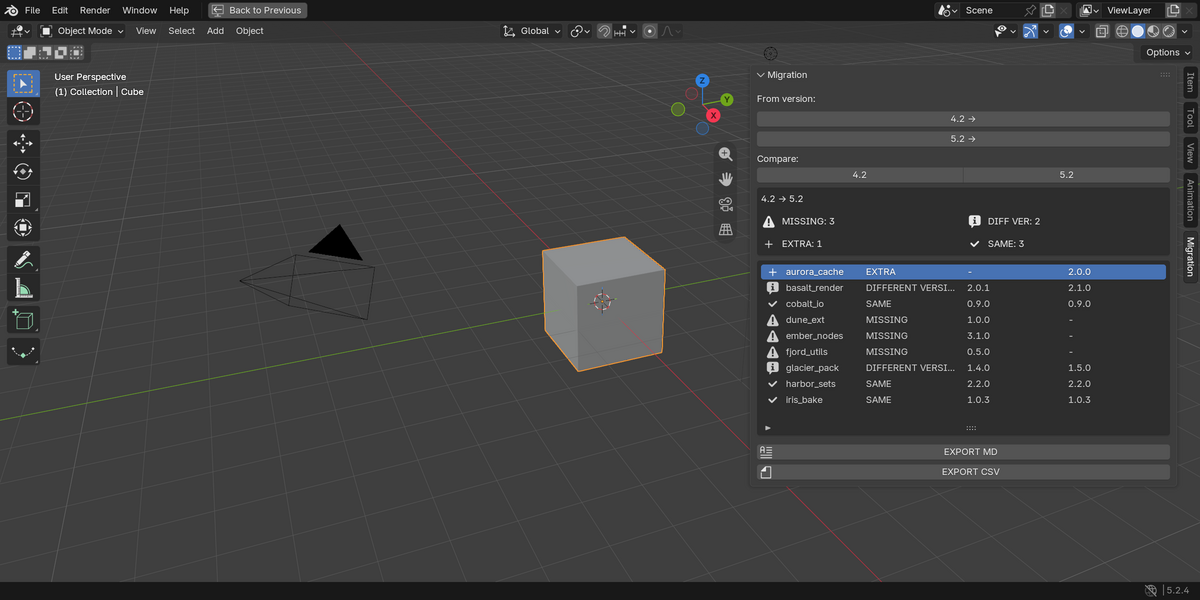
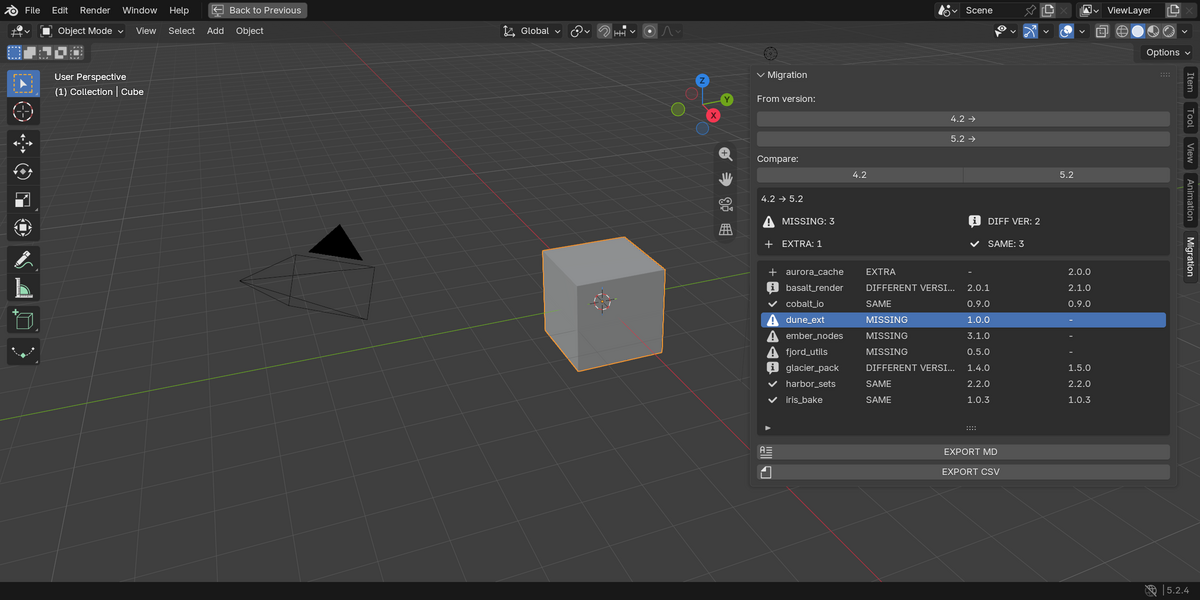
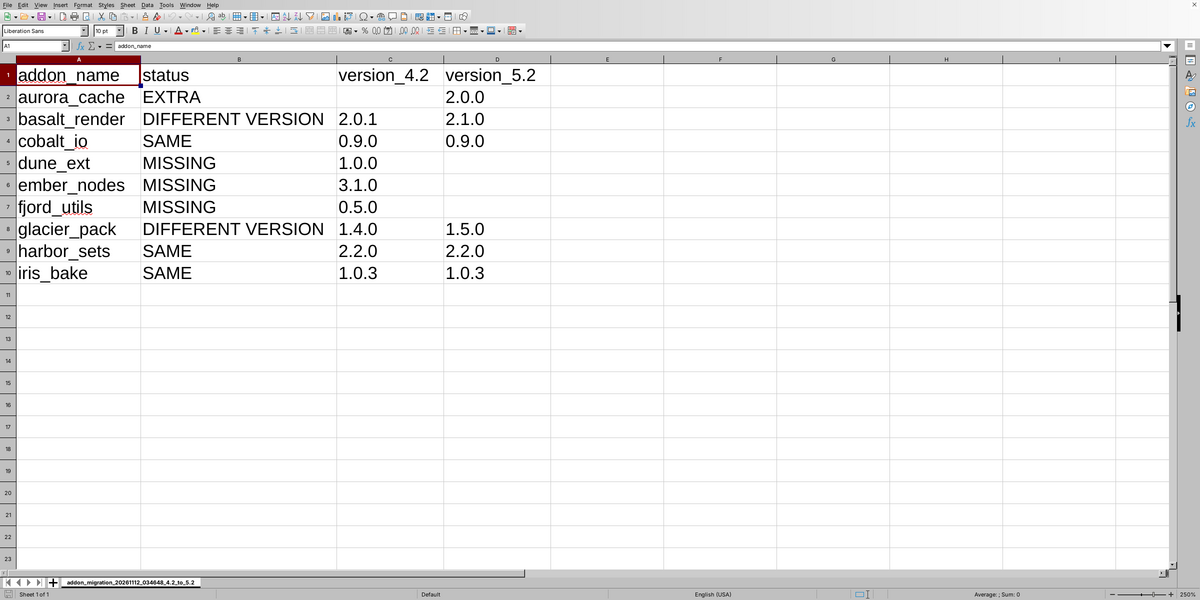
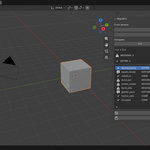
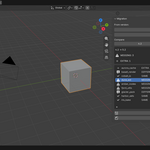
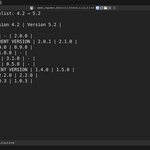
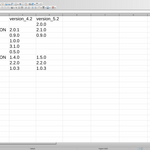
Add-on Migration Checklist compares the add-ons and extensions installed in two versions of Blender on the same machine — for example 4.2 and 5.2 — and shows you exactly what is MISSING in the new version, what is in a DIFFERENT VERSION, what is EXTRA and what is the SAME.
How it works
- Open the 3D Viewport sidebar (N) and pick the Migration tab.
- Select the two Blender versions from the detected config folders on your machine.
- Press COMPARE. Each add-on receives a status: MISSING, DIFFERENT VERSION, EXTRA or SAME.
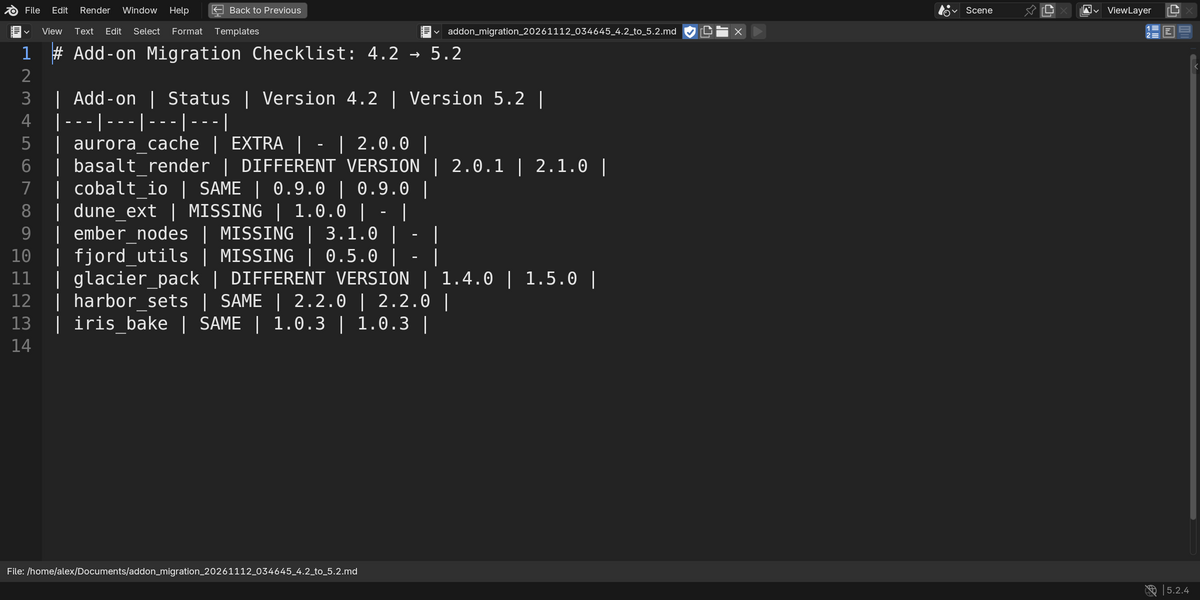
- Press EXPORT MD or EXPORT CSV to save the full checklist to ~/Documents.
What it checks
It reads the add-on folders in scripts/addons and extensions/user_default for each selected Blender version without importing or running any add-on. Version is read from blender_manifest.toml or bl_info.
Statuses
- MISSING: add-on is in the old version but not in the new one — reinstall it.
- DIFFERENT VERSION: add-on exists in both but the version changed.
- EXTRA: add-on is in the new version but not in the old one.
- SAME: add-on is in both versions with the same version string.
Export
EXPORT MD writes a Markdown table to ~/Documents. EXPORT CSV writes the same data as a plain CSV, one row per add-on.
Good to know
- Read-only: no internet access, no telemetry, never changes your add-ons.
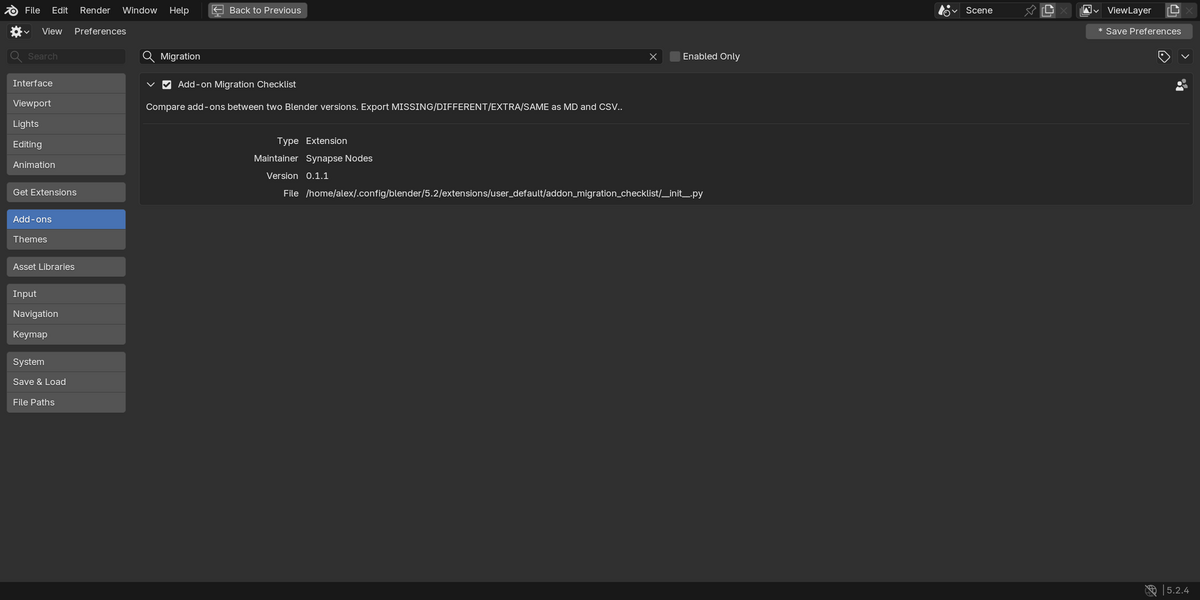
- Compatibility: Blender 3.6 to 4.1 as a legacy add-on, and 4.2 or newer as an extension. Both downloads are included.
- From the same author as Blender 5 Compatibility Report (Addon Doctor family).
AI disclosure
AI-assisted: the first draft of the code was generated with Claude, an AI coding assistant by Anthropic. I reviewed, tested and adapted everything.
