Adobe Style Color Input
 Animation Store


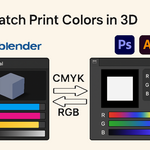
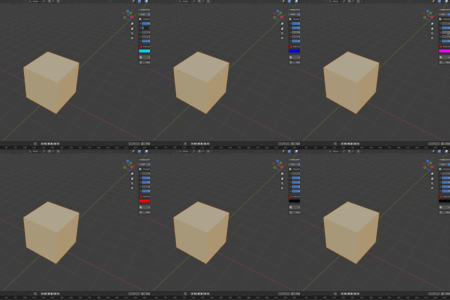
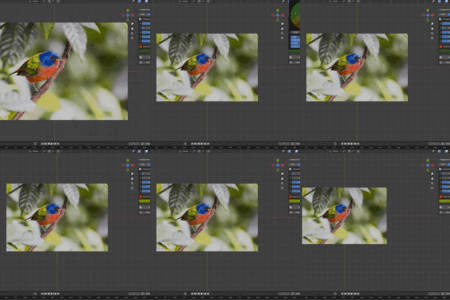
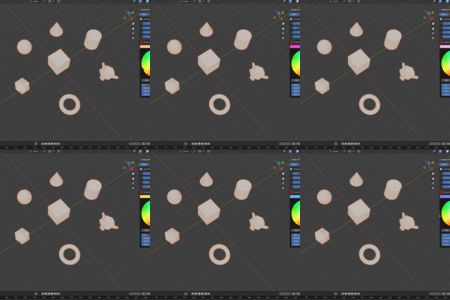
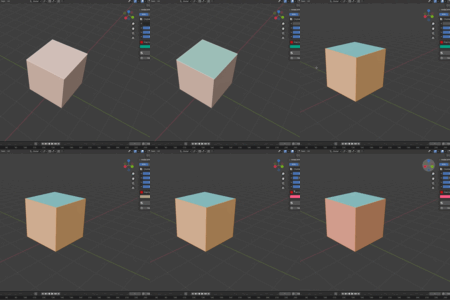
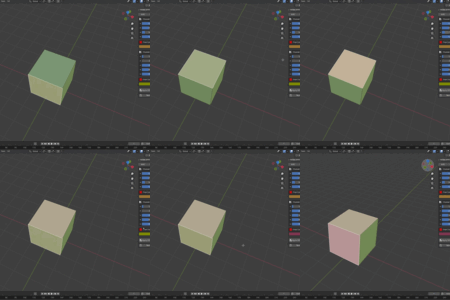
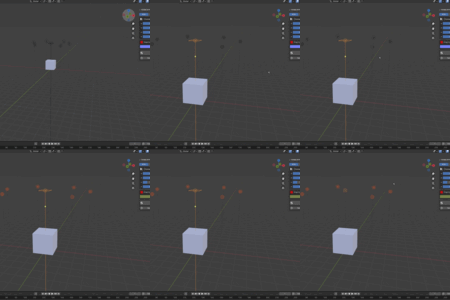
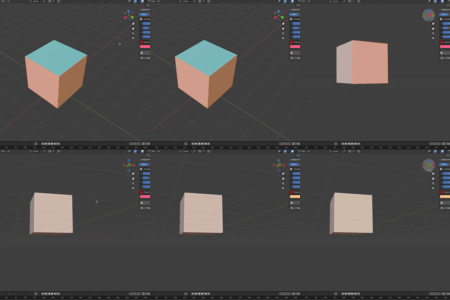
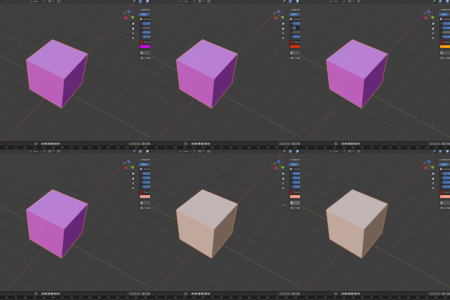
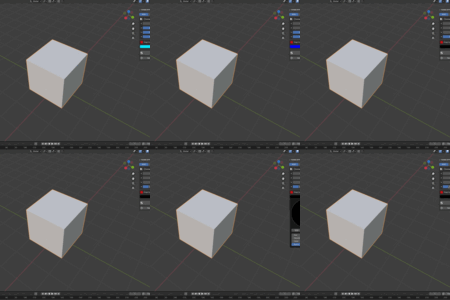
A professional-grade color management toolset for Blender artists, designers, and print/digital creators.
Seamlessly switch between RGB and CMYK color spaces with precision, apply colors to
objects or faces, and streamline your workflow with intuitive previews and material automation.
** For Artists Using Adobe Products **
This add-on is particularly valuable for creators who work across Blender and
Adobe Creative Suite (Photoshop, Illustrator, InDesign, etc.).
By supporting both RGB (digital) and CMYK (print) color models,
it ensures seamless color consistency between 3D assets created in
Blender and print/digital designs in Adobe tools.
---
### **Key Features**
🎨 **Dual Color Spaces**:
- Full support for **RGB** (0-255) and **CMYK** (0-100%) workflows, with automatic real-time conversion between modes.
- Toggle between RGB-only, CMYK-only, or **side-by-side views** for hybrid workflows.
🔍 **Visual Previews**:
- Live channel previews for **individual color components** (e.g., red, cyan, alpha).
- Combined **final color swatch** with alpha/transparency support.
- CMYK-to-RGB conversion accuracy for consistent digital/print output.
🚀 **One-Click Application**:
- Assign colors to **objects, faces (edit mode)**, or **lights** with a single button.
- Automatically creates **optimized materials** or updates existing ones.
- Supports **alpha/transparency** for materials and light softness.
🛠️ **Workflow Efficiency**:
- **Remove all materials** from selected objects instantly.
- Undo/redo support for all operations.
- Compatible with **Object Mode** and **Edit Mode** workflows.
---
### **Perfect For**
- Digital artists creating assets for games, animations, or renders.
- Graphic designers preparing print-ready 3D mockups.
- Lighting artists fine-tuning scene ambiance.
- Anyone needing precise color control without switching between external tools.
---
### **How to Use**
1. Open the *RGB&CMYK* panel in the 3D View sidebar.
2. Select objects, faces, or lights.
3. Adjust sliders or use the color picker.
4. Click *Apply RGB* / *Apply CMYK* to assign colors.
5. Use *Remove Materials* to reset selections.
---
Discover more products like this
RGB shading colorfulpattern 3D-Digital-Art color 3dprint CMYK adobeillustrator 3d-color-picker Material