 Neatmesh
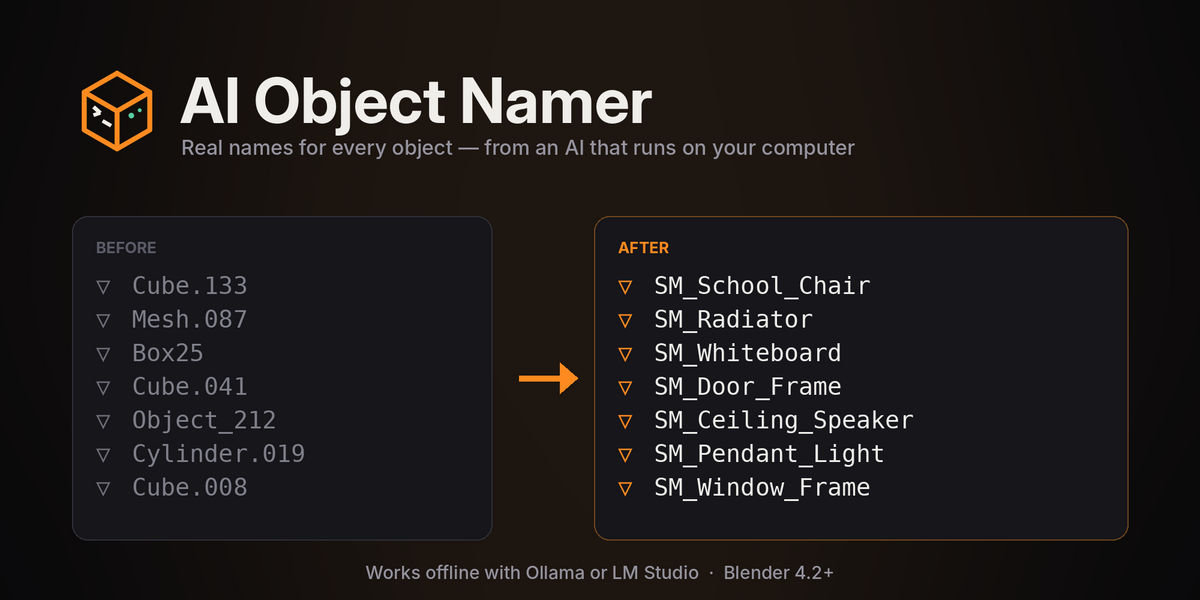
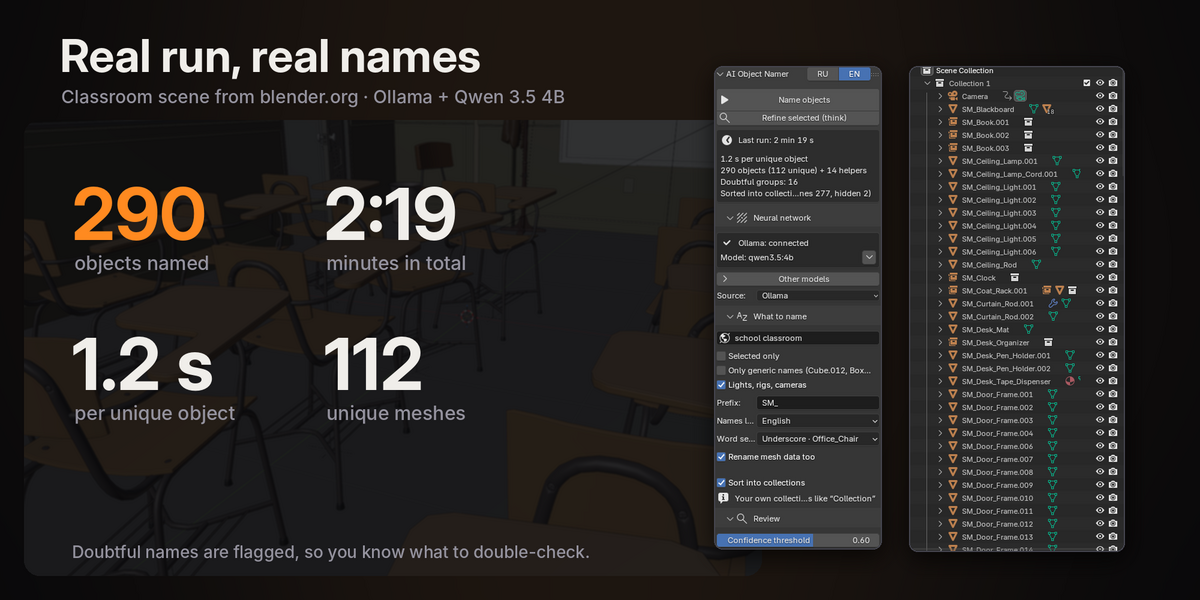
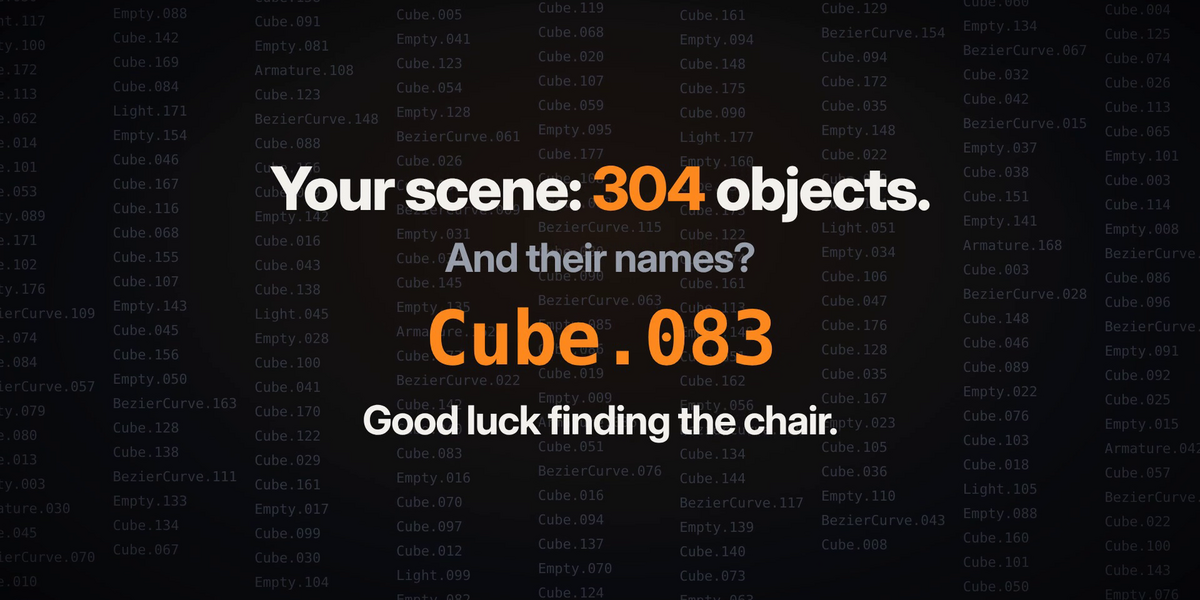
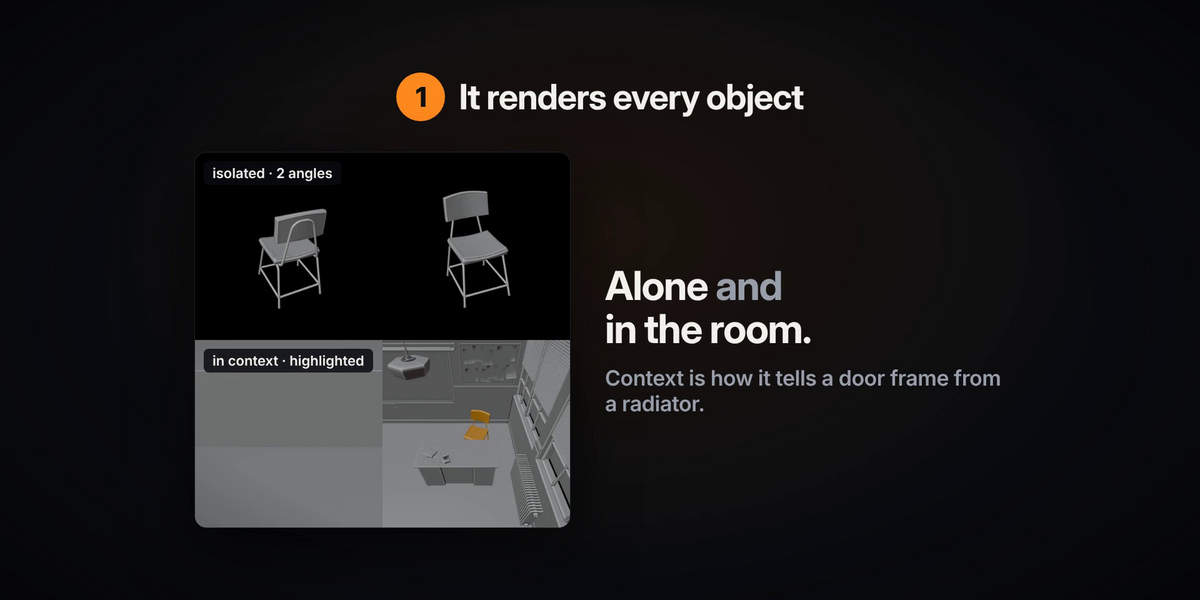
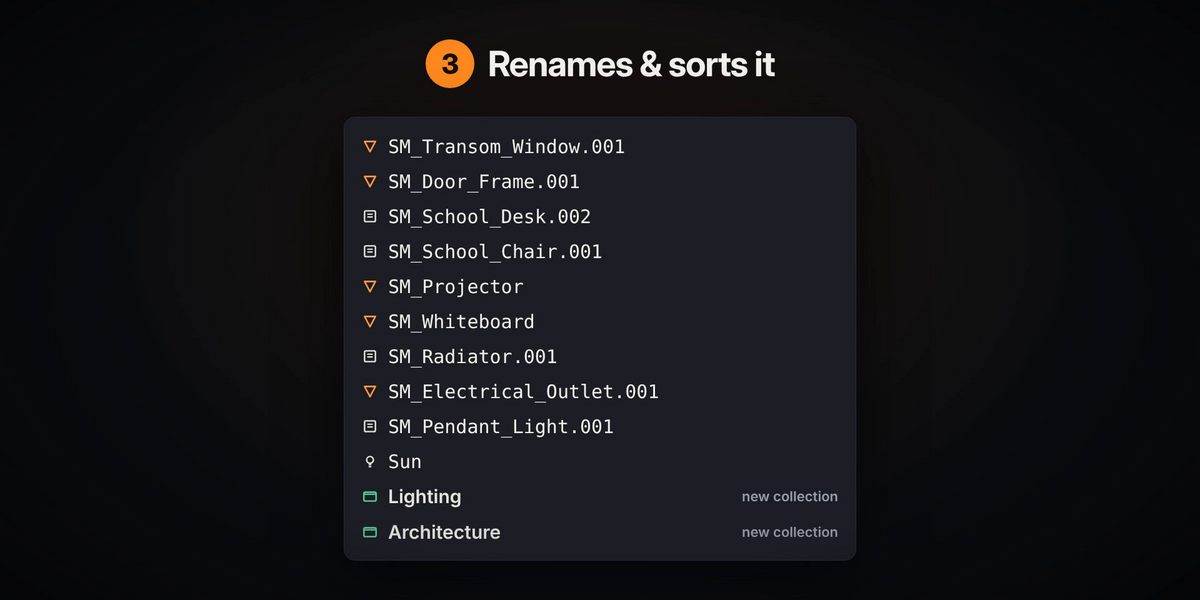
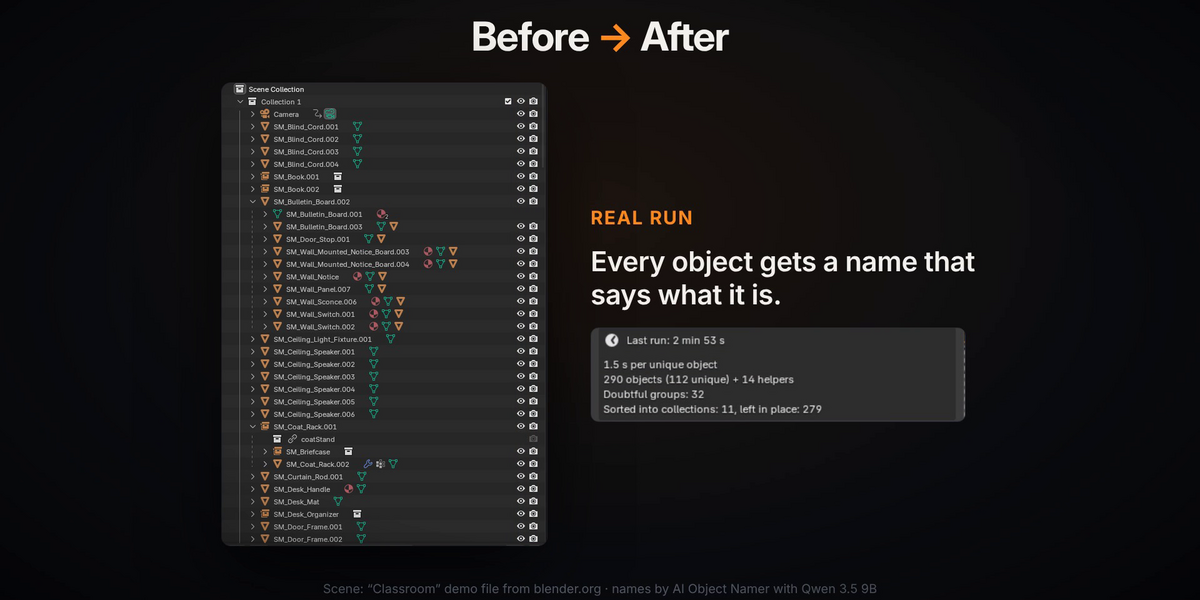
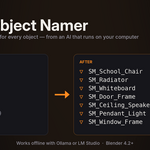
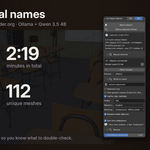
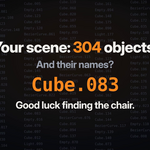
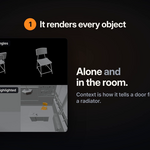
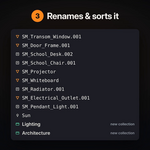
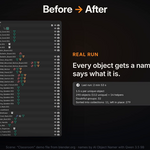



If you've ever imported a building from CAD, a SketchUp file or a big asset pack, you know the Outliner that comes with it: Cube.133, Mesh.087, Box25 and a few hundred more like them, and somewhere in there is the chair you need. I got tired of renaming that by hand, so I made Blender look at the objects and name them itself. The add-on renders each object twice, once on its own and once in place in the scene (that's how it can tell a door frame from a radiator), shows the pictures to a vision model running on your machine and writes back a name that says what the thing is, like Office_Chair, Window_Frame or Ceiling_Speaker. On the Classroom demo scene from blender.org it got through 290 objects in under three minutes on an RTX 3080 Ti.
It also does the boring cleanup around it if you want. It can put a prefix such as SM_ in front of mesh names for game engines (lights, cameras and rigs are left without it), sort everything into collections like Furniture or Lighting without touching the collections you made yourself, and keep mesh data names in sync. Fifty copies of the same chair count as one object, so the AI is only asked once. You can limit it to the selection or to objects that still have generic names, give it a hint about the scene ("school classroom") and get the names in English or Russian, written as Office_Chair, OfficeChair or Office Chair.
The AI isn't always sure, and it says so: every name has a confidence score, Select doubtful picks the shaky ones, and Refine selected looks at them again more carefully. If you don't like the result, Restore original names puts every name and collection back the way it was.
Pro: materials for the whole scene
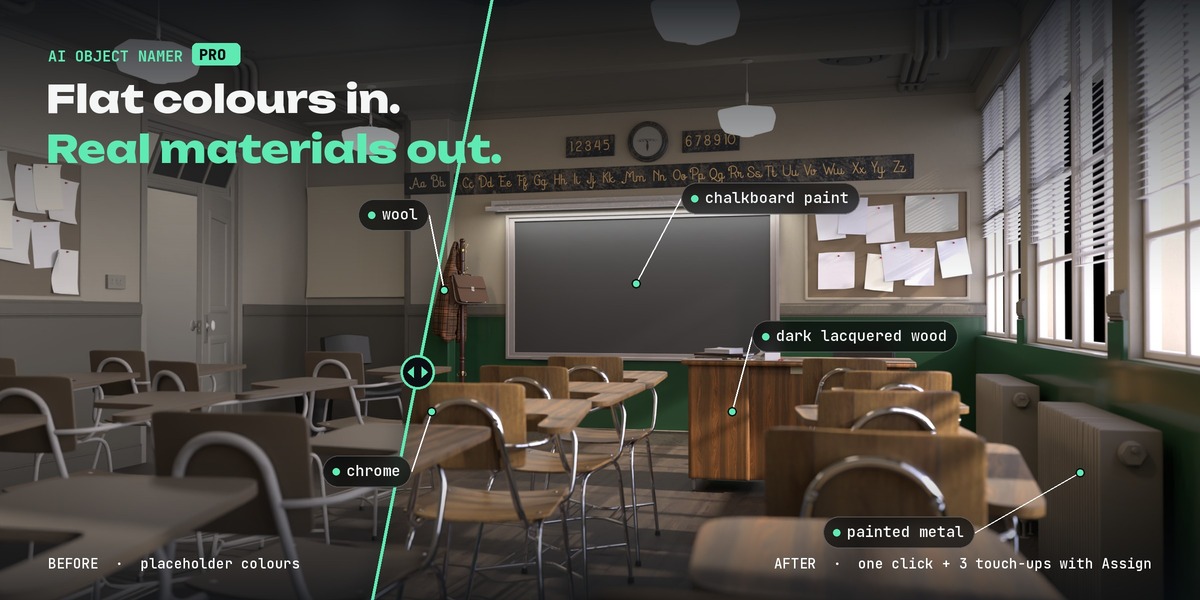
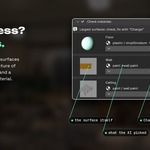
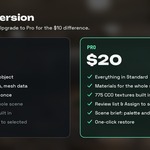
Most scenes that arrive from a modeller, a kitbash pack or an old project carry the same problem twice. The objects are called Cube.133, and the materials are called Material.047 and look like flat grey plastic. Pro handles the second half. Press one button and the add-on looks at every material in the scene the way it looks at objects: it renders each surface with its neighbours, asks the same local vision model what the thing is and what it is usually made of, and builds a proper Cycles/EEVEE material for it. Floors get wood, tile or stone with the right scale, window frames get painted metal or oak, chairs get fabric or leather, glass stays glass. On the Blender Classroom demo scene with placeholder materials, Pro replaced 75 materials in about four minutes on an RTX 3080 Ti with Qwen 3.5 9B.
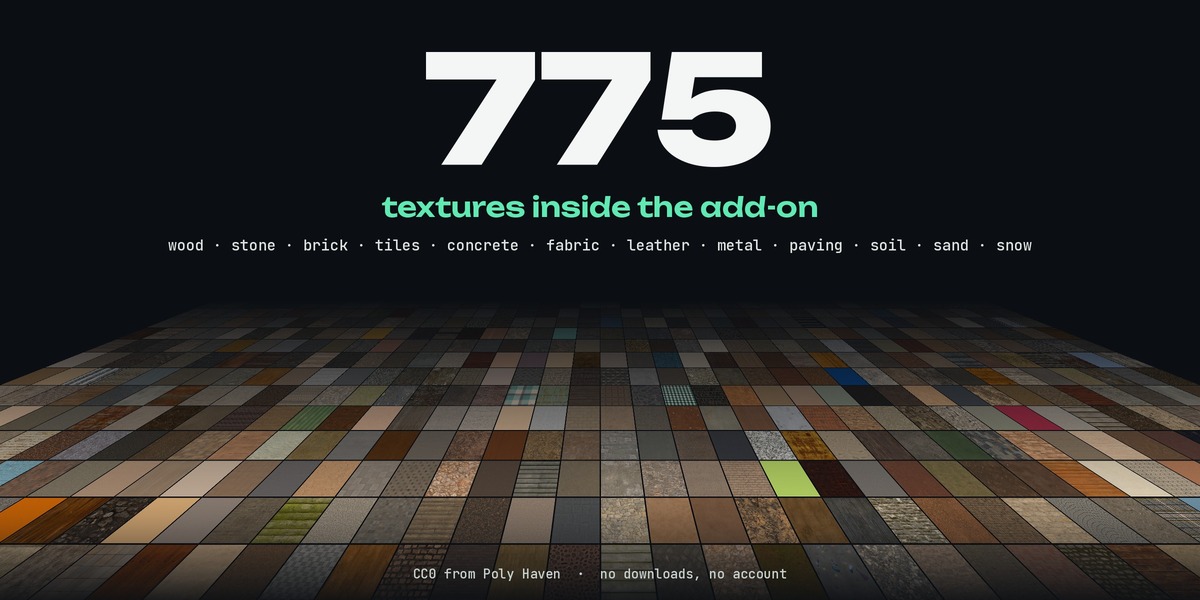
The textures come with the add-on. Pro ships 775 texture sets from Poly Haven, all CC0, sorted into wood, stone, brick, concrete and plaster, ceramic tiles, fabric, leather, metal and outdoor surfaces such as paving, asphalt, roof tiles, gravel, soil, sand and snow. Where a texture would add nothing, for chrome, glass, water, glossy plastic or plants, the add-on builds the material procedurally instead. You can also point Pro at your own texture folders, and it will sort and use them next to the built-in ones.
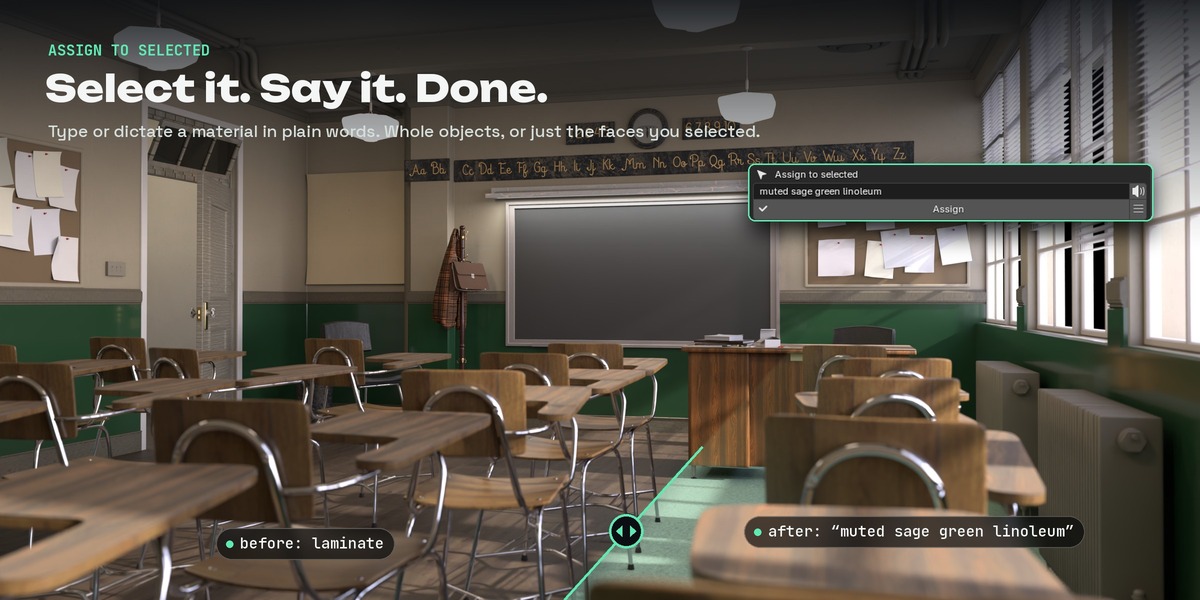
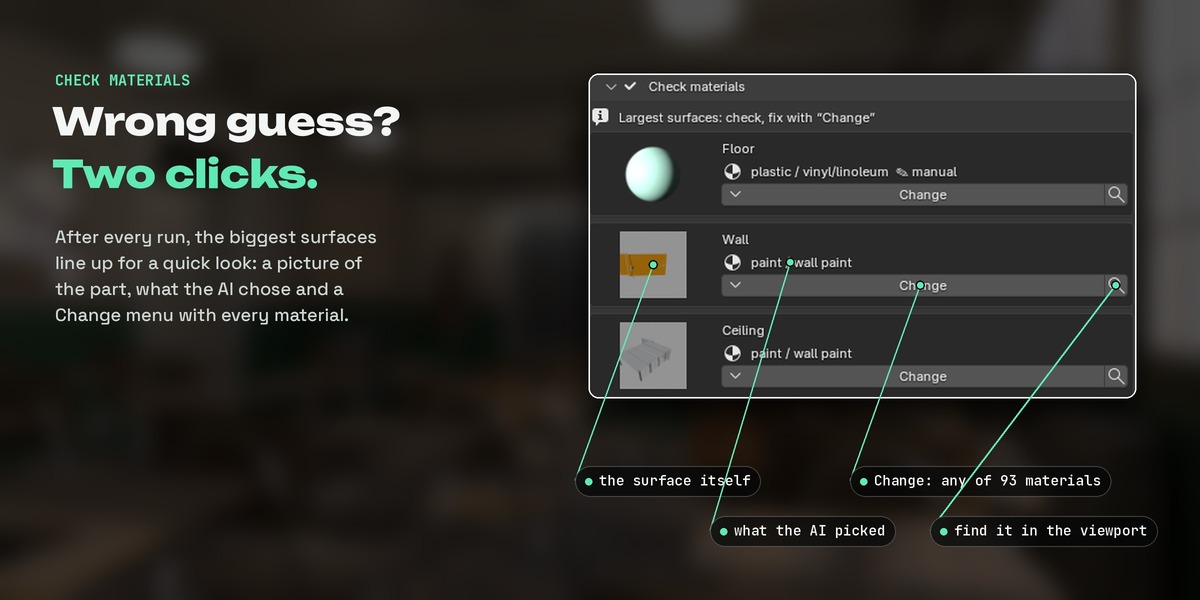
The model will sometimes guess wrong, especially on flat placeholder colours where it cannot see any texture, so checking and fixing are built in. After a run you get a short list of the largest surfaces with a thumbnail and a dropdown to change each one. For anything else, select the objects or faces, type what you want ("dark oak", "brushed steel", "green velvet") and press Assign. You can also describe the scene and your wishes in one line before you start, for example "Barcelona pavilion, travertine and green marble, lanterns in dark wood", and Pro will steer its choices toward that palette. If you dislike the result, one click puts every original material back.
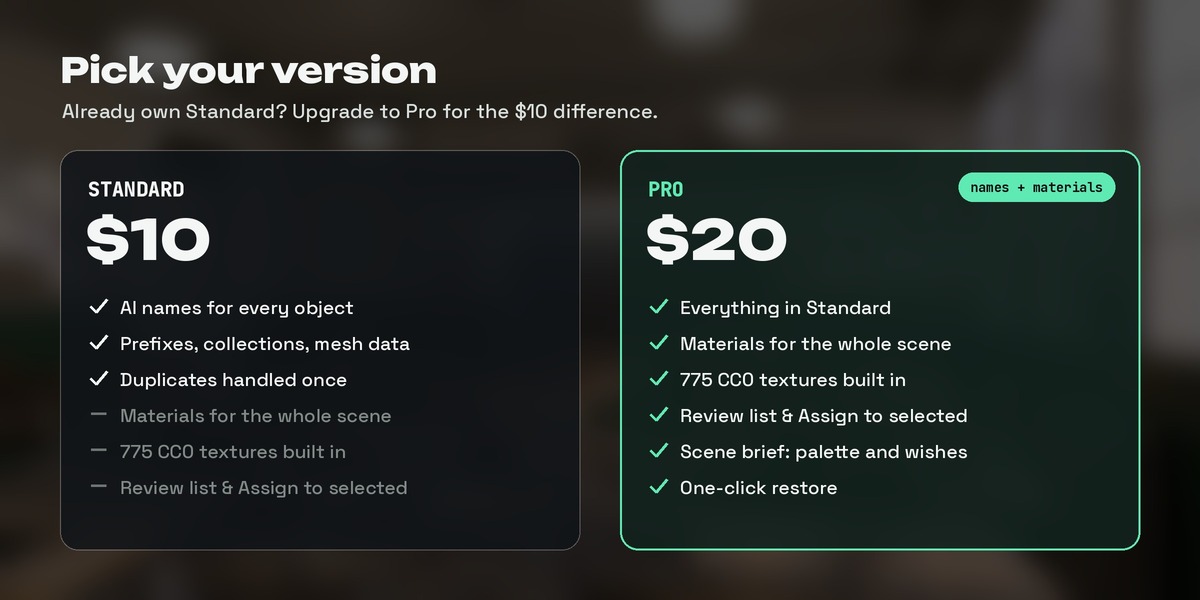
Pro runs on the same setup as Standard: Ollama or LM Studio on your own computer, the same model, no cloud and no account. If you already own Standard, the upgrade costs the $10 difference.
What you need before buying
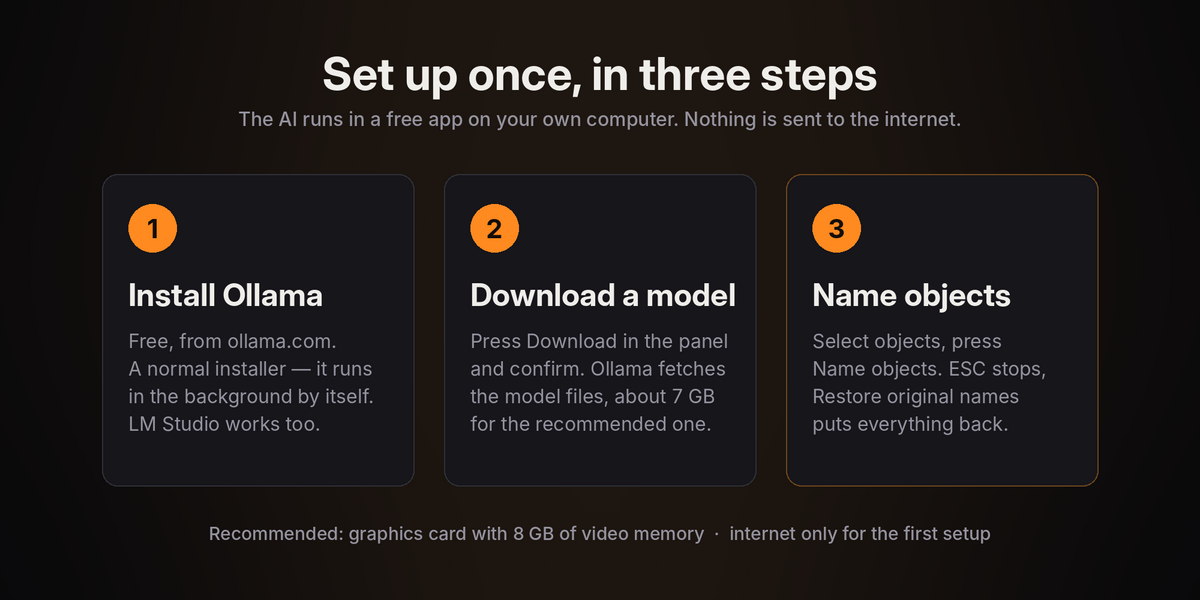
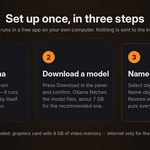
The add-on itself is a small Python package and doesn't contain the AI. The model runs in Ollama (recommended) or LM Studio, free apps you download from ollama.com or lmstudio.ai and install yourself, the add-on never installs software for you. You also need a vision model; the recommended Qwen 3.5 9B is about 7 GB, and with Ollama the add-on can download it for you after you confirm (in LM Studio you download it inside LM Studio). Add Blender 4.2 or newer and ideally a graphics card with 8 GB of video memory. Weaker cards work with the smaller models in the list, they're just slower and a bit less accurate. Pro needs about 1.3 GB of free disk space for the add-on and its texture library.
You need the internet only for this first setup. After that it all works offline, and your scenes never leave your computer: the add-on talks to Ollama or LM Studio over localhost and nothing else. No accounts, no subscription, no cloud. I've tested it on Windows. Ollama and LM Studio also run on macOS and Linux and the add-on should work there too, but I haven't checked those myself yet.
About AI
AI Object Namer uses AI models to suggest names. The models run locally and come under their own open licenses (the recommended Qwen models are Apache 2.0). Parts of the add-on's code were written with the help of AI tools and then tested by me.