Auto-Save File Checker - Browse All the Temp Files
 Salman Naseem


 How to Use
Installation
Step 1: Download the Addon Download the auto_save_file_checker folder or ZIP file.
Step 2: Install in Blender
- Open Blender (version 4.2 or higher)
- Go to
Edit→Preferences→Add-ons - Click the
Installbutton (top right) - Navigate to the downloaded addon folder/ZIP
- Select it and click
Install Add-on
Step 3: Enable the Addon
- Search for "Auto-Save File Checker" in the add-ons list
- Check the checkbox to enable it
- The addon is now active!
Getting Started
Opening the Panel
- Open any 3D Viewport in Blender
- Press
Nkey to open the sidebar (if not already open) - Click on the "Temp Files" tab
- You'll see the Auto-Save File Checker panel
First Scan
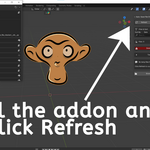
- Click the "Refresh" button to scan for temp files
- The addon will search all temp directories
- Your files will appear in the "Recent Files" section
Main Panel Features
 Top Controls
Refresh Button
- Scans for new temp files
- Updates the file list
- Click this after Blender creates new auto-saves
Folder Button
- Opens your temp folder in file explorer
- Quick access to temp directory
- See files outside of Blender
 Filter & Sort Section
Sort By Dropdown
- Date: Shows newest files first (default)
- Size: Largest files appear first
- Name: Alphabetical order
Search Box
- Type to filter files by name
- Results update instantly
- Case-insensitive search
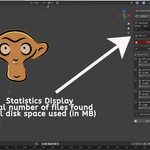
 Statistics Display
Shows at a glance:
- Total number of files found
- Total disk space used (in MB)
- Number of selected files
- Space used by selected files
 Delete Options
Delete Selected
- Removes all checked files
- Shows count in button text
- Requires confirmation
Delete All Files
- Clears entire temp directory
- Red warning indicator
- Safety confirmation required
 Temp Paths (Collapsible)
- Click to expand/collapse
- Shows all scanned directories
- Checkmark (✓) = directory exists
- X mark (✗) = directory not found
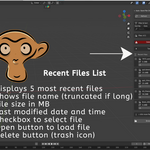
 Recent Files List
- Displays 5 most recent files
- Shows file name (truncated if long)
- File size in MB
- Last modified date and time
- Checkbox to select file
- Open button to load file
- Delete button (trash icon)
"+ X more files..." Indicator
- Shows when there are more than 5 files
- Indicates hidden file count
- Click "Browse All Files" to see them
Browse All Files Window
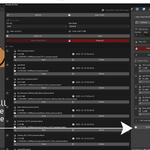
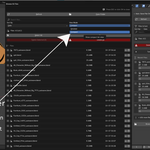
Click the "Browse All Files" button at the bottom to open the full browser.
Advanced Features
Search Bar
- Larger search field for filtering
- Works same as main panel search
- Filter hundreds of files instantly
Sort Options
- Same sorting as main panel
- Date, Size, or Name
- Changes apply immediately
View Mode Switcher
- Detailed: Full information with file paths
- Compact: Single-line list view
- Choose based on your needs
 Selection Tools
Select All Button
- Checks all visible files
- Works with filtered results
- Quick bulk selection
Clear Button
- Unchecks all files
- Deselects everything
- Start fresh
Enhanced Statistics
Shows additional information:
- Files count: Current/Total (e.g., "25/100")
- Total size of all files
- Selected files count and size
- Real-time updates
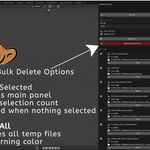
Bulk Delete Options
Delete Selected
- Same as main panel
- Shows selection count
- Disabled when nothing selected
Delete All
- Removes all temp files
- Red warning color
- Confirmation required
 File Display
Detailed View Mode:
- Full filename
- File size (2 decimal places)
- Complete date and time
- Full file path
- Open and Delete buttons
Compact View Mode:
- Single row per file
- Filename, size, and date
- Icon buttons for actions
- See more files at once
 Closing the Window
Three ways to close:
- Click the "Close" button at bottom
- Press the ESC key
- Click "OK" button
Common Workflows
 Recovering Lost Work
Scenario: Blender crashed, need to recover your file
- Open Auto-Save File Checker panel
- Click "Refresh" to scan
- Look at Recent Files (sorted by date)
- Check the timestamp of files
- Click "Open" on the most recent file
- Your work is recovered!
Pro Tip: Sort by Date to see newest files first
 Cleaning Up Disk Space
Scenario: Hard drive is full, system is slow
The Problem: Many Blender users don't realize that auto-save files accumulate over months of work. These files can take up 10-50+ GB of space, causing:
- "Disk full" errors
- Slow system performance
- Unable to save new files
- Windows/Mac storage warnings
The Solution:
- Click "Refresh" to scan all files
- Check the total MB/GB in statistics panel
- You might be shocked to see 20GB+ of temp files!
- Click "Browse All Files"
- Switch to Compact View to see more files
- Sort by Size to find large files first
- Review the dates - do you need files from 3 months ago?
- Select old or large files (checkboxes)
- Tip: Files older than 1-2 weeks are usually safe to delete
- Click "Delete Selected"
- Confirm deletion
- Check statistics again - see how much space you recovered!
Real Example: "I found 47GB of temp files I didn't know existed! Freed up almost 50GB in 2 minutes!" - Typical user experience
Pro Tip:
- Sort by Size to target space-wasters first
- Keep only last 1-2 weeks of files
- Run this cleanup monthly to prevent buildup
Safety First:
- Always check file dates before deleting
- If unsure, open suspicious files to verify content
- The addon shows exact dates so you know what's old
 Finding Specific Project
Scenario: Looking for auto-save from specific project
- Open "Browse All Files"
- Type project name in Search Bar
- Results filter instantly
- Click on the file you need
- Click "Open" to load it
Pro Tip: Use keywords from your filename
 Reviewing Old Auto-Saves
Scenario: Want to see what you worked on yesterday
- Click "Browse All Files"
- Keep Date sorting (default)
- Scroll through files by date
- Check timestamps for yesterday's work
- Open files to review
Pro Tip: Detailed View shows full timestamps
 Quick Daily Cleanup
Scenario: Maintain clean system and prevent disk space issues
Best Practice Routine:
-
Weekly Quick Check:
- Click "Refresh"
- Look at statistics panel
- If total size > 5GB, time to clean
-
Monthly Deep Clean:
- Click "Browse All Files"
- Sort by Date
- Select all files older than 2 weeks
- Click "Delete Selected"
- Watch your free space increase!
-
Before Important Work:
- Clean temp folder first
- Ensures auto-save has space
- Prevents "disk full" errors during work
- Gives you peace of mind
Pro Tip: Run this weekly to maintain space and prevent your hard drive from filling up. Many users recover 20-30GB on their first cleanup!
Tips & Best Practices
 DO:
- Refresh regularly to see new auto-saves
- Check dates before deleting files
- Use search when you have many files
- Save important recoveries to a proper location
- Monitor disk space in statistics - it shows total storage used
- Switch view modes based on your task
- Clean temp folder monthly to prevent disk space issues
- Sort by size when cleaning to maximize space recovery
- Keep only recent files (last 1-2 weeks usually sufficient)
 DON'T:
- Delete all files without checking first
- Forget to save recovered files properly
- Ignore disk space warnings from your OS
- Delete files you haven't reviewed
- Skip the confirmation dialogs - they're there for safety
- Let temp files accumulate for months - clean regularly!
- Panic about disk space - this addon makes cleanup easy
Keyboard Shortcuts
- N - Open/Close sidebar (to access panel)
- ESC - Close Browse All window
- Tab - Navigate between UI elements
Understanding File Names
Blender auto-save files typically look like:
-
quit.blend- Last file when Blender closed -
[number].blend- Auto-save files -
[filename].blend1- Backup files
The addon shows all these files with their:
- Complete names
- File sizes
- Last modified dates
- Full paths (in Detailed View)
Troubleshooting
Problem: "No temp files found"
- Solution: Click Refresh button
- Check if auto-save is enabled in Blender Preferences
- Verify temp paths in the collapsible section
Problem: "Can't find my recent work"
- Solution: Sort by Date (newest first)
- Check if auto-save was enabled during work
- Look in the Browse All window for more files
Problem: "My hard drive is almost full!"
- Solution: This is often caused by temp files!
- Click "Browse All Files"
- Check the total storage used in statistics
- Sort by Size to find biggest files
- Delete old files (older than 2 weeks)
- You might recover 10-50GB of space!
Problem: "How do I know if it's safe to delete?"
- Solution: Check the file date/time
- Files older than 1-2 weeks are usually safe
- If you haven't crashed recently, old auto-saves aren't needed
- Keep last week's files as backup
- When in doubt, open the file to check its content
Problem: "I accidentally deleted everything!"
- Solution: The addon only deletes temp files, not your main projects
- Your saved .blend files in Documents/Projects are untouched
- Only temporary auto-saves are affected
- Always save important work to a permanent location
Problem: "How often should I clean temp files?"
- Solution: Monthly cleanup recommended
- Check statistics panel to see storage used
- Clean when it shows 5GB+ of temp files
- Set a monthly reminder to run cleanup
Video Tutorials
 Watch video tutorials on YouTube: Being Animator Channel
Subscribe for:
- Installation guides
- Feature demonstrations
- Tips and tricks
- Workflow examples
System Requirements
- Blender Version: 4.2.0 or higher
- Operating System: Windows, macOS, or Linux
- Disk Space: Minimal (addon is <1 MB)
- Python: Included with Blender
Get Support
Need help? Multiple ways to reach out:
 Email: [email protected]
 Website: salmannaseem.com YouTube: Being Animator
 More Addons: SuperHive Market
What's Next?
Explore more addons by Salman Naseem: Visit SuperHive Market for more tools to enhance your Blender workflow!
Stay updated: Subscribe to Being Animator YouTube Channel for tutorials, tips, and new addon announcements!
 Start Using Auto-Save File Checker Today!
Never lose your work again. Manage your temp files like a pro. Recover your projects with confidence.
Download now and take control of your Blender auto-saves!
Auto-Save File Checker - Made with  by Salman Naseem Licensed under GPL-3.0 - Free and Open Source
Have questions about this product?
Login to message
| Blender Extension Compatible | Yes |
| Published | about 1 year ago |
| Blender Version | 2.93 - 5.2 |
| Extension Type | Add-on |
| Render Engine Used | Cycles, Eevee |
| License | GPL |
