 namsil



User Manual – Alpha Cut
Installation
Install the add-on using one of the following methods:
- Drag and drop the zip file directly into the Blender window.
- Go to Edit → Preferences → Add-ons → Install, then select the zip file.
After installation, enable the add-on from the Add-ons list.
Preferences
Location:
Edit → Preferences → Add-ons → Alpha Cut
Here you can configure the default behavior of the tool:
- Default Alpha Cut Mode
Defines the default processing mode used when removing backgrounds or generating masks.
This setting can still be changed each time the tool is executed.
Removing Background from a Single Image
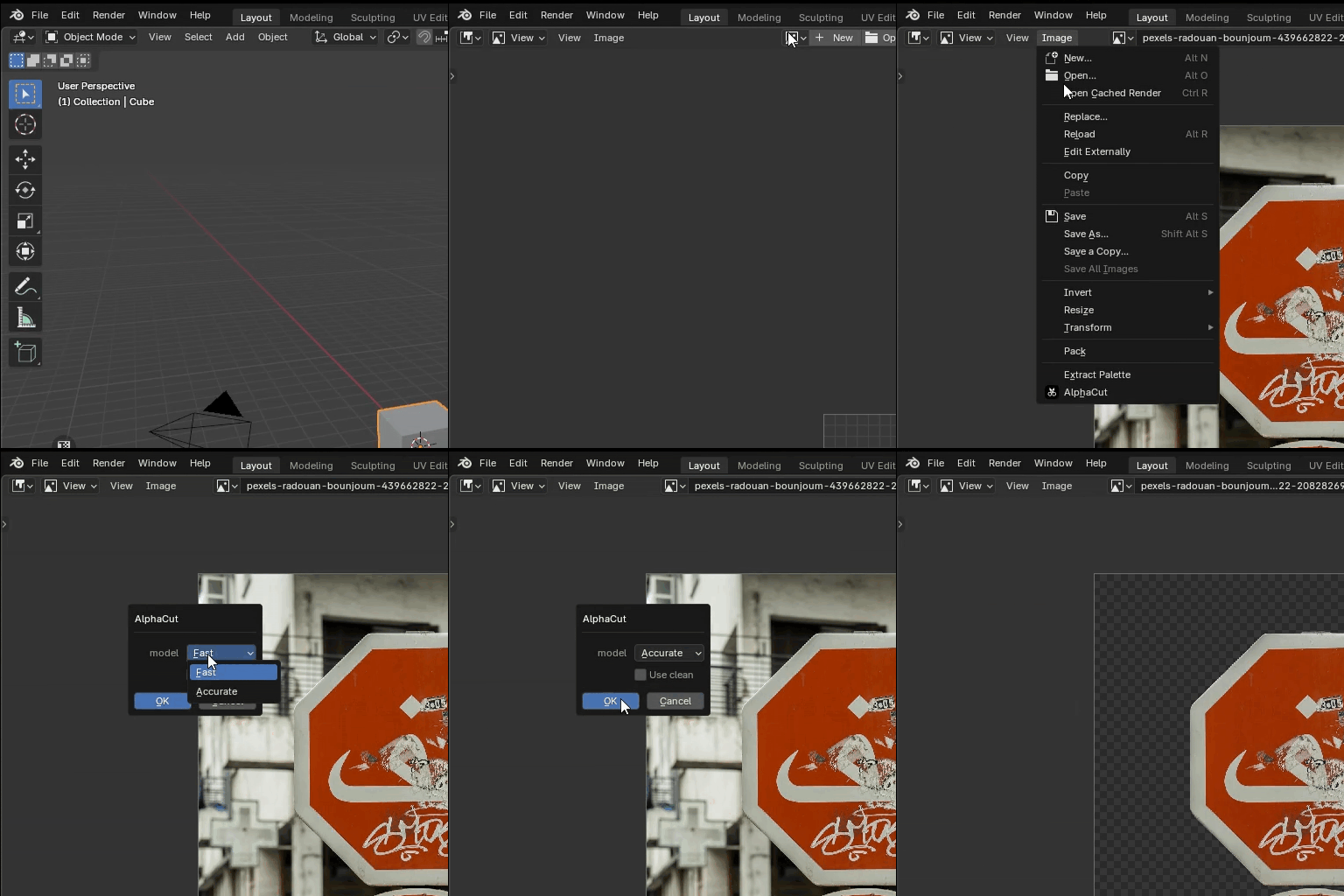
Steps:
- Open the Image Editor.
- Load or select the image you want to process.
- From the top menu, choose:
Image → Alpha Cut - Select the desired processing mode.
- Click OK and wait for the process to complete.
Result:
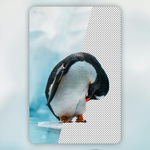
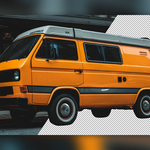
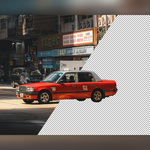
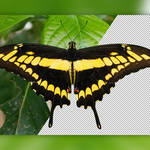
A new image with a transparent background will be generated and loaded automatically.
Automatic Rotoscoping for Video Clips
Steps:
- Open the Movie Clip Editor.
- Load or select the video clip you want to process.
- From the top menu, choose:
Clip → Alpha Cut - Select the desired processing mode.
- Wait for the process to complete.
During processing:
A progress window will appear showing the current progress and a mask preview.
Note:
During processing, Blender may appear unresponsive.
Press Q to stop the operation; the generated mask folder will open automatically.
Result:
The generated mask can be used directly for masking, tracking, or compositing workflows.
Notes
- On first use, the add-on may automatically download required dependencies. Please ensure a stable internet connection or download the resources in advance.
- The first startup may take longer due to initialization. Subsequent uses will be significantly faster.
- Processing time depends on image resolution, clip length, and CPU performance.
Intended Use
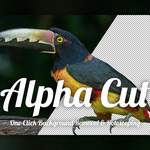
Alpha Cut is designed to streamline image and video workflows inside Blender.
It is best suited for:
- One-click background removal for images
- Automatic rotoscoping for mask and tracking workflows
- Fast previews without leaving Blender
For complex scenes or fine details, manual adjustments may still be required.
System Requirements & Performance
Supported Operating System
- Windows 10 / 11 (64-bit)
Support for other platforms may be considered based on user feedback.
Recommended System Requirements
- Operating System: Windows 10 / 11
- Processor: Intel Core i7-10700K
- Memory: 32 GB RAM
Performance / Processing Time
Test System:
- CPU: Intel Core i7-10700K
Accurate Mode
- Single image (1024 × 1024): ~24 seconds
- Video clip (2048 × 1080, 10s @ 24fps): ~52 minutes
Fast Mode
- Single image (1024 × 1024): ~6 seconds
- Video clip (2048 × 1080, 10s @ 24fps): ~1 minute
Note:
Actual performance may vary depending on hardware, resolution, clip length, and system load.
License Information
This product consists of two components:
- A Blender add-on licensed under the GNU General Public License (GPL).
- An external background removal tool executed via subprocess, licensed separately.
The external tool is licensed for use but may not be redistributed or resold.
All third-party libraries and pretrained models are used in accordance with their original licenses.
The output generated by this add-on is free to use for personal and commercial projects.
Have questions about this product?
Login to message
Discover more products like this
mask image editor ai addon movie clip rotoscoping productivity Compositing tracking alpha cut background removal Workflow