 安迪机器人
安迪机器人


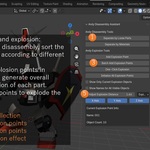
# Andy Disassembly Assistant for Blender
## Overview
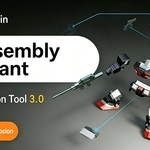
The Andy Disassembly Assistant is a professional-grade add-on designed specifically for 3D artists working in Blender, integrating two core functionalities: model disassembly and explosion animation. The add-on provides an intuitive interface that helps users quickly separate complex models and create dynamic explosion effects, while supporting precise keyframe control and batch processing.
## Features
### Andy Disassembly Tools
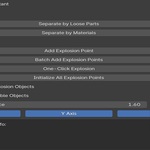
- **Separate by Loose Parts**:
- Automatically identifies and separates independent loose geometry from selected mesh objects
- Automatically sets the origin to geometry center for each separated part
- **Separate by Materials**:
- Splits selected mesh objects into multiple independent objects based on material assignments
- Each new object contains only faces with a single material
- Automatically sets appropriate origin positions for separation results
### Andy Explosion Tools
- **Explosion Point Creation**:
- Creates a central explosion control point for selected object groups or activated collections
- Automatically calculates and stores relative position information for all related objects
- Manages explosion points in a dedicated "Explosion Points" collection
- **Batch Explosion Point Processing**:
- Supports creating explosion points in bulk for all sub-collections under a parent collection
- Automatically generates explosion control points named after collection names
- Provides overall explosion control at the root collection level
- **Dynamic Explosion Control**:
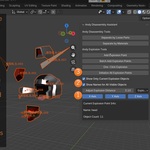
- Real-time adjustment of explosion scattering distance via slider (0=center clustering, 1=original position, >1=further scattering)
- Independent control of explosion effects along X, Y, and Z axes
- **Initialize All Explosion Points**: One-click reset of all explosion points in the scene to their original state (distance=1.0), ensuring all associated objects return to their initial positions
- **Intelligent Display Control**:
- Option to display only objects associated with the currently selected explosion point
- Support for displaying name labels for all visible objects in the scene
- Real-time display of current explosion point details (name, number of associated objects, etc.)
- **Keyframe Animation System**:
- One-click insert/delete/clear keyframes for explosion distance
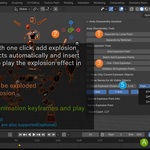
- "One-Click Explosion" feature automatically creates complete explosion animation sequences:
- Frame 0: Objects at original position (distance=1.0)
- Frame 100: Objects fully scattered (distance=3.0)
- Frame 255: Objects return to original position (distance=1.0)
- Automatic playback of generated explosion animations
## Installation
1. Download the latest version of the add-on.
2. Open Blender and navigate to `Edit > Preferences > Add-ons`.
3. Click `Install...` and select the downloaded `.zip` file.
4. Enable the add-on by checking the box next to "Andy Disassembly Assistant".
## Usage
### Model Disassembly Functions
1. Select the mesh objects you want to disassemble
2. In the `3D Viewport`, navigate to the `AndyRobot` tab in the sidebar (`N` panel)
3. Click according to your needs:
- "Separate by Loose Parts": Separate independent geometric parts
- "Separate by Materials": Split objects by materials
### Adding Explosion Points
1. **Method 1 (Select Objects)**: Select the objects you want to explode, then click "Add Explosion Point" in the panel
2. **Method 2 (Select Collection)**: Activate the target collection (right-click in Outliner and select "Activate Collection"), then click "Add Explosion Point"
3. The add-on will automatically create an explosion control point and store relevant information in an empty object
### Batch Processing
1. Select a parent collection containing multiple sub-collections
2. Click "Batch Add Explosion Points"
3. The add-on will automatically create corresponding explosion points for each sub-collection and create a master control explosion point in the "Explosion Points" collection
### Creating Explosion Animations
1. **Manual Control**:
- Select the explosion control point
- Adjust the explosion distance slider to control scattering intensity
- Use direction checkboxes to control explosion effects along specific axes
- Insert/delete/clear keyframes using the keyframe menu
2. **One-Click Explosion**:
- Select the objects or collection you want to explode
- Click the "One-Click Explosion" button
- The add-on automatically completes explosion point creation, keyframe setup, and animation playback
3. **Reset Explosion State**:
- Click the "Initialize All Explosion Points" button
- The add-on will reset the distance of all explosion points in the scene to 1.0
- All associated objects will return to their original positions
### Display Control
- Check "Show Only Current Explosion Point Objects": Display only objects associated with the currently selected explosion point
- Check "Show Names for All Visible Objects": Display name labels for all visible objects in the scene
## License
This project is licensed under the GNU General Public License v3.0. See the [LICENSE](LICENSE) file for details.
## Support
For issues, feature requests, or general inquiries, please contact us at:
- Bilibili: [Andy Robot](https://space.bilibili.com/38766249)
Crafted with care by AndyRobot.
$8
Have questions about this product?
Login to message
| Published | 4 months ago |
| Blender Version | 4.5 - 5.1 |
| Extension Type | N/A |
| Render Engine Used | Cycles, Eevee |
| License | GPL |
Discover more products like this
disassembly mesh separation disassembly animation effect product disassembly diagram explosion