Animated Flagpole for Blender | 254 4K Country Flag Textures | Cloth & Wind
 NovaStrikes
in Urban


Animated Flagpole — Documentation & FAQ
Product Overview
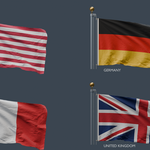
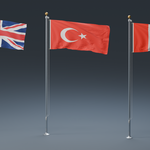
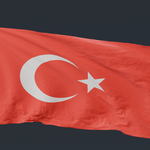
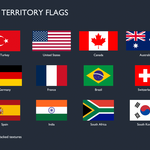
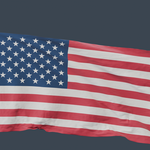
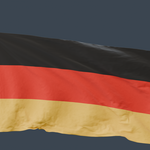
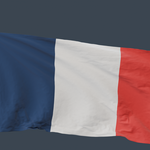
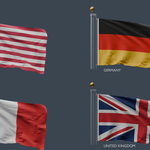
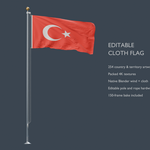
This asset includes one editable flagpole assembly, a simulated cloth flag, and 254 interchangeable country and territory flag textures.
The native Blender file contains the complete setup, including materials, textures, force fields, and the supplied animation bake.
| Specification | Details |
|---|---|
| Main file | Animated_Flags_FINAL.blend |
| Tested Blender version | Blender 5.2 |
| Preview render engine | Cycles |
| Flag artwork | 254 packed 4K country and territory textures |
| Original flag dimensions | Approximately 4.2 × 2.1 meters |
| Flag aspect ratio | 2:1 |
| Assembly height | Approximately 8.675 meters |
| Animation | 150-frame baked cloth simulation |
| Seamless loop | No |
| Required third-party add-ons | None |
The 254 designs are material variations for the same flag model.
1. Getting Started
Open
Animated_Flags_FINAL.blendin Blender.Allow the project to finish loading.
Switch the viewport to Material Preview or Rendered mode to see the flag artwork.
Use the timeline to inspect the included animation.
Save a separate working copy before making major changes.
The packed textures and supplied cloth bake do not require the original external texture or cache folders.
Recommended starting point: use the native .blend file for the complete editable setup.
2. Finding the Main Components
The scene contains named objects for the flag, pole, hardware, and force fields.
The flag object is named:
FLAG | Select me to change country material
The pole assembly includes:
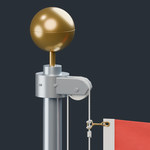
A tapered metal mast.
A brass finial.
A covered pulley housing and wheel.
Two halyard runs.
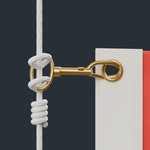
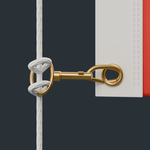
Brass attachment clips.
Reinforced white flag heading with eyelets.
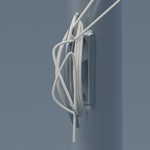
A cleat and rope wraps.
A metal ground collar.
Select individual components through the Outliner when they are difficult to select in the viewport.
3. Changing the Country Flag
Using Material Properties
Select the flag mesh.
Open Material Properties.
Locate its current material.
Open the material selection dropdown beside the material name.
Search for the country name or
FLAG |.Select the desired material.
Replace the existing material. Adding an empty material slot with the + button does not change the flag artwork.
Using the Asset Browser
The included country materials are also marked as assets.
Open an Asset Browser area.
Select Current File as the asset library.
Search for a country name.
Drag the desired material onto the flag.
If the existing Layout workspace displays the material gallery, you can use it directly.
Changing the country material does not require rebaking the animation.
4. Using Your Own Artwork
You can replace the supplied country artwork with a custom design.
Select the flag.
Open the Shader Editor.
Make a copy of the active material so the original country material remains available.
Locate the Image Texture node labeled
COUNTRY ARTWORK 4K.Open your replacement image.
Keep the image connected to the shared fabric shader.
Rename the material to describe your custom design.
Use a 2:1 image, such as 4096 × 2048 pixels, for artwork intended to match the supplied cloth shape.
Replacing the artwork through this node preserves the procedural fabric shading.
After adding an external image, choose:
File → External Data → Pack Resources
Save the project afterward to embed the new image.
5. Playing the Animation
The included cloth animation is baked over frames 1–150.
Use Blender’s timeline controls to play or scrub through this range.
The bake contains cloth settling and waving. It is not a seamless loop, so returning from frame 150 to frame 1 can produce a visible jump.
A slow viewport does not necessarily mean the animation is broken. Playback speed depends on your hardware, viewport shading mode, and subdivision settings.
6. Changing the Wind or Cloth Motion
The flag uses Blender’s native Cloth modifier with Wind and Turbulence force fields.
Because a bake is already supplied, changing a force field will not automatically replace the cached movement.
To create a new simulation:
Save a working copy.
Select the flag.
Open Physics Properties → Cloth → Cache.
Delete the existing bake.
Return to frame 1.
Select the Wind force field.
Adjust its strength or rotation.
Adjust Turbulence or cloth settings if needed.
Select the flag again and bake the animation.
Save the file.
Make small adjustments first and inspect the result before increasing the simulation length.
Deleting the bake removes the supplied cached motion from that working file. Keep an untouched copy if you want to return to the original animation.
7. Changing Flag Proportions
All direct material swaps use the supplied 2:1 cloth shape.
Some national flags use different official proportions. Applying their material does not automatically resize the cloth.
For a different aspect ratio:
Save a separate copy.
Delete the cloth bake.
Return to frame 1.
Adjust the cloth geometry to the desired proportions.
Keep the hoist edge aligned with the reinforced heading and attachments.
Check the pin vertex group and hardware placement.
Rebake the simulation.
Each country material includes its source artwork’s aspect ratio in its custom properties.
Changing the flag’s height may also require changes to the heading, eyelets, clips, and their spacing.
Non-rectangular artwork, including Nepal’s flag, uses transparency on the rectangular cloth. A physically tailored outline requires different simulation geometry.
8. Editing the Pole and Hardware
The pole and attachment components remain editable in Blender.
You can change their materials, dimensions, or placement to suit your scene. When modifying the rigging, check that:
The rope remains seated in the pulley.
The clips remain aligned with the eyelets.
The reinforced heading stays aligned with the flag’s pinned edge.
The cleat wraps remain positioned around the cleat.
The base remains grounded.
Moving or scaling the cloth setup can affect its relationship with the cached animation. Recheck playback after changes and rebake when necessary.
9. Materials and Textures
The country images provide the flag artwork. Additional fabric detail is generated procedurally.
The native materials include features such as:
Woven fabric relief.
Fine surface variation.
Matte fabric shading.
Stitched hem relief.
A small amount of transmitted light.
Braided rope surface detail.
Metal finishes for the pole and fittings.
Some components use procedural materials without conventional UV maps. The asset’s UV coverage is therefore mixed.
Lighting and color management affect the final appearance. Your renders may look different from the product previews when using another environment or render setup.
10. Performance
This is a high-resolution visualization asset.
The current assembly contains approximately 1.02 million base polygons. Render modifiers increase the evaluated geometry further.
For a more responsive viewport:
Use Solid mode while positioning the asset.
Reduce the flag’s viewport subdivision level.
Keep render subdivision separate from viewport subdivision.
Use lower preview render samples while adjusting lighting.
Render a short test before committing to a longer animation.
Keep subdivision after the Cloth modifier when adjusting the modifier stack.
A separate optimization pass is recommended for real-time applications or scenes containing many copies.
11. File Formats
Native Blender File
Use .blend for:
Editable Cloth settings.
Native Wind and Turbulence force fields.
The complete country-material library.
Procedural materials.
The supplied embedded animation bake.
Additional Exports
The package also includes ABC, FBX, GLB, OBJ/MTL, PLY, STL, and USDC files.
These formats have different capabilities. They do not reproduce every Blender-specific feature.
ABC: intended for geometry-cache workflows; exported animation must be checked in the receiving application.
FBX, GLB, and USDC: scene, material, and animation support depends on the export settings and importing software.
OBJ/MTL: intended for static geometry and basic material exchange.
PLY and STL: mesh exchange formats; they do not contain the complete Blender cloth and material setup.
Export-specific animation and material compatibility has not been verified across other applications. The native Blender file is the primary tested version.
12. Saving a Self-Contained Copy
The supplied main file already contains its textures and cloth bake.
If you add or replace resources:
Pack newly added image files through File → External Data → Pack Resources.
Check whether any new simulation cache is stored internally or externally.
Save the Blender file.
Test a copy from a different folder before sharing it.
Packing image resources does not automatically embed every type of external simulation cache.
Frequently Asked Questions
Does this include 254 separate flag models?
No. It includes one reusable flag and pole assembly with 254 country and territory artwork materials.
Are the flag textures included?
Yes. All 254 supplied 4K country textures are packed into the native Blender file.
Do I need to download textures separately?
No. The supplied Blender file can use its packed country textures without an external texture folder.
Can I change the country without changing the animation?
Yes. Replace the current flag material with another included country material. The supplied bake remains usable.
Can I use a company logo or custom flag design?
Yes. Make a copy of a flag material and replace its artwork image. Use artwork you have permission to use.
Is the animation seamless?
No. The supplied 150-frame bake includes settling and waving, and it does not loop seamlessly.
Is the wind editable?
Yes, in the native Blender file. Delete the existing bake before changing the simulation, then rebake to see the new motion.
Why does changing the wind strength have no visible effect?
The flag is still displaying its cached animation. Delete the bake, return to frame 1, adjust the wind, and create a new bake.
Do I need an add-on or script to change flags?
No. Use Blender’s standard material controls or the Current File Asset Browser.
Why is the flag gray in the viewport?
Solid viewport shading generally does not display the full image-textured material. Switch to Material Preview or Rendered mode.
Why is the material gallery empty?
Check that the Asset Browser is set to Current File. Clear any search or filter settings that may hide the materials.
Why does a square flag appear rectangular?
Material swaps keep the model’s 2:1 shape. A square flag requires a geometry adjustment and a new cloth bake.
Does Nepal’s flag have a custom simulation outline?
No. Its artwork uses transparency on the rectangular cloth surface. A custom outline requires remodeling and rebaking.
Can I resize the whole flagpole?
Yes, but inspect the cloth animation and attachment alignment afterward. Scaling or moving a simulated setup may require a new bake.
Is this suitable for game engines?
It can serve as a starting point, but it is a high-resolution asset. It is not supplied as an optimized game-ready model with verified engine integration.
Why is playback slower than the timeline frame rate?
The scene contains substantial geometry and subdivision. Reduce viewport subdivision and use Solid shading to improve responsiveness.
Will the materials look identical in another application?
Not necessarily. Blender’s procedural shaders and cloth setup do not transfer completely through every exchange format.
Does the STL include the flag textures and animation?
No. STL does not preserve the native textured and animated Blender setup.
Is the model ready for 3D printing?
It has not been prepared or validated for 3D printing. Thin cloth surfaces, separate components, and small details may require substantial modification.
Which Blender version was tested?
Blender 5.2. Compatibility with older versions has not been verified.
Which render engine was used for the previews?
Cycles.
Was AI used during development?
Yes. AI assistance was used for scripting and parts of the production workflow. The seller directed the project, supplied references, reviewed the results, identified issues, and guided revisions.
What should I include when reporting a problem?
Please send:
Your Blender version or receiving application.
The file format you opened.
A screenshot of the issue.
The steps that produced it.
Any error message shown.
Whether the issue occurs in an untouched copy of the supplied file.
This helps distinguish a file issue from an import setting, scene modification, or application compatibility issue.
What license applies?
The license shown on the product’s marketplace listing governs use of the package. This documentation does not replace or expand those license terms.
Have questions about this product?
Login to message
| Rating | 1 ratings |
| Dev Fund Contributor | |
| Published | about 2 months ago |
| Blender Version | 4.0 - 5.2 |
| Render Engine Used | Cycles, Eevee |
| Misc Data | Uvs-Unwrapped, Animated, Textured |
| License | Creative Commons |