AnimaTEXt Procedural Animations
 PixelsMixer


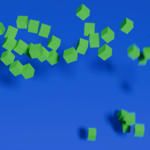
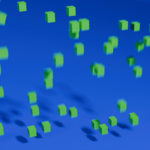
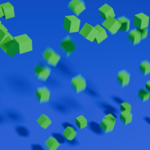


How to Use
Step 1: Select an Object
Choose any object in the 3D Viewport that you want to animate.
Step 2: Open the Animation Panel
Press N in the 3D Viewport to open the Sidebar.
Go to the Animation tab and locate "AnimaTEXt".
Step 3: Adjust Animation Settings
-
Effect: Choose an animation type (Wave, Spiral, Bounce, etc.).
-
Speed: Adjust how fast the animation progresses.
-
Intensity: Control the strength/amplitude of the motion.
-
Frame Start / End: Define the animation range.
-
Wave Frequency: Controls oscillation speed for wave-based effects.
-
Gravity Strength: Adjusts the gravity force for parabolic jumps.
-
Randomness: Adds variation to jitter and wave effects.
Step 4: Apply Animation
Click "Apply Animation" to generate keyframes based on the selected effect.
🎭 Animation Effects
| Effect Name | Description |
|---|---|
| Wave Motion | Moves the object up and down like a sine wave. |
| Circular Motion | Moves the object in a circular path. |
| Random Jitter | Applies small random movements to the object. |
| Bounce Effect | Simulates an up-and-down bouncing motion. |
| Spiral Motion | Expands outward while rotating. |
| Pendulum Swing | Swings back and forth like a pendulum. |
| Elastic Bounce | Creates a decaying bouncing motion. |
| Tornado Motion | Spins in a vortex while rising upward. |
| Vortex Swirl | Moves in a shrinking spiral. |
| Helix Spiral | Moves in a helical path (DNA-like motion). |
| Ease In/Out | Starts slow, speeds up, then slows down. |
| Parabolic Jump | Simulates projectile motion. |
| Sound Wave Motion | Mimics an equalizer effect with vertical movement. |
🎛️ Customization Options
| Property | Description | Default | Min / Max |
|---|---|---|---|
| Effect | Selects the animation effect. | "Wave" | Various |
| Speed | Controls animation speed. | 10.0 |
1.0 - 50.0 |
| Intensity | Affects motion strength. | 0.5 | 0.1 - 10.0 |
| Frame Start | First frame of animation. | 1 |
1 - 1000 |
| Frame End | Last frame of animation. | 100 |
10 - 2000 |
| Wave Frequency | Controls oscillation speed. | 1.0 |
0.1 - 10.0 |
| Gravity Strength | Adjusts gravity effect. | 1.0 |
0.1 - 10.0 |
| Random Strength | Adds noise/randomness to motion. | 1.0 |
0.1 - 10.0 |
📌 Example Usage
🌊 Wave Motion Example
To create a smooth wave animation:
-
Select an object (e.g., a cube).
-
Choose "Wave Motion" from the effect list.
-
Set Speed = 5, Intensity = 2, and Wave Frequency = 1.5.
-
Click Apply Animation → The object will move up/down in a sine wave.
🐞 Troubleshooting
| Problem | Solution |
|---|---|
| Animation starts at (0,0,0) | The latest version fixes this by keeping the original position. |
| Object doesn't animate | Check that the Frame Range includes the active timeline. |
| Effect is too strong/weak | Adjust Intensity and Speed values. |
| Clean All Animation | Clean ONLY LAST effect, saving last location/rotation. For more use ctrl + z |
If you find any bugs or want to add any effects, let me know in PM. I'll include them in future updates for free.
🚀 Future Features
💡 Path-based motion – Animate objects along custom paths.
💡 Physics Integration – Apply realistic forces.
💡 Custom Noise Functions – More organic movement.
Have questions about this product?
Login to message
| Blender Extension Compatible | Yes |
| Dev Fund Contributor | |
| Published | over 1 year ago |
| Blender Version | 4.4, 4.3, 4.2, 4.1, 4.0 |
| Extension Type | Add-on |
| License | GPL |