 Bowstone Studios
Introducing Animation Cache 2.0
Supercharge Your Animation Playback with Animation Cache 2.0
Are choppy animations and sluggish playback slowing down your creative flow? Animation Cache 2.0 helps animators, motion designers, and 3D artists review demanding animations in Blender. Cache evaluated mesh animation, reduce repeated evaluation work, and spend more time refining your timing, posing, and motion.
Complex Scene Animation
Why You’ll Love It
- Effortless Caching — Build geometry caches for selected meshes to reduce repeated rig and mesh evaluation during review.
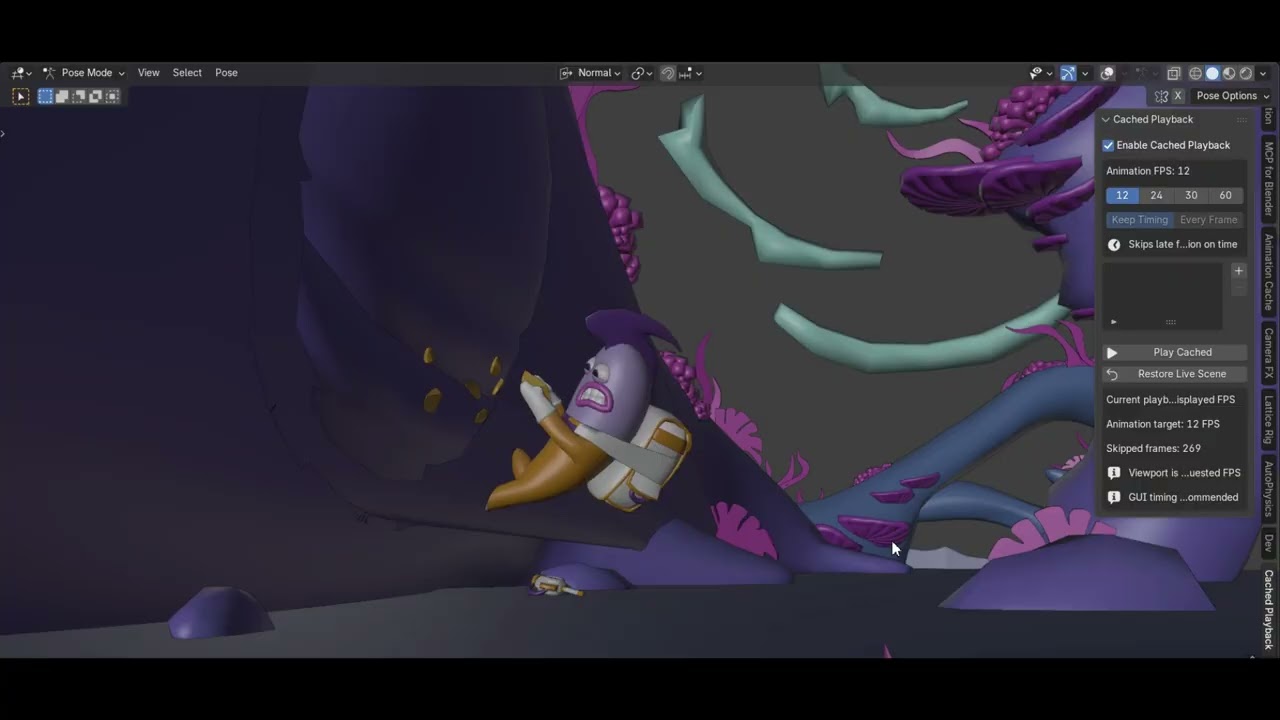
- Custom Playback FPS — Choose from 12, 24, 30, or 60 FPS to set your animation timing before building your cache.
- Seamless Workflow — Review cached geometry, pause, and return to your live scene when it is time to make adjustments.
- One-Click Playback — Click Play Cached to start. The button changes to Pause Cached while playback is active.
- More Control in 2.0 — Organize multiple cache sets, choose your timing mode, and see when your caches need attention.
How It Works
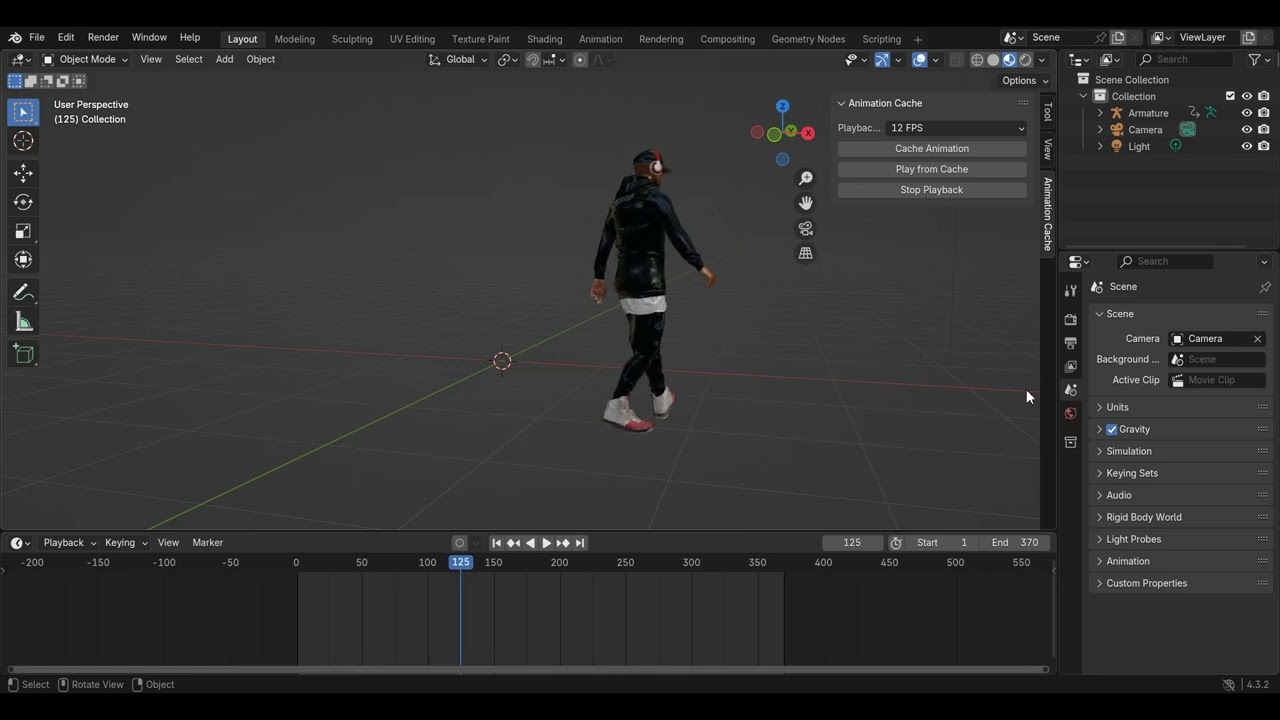
- Cache your animation. Choose your meshes, set your animation FPS and range, and build the cache.
- Play it back. Choose your timing mode and click Play Cached.
- Pause and refine. Return to your live scene, make changes, and rebuild affected caches before your next review.
Smoother Review for Demanding Animations
The Animation Cache add-on improves animation review by storing evaluated mesh animation in geometry cache files. Instead of relying on the live rig and mesh evaluation for every displayed frame, Blender reads the corresponding cached geometry during playback.
Normally, Blender evaluates the rig, modifiers, and mesh deformation as the animation plays. In complex scenes, this work can lead to choppy or sluggish playback. Animation Cache 2.0 uses native Alembic geometry caches to reduce that repeated evaluation work, making it easier to concentrate on the animation itself.
Animation Cache Blender Addon
What’s New in Animation Cache 2.0
-
Native Alembic Geometry Caching
Evaluated mesh animation is stored in Alembic cache files and played back with native cache readers. Source meshes and rig dependencies are temporarily disabled during cached review. -
Multiple Cache Sets
Organize characters or mesh groups separately. Build, rebuild, and clear each set independently. -
Selected Meshes and Rig Dependencies
Add selected meshes together with related armatures and parent controls, so cache sets need fewer manual steps. -
Custom Frame Ranges and Build Options
Use the scene range or a custom range. Control viewport or render evaluation, subdivision, UVs, normals, and vertex colors for each build. -
Two Playback Timing Modes
Keep Timing skips late frames to preserve animation timing. Every Frame displays each frame and lets playback slow down when the viewport cannot keep up. -
Clear Cache Status and Automatic Invalidation
See whether a set is empty, valid, dirty, building, or has an error. Relevant changes are flagged automatically, and dirty sets keep playing live until rebuilt. -
Playback Performance Feedback
View measured displayed FPS, target animation FPS, and skipped-frame counts. -
Live Scene Restoration
Pausing restores recorded viewport visibility and playback timing settings. A dedicated Restore Live Scene button provides a direct recovery option. -
Blender Extension Ready
Install the ZIP through Blender’s extension system. The package is prepared for Superhive’s remote installation and update workflow once this release is published and recognized as extension compatible.
Animation Cache Addon

New Workflows: Cache, Review, and Keep Creating
Build and Play Your First Cache
- Select the animated meshes you want to cache, create a cache set, and use Add Selected Meshes.
- Choose your animation FPS, frame range, and cache build options. Set the FPS before building so the cache matches your timing.
- Click Build Cache and wait for the set to show Valid.
- Choose Keep Timing or Every Frame, then click Play Cached.
Edit Your Animation and Rebuild
- Click Pause Cached to pause playback and return to the live scene.
- Adjust your animation, mesh, or cache build settings.
- Check cache status. Relevant edits, FPS changes, or build-option changes can require a rebuild. You can also use Mark Dirty to flag a set manually.
- Rebuild affected sets, then use Play Cached to review the updated animation.
Manage Multiple Characters or Mesh Groups
Create separate cache sets for different characters or mesh groups. Build and rebuild each set independently as your scene changes. Check the status of every set before reviewing: valid sets use their caches, while dirty sets remain live until rebuilt.
Choose the Playback Mode That Fits Your Review
Keep Timing: skip late frames to preserve animation timing when you want to judge pacing.
Every Frame: show each frame, allowing playback to slow down for a closer look at the motion.
Use the displayed FPS, target FPS, and skipped-frame feedback to understand how your scene is performing, then adjust your playback mode or cache setup as needed.
Animation Cache Playback
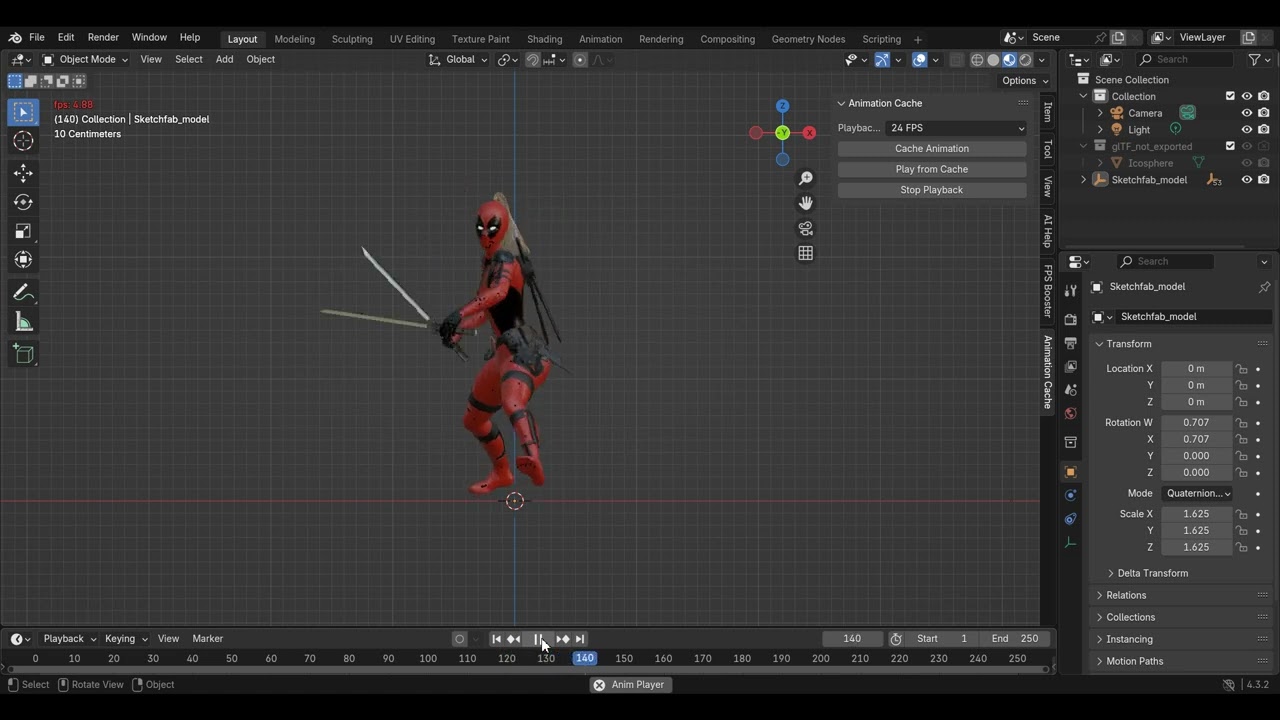
Focus on Perfecting Your Motion
Animation Cache is particularly useful for character animation, deformed meshes, and motion graphics, where a clear view of the motion helps you make better adjustments. Animation Cache 2.0 gives you more control over how you prepare, review, and update your cached animation, so you can focus on the creative work.
Compatibility and Installation
Animation Cache 2.0 requires Blender 4.2 or newer with Alembic support. Install the extension ZIP through Preferences > Get Extensions > Install from Disk, then open the Animation Cache tab in the 3D Viewport sidebar.
Cache performance depends on scene complexity, hardware, storage, and viewport settings. Cache files store evaluated mesh geometry; changes to your animation or cache settings can require a rebuild.
Animation Cache 2.0 by Bowstone Studios