Animauto - Animate Vehicles In Seconds
 BlenderAddon
Animauto User Manual
Advanced Vehicle Rigging & Animation System
01 Video Tutorials
Follow these guides to master the Animauto workflow.
02 Preparing Your Model
Proper setup is crucial for the simulation to work correctly.
2.1 Dimensions & Orientation
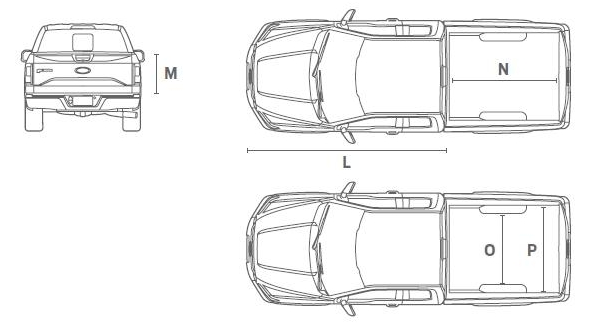
- Real World Scale: Use correct real-world dimensions for your vehicle type.
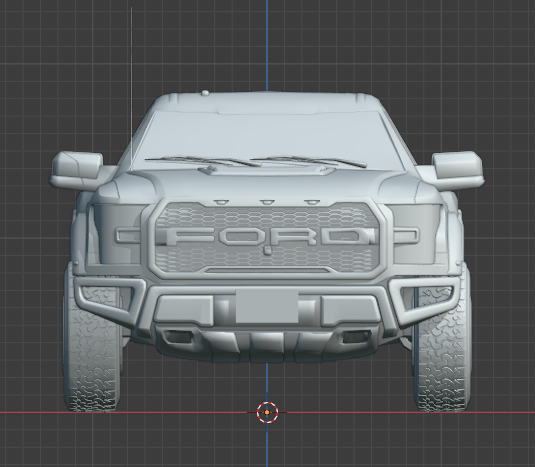
- Orientation: Point the vehicle in the -Y direction (facing you in Front View).
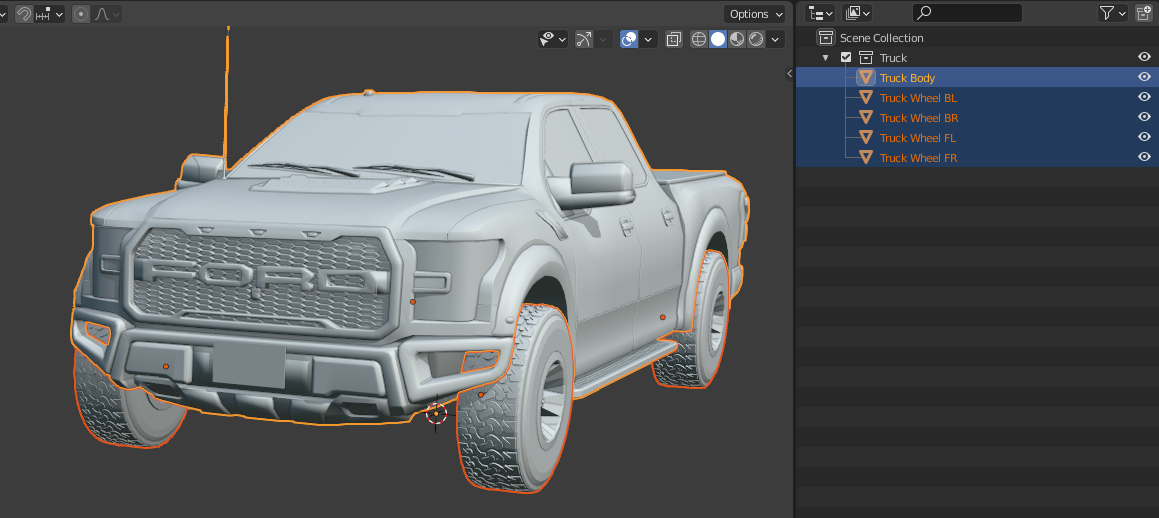
2.2 Centering & Separation
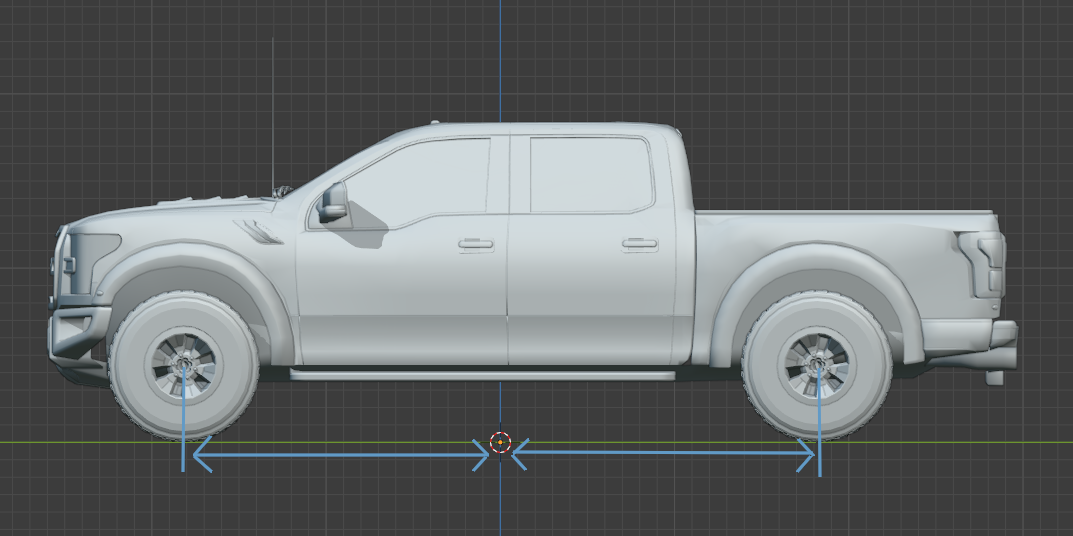
Position the vehicle so the wheelbase is centered (equal distance from origin to front/back wheels).
- Separate all moving parts (Body and Wheels must be different objects).
- Do not parent objects to each other.
- Apply Rotation & Scale (Ctrl+A) on all objects.
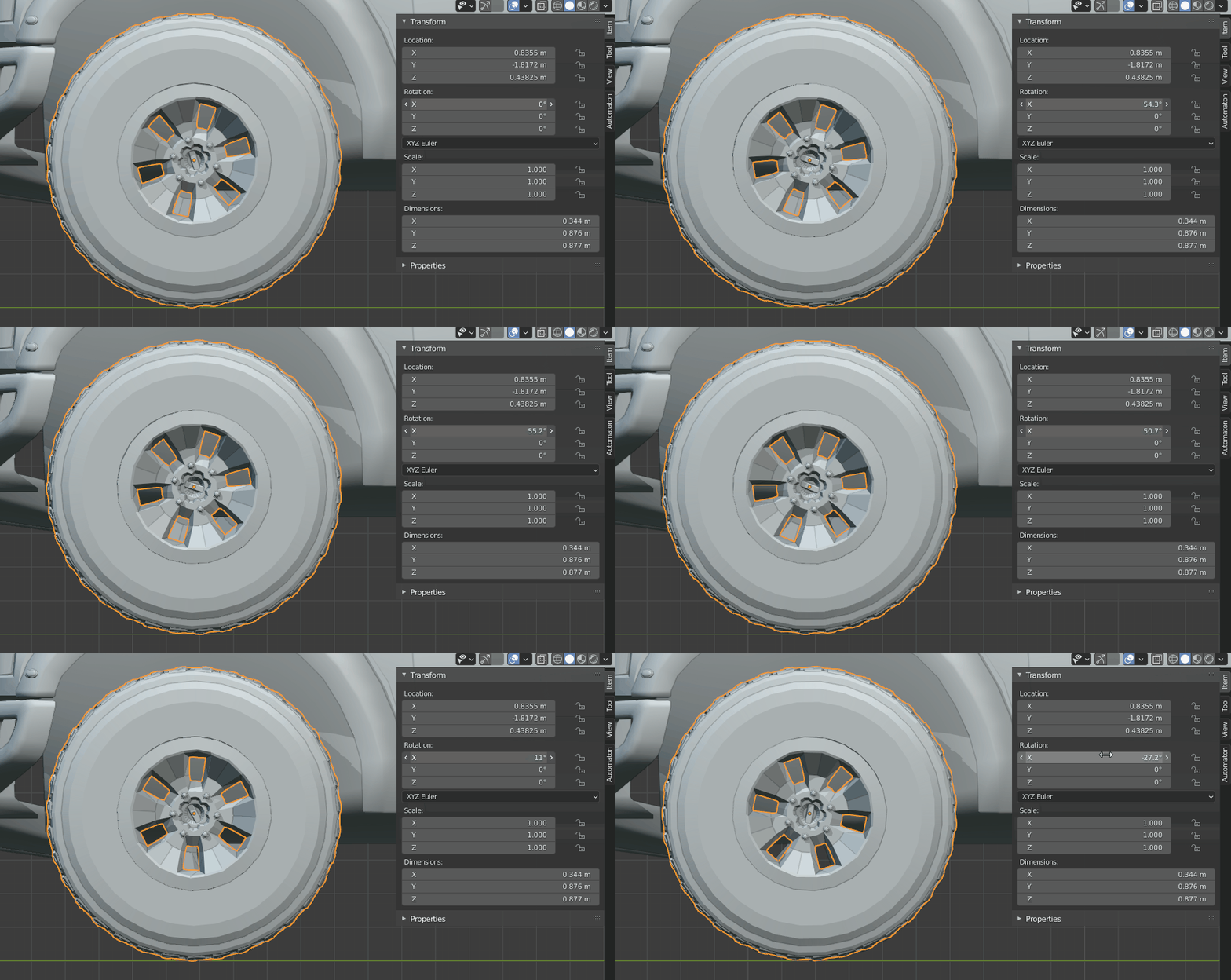
2.3 Origin Points
Set to the exact center of rotation.
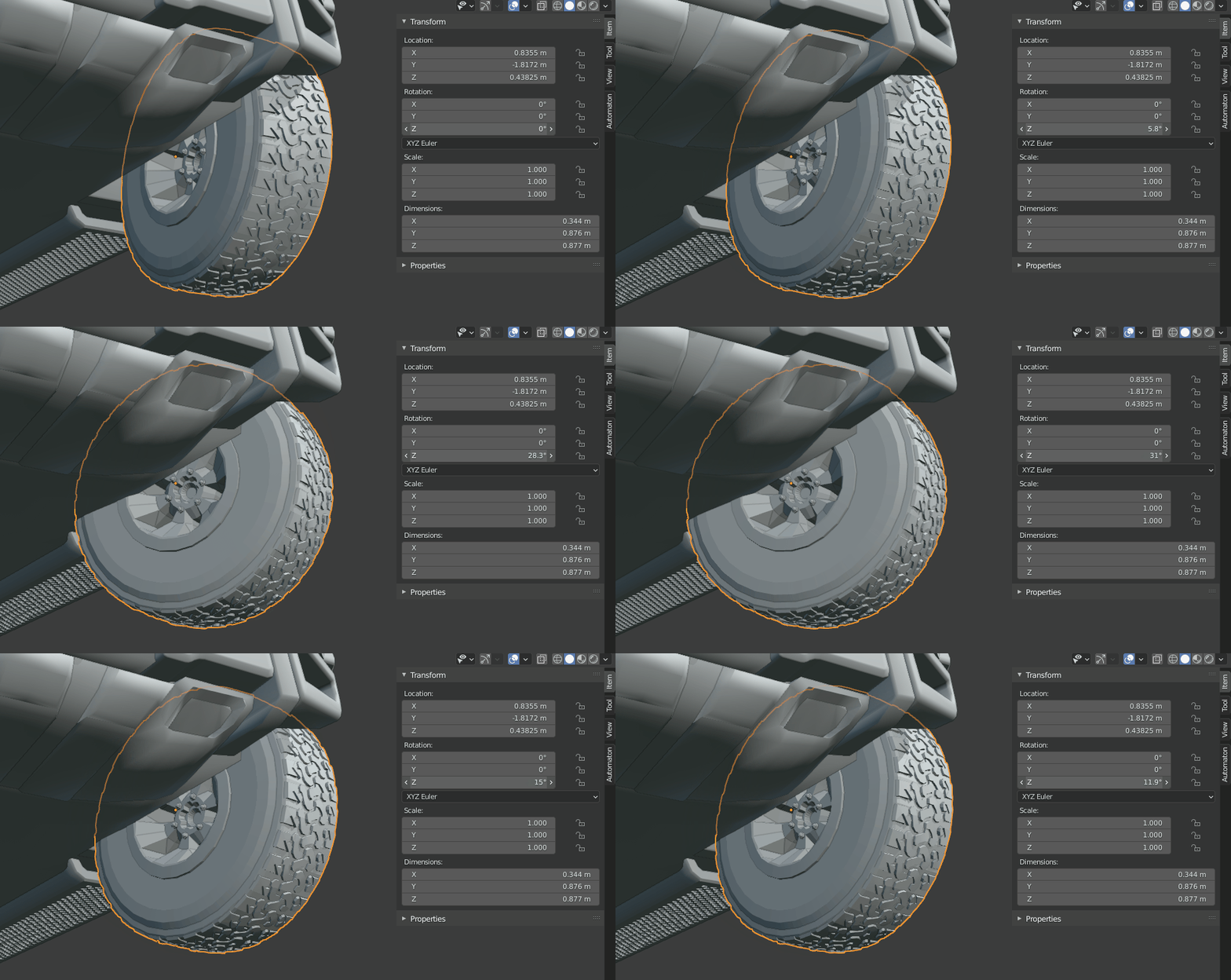
Set to the pivot axis (usually slightly inward).
03 Setup & Initialization
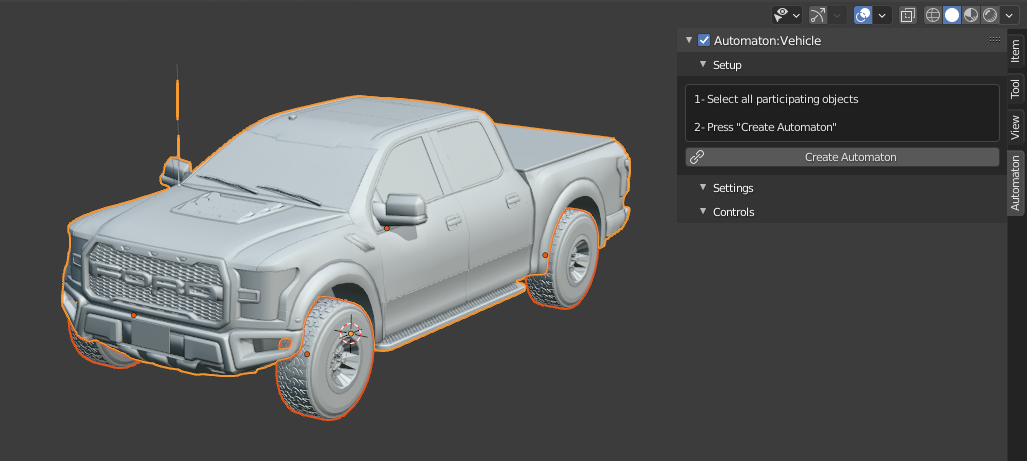
Activating Animauto
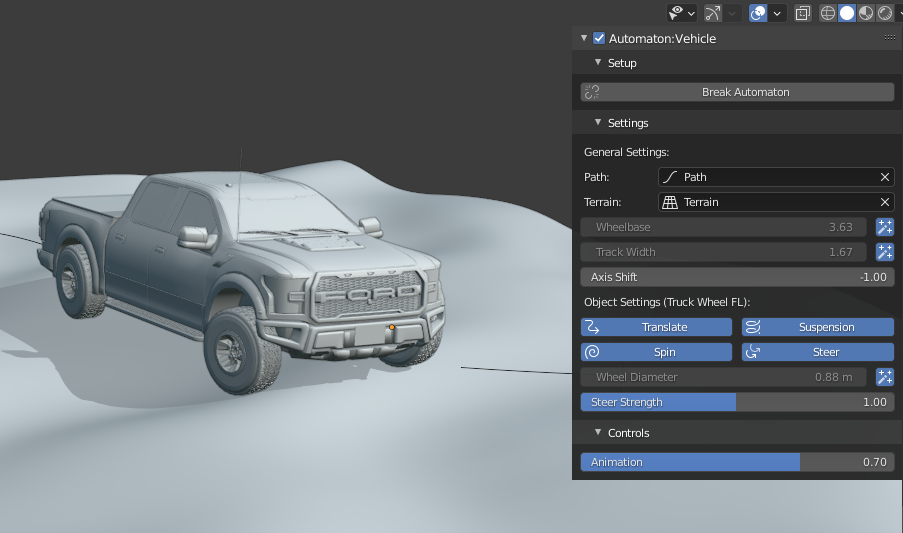
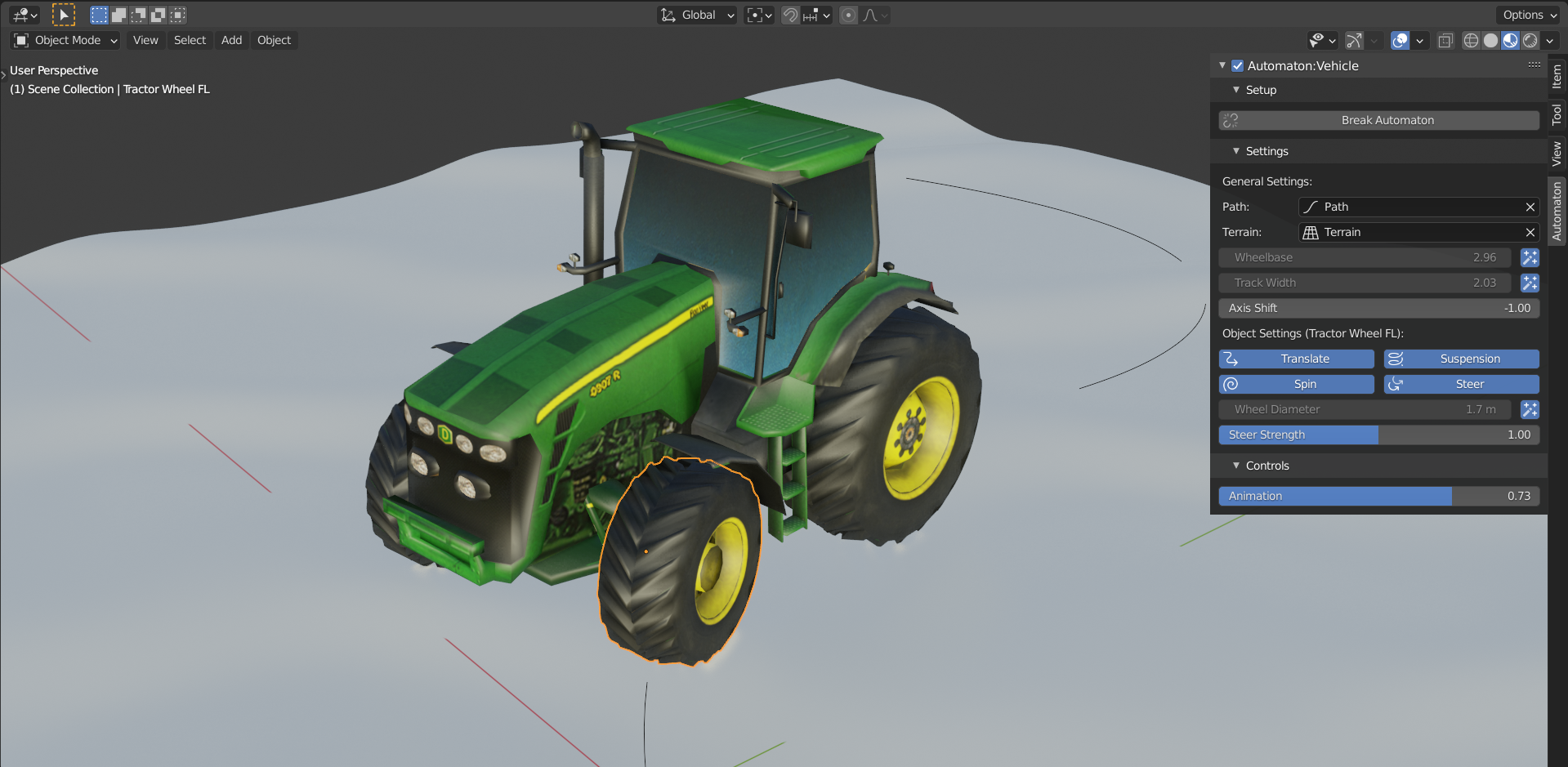
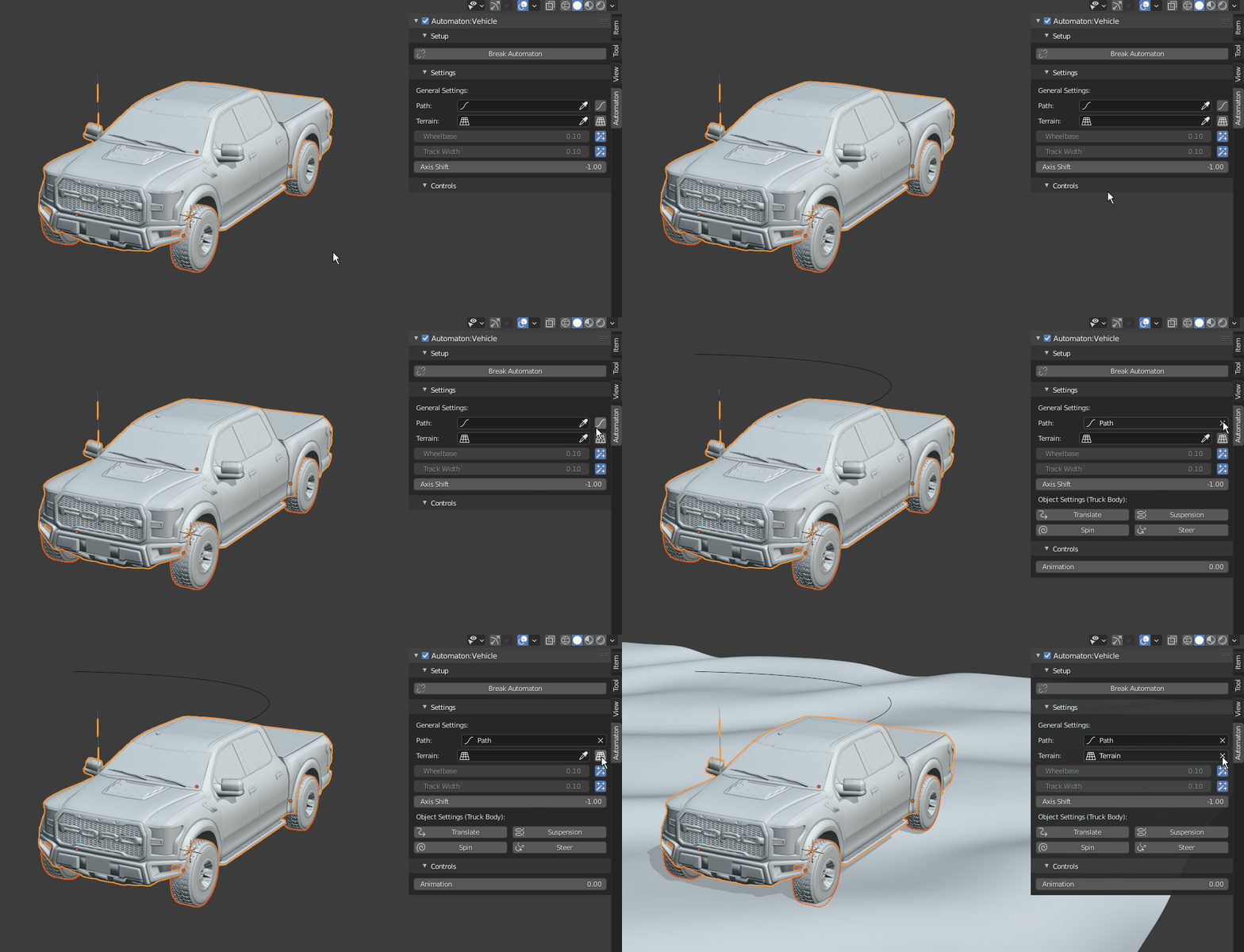
Select all moving objects, go to the Animauto tab, enable Animauto, and press Create Animauto.
General Settings
Set a Path and an optional Terrain object. Use the buttons next to the selectors to quickly create new ones.
04 Object Configuration
Configure the movement logic for each part of the vehicle.
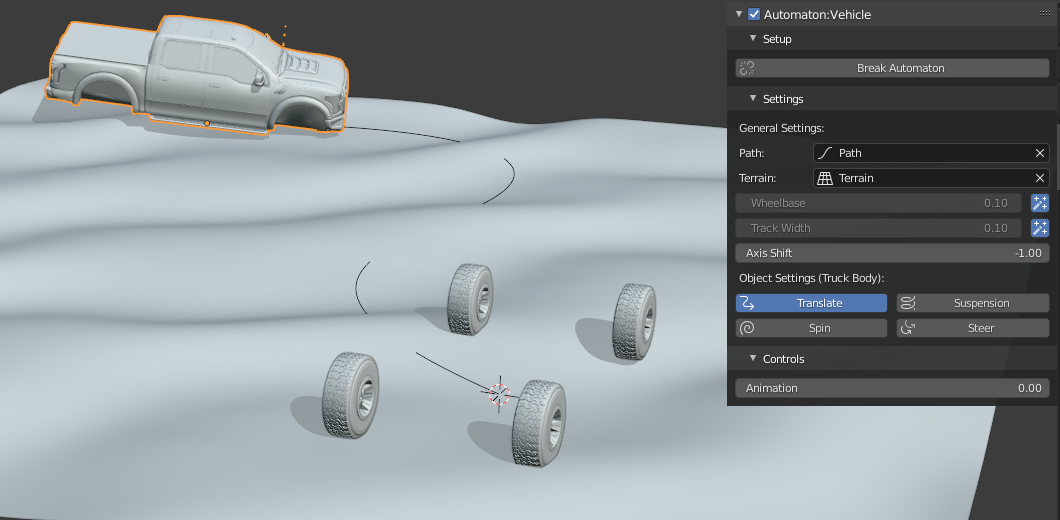
Step 1: The Body
Select the body object and activate Translate.
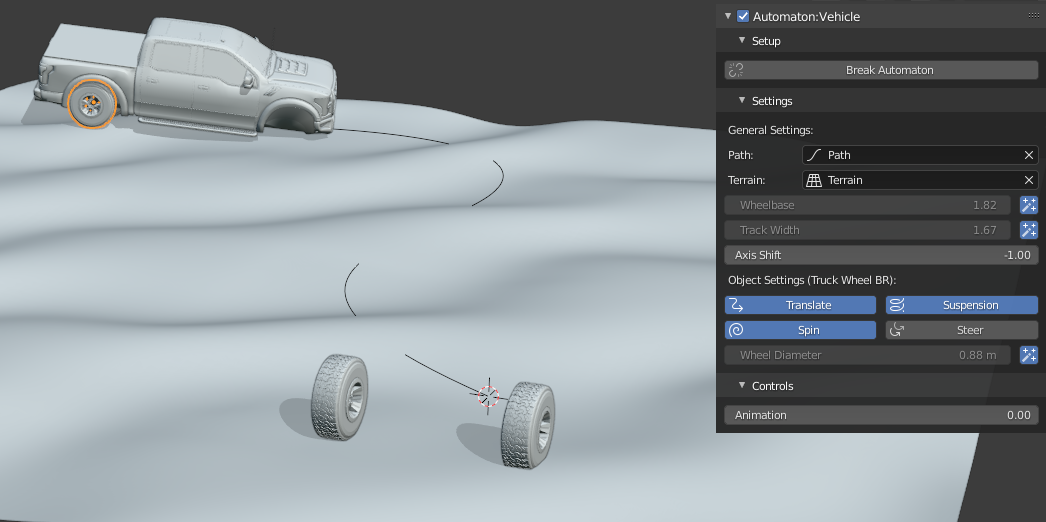
Step 2: Back Wheels
Select each back wheel and activate Translate, Spin, and Suspension.
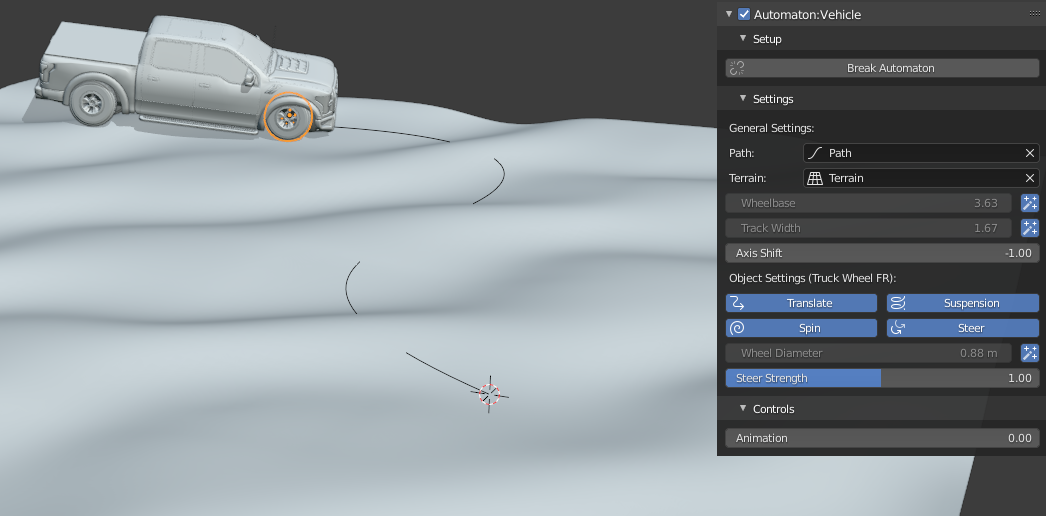
Step 3: Front Wheels
Select each front wheel and activate Translate, Spin, Suspension, and Steer.
05 Final Result
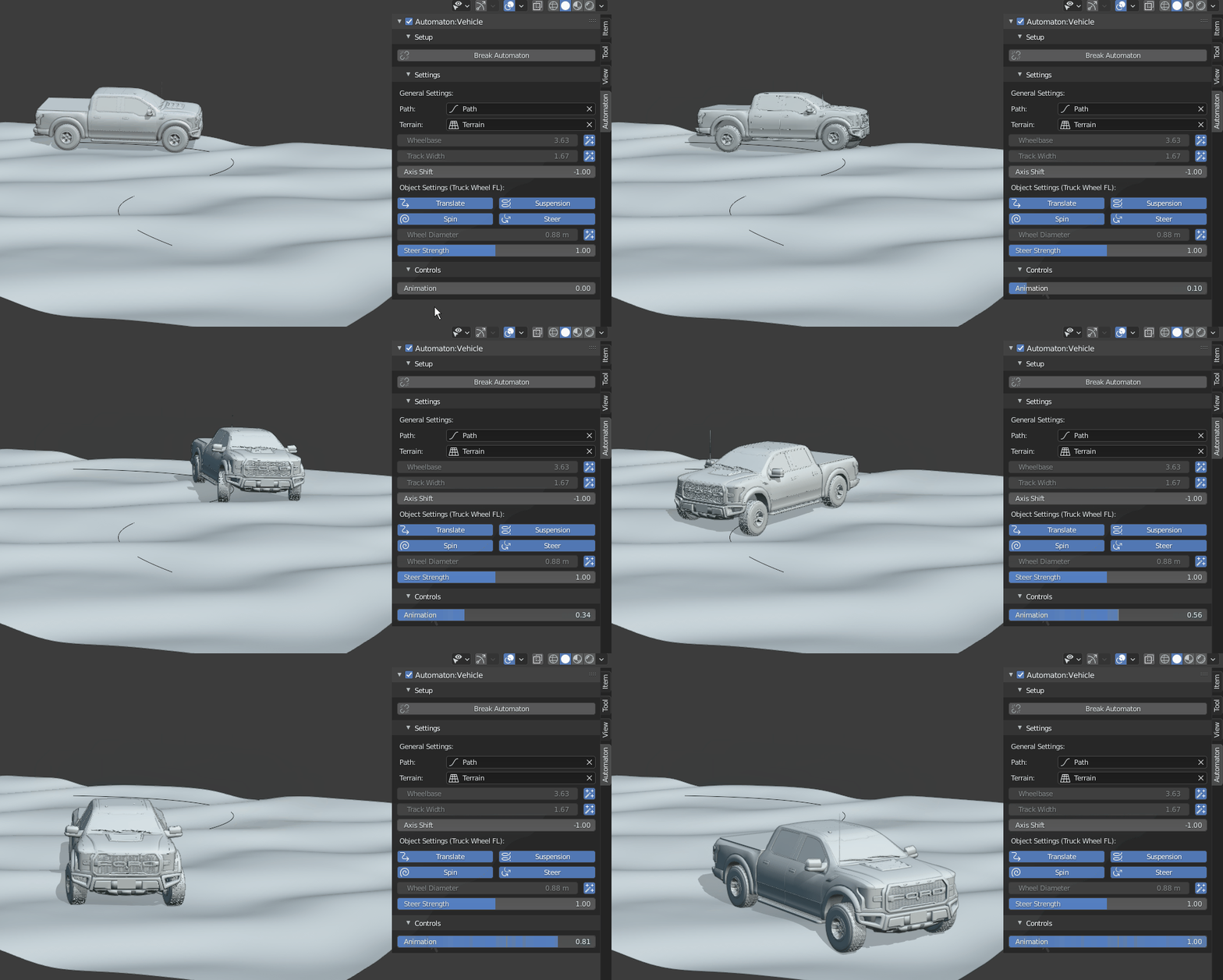
You are done! Play with the Animation control to see your vehicle rally over the bumpy terrain.
© blenderaddon.com
-
$10
Freelancers, Hobbyists, Students
-
$30
Companies, Teams, Educational Institutions
Have questions about this product?
Login to message
Discover more products like this
car loveblender Vehicles rig Rigged vehicle animation rigged car rig rigged truck automobile