 za studio


AnimL — Animation Layers
Documentation (v1.0)
AnimL provides a practical animation-layer workflow built on top of Blender’s NLA system (Tracks and Strips). It is designed for fast iteration: create layers, tweak animation non-destructively, and consolidate results into a base layer when needed.
|
Audience This document targets animators and technical artists who want a predictable layering workflow for objects and armatures. It assumes basic knowledge of keyframing and the NLA Editor. |
Contents
1. Concepts and Layer Model
2. Interface Overview
3. Creating and Editing Layers
4. Tweak Mode (Full Stack) — How It Works
5. Merge vs Bake
6. Range-Based Consolidation (Bake Start/End and Set Range)
7. Decimate and Redundant Cleanup (Selected Keys)
8. Armature Notes (Bones, Slots, and Older Rigs)
9. Best Practices and Troubleshooting
1. Concepts and Layer Model
AnimL represents layers as NLA Tracks with a single NLA Strip per track. A strip holds an Action that contains keyframes. Tracks are evaluated as a stack, allowing higher layers to modify the result of lower layers.
A special track named Main_Layer acts as the base. Once animation is detected, Main_Layer is created (or enforced), kept at the bottom of the stack, and treated as the final authority layer for consolidation.
|
Main_Layer rules • Always exists once animation is
detected. |
Layer naming
Additional layers are created sequentially: Layer_01, Layer_02, Layer_03, … These layers can be renamed by the user. Internally, operations track layers by their actual NLA identifiers so renaming remains safe.
2. Interface Overview
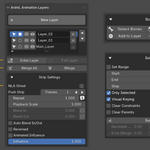
AnimL appears in the sidebar. The panel is organized in three main areas: layer creation, the layer list, and tool sections (Strip Settings, Bone tools, Bake).
New Layer
The New Layer button is enabled only when the active object contains animation data (either an Action with keys, or existing NLA strips). When pressed, AnimL commits the current animation into Main_Layer if needed, creates a new layer strip matching the scene range, and enters Tweak Mode for editing.
Layer list (top to bottom)
Each row represents one NLA Track (one layer). The row includes: Select, Tweak toggle, Auto Blend toggle, Mute, Name, and Delete controls. Main_Layer is visually locked and cannot be renamed.
Merge button placement
Merge is placed directly below the layer list (above Strip Settings). It consolidates the currently selected layer into Main_Layer using a non-destructive merge approach (no full per-frame baking).
3. Creating and Editing Layers
A typical workflow is: create a new layer, make changes (keys) in that layer, then consolidate when satisfied. AnimL is designed so you can switch layers frequently without losing visibility in the Dope Sheet or Graph Editor.
Step-by-step workflow
· Select an object (or armature) that already has animation.
· Click New Layer to create Layer_01 (or the next available layer).
· Make edits: move the object/bones and insert keys (Auto Keying or the I key).
· Use the Tweak toggle to ensure you are editing the intended layer strip.
· When ready, consolidate using Merge or Bake (depending on your needs).
|
Tip — Layer range New layers are created with a strip range matching the scene frame range. You can still move/trim strips later, but starting aligned to the scene makes layering predictable. |
4. Tweak Mode (Full Stack) — How It Works
AnimL relies on Blender’s NLA Tweak Mode so keys remain visible and editable. Full Stack evaluation is used so playback reflects the complete layered result, even while editing a single strip action.
On some rigs imported from older Blender versions, the first key inserted in a brand-new layer may cause an evaluation snap (the pose jumps back). To prevent this, AnimL performs a one-time refresh after the first key is detected: it stops tweaking and immediately re-enters Tweak Mode in Full Stack. This matches the manual workaround (toggle Tweak off/on) but happens automatically.
|
What you should see After you insert the first key in a newly created layer, playback should remain stable (no snap-back). Keys stay visible in the Dope Sheet and Graph Editor without requiring manual Tweak toggling. |
5. Merge vs Bake
AnimL provides two consolidation operations that write results into Main_Layer and remove the source layer afterwards. Choose based on whether you want a lightweight merge or a full evaluated bake.
Merge
Merge transfers the selected layer’s contribution into Main_Layer without performing a full per-frame Bake Action. It is intended to preserve the existing Main_Layer animation and add the layer’s changes on top, minimizing unnecessary key generation.
Bake
Bake evaluates animation and writes keyframes for the chosen frame range using Blender’s Bake Action logic. Bake is useful when constraints, drivers, or complex evaluation make a pure merge insufficient. Because baking can produce dense keys, AnimL pairs it with optional key reduction tools (Decimate and Redundant).
|
Safety rule Merge and Bake only modify animation when you explicitly trigger them. Creating layers and toggling tweak are non-destructive. |
6. Range-Based Consolidation (Bake Start/End and Set Range)
You can consolidate a partial segment of an animation. This is useful for patching a short interval (for example, frames 50–60) without altering the rest of Main_Layer.
Bake Start / End
When Bake Start/End is enabled, AnimL applies consolidation only to that interval. Main_Layer keys outside the interval are preserved. Within the interval, the evaluated result is written into Main_Layer.
Set Range
Set Range uses the preview range (or a range derived from the NLA selection) as the operation interval. This is helpful when you want to visually select a segment and consolidate exactly that portion.
7. Decimate and Redundant Cleanup (Selected Keys)
Decimate and Redundant operate on selected keyframes. This keeps control in the animator’s hands: you decide which curves and which keys are eligible for cleanup.
Decimate
Decimate reduces key density using a ratio-based approach. Lower values remove more keys; higher values keep more keys. Typical starting values range from 0.85 to 0.95, depending on how much detail you want to preserve.
Redundant
Redundant removes keys that do not contribute to motion (flat or no-change keys). Use Error Margin to control how strict the cleanup is. Smaller values are safer; larger values remove more keys.
|
Recommendation Run Decimate first to reduce key density, then run Redundant to remove leftover no-change keys. |
8. Armature Notes (Bones, Slots, and Older Rigs)
Armatures can have many bones and channels. AnimL focuses operations so that consolidation affects only what the layer actually changes. This avoids baking keys for unrelated bones and keeps the result clean.
If you work on rigs authored in older Blender versions, it is normal to encounter evaluation differences. AnimL’s one-time first-key tweak refresh is specifically designed to stabilize this situation without manual intervention.
9. Best Practices and Troubleshooting
Best practices
· Keep Main_Layer as your base and consolidate regularly to avoid an excessively tall stack.
· Use short, focused layers for iteration (for example: a single pose fix or a short timing adjustment).
· When patching only a segment, use Bake Start/End or Set Range to avoid touching the rest of the animation.
· After a Bake, use Decimate and Redundant on selected keys to reduce density while preserving the motion.
Troubleshooting
|
Keys are not visible in Dope Sheet/Graph Editor Ensure the intended layer is selected and Tweak is ON. If the rig is imported from older versions, insert the first key and let the automatic refresh run. |
|
Playback ignores upper layers when editing a lower layer Make sure you are in Full Stack Tweak Mode. AnimL enters Tweak with Full Stack so the entire stack plays as one. |
|
Merge is blocked because Main_Layer is missing Rename the bottom layer to Main_Layer, then run Merge again. |
|
Baked results look too dense Select the baked keys, run Decimate with a higher ratio (keep more keys), then run Redundant with a small Error Margin. |
Appendix: Notes on key insertion
AnimL supports both Auto Keying and manual key insertion. For consistent results, insert keys on the same set of channels (for example: Location + Rotation) when doing layered edits.
Keyboard shortcuts (default Blender keymap)
The add-on does not change Blender’s keymap. The shortcuts below refer to Blender’s default keymap and may differ if you use a custom key configuration.
|
Shortcut |
What it does |
|
I |
Insert a keyframe (choose a keying set, e.g., LocRotScale). |
|
Auto Keying (Timeline toggle) |
Automatically inserts keys when you transform the object/bones. |
|
A (Graph Editor / Dope Sheet) |
Select all keyframes in the editor (useful before Decimate / Redundant). |
|
Tab (NLA Editor, default) |
Toggle Tweak Mode for the active strip (keymap dependent). |
|
M (NLA Editor, default) |
Mute selected tracks/strips (keymap dependent). |
Operational notes (what to watch out for)
· When you work on imported rigs, the first key in a newly created layer can trigger a pose snap due to evaluation order. AnimL handles this via an automatic one-time Tweak refresh after the first key.
· For range-based consolidation, always verify Bake Start/End (or Preview Range) before running Bake, especially when patching a short interval.
· Decimate and Redundant are designed to run on selected keys. In Graph Editor, select only the curves/keys you want to affect before pressing the buttons.
· If a project already contains NLA tracks but no Main_Layer, consolidation is blocked until you rename the bottom-most layer to Main_Layer.
Glossary
|
Term |
Meaning |
|
Track |
An NLA layer container. In AnimL, one track corresponds to one layer in the list. |
|
Strip |
An item inside a track that references an Action. In AnimL, each layer uses a single strip. |
|
Action |
A collection of F-Curves (keyframes) stored as an animation clip. |
|
Tweak Mode |
Blender’s mode for editing a strip’s Action while seeing the NLA result. |
|
Full Stack |
Tweak configuration where the whole NLA stack is evaluated during playback while editing one layer. |
Quick checklist (before you consolidate)
· Confirm the correct layer is selected (the layer you want to merge/bake).
· If you only want to patch a segment, confirm Bake Start/End or Preview Range.
· For armatures, confirm you are in Pose Mode and the intended bones are keyed.
· After Bake, select only the keys you want to simplify, then run Decimate and/or Redundant.
Common workflows
A) Pose fix on an armature (non-destructive)
· New Layer → create Layer_01.
· Pose the required bones and insert keys.
· Playback to validate the layered result.
· Merge into Main_Layer once satisfied; the source layer is removed.
B) Constraint-heavy cleanup (evaluated bake)
· Set Bake Start/End (or Set Range) for the interval you want to consolidate.
· Run Bake to capture the evaluated motion.
· Select the baked keys → Decimate (ratio) → Redundant (Error Margin).