 GritForge
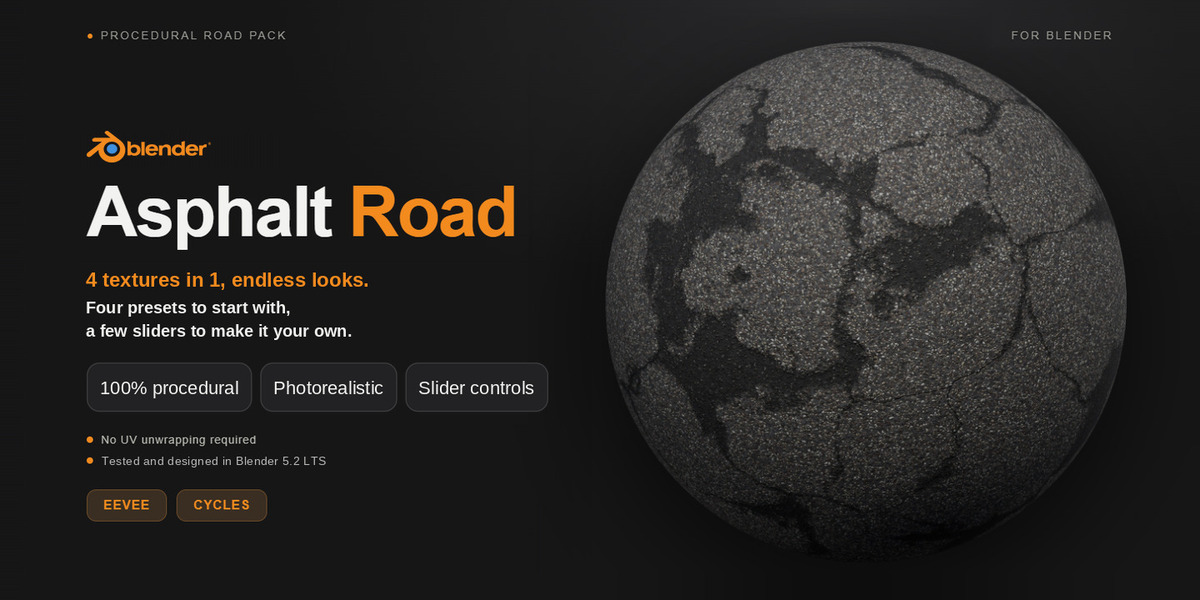
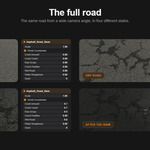
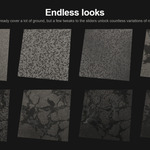
Fully procedural asphalt road material: gravel grain, cracks, puddles and rain. No image textures, no UV unwrapping needed. Real-world scale (in meters).
- Author: Juno SAVELLI
- Version: 1.0
- Tested and designed in Blender 5.2 LTS
- Render engines: EEVEE and Cycles
- Presets: 4 materials, 1 shared node group
What's in the pack
Five files. Keep the .blend and the catalog file together.
| Asphalt_Road.blend | 4 ready-to-use material presets (Asset Browser library) |
| Asphalt_Road_Demo.blend | Demo scene: a 10 m x 4 m road, cameras and lights |
| blender_assets.cats.txt | Asset catalog ("Roads"). Keep it next to Asphalt_Road.blend |
| LICENSE.txt | License terms |
| README.png | The original readme |
The 4 presets
All presets share the same node group, "Asphalt".
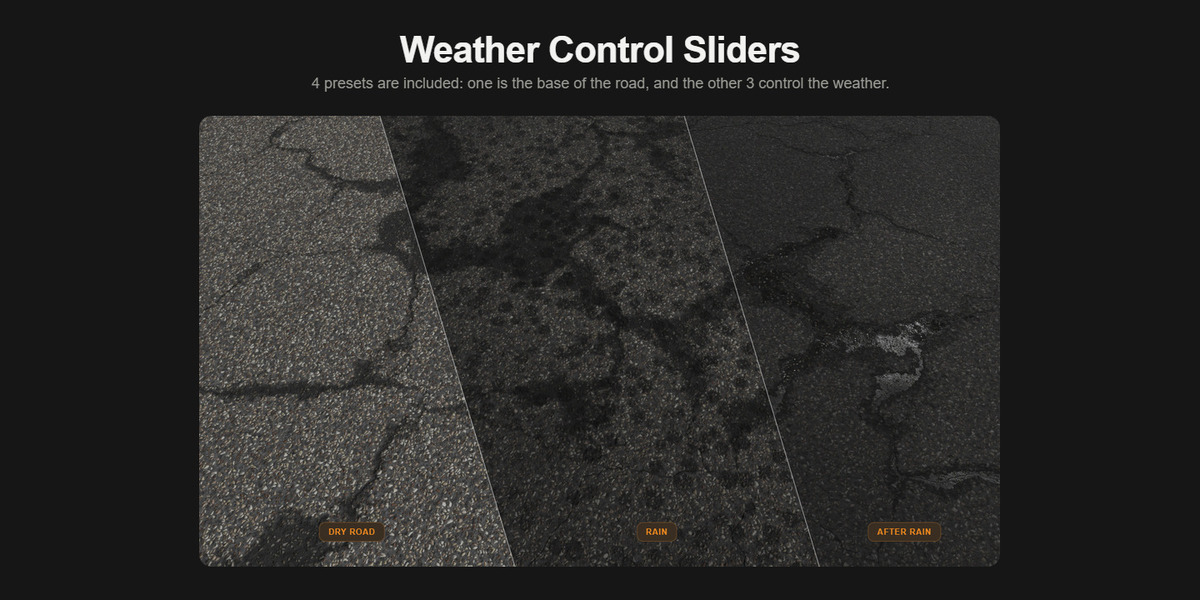
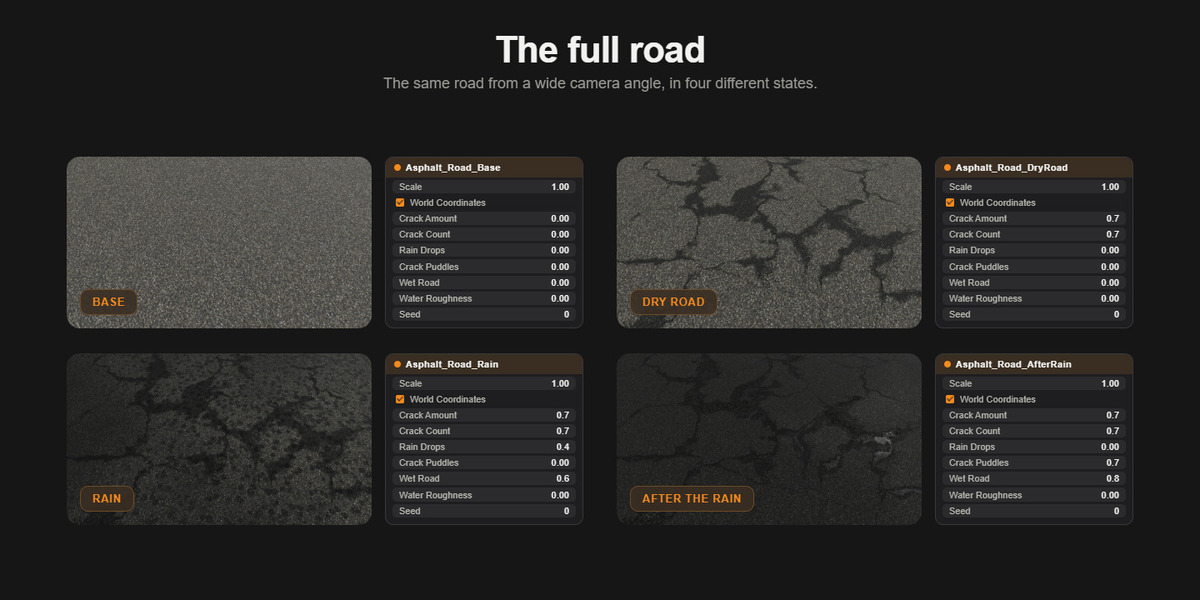
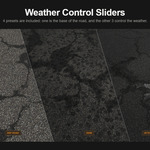
- Asphalt_Road_Base: clean asphalt, no cracks, dry.
- Asphalt_Road_DryRoad: dry cracked road.
- Asphalt_Road_Rain: raindrops on a wet cracked road.
- Asphalt_Road_AfterRain: cracks filled with water, wet darkened road.
Installation
The material is copied into your own file, so the pack's files are never modified.
- Unzip the pack anywhere you like. Don't open or save the pack's .blend files directly: that would overwrite the original materials.
- Open your own scene in Blender (or a new file).
- Append the material. Go to File > Append, select Asphalt_Road.blend, open the Material folder, pick the preset(s) you want and click Append.
- Assign it. Select your object, open the Material tab and choose the preset in the material slot. If you append a preset without assigning it to an object, click the shield icon (Fake User) next to its name, or Blender will not keep it when you save. You'll find it in the Outliner: Display Mode > Blender File > Materials.
Optional, Asset Browser: add the pack's folder in Edit > Preferences > Asset Libraries. Set Import Method to Append, then drag the presets from the Asset Browser (Roads catalog).
How to use
- Any mesh: works on any mesh. No UVs required (see "World Coordinates" below).
- Preview: use Rendered mode (Z > Rendered) or Material Preview in the viewport.
- Settings: in the Material tab, open the "Asphalt" group to find the settings.
Settings
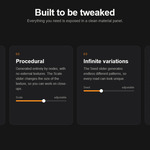
Everything is exposed in the "Asphalt" group.
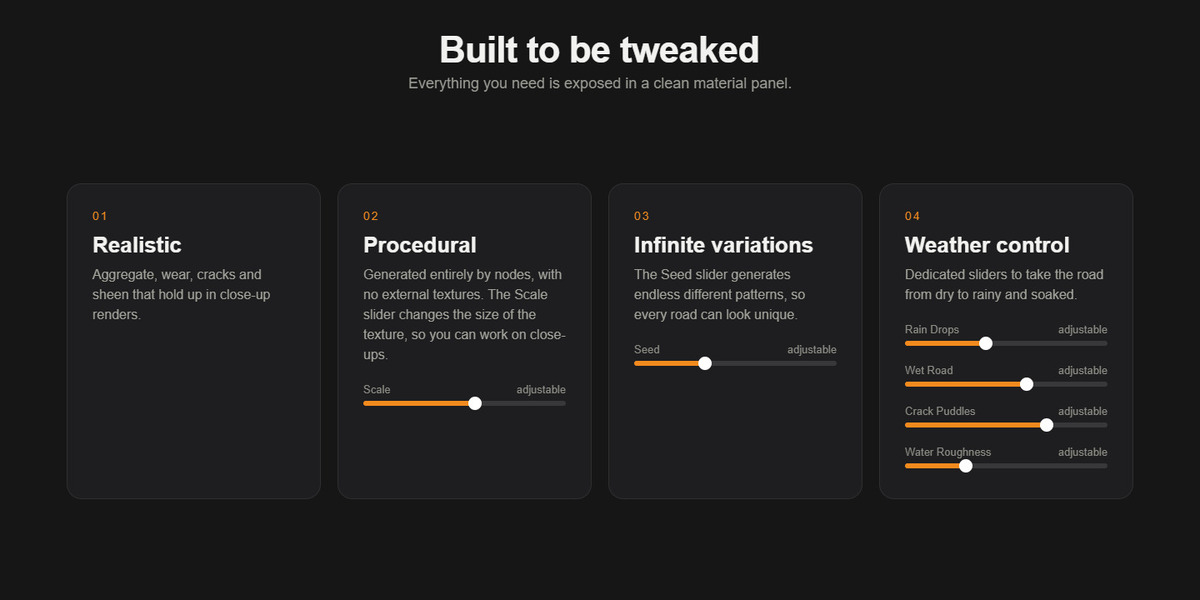
- Scale (0 – 1): overall size of the texture (grain + cracks). Increase it on very large planes if the pattern looks too small.
- World Coordinates (ON / OFF): ON: the pattern is fixed to real-world meters, whatever the scale of the object. OFF: the pattern follows the object (and its scale). All 4 presets have it ON.
- Crack Amount (0 – 1): width and presence of the cracks.
- Crack Count (0 – 1): number of cracks.
- Rain Drops (0 – 1): 0 = dry. Higher values add more raindrops, up to covering the whole surface.
- Crack Puddles (0 – 1): puddles inside the cracks. 0 = dry, 1 = cracks full of water.
- Wet Road (0 – 1): large soft puddles that cover the road and make it black (no relief).
- Water Roughness (0 – 1): roughness of the water in the puddles. Low = real glossy sheet of water. High = just a matte wet stain (no water film).
- Seed (0 – ∞): random variation. Change it to get a different pattern.
Preset values
All presets: Scale 1, World Coordinates ON, Water Roughness 0, Seed 0.
| Preset | Crack Amount | Crack Count | Crack Puddles | Wet Road | Rain Drops |
|---|---|---|---|---|---|
| Base | 0 | 0 | 0 | 0 | 0 |
| DryRoad | 0.7 | 0.7 | 0 | 0 | 0 |
| AfterRain | 0.7 | 0.7 | 0.7 | 0.8 | 0 |
| Rain | 0.7 | 0.7 | 0 | 0.6 | 0.4 |
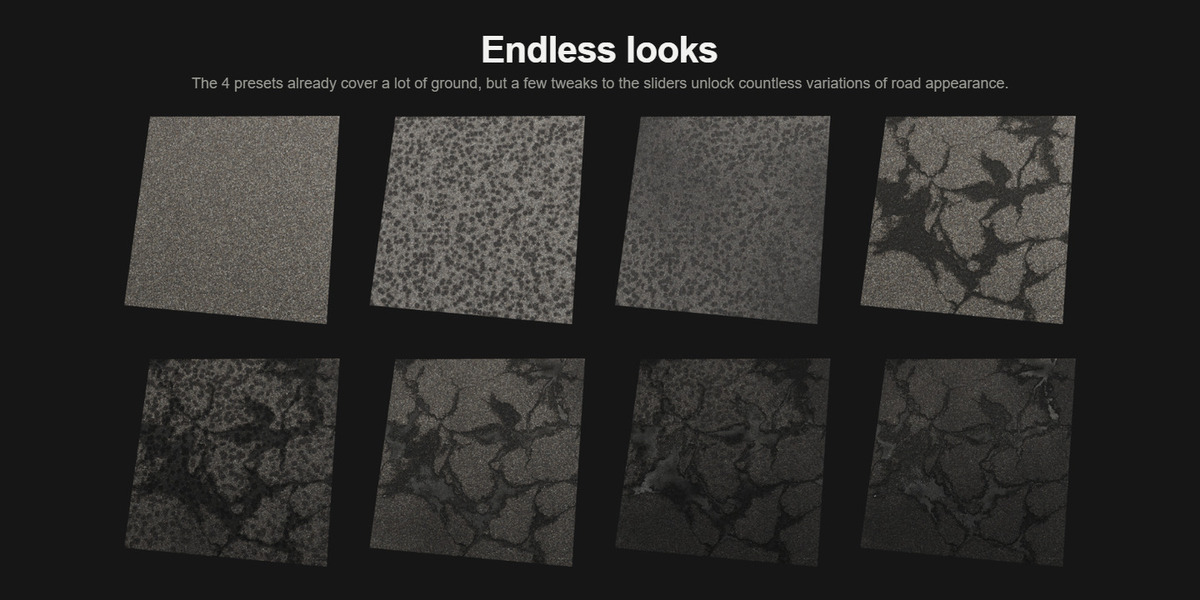
Tip: duplicate a preset material and change a few sliders to create your own variants (for example more cracks, or puddles with fewer cracks).
Tips for good results
- Reflections: water reflections look best with a sky or HDRI, or large area lights. A small bright sun can show up as a hard white blob in the puddles: lower its strength, or increase its angle.
- Raking light: low-angle light brings out the grain and the cracks.
- No displacement: all relief is done with bump, so no extra geometry is needed.
- Close-ups: use Cycles with denoising on Albedo + Normal, and enough samples.
Compatibility & support
Blender 5.2. Tested in Blender 5.2 LTS (EEVEE and Cycles). Files are saved with 5.2. Older Blender versions are not supported: the files do not open in Blender 4.2 or earlier. Blender 4.5 LTS can open them but shows a "newer version" warning, and the crack layout differs slightly from 5.2.
Questions or problems? Please contact the author through the page where you bought the pack.
Have questions about this product?
Login to message
Includes an Asset Library
4 drag-and-drop assets for Blender’s Asset Browser.
Browse included assets| Published | 38 minutes ago |
| Blender Version | 5.2 |
| Render Engine Used | Cycles, Eevee |
| Misc Data | Textured |
| License | Royalty Free |
