Asset Anywhere
 Hoa Vu

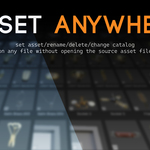
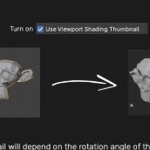
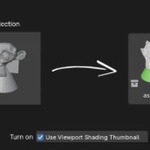
🧩 Asset Anywhere — Manage and Send Assets Effortlessly
Asset Anywhere is a powerful Blender add-on that lets you turn any object or collection in your current file into an Asset, send it directly to your Asset Library, and manage it without ever opening the source file again.
It’s the simplest, most direct way to organize and expand your asset library.
✨ Key Features
-
📦 Instant Asset Creation
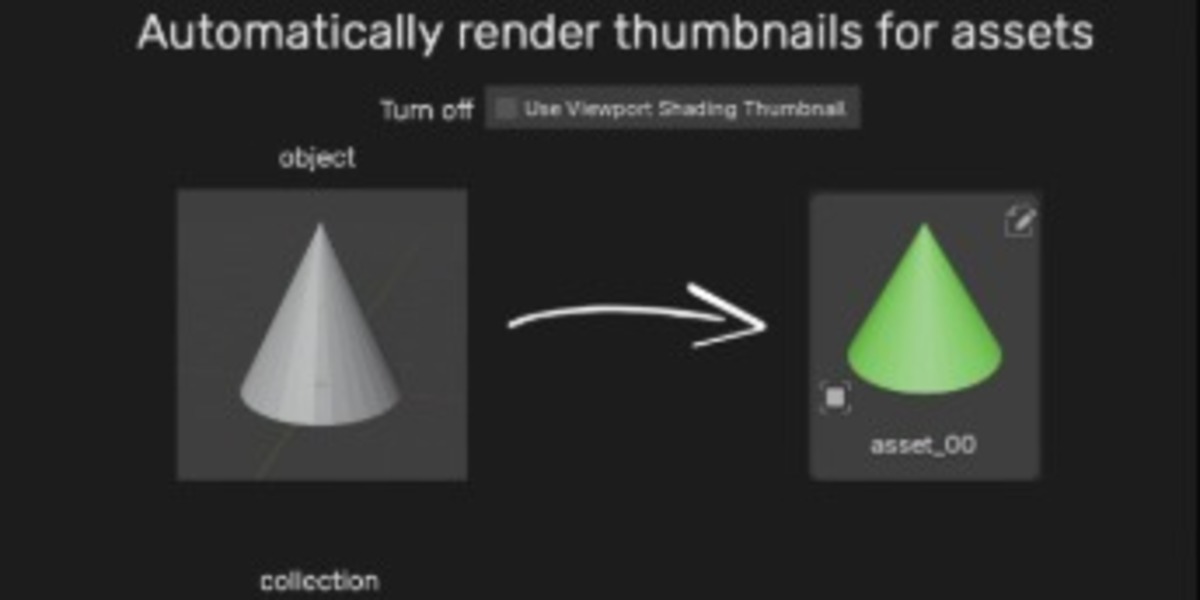
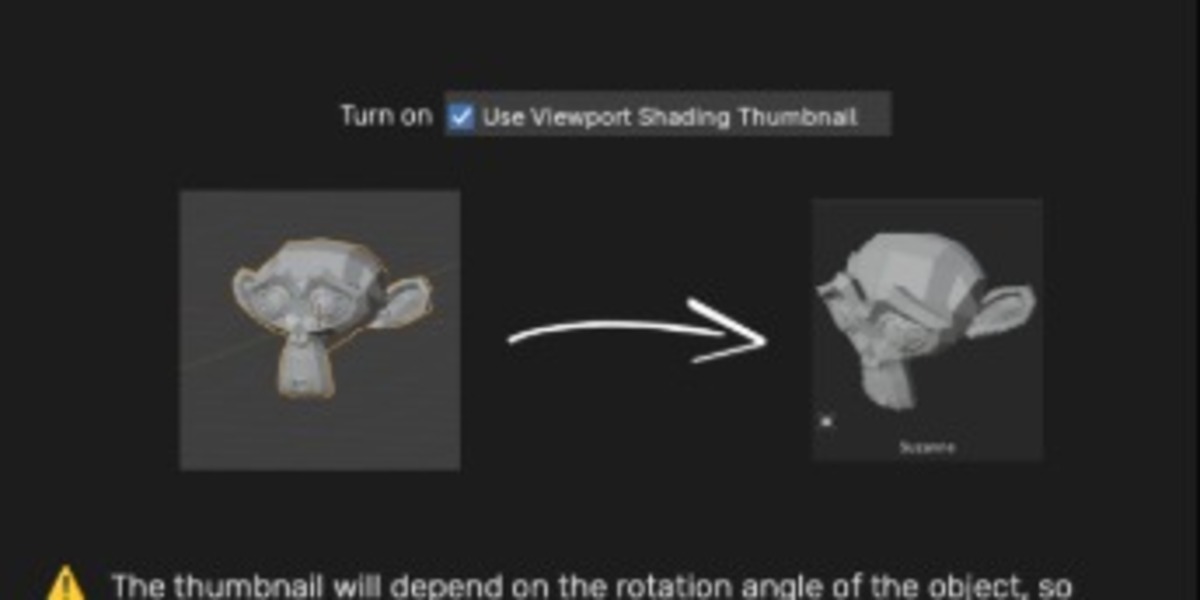
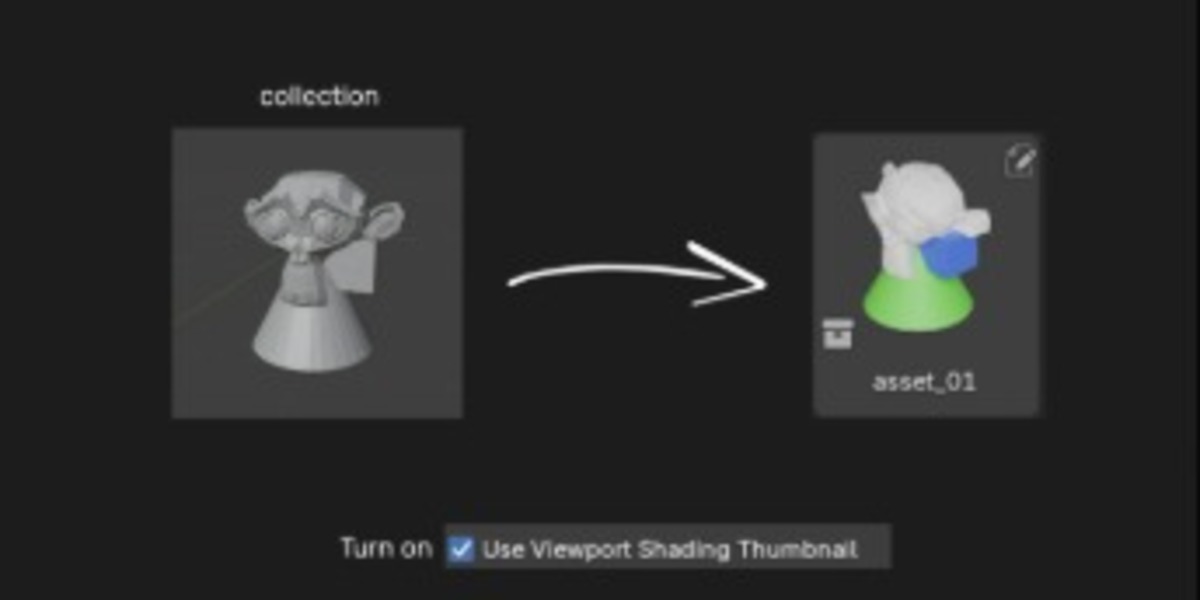
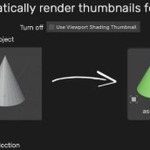
Set any object or collection as an Asset directly from your scene, automatically render thumbnails — no need to save or reopen files. -
📂 Smart Library Management
Automatically sends assets to your Asset Bank File and organizes them by Catalog. -
⚡ Direct Asset Operations
Rename, delete, change catalog, or batch rename assets inside the Asset Browser without touching the source.blendfile. -
🧠 Auto-Handling
If no Asset Bank File is set, the add-on will create a General Source File automatically to store your assets.
🪄 How It Works
-
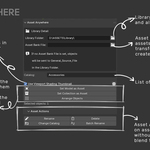
In 3D Viewport, press N → open tab Assets.
-
Set your Library Folder (where your catalogs and asset files are stored).
-
(Optional) Set your Asset Bank File — leave blank to use the default general file.
-
Choose a Catalog for your asset.
-
Select your object or collection → click
-
Set Model as Asset(for objects) -
Set Collection as Asset(for collections)
-
-
The asset is instantly copied to the bank file and appears in the chosen catalog.
-
Use the Asset Actions section to manage assets directly from the Asset Browser.
🧭 Typical Workflow Example
→ You’re working in “Chair.blend”
→ Select the chair object → “Set Model as Asset”
→ Add-on automatically moves it to “Furniture” catalog and refreshes the Asset Browser.
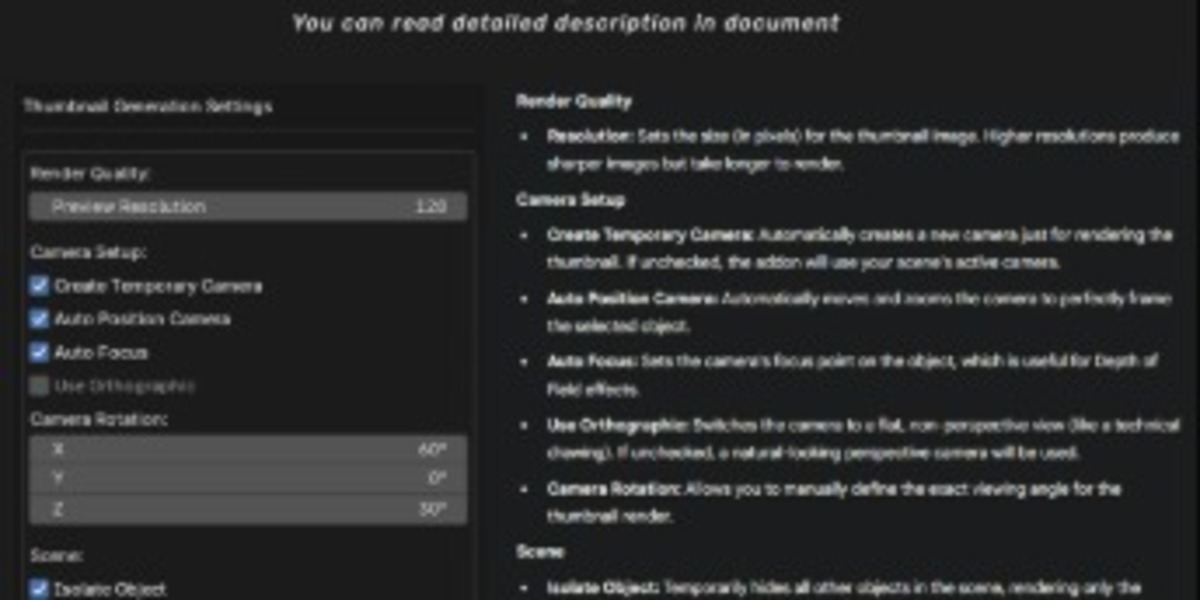
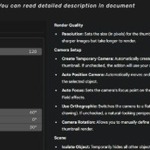
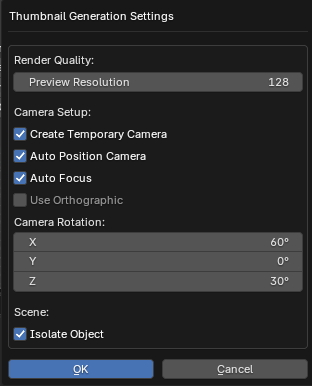
🧭 Thumbnail Generation Setting Popup
|
Render Quality
Camera Setup
Scene
|
Have questions about this product?
Login to message