Asset Library Manager
 3dartbox
in Asset Management
Installing
- In Blender, open Edit › Preferences › Add-ons.
- Open the menu at the top right of the Add-ons section and choose Install from Disk.
- Pick the downloaded .zip file. The add-on is listed as AB Asset Library Manager. Make sure it is enabled.
- In the 3D viewport, press N and open the AB Asset Library Manager tab in the sidebar.
The card
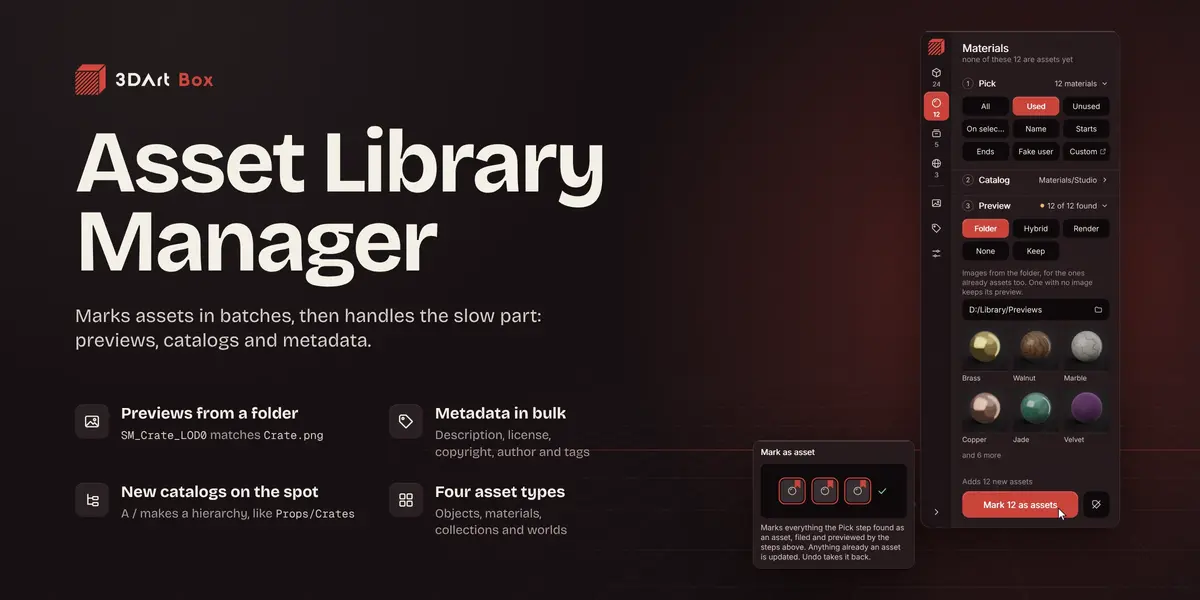
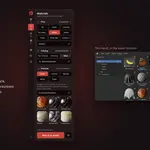
The rail on the left of the card holds the tabs. Objects, Materials, Collections and Worlds mark assets, and the number under each one is how many its Pick step finds right now. Previews and Metadata work on assets already in the file. Settings applies to every tab.
Marking assets
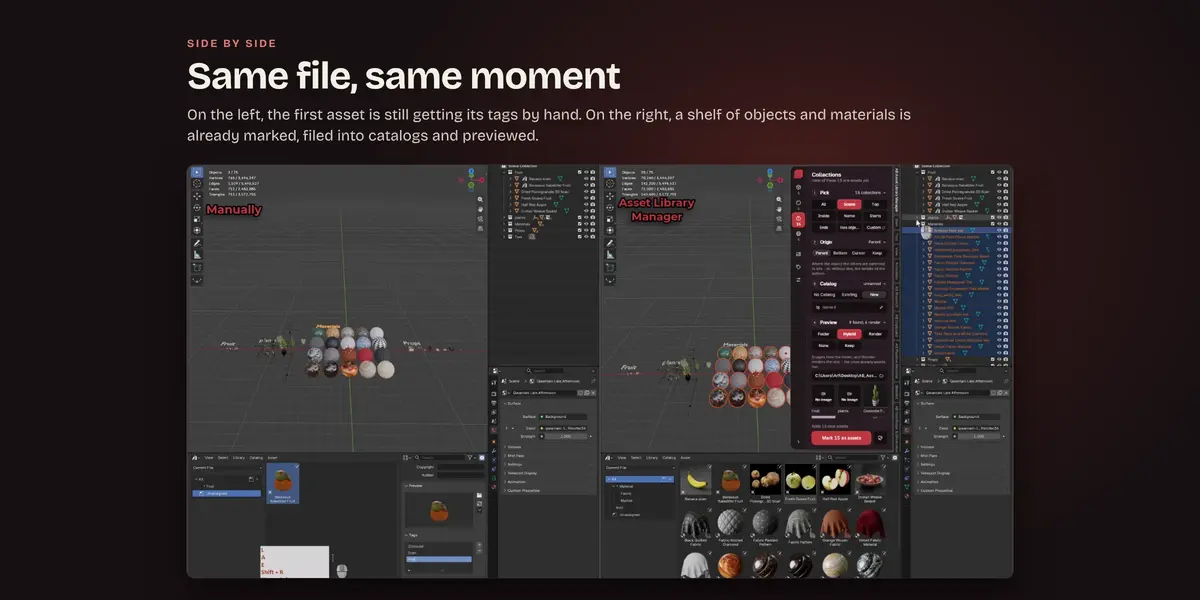
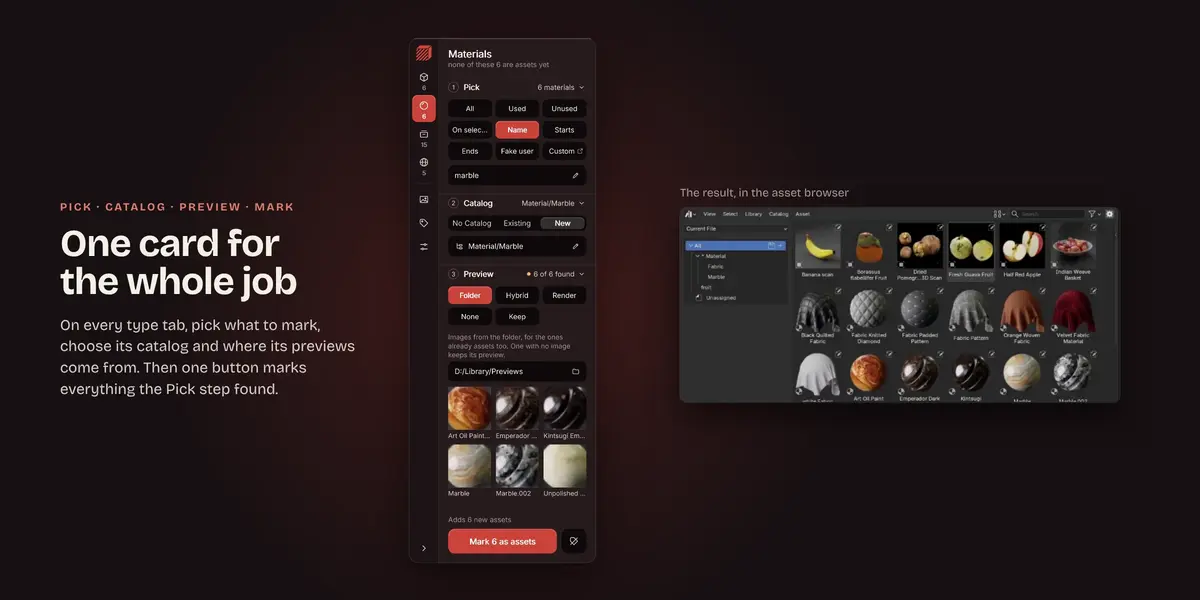
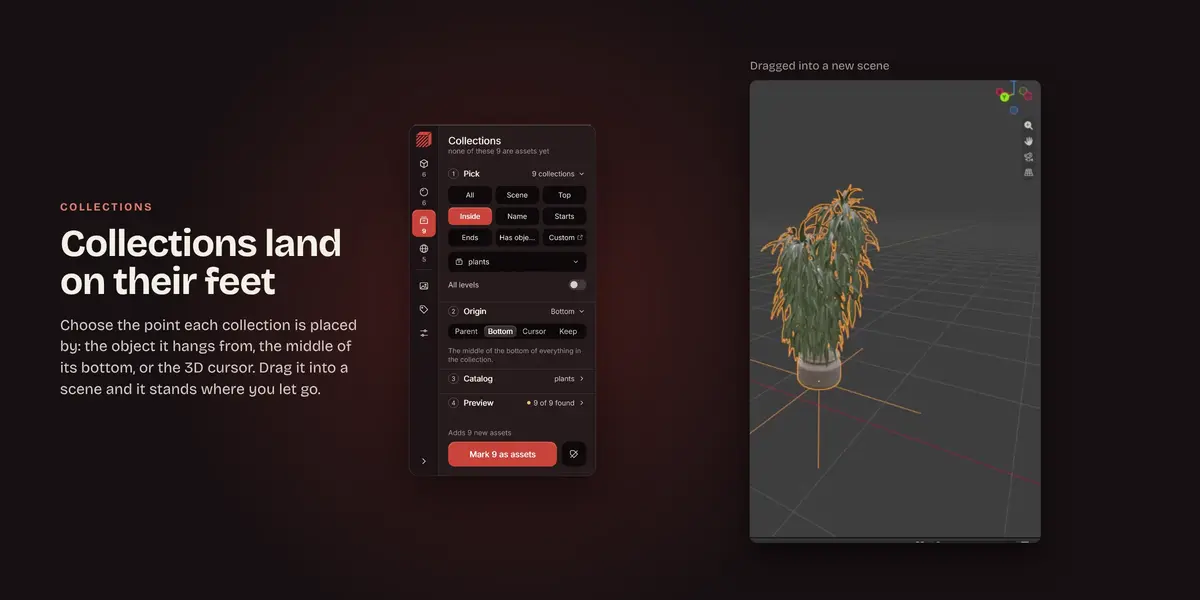
- Pick. Every tab has All, Name, Starts, Ends and Custom. All takes every item of that type in the file. Name, Starts and Ends match text in the name, and capitals do not matter. Custom opens a list where you tick exactly the ones you want. Objects add Selected (the objects selected in the viewport), Collection (the objects inside one collection, with Sub-collections too for the nested ones) and Type (one object type, with some left out if you like). Materials add Used, Unused, On selected and Fake user. Collections add Scene, Top, Inside and Has objects. Worlds add Current.
- Origin (Collections only). Parent uses the point where the object the others are parented to sits, or the middle of the bottom when there is none. Bottom uses the middle of the bottom, so the asset stands where it is dropped. Cursor uses the 3D cursor. Keep leaves the origin as it is.
- Catalog. No Catalog leaves the assets in Unassigned. Existing files them into a catalog the library already has. New makes one from the name you type, and a / makes a hierarchy, like Props/Crates. Save the .blend first, or the catalog has nowhere to live.
- Preview. Folder gives each asset the image whose file name matches its name, and one with no match keeps its preview. Hybrid uses images from the folder where a name matches and has Blender render the rest. Render has Blender render a new preview for every one. None leaves them without a preview. Keep leaves previews exactly as they are.
- Press Mark as assets. Anything that is already an asset is updated, and Undo takes it back. The button beside it takes the asset mark off everything the Pick step found. It asks first, and Undo brings the marks back.
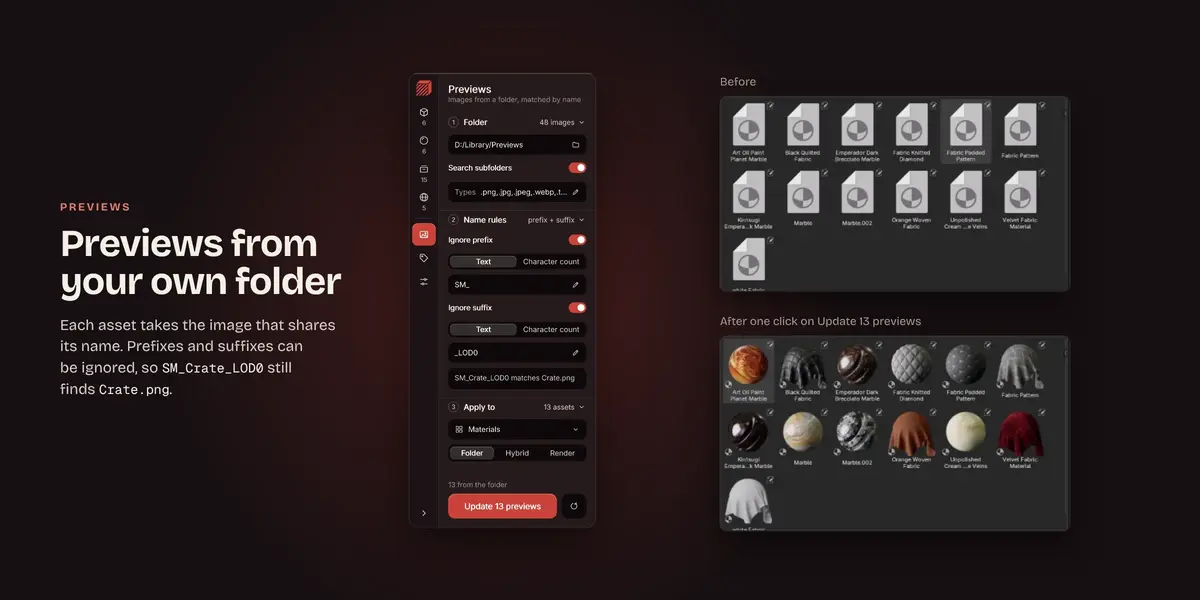
Previews tab
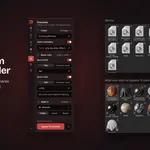
- Folder: the folder of images, whether to search its subfolders, and which file types count.
- Name rules: drop a prefix or a suffix from each name before matching, either as exact text (several separated by commas) or as a number of characters. With SM_ and _LOD0 dropped, SM_Crate_LOD0 finds Crate.png. These rules apply everywhere images are matched, on the type tabs too.
- Apply to: all assets in the file, or only objects, materials, collections, worlds or brushes, and whether to use Folder, Hybrid or Render.
Update previews sets them. Re-render every preview has Blender render a fresh preview for every asset in the file. Blender cannot render brushes, so they only take images.
Metadata tab
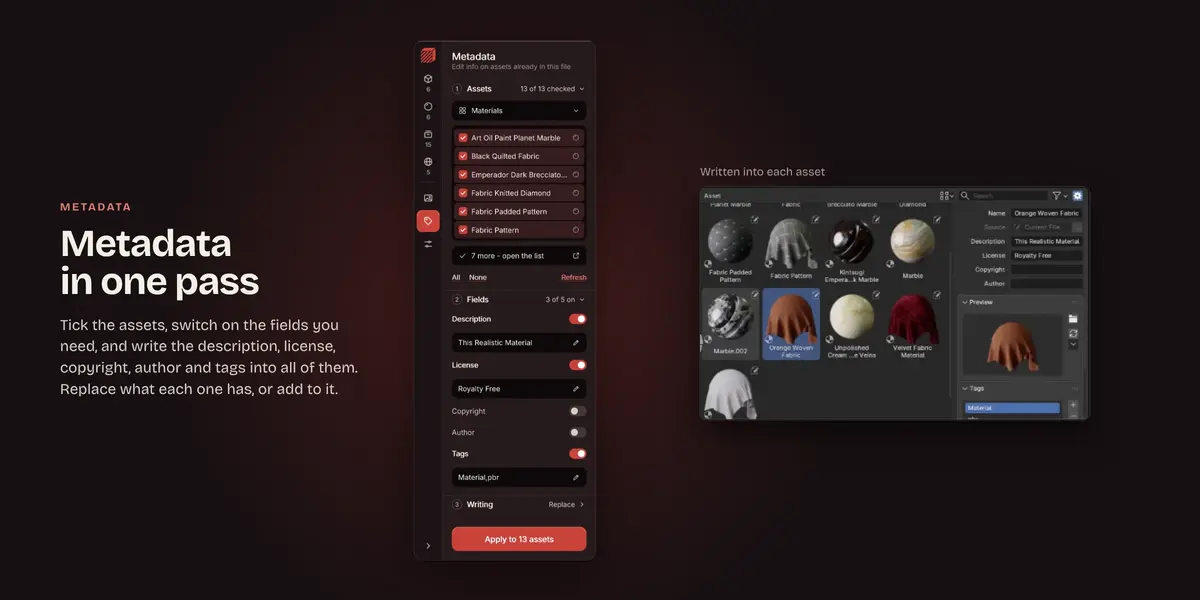
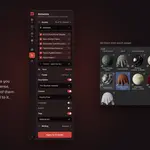
- Assets: the assets in this file, filtered by type. Tick the ones to write to, or use All and None. Refresh reads the file again.
- Fields: switch on Description, License, Copyright, Author or Tags, and type what goes in each. Separate tags with commas.
- Writing: Replace overwrites what an asset has, and Append keeps it and adds yours at the end or the start, with a separator between them (type \n for a new line). Tags have their own Replace and Append. A switched-on field left empty either keeps the asset's value or clears it.
Apply writes the switched-on fields into every ticked asset, and Undo takes it back.
Settings
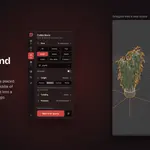
- One catalog for every type replaces each tab's Catalog step with one shared catalog.
- HDRI as world preview lets a world lit by an image use that image as its preview.
- Interface switches between the card and Classic panel, which uses Blender's own sidebar panels. A button at the top of the classic panels brings the card back.
- Accent sets the highlight color of the card.
Have questions about this product?
Login to message
| Blender Extension Compatible | Yes |
| Published | about 2 hours ago |
| Blender Version | 4.4 - 5.2 |
| Extension Type | Add-on |
| Render Engine Used | Cycles |
| License | GPL |
3dartbox
Discover more products like this
previews assetbrowser batch assetlibrary organization materials hdri catalog metadata