 ZibadMend



Audio Assistant (Offline Vosk) Installation & Setup Guide 🚀
The Audio Assistant addon requires external Python libraries (vosk, sounddevice, numpy) to be installed directly into Blender's isolated Python environment using the local Wheel files provided. Follow the steps below sequentially to ensure your environment is configured correctly.
1. Addon Setup & Initial Configuration 🔊
A. Install and Enable the Addon
-
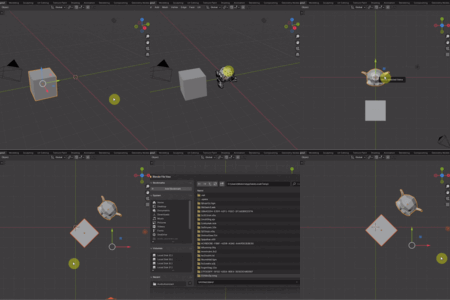
Install Addon: In Blender, go to Edit > Preferences > Add-ons.
- Click Install... and select the main ZIP file of the Audio Assistant addon. 📦
-
Enable: Check the box next to "System: Audio Assistant (Offline Vosk)" to enable it. ☑️
B. Final Configuration and Testing
-
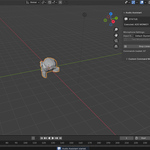
Open Sidebar: In the 3D Viewport, press
N to open the Sidebar.
-
Access Panel: Click the tab named "Audio Assistant."
-
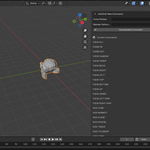
Select Device: Use the "Input Device" dropdown menu to select your desired microphone. 🎤
-
Start Listening: Press the "Start Listening" button to begin.
N to open the Sidebar.
 Included
Includes 12 months of
- Support from ZibadMend
- Product updates
Extend this product’s Support Period +12 months: 50% of product price
Have questions before purchasing?
Login to message
Discover more products like this
Fast Create Voice Commands automation voice control Quick Commands Audio Assistant Hot Keys 3d modeling hotkey speech recognition