AutoRig Universal
 Estudios Omnirig

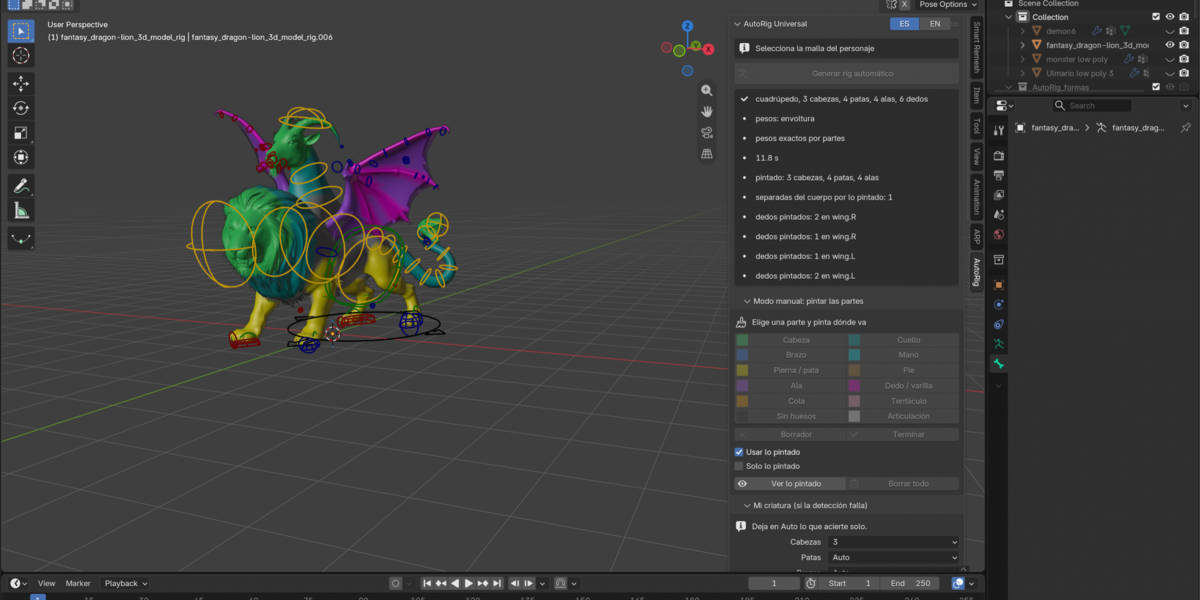
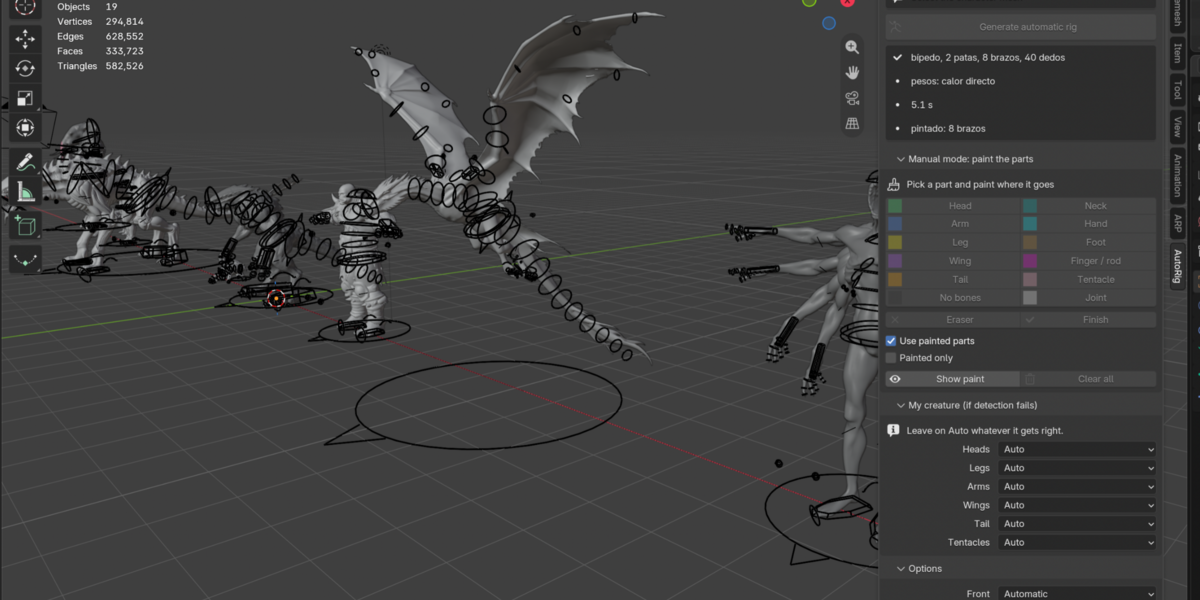
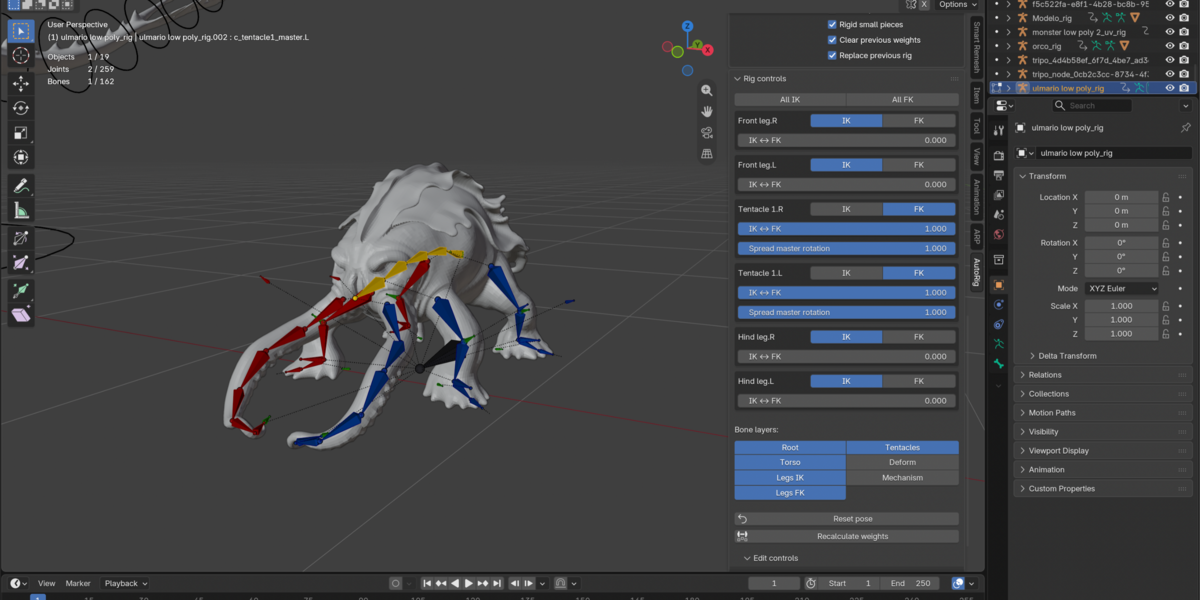
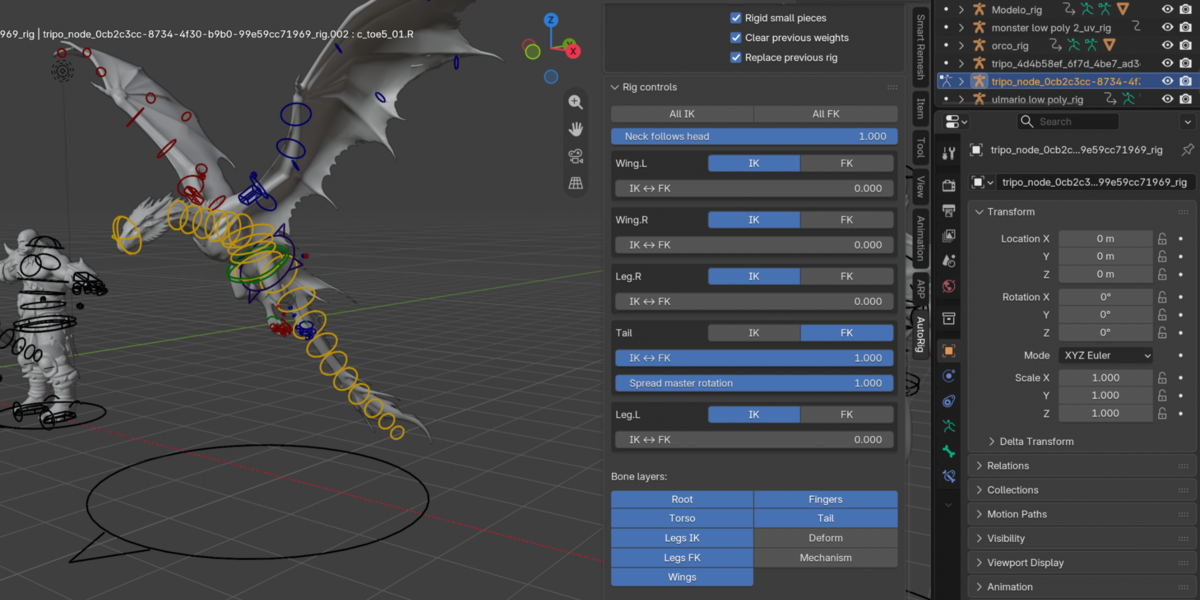

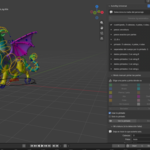
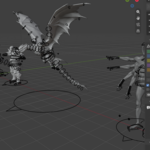
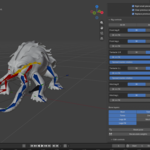
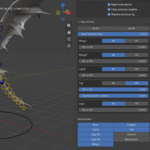
AUTO RIG UNIVERSAL
User Guide | Blender Add-on
Body Rigging & Anatomy Detection
1. Introduction
Auto Rig Universal is a Blender add-on project focused on streamlining body rigging for 3D characters and creatures.
Its intended workflow combines anatomy detection, skeletal placement, and deformation-weight assignment.
Actual capabilities depend on the installed release.
This guide does not claim that every anatomy or automatic operation is supported. Check the product listing and release notes for confirmed features.
2. Requirements and Installation
Before Installing
- Install a Blender version explicitly listed as supported on the product page.
- Download the official add-on package from your Superhive purchase.
- Back up your Blender project before modifying rigs or weights.
Installation Steps
- Open Blender and navigate to Preferences.
- Use the extension/add-on installation option available in your Blender version.
- Select the supplied ZIP package if the release instructions specify ZIP installation.
- Enable Auto Rig Universal.
- Locate its panel using the instructions provided for your installed version.
Note: Blender installation menus vary by version. Do not extract or rename the ZIP unless the product instructions require it.
3. Preparing Your 3D Model
Before generating a rig, prepare your character or creature model.
- Save a working copy of your model.
- Ensure the mesh is visible and accessible in Object Mode.
- Check object transforms, scale, orientation, and the intended forward/up axes.
- Inspect disconnected pieces, duplicated geometry, and accidental internal faces.
- For symmetrical creatures, verify the symmetry plane and major anatomical landmarks.
- Decide whether accessories, eyes, teeth, or clothing should be rigged separately.
Good topology and clean joints can improve deformation results, but no automated weight solution guarantees perfect deformation on every model.
4. Anatomy Detection
The intended detection stage identifies major body regions and potential joint locations.
The exact supported anatomy types, user controls, and required inputs must be verified for the published build.
Recommended Workflow
- Select the intended character mesh or character collection.
- Open the Auto Rig Universal interface.
- Run the anatomy analysis using the command documented for your installed version.
- Review detected torso, limbs, head/neck regions, wings, and tail when applicable.
- Correct any incorrect landmarks using the tools provided by the release before proceeding.
Important: Do not assume that detection of additional heads or limbs is supported unless that anatomy has been tested and listed as compatible.
5. Skeleton Generation and Review
After reviewing anatomical landmarks, generate the body skeleton using the command supplied by your release.
Inspect joint alignment in front, side, and perspective views.
Skeleton Verification
- Verify bone parenting and the location of limb roots.
- Check elbow, knee, wrist, ankle, and other bend directions.
- Check neck, tail, and wing chains when present.
- Confirm that left/right naming and symmetry are consistent.
- Test controls and IK/FK behavior only if the release includes those systems.
Rigify Integration: Rigify integration is a potential implementation approach, not a guaranteed feature of this documentation draft. The product listing should explicitly identify it if included.
6. Skin Weights and Deformation Checks
Use the released automatic weighting workflow if available.
Then test the resulting deformation in Blender’s Pose Mode.
Recommended Tests
- Rotate each major joint through a practical range.
- Inspect shoulders, hips, elbows, knees, and limb roots for collapse or unwanted stretching.
- Inspect transitions between the torso and additional appendages.
- Review and manually refine vertex weights when necessary.
- Test mirrored poses and extreme poses before delivering an animation-ready character.
Automatic weights should be treated as a starting point that requires quality assurance, not as a guarantee of flawless deformation.
7. Creature Workflows
Humanoids and Quadrupeds
Confirm the detected body axis, limb order, and joint locations. Review the generated rig before assigning or testing weights.
Dragons and Winged Creatures
If supported by the release, inspect separate wing chains, wing roots, tail segmentation, and hind/forelimb placement.
Multiple Heads or Limbs
If supported by the release, confirm each additional appendage has an independent bone chain and correct parent.
Test overlapping weight influences carefully.
Unconventional Aliens
Unusual anatomy may require manual landmarks, custom rig modules, or a supported preset.
The current guide does not promise universal one-click rigging.
8. Troubleshooting
Bones Appear Misplaced
Check model orientation, scale, and detected joint landmarks. Review the release documentation for correction tools.
Mesh Deforms Unexpectedly
Inspect vertex groups, bone influences, and mesh geometry. Adjust weights and retest the pose.
Additional Limbs Are Missing
Verify that the released version supports the particular anatomy. Otherwise, use a manual rigging workflow.
Add-on Is Not Visible
Confirm successful installation, activation, and a supported Blender version. Check the Blender system console for errors if needed.
9. Limitations and Support
- Facial rigging is NOT included in the current product scope.
- Complex anatomies and Rigify compatibility must be confirmed for each released version.
- Results depend on mesh quality, anatomical complexity, and supported workflows.
- Support email, issue-reporting URL, and update policy must be added by the publisher.
10. Release Checklist
Before publishing Auto Rig Universal on Superhive Market:
- Replace general workflow instructions with the exact names of buttons and panels.
- Add screenshots showing installation, detection, rig generation, and weight review.
- Publish verified Blender version compatibility.
- List tested species and body configurations.
- Document whether Rigify is required, optional, or unsupported.
- Confirm ZIP installation steps and license information.
- Provide contact/support details and a changelog.
⸻
AUTO RIG UNIVERSAL
Body Rigging & Anatomy Detection for Blender
Have questions about this product?
Login to message
| Blender Extension Compatible | Yes |
| Published | about 4 hours ago |
| Blender Version | 5.2 |
| Extension Type | Add-on |
| Render Engine Used | Cycles |
| License | GPL |