Animated Background People for Blender
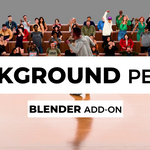
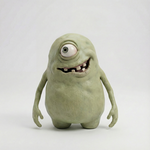 Animated Background People


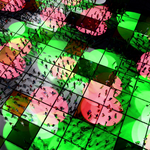
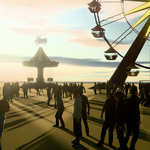
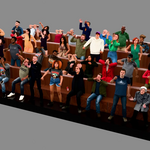
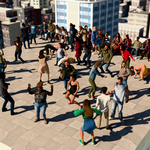
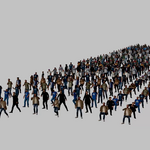
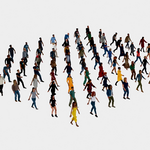
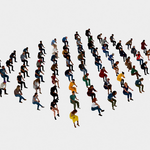
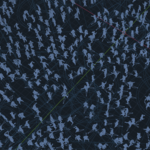
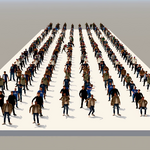
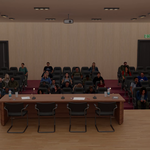
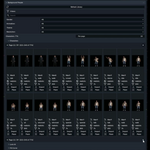
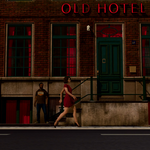
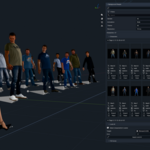
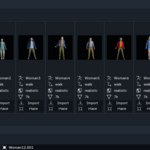
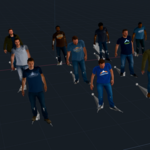

Installation: Unpack the folder in the .RAR file. In Blender, go to the preferences menu, click the little arrow and browse to the download zip file. Select the unpacked folder for the Character Library and any custom folder with your own animated FBX files under Custom Library. Click on save preferences. You can now find the Background People tab in the N-panel (press N in the viewport).
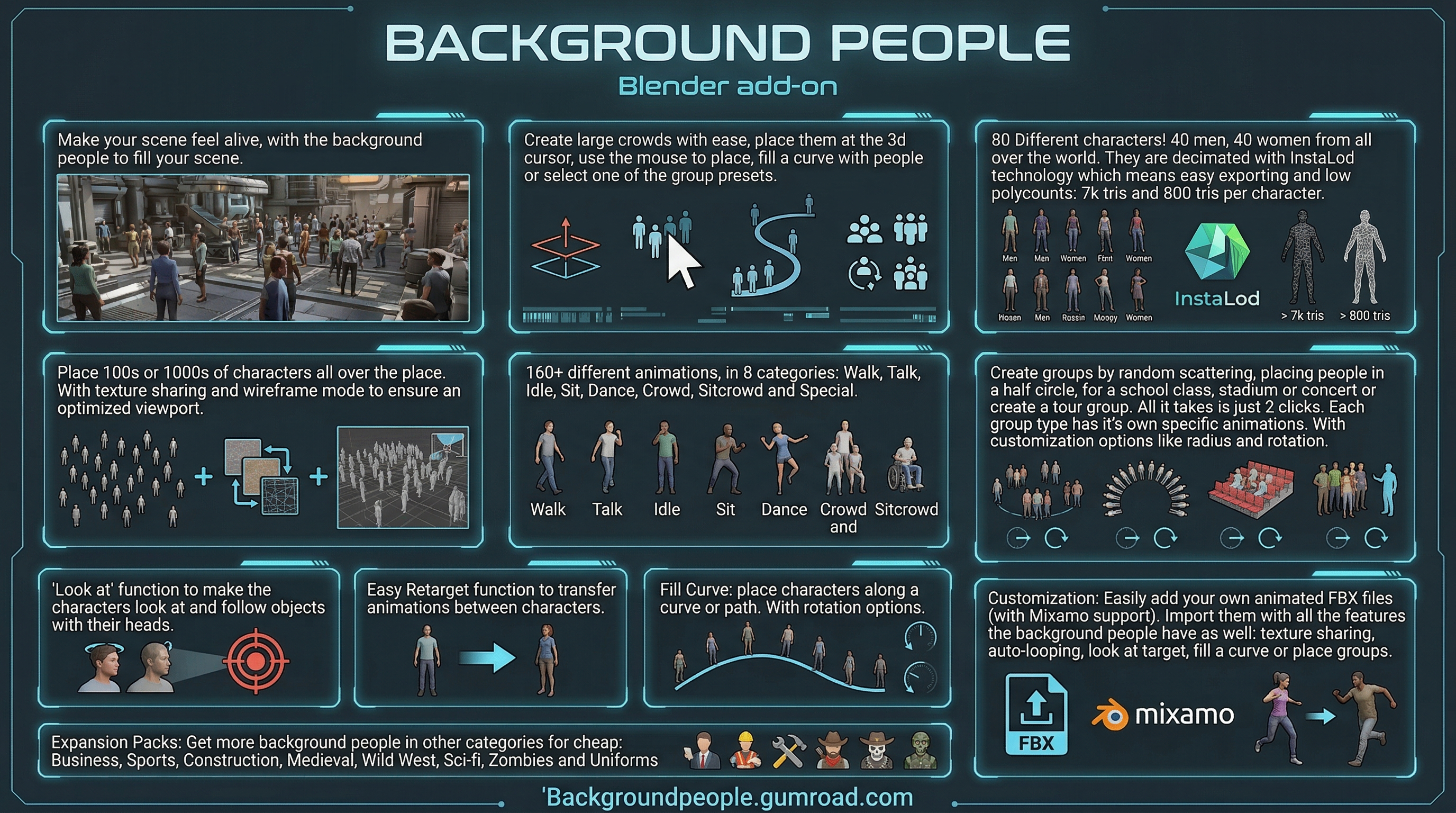
Usage: The add-on works pretty straight forward, one thing to keep in mind is that the filters you set influence the groups you place. Set it to 'All' to place groups with the intended animations.
Pressing import in the thumbnails section will import that character and it's animation at the position of the 3D cursor. Press 'Place' to place it with your mouse (works best if you have a surface).
Fill Curve lets you place characters on a curve or path. If you have a curve selected any character you pick from the thumbnails section it will be placed along the curve. Press 'Place Next' to place a random character. The type of animation depends on the filter! Press 'Reset' to reset the order.
Toggle Wireframe will turn the selected characters to a wireframe for better viewport performance.
Look At will let the selected character(s) follow an object with their head. You can set up multiple characters at once by selecting the armatures, you can also remove the animation for multiple people at once by just selecting them.
Auto-Walk. When you set the filter on the walking animation, a new option underneath the thumbnails section will appear, allowing you to set the walking speed. There are various walking animations so sometimes you'll have to set it to different speeds. Manually rotate the character if it's not facing the right direction.
Purge Orphan Data to clear Blender's cache and free up memory. Do this after you've deleted characters if needed.
Retarget Animation if you want to transfer the movements of one character onto another. Simply select a source armature and a target armature and press 'Transfer Animation'. This might take a couple of seconds. The character with the transferred animation will be placed upon the target character.
The Theme filter is for the first upcoming expansion packs. Subscribe to our newsletter to stay updated.
The Resolution filter is used to select the 7k tris version (high detail) or the 800 tris version (low detail)
Have questions about this product?
Login to message
| Blender Extension Compatible | Yes |
| Sales | 10+ |
| Dev Fund Contributor | |
| Published | 7 months ago |
| Blender Version | 4.0 - 5.0 |
| Extension Type | Add-on |
| Render Engine Used | Arnold, Blender-Internal, Blender-Game-Engine, Cycles, Eevee, Freestyle, Luxrender, Mental-Ray, Octane, Vray, Yafaray |
| License | GPL |
Discover more products like this
drop crowd animations characters crowds people drag realistic background character animated