Bamboo Forest Generator
 Dan Poncelet's Blender Emporium
Usage
Your first step should be to create the ground on which the bamboo will be placed. Ideally, this should be a plane.
Next, go to the Asset Browser, and find the Bamboo Forest asset. Click and drag that onto your object.
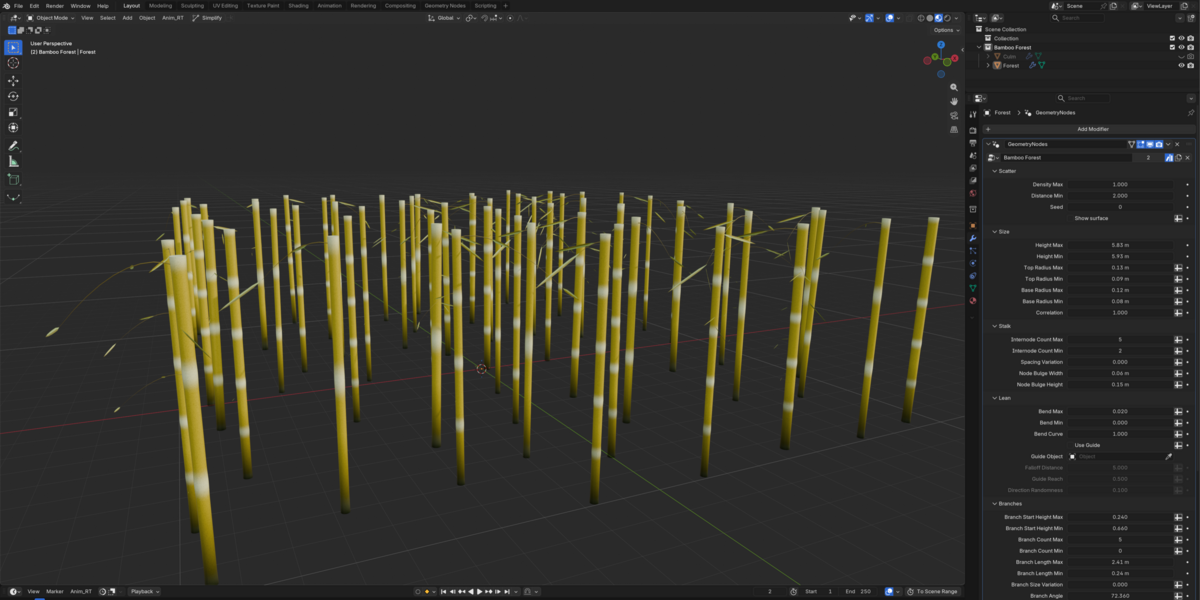
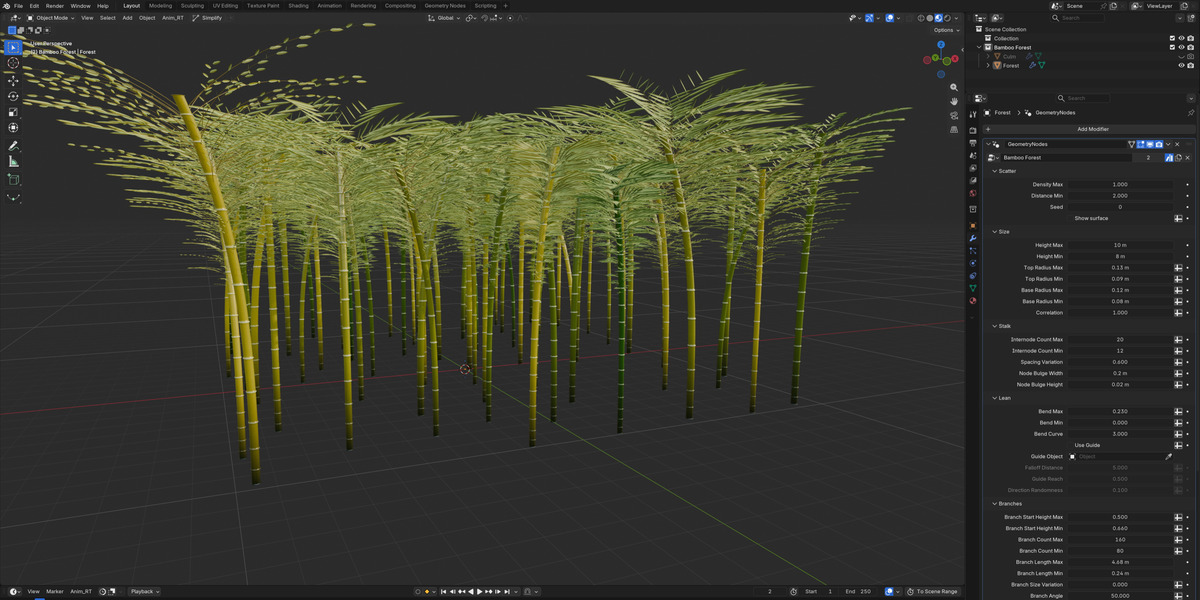
In the Modifiers tab (on the right by default), you can now adjust any settings you wish. You may want to stick to a high Distance Min in the Scattering panel to begin with, so you can adjust any bamboo shoots with more clarity. All of the settings you can adjust have descriptions explaining what they do.
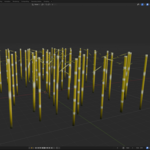
As you increase the density of the forest, you will find that performance will take a hit. This can be mitigated somewhat with the Performance mode option in the Quality panel. This limits the amount of leaves on each branch to 2, as well as reducing the vertical and horizontal subdivisions on the culm to whatever value you choose. This will not impact your final render.
Leaning
Bamboo will naturally have some random variation as to where it leans, which can be adjusted using Bend Max and Bend Min. If both are set to 0, they won't lean at all.
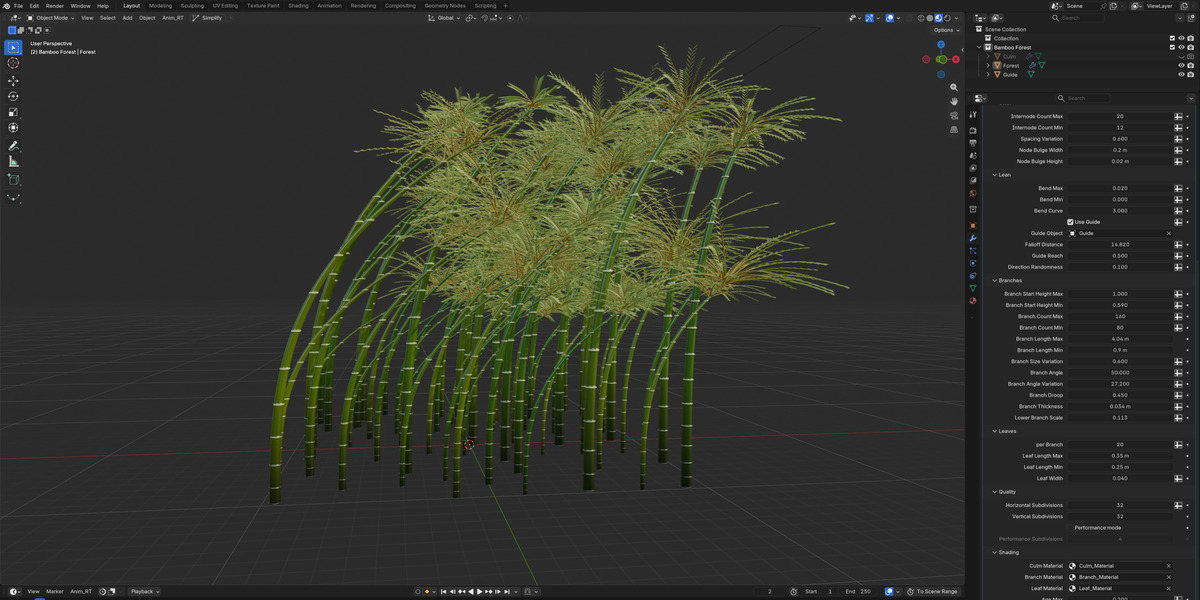
If you wish to have the bamboo lean towards a specific direction, you can create any object (as long as it has faces), and in the Lean panel, check Use Guide and select your object as your Guide Object. As you move the object around the scene, the bamboo will start pointing in the direction of the object. If that isn't happening, make sure Direction Randomness is set to not be 1, and Guide Reach is not set to 0. If Guide Reach is set to 0, increasing Falloff Distance should work too.
A Bend Curve value of 3 will bend the bamboo more at the top. A value of 2 will bend the bamboo more at the bottom. A value of 1 will make the bamboo lean, but not bend at all.
Have questions about this product?
Login to message
| Published | about 3 hours ago |
| Blender Version | 5.3 |
| Render Engine Used | Cycles |
| License | Royalty Free |

Discover more products like this
3d foliage vegetation forest Generator geometry nodes foliage 3D Vegetation bamboo