BEEBINDER DOCUMENTATION 🐝 Quick Guide
Everything you need to install BeeBinder, wrap a mesh, and understand its settings.
Last updated: August 19, 2026 • BeeBinder v1.0.0
⬢Installation
- Open Edit → Preferences → Add-ons .
- Open the menu in the upper-right corner.
- Choose Install from Disk .
- Select the downloaded
BeeBinder.zip file. - Enable BeeBinder if needed.
Requirement BeeBinder requires Blender 4.5 or newer.
⬢What BeeBinder Does
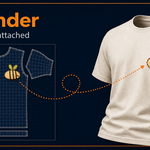
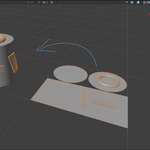
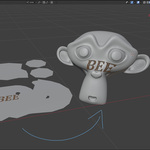
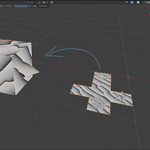
BeeBinder wraps any mesh onto a surface by sampling the target's UV map. The UV map tells BeeBinder where each point belongs on the 3D surface, producing consistent and predictable results.
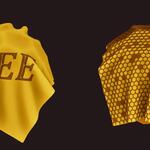
The source mesh keeps its depth, so raised details and full 3D shapes conform naturally to the target.
⬢Quick Start
- Make sure the target mesh has a UV map.
- Select one or more source meshes.
- Shift-select the target last so it becomes active.
- Right-click and choose BeeBinder .
- Enable Preview Unwrap and position the source over the UV layout.
- Adjust the settings and disable the preview when finished.
You can also use Add Modifier → BeeBinder → BeeBinder .
⬢Settings
The main controls used to define how BeeBinder samples and wraps your geometry.
Target The surface onto which the source mesh is wrapped.
Target UV Map The UV map used for sampling. Click the small icon on the right to use a UV Map attribute instead of a single value.
Remove Invalid Samples Removes source points that fall outside the target's UV islands.
Depth Scale Reference Per-Island Calculates depth separately for each UV island. Best for most cases.
Global UV Uses one depth scale across the entire UV layout.
Normal Source Shading Normal Uses shaded normals for a smoother result.
Geometric Normal Uses real face normals for a faceted result.
Depth Scale Scales the mesh depth from the surface. 1 keeps it, 0 flattens it, and negative values flip the direction.
Surface Push Moves the result outward or inward along the target normals.
Preview Unwrap Shows the source and the target's flattened UV layout. Disable it for the final result.
Write to New UV Map Creates a UV map on the wrapped result.
New UV Map Name The name of the new UV map.
• · • · • · •
⬢Tips
- Use a clean UV map without unwanted overlaps.
- Add enough subdivisions for curved surfaces.
- Apply object scale if the depth looks incorrect.
- Check the target normals if the wrap faces the wrong direction.
If nothing appears Check the Target, UV map, and source placement. Disable Remove Invalid Samples while troubleshooting.
 Playful Pixel