 VoidGhost
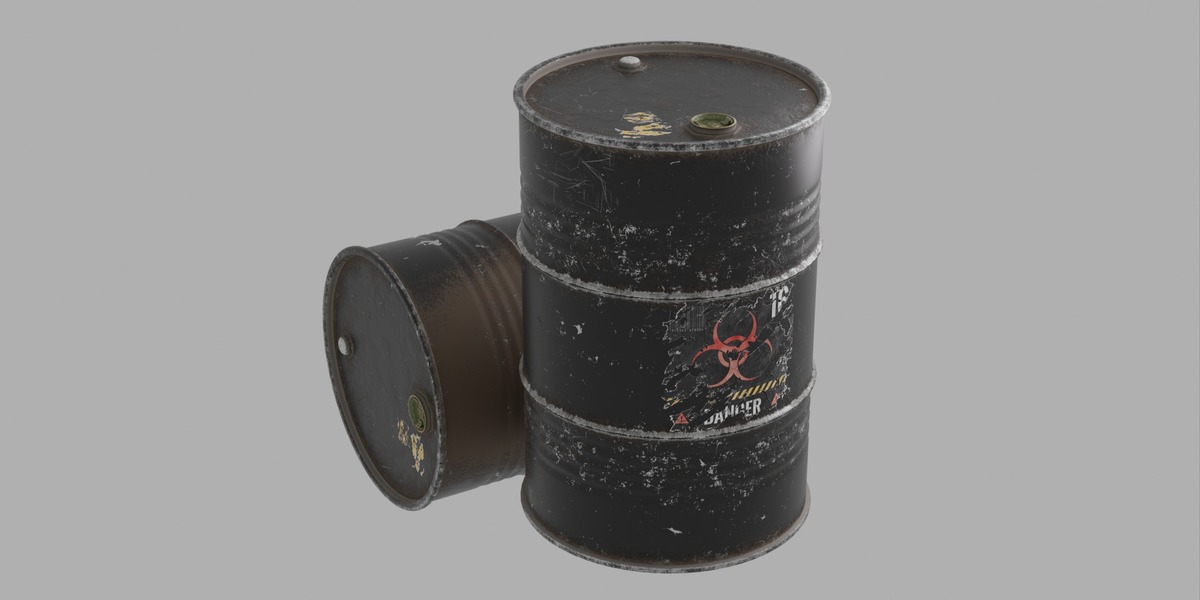
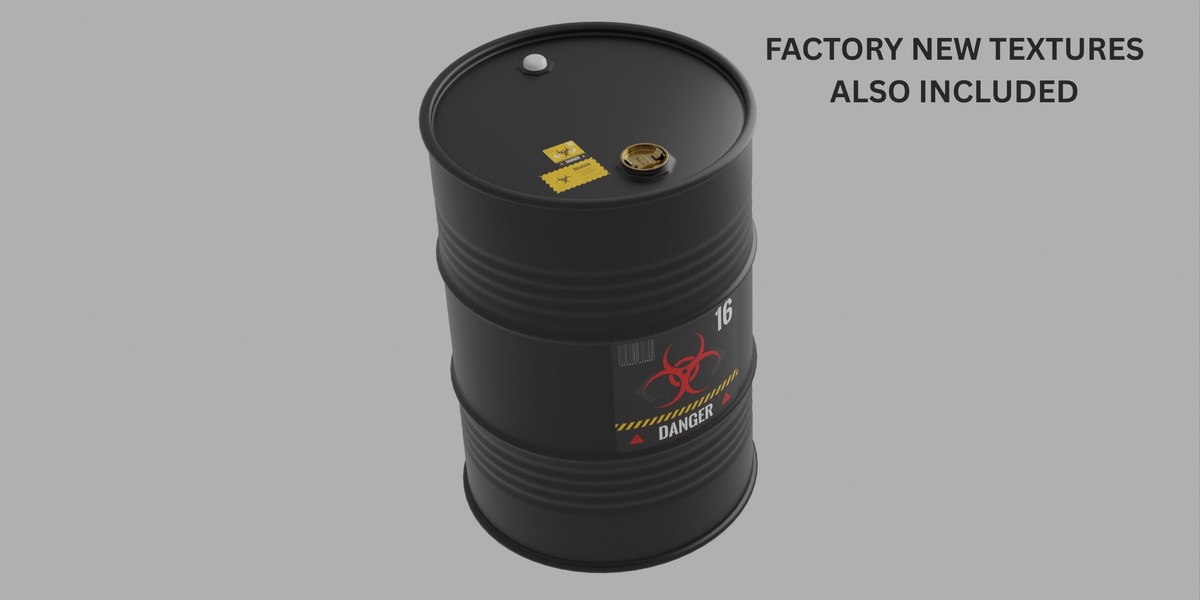
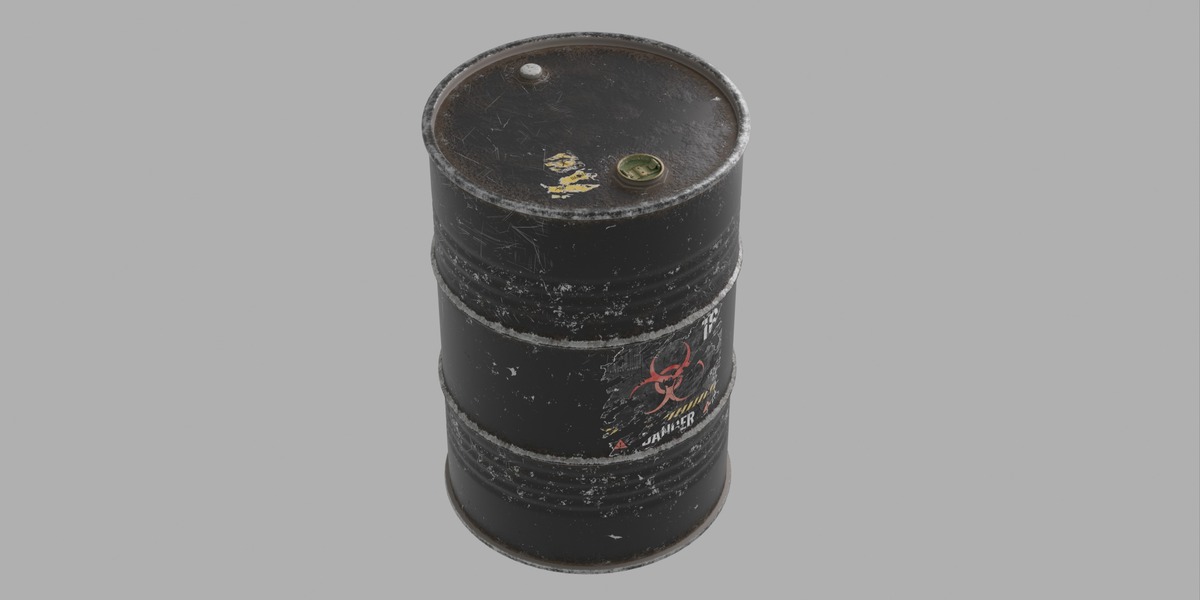
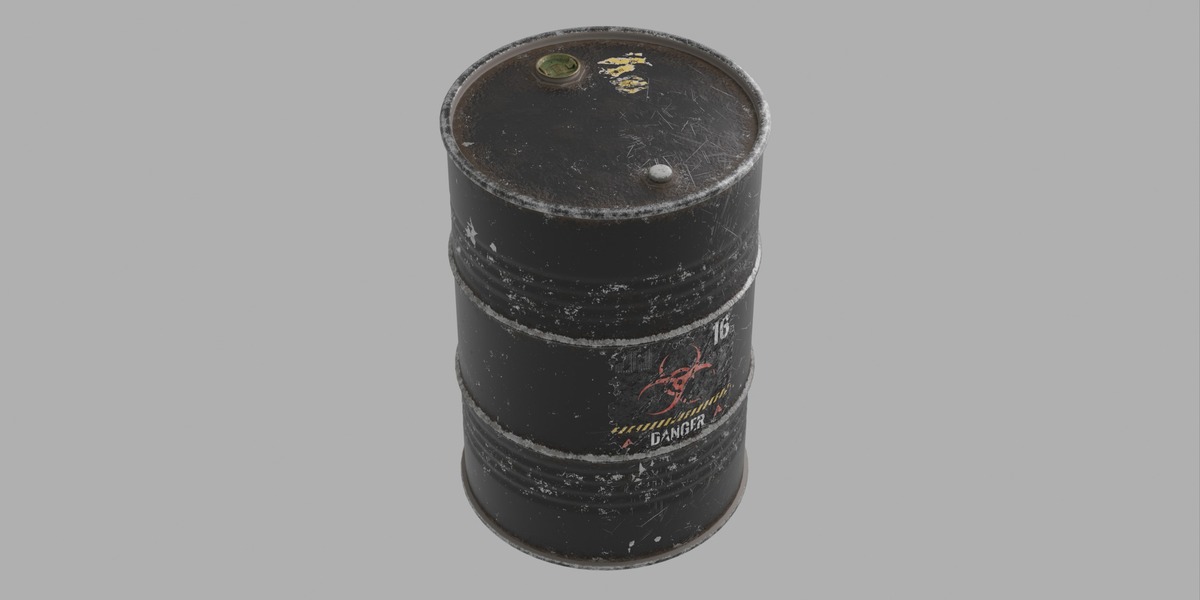
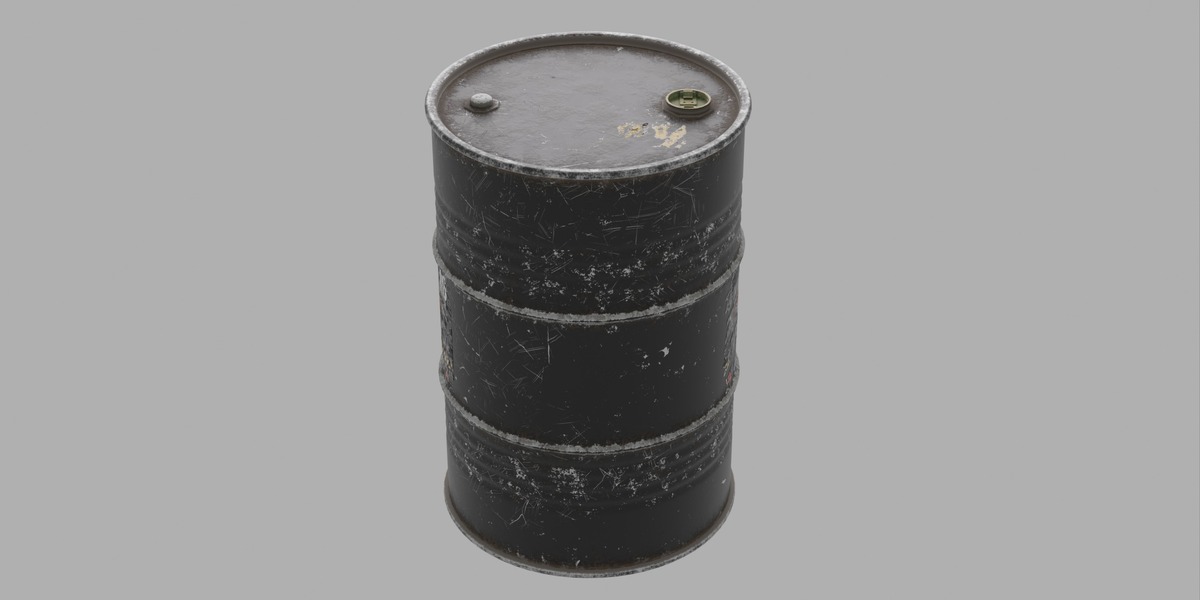
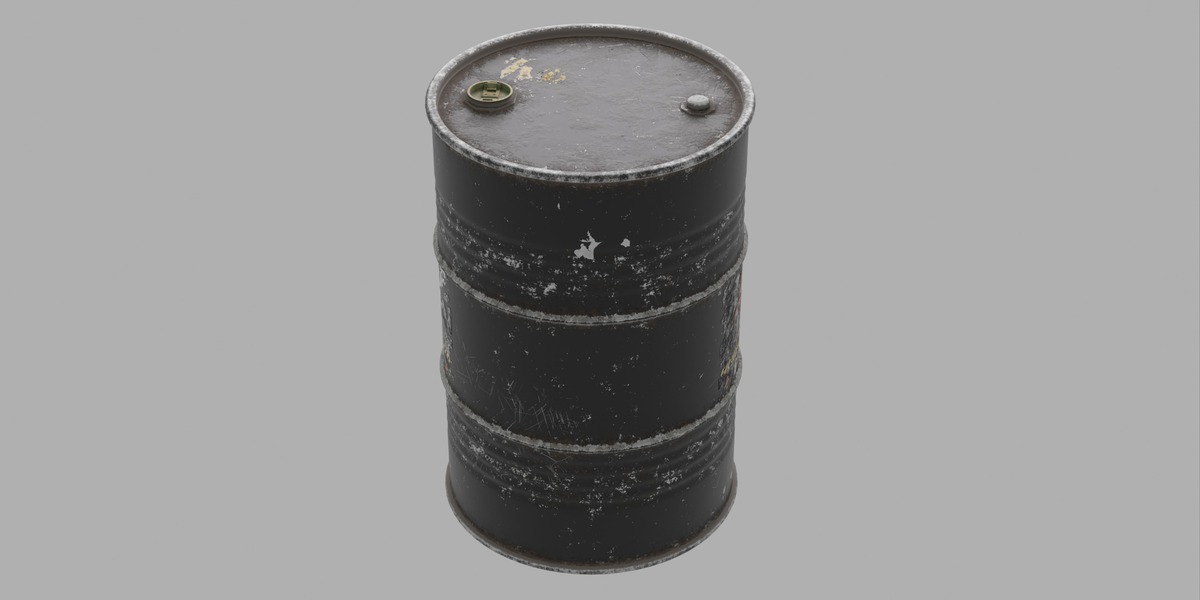
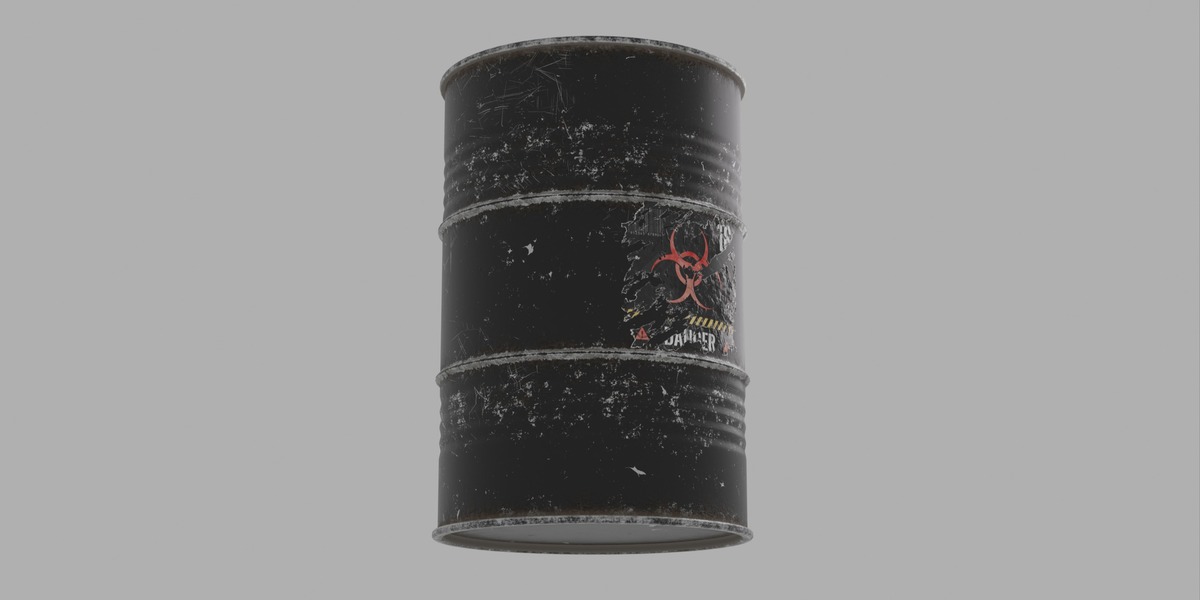
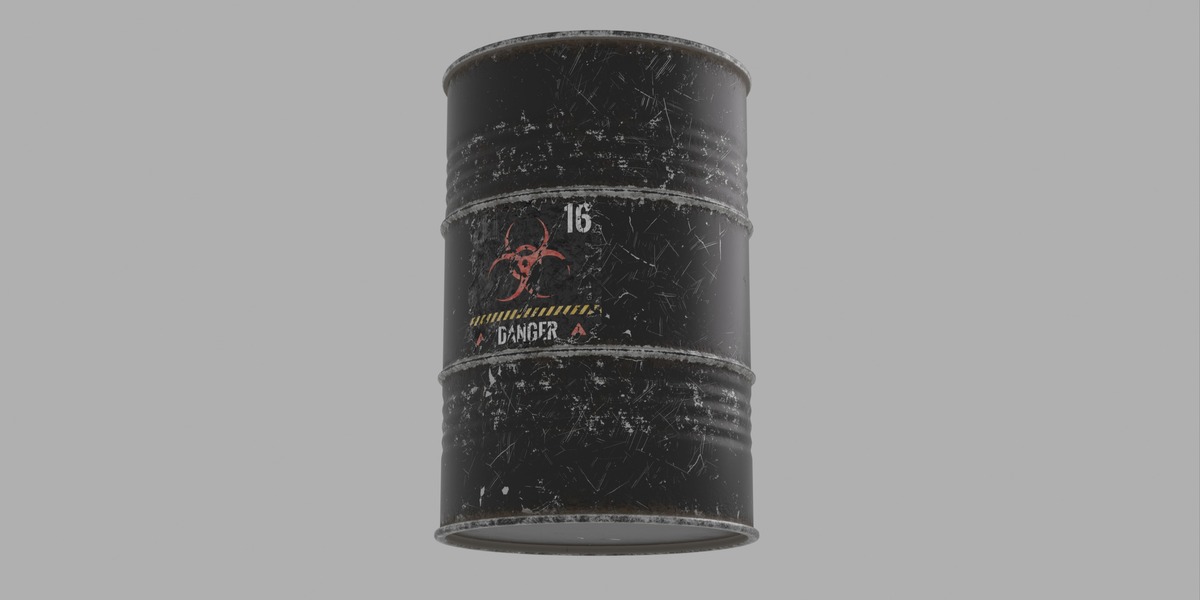
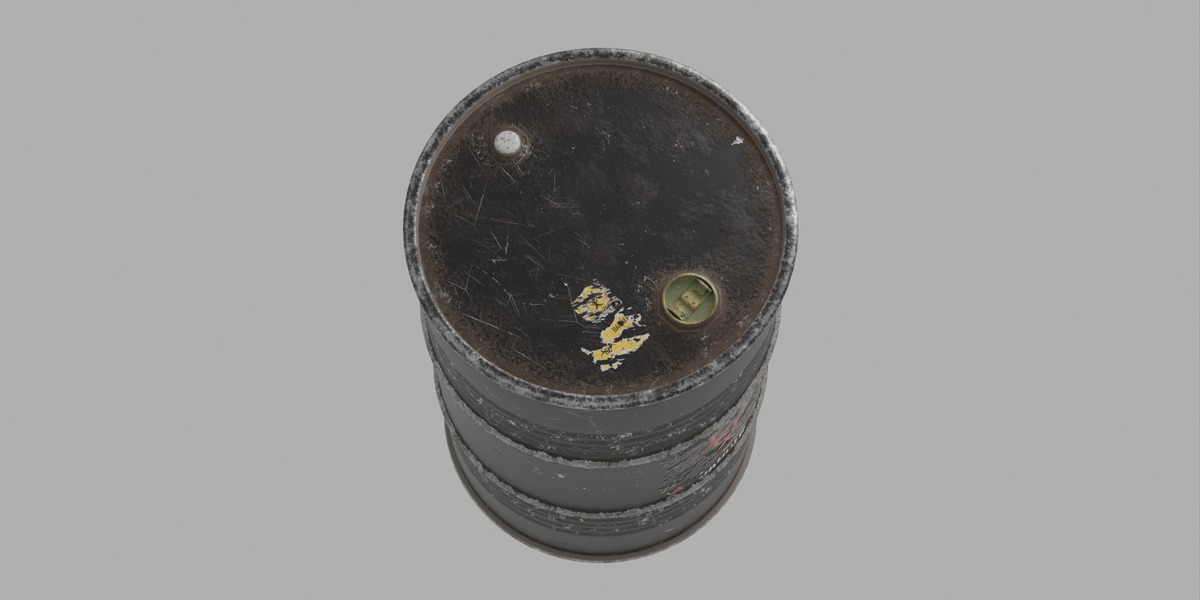
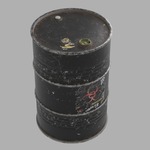
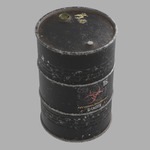
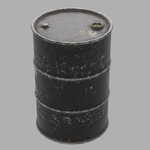
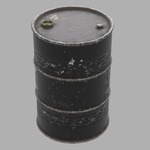
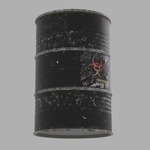
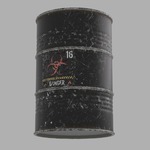
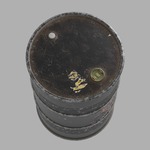
Biohazard Barrel — Quick Documentation
1. Included Files
The package includes:
- FBX — Game engine and 3D software import
- GLB — Modern real-time and 3D application format
- OBJ — Universal 3D format
- BLEND — Asset Pack Ready Blender file
- 4K Textures
- 8K Textures
- High Poly & Low Poly meshes
2. Using in 3D Software
Blender
- Open Blender.
- Use File → Import and select FBX, OBJ, or GLB.
- Alternatively, open the included .blend file and append/link the asset to your project.
- Make sure the included texture files are available in the same folder structure.
- If textures are not automatically detected, use File → External Data → Find Missing Files and select the texture folder.
Other 3D Software
Import the FBX, GLB, or OBJ file using your software's standard import function.
After importing, assign the included PBR textures to the material if they are not automatically detected.
3. Using in Game Engines
Unreal Engine
- Open your Unreal Engine project.
- Import the FBX or GLB asset into the Content Browser.
- Enable/import the required mesh options according to your project.
- Import the 4K or 8K textures.
- Create or assign a PBR material and connect the appropriate texture maps.
- Drag the Low Poly mesh into your level for real-time gameplay.
Unity
- Open your Unity project.
- Drag the FBX or GLB file into the Assets folder.
- Import the included textures.
- Create or assign a suitable PBR material.
- Assign the texture maps to the material.
- Place the Low Poly version into your scene for optimized real-time performance.
4. Texture Setup
The asset includes 4K and 8K texture sets.
Use 4K textures when you need a good balance between visual quality and performance.
Use 8K textures when maximum texture detail is required for close-up shots, cinematics, or high-resolution renders.
For game development, 4K is generally recommended for most real-time use cases, while 8K should be used selectively depending on your project's performance requirements.
5. High Poly vs Low Poly
- High Poly: Recommended for high-quality renders, cinematics, close-up shots, and baking workflows.
- Low Poly: Recommended for games, real-time applications, and optimized environments.
Note: Texture resolution and polygon density can affect performance. Choose the appropriate version based on your project's requirements.
-
$7.99
For an Individual creator or a small team
-
$17.99
For studios or other entities
Have questions about this product?
Login to message
| Dev Fund Contributor | |
| Published | 1 day ago |
| Blender Version | 2.8 - 5.2 |
| Render Engine Used | Cycles, Eevee |
| Misc Data | Uvs-Unwrapped, Low-High-Resolution, Normal-Mapped, Textured |
| License | Royalty Free |