USER DOCUMENTATION
Blender to Unreal Animation Exporter
Step-by-step documentation for installing the Blender add-on, setting up the Unreal bridge, exporting FBX files, importing separate animation folders, and checking materials, collision, and PhysicsAssets.
Blender 4.5+ • Unreal Engine 5.5+ • VKGamedev
| 1 Install Add-on in Blender | 2 Install Unreal Bridge | 3 Send Assets to Unreal |
QUICK START
First Setup
Use this setup once per Unreal project. After the bridge is installed, normal exporting is done from Blender.
Blender Installation
- Open Blender.
- Go to Edit > Preferences > Add-ons.
- Click Install.
- Select the product ZIP file.
- Enable Blender to Unreal Animation Exporter.
- Open the 3D Viewport, press N, and open the Unreal Export tab.
Unreal Bridge Installation
- Open your Unreal project.
- Return to Blender.
- Click Install Unreal Bridge.
- Select your Unreal .uproject file.
- Restart Unreal after the success message.
- Click Start Exporter Bridge in Blender.
Main Buttons
| Install Unreal Bridge | Copies the Unreal Python bridge into your project and configures startup. |
| Start Exporter Bridge | Connects Blender to the Unreal bridge running in the current project. |
| Send Selected | Exports selected Blender objects to Unreal. |
| Send FBX File | Sends one original FBX file to Unreal without unnecessary re-export. |
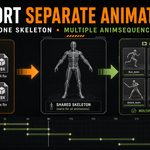
| Send FBX Folder | Imports complete folders, including character packages with separate animations. |
Recommended Character Folder Structure
For a character with separate animations, use this layout.
CharacterName/
  source/
    Base.fbx
    animations/
      Idle.fbx
      Walk.fbx
      Attack.fbx
  textures/
    Body_BaseColor.png
    Body_Normal.png
    Body_Roughness.png
Animation Import Notes
- The base FBX should contain the skeletal mesh and Skeleton.
- Animation FBX files should use the same bone hierarchy.
- The bridge imports animation files as AnimSequence assets on the shared Skeleton.
- If an animation is frozen, check bone compatibility and whether the FBX contains keyframes.
Materials, Textures, Collision, and Physics
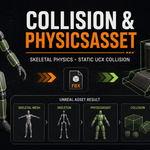
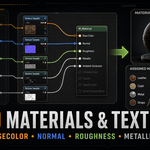
Materials & Textures The bridge detects common map names such as BaseColor, Normal, Roughness, Metallic, AO, and Emission. | Collision & PhysicsAsset Static meshes can use UCX helpers. Skeletal meshes use Unreal PhysicsAsset generation. |
Check the Result in Unreal
- Open the destination folder in the Content Browser.
- Check that Skeletal Mesh, Skeleton, PhysicsAsset, materials, textures, and AnimSequences exist.
- Open each AnimSequence and press Play.
- Open the PhysicsAsset editor to inspect generated physics bodies.
- Check Unreal Output Log if an import does not behave as expected.
Troubleshooting
Blender cannot connect to Unreal
Restart Unreal after bridge installation and make sure the Python plugin is enabled.
Only one animation works
Check that all animation FBX files use the same skeleton hierarchy and contain keyed animation.
Materials are missing
Keep texture files near the FBX source and use clear names such as BaseColor, Normal, Roughness, and Metallic.
PhysicsAsset needs cleanup
Automatic generation is a starting point. Complex characters may need manual editing in Unreal.
Support checklist: include Blender version, Unreal version, source folder structure, Blender console error, and Unreal Output Log text.
 VK Gamedev