 Lynx 3D


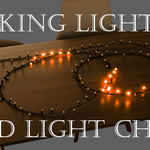

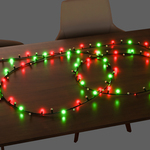
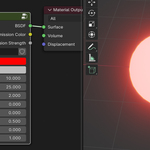
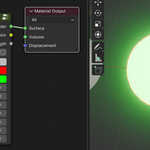
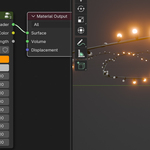
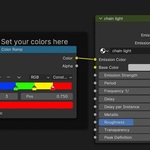
Animated procedural material that creates the effect of blinking lights without the need for any keyframing of manual animation. Adjust the parameters to you liking and you're good to go! Perfect for emergency lights, control panels, neon signs, and anything else that blinks at a regular interval.
How do I use it?
The material comes with a variety of setting that let you create any number of interesting effects.
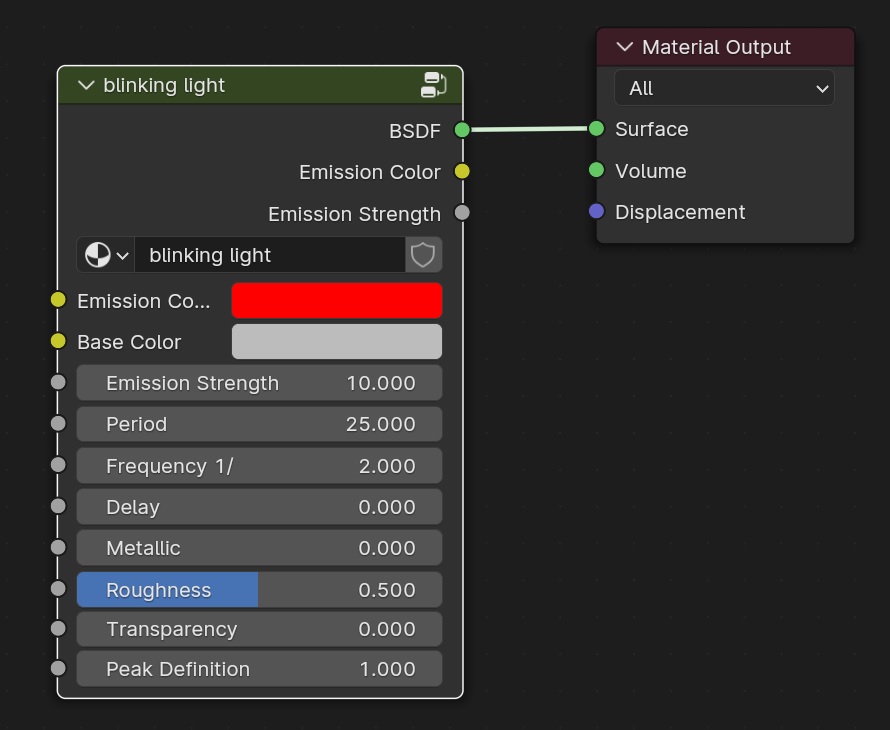
1. Emission color and strength
The most important settings for this shader. The emission strength that you set here is the maximum value as the final strength will fluctuate over the course of the animation.
2. Period
The length of one blink in frames.
3. Frequency 1/x
The number you set here will dictate how many emission peaks will be visible. Input of 1 means every peak, input of 2 means every second peak, input of 3 means every third, and so on
4. Delay
Lets you delay the periodical animation by a set number of frames.
5. Peak definition
Controls how well defined your blink peaks are. You will see greatest changes here between the values of 0 and 4.
6. Other settings
I've also added inputs for base color, metallic, roughness, and transparency for an easier use of this material, but you can also combine it with other shaders using the Emission Color and Emission Strength output sockets on the node group.
Dual color blinking light
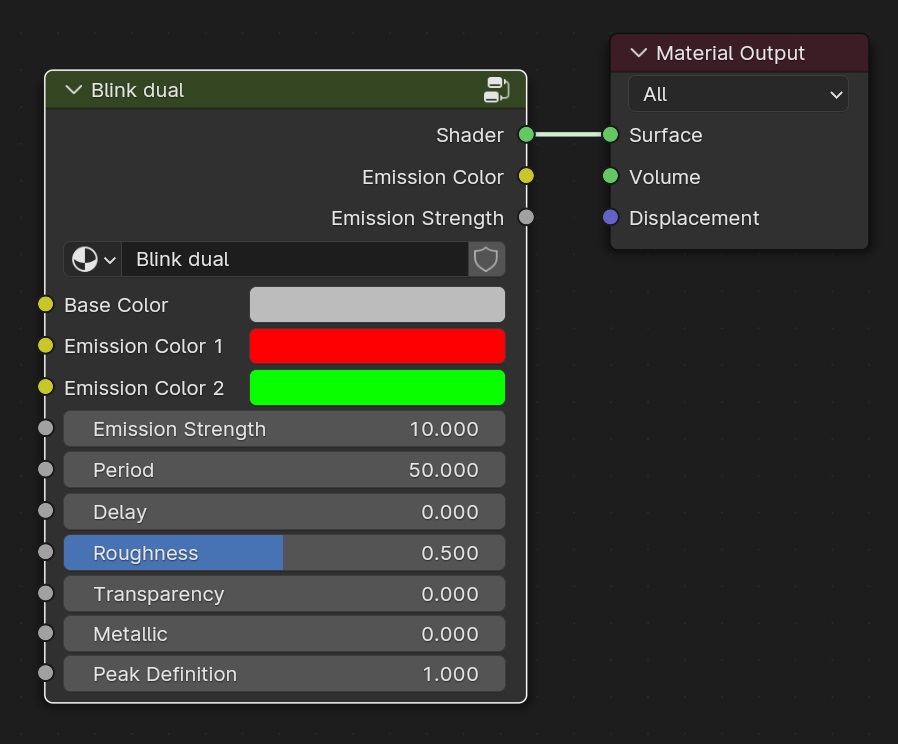
This product also contains a second material - dual color blinking lights. This material allows you to set two blinking colors that will alternate regularly.
It does not allow you to set a frequency, since the gaps between peaks of the first color will be filled with peaks of the second color.
Light chains
How to set it up?
1. Create a curve object
2. Use it in a geometry node tree that instances objects on the curve
3. Store the index of each point on the curve before instancing the objects
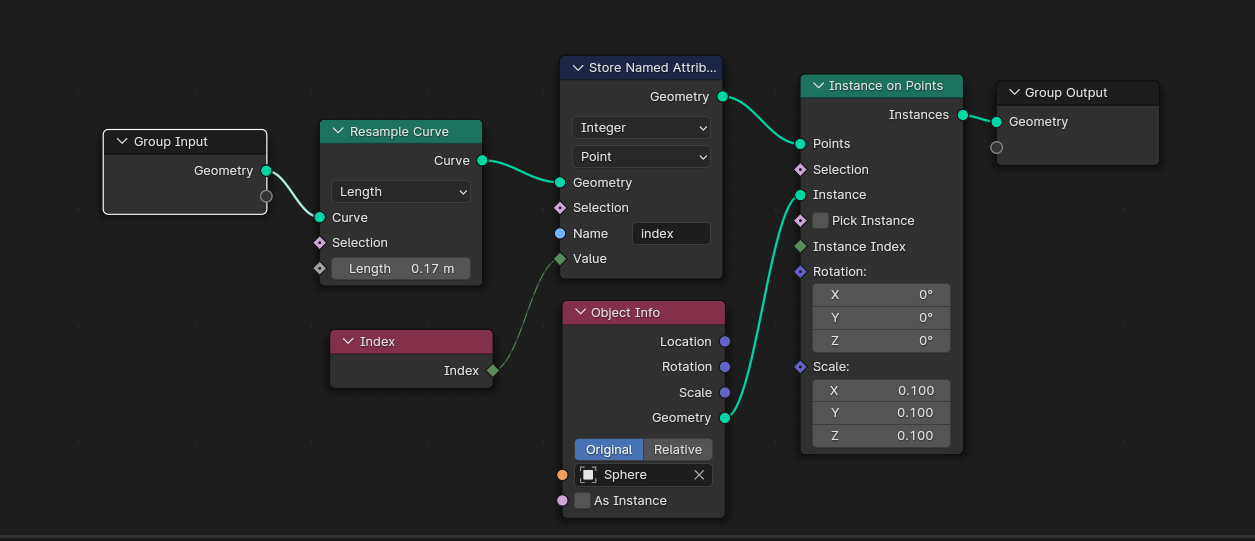
4. Add the "chain light" material to the instanced object and and set the "Delay per instance" value
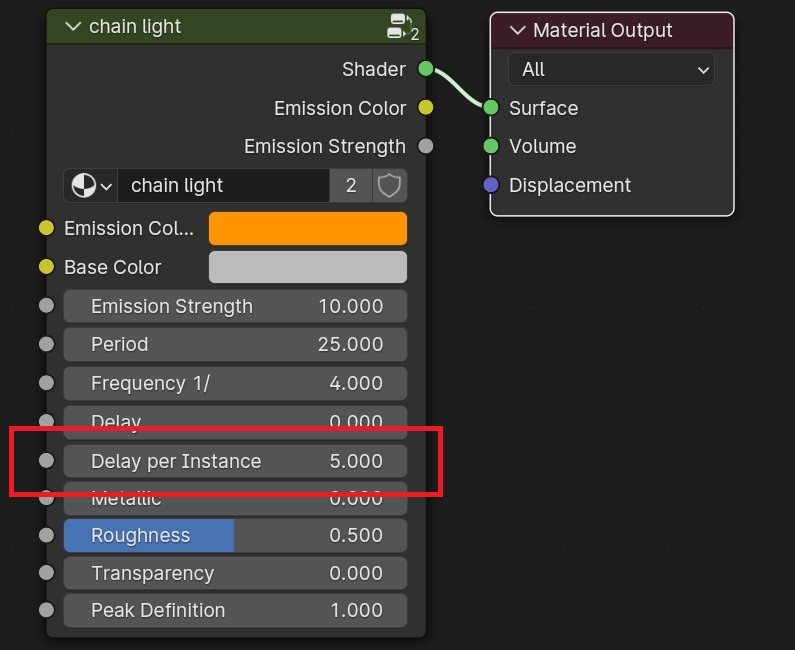
Multicolored light chain
The setup for this is really similar to the single color light chain, except you have to use the "Chain light multicolored" material, choose your colors on the color ramp setting the pins in a regular interval, and set the number of colors in the "color number" node.
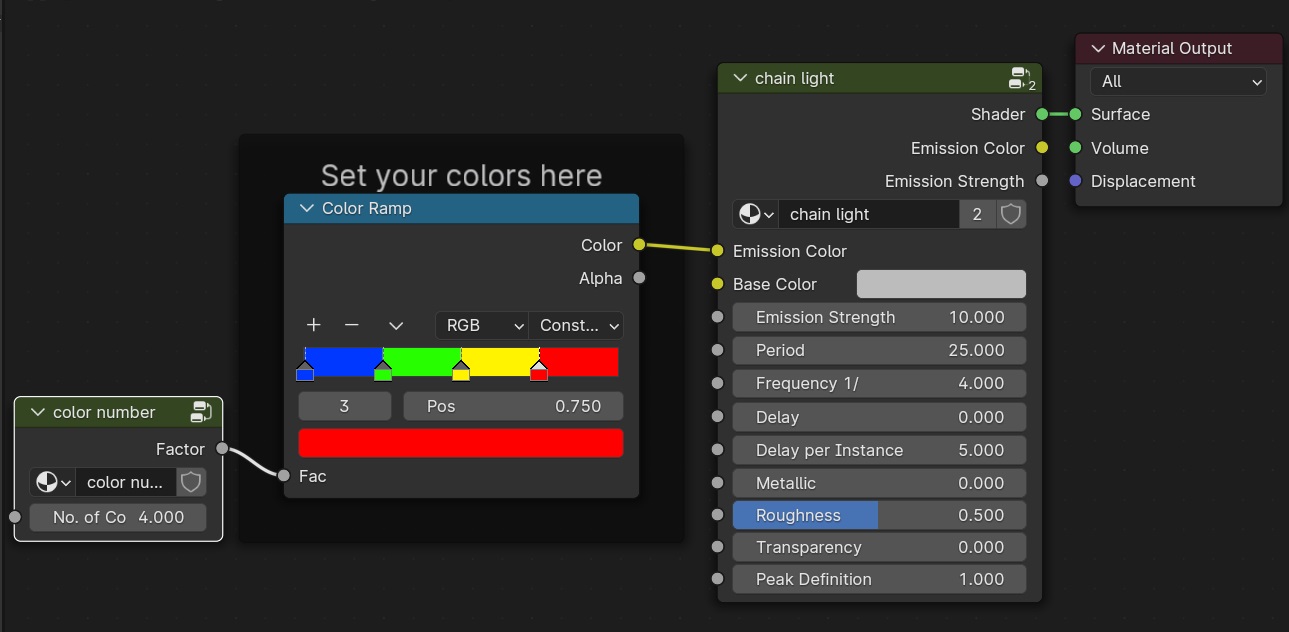
Make sure that the value set on the node matches the number of colors set on the color ramp.
Other uses
If you already have an object with an emission map, you can easily combine it with the blinking light shader like this.
Disclaimer:
Unfortunately, shader nodes in Blender don't allow you to set a value data type to integer, unlike geometry nodes.
The values Period, Frequency 1/x, Delay, Delay per instance, and No. of colors should be treated as integers. If you use values with decimals in these inputs, it might result in unpredictable or incorrect behavior.