Book & Shelf Filler
 Reneraki
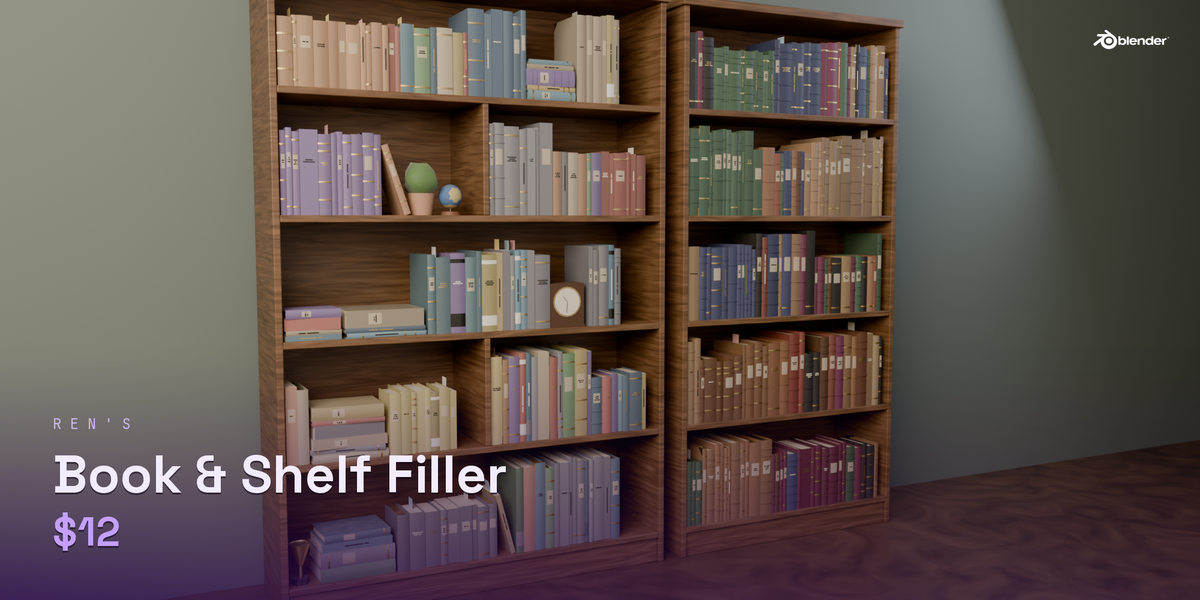
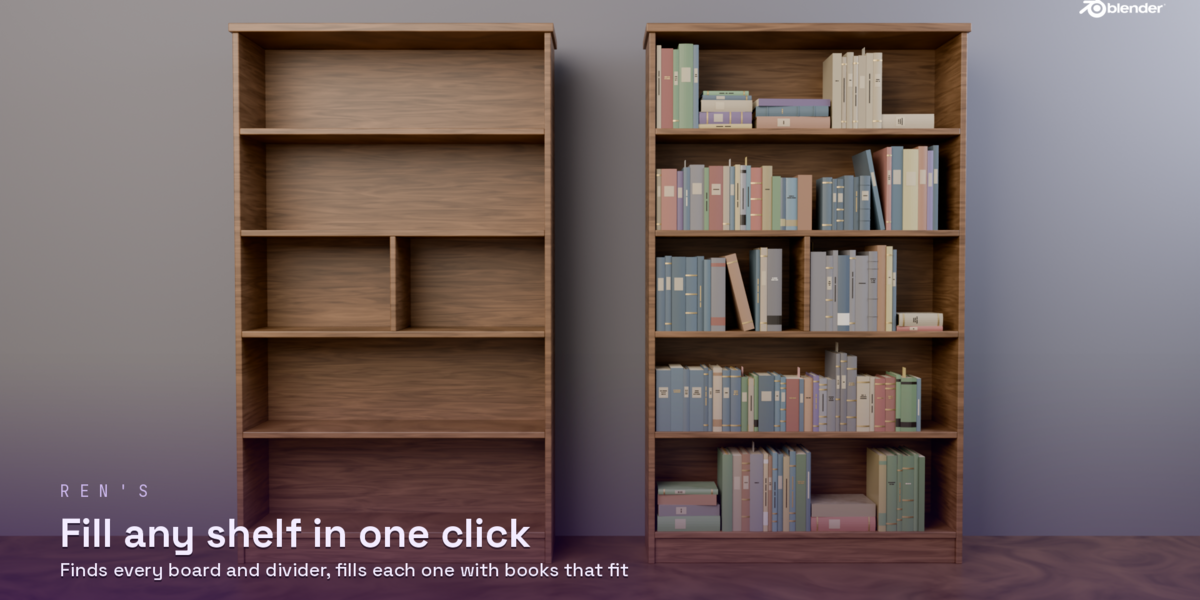



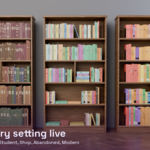
Fill a shelf
- Select your shelf or bookcase mesh.
- Open the sidebar (N) and go to the Books tab.
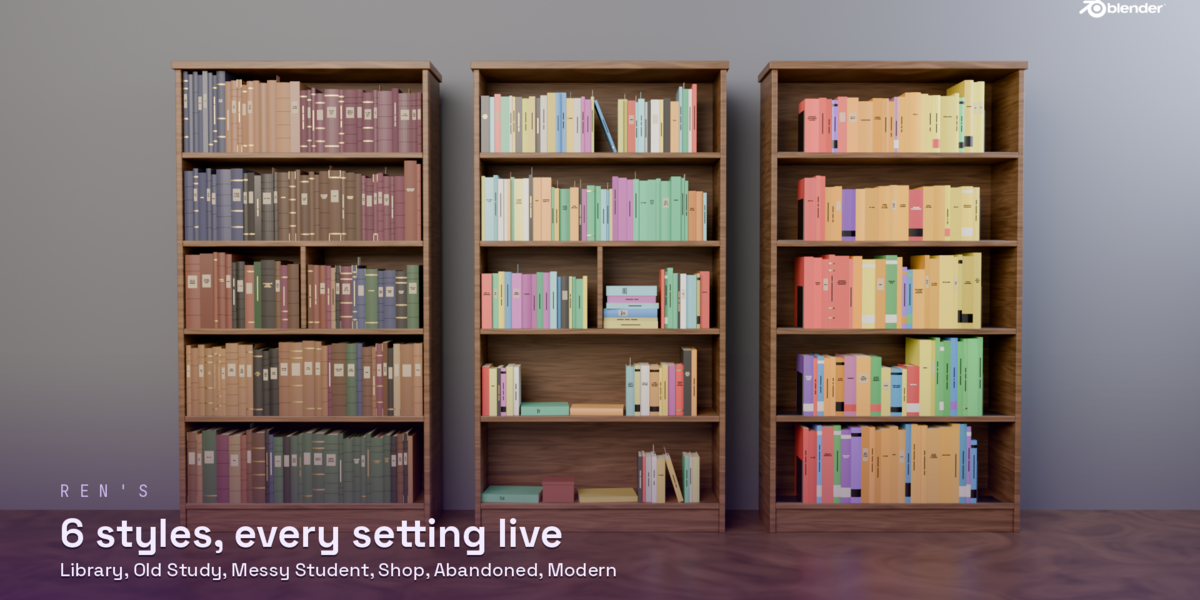
- Pick a Style and press Fill Shelf.
The books are one object named "<shelf>_Books", parented to the shelf. Select it to change any setting. Shuffle gives new random books, Refill fills again after you change the shelf.
If no shelves are found
- Open Shelf Finding and set Front to the side your bookcase faces (-Y is Blender's front view).
- Tick Fill Top to also put books on top of the furniture.
- Shelves need a flat upward-facing top and room above them.
Panels
- Layout: Fullness, Gaps, Leaning, Fallen Over, Stacks, Clutter, Series, Messy, Line Up and Set Back.
- Books: sizes, colours, custom colours, Colours from Image, Sort, Hardcovers, Dust Jackets, Age, Dust, Bookends, Low Poly.
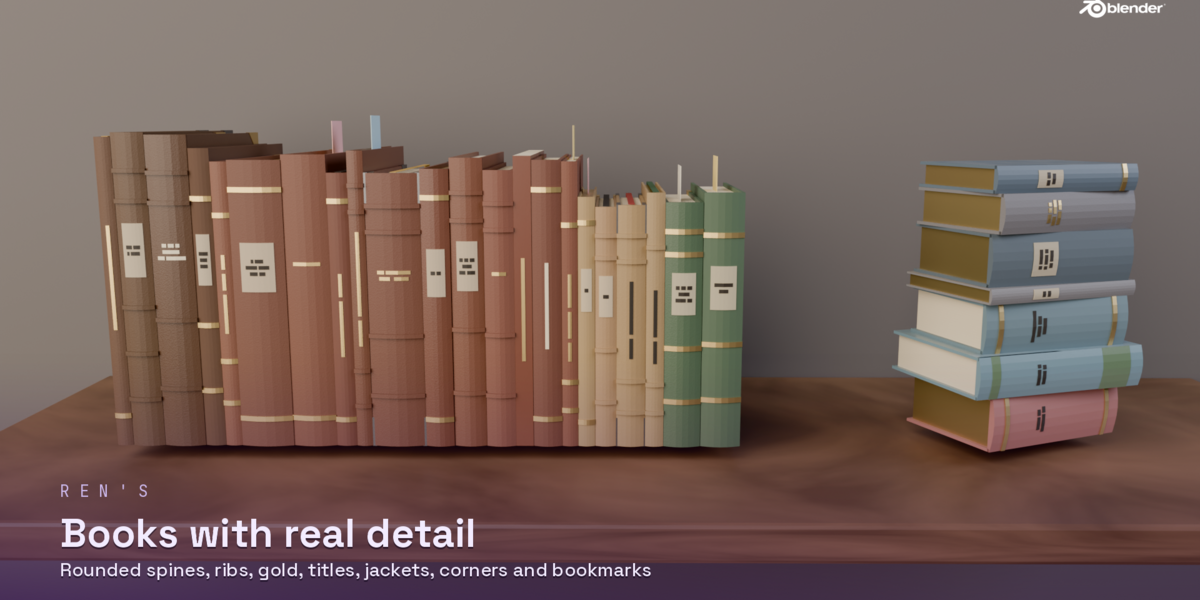
- Details: Spine Titles, Spine Labels, Gold Bands, Raised Ribs, Metal Corners, Gilded Edges, Bookmarks.
- Your Objects: pick a collection to mix your own objects in with the clutter.
- Shelf Finding: Front, Fill Top, Top Height, Live.
- Game Export: Bake for Game.
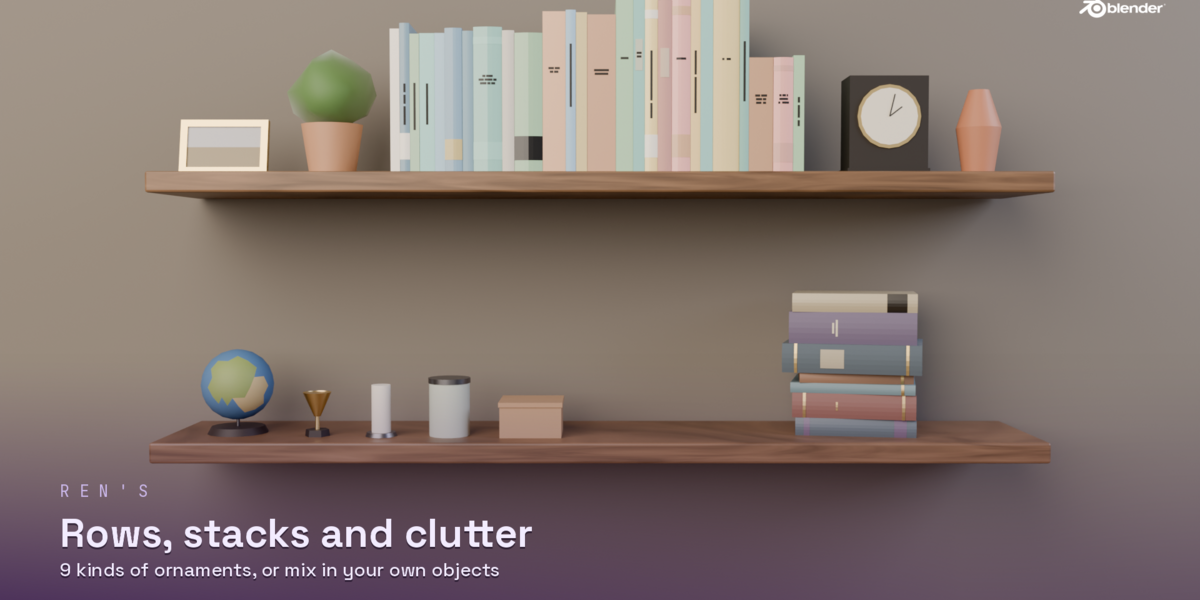
Rows and stacks
With nothing selected, use Add Book Row or Add Book Stack. They appear at the 3D cursor.
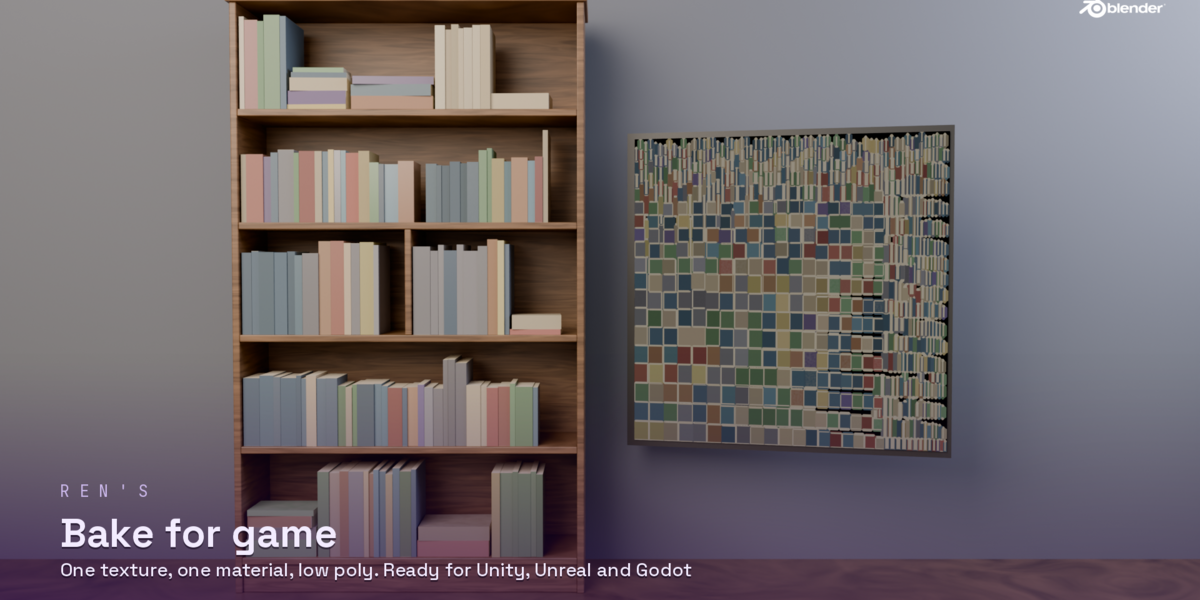
Bake for Game
Select a filler and press Bake for Game. Pick the texture size and maps. It makes a "_Game" copy with one material and packed textures, and hides the original so you can still change it and bake again. Export the copy with FBX or glTF.
Make Real
Stops the books being generated. Tick One Object per Book to split them into separate objects.
Have questions about this product?
Login to message
| Published | 1 day ago |
| Blender Version | 5.2 - 5.3 |
| Extension Type | N/A |
| Render Engine Used | Cycles, Eevee |
| License | Mit |
Discover more products like this
props procedural set dressing Clutter furniture Generator books bookshelf Library bookcase Interior game ready