 DreamSfx

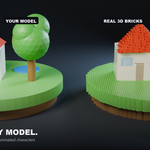
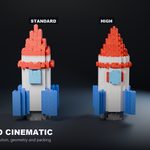
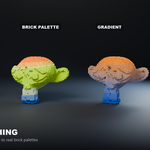


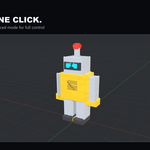
Installation
- Download
brickforge_pro-1.0.0.zip(do not unzip it). - In Blender: Edit › Preferences › Get Extensions › ⌄ (top right) › Install from Disk… and pick the zip.
- The panel appears in the 3D View sidebar (N) under the BrickForge tab.
Quick start
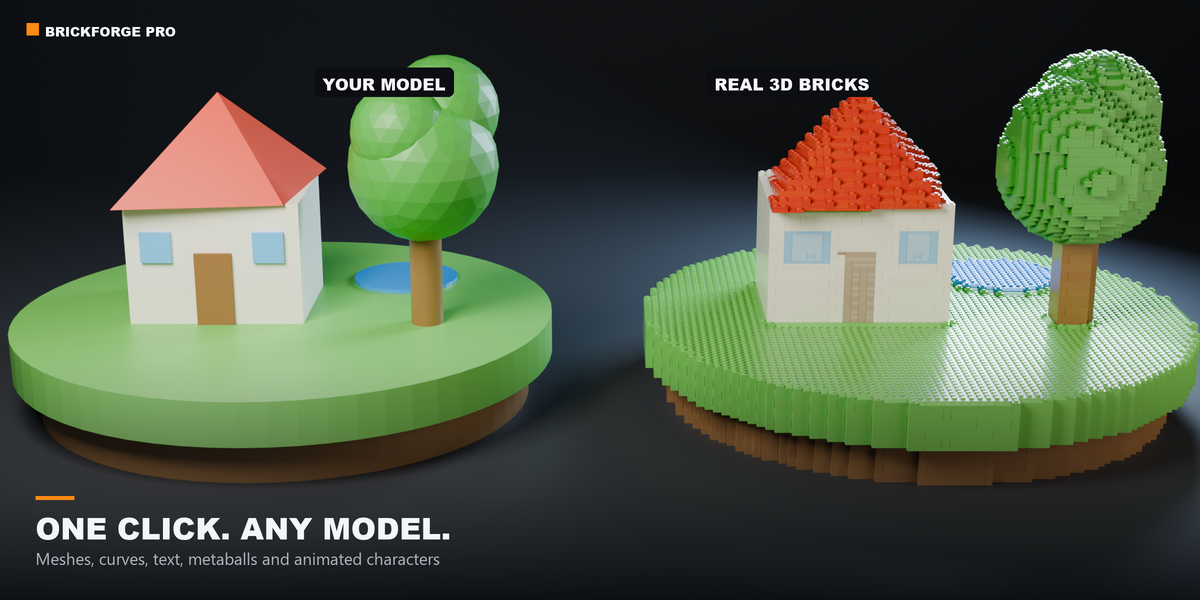
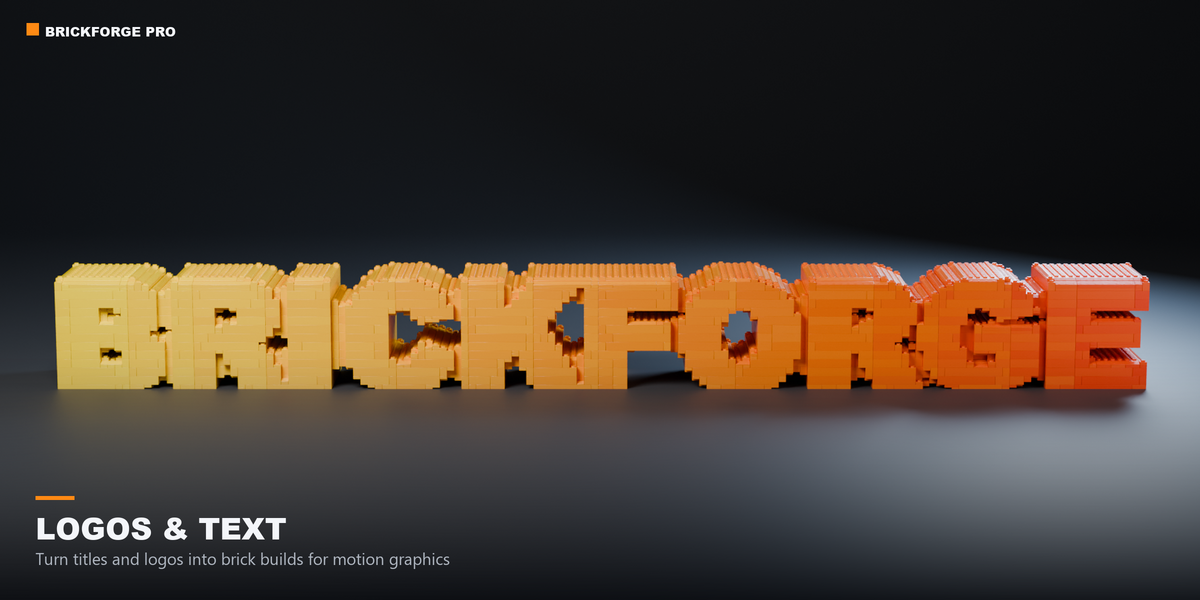
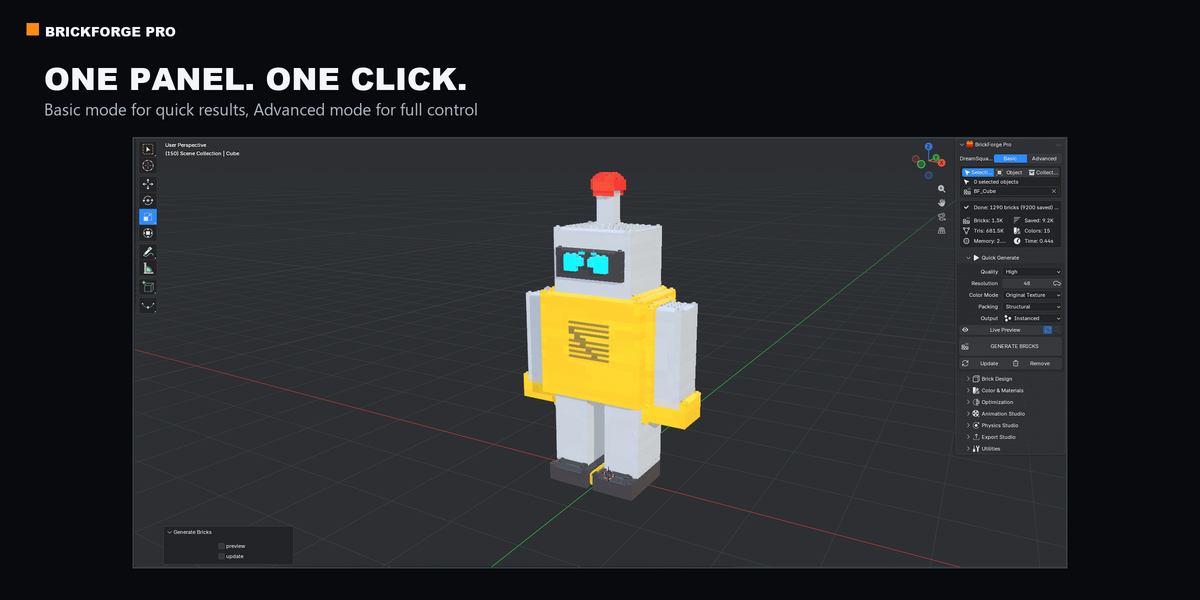
- Select one or more objects (mesh, curve, text or metaball; rigged or animated meshes are sampled as evaluated).
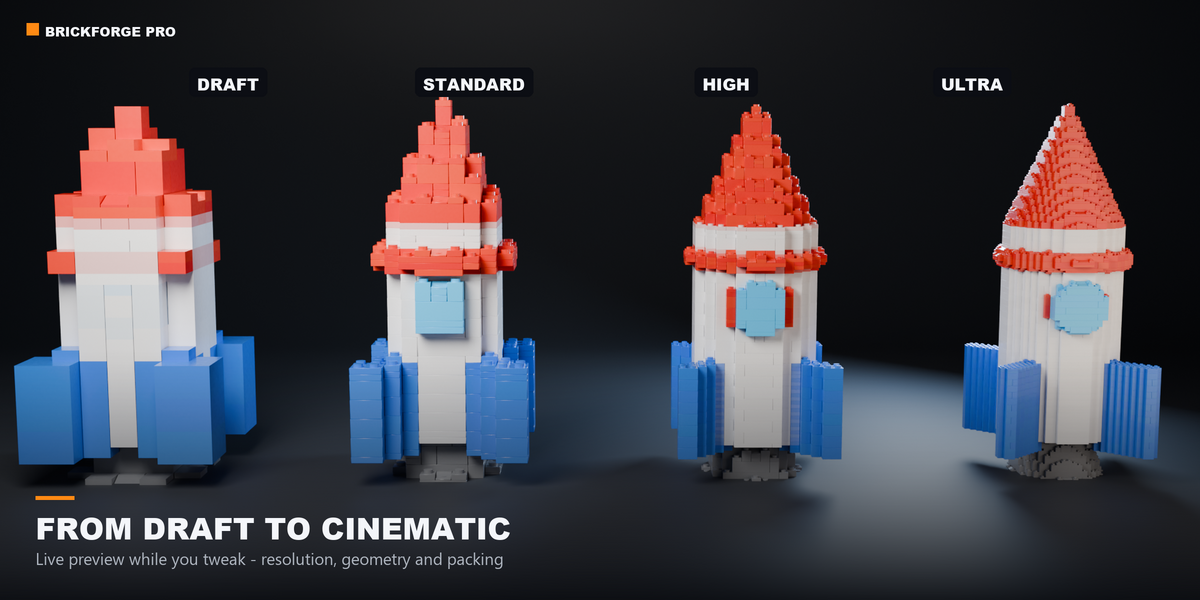
- Choose a Quality preset and a Resolution (studs across the model).
- Press GENERATE BRICKS. Press ESC or Cancel to stop a running generation.
- Turn on Live Preview to see a fast proxy update while you tweak settings.
Panels
- Dashboard: source, status, progress and brick statistics.
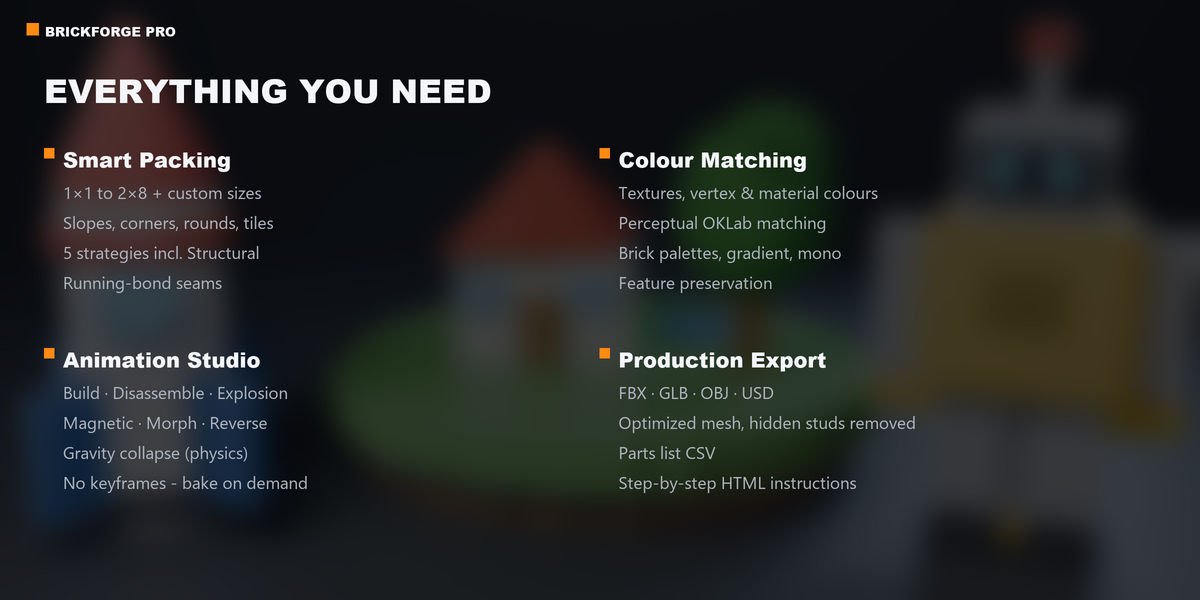
- Quick Generate: quality, resolution and fill (Surface, Solid, Hollow).
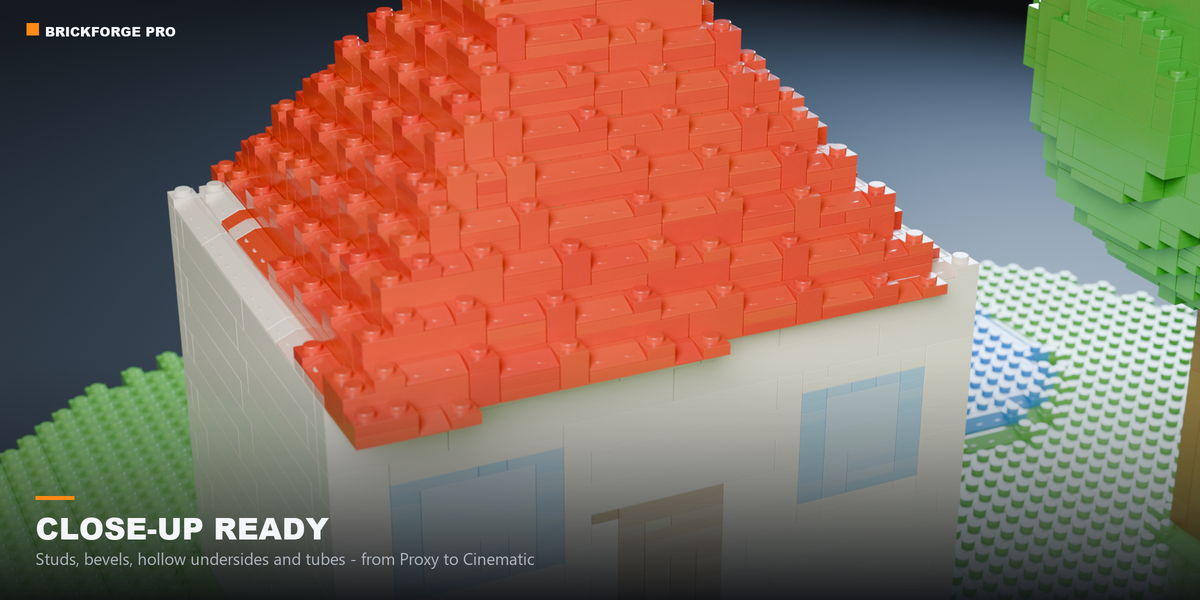
- Brick Design: brick library and sizes, geometry quality, studs, bevels, custom brick meshes.
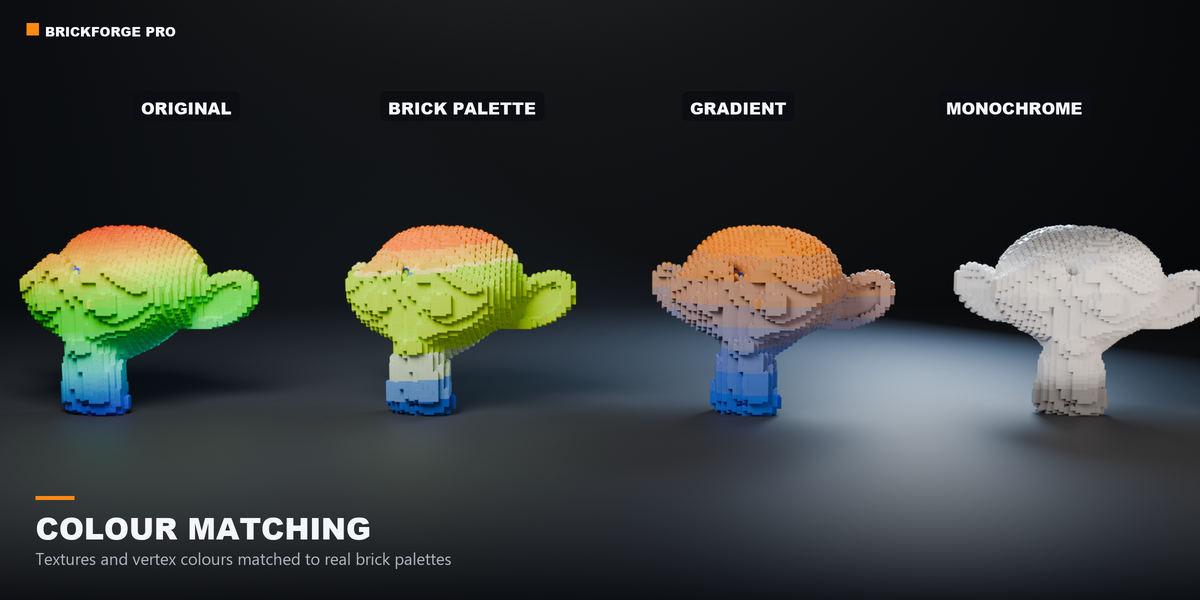
- Color: colour mode, palette, maximum colours, tolerance, feature preservation.
- Optimization: packing strategy, staggering, connectivity, floating-brick removal, seed.
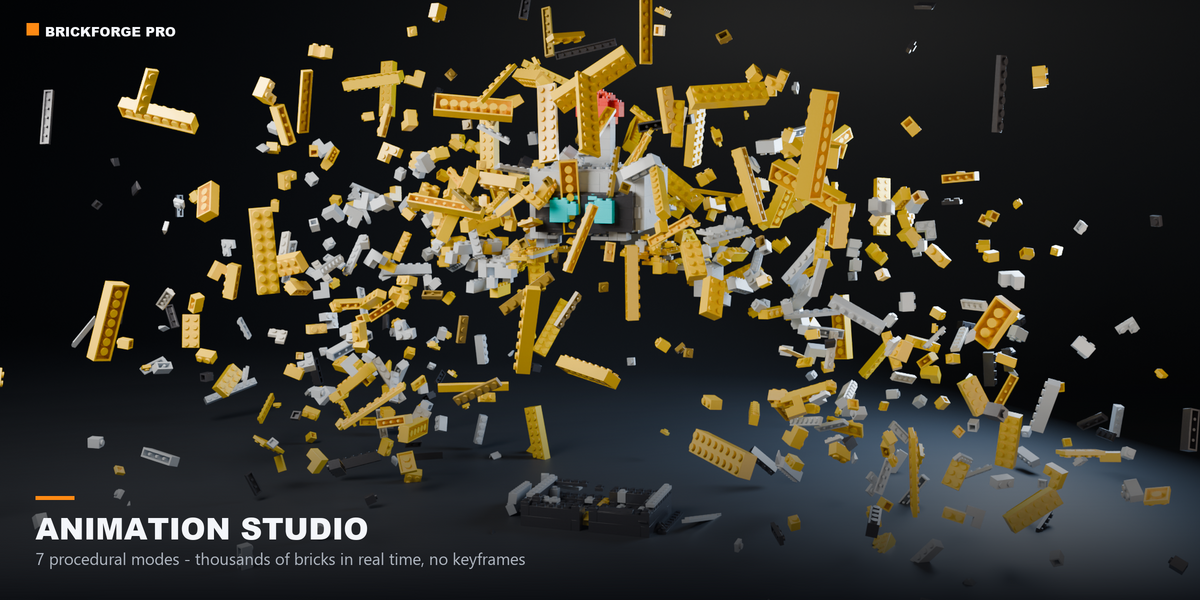
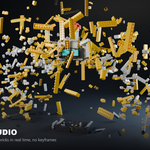
- Animation Studio: Build, Disassemble, Explosion, Reverse Explosion, Magnetic Assembly, Morph, Gravity Collapse; Bake to Keyframes.
- Physics Studio: rigid bodies, ground, collider, explosion force, bake and reset.
- Export Studio: FBX, GLB/glTF, OBJ, USD, CSV parts list and HTML step-by-step instructions.
- Utilities: output mode, select, isolate, restore source, presets, clean up.
Output modes
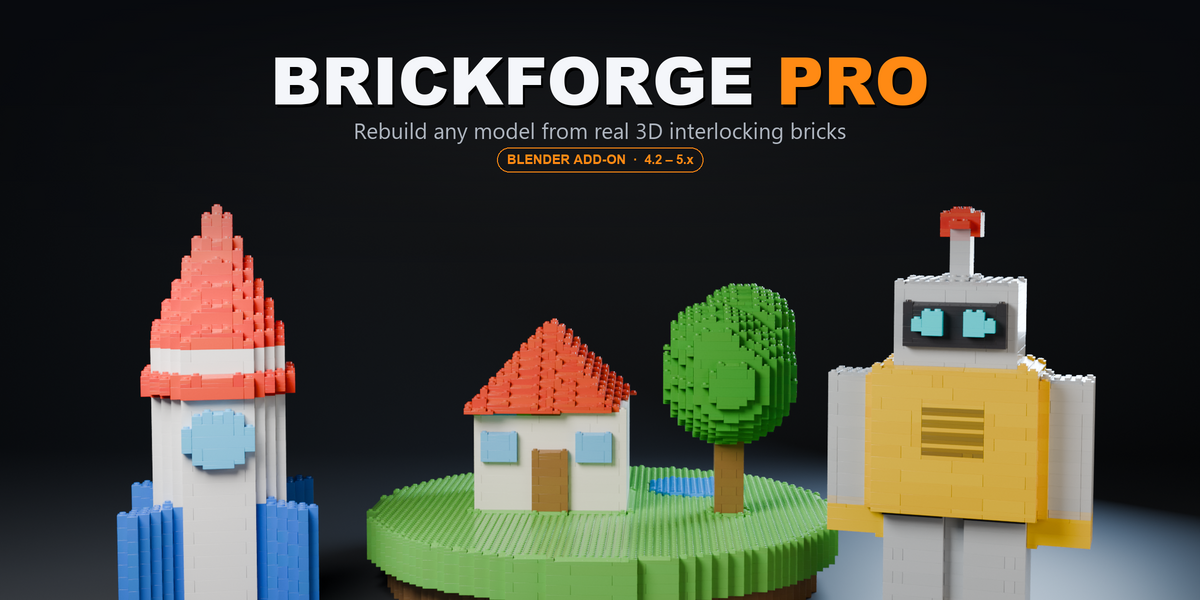
Instanced (Geometry Nodes, the fastest and animatable), Individual objects (needed for physics), Combined mesh, and Optimized export mesh (hidden studs removed, one material per colour).
Tips
- Start at a low resolution, then raise it once the look is right.
- Use Analyze and Auto Resolution in Quick Generate to pick a sensible resolution for your mesh.
- Rigid-body simulation above about 5,000 bricks gets slow; use the GN animation modes for large models.
Have questions about this product?
Login to message
| Blender Extension Compatible | Yes |
| Published | about 1 hour ago |
| Blender Version | 5.0 - 5.2 |
| Extension Type | Add-on |
| Render Engine Used | Cycles, Eevee |
| License | GPL |
Discover more products like this
physics bricks toy Export motion graphics Building Blocks voxel voxelizer procedural stylized geometry nodes animation