Bunkai - Mecha Teardown & Exploded-View Animation
 Voyde Procedural

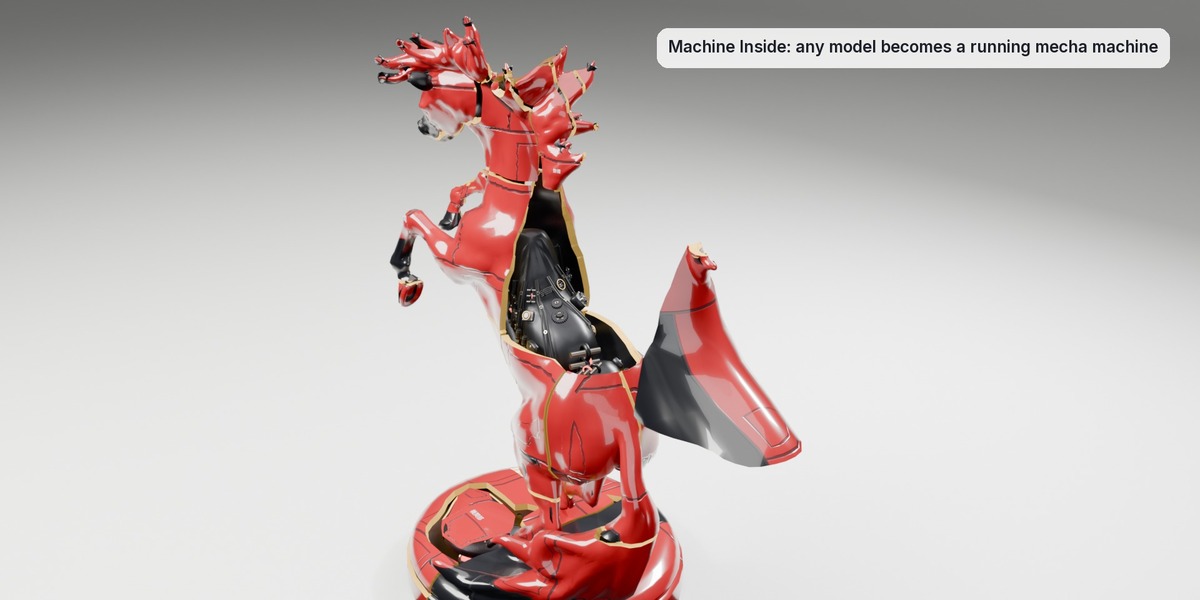
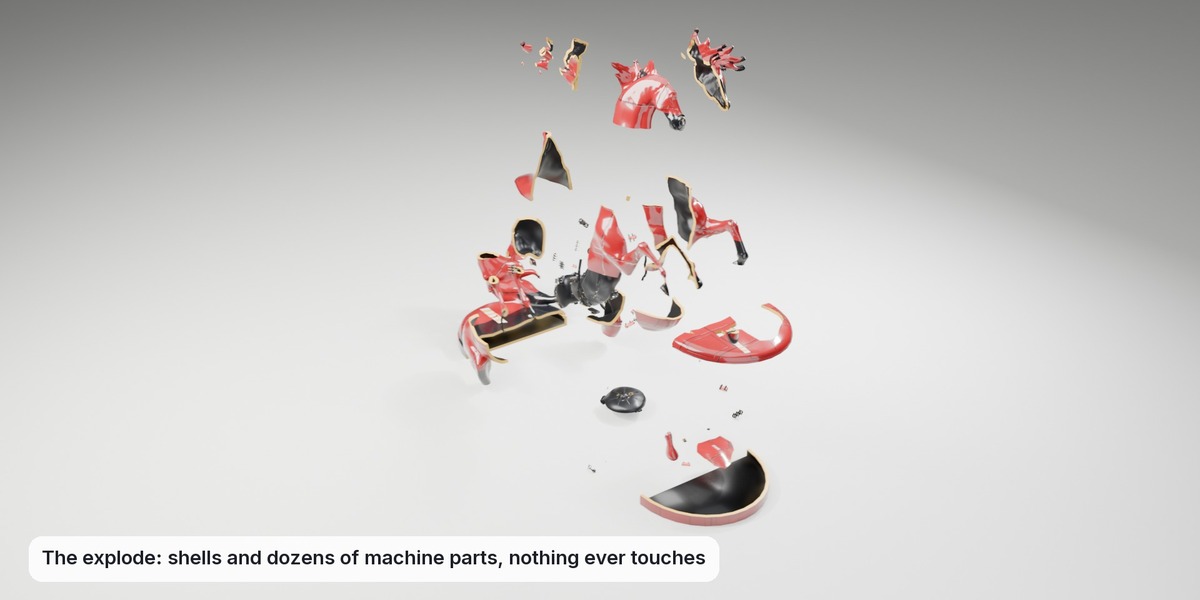
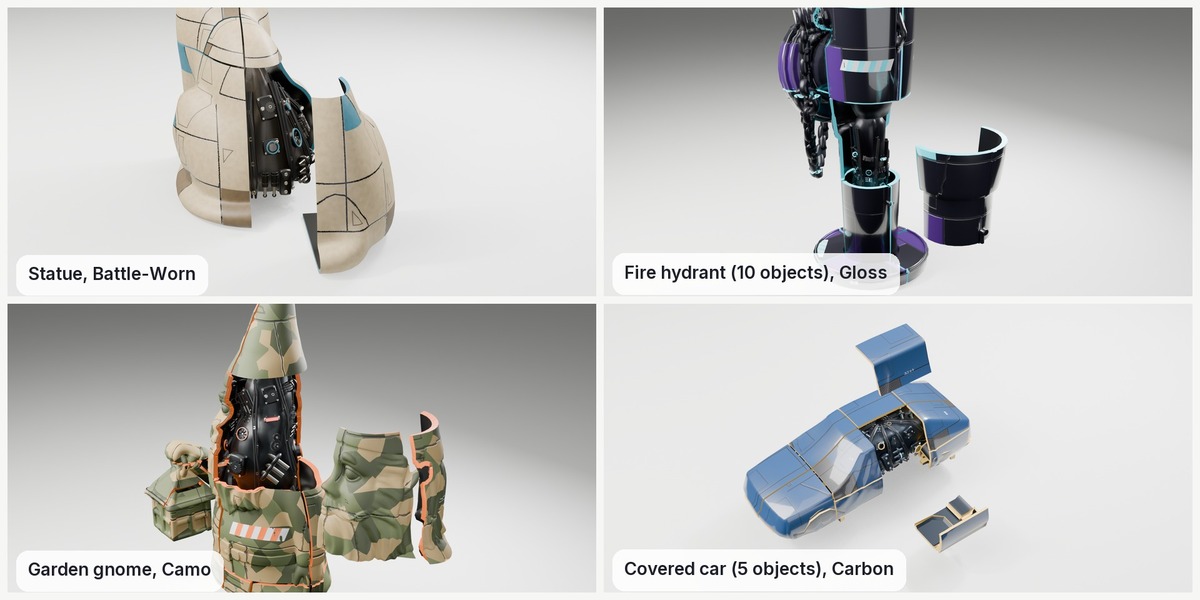
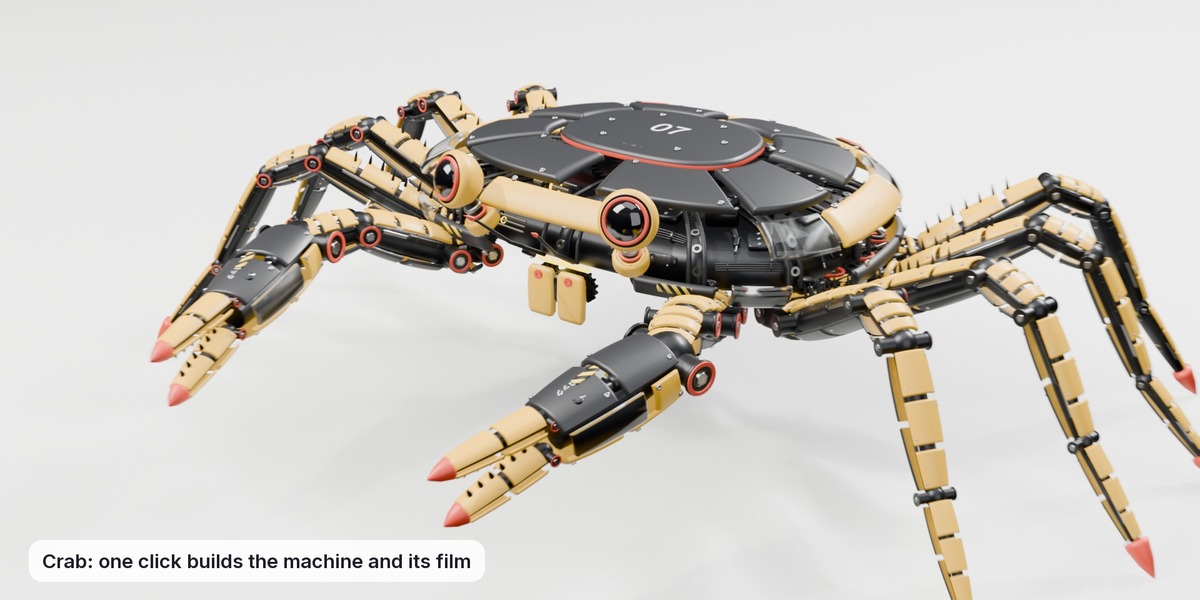
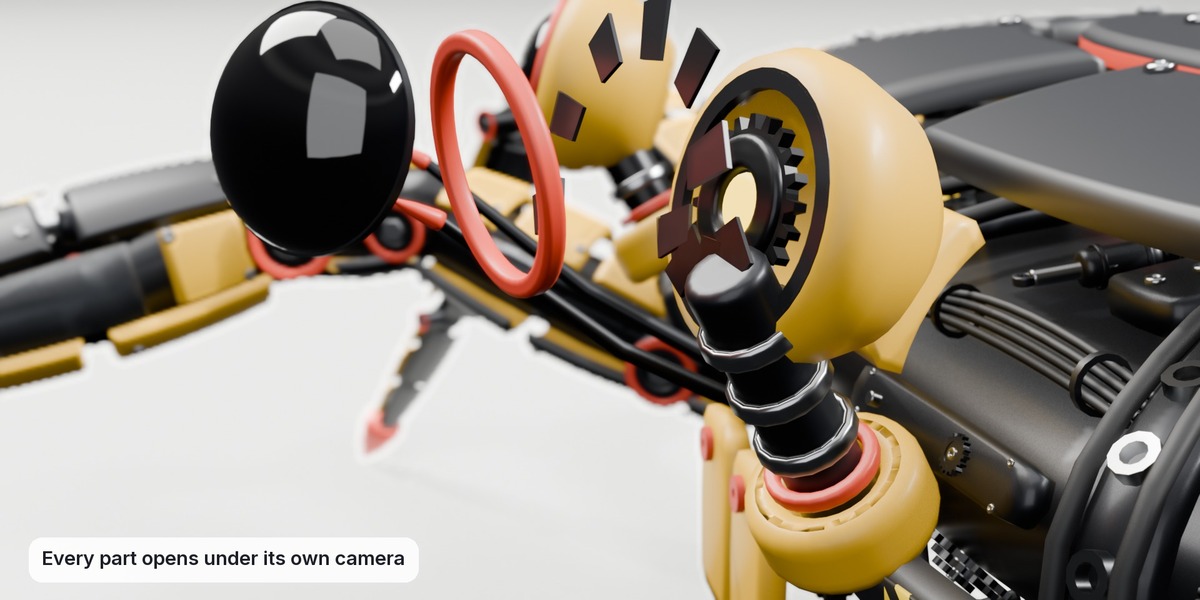
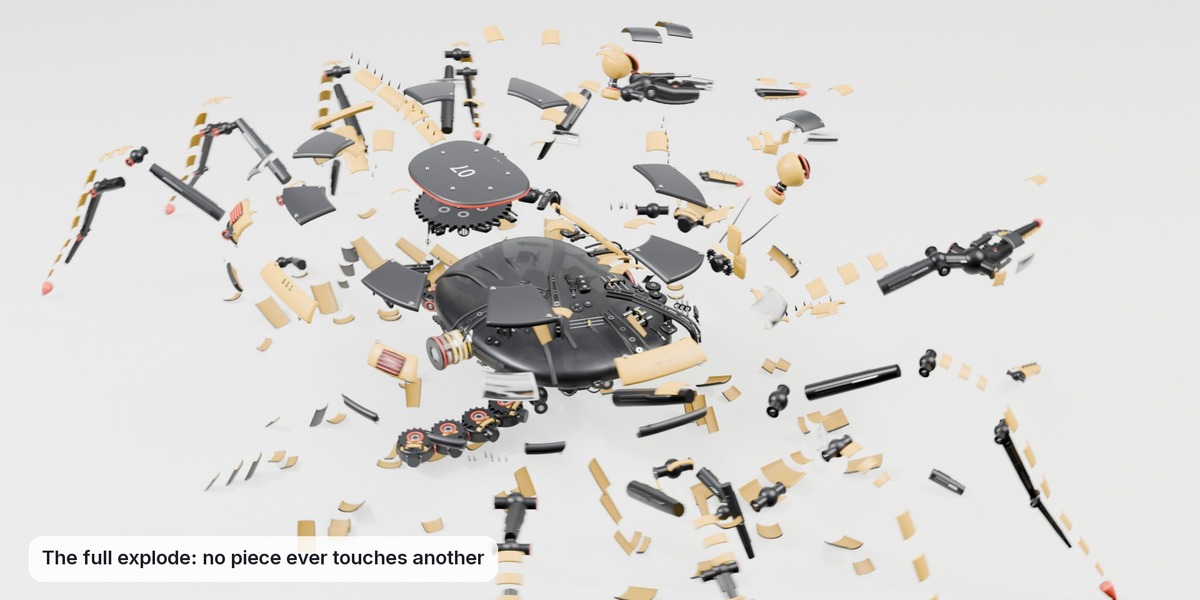
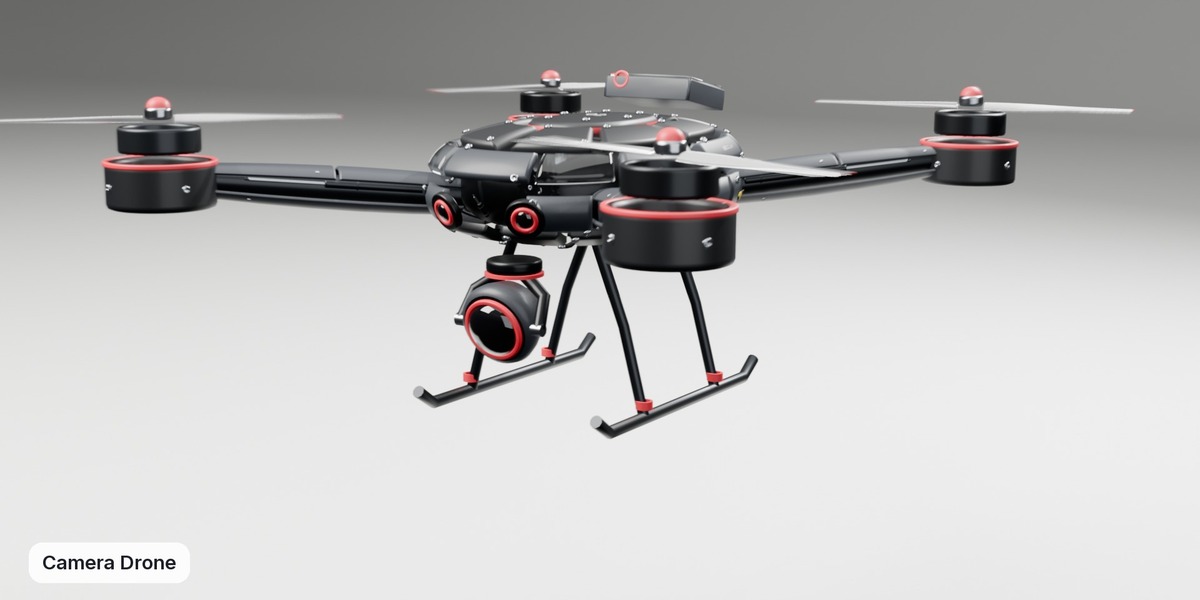
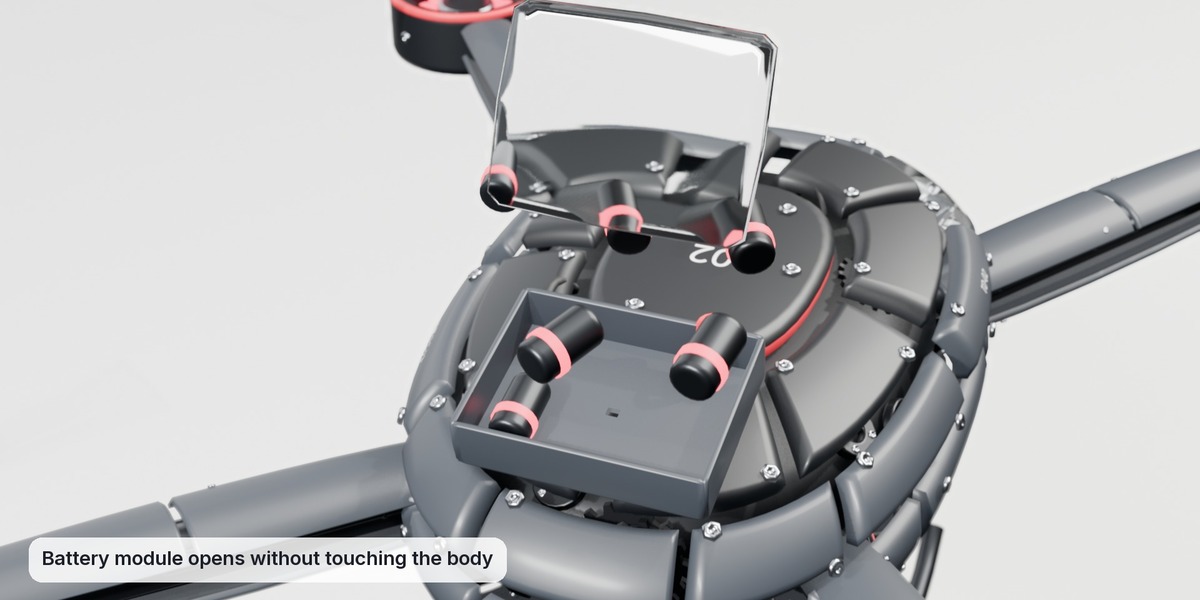
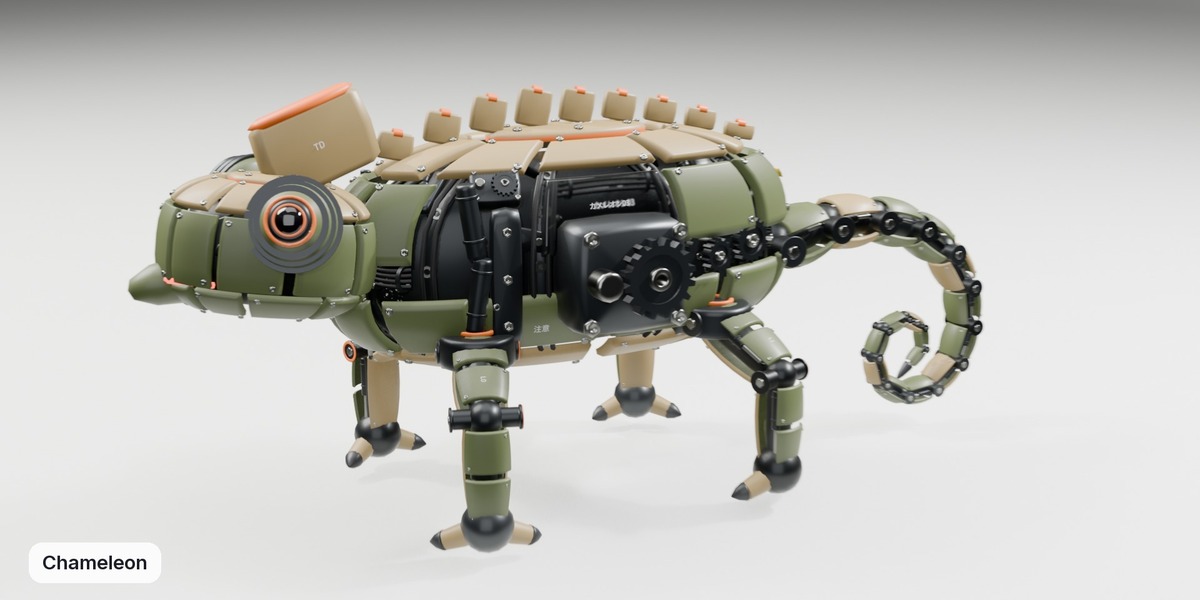
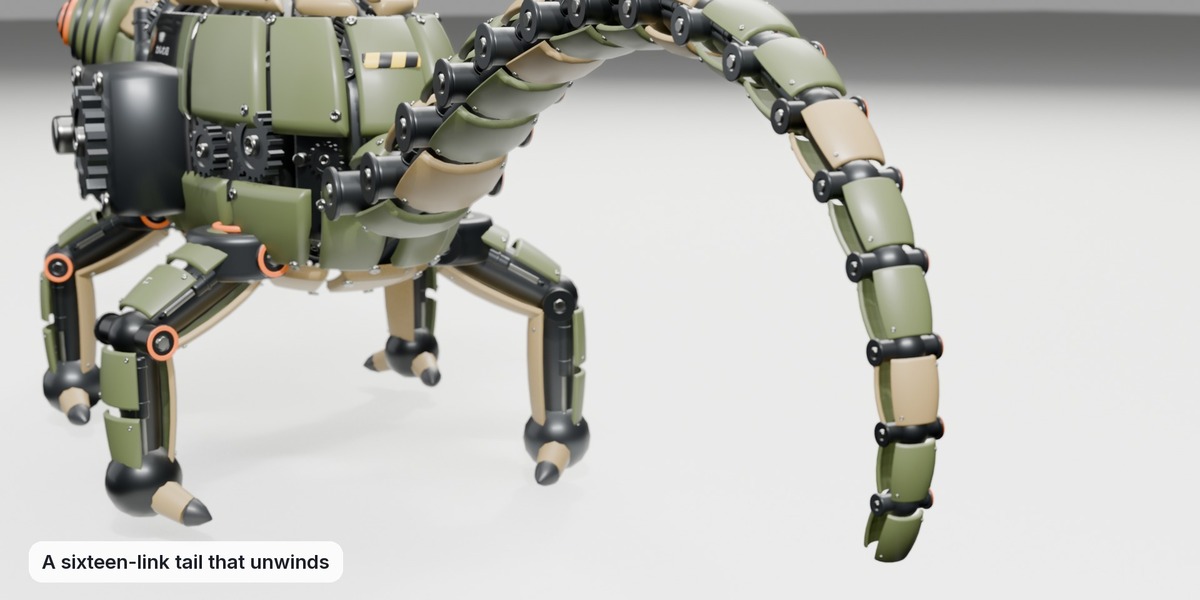
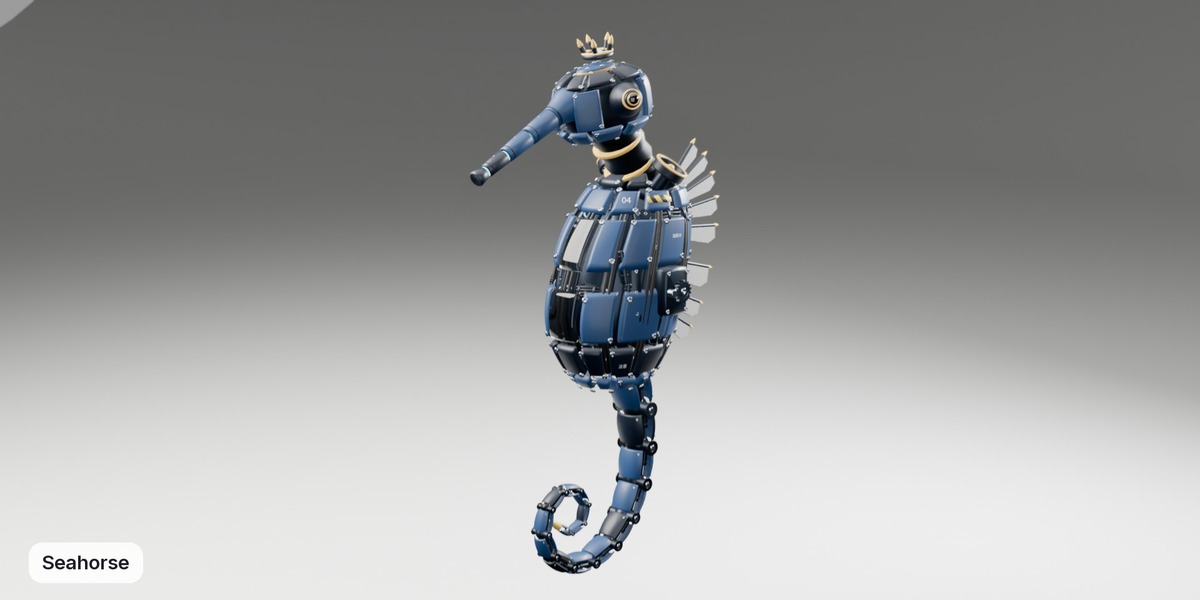



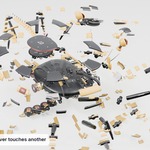

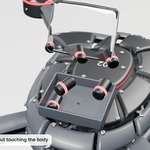
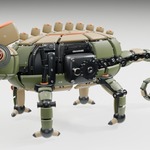
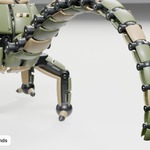
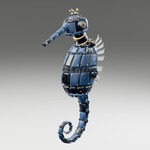
Bunkai builds Japanese-style mecha machines that take themselves apart on camera. One click gives you a ready-made machine, a near-white product studio and a finished film: the machine walks in, each part comes apart under its own camera, the whole machine explodes on a turntable, snaps back together and leaves.
Bunkai (分解) is Japanese for "taking apart".
Requirements
Blender 5.0 or newer. EEVEE renders the film in minutes on a mid-range GPU; Cycles gives the best glass and reflections.
Installation
- Download
bunkai-.zipfrom your Superhive library. Do not unzip it. - Drag and drop the zip into the Blender window, or go to Edit > Preferences > Get Extensions, open the v menu at the top right and choose Install from Disk...
- The add-on is enabled automatically. Open the sidebar (N) in the 3D Viewport and pick the Bunkai tab.
Quick start
- Bunkai > Machine: choose a machine, then press Build Machine.
- Press Space to play. The film is already keyed: walk in, five parts, explode, walk out.
- Film > Render Film writes an MP4 (or PNG frames) to the output folder.
Ready machines
| Machine | How it moves | Parts that come apart in the film |
|---|---|---|
| Crab | Walks in on eight legs | Optics, claw, carapace, leg, power cell |
| Camera Drone | Flies in | Gimbal camera, rotor, shell, arm, battery |
| Chameleon | Walks in on four gripper feet | Turret eye, casque, flank, leg, tail |
| Seahorse | Hovers in on two ducted thrusters | Head and coronet, telescoping snout, dorsal fin, ring armour, tail |
Machine panel
| Setting | What it does |
|---|---|
| Machine | The ready-made machine to build. |
| Seed | Variation: segment lengths, leg poses and small parts. |
| Detail | How many small parts (screws, hoses, gears) fill the mechanism. |
| Look | Paint scheme in the Japanese mecha tradition, twelve of them: Tricolor, Ground Unit, Stealth, Arctic, Crimson Ace, Desert Patrol, Deep Sea, Neon Runner, Sakura, Hazard, Royal Guard and Jade Lancer. It sets the armour, the colour blocks, the trim, the warning tips, the sensors and the inner frame at once. |
| Colours | Armour, block and trim colours of the current look; change them any time, the machine updates live. |
| Finish | The Mecha Paint finish of Machine Inside shells (see below); switching it repaints the shells at once. |
| Build Machine | Builds the machine at the 3D cursor with the studio and the film. Building again replaces it. |
| Teardown Selected | Makes your own model take itself apart (see below). |
| Machine Inside | Turns any model (one mesh, or several that make one model) into a machine with a mechanism inside (see below). |
Teardown your own model
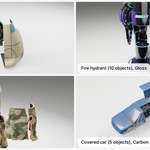
Select the objects of a model you built in parts (a vehicle, a robot, a product) and press Teardown Selected. A single mesh made of separate parts works too: it is split into pieces on a copy and the original is hidden. Bunkai does not change your geometry: it groups the pieces into parts (by collection when your model is organised that way, otherwise by position), keys the film and adds the studio.
In the Adjust Last Operation panel (bottom left) you can change Parts (how many parts open one after another), Spread (how far pieces move) and Seed.
Models without legs build themselves at the start of the film and leave at the end, in the build style you pick (see Build Style below).
Machine Inside: any model becomes a machine
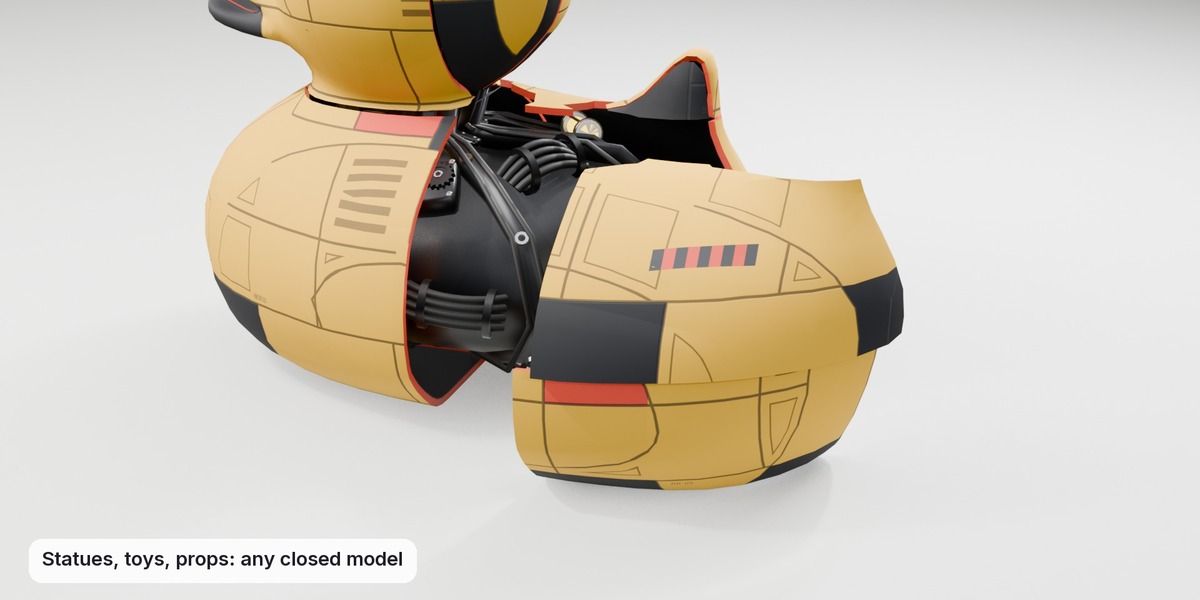
Select one mesh (a statue, a toy, a character, a vehicle in one piece) and press Machine Inside. A model made of several objects works too: select them all (the active one names the machine). Bunkai works on a copy and hides the original:
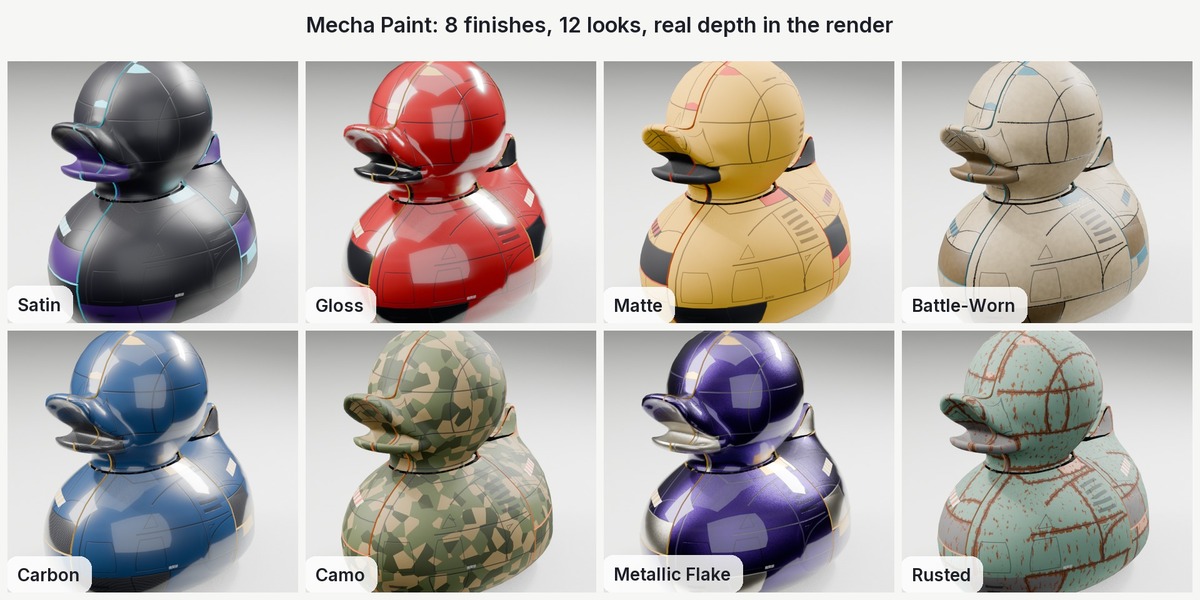
- The model's surface is cut into a few big shells and painted in the machine's look (Mecha Paint, on by default): the armour colours of the look you picked in the Machine panel, irregular panel lines, Japanese markings and caution stripes. The shape stays your model's. Untick Mecha Paint to keep your own materials. Each shell gets a thickness: dark on the inside, with a thin trim along the cut.
- The paint has real depth in renders: the panel lines, a few recessed panels, vent grilles and inset grooves are pressed into the surface (displacement, never out of it, so the markings stay on top). A render-only subdivision (Bunkai Paint Depth) gives the shells the detail; the viewport and the planning keep the light mesh. Raise its viewport levels to see the depth while you work.
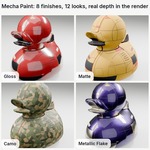
- Eight finishes: Satin, Gloss (deep clear coat), Matte (flat military paint), Battle-Worn (chipped to bare metal along the seams, grime in the panel lines), Carbon (carbon-fibre weave on the colour blocks), Camo (patches in the look's colours), Metallic Flake (sparkling candy paint) and Rusted (rust blooming out of the seams, faded paint, pitted metal). Pick one in the operator's panel or switch any time with Finish in the Machine panel; it works with every look.
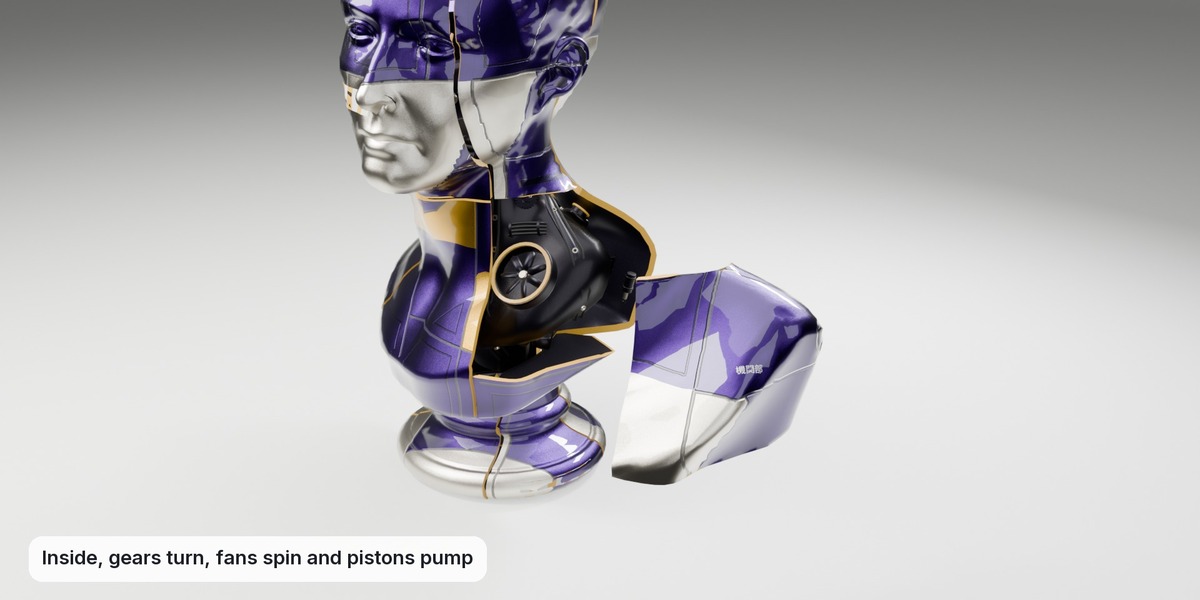
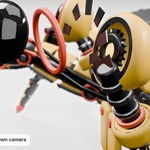
- Inside, a dark core follows the model's shape and is covered with mechanism: gear stacks, servo boxes, pistons, coil packs, cable looms, optic sensors with lens and iris ring, glowing power cells in their cages and turbine fans in their ducts. It stays in the main body, clear of the walls and of thin parts such as legs or fingers.
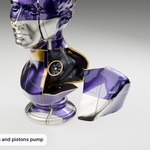
- The machine inside runs (Moving Machine, on by default): gear pairs turn at their teeth ratio, the small one the other way, cap gears spin and piston rods pump, all film long, also while the shells fly off. Every moving part is checked in every pose of its motion and keeps a small gap: one that would touch anything keeps still.
- The film opens the shells part by part, so the machine inside shows under its own camera. In the full explode the machine comes apart in layers like the ready machines: the shells fly well clear, then the ribs, the wiring and every module that does not move come off in their own pieces, while the core with its turning gears and pumping pistons keeps running in the middle. Only shells with machine behind them open in the part beats, the most revealing first; a shell that would open onto nothing (a pedestal, a thin leg) stays put until the explode. The camera frames the open shells together with what they show.
- Shells under the model's middle slide out sideways: nothing ever goes through the floor.
- A shell that would wrap around the machine like a ring is cut in two, so every part really opens.
- Your model is filmed from every side, so the studio (backdrop and lights) turns with the camera, as if the model stood on a turntable: no shot looks past the edge of the backdrop. The same goes for Teardown Selected.
In the Adjust Last Operation panel you can change Shells (how many pieces the surface is cut into), Parts (how many open one after another), Detail (how much mechanism), Thickness, Spread, Seed, Mecha Paint, Finish and Moving Machine. Changing the look or its colours later repaints the shells too. Like everything in Bunkai, no piece passes through another.
Works on closed models of any kind: statues, toys, food, props, vehicles. A thin model (a spoon, a blade) gets thinner shells so a machine still fits inside it. Flipped normals, loose parts sitting on the surface and hollow models with an inside wall (a kettle) are handled. A model without an inside, such as a flat plane or an open bowl, gets shells but no core.
Pieces never touch
Every move Bunkai makes is collision-checked: a piece only travels along a path that is clear of every other piece, and it waits while another piece is in its way. If a bolt sits in a hole, it comes out along the hole; if a plate covers a gear, the plate leaves first. Pieces that are modelled into each other so tightly that neither can leave alone (a pin welded into a bracket) leave together as one unit. A piece inside a hollow shell does not pass out through its wall. This holds for the explode, every build style, the Rebuild beat and the effector.
The ready machines open their parts the way they were designed, made collision-free the same way: a plate whose way out runs into a leg opens only as far as it can (or lifts up and away instead), a cover that sits on top of another goes first, and a gear that would scrape its neighbour while turning does not turn. Change the seed or the density and the check runs again for the new machine.
Teardown panel: the film script
The film is a list of beats that play one after another. Deleting a beat makes the film shorter; moving one changes the order. Full Film and Short reset the list (the short version is about 10 seconds: one part, the explode and the exit).
| Beat | What happens |
|---|---|
| Part | One part comes apart (Open), hangs open with its gears still turning (Hold) and snaps back (Close). The camera moves to its own side (Side), height (Height) and distance (Distance, 0 = automatic) and pushes in while the part hangs open (Push In). |
| Explode | The pieces fly apart from the outside in, without touching, while the camera circles (Turntable degrees), hang apart, then come back the same way. |
| Rebuild | The machine takes itself apart in a build style (Style) and builds itself again: Open is the take-apart, Hold the empty stage, Close the rebuild. |
| Hero | The camera returns to the hero view. |
Show Beat jumps to the moment the selected beat hangs fully open. Build Film re-keys everything after you change settings by hand.
Build Style panel
How your own model (or a Rebuild beat) comes together. Every style is collision-checked.
| Style | What happens |
|---|---|
| Drop In | Pieces fall from above into place, the lowest first. |
| Rise Up | Pieces rise out of the floor into place, the highest first. |
| Slide In | Pieces slide in from the four sides, the core first. |
| Fly In | Pieces fly in from all around, tumbling until they near the model. |
| Vortex | Pieces swirl around the model and slot in from the side. |
| Brick by Brick | One piece at a time: carried over, held above its spot, pressed down, like building bricks. |
| Snap Together | Pieces appear just off their spot and snap in, in a wave from the core. |
| Stack Up | Layer by layer from the floor up: each piece drops a little and settles. |
| Setting | What it does |
|---|---|
| Order | Which pieces come first: the style's own order, bottom up, top down, inside out, outside in, left to right, front to back, part by part, nearest the effector first, or random. A piece still waits whenever another one is in its way. |
| Feel | Smooth, Snappy (quick, with a small recoil on landing), Mechanical (steady robot-arm speed) or Floaty. |
| Overlap | 0 = one piece at a time, 1 = all at once. |
| Build Time | Seconds the build takes (0 = automatic). |
| Exit | How the model leaves at the end: the same style in reverse, another style, or Stay. |
Effector panel
An empty that takes the machine apart by distance. Press Add Effector: a sphere empty appears beside the machine. Its size is the radius.
| Setting | What it does |
|---|---|
| Mode | Take Apart: pieces inside the radius move out. Assemble: pieces stay apart and come together inside the radius. Shrink: pieces inside the radius shrink away. |
| Direction | Which way pieces move out: Drop In (up), Rise Up (down), Slide In (to the side) or Fly In (all around). |
| Soft Edge | Width of the falloff past the radius. |
| Live Preview | Shows the effect while you move the empty (Esc or right-click to stop). |
| Bake | Keys the effect into the film for the whole frame range: animate the empty first. |
A piece never leaves while something in its way is still there, and never comes back while a piece that needed its room is still out, so the effector cannot push pieces into each other either.
Film panel
| Setting | What it does |
|---|---|
| Walk In / Walk Out | Seconds for the entrance and the exit. |
| Frame Rate | 24, 30 or 60 fps. |
| Lens | Focal length of the film camera. |
| Render | EEVEE (fast) or Cycles (best quality). |
| Output | Folder for the film. |
| MP4 Video | On: one MP4 file. Off: PNG frames. |
| Studio | Adds (or refreshes) the backdrop, lights and render settings around the machine. |
| Render Film | Renders the whole film. |
How it works (for animators)
Everything is ordinary keyframes: no drivers, no frame handlers. A saved file renders the same on a machine without the add-on, and every frame can be rendered on its own (render farms, re-renders of single frames).
- Teardown moves are keyed on Delta Transform (delta location, rotation and, for build styles, scale) of each piece, so you can still move, pose and animate the machine with the normal transform channels.
- The effector bakes onto each piece's normal Location (or Scale for Shrink).
- Legs walk on the joint empties' rotation.
- Machine Inside's turning gears are keyed on their own Z rotation, the pumping rods on their Z location; each hangs under a .mount empty that carries its place in the machine.
- The camera is Bunkai Camera, aimed at Bunkai Aim (also its focus object for depth of field).
- Each piece stores its teardown settings as custom properties (
bunkai_group,bunkai_open_loc,bunkai_open_rot,bunkai_delay,bunkai_explode); edit them and press Build Film to re-key.
Building the film replaces the keys it made before; keys you added yourself on other channels stay.
FAQ
The film plays but the pieces do not move. Press Build Film in the Teardown panel. If you deleted the machine's root empty, build it again.
Can I use my own camera? Yes. Set your camera as the scene camera after building the film. Bunkai only keys Bunkai Camera.
The glass looks black in EEVEE. Turn on Render Properties > Raytracing (the Studio button does this for you).
What does Remove Machine do with my own model? It deletes only what Bunkai made: the machine's root, the split copies, the shells and the machine inside. Your own objects go back where they were, under their old parents, and a model that Machine Inside or Teardown Selected hid is shown again. While the machine exists, your objects are parented to its root.
Does the studio change my scene? Yes. Studio (on by default) adds a backdrop, lights and a world, and sets the render settings (engine, resolution, colour management, motion blur). Untick Studio in the operator's panel to keep your own scene. Cycles uses your GPU when one is set up in Preferences; Bunkai never changes your Preferences.
How long does Machine Inside take? A few seconds for a model of 10,000 to 20,000 faces. A dense sculpt of about 140,000 faces takes around half a minute, and the film another quarter of a minute; Blender is busy meanwhile and the mouse cursor shows the progress. Decimating a very dense model first makes it faster and changes nothing you will see on screen.
I do not see the paint's depth in the viewport. The depth comes from a render-only subdivision so the viewport stays fast. Render (F12) or the rendered viewport shows it; to see it while working, select a shell and raise Bunkai Paint Depth's viewport levels. Very dense models get no extra subdivision: they already have the vertices.
Render Film in a file I have not saved yet?
The film goes to Blender's temporary folder (the panel's Output folder starts with //, which needs a saved
file). Save the file first, or set an absolute Output folder.
Changelog
0.1.0 (first release)
- Four ready machines in the Japanese mecha style, each with five parts that open: Crab, Camera Drone, Chameleon and Seahorse. Seed and Detail vary them; twelve mecha looks.
- A finished film in one click: the machine walks, flies or builds itself in, opens its parts one by one under their own cameras, explodes on a turntable and leaves. A short (about ten seconds) version too.
- Film script: Part, Explode, Rebuild and Hero beats you can reorder or delete, each with its own camera.
- Machine Inside: any model (one mesh, or several objects that make one model) becomes a machine. Its surface is cut into shells painted in the mecha look (colours, panel lines, markings, caution stripes) and a machine with gears, pistons and hoses is built inside; the shells open part by part and the camera shows what they reveal. Works on statues, toys, food, props, vehicles, thin and hollow models.
- Mecha Paint with real depth (panel lines, recessed panels, vents, inset grooves) in eight finishes: Satin, Gloss, Matte, Battle-Worn, Carbon, Camo, Metallic Flake and Rusted; switch the finish any time.
- The machine inside runs: gears turn, cap gears and turbine fans spin and piston rods pump all film long, never touching. It comes apart in the explode into dozens of pieces (ribs, wiring, sensors, power cells, coils) around its running core.
- Teardown Selected: a model you built in parts gets the same film, without changing your geometry.
- Pieces never pass through each other: every opening, explode, build and effector move is collision-checked, and nothing goes through the floor.
- Eight build styles with order, feel, overlap and build time; a distance effector that takes the machine apart, assembles it or shrinks it, with a live preview.
- Near-white product studio in one click (EEVEE or Cycles, MP4 or PNG frames); for your own model the studio turns with the camera, so every side of it looks clean.
- Plain keyframes on delta transforms: no drivers, no frame handlers. Blender 5.0 or newer (tested on 5.0, 5.1, 5.2 and 5.3).
 Included
Includes 12 months of
- Support from Voyde Procedural
- Product updates
Extend this product’s Support Period +12 months: 50% of product price
Have questions before purchasing?
Login to message
| Blender Extension Compatible | Yes |
| Sales | 20+ |
| Dev Fund Contributor | |
| Published | about 3 hours ago |
| Blender Version | 5.0 - 5.3 |
| Extension Type | Add-on |
| Render Engine Used | Cycles, Eevee |
| Misc Data | Animated |
| License | GPL |
Discover more products like this
blender addon mecha product animation mechanical animation Keyframe animation disassembly teardown animation assembly animation motion graphics Robot sci fi exploded view