Camera Switcher By Frame Addon
 Barat Ovidiu


Camera Switcher by Frame — Documentation
Overview
This addon allows you to easily switch the active camera in your Blender scene on a per-frame basis by keyframing camera selection. It’s perfect for animators and artists working with multiple cameras who want precise control over camera cuts and transitions directly within Blender’s timeline.
Installation
-
Download the addon
.zipfile. -
In Blender, go to Edit > Preferences > Add-ons.
-
Click Install..., select the downloaded
.zipfile. -
Enable the addon by checking the box next to Camera Switcher by Frame.
-
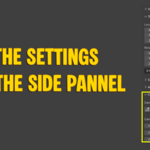
The addon will appear in the 3D Viewport Sidebar > View tab > Camera Switcher panel.
How to Use
-
Select a Camera:
Use the dropdown menu labeled Camera to pick which camera you want to switch to. -
Set Camera Keyframe:
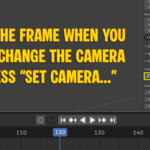
Move to the desired frame in the timeline, then click the Set Camera Keyframe button. This creates a keyframe that switches the active camera at that frame. -
View and Manage Keyframes:
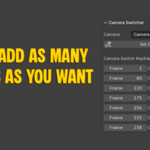
Below the button, you will see a list of all camera switch keyframes. You can edit the frame or camera assigned to each keyframe or delete keyframes using the "X" button. -
Playback:
As you scrub through the timeline or play your animation, the addon automatically changes the active camera to match the closest preceding keyframe.
Features
-
Simple camera selection via dropdown.
-
Add or remove camera switch keyframes easily.
-
Automatic camera switching synced with timeline playback.
-
Sorted keyframe list for easy management.
-
Lightweight and integrated seamlessly into Blender’s UI.
Have questions about this product?
Login to message
| Published | about 1 year ago |
| Blender Version | 4.5 |
| Extension Type | N/A |
| Render Engine Used | Cycles, Eevee |
| License | GPL |