Car Generator Stylized
 Andrey Tanzo






Documentation: Adjustable Parameters
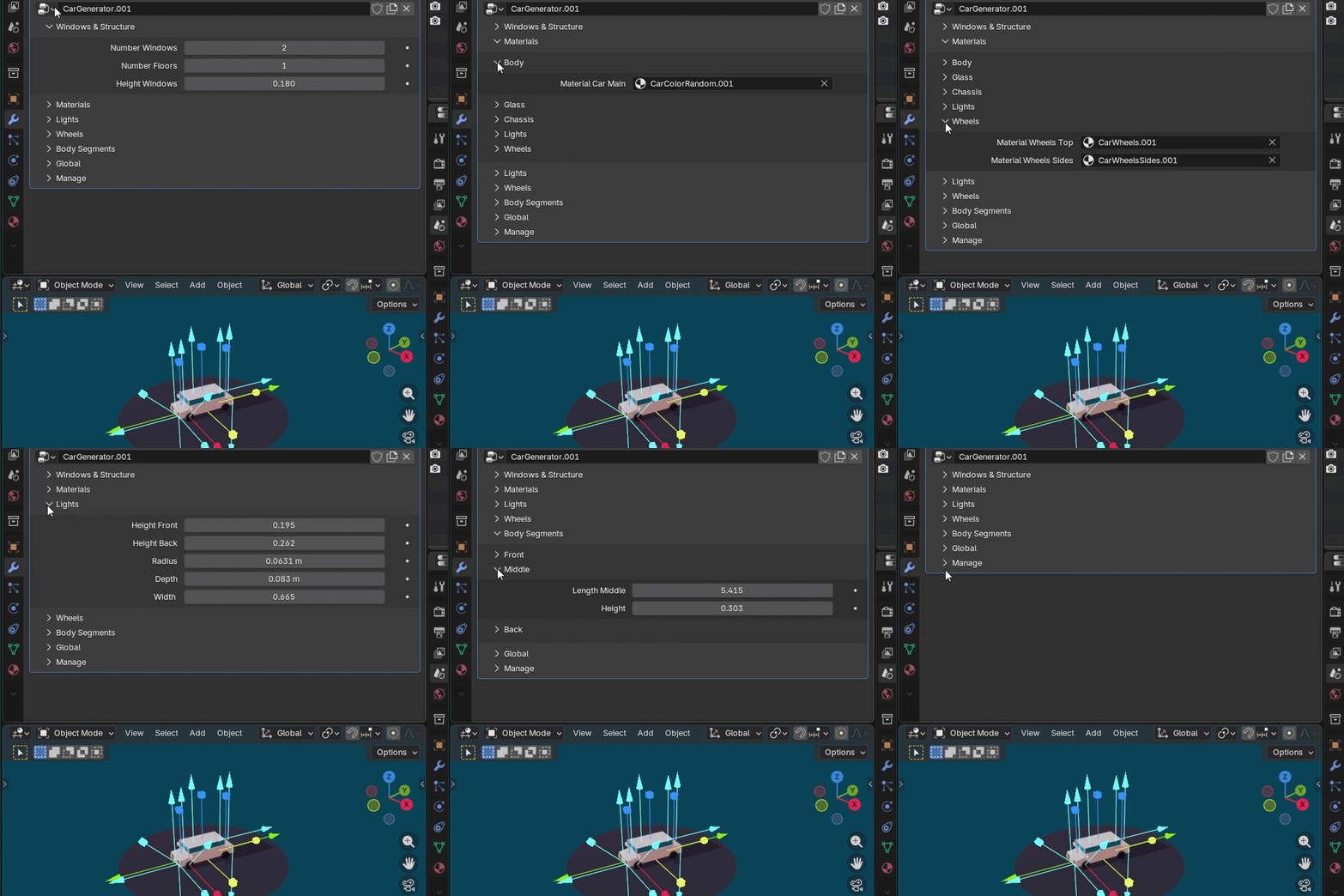
You can customize these values for every vehicle in the Modifier tab:
Windows & Structure:
- Number of Middle Windows
-
Number of Floors
-
Windows Height
Materials:
-
Body: Car Main Material
-
Glass: Window & Glass Materials
-
Chassis: Car Down Material
-
Lights: Top & Side Light Materials
-
Wheels: Side & Top Wheel Materials
Detailed Geometry Control:
-
Lights: Height (Front/Back), Radius, Depth, and Width.
-
Wheels: Radius and Depth.
-
Body Segments:
-
Front: Length, Height, and Edge Bevels.
-
Middle: Length and Height.
-
Back: Length, Height, and Edge Bevels.
-
-
Global: Overall Width and Length.
How to Install the Asset Library:
- Extract the
Car_Generatorfolder from the ZIP archive. - Open Blender and go to Edit > Preferences.
- Navigate to File Paths.
- Click the + button and add the
Car_Generatorfolder to your Asset Libraries. - Done!
Note for Blender users: If you have trouble editing an asset directly from the library, you need to make the model "local." To do this, select the object and go to Object > Relations > Make Local > All.
Troubleshooting: Gizmos Visibility
- If the Gizmos are not appearing, ensure the Car Generator modifier is selected in the Modifier tab.
- If they still don't show up, try adjusting any parameter in modifier — this will refresh the viewport and bring the Gizmos back.
Here is my workflow with Car Generator:
$15
Have questions about this product?
Login to message
| Dev Fund Contributor | |
| Published | 5 months ago |
| Blender Version | 5.1 |
| Render Engine Used | Eevee |
| License | Royalty Free |