 Max Miles




Where can I get help or report a bug?
You can find setup instructions and explanations of the controls in the Carnage Grains documentation here:
https://milesfx.xyz/docs/getting-started
Carnage is new and actively developed, so you may encounter bugs. Please send me a message through Superhive with your Blender version, Carnage version, graphics card and the steps that caused the problem. The exact error message and a small example file are especially helpful.
Is this a subscription, and will future updates cost extra?
Carnage Grains is a one-time purchase. Every future Carnage Grains update and upgrade is included at no additional charge. There is no subscription.
Does saving my Blender file also save the simulation?
Saving the .blend file alone does not permanently save the live simulation history. Use Write Cache to save the simulation to disk.
Keep the complete cache folder with your project, including its accompanying data files. These store information needed for playback, meshing and other output features.
Can I apply textures to a simulated surface?
Yes. Give your source mesh a UV map before running the simulation, then enable Transfer UVs when preparing the output.
Carnage saves the source information needed to map textures onto the deforming surface. Adding UVs after the simulation cannot restore information that was never captured.
How do I render the simulation?
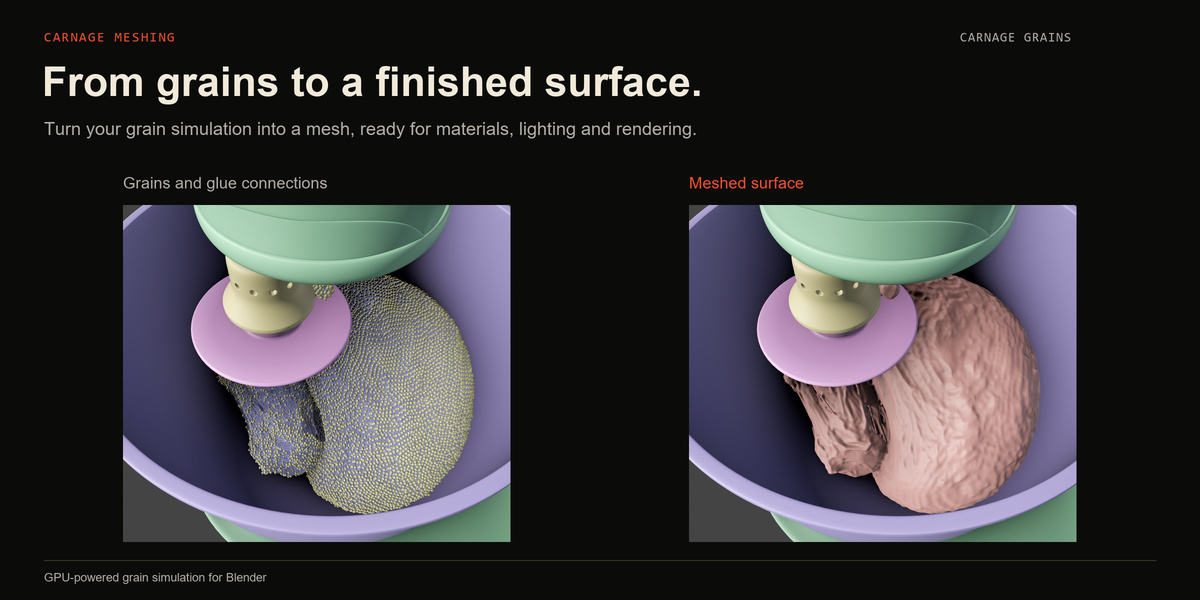
Save a point cache, then choose how you want to display the result. Carnage Meshing creates a continuous surface, while the Geometry Nodes workflow supports points, instances and meshed output.
For individual grains, native points render in Cycles. Use Instance on Points for EEVEE. You can assign materials through the output controls.
How many grains can I simulate, and how fast will it run?
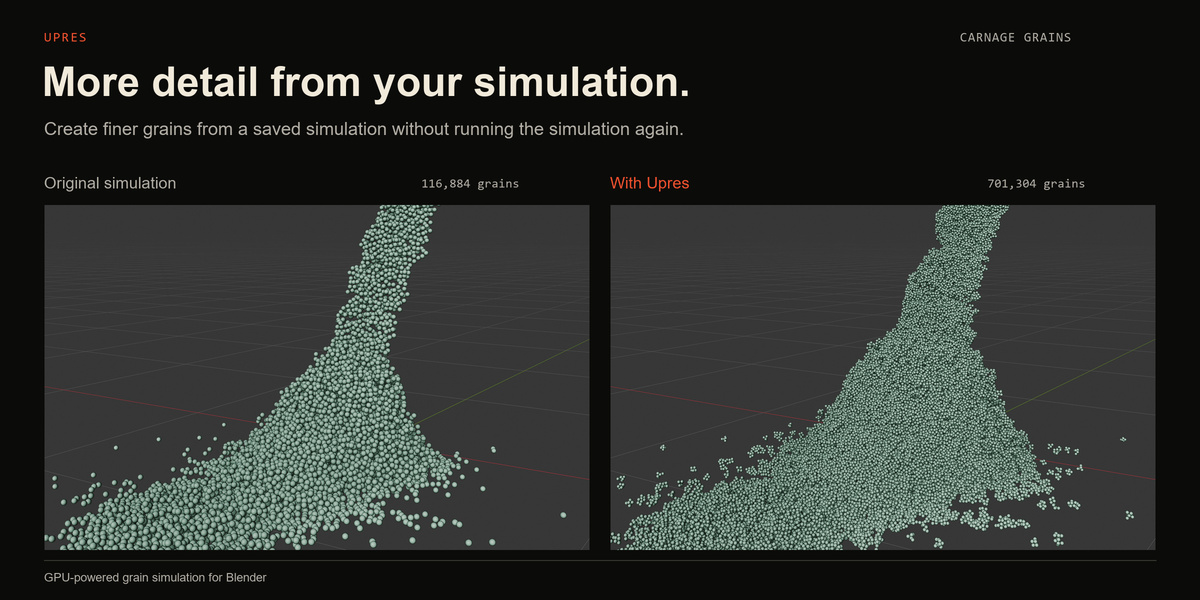
Performance depends on your GPU, available memory, grain count and simulation settings. Dense glue connections, more solver steps and detailed meshing can increase the workload.
Start with larger grains while developing the motion, then increase the detail once the behaviour is working. There is no single grain count or playback speed that applies to every computer and scene.
Is Carnage Grains only for sand simulations?
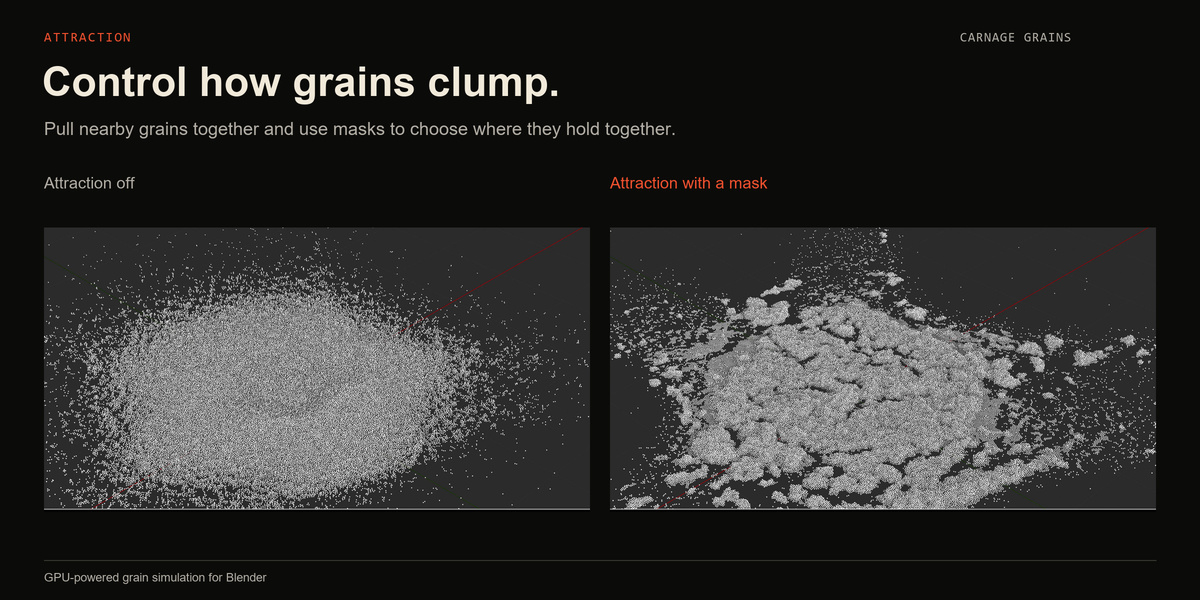
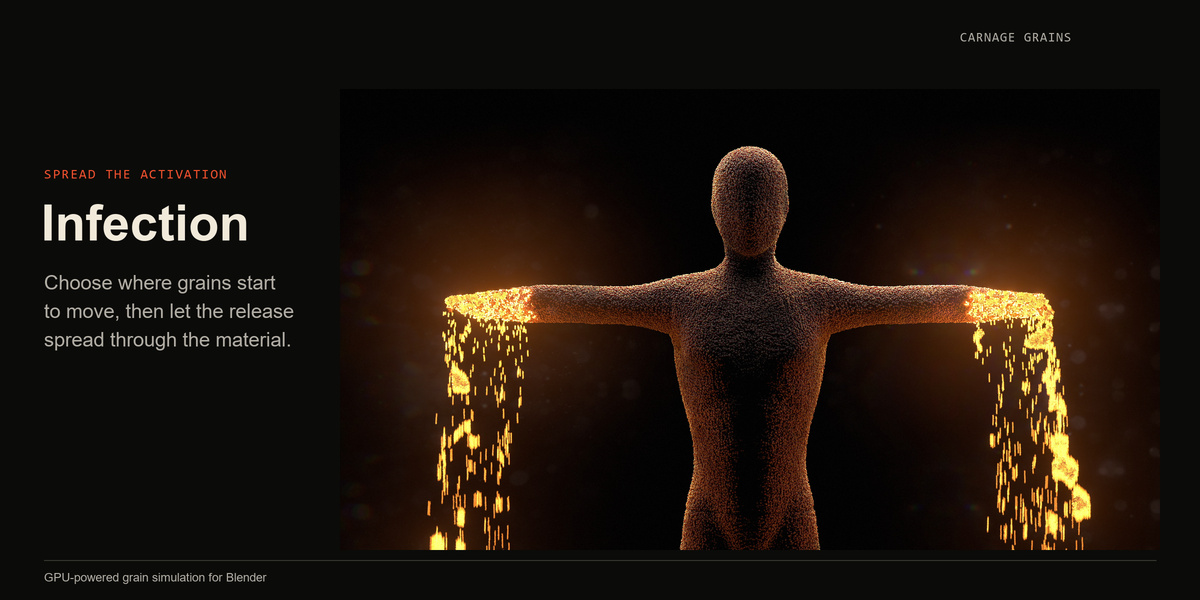
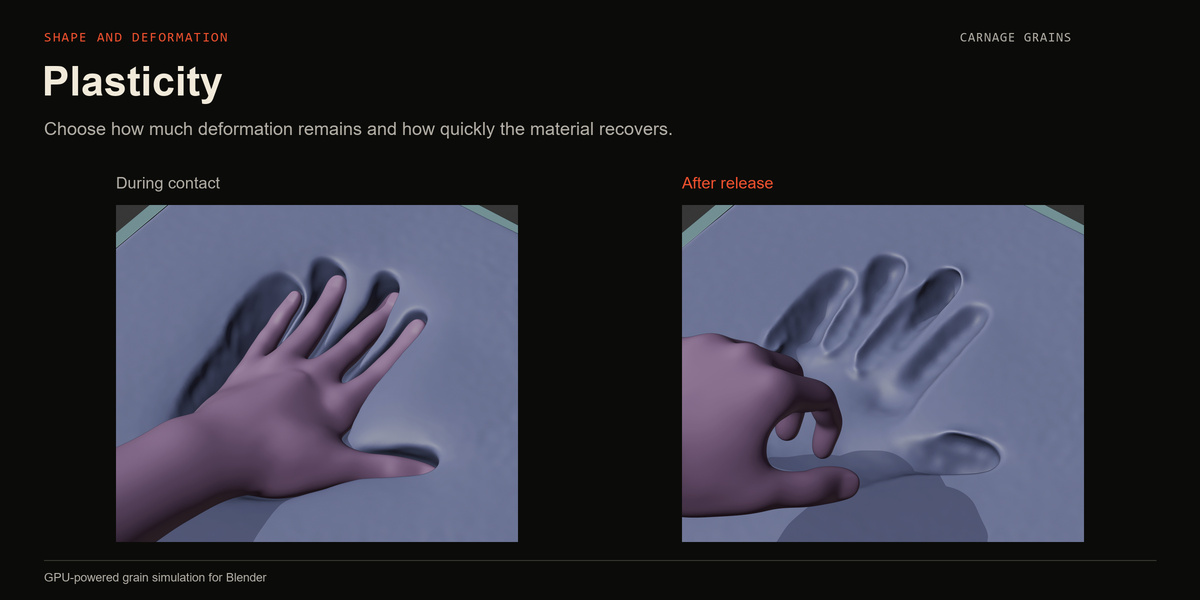
No. It handles loose grains as well as materials that clump, stretch, deform and tear. Attraction, glue constraints and plasticity let you explore effects ranging from sand, mud and snow to flesh, gel and creature effects.
These behaviours are built from grains and the connections between them.
Do I need Houdini or Geometry Nodes experience?
No. Carnage’s panels simplify complex simulation workflows, giving you direct control without having to build node networks yourself.
When you choose Geometry Nodes for the output, Carnage creates the setup for you. You can work through the panels and leave the nodes in the background.
If you want to customize or build on the node setup yourself, export the network first so your edits can be saved with your Blender project.
How do I install it?
Download the add-on ZIP and install it without extracting it. In Blender, go to Edit → Preferences → Get Extensions, open the menu at the top right and choose Install from Disk. Select the ZIP and follow the prompts. Alternatively, drag the ZIP directly into Blender’s 3D Viewport and follow the installation prompts.
Once installed, press N in the 3D Viewport and open the Carnage Grains tab. The first simulation can take longer to start while the solver initializes.
What do I need to run Carnage Grains?
Carnage Grains requires 64-bit Windows, Blender 5.1 or later, and a compatible CUDA-capable NVIDIA graphics card. The current release does not support macOS, Linux, AMD or Intel graphics, or CPU-only simulation.
Have questions about this product?
Login to message
| Blender Extension Compatible | Yes |
| Published | about 10 hours ago |
| Blender Version | 5.1 - 5.2 |
| Extension Type | Add-on |
| License | GPL |
