Chronos Surface Lab
 Cgi Lab
CHRONOS Surface Lab documentation
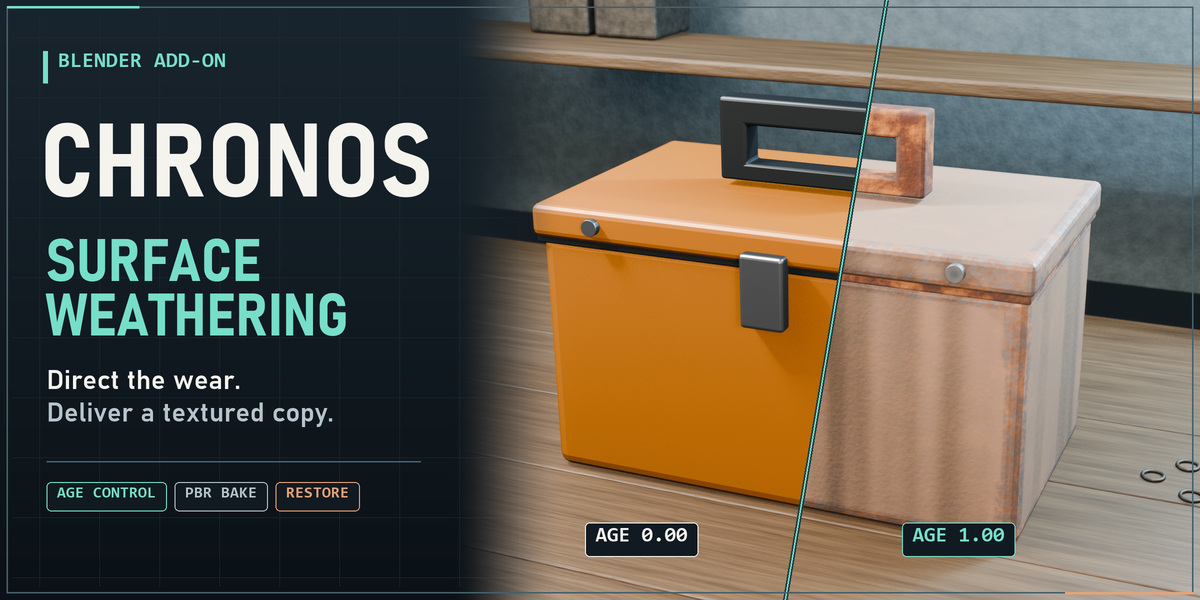
CHRONOS adds art-directed wear to existing materials. Start with a local Mesh in Object Mode and a supported Principled graph. Age controls artistic intensity. It does not represent years.
Install and open the panel
- Save your scene. In Blender 5.2, open Edit → Preferences → Add-ons.
- Open the menu at the upper right, choose Install from Disk, and select
chronos_surface_lab-0.11.0.zip. Keep the extension ZIP intact. - Enable CHRONOS Surface Lab. In the 3D Viewport, press N and open CHRONOS.
- Select a Mesh in Object Mode. Use Material Preview or Rendered to see the material. Restart Blender after a version update.
Directly tested in Blender 5.2.1 LTS on Windows. The manifest declares Blender 5.2.0 as the minimum. Control names are primarily English, with Spanish feedback and help text.
Apply and direct the wear
- Leave Actions = Active Object. Choose a preset for the substrate and click its checkmark.
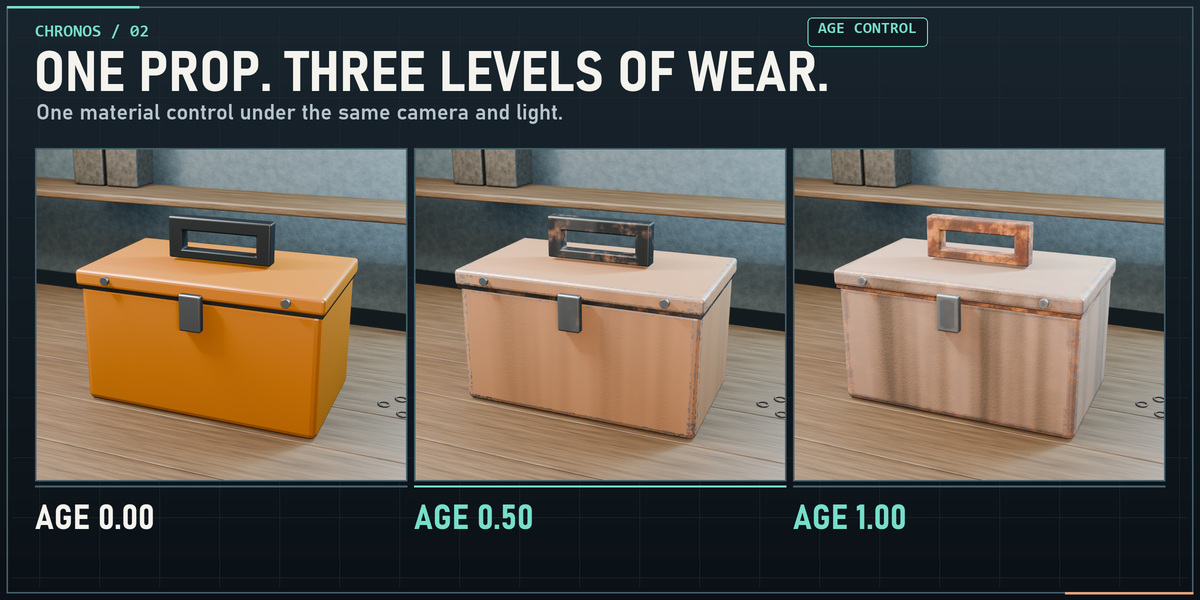
- Click Apply / Update. Move Age from 0 to about 0.6 to see how the surface changes.
- In Surface & substrate, balance Rust, Grime and Fade. Wood and concrete presets turn general Rust off and use your existing surface material.
- In Environmental wear, adjust Edge Wear, Paint Chips and Chip Size. Chips need Age and Edge Wear above zero. Wear Width and Chip Size use local units.
- Use a mask in Preview to inspect placement, then return to Material.
For a local edit, use Art direction → Create Zone → Select Zone. Move, rotate or scale the Empty with G, R and S. Outside Zone protects the interior. Inside Zone ages the interior.
To add contact grime around separate fittings, add them to a collection. On the receiving surface, choose that collection in Sources, adjust Capture Reach, click Capture Contact, and adjust Contact Grime or Contact Rust. Inspect Contact Mask. Refresh after changing the source or receiver geometry or placement. Use Clear Contact before editing the receiver’s mesh, UVs or attributes.
Bake a separate PBR copy
- Choose Surface = PBR Match for strict metallic/roughness delivery or Extended · Blender to retain supported constant material settings per slot. Inspect this appearance before final look development, since switching from Layered can change it.
- Save the .blend. Open PBR delivery, leave Bake = Active Object, and choose a writable output folder.
- For a first test use Fixed, Size = 512, Smart UV · Safe, Margin = 8 and Mip guard = Base only. Inspect the result at the intended viewing distance before choosing a final Size.
- Run Preflight Delivery. The report indicates READY, PARTIAL or BLOCKED. Rerun it after changing inputs. UV layout and native sample coverage are verified during the actual bake.
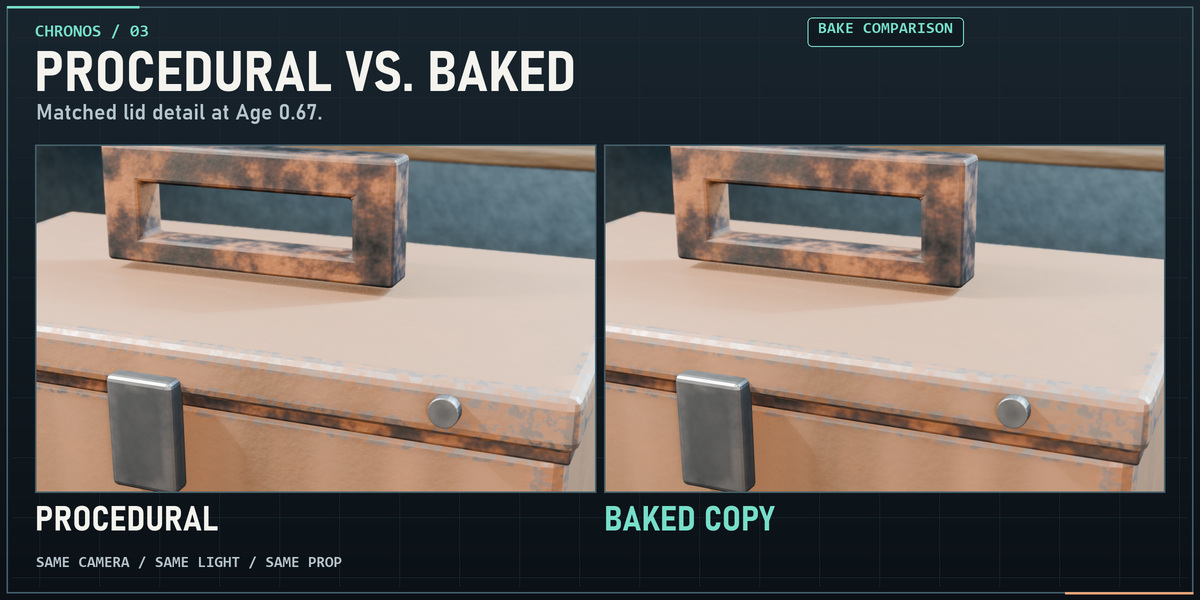
- Click Bake PBR Copy. CHRONOS uses Cycles CPU and creates a separate copy of the evaluated mesh. Compare it to the procedural surface with the same camera and light.
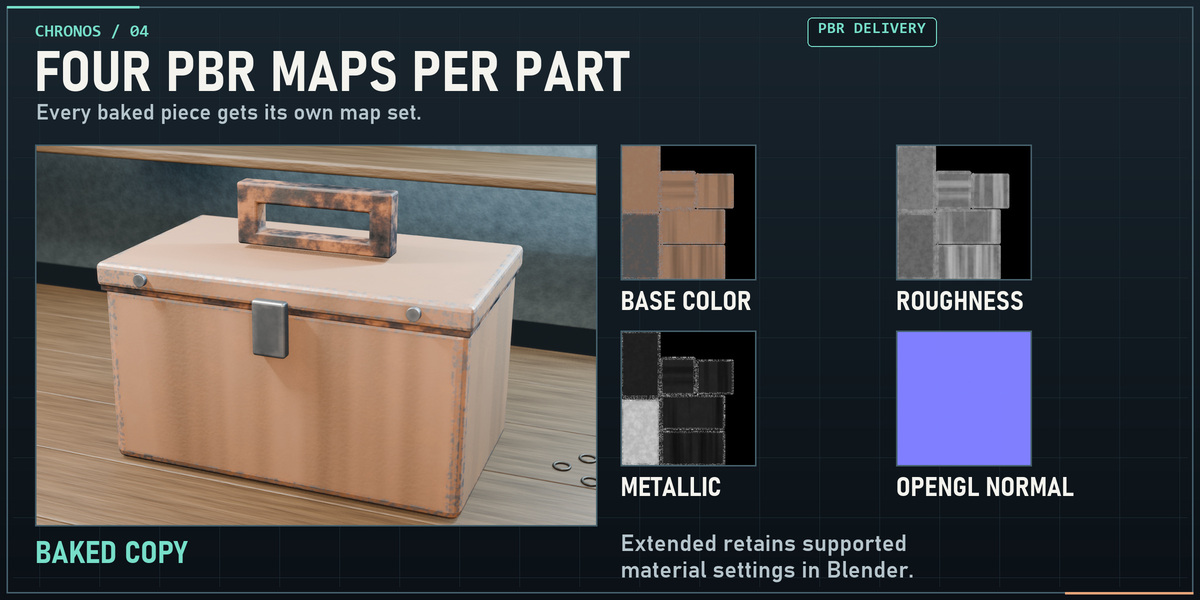
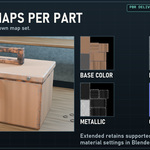
- Use Open Delivery Folder to inspect the 16-bit PNG maps and
CHRONOS_Bake.json. MatchBaseColor.pngto sRGB. Use Non-Color forRoughness.png,Metallic.pngandNormal_OpenGL.png. The normal map is tangent-space OpenGL +Y and belongs to that evaluated topology.
For an assembly, select the processed parts and set Bake = Selected Assembly. Each object receives four maps. Auto by Area allocates resolutions and This Part overrides important pieces in Auto. Inspect small parts separately. With multiple batches, bake the first, click Use Last Offset after a successful export, then reuse that vector as Fixed Offset. A copied or renamed scene needs its own history or an explicit vector.
CHRONOS_Batch.json is written in the first successful export folder. Read COMPLETE, PARTIAL or FAILED and check omissions, paths and timings. Successful files are kept when another object fails. If all pieces fail, use Copy Delivery Report to keep the reasons. If the report fails to write, check the warning and folder permissions.
Restore the original materials
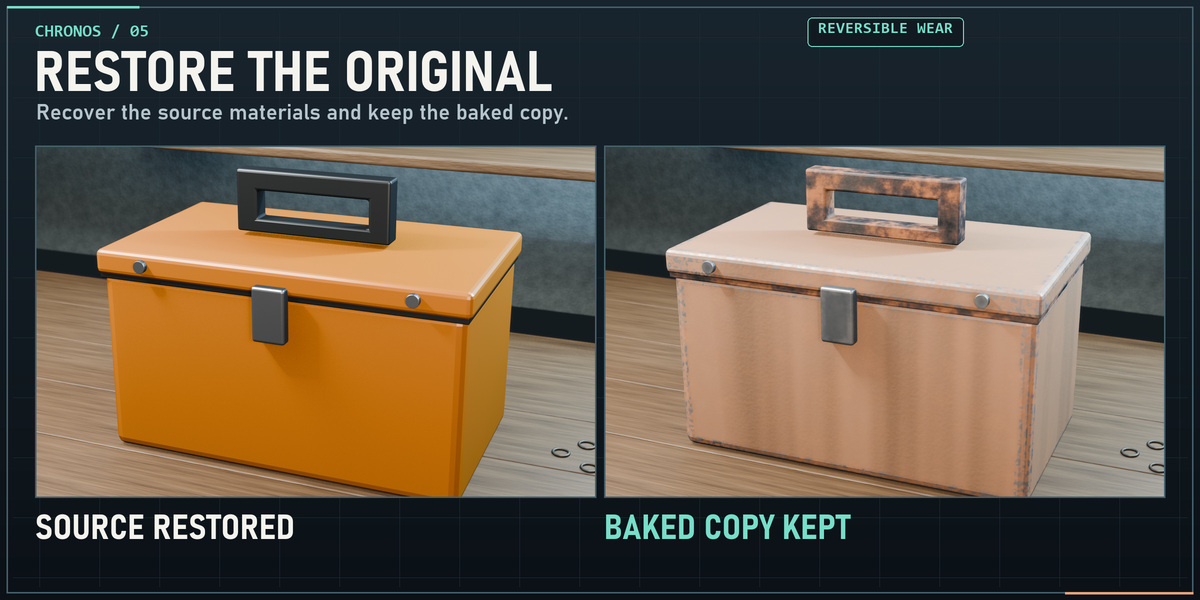
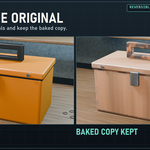
Select the processed original and click Restore. This recovers recorded source material assignments and removes CHRONOS masks, including after saving and reopening the file. The baked copy and exported files remain separate. Undo does not remove exported files. Restore before replacing a mesh or changing material slot order.
Compatibility and material limits
- Surface layers require an accessible Principled shader outside groups and one Material Output targeting All. Both bake modes require a supported opaque Principled shader directly connected to Surface. Library Overrides are rejected.
- PBR Match uses the four-map metallic/roughness model. Extended · Blender also retains supported constant coat, anisotropy, IOR, specular and diffuse roughness settings per slot. Keep the baked mesh, slots, materials and maps together in Blender. Those settings are also recorded in the bake report.
- Linked advanced inputs, linked Tangent or Coat Normal, transmission, transparency, emission, view-dependent exported channels and arbitrary shader mixes are outside this bake scope. Layered preview can accommodate appearances the bake cannot preserve. Layered-to-PBR conversion is approximate.
- Supported Extended anisotropy uses an unconnected implicit/generated Tangent. Shape Keys and active modifiers other than Bevel and Weighted Normal can block anisotropic exports. Do not connect the baked normal to Coat Normal.
- Smart UV · Safe builds UVs on the export copy, preserves source UVs and checks native coverage. Preserve UV needs a valid active-render map inside 0–1 without overlaps or degenerate faces. UDIM is unsupported. Optional Mip guard needs Smart UV and additional padding.
- Delivery is static surface treatment and an evaluated mesh copy. CHRONOS does not build an atlas, perform retopology or preserve rigs or animation. GPU baking and external-engine reconstruction have not been validated.
Troubleshooting
- Panel missing or Age does nothing: enable the add-on, select a Mesh in Object Mode, and open the sidebar with N. Use Material Preview or Rendered, Apply / Update, and make sure a wear intensity is above zero. Check whether a zone excludes the visible area.
- Wear is stretched or too large: compare Wear Width and Chip Size to local dimensions. Check object scale and normals. Changing general Rust in a preset does not reset Contact Rust.
- Bake rejects a material: read the reported graph reason. Match the Surface mode to the graph. Fresnel, Layer Weight and other view-dependent inputs cannot become a fixed exported texture. Generated coordinates with active external modifiers can also block a bake. Review a separate source copy before applying modifiers.
-
Output path is rejected: save the .blend before using a
//relative path, or choose a writable absolute folder. - Preflight passes, bake fails: inspect the native coverage reason. Undersampled islands may need increased Size or a cleaner unwrap. More Margin cannot fix collapsed geometry. If small parts look soft, use This Part in Auto or a higher Fixed Size and inspect the same camera framing.
- Restore or Clear Contact is blocked: save a separate .blend so you preserve any edits, then undo or recover the conflicting changes to slots or the captured mesh before retrying. Keep the recovery records.
For support, record Blender and CHRONOS versions, OS, the exact message, a minimal reproduction and the relevant bake settings. Include the bake or batch JSON when produced. Copy Preflight Report records the preliminary check. Copy Delivery Report records the actual attempt. Redact private paths and client information before sharing.
Buyer FAQ
Does Age simulate years of corrosion? Age is an artistic intensity control. Wear and contact do not simulate time, chemical reactions or structural decay.
Can I restore the original after baking? Yes. Select the processed source and use Restore. The exported copy and maps remain separate.
Will the bake look exactly like the procedural material? Resolution, UV density, filtering and tangent normals affect the result. With Extended, also inspect the retained settings and tangents under the intended lighting.
Are four maps enough to transfer Extended to another application? Extended settings also live in the Blender materials and bake report. The four maps alone cannot carry those settings or their tangent basis.
What if only some pieces export? Review the omissions and bake those parts again after correcting the issue. Keep the successful output and reuse its World Offset when the copies need to line up.
Have questions about this product?
Login to message
| Blender Extension Compatible | Yes |
| Published | 1 day ago |
| Blender Version | 5.2 |
| Extension Type | Add-on |
| Render Engine Used | Cycles, Eevee |
| License | GPL |
Discover more products like this
PBR weathering texture-baking surface wear Rust procedural materials