CineShot
 Shahzaib A.
What CineShot does
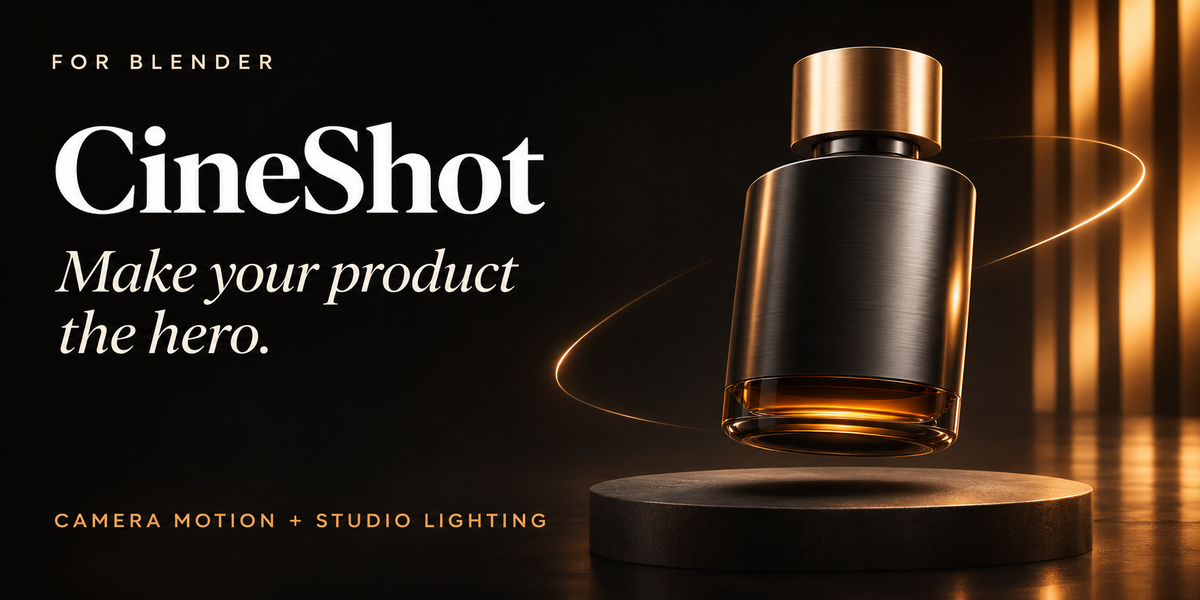
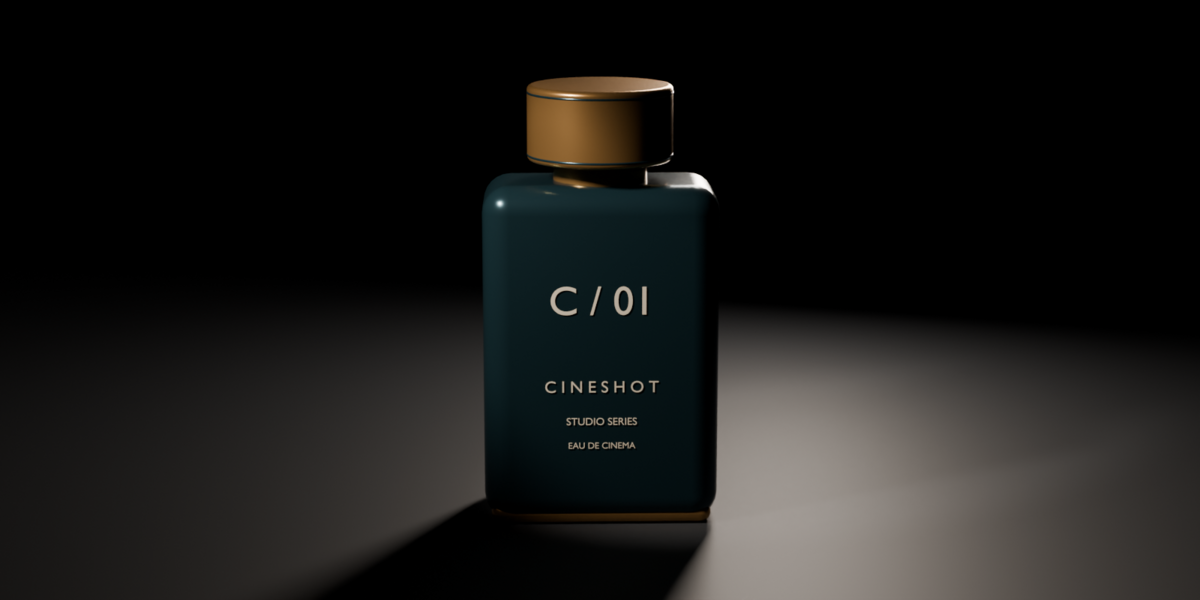
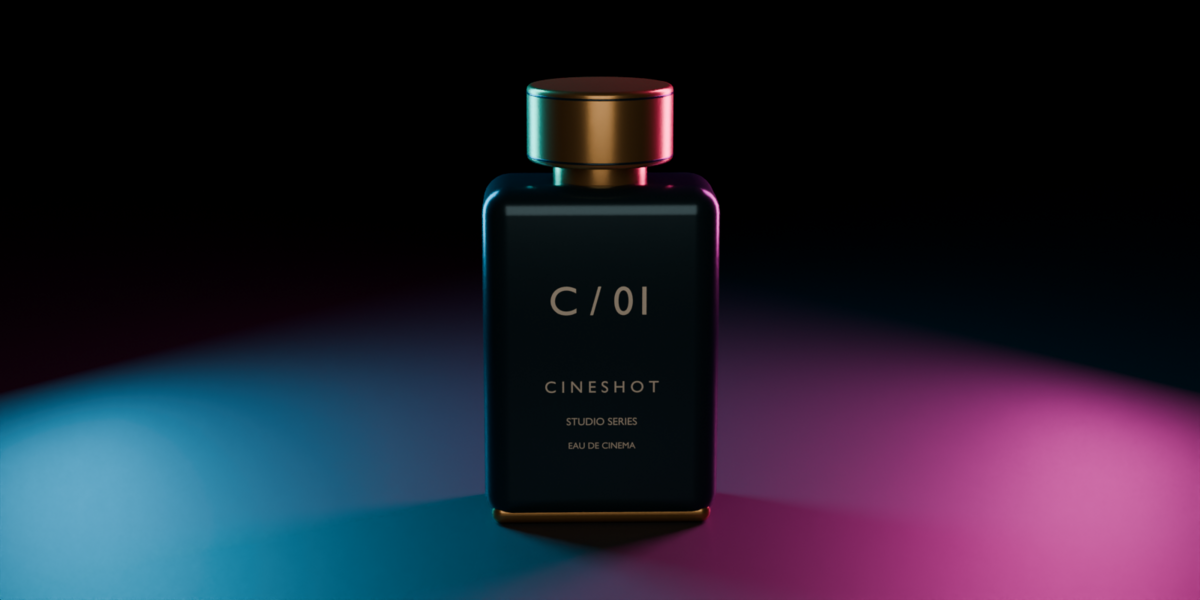
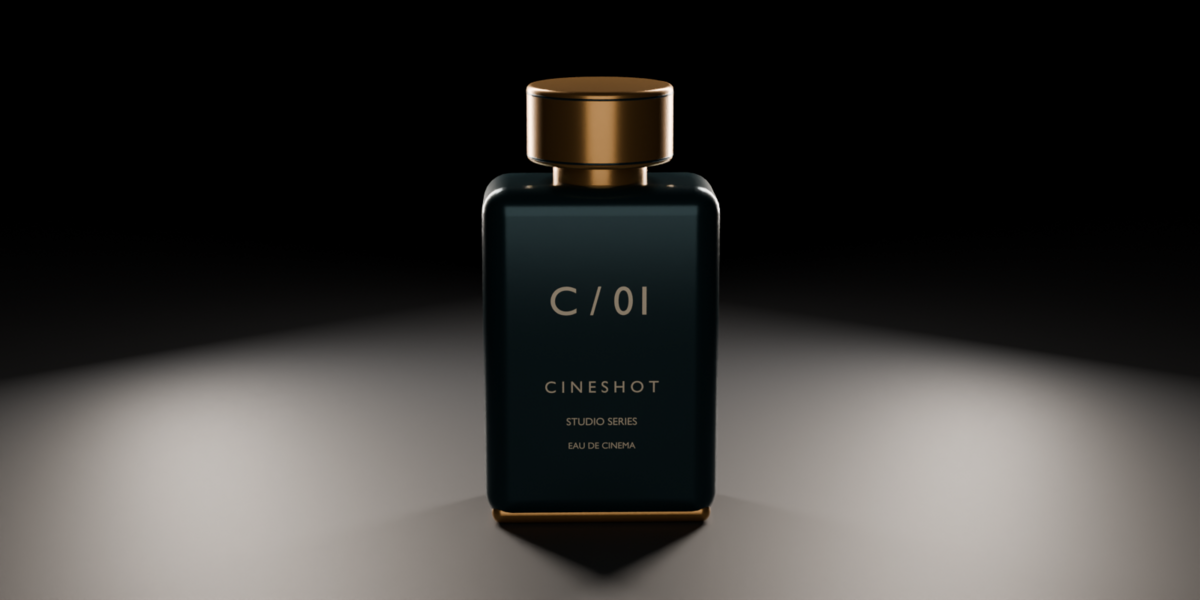
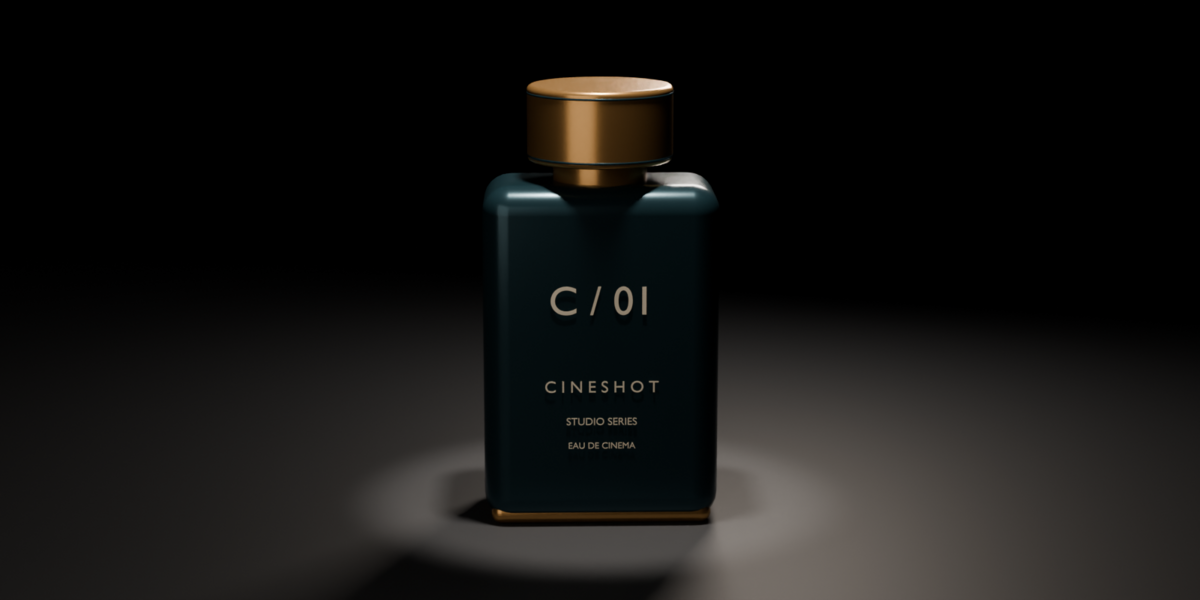
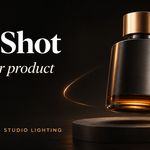
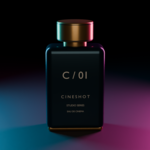
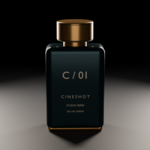
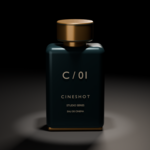
CineShot creates camera rigs and studio lighting around a stationary product in Blender. It provides 23 camera presets, nine light presets, live settings, two backdrop shapes, five aspect-ratio presets, reusable camera looks, and timeline-marker camera sequencing.
It creates native Blender objects, constraints, keyframes, and animation modifiers. No network service or API key is required. NumPy is supplied with Blender; there are no separate Python packages to install.
Requirements and installation
The extension declares Blender 4.2 as its minimum. CineShot 1.2 was tested in Blender 5.0.1 on Windows. This is not a claim that every version from 4.2 onward, every operating system, or every engine has been tested.
Use Preferences > Add-ons > menu > Install from Disk and choose cineshot.zip. Enable it, return to the 3D Viewport, press N, and choose CineShot. Menu wording can differ by Blender version. Avoid enabling a legacy CineShot installation at the same time as the extension.
To update, save your work, disable/remove the older installation through Preferences, install the new ZIP, and enable it. Keep a backup of important .blend files before upgrading. Generated rig objects remain in the scene when the add-on is disabled; settings require the add-on to edit.
Subject modes
| Mode | Behavior |
|---|---|
| Selected Objects | Saves references to the selected geometry when the shot is created. Selecting other objects afterward does not silently change the subject. |
| Collection | Measures geometry in the chosen collection and its child collections. Collection mode does not filter by viewport visibility. |
| Entire Scene | Measures visible geometry in the scene, excluding objects flagged Ignore in Framing. |
| 3D Cursor | Uses the cursor position and Subject Size as an imaginary subject radius. |
Select a product, then a shot camera last, to make the camera active. Use Use Selected to retarget it. Locked shots refuse retargeting. For a light rig, select the product, then its root last, and use the Lighting panel's Use Selected.
Use Ignore in Framing for floors, stands, and scenery in Scene/Collection modes. CineShot backdrops are automatically ignored. This toggle does not exclude explicitly selected targets. Auto-framing measures evaluated mesh geometry, including ordinary modifiers; unrealized Geometry Nodes instances and unusual object types can need manual framing or conversion. Very dense meshes are sampled for responsiveness.
Camera preset library
| Group | Presets |
|---|---|
| Orbit | Turntable 360, Hero Arc, Half Orbit, Spiral In, Rising Orbit |
| Dolly & Zoom | Push In, Pull Out, Dolly Zoom, Zoom In, Zoom Out |
| Crane | Crane Up, Crane Down, Overhead Reveal, Hero Rise |
| Slide | Truck, Slider, Pedestal |
| Pan & Focus | Pan Across, Tilt Up, Rack Focus |
| Style | Fly-By, Floating Drift, Locked-Off |
Choose a preset to create a shot when a product is active. When an existing shot, its root, or its aim is active, choosing a preset changes that shot. New Shot makes another camera using the active shot's subject/settings or the current selection.
Motion controls
Duration is measured in frames; the panel also displays seconds using the scene frame rate. Start Frame sets the first key. Intensity changes the size of the move. Easing offers Linear, Ease In-Out, Cinematic, Ease In, and Ease Out. Reverse reverses the move.
Seamless Loop is available for Turntable 360 and Floating Drift. It uses a periodic cycle of Duration frames, with a closing key one frame past the render interval. Do not render the closing duplicate frame. Periodic mode bypasses easing. A looping turntable completes a full revolution regardless of Intensity. Handheld noise is not periodic and can break a clean loop; keep Handheld Shake at zero for seamless loops.
Framing controls
| Control | Purpose |
|---|---|
| Elevation | Base camera angle above the product. |
| Rotate Rig | Turns the camera move around the product. |
| Frame Fill | Controls the bounding sphere's size in the narrower image dimension. |
| Distance | Multiplies the automatically calculated camera distance. |
| Aim Height | Offsets the target point up or down relative to subject radius. |
| Follow Object Direction | For one selected target, uses its Z orientation and local -Y front. |
Framing is a starting composition, not a guarantee that every extreme preset/intensity/offset will keep every point inside the image. Long, thin shapes can leave extra space. Increase Distance or reduce Frame Fill/Intensity if an aggressive move crops the subject.
Subjects are measured at the current frame when built or refreshed. Move to the intended reference frame before creating a shot. After moving/scaling the product, use Refresh. CineShot does not continuously track animated subjects.
Lens, focus, and manual edits
Focal Length is the base lens in millimeters. Enable Depth of Field and adjust F-Stop for blur. Rack Focus enables depth of field automatically and animates focus distance. Handheld Shake adds procedural noise to camera and aim position.
Any shot setting change rebuilds generated camera, aim, and camera-data animation. Enable Lock Shot before editing those keyframes yourself. Lock prevents rebuilds, preset changes, saved-look application, and retargeting. Unlocking does not immediately rebuild; changing a setting or clicking Refresh does. Lock does not lock a separate light rig, and it does not prevent deleting the shot.
Lighting
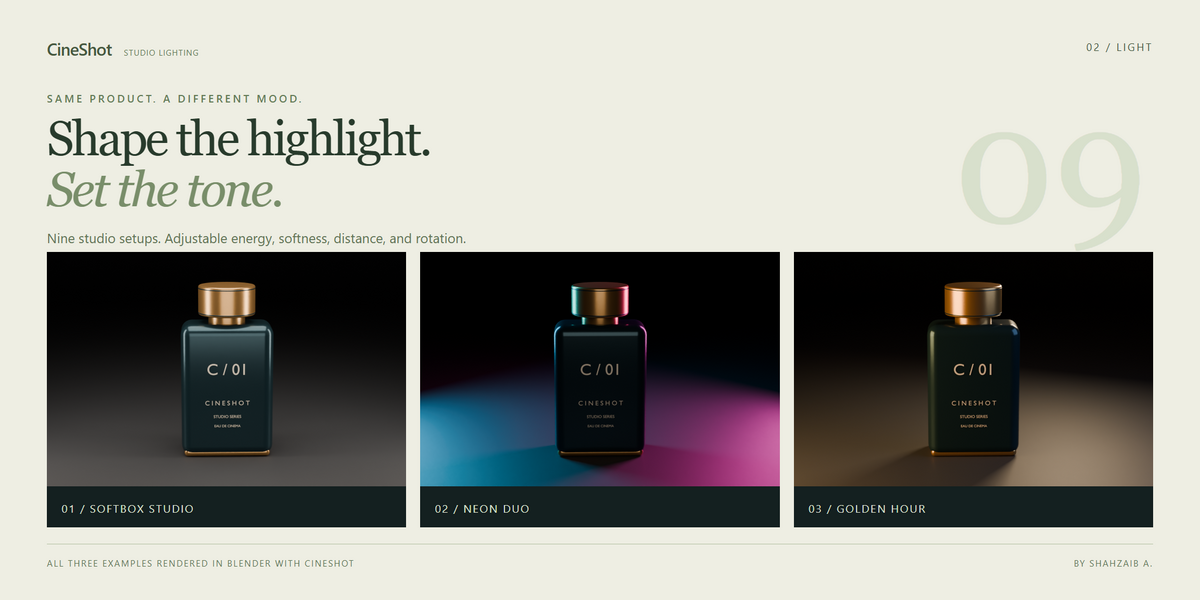
| Preset | Suggested starting use |
|---|---|
| Three-Point | General key/fill/rim lighting. |
| Softbox Studio | Broad commercial reflections. |
| Reflection Strips | Tall highlights on glossy surfaces. |
| Rim Edge | Product silhouette and dark backgrounds. |
| Low-Key Drama | Harder spotlight and deeper shadows. |
| High-Key Clean | Broad bright lighting; backdrop/world still determine whether the image is white. |
| Hero Spot | Overhead showroom emphasis. |
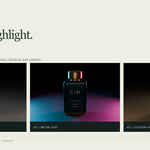
| Neon Duo | Cyan and magenta accents. |
| Golden Hour | Warm and cool color contrast. |
Exposure changes light energy in stops; +1 doubles energy. Softness changes light dimensions. Distance changes placement while scaling power approximately with distance squared. Temperature affects lights without a fixed preset color; Neon Duo and Golden Hour include fixed-color lights. Rotate Lights rotates the rig.
Animate Sweep keys the light root rotation across its Start Frame and Duration. It is a directional sweep, not a built-in periodic loop. When a new lighting rig is created, its timing matches the active scene CineShot camera if one exists. Later camera timing changes do not automatically resynchronize lights.
Select a light rig or one of its lights to edit it. Choosing a lighting preset while a camera/product is active creates another light rig. Existing light rigs and non-CineShot lights stay active and add together. Use the Outliner to hide or delete unwanted rigs. Light-setting changes recreate that rig's generated lights, so manual edits to individual generated lights can be overwritten. There is no light-rig lock in this version.
Backdrops, formats, and render setup
Studio Sweep is a curved backdrop for frontal shots. Round Cyc surrounds the subject for orbiting shots. A new backdrop replaces the prior unshared CineShot backdrop in the current scene. Shared backdrop data used by another scene is preserved. Existing non-CineShot geometry is left alone. A selected shot's subject determines backdrop size and floor height.
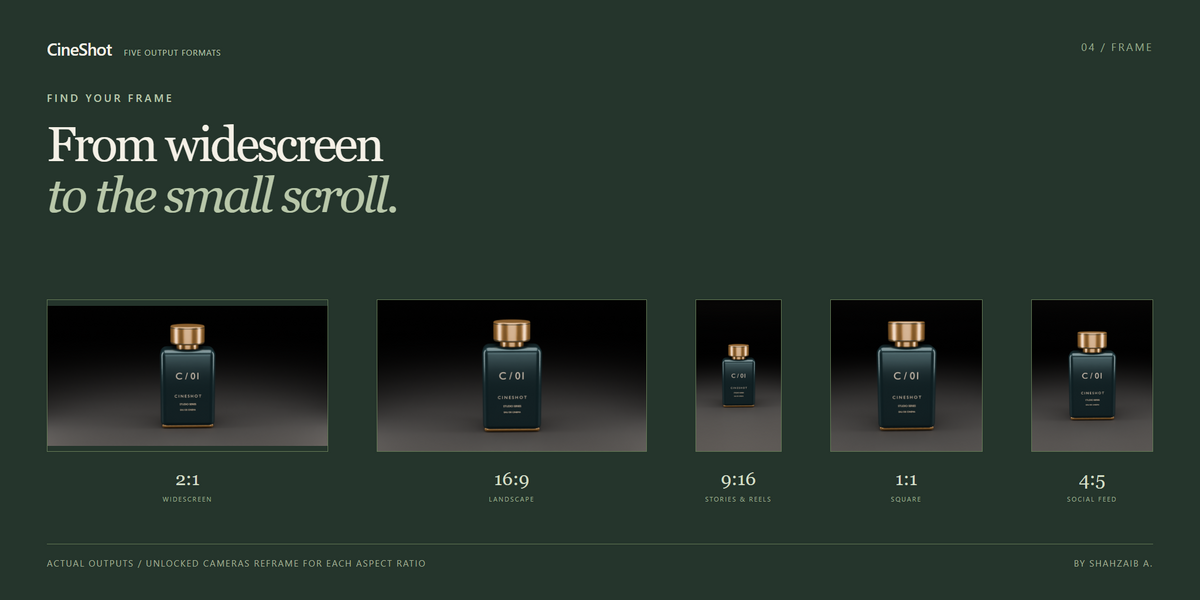
The format buttons set resolution and rebuild unlocked cameras: 2:1 = 2048 x 1024; 16:9 = 1920 x 1080; 9:16 = 1080 x 1920; 1:1 = 1080 x 1080; 4:5 = 1080 x 1350. Pixel aspect is inherited from the scene. Locked shots retain their camera animation and need manual framing after a format change.
Cycles Setup selects Cycles, 128 final samples, 32 preview samples, and denoising. Eevee Setup selects the available Eevee engine and applies sampling where that Blender version exposes it. Both prefer AgX, falling back to Filmic. These buttons change scene render settings; use Undo if needed. They do not select a GPU, create HDRIs, set output filenames, or guarantee a final quality level.
Create Studio World sets a dark world. The Environment controls edit the Background node when one is available. Existing scene lights, environments, material roughness, and color management affect results. Demo renders were created in Cycles.
Saved camera looks
Select a shot and choose Saved Camera Looks > Save Camera Look. Give it a name. Duplicate names receive a numeric suffix. A look stores the preset, duration, motion controls, framing controls, lens, focus, and shake settings. It excludes the subject, collection pointers, start frame, rig links, lock state, and lighting.
The library is stored per scene inside the .blend file. Save the file to preserve it. Select a look in the list and click Apply Camera Look: an active shot is updated, or a new shot is created for the current subject. The original subject of an existing shot is preserved. Delete removes only the selected saved look. Cross-file import/export is not provided.
Shots and camera-cut sequences
Use Shots to activate a camera, look through it, or delete its camera/aim/root. Fit Timeline sets the scene range to the active shot. Play Shot also jumps to its start and starts playback.
Build Sequence sorts shot camera names alphabetically, places unlocked shots end to end from the scene's current Start Frame, creates camera-bound timeline markers, and fits the frame range. Rename cameras with prefixes such as 01_Hero, 02_Detail, and 03_Orbit to control order. It does not render or create Video Sequencer clips.
Locked shots are skipped and their existing markers are preserved. Those preserved markers can still switch cameras during the new sequence. Inspect or remove conflicting markers in Blender before rendering, or unlock the shots and rebuild the complete sequence. If every shot is locked, Build Sequence leaves the timeline unchanged.
Rendering and support
Set an output folder and desired format in Blender's Output Properties, then use Render Image or Render Animation. For long jobs, an image sequence is a useful starting point. Render time depends on scene complexity, engine, samples, and hardware; CineShot does not make a performance guarantee.
Have questions about this product?
Login to message
| Blender Extension Compatible | Yes |
| Published | 20 minutes ago |
| Blender Version | 4.2 - 5.2 |
| Extension Type | Add-on |
| Render Engine Used | Cycles, Eevee |
| License | GPL |
Discover more products like this
Cycles product photography Studio Lighting cinematic camera camera animation Blender Add-on turntable shot sequencing eevee Motion design product-visualization product rendering