City Generator for Blender - Urbanify - Procedural, Geometry Nodes
 3DAssetsKit
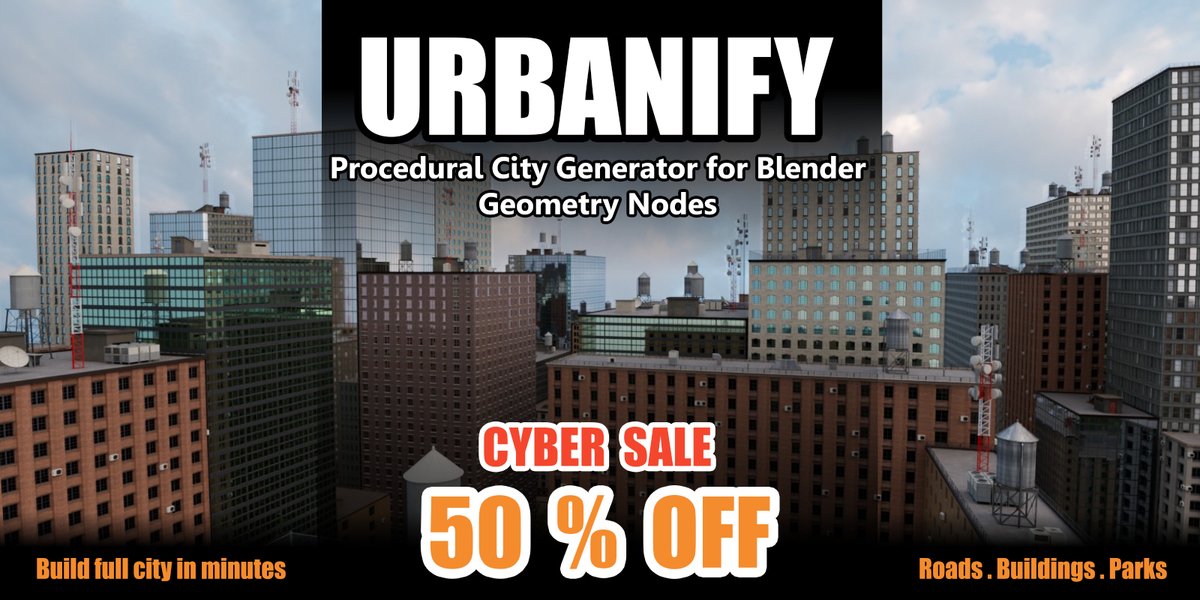
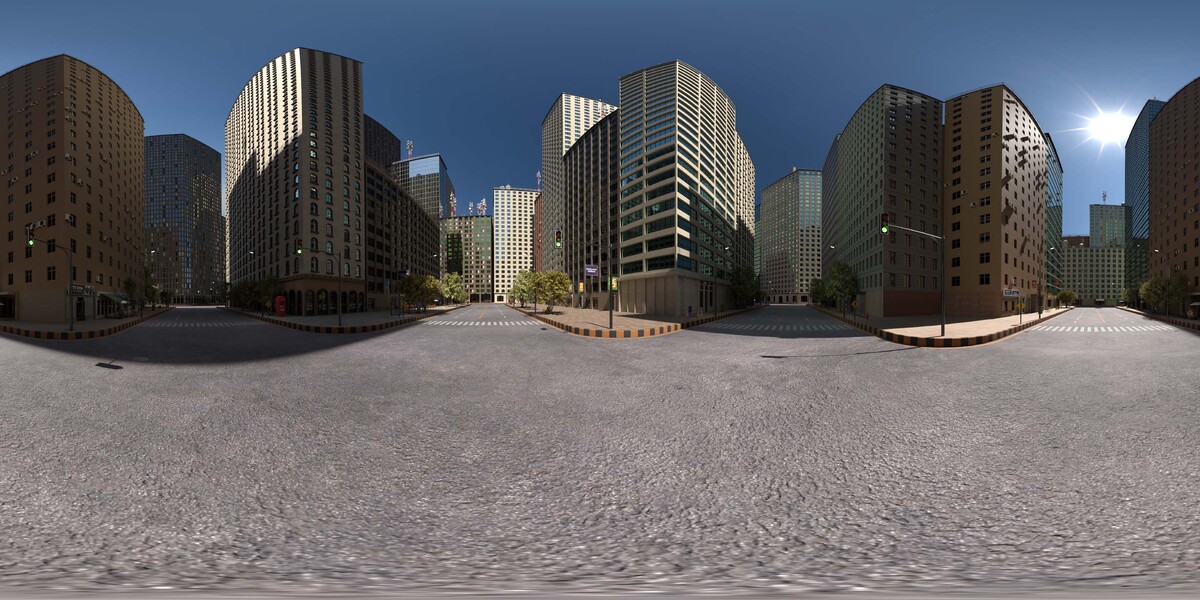
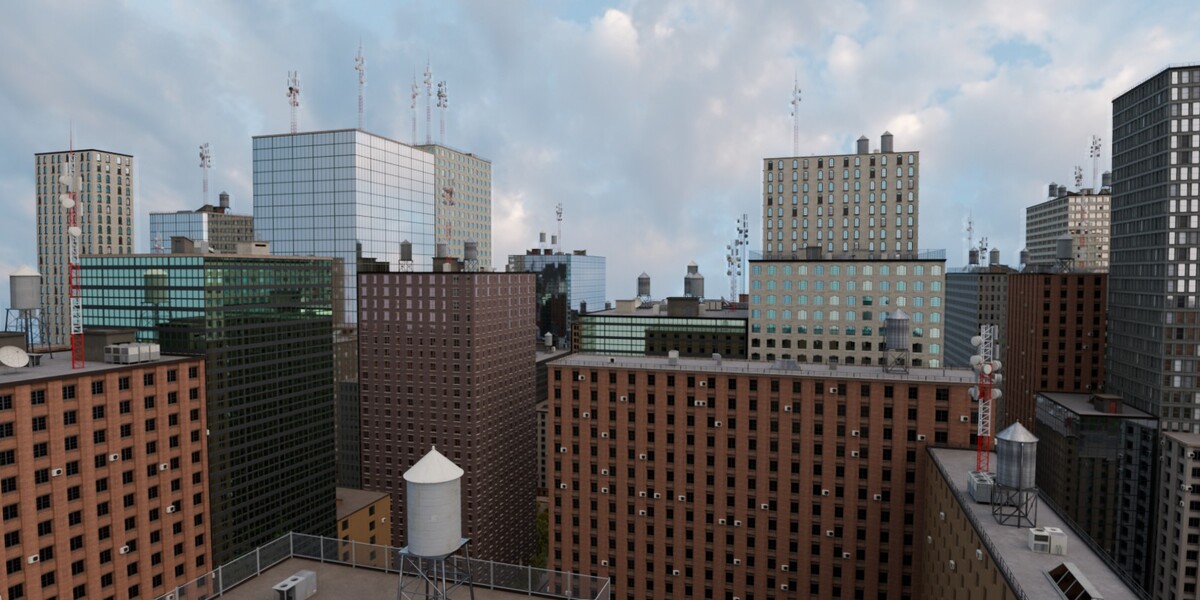
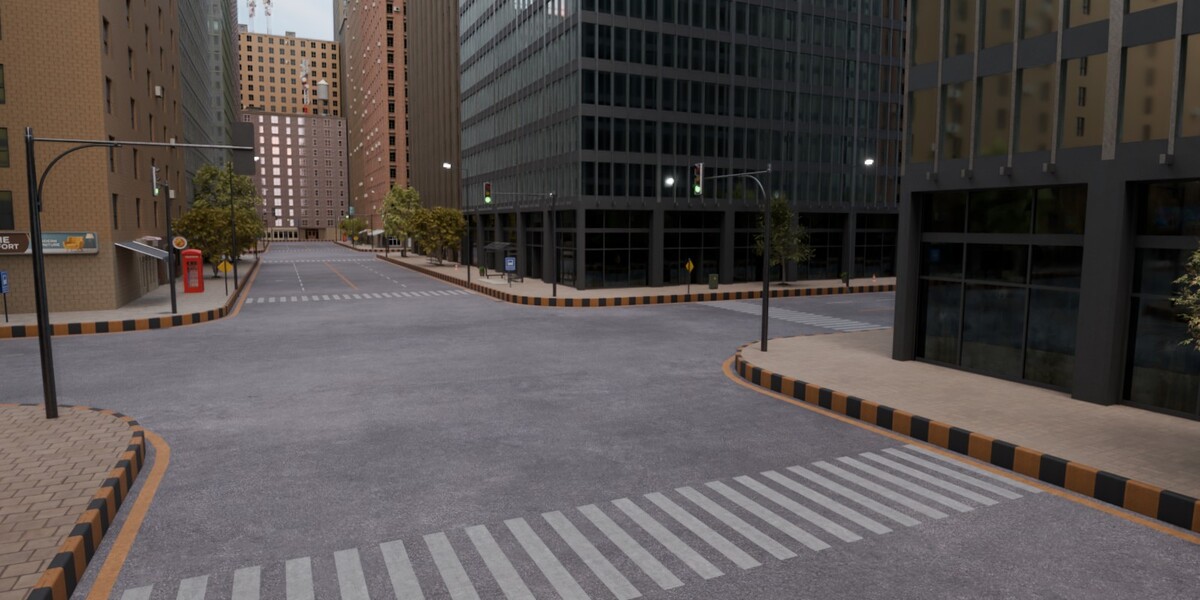
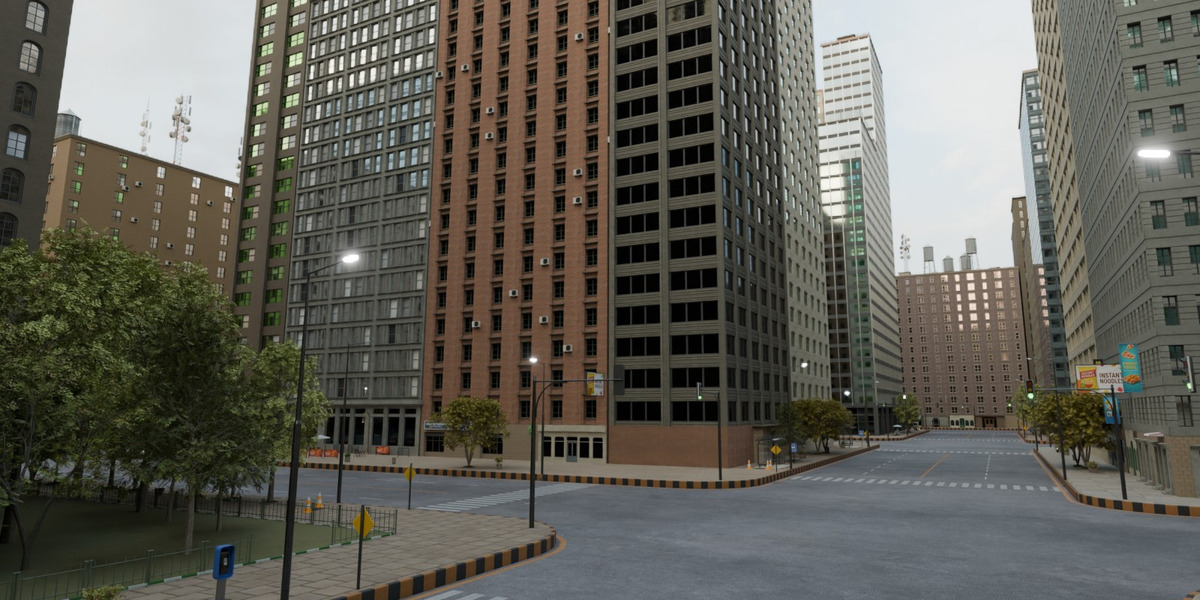

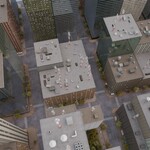
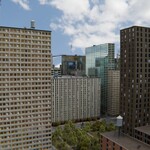
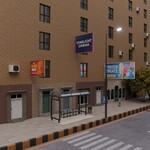
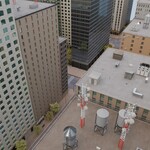
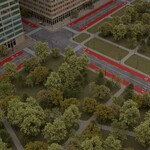
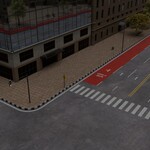
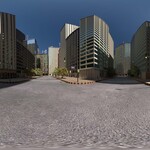
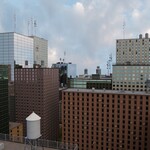
Urbanify – User Guide
Procedural City Generator for Blender · Version 1.0 · Requires Blender 5.2 or newer
1. Introduction
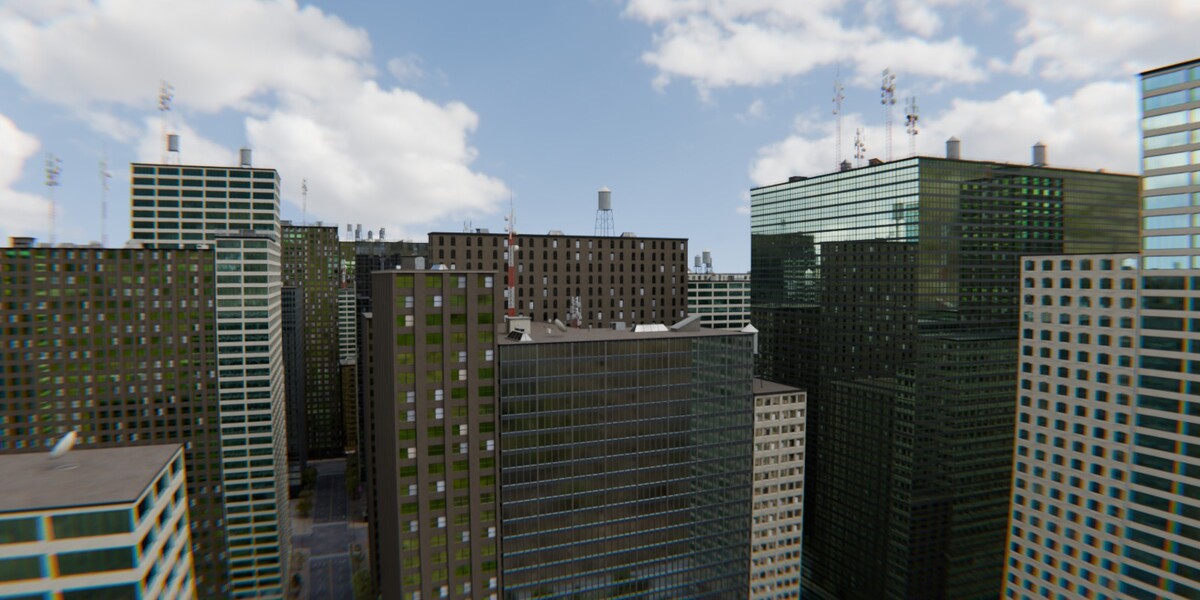
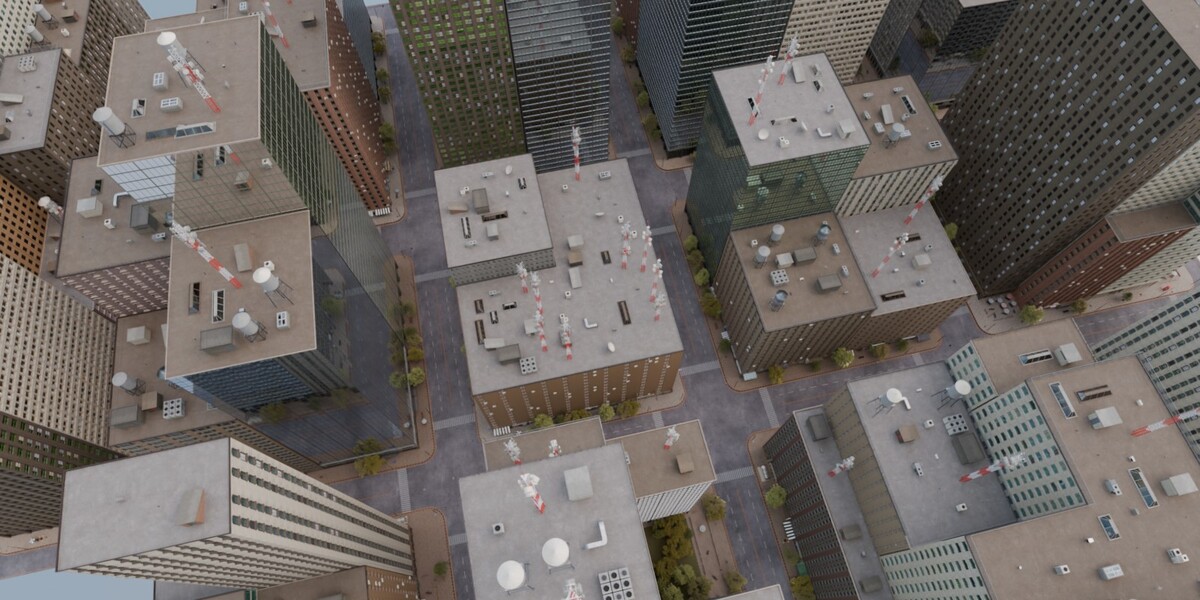
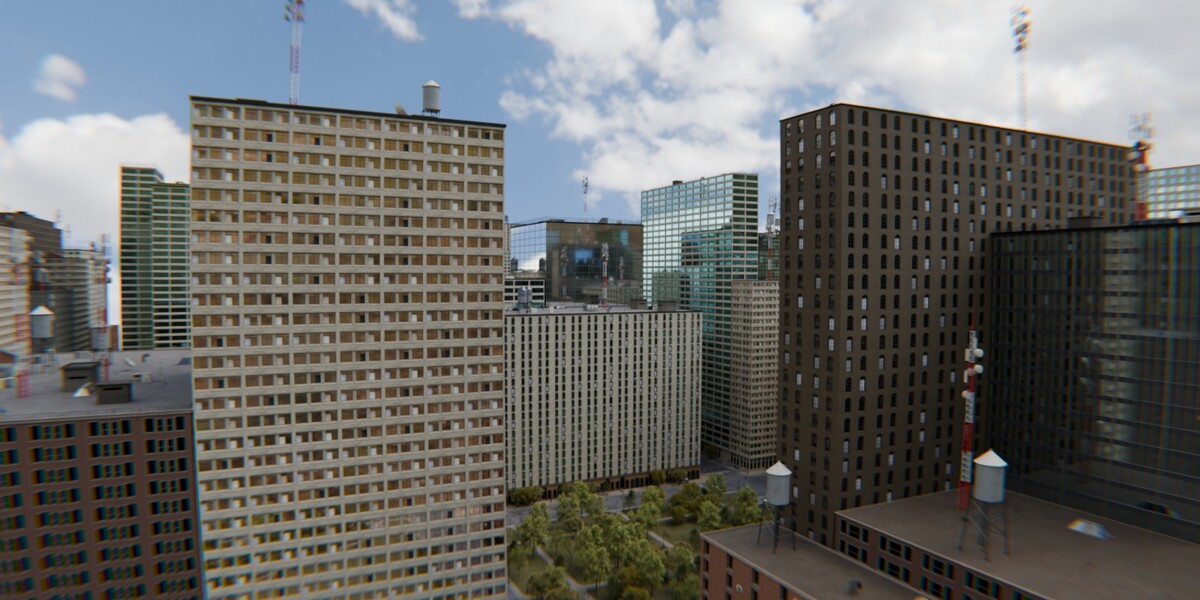
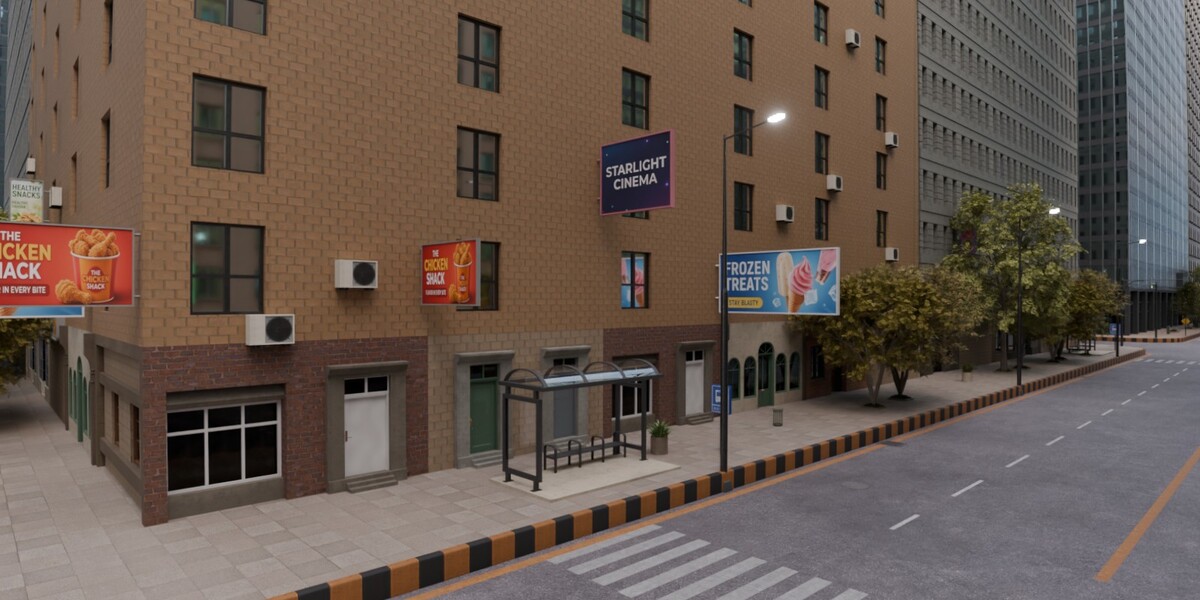
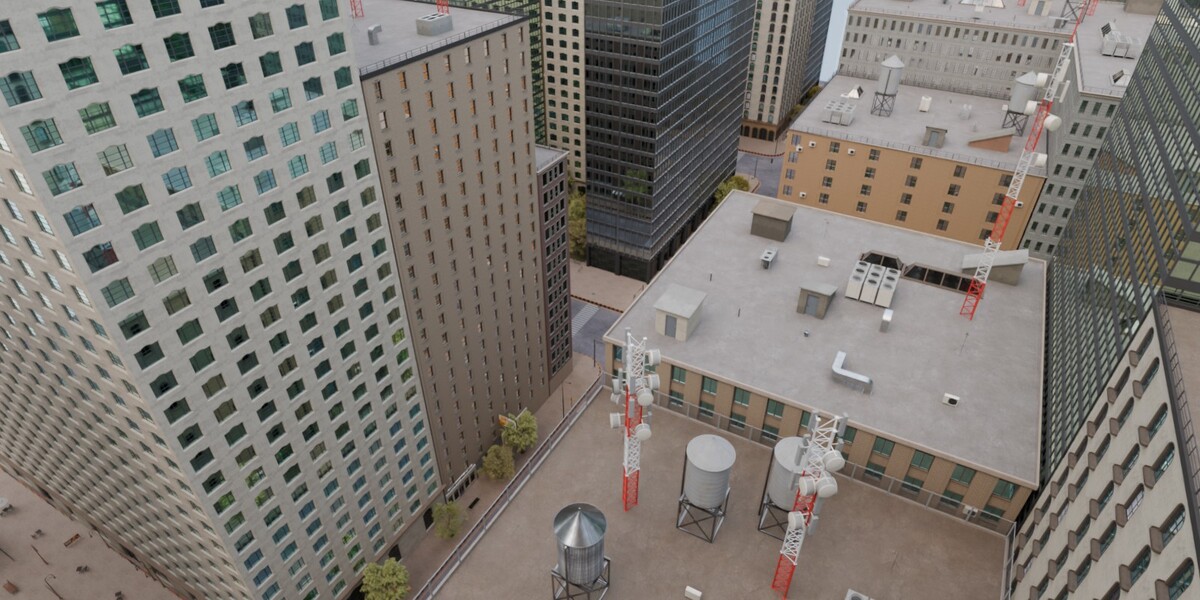
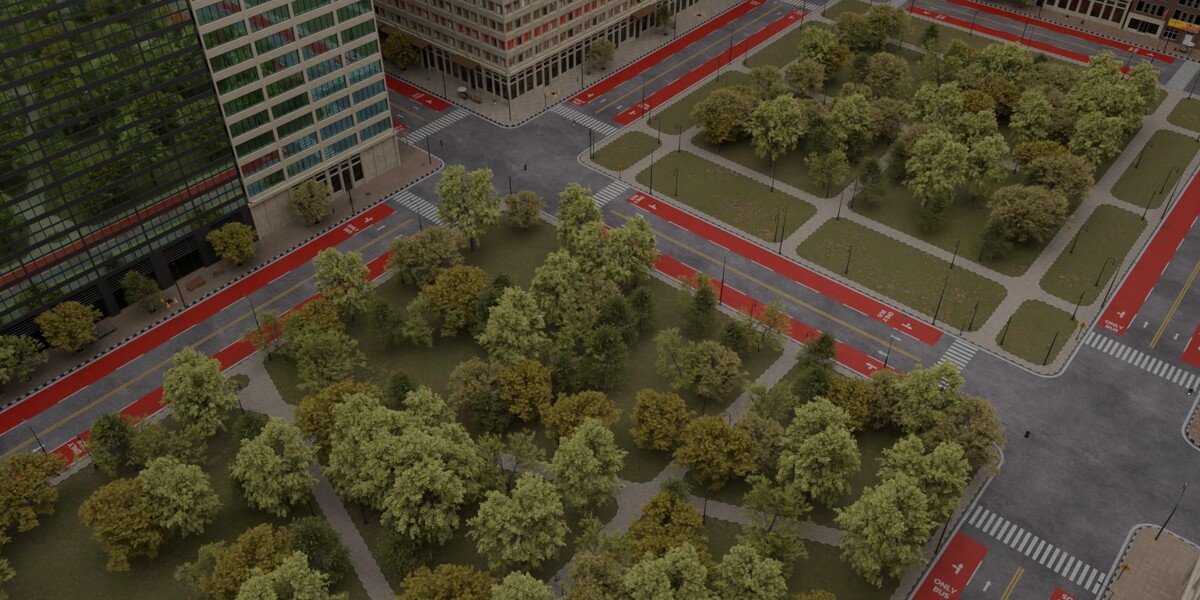
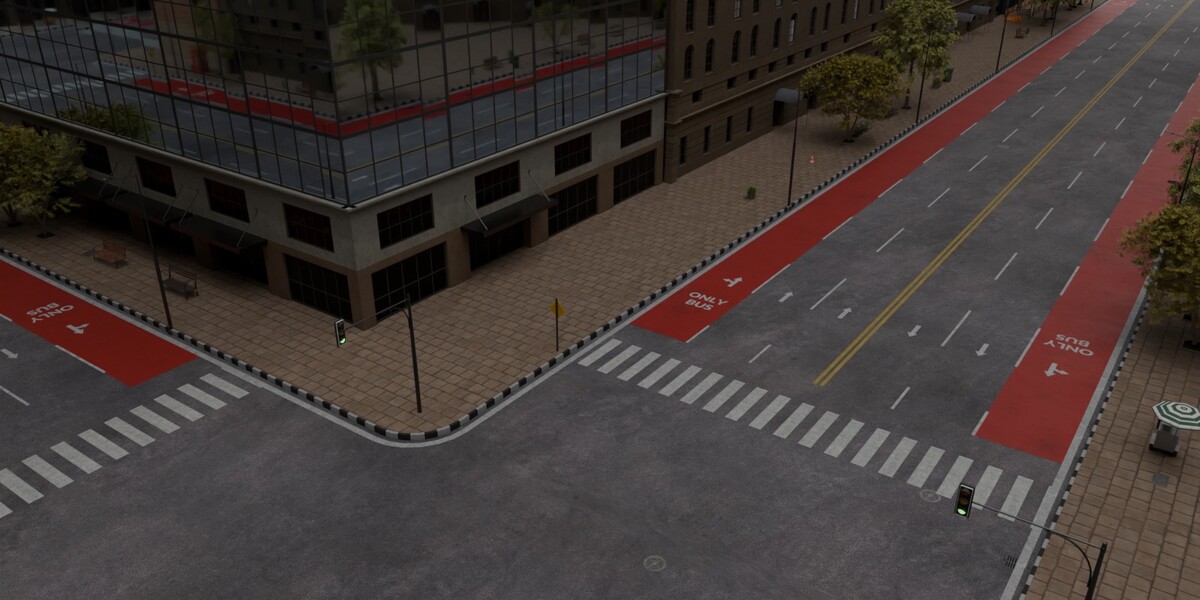
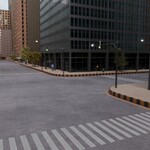
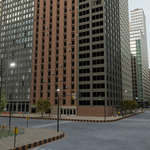
Urbanify builds a full city from a simple plane. You shape the layout by extruding edges and vertices, and every face of the plane becomes either a block of buildings or a park. Roads, kerbs, road markings, crosswalks, traffic lights and street lights are generated automatically.
What is included
- ◆ The Urbanify .blend file with all materials and textures
- ◆ Texture files as separate files
- ◆ This guide
2. Quick start
- Open the Urbanify .blend file in Blender 5.2 or newer.
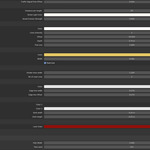
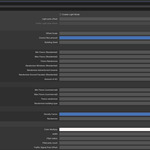
- Select the City object. All controls are in its Geometry Nodes modifier (Properties editor > Modifiers tab).
- Press Tab to enter Edit Mode.
- Select edges or vertices and extrude them with E to grow your layout.
- Use Loop Cut (Ctrl+R) or the Knife tool (K) to split large areas into more blocks.
- Turn on Draft Mode while you edit, so the viewport stays fast.
- Press Tab to leave Edit Mode, then turn Draft Mode off to see the final detailed city.
- Adjust floors, parks, roads and colors in the modifier panel.
- Render with Cycles or Eevee.
3. Shaping your layout
Every face of the plane becomes one city block. Each block is turned into either a group of buildings or a park, with its own cuts and shape. Roads are created in the gaps between blocks.
- ◆ The Buildings / Parks Ratio slider decides how likely a large block is to become a park. 0 means no parks. 1 means every large block becomes a park.
- ◆ Randomize Parks / Buildings is a seed. Change the number to reshuffle which blocks become parks.
- ◆ Use more cuts for a dense city with many small blocks, and fewer cuts for big open areas and parks.
- ◆ Keep road gaps in mind: blocks that are very thin or very small may look cramped.
4. Draft Mode
Large cities are heavy to edit. When Enable Draft Mode is on, Urbanify replaces detailed buildings, trees and props with simple low-poly shapes, so the viewport stays fast while you design.
- ◆ Use Draft Mode while shaping the layout, extruding and testing sliders.
- ◆ Turn it off to see the full detailed city, and before you render.
- ◆ Draft Mode does not change the layout. The same blocks, roads and parks appear in both modes.
5. Controls reference
All controls are in the Geometry Nodes modifier on the City object.
Main controls
| Control | What it does |
|---|---|
| Enable Draft Mode | Switches between fast low-poly preview and the full detailed city |
| Buildings / Parks Ratio | Chance that a large block becomes a park (0 = none, 1 = all large blocks) |
| Randomize Parks / Buildings | Seed that reshuffles which blocks become parks |
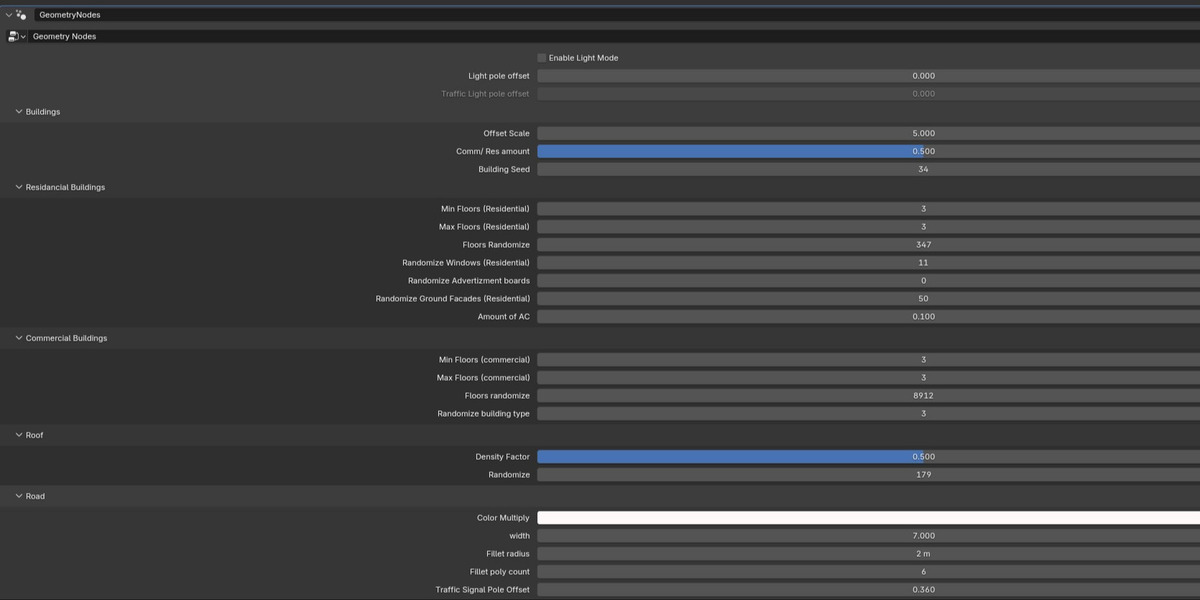
Buildings
| Control | What it does |
|---|---|
| Offset Scale | Sets how far buildings sit from the block edge |
| Commercial / Residential Ratio | Mix of commercial and residential buildings |
| Building Seed | Reshuffles building placement and variation |
Residential Buildings
| Control | What it does |
|---|---|
| Min Floors (Residential) | Lowest number of floors |
| Max Floors (Residential) | Highest number of floors |
| Floors Randomize | Seed for floor count variation |
| Randomize Windows (Residential) | Seed for window variation |
| Randomize Advertisement Boards | Seed for advertisement board placement |
| Randomize Ground Facades (Residential) | Seed for ground floor shop and entrance variation |
| Amount of AC | Amount of air conditioner units on buildings |
Commercial Buildings
| Control | What it does |
|---|---|
| Min Floors (Commercial) | Lowest number of floors |
| Max Floors (Commercial) | Highest number of floors |
| Floors Randomize | Seed for floor count variation |
| Randomize Building Type | Seed for choosing between commercial building styles |
Roof
| Control | What it does |
|---|---|
| Density Factor | Amount of rooftop details such as tanks, vents and antennas |
| Randomize | Seed for rooftop detail placement |
Road
| Control | What it does |
|---|---|
| Color Multiply | Tints the road surface |
| Width | Width of the roads |
| Fillet Radius | Roundness of road corners |
| Fillet Poly Count | Smoothness of rounded corners (higher = smoother, heavier) |
| Traffic Signal Pole Offset | Moves traffic signal poles sideways from the road |
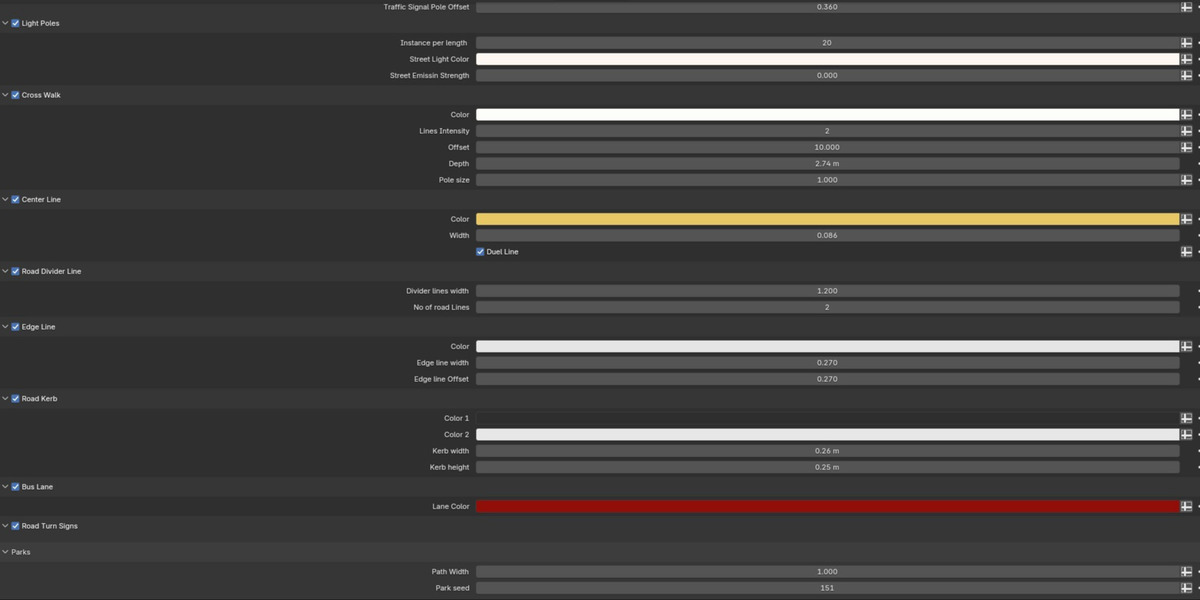
Light Poles
| Control | What it does |
|---|---|
| Instance per Length | Number of street lights along the road |
| Street Light Color | Color of the street light |
| Street Emission Strength | Brightness of the street lights |
Cross Walk
| Control | What it does |
|---|---|
| Color | Color of the crosswalk stripes |
| Lines Intensity | Number of crosswalk stripes |
| Offset | Distance of the crosswalk from the intersection |
| Depth | Length of the crosswalk across the road |
| Pole Size | Size of the traffic signal poles |
Road markings
| Group | Controls |
|---|---|
| Center Line | Color, Width, Dual Line (double centre line on or off) |
| Road Divider Line | Divider Lines Width, Number of Road Lines |
| Edge Line | Color, Edge Line Width, Edge Line Offset |
| Road Kerb | Color 1, Color 2, Kerb Width, Kerb Height |
| Bus Lane | Lane Color |
| Road Turn Signs | On or off |
Each group has its own checkbox, so you can turn it on or off.
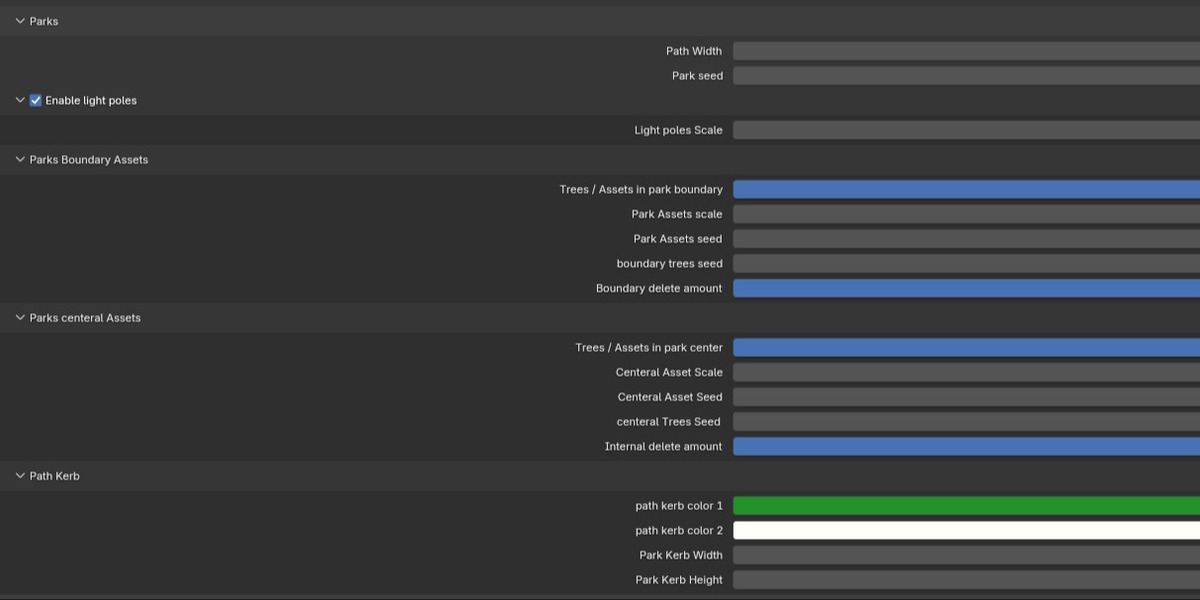
Parks
| Control | What it does |
|---|---|
| Path Width | Width of the walking paths in parks |
| Park Seed | Reshuffles the path layout of the parks |
| Enable Light Poles | Turns park light poles on or off |
| Light Poles Scale | Size of park light poles |
Parks Boundary Assets
| Control | What it does |
|---|---|
| Trees / Assets in Park Boundary | Amount of trees and props along the park edge |
| Park Assets Scale | Size of the boundary assets |
| Park Assets Seed | Reshuffles boundary props |
| Boundary Trees Seed | Reshuffles boundary trees |
| Boundary Delete Amount | Removes a share of boundary assets to thin them out |
Parks Central Assets
| Control | What it does |
|---|---|
| Trees / Assets in Park Center | Amount of trees and props in the middle of the park |
| Central Asset Scale | Size of the central assets |
| Central Asset Seed | Reshuffles central props |
| Central Trees Seed | Reshuffles central trees |
| Internal Delete Amount | Removes a share of central assets to thin them out |
Path Kerb
| Control | What it does |
|---|---|
| Path Kerb Color 1 and 2 | Colors of the kerb along park paths |
| Park Kerb Width | Width of the path kerb |
| Park Kerb Height | Height of the path kerb |
6. Working with seeds
Every random part of the city has its own seed. A seed is just a number. Change it and that part reshuffles, while everything else stays the same.
- ◆ Like the skyline but not the windows? Change only the window seed.
- ◆ Want different park paths on the same layout? Change only Park Seed.
- ◆ Want a different mix of parks and buildings? Change Randomize Parks / Buildings.
Write down seed values you like, so you can return to them.
7. Rendering
Urbanify works in both render engines.
- ◆ Cycles: best for final-quality renders.
- ◆ Eevee: works well and is much faster. Turn on ray tracing for better reflections and lighting.
- ◆ Turn Draft Mode off before rendering.
- ◆ Lighting is up to you. Use any HDRI, sun or scene lights.
- ◆ The street light color and emission strength settings control the light poles themselves.
8. Performance tips
- ◆ Keep Draft Mode on whenever you are editing.
- ◆ The full city is detailed, so very large layouts need more RAM and a better GPU.
- ◆ Lower Fillet Poly Count if you want lighter road corners.
- ◆ Thin out park trees with the delete amount sliders to reduce geometry.
- ◆ Hide parts of the city you are not using while you work.
- ◆ Build big cities in stages: test the layout in Draft Mode first, then check a small part in full detail.
9. Troubleshooting
| Problem | Solution |
|---|---|
| No parks appear | Increase Buildings / Parks Ratio. Parks only appear on larger blocks, so make some faces bigger. Also apply the object scale (Ctrl+A, Scale). |
| The viewport is slow | Turn on Draft Mode while editing. |
| The city looks flat or low-poly | Draft Mode is still on. Turn it off. |
| Textures look wrong or missing | Check that the texture files are in the (textures) folder in the same directory as the .blend file, or use File > External Data > Find Missing Files. |
| Roads or blocks look odd | Check for overlapping or very small faces in Edit Mode. Merge by distance (M) and clean up tiny faces. |
| The modifier panel is empty | Make sure the City object is selected and the Geometry Nodes modifier is enabled. |
| Nothing changes when I move a slider | Check that the modifier is enabled in the viewport (monitor icon) and not hidden. |
10. Requirements and support
- ◆ Blender 5.2 or newer. Tested on 5.2.
- ◆ Works with Eevee and Cycles.
For help, bug reports or feature requests, contact through the Superhive product page.
Thank you for buying Urbanify. If it helps your work, a review on Superhive helps a lot.
 Included
Includes 12 months of
- Support from 3DAssetsKit
- Product updates
Extend this product’s Support Period +12 months: 50% of product price
Have questions before purchasing?
Login to message
| Published | 1 day ago |
| Blender Version | 5.2 - 5.3 |
| Render Engine Used | Cycles, Eevee |
| License | Royalty Free |
Discover more products like this
procedural-city urban citybuilder roads city builder procedural_generator city generator cityscape Blender Building Generator #CityGenerator building generator building