Cool Magic Shader
 Kito Studio


**************************************************
Cool Magic Shader 1.1
**************************************************
1 - Installation
================
The main addon file is CoolMagicShader1_1.zip
Don't unzip the file
- Run Blender
- Go to Edit/Preferences/Add-ons
- Click the menu "Install from disk..." in the top right of the preferences windows
- Navigate to the file CoolMagicShader1_1.zip
- Select and validate
Et voilà! The addon is now installed.
In the package, you will also find a pdf documentation file and a Blender sample file.
2 - Access to the addon
=======================
Cool Magic Shader is composed of 2 main resources:
- The addon itself is located in the "Cool Addons" tab of the N-Panel menu
- The magic shader can be accessed in the Shader when addind a new shader to your material (menu Add or shortcut SHIFT+A):
- Navigate to Cool Magic Shader submenu and select "Cool Magic Shader node"
3 - Features
============
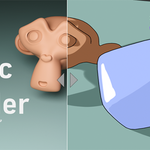
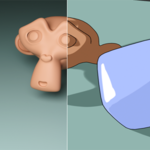
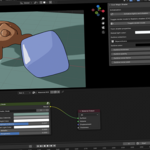
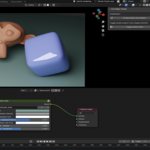
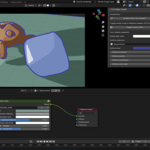
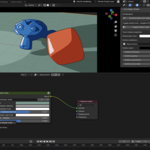
Cool Magic Shader allows you to quickly setup materials, outlines and lights in your project and be able to seamlessly switch between realistic and toon render mode.
a/ Initialization
The Initialization feature allows you to import automatically in your project the toon lights setup and the magic shader node.
You must initialize your project to access to the Cool Magic Shader features.
After having initialized your project, you should not need to initialized it again except if you have accidentally deleted or messed up the dedicated toon lights and outline collections.
If so, you can re-initialized the project. It will not overwrite your objects and materials but it will reinitialized the properties of the toon lights and outline object ifyou have modified them.
b/ Materials
To be able to switch between realistic and toon render, you will have to assign material to your objects, based on the magic shader node.
Go to the Shader Editor, create your material, select the Cool Magic Shader node and just link it to the Material Output node
After having created your materials, you will be able to modify thier properties either in the Shader editor or in the material properties tab of your object.
Available properties for Magic materials are:
Common properties:
- Object base color
Toon material properties
- Shadow intensity
- Highlight color
- Highlight intensity
- Global light color
Realistic material properties
- Metallic intensity
- Roughness intensity
c/ Toggle between realistic and toon render mode
In the addon tab, you can switch between realistic render mode (CYCLES engine) and toon render mode (EEVEE NEXT engine) by clicking the "Toggle render mode" button.
- If Toon mode,
- Switch the render mode to EEVEE
- It will deactivate all lights in your scene except the dedicated lights imported in the "___CMSToon_LIGHTS___" collection
- It wil activate outline object located in the "___CMSToon_OUTLINE___" collection
- If Realistic mode,
- Switch the render mode to CYCLE
- It will reactivate lights in your scene but deactivate the dedicated the "___CMSToon_LIGHTS___" collection
- It wil deactivate the "___CMSToon_OUTLINE___" collection
d/ Manage Toon render mode properties
When in Toon render mode, the addon tab allows you to directly modify some render properties:
- Global light color:
It allows to change the global light color (ambiance) of the scene, when in toon render mode.
- Outline collection:
To be able to apply outlines to the objects in your scene, you will need to put the desired objects in a collection and specified this collection in the "Outline collection" property.
Note that outlines will be displayed well only through the camera view.
Outline properties:
You can directly shape the outline style in the addon tab:
- Outline color will allow to modifiy the color of the outlines
- Outline thickness will allow to modifiy the thickness of the outlines
- Outline opacity will allow to modifiy the opacity of the outlines
- Outline noise factor and Outline noise seed will add a handdraw-like style to the outlines
4 - Remarks
***************
- Check the PDF documentation and the sample project for more details about the multiplate usages of this addon
- For toon render mode, the addon import specific lights and outline collection (in green) in your project.
- Do not delete or rename the, neither the objects in these collection.
- If you done so accidentally, you can use the "initialized lights and shaders" to recreate them. It will not overwrite your objects and materials in the current scene.
- for advanced configuration of materials with the Cool Magic Shader node, refer to the PDF documentation.
5 - Version history
*******************
1.0: Initial release
1.1: Fix for Blender 5
Have questions about this product?
Login to message
| Sales | 60+ |
| Dev Fund Contributor | |
| Published | about 1 year ago |
| Blender Version | 4.2 - 5.2 |
| Extension Type | N/A |
| Render Engine Used | Cycles, Eevee |
| License | GPL |