 RUIDO VFX


INSTALLATION:
1. Open Blender.
2. Go to Edit > Preferences.
3. In the Add-ons section, click Install from Disk.
4. Locate and select the file crt_monitor_generator.zip and confirm.
5. Enable the add-on by checking the box next to CRT Monitor Generator.
6. Important: Ensure the Compositor is active in your scene.
INSTRUCTIONS:
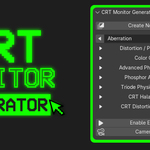
- Getting Started: Open the Compositor editor, click "Use Nodes", and then look for the CRT Generator tab in the sidebar (N-panel).
- Setup: Click "Create Node Group" to automatically build and connect the effect chain.
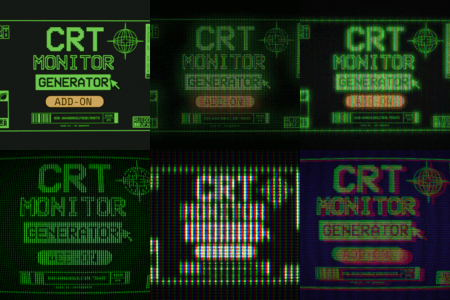
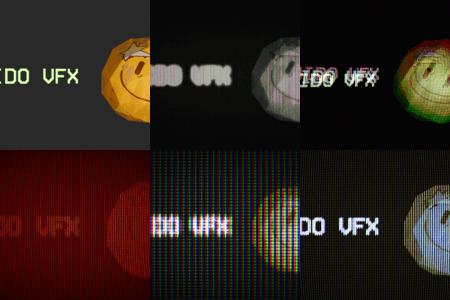
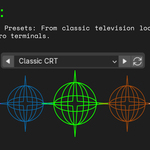
- Applying Presets: Use the Preset dropdown to switch between styles. Your manual adjustments for each style are automatically saved and remembered when you switch. If you want to return a preset to its original factory settings, simply click the Res (Reset) button located next to the preset selector.
DETAILED SETTINGS GUIDE: DISTORTION / PIXELATE / SHIFT
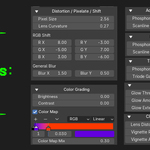
- Pixel Size: Changes the size of the little squares that make up the image.
- Lens Curvature: Makes the edges of the screen curve and colors bleed like an old TV.
- RGB Shift (R/G/B): Pushes the red, green, or blue colors horizontally and vertically to simulate alignment errors.
- General Blur: Makes the image horizontally and vertically softer and out of focus.
COLOR BALANCE
- Factor: Controls the overall strength of the color balance modifications.
- Lift Color: Changes the tint of the darkest areas (shadows).
- Lift Value: Changes the brightness of the darkest areas (shadows).
- Gamma Color: Changes the tint of the midtones.
- Gamma Value: Changes the brightness of the midtones.
- Gain Color: Changes the tint of the brightest areas (highlights).
- Gain Value: Changes the brightness of the brightest areas (highlights).
ADVANCED PHOSPHOR MATRIX
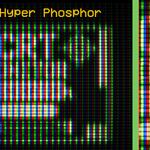
- Phosphor Scale: Controls the density of the RGB dots on the screen.
- Scanline Scale: Controls how many horizontal TV lines are drawn across the screen.
PHOSPHOR ADJUSTMENTS
- Phosphor Sharpness: Controls how sharp or blurry the RGB dots look.
- Scanline Sharpness: Controls how sharp or blurry the horizontal TV lines look.
TRIODE PHYSICS (EMISSION)
- Phosphor Emission Brightness: Adjusts how bright the RGB dots shine on the screen.
- Triode Gamma: Controls the color bleeding and falloff between the individual RGB dots. CRT HALATION GLOW
- Glow Threshold: Sets the brightness level at which colors start to bleed and glow.
- Glow Amount: Controls the overall intensity and brightness of the neon glow effect.
- Glow Extent: Adjusts how far the glow spreads out from the bright areas of the screen.
CRT DISTORTION AND VIGNETTE
- Lens Distortion: Makes the entire screen bulge outward (convex) or cave inward (concave).
- Vignette Radius: Controls the size of the dark circular area around the corners.
- Vignette Amount: Adjusts how dark the corners of the screen become.
NOTES:
-For additional details on functions and values, hover the cursor over the desired item to trigger a descriptive tooltip.
-For the most accurate preview, always view your scene through the camera and maximize the 3D viewport as much as you can. This helps reduce differences between the viewport and the final render. Otherwise, the result may look slightly different from the final render.