 Max Miles




Cullr Documentation
A guide to the features and settings of Cullr.
After installation, find the Cullr panel in the 3D Viewport's Sidebar (N-Panel), under the View tab.
A Note on Performance
Please be aware that Cullr's visibility calculations are not performed in real-time. The processing speed is directly dependent on the mesh density of your Target Object; denser meshes will naturally take longer to analyze even though the code is highly optimized for performance. It's recommended to open the system console for a detailed live report on the calculation's progress.
Core Concepts
Target Object
This is the primary mesh object you want to analyze and modify. Cullr will calculate the visibility of this object's faces from the active camera's perspective.
Occluder Objects
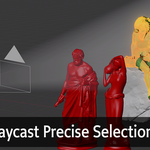
Use this list to specify any other objects in your scene that should block the camera's view of the Target Object. For example, if your target is placed behind parts of a wall, you would add the wall to the Occluder list to ensure the hidden parts of the target are not selected.
Options & Settings
Highlight Occluders
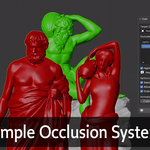
Enable this checkbox for a clear visual guide in your viewport. The Target Object will be highlighted in green and all Occluder Objects will be highlighted in red, making it easy to see how your scene is set up. (Requires Viewport Shading Color set to 'Object').
Select if Any Vertex Visible
Consider a face visible if at least one vertex is inside the camera view.
Allow Self-Occlusion
When enabled, the Target Object can block visibility of itself. This is essential for where one part of the mesh hides another. While this option provides the most accurate results, it can be slightly slower on very dense meshes. Turn this option off if you wanna shoot the rays through your target object.
Output as Mask Modifier
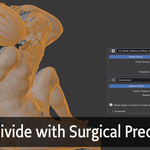
Instead of permanently deleting geometry, this option creates a non-destructive workflow. When checked, Cullr will generate a custom Vertex Group containing all visible geometry and automatically add a Mask Modifier to your object that uses this group. This allows you to hide unseen geometry without deleting it. This is also great for creating an inverse copy of your object in order to subdivide the visible part and leave the inversed part for accurate shadows and light bounce.
Main Operations
Calculate Visibility (Frame Range)
This is the primary function for animated scenes. Cullr will process the entire timeline frame range (from your scene's Start to End frame) and create a final selection that includes any face visible on any of those frames. This is ideal for ensuring that the selection remains fully intact throughout a shot.
Frame Step
To speed up calculations on long or slow-moving shots, you can increase the Frame Step. A value of 2 will calculate every second frame, a value of 5 will calculate every fifth, and so on. This is highly effective for optimizing performance without sacrificing accuracy on shots where the camera or objects are not moving rapidly.
Calculate Visibility (Current Frame)
Use this button for static shots or when you only need to analyze a single moment in time. It performs the visibility calculation based only on the frame you are currently viewing in the timeline. It's the quickest way to get a result for still renders and general clean up work.
Have questions about this product?
Login to message
| Sales | 10+ |
| Published | about 1 year ago |
| Blender Version | 4.4 - 5.0 |
| Extension Type | N/A |
| Render Engine Used | Arnold, Blender-Internal, Cycles, Eevee, Mental-Ray, Octane, Vray |
| License | GPL |

Discover more products like this
camera-based cullr camera selection performance Selection photogrammetry cleanup visibility cleanup raycasting subdivision optimization non-destructive