cvELD Edit Paint 2.3.0
 Color Variations of Eldorado - cvELD -
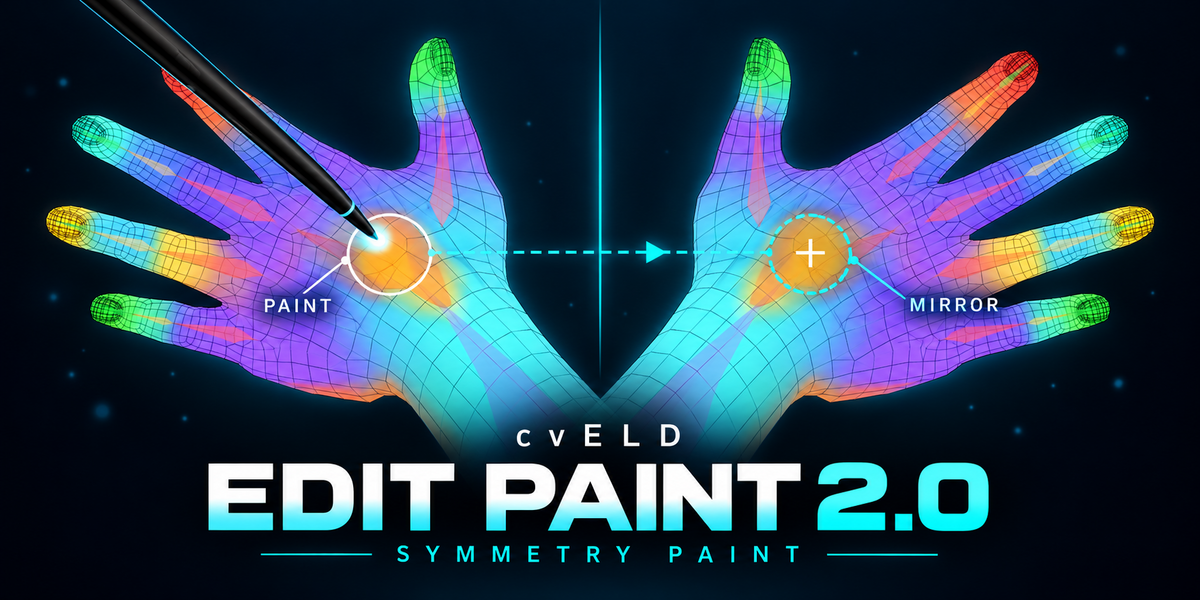
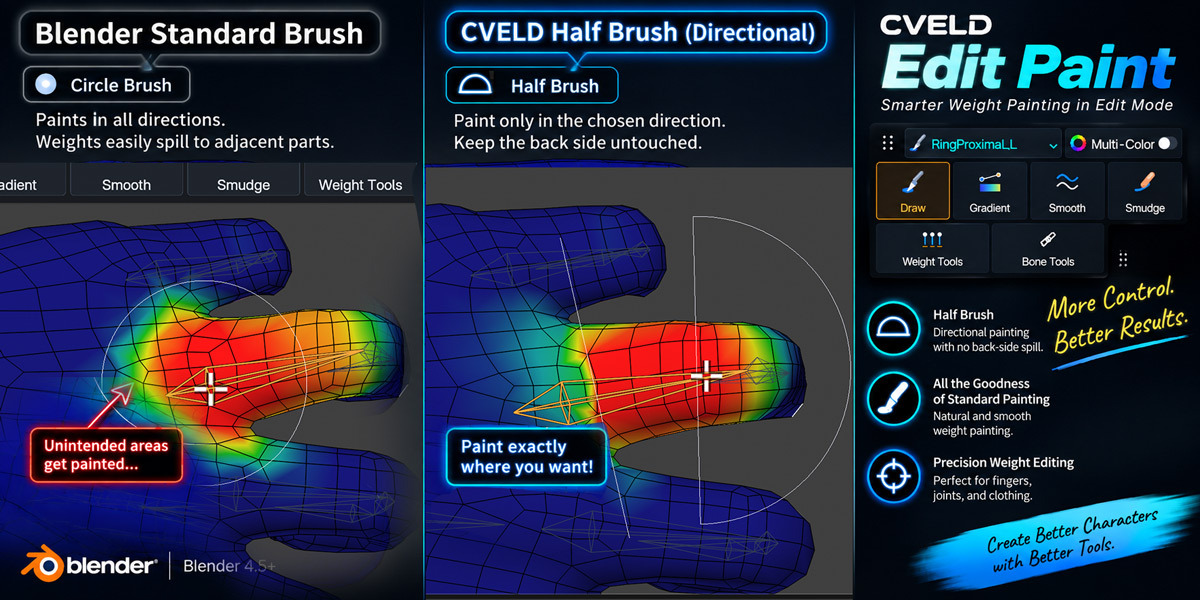
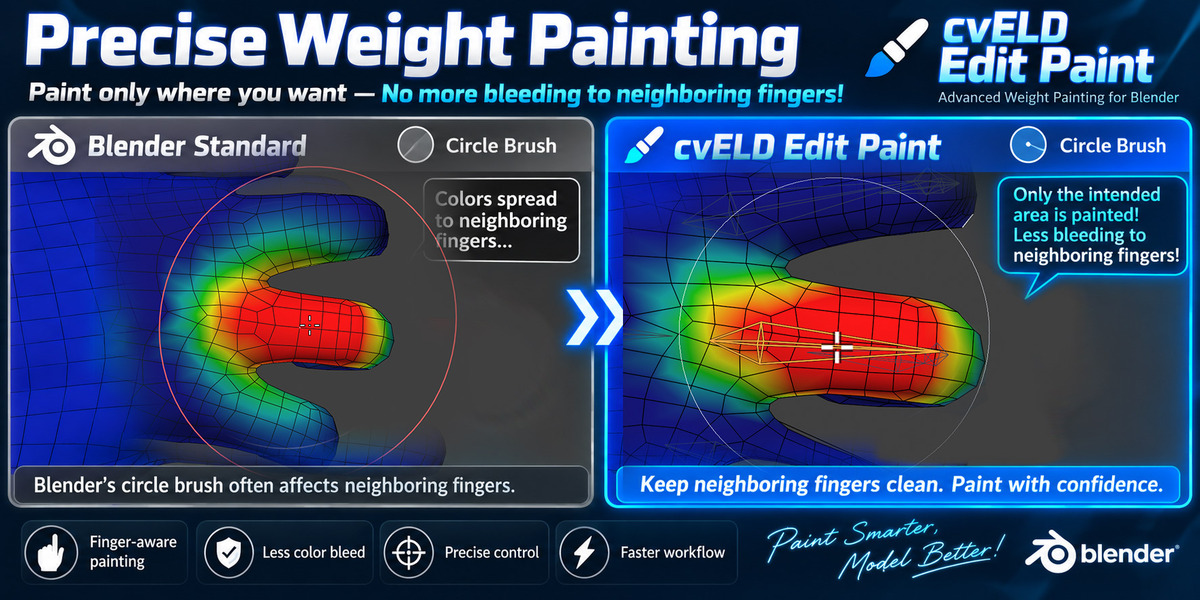
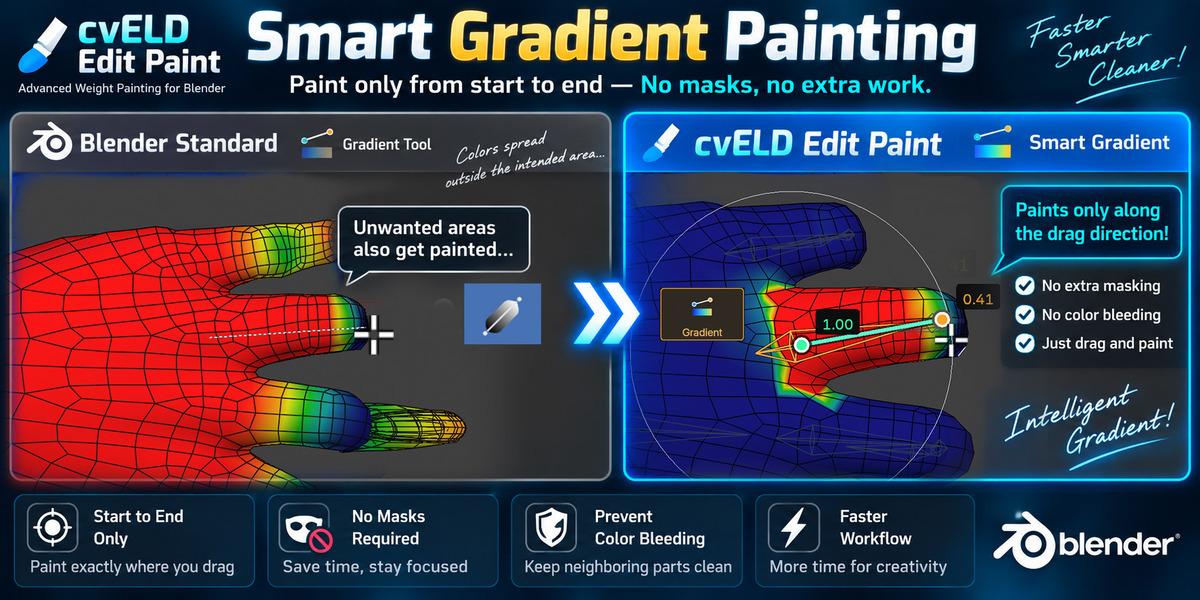
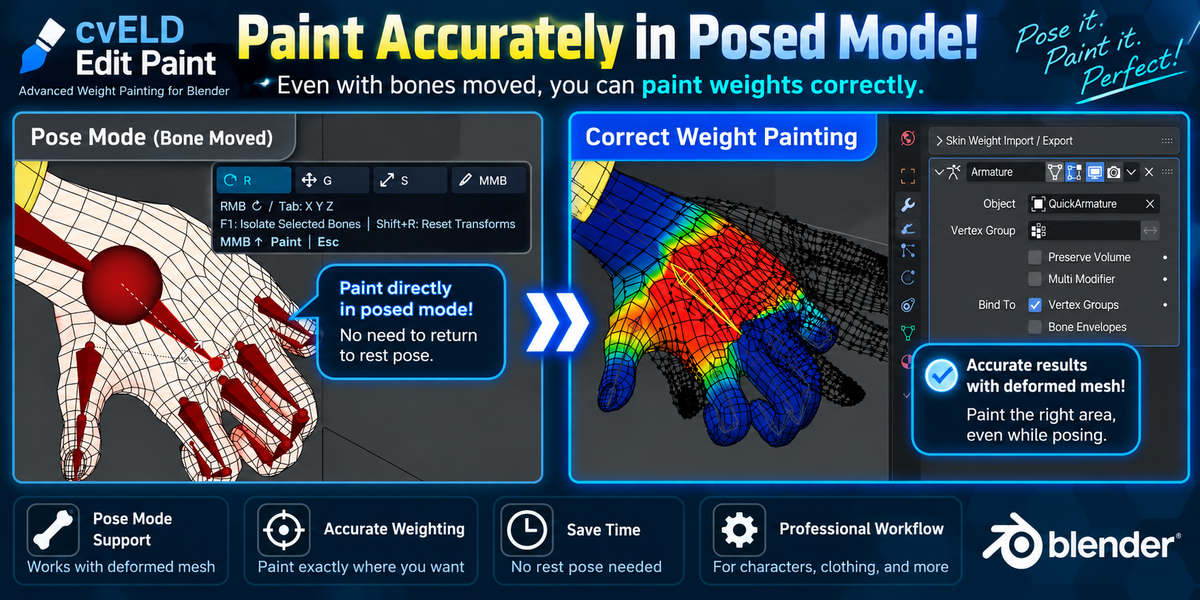
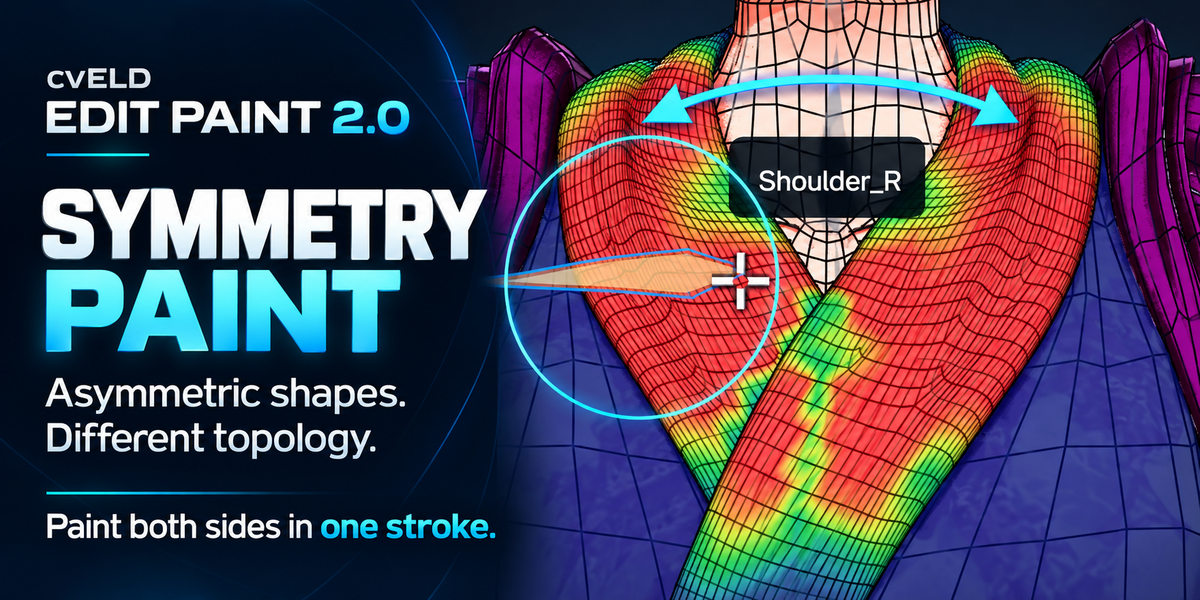
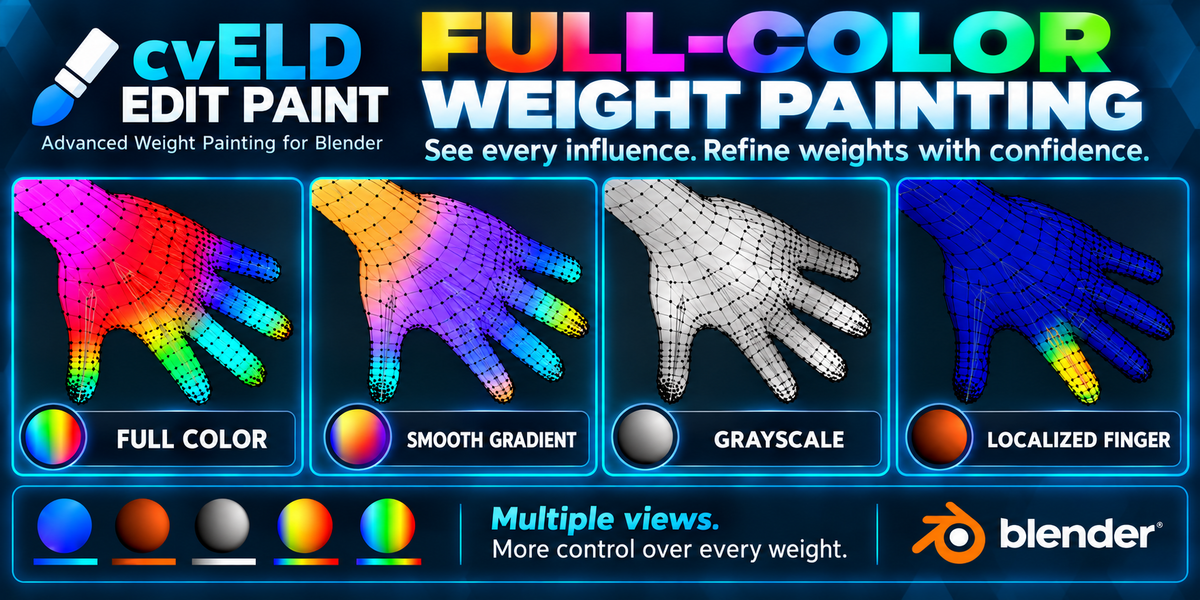
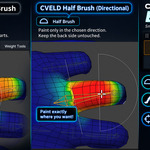
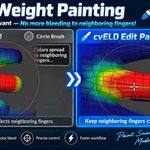
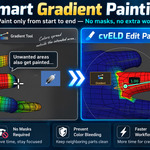
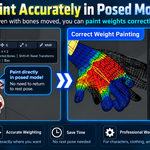
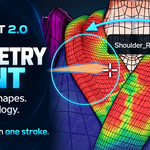
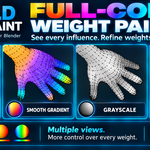
English manual and quick start
Open the complete English Manual
The steps below remain available here if the external manual cannot be reached.
- Use Blender 4.5 or later. Install the purchased ZIP with Install from Disk in Preferences, then enable cvELD Edit Paint. Restart Blender after updating.
- Select the mesh. For a rigged character, use an Armature modifier and vertex groups matching the deform bone names.
- Open N → Quick Weight Paint → Start Painting in the 3D View. The mesh enters Edit Mode.
- Ctrl-click a bone, choose Draw, set Radius, Strength and Weight, then drag a short stroke. Shortcuts depend on your preset.
- Release to confirm a stroke. Esc cancels an active stroke; Ctrl-Z undoes a confirmed edit. Use Selected Vertices to limit painting to your selection.
Nothing paints? Check the active mesh and bone, strength, selection restrictions and locks. Disable Edit Mode display for topology-changing modifiers while painting. For help, use Contact the Creator on your Superhive purchase page and include your Blender version, browser and any error message.
Version 2.2.2 — 23 October 2026
Fixed an input conflict that could prevent Blender’s Move, Rotate and Scale gizmos from dragging in mesh Edit Mode while Edit Paint was enabled, including with selection X-Ray. Keep Active Gizmo set to Drag; switching it to Press is not required.
Install the updated ZIP with Install from Disk, then restart Blender. If you used Press as a workaround, restore Drag.
3 seconds · Japanese and English captions · Actual Blender viewport sequence with automated input.
Version 2.2.1 — 20 October 2026
Fixed a crash that could occur in Blender 5.2.2 while Cycles was baking and the Render Properties panel was redrawn. Update to 2.2.1 before baking with Edit Paint enabled.
Version 2.2 — 19 October 2026
- Ring Gradient. Drag along a limb or finger to vary the weight along its axis while keeping the same value around each cross-section. Connected branches inside the dragged interval can receive the gradient too.
- Gradient coverage. Front and Back reaches through the mesh under the gradient. This Part Only retains shape-based section tracking; Front Surface Only limits painting to visible surfaces. Selection, hiding and locks still protect vertices.
- View navigation and loop shortcuts. Override View Navigation now controls camera gestures independently of brush shortcuts. Alt-W selects a loop, Shift-Alt-W adds and Ctrl-Alt-W toggles. Camera presets release held keys when the pointer leaves the viewport, and custom or disabled brush bindings remain editable.
- Infinite thickness reaches the back. Infinite Depth no longer stops at the local surface-distance boundary. The brush footprint and polygon-island filter still apply, along with masks and the 20,000-vertex limit per dab.
- Feasible normalization. Symmetry painting now keeps a valid normalized result when the painted bone is the only available recipient. A false normalization warning no longer appears in this case; genuine lock conflicts are still reported.
- Display follows the edited objects. Switching objects no longer leaves the previous object's bone weights on screen. Multi-object Edit Mode display and saved object settings are retained.
- Gradient tool icons. The gradient card now shows the icon for the selected gradient tool.
Verified using the release ZIP in Blender 4.5.0 and 5.2.2. Full manual and update videos.
Version 2.1.1 — 18 October 2026
- Faster subdivision display updates. Reduced repeated geometry preparation when refreshing weights on subdivision surfaces. Large meshes can still take time to update.
- Zero-weight warning settings. Preferences > Weight Colors now provides Zero Weights and Zero Weight Color. Native and custom displays share Blender’s theme color. Each field has its own reset.
- Quicker access to Preferences. Open Preferences directly from the dock context menu. The symmetry hover menu now focuses on X, Y, Z and Force Symmetric Paint.
cvELD Edit Paint 2.2 — Complete English Manual
Updated for the frame and pose display fixes, Zero Weights, gradient recovery, Quick Pose guidance, temporary selection X-Ray, upper-row ordering and shortcut presets. Includes current interface screenshots and short demonstrations.