 RUIDO VFX

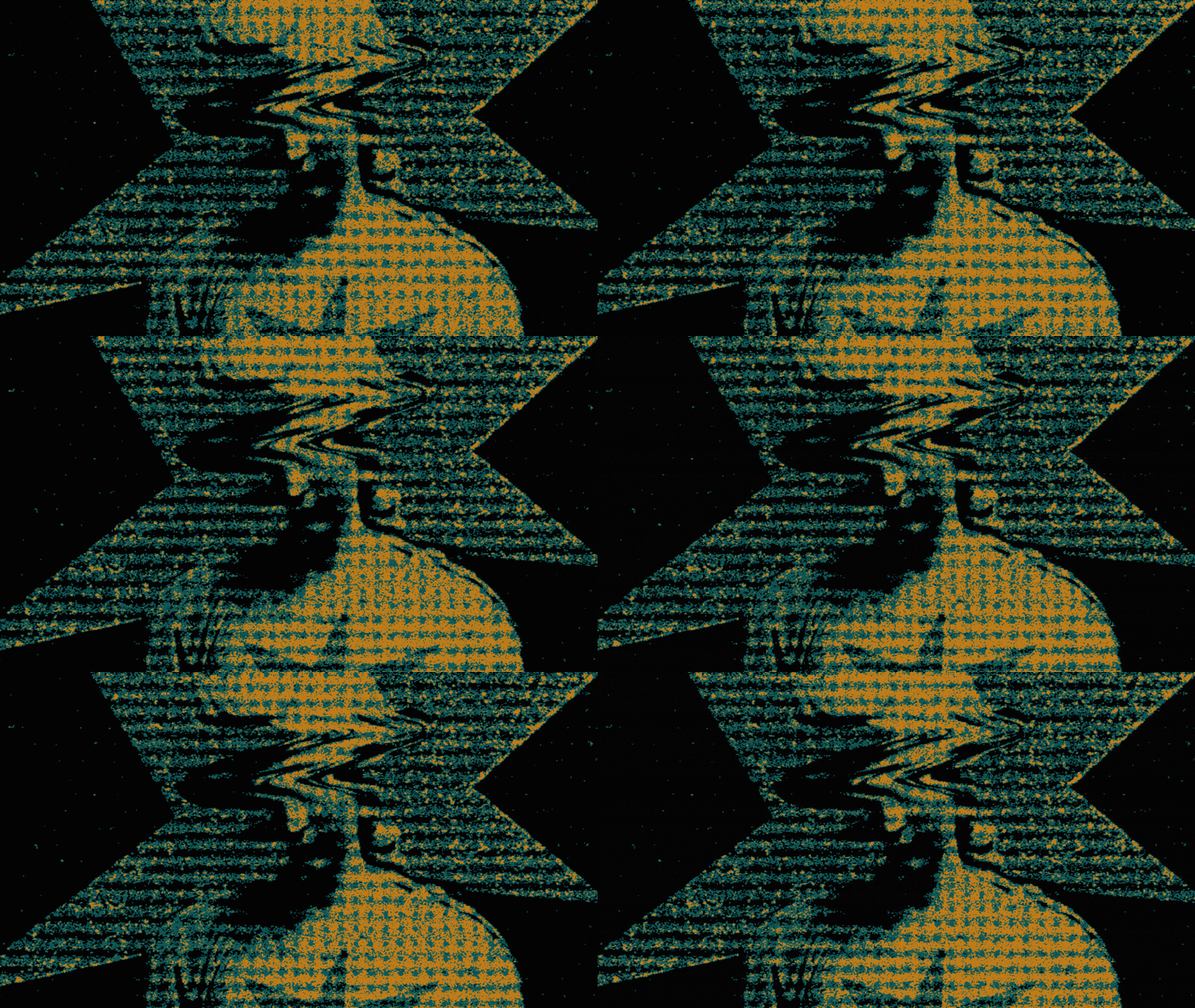
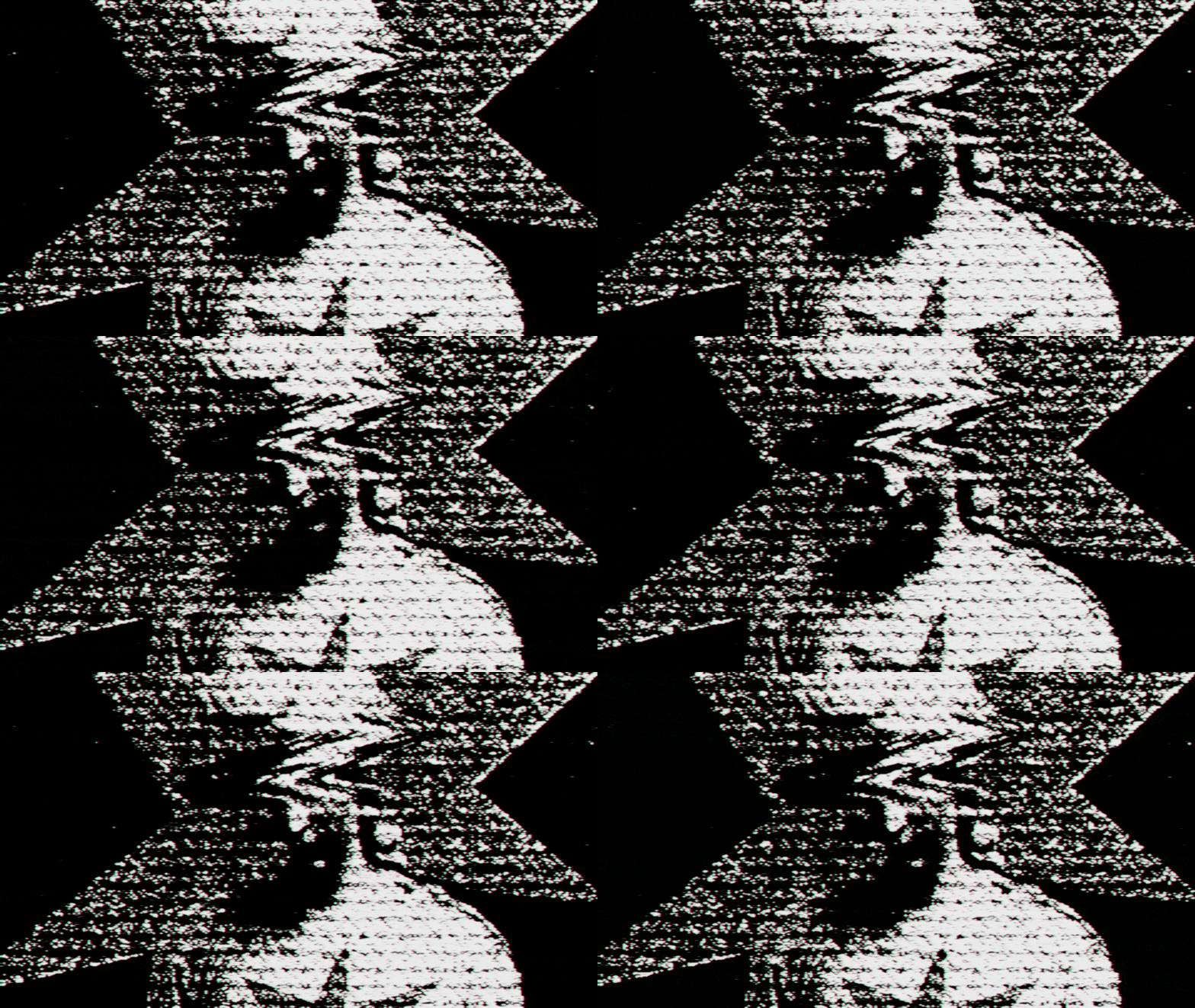
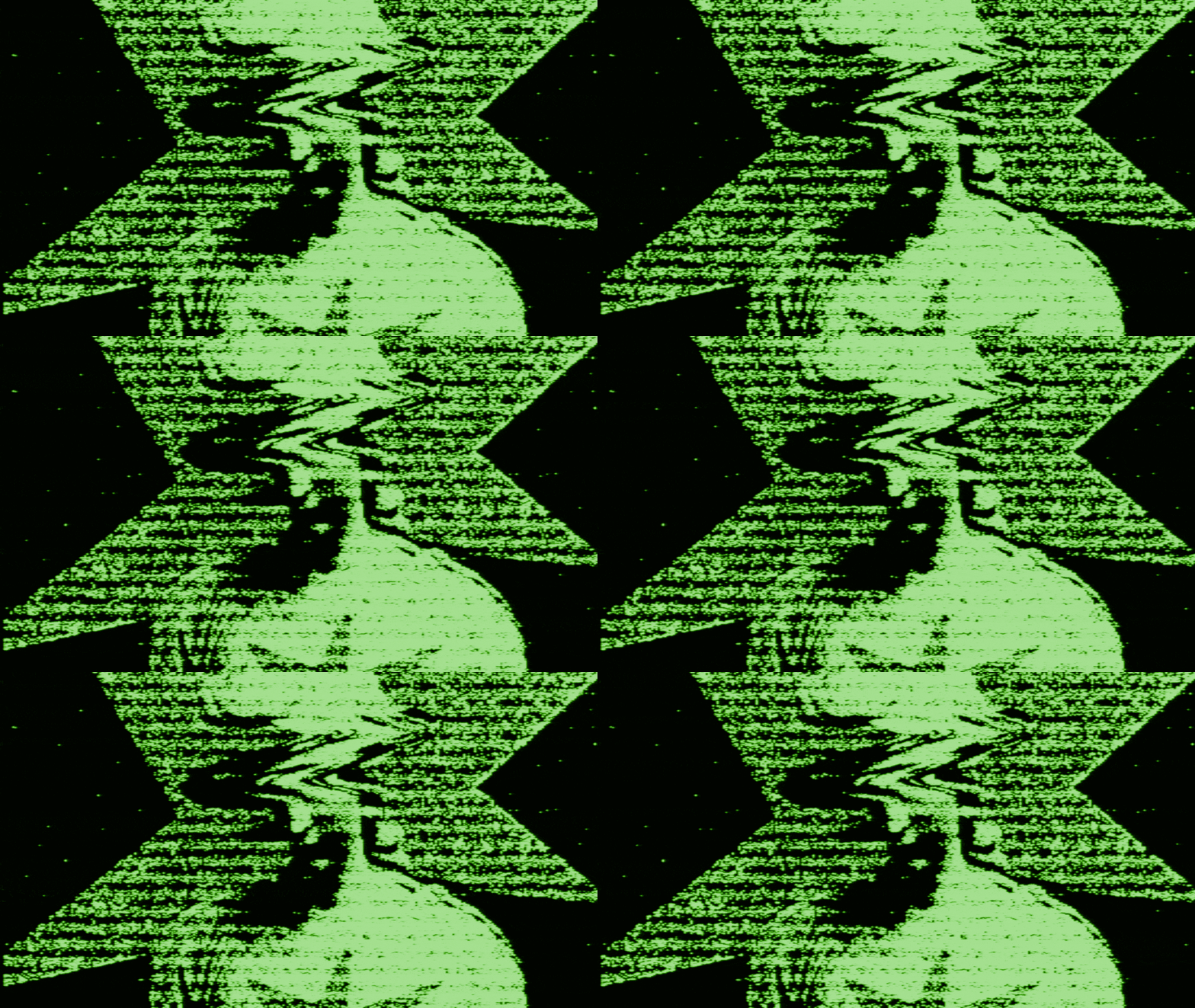
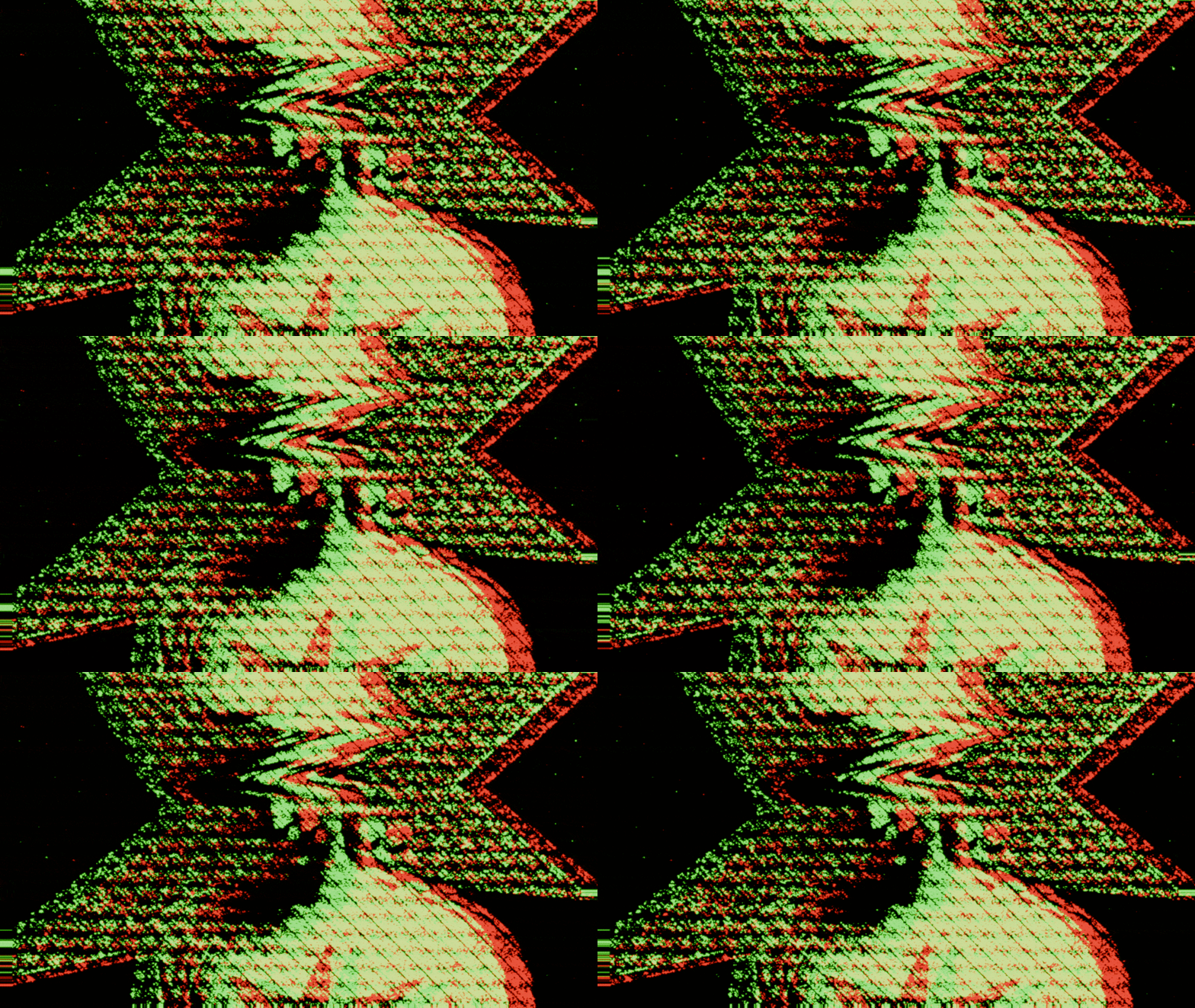
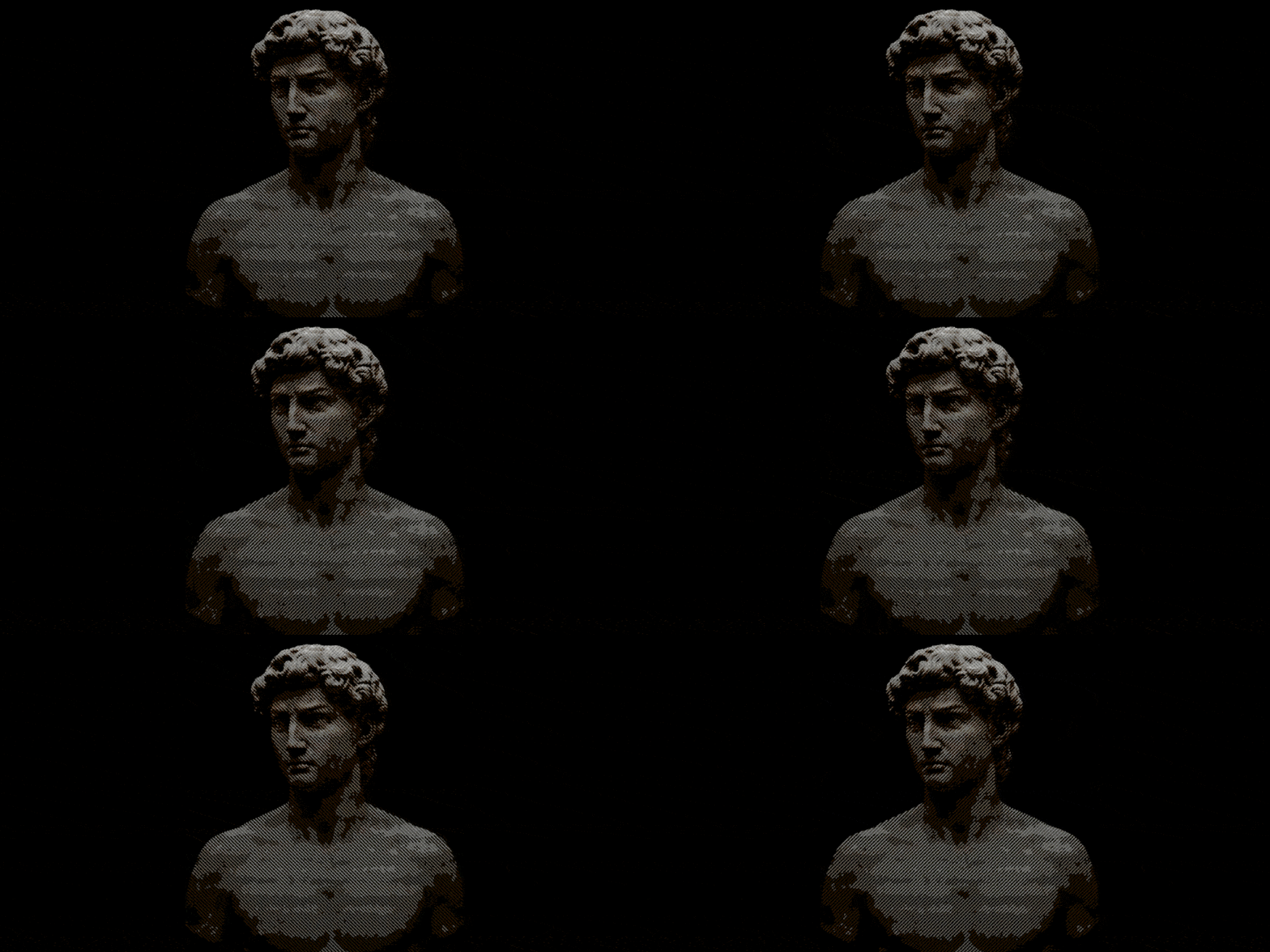
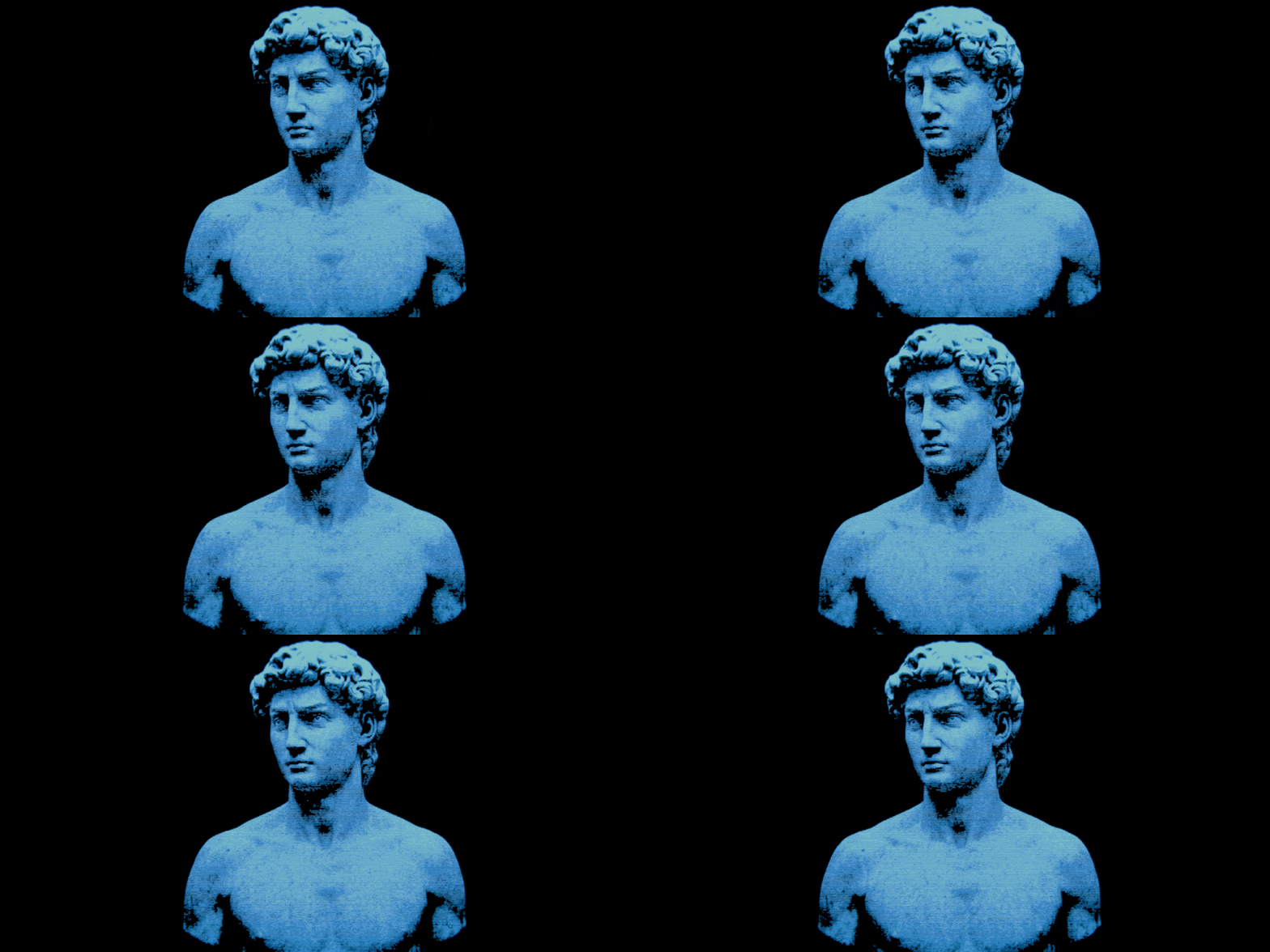
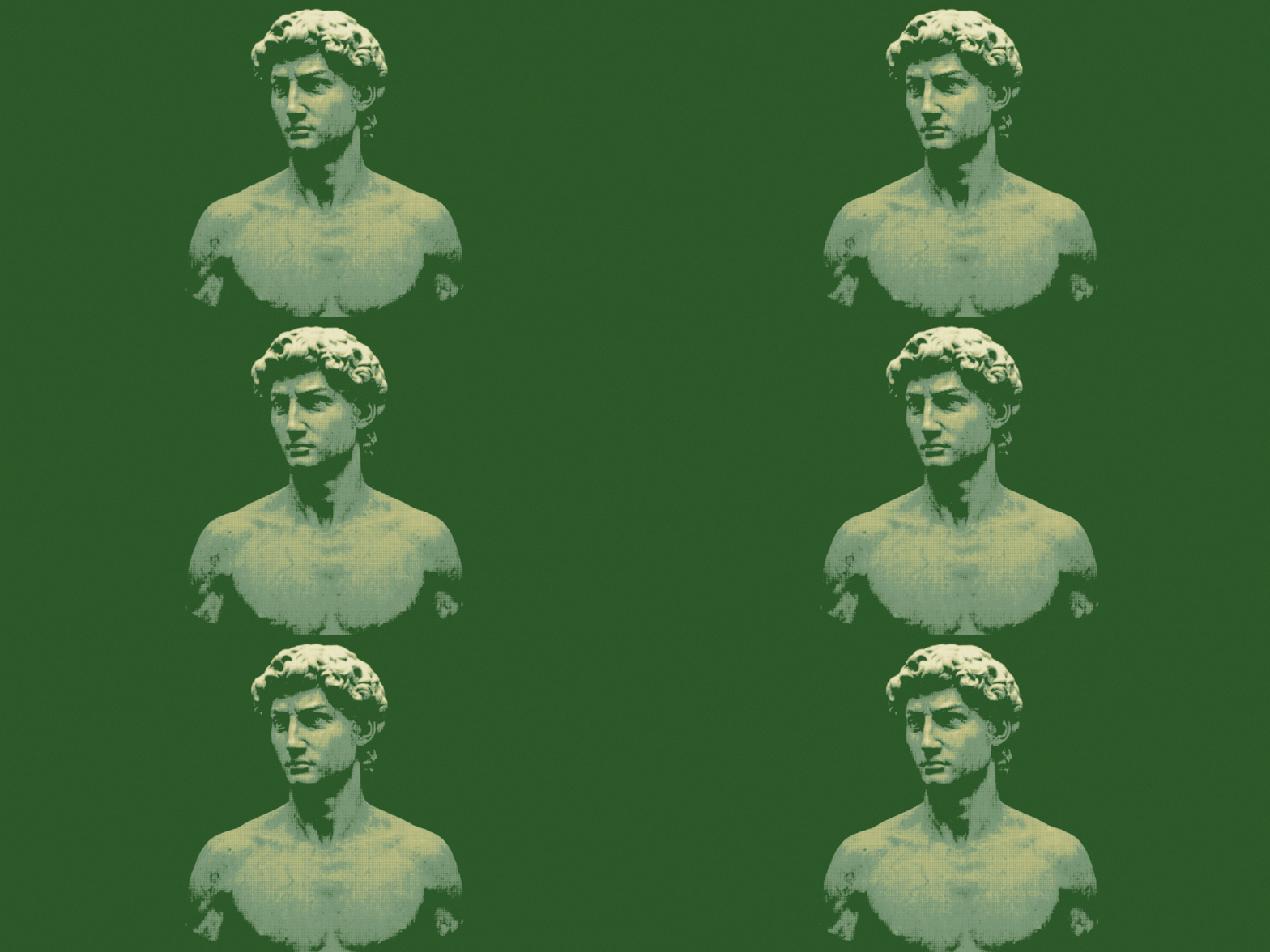



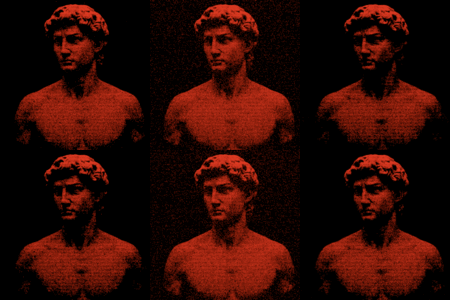
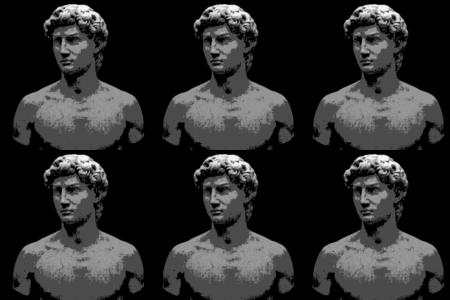
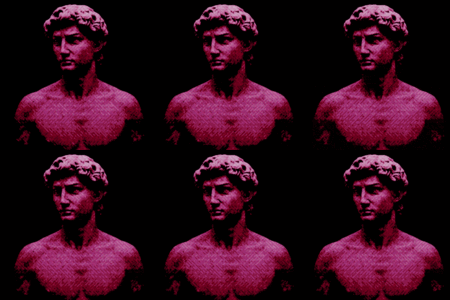
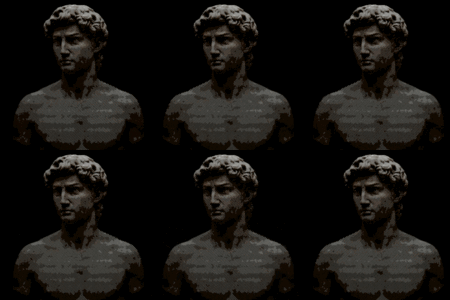


INSTALLATION:
- Open Blender.
- Go to Edit > Preferences.
- In the Preferences window, open the Add-ons section and click "Install from Disk".
- Locate and select the file "dither_generator.zip" and confirm installation.
- The add-on will appear in the list as "Dither Generator"; enable it by checking the box.
- It is recommended to close and reopen Blender, as this may refresh the add-ons.
- Installation is complete.
INSTRUCTIONS:
- Getting Started: Open the Compositor editor, click "New", and then look for the Dither Generator tab in the sidebar (N-panel).
- Setup: Click "Create Node Group" to automatically build and connect the effect chain.
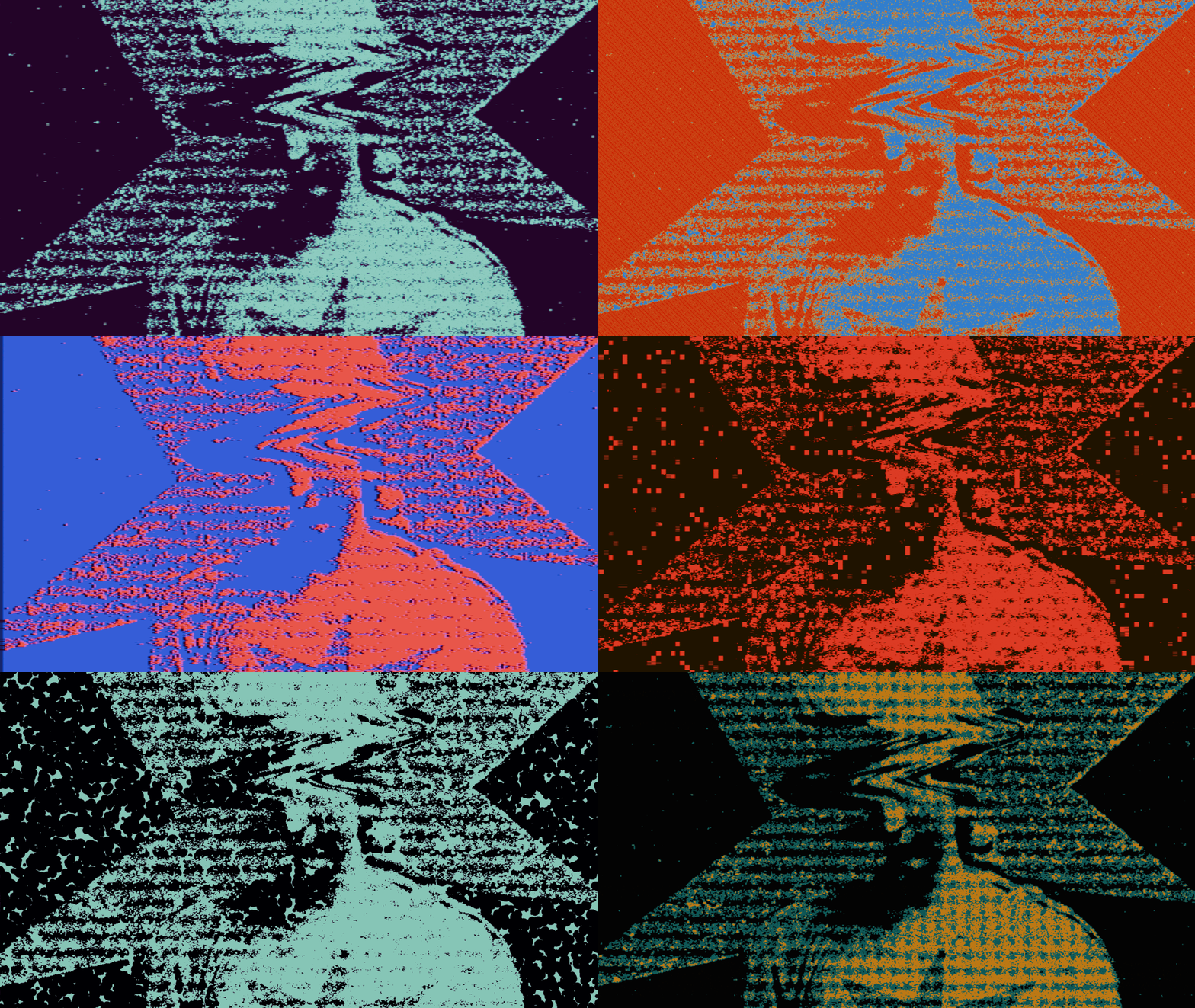
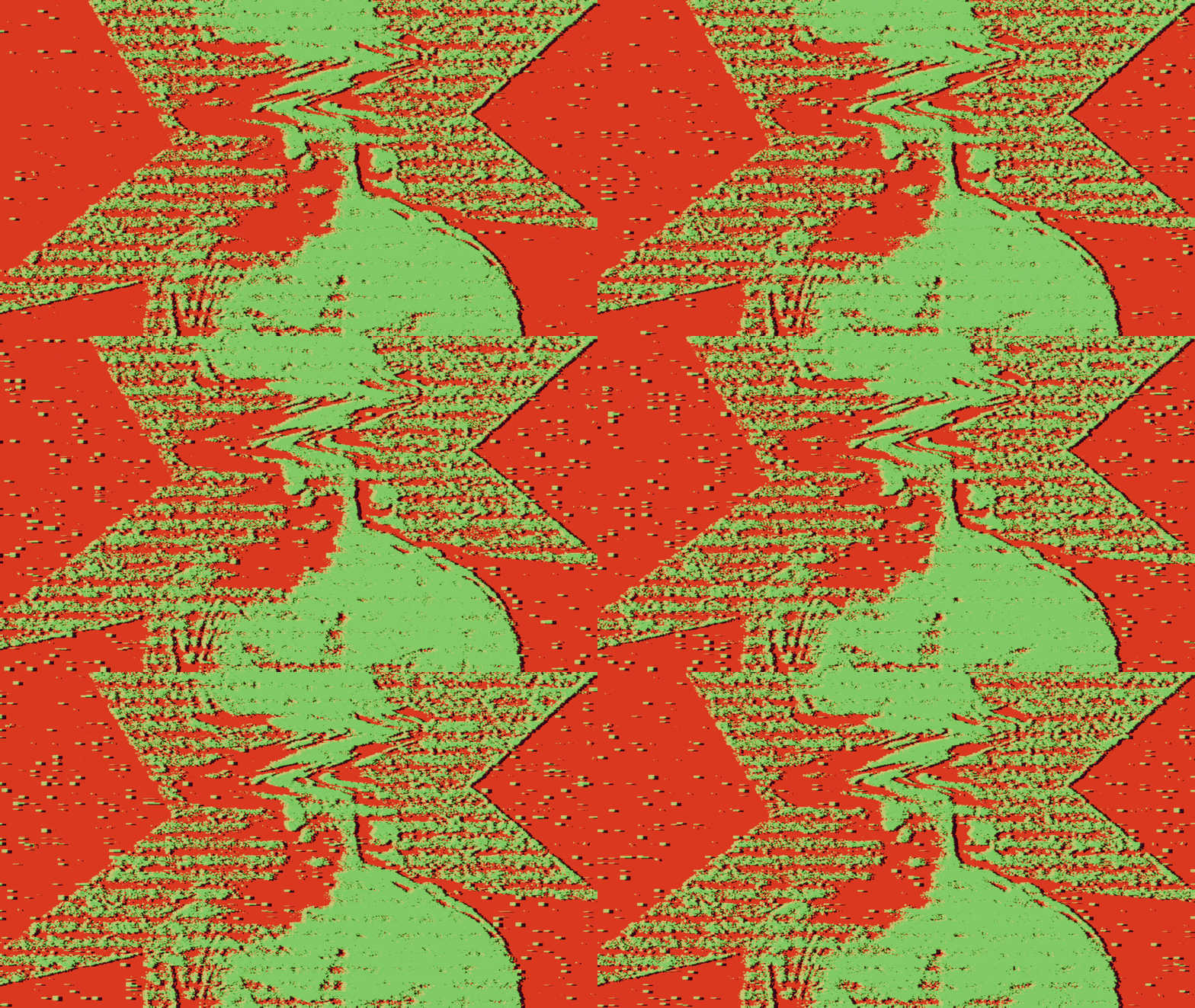
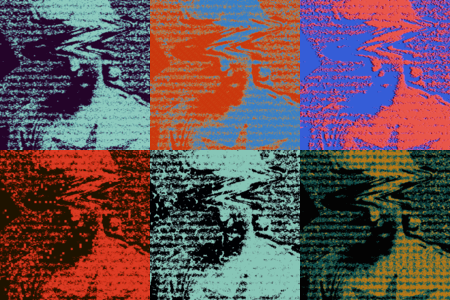
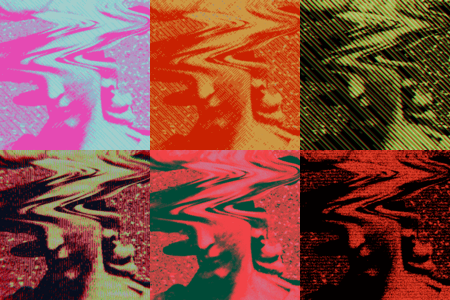
- Applying Presets: Use the Preset dropdown to switch between styles. Your manual adjustments for each style are automatically saved and remembered when you switch. If you want to return a preset to its original factory settings, simply click the Reset button located next to the preset selector.
DETAILED SETTINGS GUIDE:
DITHER CORE SETTINGS
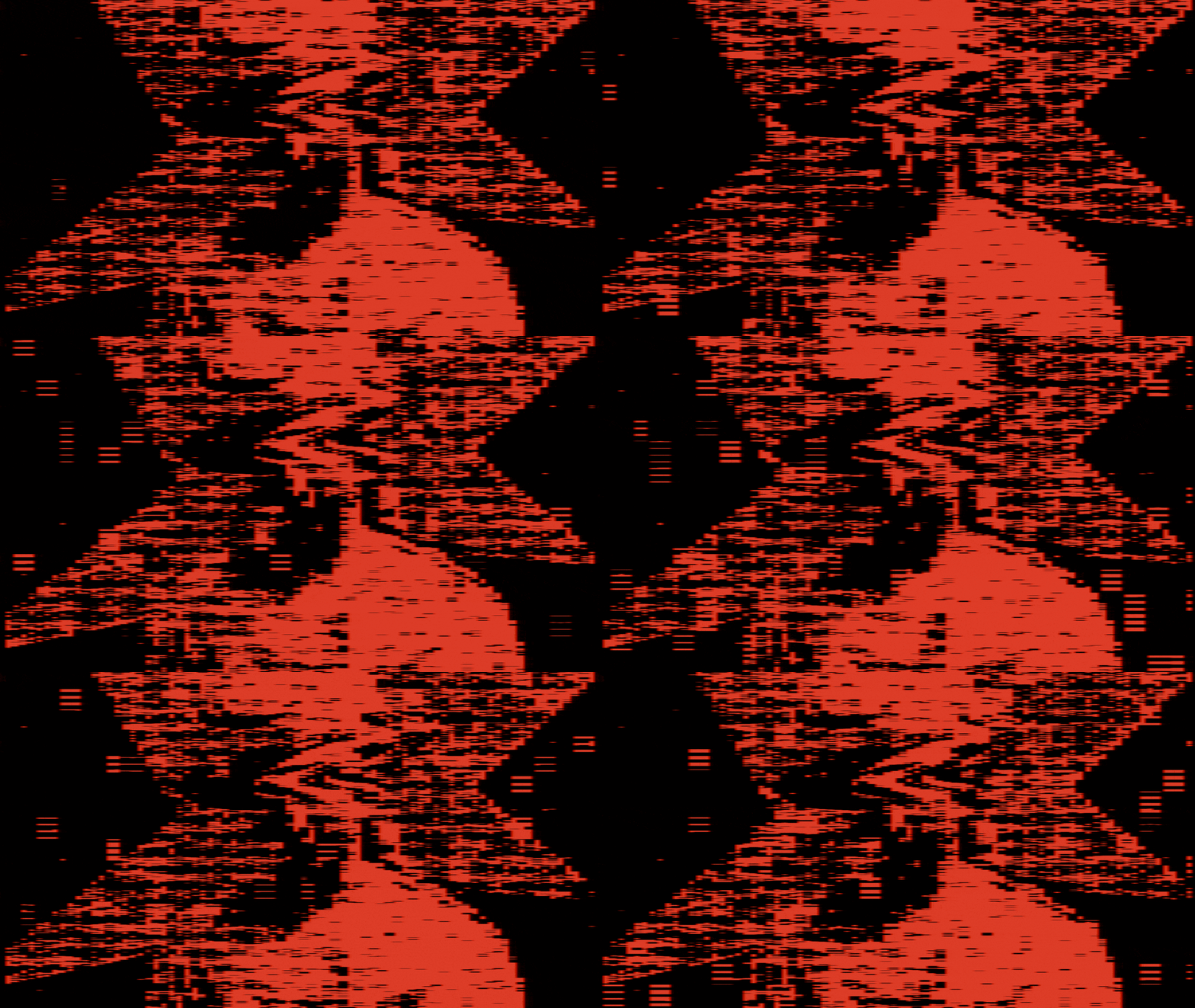
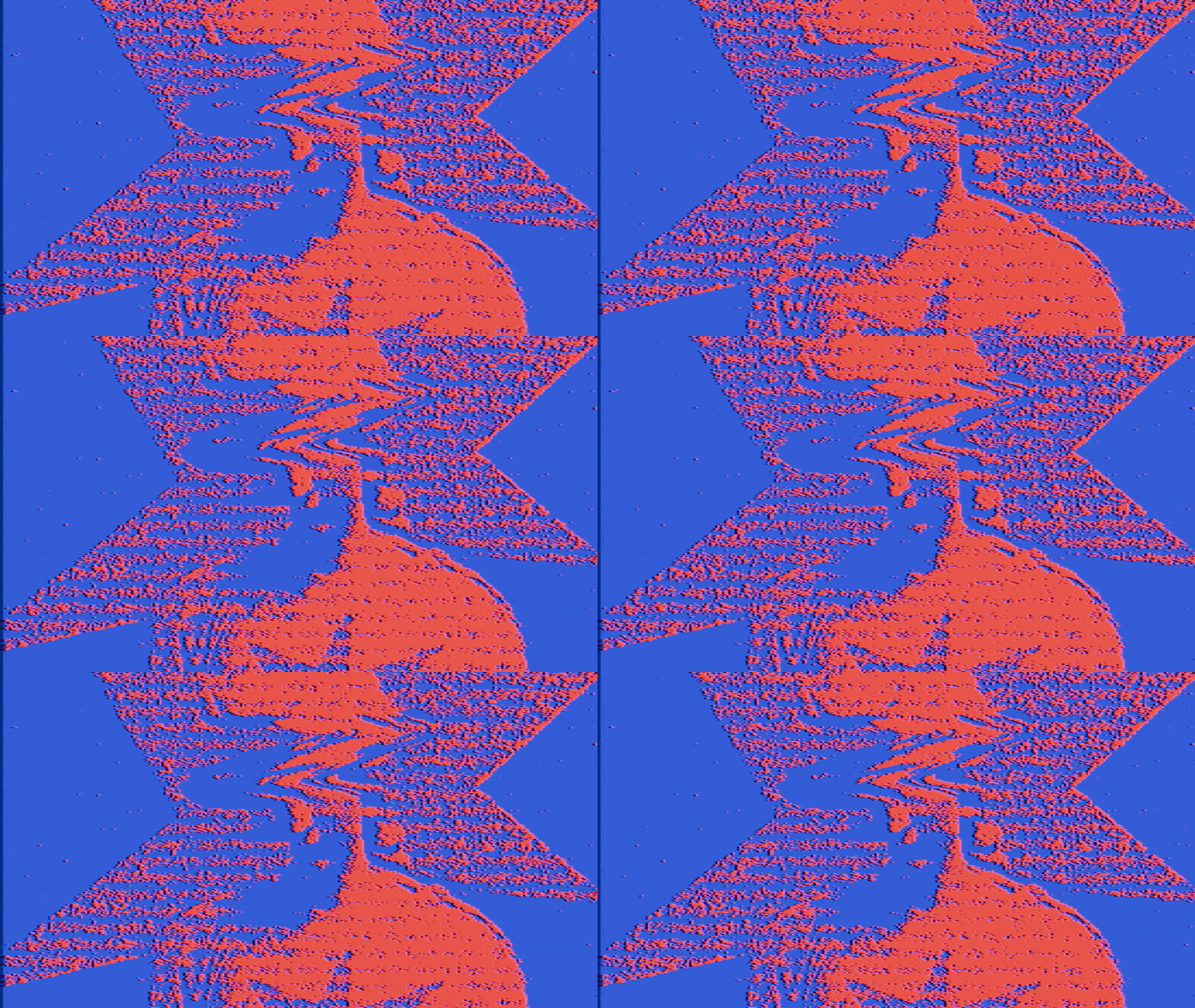
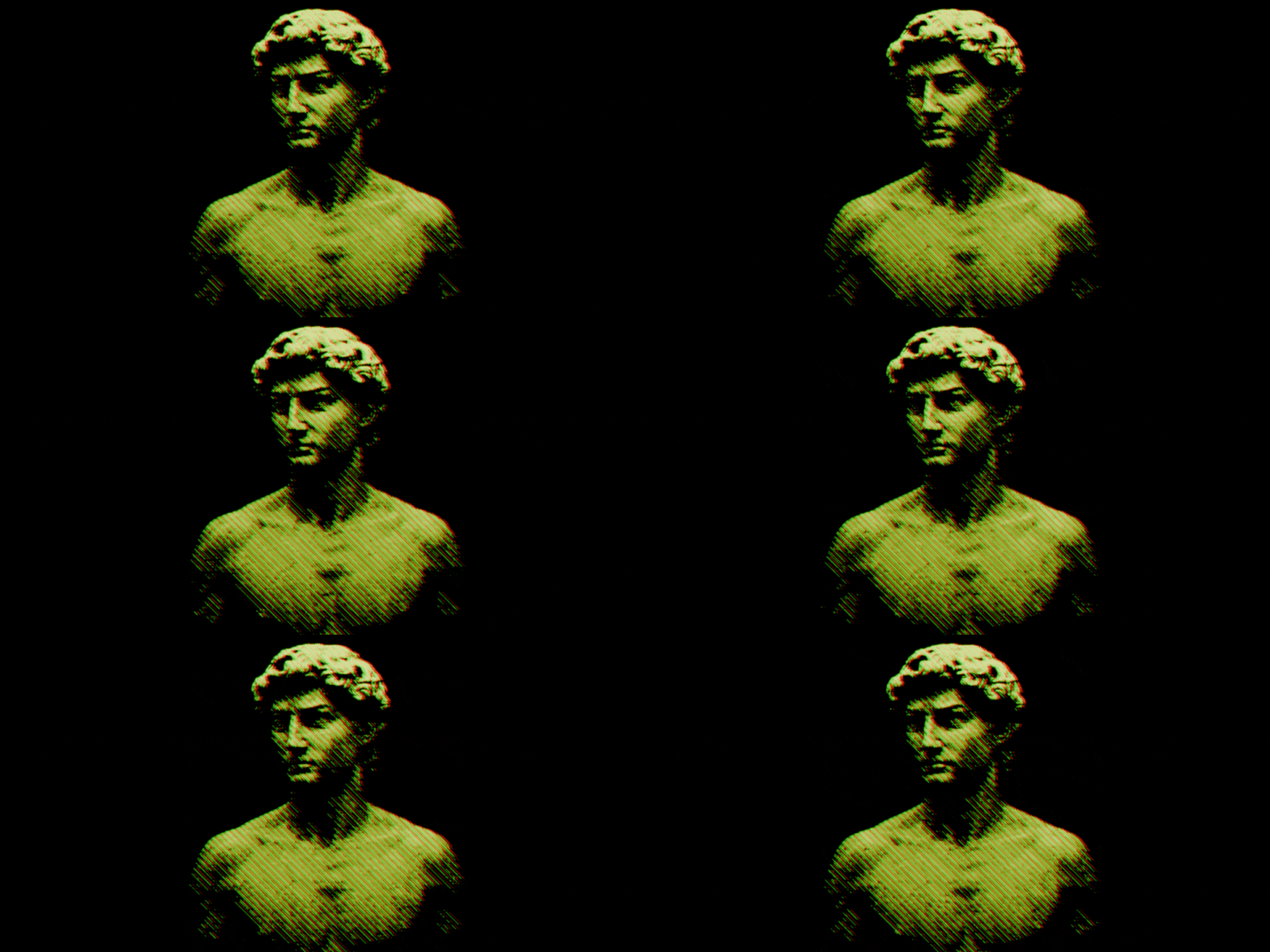
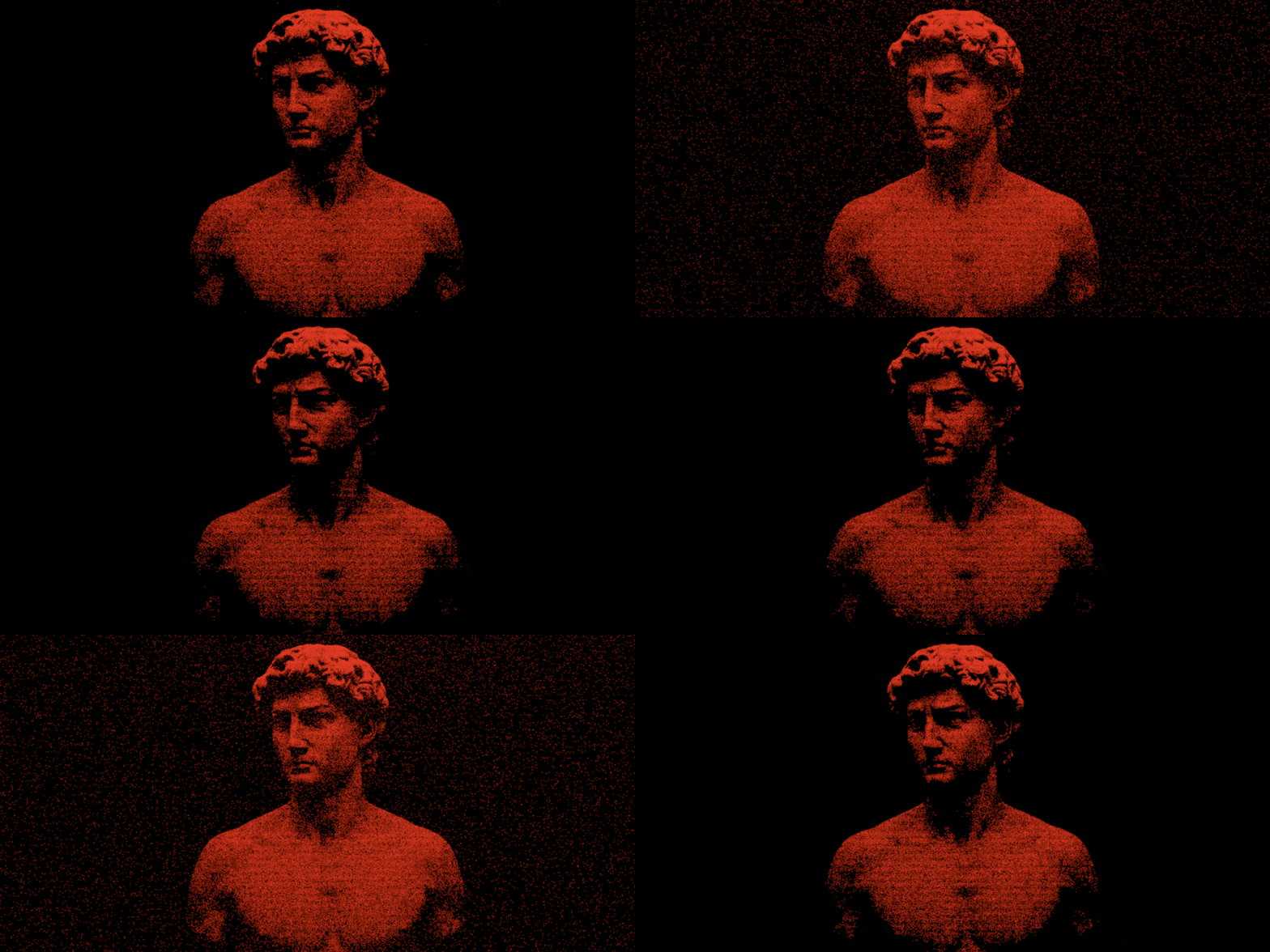
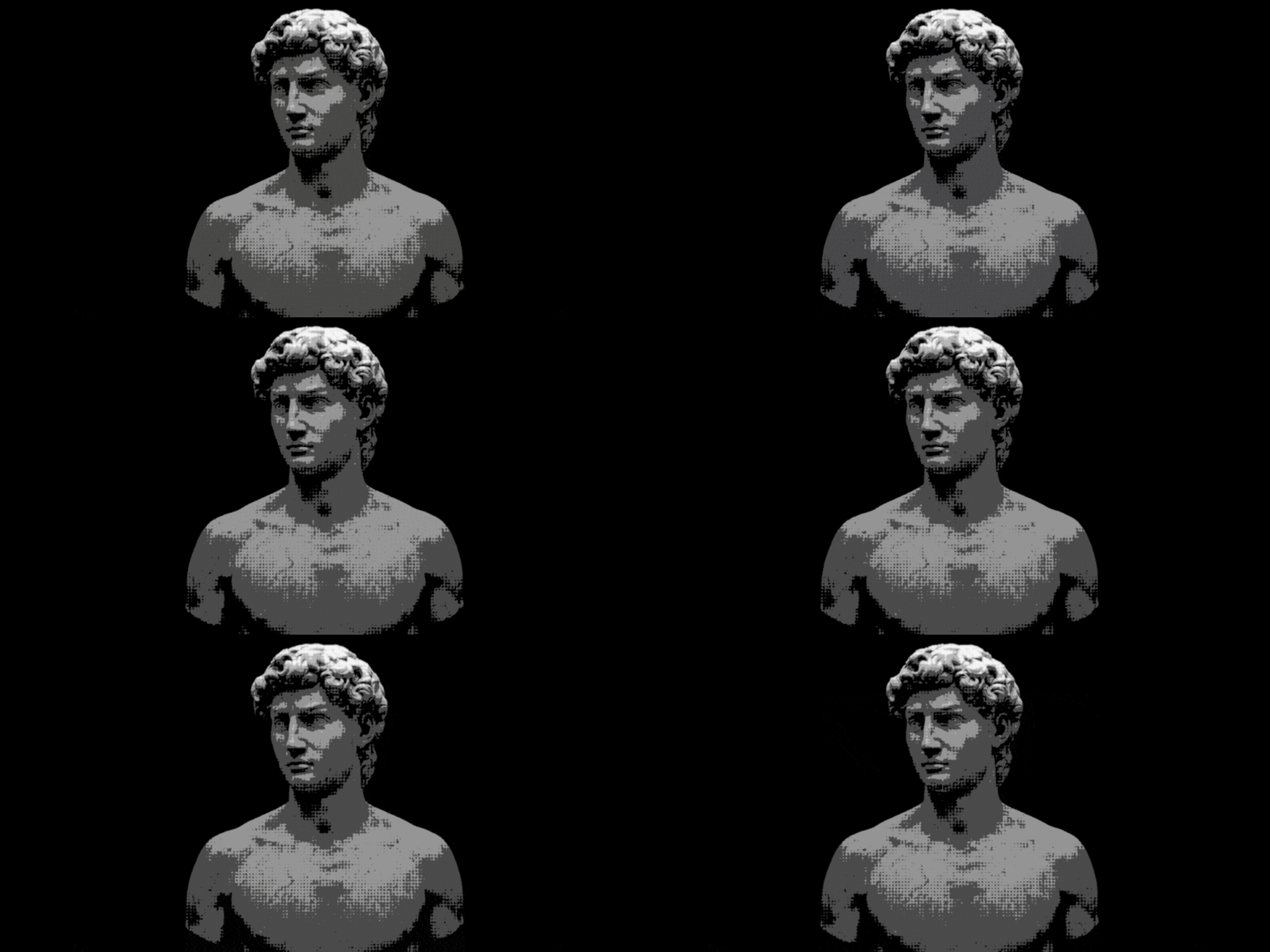
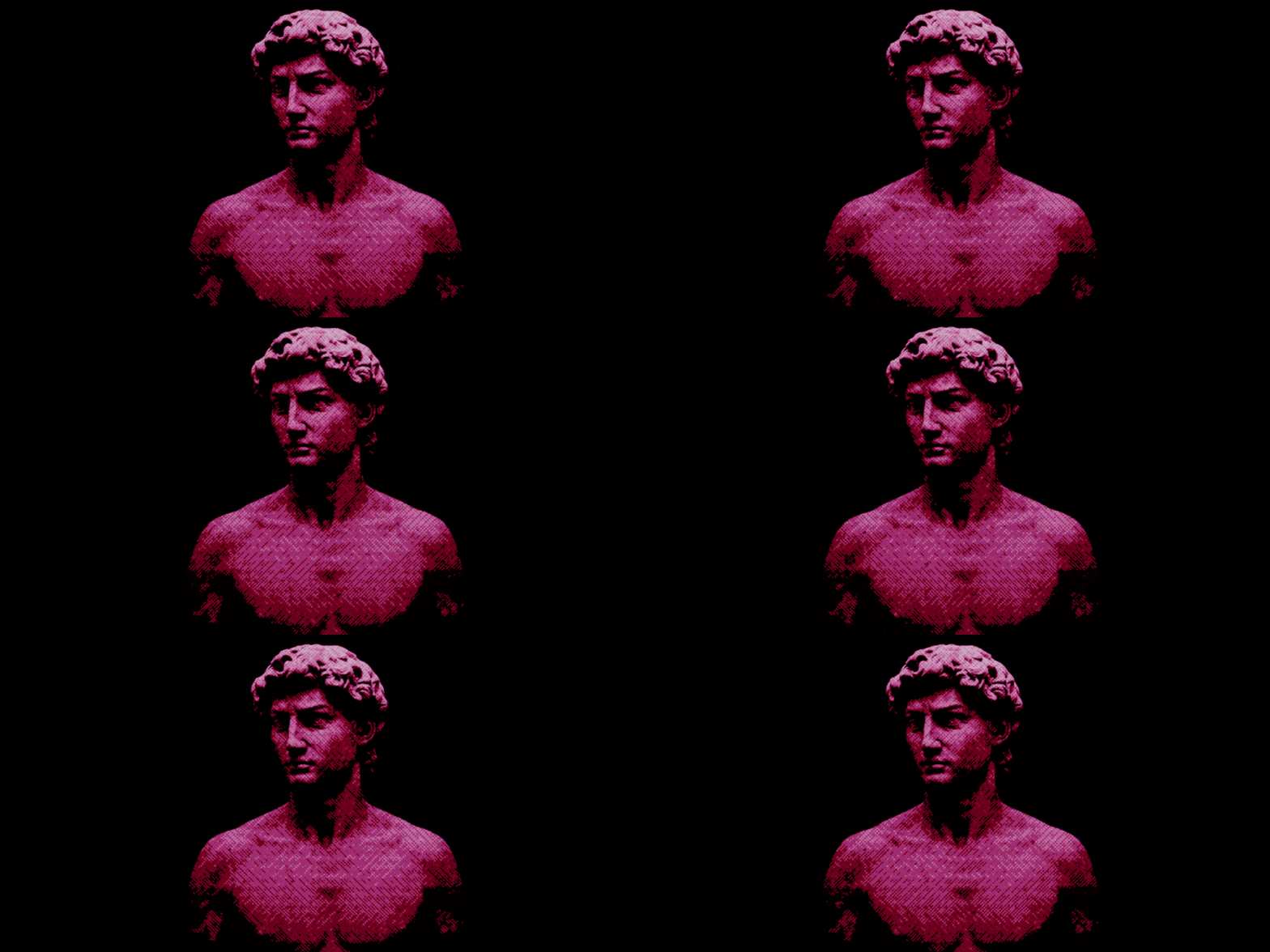
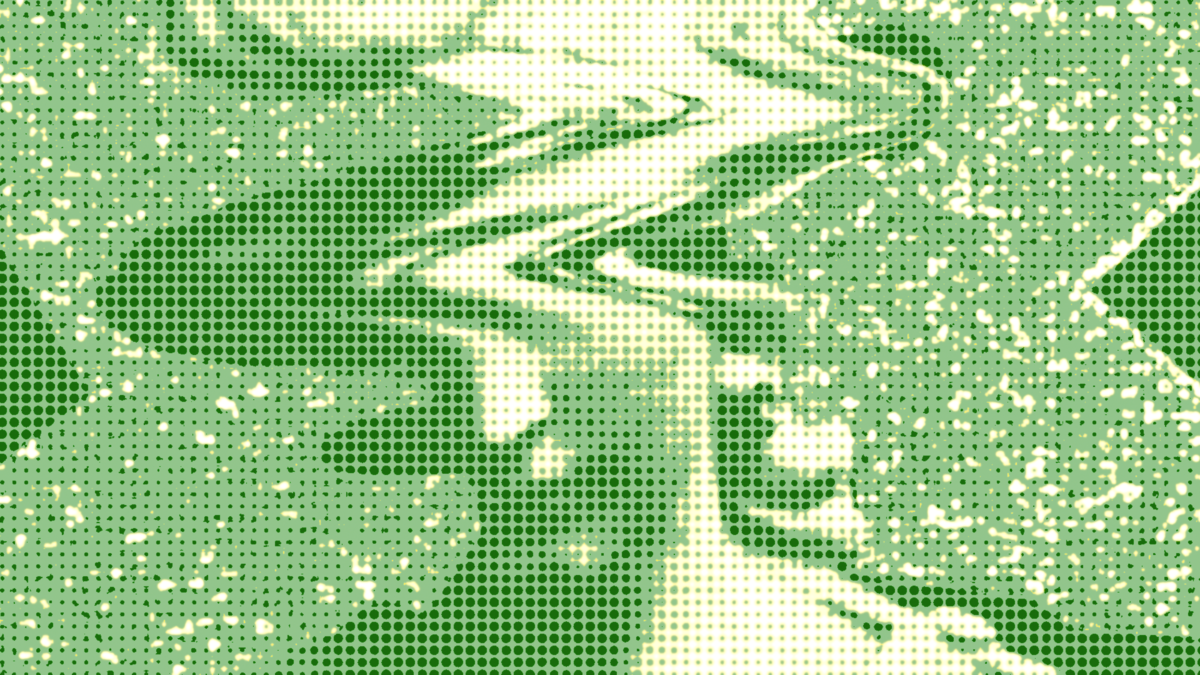
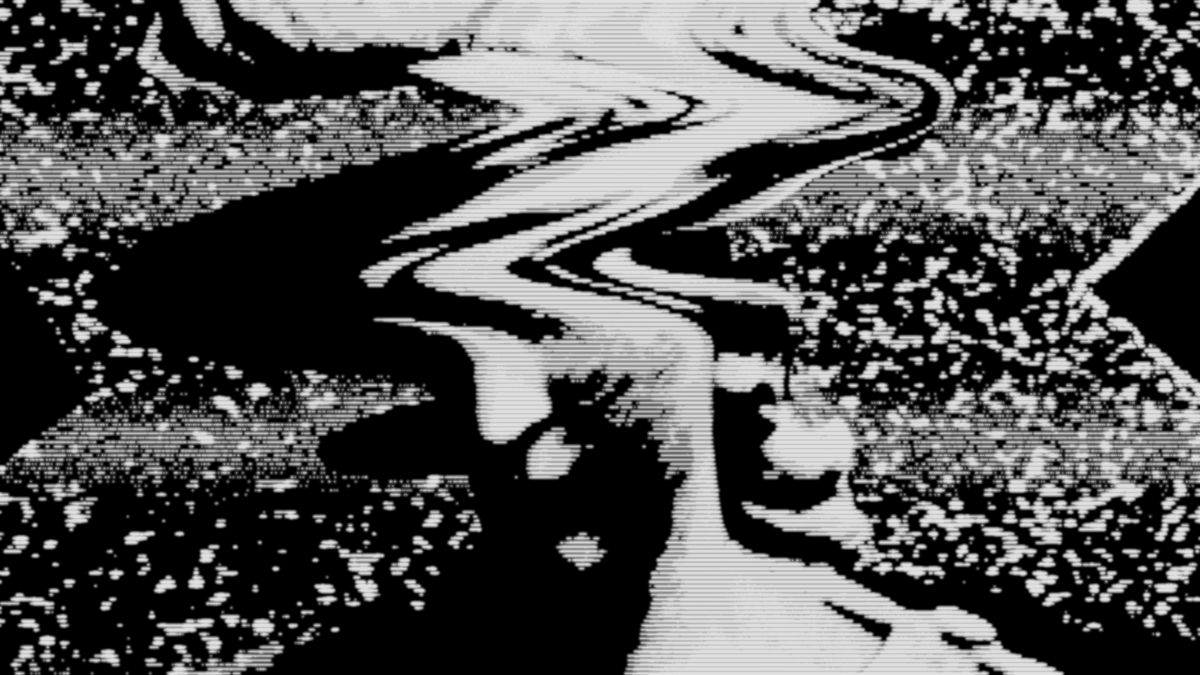
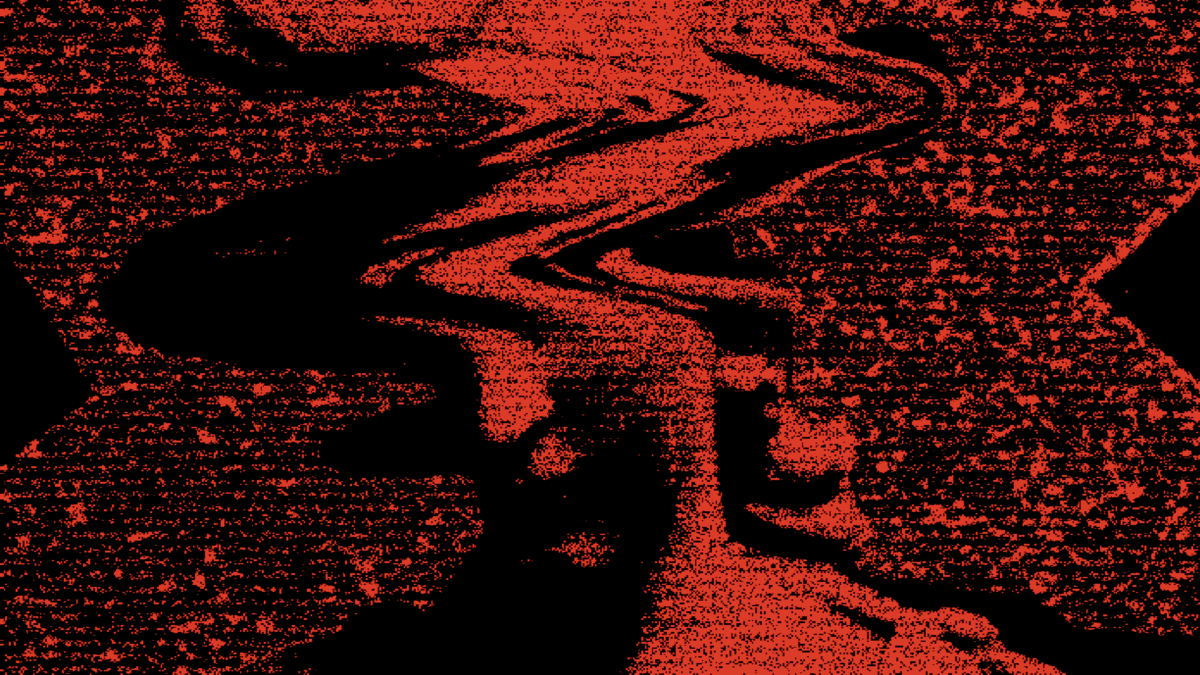
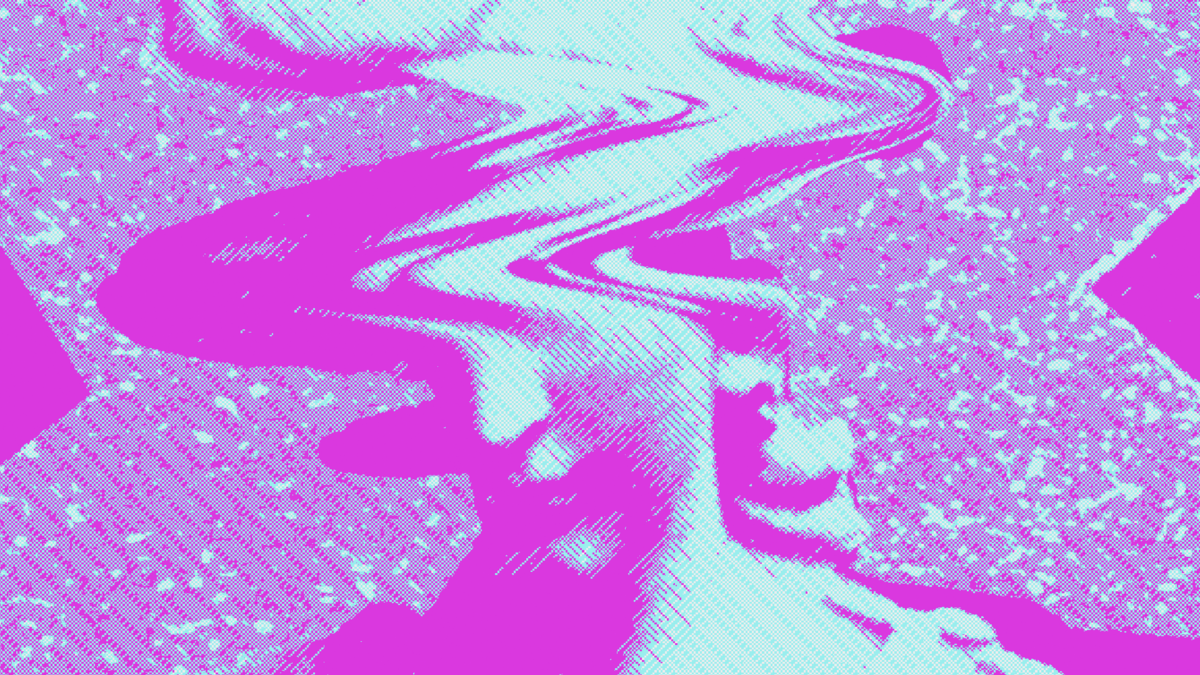
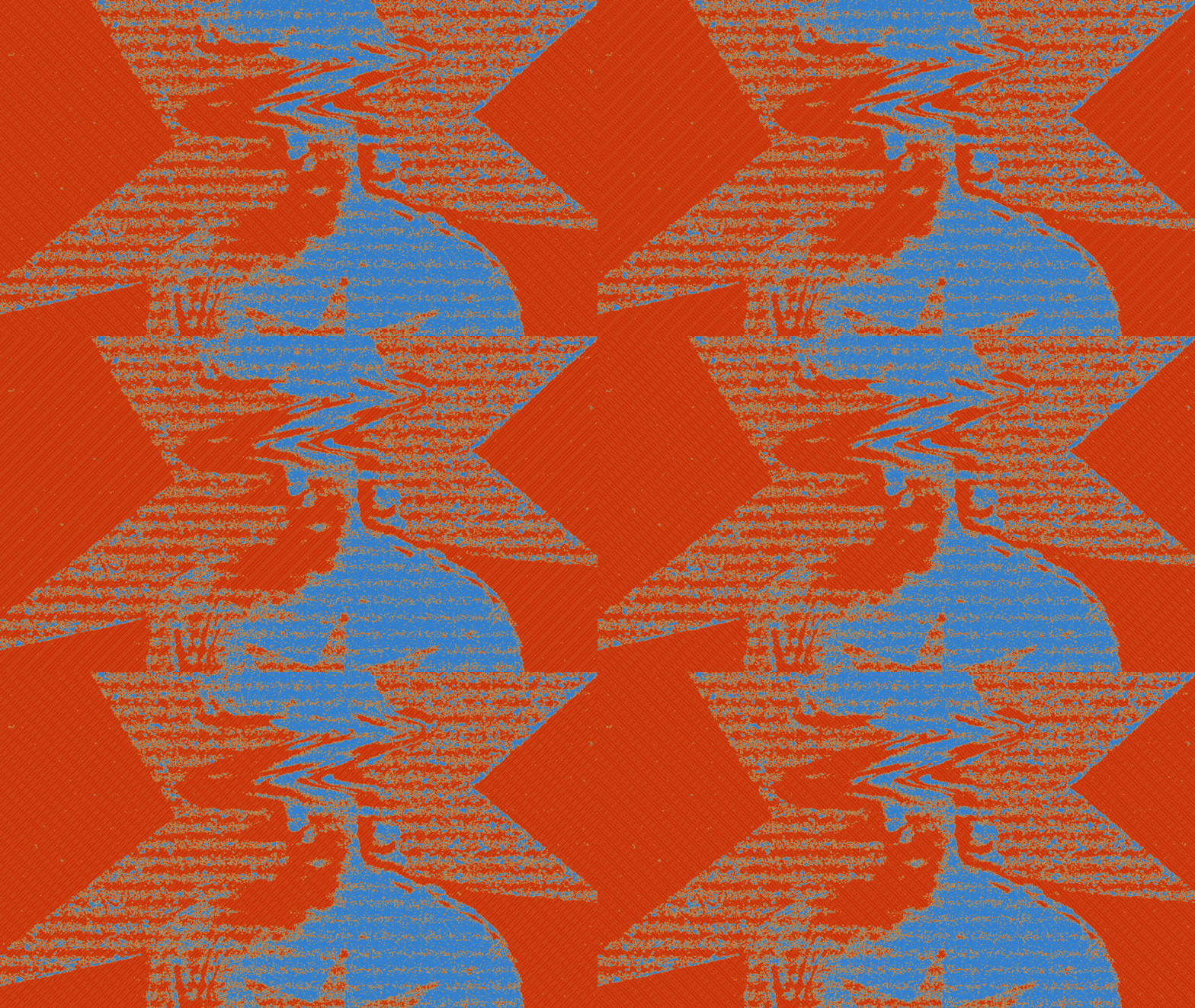
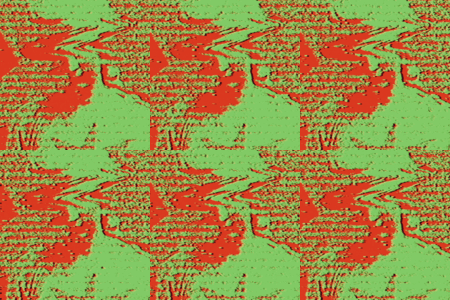
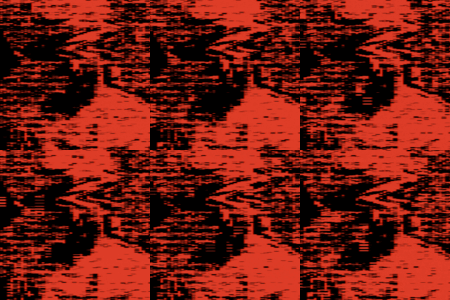
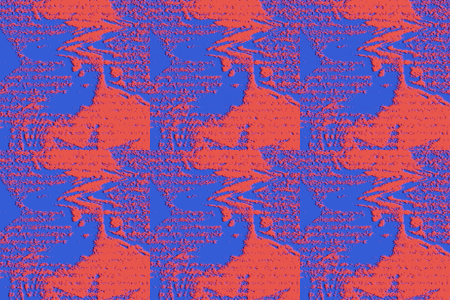
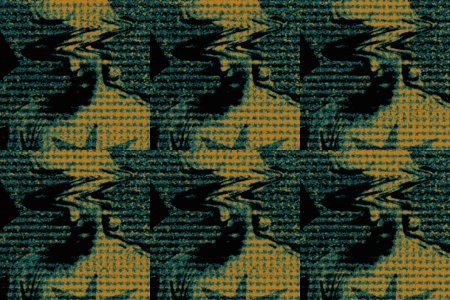
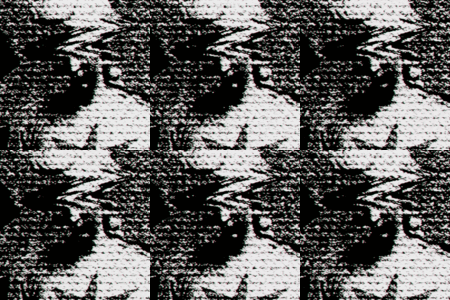
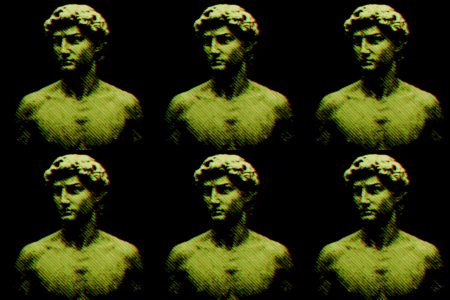
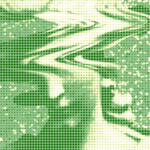
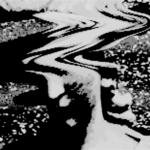
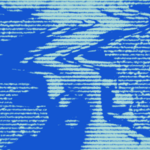
- Style: Choose the algorithm used for dithering (Bayer, Halftone, Noise, ASCII, etc.).
- Pattern Scale: Controls the overall size and density of the dithering pattern.
- Dither Strength: Adjusts the intensity of the dithering effect over the image.
- Pixel Size: Changes the size of the pixel blocks that make up the image.
- Motion & Speed: Enables and controls the speed of animated dithering noise/patterns.
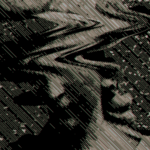
- Pattern Warp / Line Distortion: Adds organic distortion to the dithering grid.
COLOR SPACE & PROCESSING
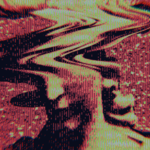
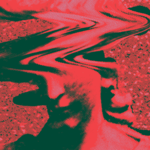
- Color Space: Select the color model (RGB, CIELAB, YIQ, Mono, Palette) to emulate specific retro hardware constraints.
- Color Steps: Defines how many distinct color bands or shades are used.
- Mono Black & White: Customizes the two colors used in Monochrome mode.
- NTSC Blur & Phase Shift: Controls the signal degradation for the YIQ color space.
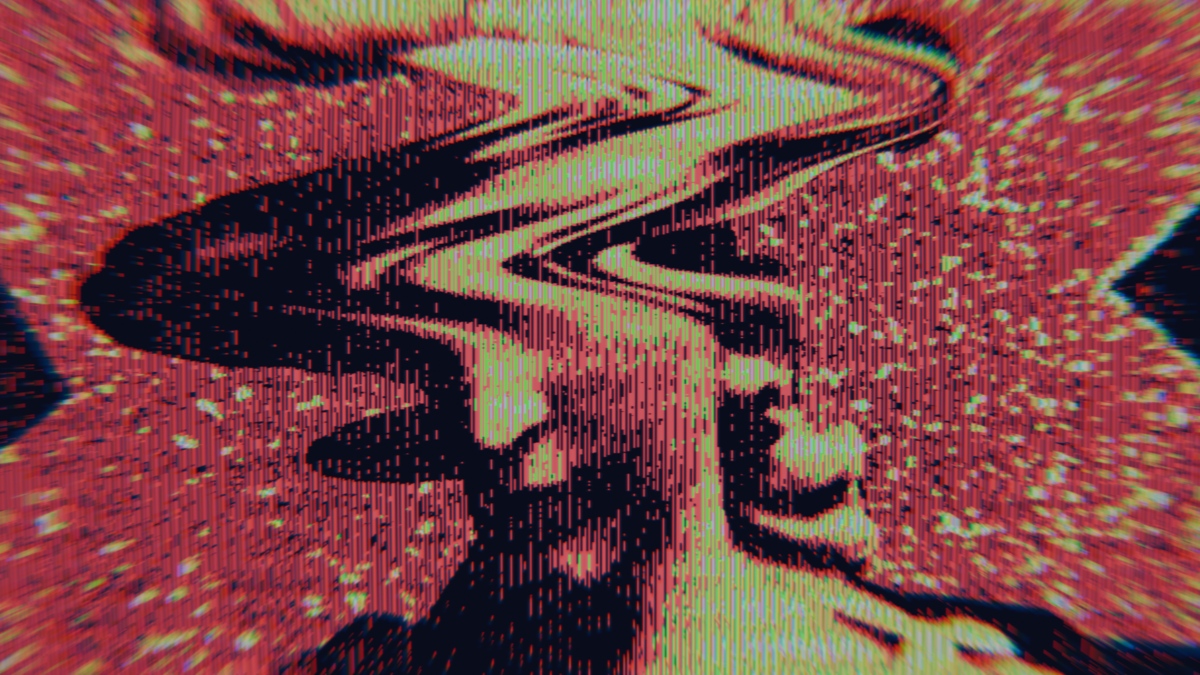
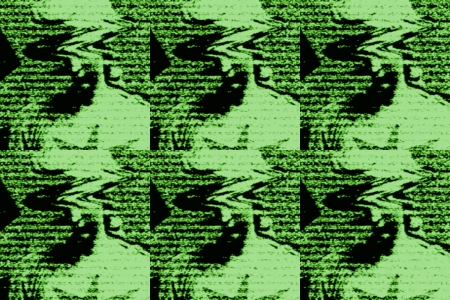
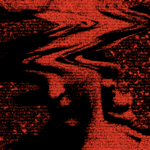
- Cyber Color & Flicker: Controls the base color and flicker intensity for glitch styles.
SCANLINES & MASKING
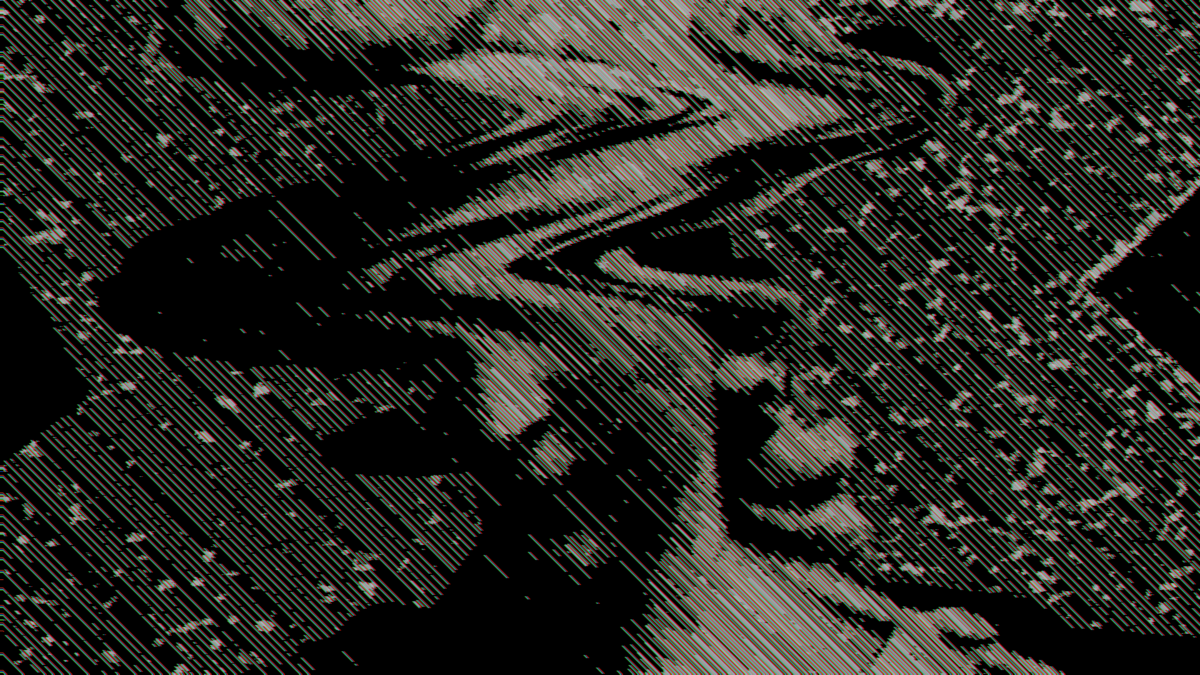
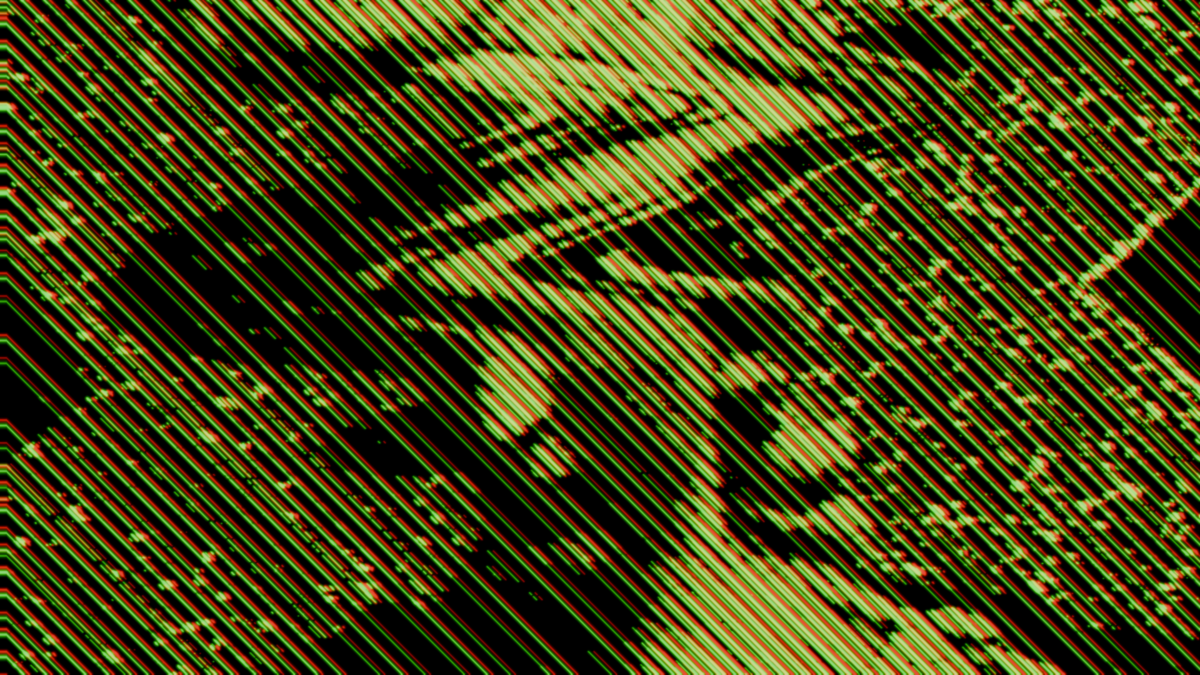
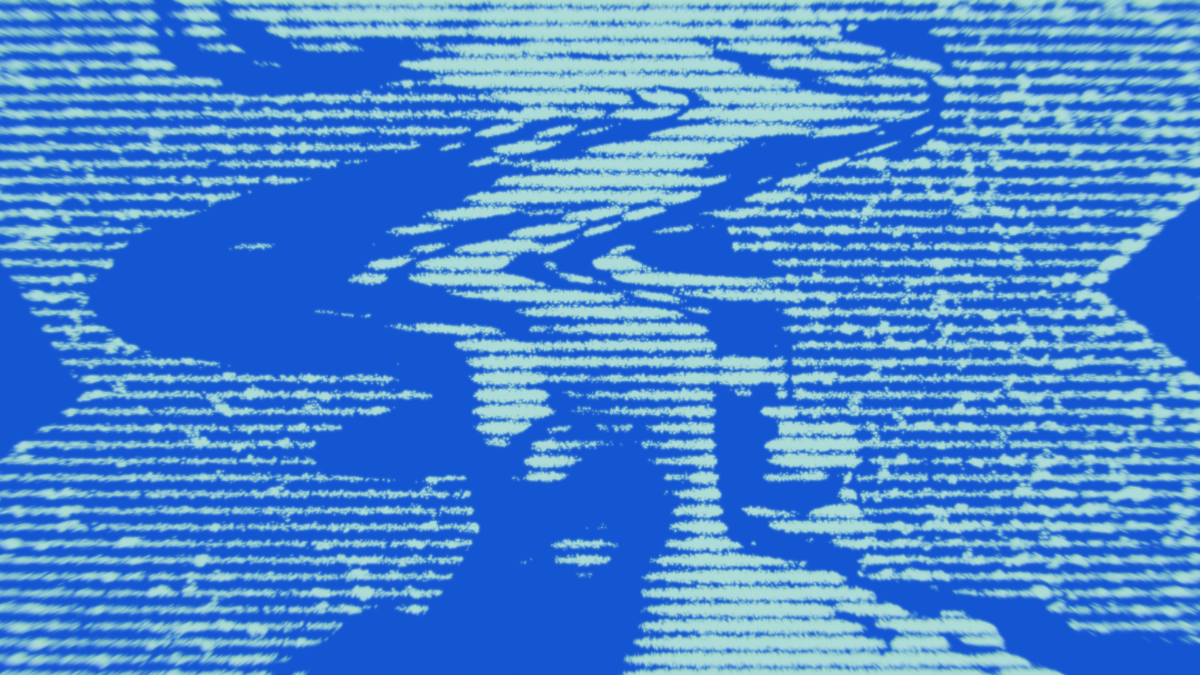
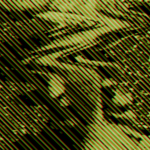
- Scanline Strength & Scale: Overlays horizontal TV-style lines and adjusts their density.
- Mask Edges: Restricts the dither effect to preserve or emphasize image edges.
- Mask Shadows & Highlights: Targets the dither effect selectively in dark or bright areas.
POST PROCESSING & FX
- Brightness & Contrast: General image adjustments applied after dithering.
- Blur X & Y: Softens the image horizontally and vertically.
- Glow Threshold & Amount: Creates a neon bloom effect on the brightest parts of the image.
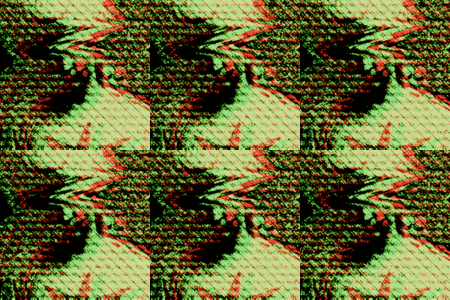
- Chromatic Aberration Mode: Choose between Lens dispersion or custom RGB channel shifting.
- Dispersion / RGB Offsets: Controls the strength and direction of color separation.
NOTES:
- For additional details on functions and values, hover the cursor over the desired item to trigger a descriptive tooltip.
- For the most accurate preview, always view your scene through the camera and maximize the 3D viewport as much as you can. This helps reduce differences between the viewport and the final render. Otherwise, the result may look slightly different from the final render.