DrapeFix: Cloth Drape for Fitted Outfits, Keeps Shape Keys and Weights
 Meshwright
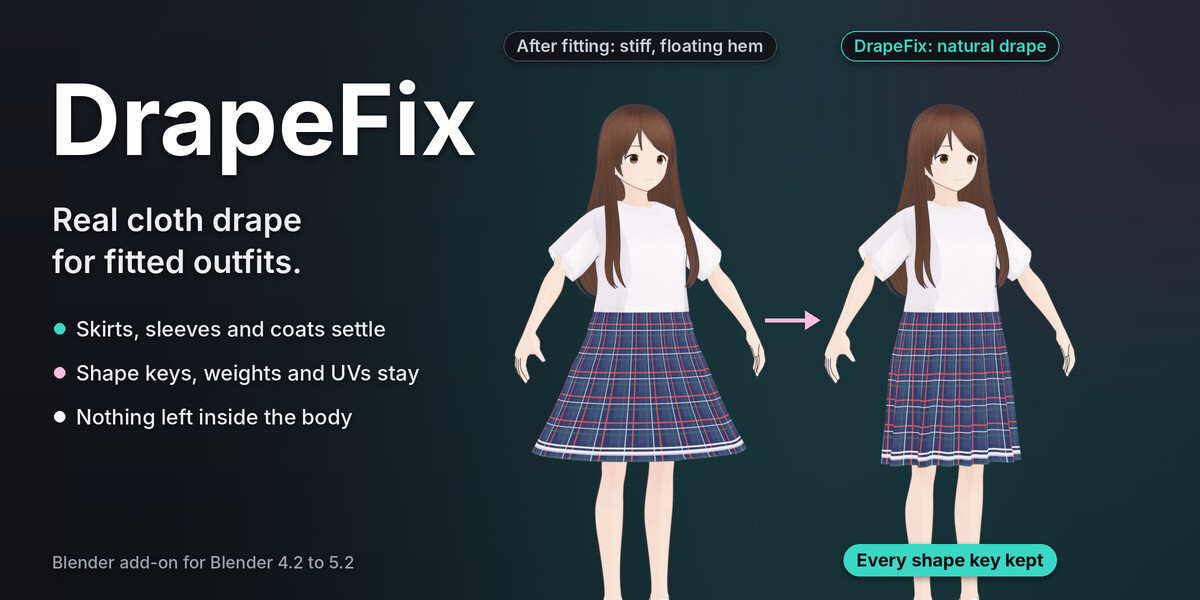
2. Install
- Download
drapefix-1.0.0.zip. Do not unzip it. - In Blender: Edit > Preferences > Get Extensions. Open the menu at the top right (the small arrow) and choose Install from Disk.
- Pick
drapefix-1.0.0.zipand press Install from Disk. DrapeFix is enabled at once. - In the 3D Viewport press N to open the sidebar and click the Meshwright tab. The panel is DrapeFix.
You can also drag the zip onto the Blender window and confirm.
To update, install the new zip the same way. To remove it: Preferences > Get Extensions, DrapeFix, Uninstall.
Japanese interface: Edit > Preferences > Interface > Translation, Language 日本語, with Interface and Tooltips ticked.
3. The panel
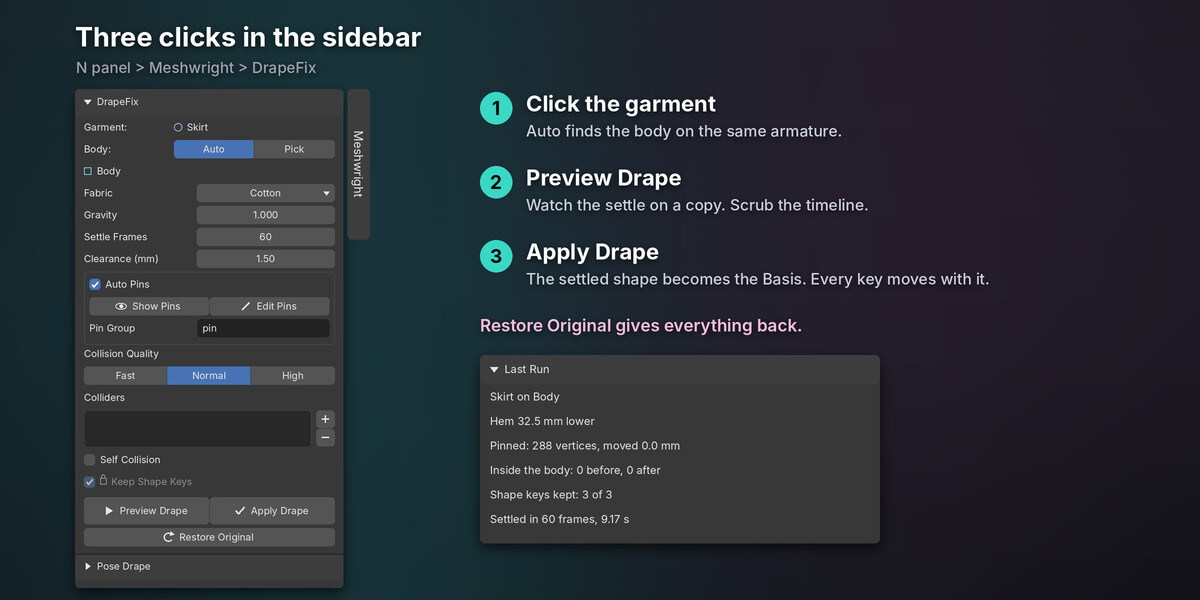
3D Viewport > Sidebar (N) > Meshwright > DrapeFix.
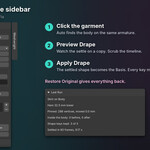
- Garment: the active mesh. Click the garment in the viewport.
- Body: Auto or Pick. Auto finds the body on the garment's armature: the mesh named like a body (Body, 素体), else the tallest mesh that is not hair or a face. The panel shows the mesh it found.
- Fabric, Gravity, Settle Frames, Clearance (mm): how the cloth behaves (section 6).
- Auto Pins, Show Pins, Edit Pins, Pin Group: what holds the garment (section 7).
- Collision Quality, Colliders, Self Collision: what the cloth collides with (sections 6 and 9).
- Keep Shape Keys: always on. Shape keys, weights and texture maps always stay.
- Preview Drape and Apply Drape: run the settle (sections 4 and 5).
- Restore Original: gives back the garment as it was (section 11).
- Last Run: the report of the last run (section 10).
4. Drape a skirt or dress (the usual case)
- Fit the outfit to the body first, for example with Outfit Refit. Keep the avatar in rest pose.
- Set the body's shape keys the way you use the avatar. DrapeFix collides with the body's current shape key mix.
- Click the garment.
- Check Body. Auto is right for most avatars.
- Choose the Fabric. Cotton suits most skirts and dresses.
- Press Apply Drape.
The settle takes about 10 seconds for a skirt of a few thousand vertices. A progress bar shows. Esc or Cancel stops it, and nothing changes.
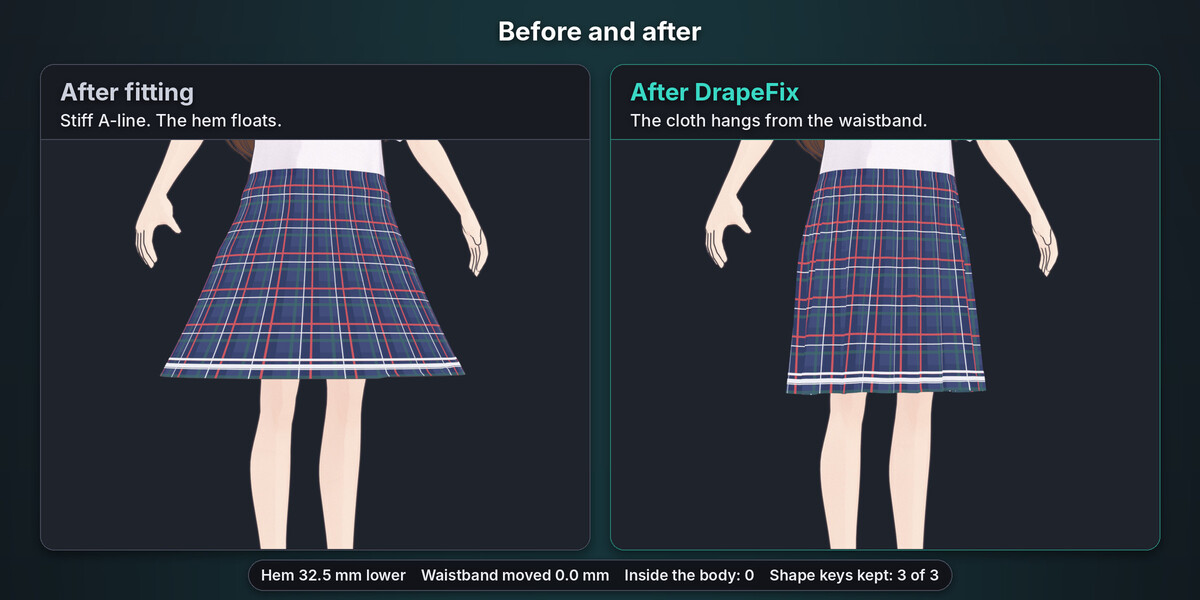
When it ends, the garment has its new shape. Read the Last Run box: the hem drop, the pins, the vertices inside the body before and after, and the shape keys kept.
5. Preview first
Preview Drape settles a temporary copy. The garment itself does not change and is hidden while the preview shows. Scrub the timeline from frame 1 to watch the settle (every fifth frame is a shape key on the copy).
If you like it, press Apply Drape. It reuses the preview, so it is instant. If you change a setting, the pin group or a collider, Apply Drape settles again.
The small X next to the preview line removes the preview.
6. Fabric and settings
| Setting | Default | What it does |
|---|---|---|
| Fabric | Cotton | Cotton (everyday cloth), Silk (light, falls close to the body), Denim (heavy, stiff), Leather (very stiff, little drape), Tulle (very light net: petticoats), Knit (soft and stretchy). |
| Gravity | 1.0 | Strength of gravity. 1 is normal. |
| Settle Frames | 60 | How long the cloth settles. It stops early when the cloth stops moving (under 0.05 mm a frame on average). |
| Clearance (mm) | 1.5 | Smallest gap kept between the cloth and the body. |
| Collision Quality | Normal | Fast: a lighter collision body (at most 8,000 faces) and fewer solver steps. Normal: at most 20,000 faces. High: more solver steps for thin or fast-folding cloth. |
| Colliders | none | Extra meshes the cloth must stay outside of: an inner layer, a chair. |
| Self Collision | off | Keeps a folding hem from passing through itself. Slower. |
Scenes in centimetres or other units work: the millimetre settings are converted.
7. Pins: waistbands, straps, collars
A garment hangs from what holds it. Auto Pins holds bands within 3 mm of the body that wrap around it: waistbands, straps over the shoulders, collars, cuffs. A separate part that is at least half held (a strap, a belt) is held whole.
- Show Pins shows the held vertices in red (Weight Paint view). Hide Pins goes back.
- Edit Pins opens Weight Paint on your own pin group. Weight 1 holds a vertex. Auto Pins turns off, so only your group holds the garment. Turn Auto Pins on again to add both.
- Pin Group names your group (default "pin").
If nothing holds the garment, the report says so: it can slide down. Paint a pin group with Edit Pins.
Small separate parts that nothing holds (a bow, buttons, a frill, a lining) hang on the nearest part of the garment within 2.5 cm. A part far from everything still needs a pin.
8. Shape keys
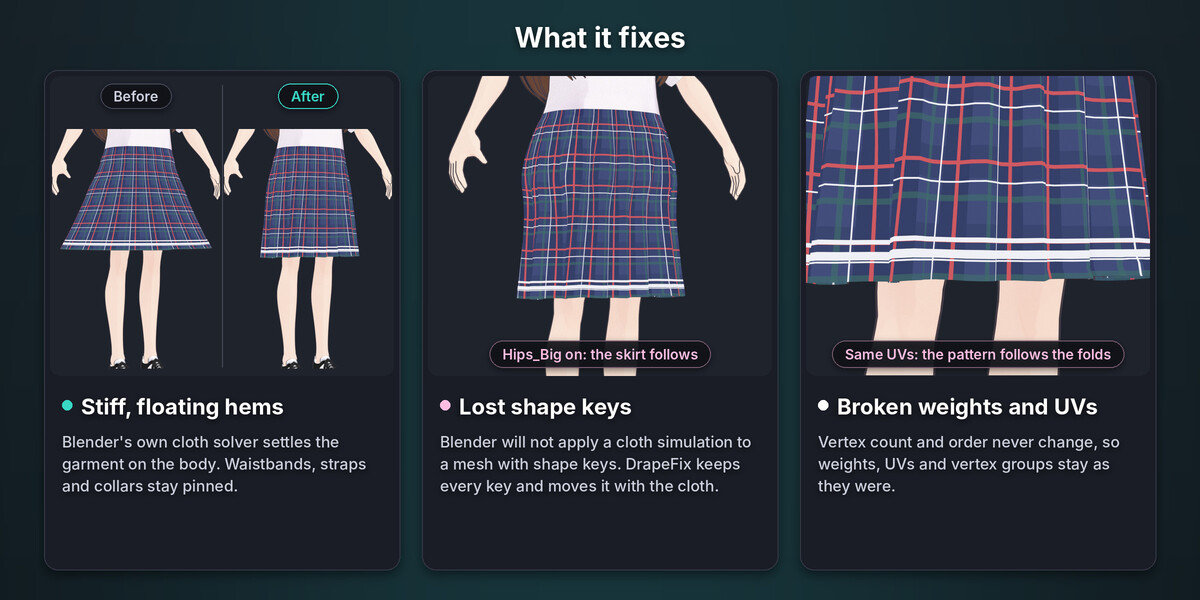
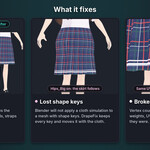
DrapeFix keeps every shape key, with the same names, count and order.
Each key keeps its offset in the cloth's own surface frame (the vertex normal and the direction of the texture). So a Flare key still flares the draped skirt outward, and a body-follow key still follows the body.
Then every key is checked against the body with the body key of the same name turned on. Any cloth vertex inside is pushed out to the clearance. A key with no body key of the same name is checked against the body without keys.
On deep, sharp folds, a key with a large offset can look uneven along the fold line.
9. Layered outfits
- Drape the inner layer first (a petticoat, a lining).
- Select the outer layer and add the inner layer under Colliders with the + button.
- Drape the outer layer.
The inner layer moves into place from its old shape during the first frames of the settle, so the outer cloth is pushed along instead of starting inside it. A waistband resting on the inner layer is held like one resting on the body.
10. Read the report
The Last Run box shows:
- Skirt on Body: the garment and the body used.
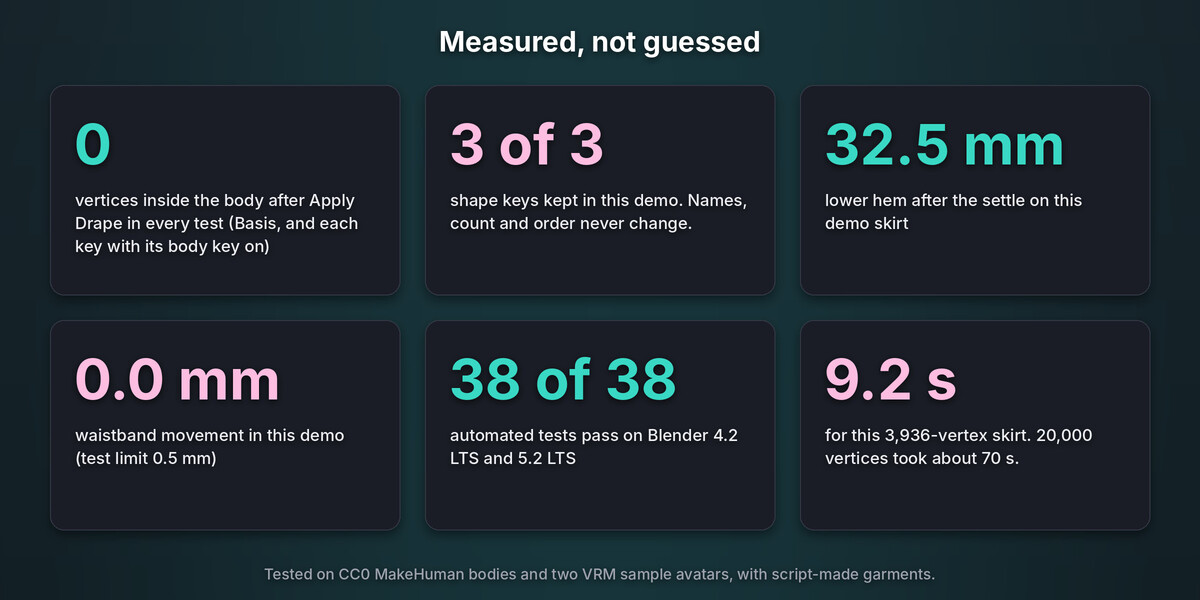
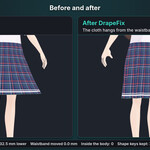
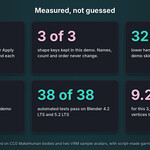
- Hem 32.5 mm lower: how far the hem dropped on average.
- Pinned: 288 vertices, moved 0.0 mm: the held vertices and how far they moved.
- Inside the body: 0 before, 0 after: cloth vertices inside the body before and after.
- Shape keys kept: 3 of 3.
- Settled in 60 frames, 9.17 s.
These are the numbers from our demo skirt on the VRoid sample avatar. Notes under the report (in English) tell you about anything special: body keys not at zero, faces left out of the simulation, scene units, a dense outfit.
11. Backups, Undo and Restore Original
- The first change keeps a hidden copy of the original garment in the file.
- Restore Original gives back the Basis and every shape key exactly (data, names, order, values, relative keys) and removes the keys DrapeFix added.
- One Ctrl+Z undoes Apply Drape.
- The backup stays while another object (a copy of the draped garment) still uses it.
12. Export to Unity
Export the FBX as usual. The vertex count and order are the same as before, so the blend shapes, weights and UVs match what Unity had.
13. Messages and what to do
| Message | What to do |
|---|---|
| Select the garment (a mesh) | Click the garment in the viewport. |
| No body found: the garment has no armature with another mesh on it. Pick the Body | Choose Pick and pick the body mesh. |
| Apply the Mirror (or Subdivision Surface) modifier first | Apply that modifier on the garment, then try again. |
| The garment or the body is mirrored (negative scale) | Apply the scale (Object > Apply > Scale). |
| ... is linked from another file: make it local first | Object > Relations > Make Local. |
| The garment and the body must be in the scene, in a visible collection | Show the collection. |
| N vertices fell away from the body during the settle: nothing holds them up | Paint a pin group on that part (Edit Pins), or move it closer to the body. Nothing was changed. |
| The cloth simulation became unstable twice (it exploded), so nothing was changed | Try Collision Quality High, a stiffer fabric, fewer frames, or check the garment for overlapping or zero-size faces. |
| There is no original to restore | DrapeFix has not changed this garment. |
14. Limits
- DrapeFix drapes cloth that hangs from its pins. A top held by a tight neckline hangs from the neckline, so the cloth on the shoulders close to it can stay a few millimetres above the body. Sleeves and hems settle fully.
- Apply Drape works in rest pose.
- Tight clothes are mostly held by the auto pins, so little changes. A fully held garment stays as it is, with a note. For clipping on tight clothes, ClipFix is the faster tool.
- Big outfits take longer. In our tests a 20,000-vertex skirt took about 70 seconds on a shared 2-core machine. Outfits over 50,000 vertices use the Fast collision body, and the report warns about the time.
- Faces with no area and faces on edges shared by more than two faces stay out of the simulation. The report says how many.
- Bodies with clothes merged in (a belt over a tunic) overlap themselves. A cloth point inside such a part is counted in the report but not pushed out.
- DrapeFix pushes cloth vertices out of the body. With a body key on, a sharp part of the body can still show between two cloth vertices. Hiding the skin under the clothes (a Mask modifier) is the usual cure, and DrapeFix works with it.
- Tested on CC0 MakeHuman bodies and two VRM sample avatars, with script-made garments. Not tested on BOOTH outfits.
- The notes under the report are in English.
Have questions about this product?
Login to message
| Blender Extension Compatible | Yes |
| Published | about 4 hours ago |
| Blender Version | 4.2 - 5.2 |
| Extension Type | Add-on |
| License | GPL |