 Orbbit Tools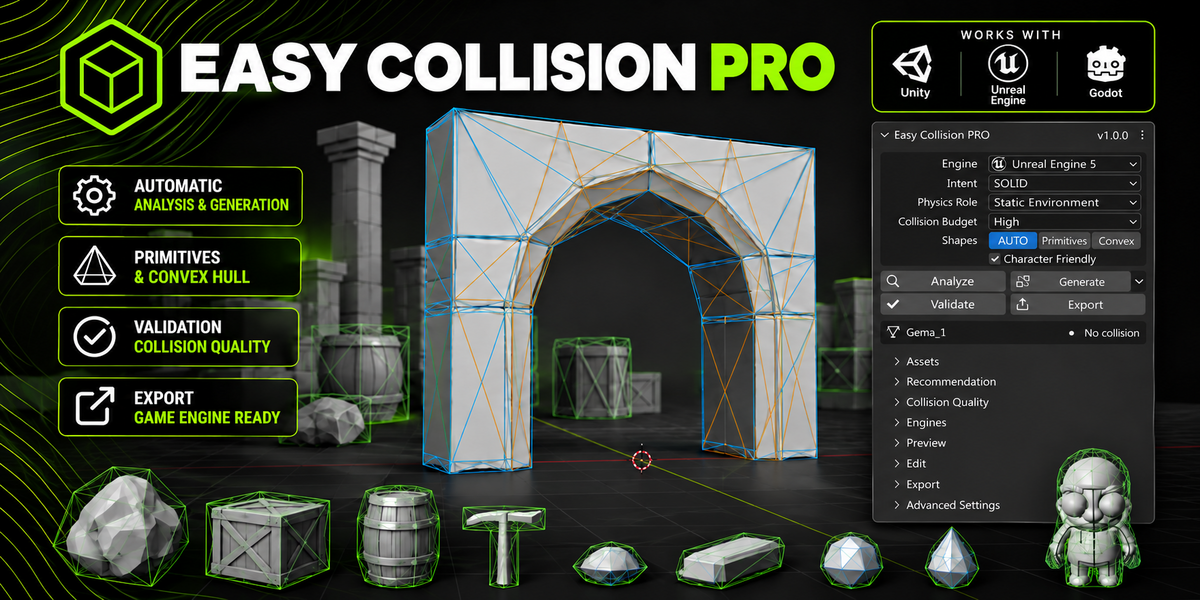
Easy Collision PRO
Cross-engine collision authoring for Blender 5.2 LTS, by Orbbit Tools Unreal Engine 5 · Unity 6 · Godot 4 · Version 1.0.0
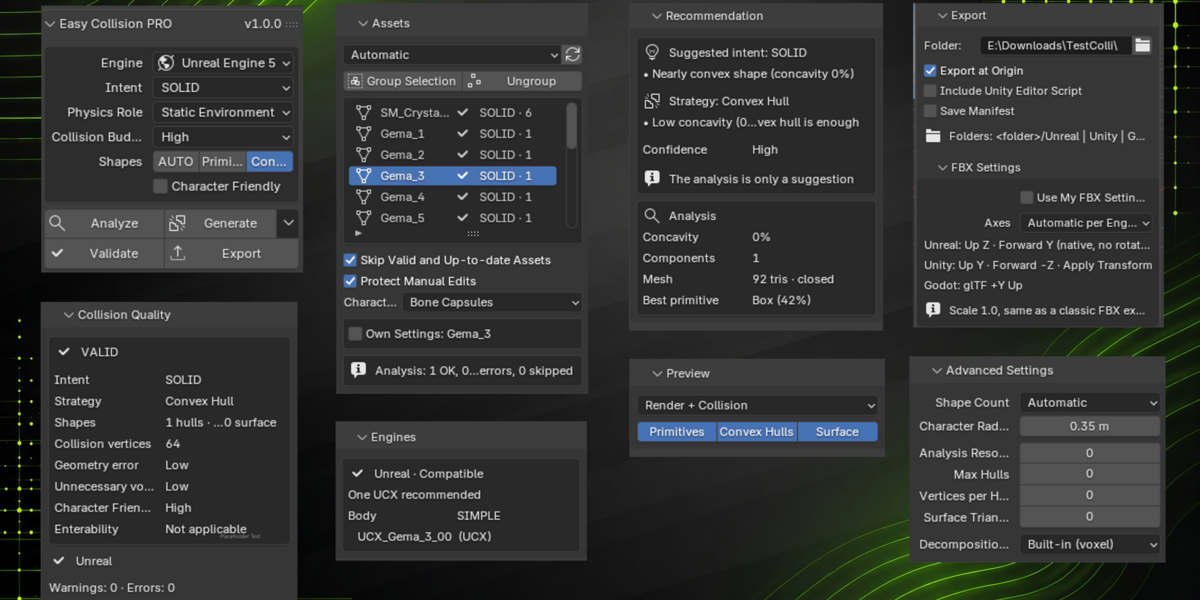
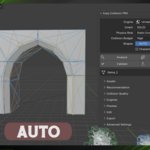
Easy Collision PRO is not an "auto convex" button. It looks at your mesh, suggests how it should collide, builds clean collision shapes, checks them, and exports them the way each engine expects.
Analyze → choose Intent → Generate → Validate → Export (Unreal / Unity / Godot)
Your meshes are never modified. The interface is in English or Spanish and follows Blender's language.
Contents
- Install
- Your first collision
- The panel
- Concepts
- Engines
- Packs of assets
- Editing collision
- Characters
- Troubleshooting
- Technical notes
1. Install
Requirements: Blender 5.2 LTS. Nothing else. NumPy, BMesh and mathutils ship with Blender. The CoACD library (MIT) is optional.
- Blender → Edit → Preferences → Get Extensions → ▾ (top right) → Install from Disk… → choose
easy_collision_pro-1.0.0.zip. - In the 3D Viewport press N and open the Orbbit Tools tab.
The panel header shows the running version (v1.0.0). If it does not change after an update, disable and enable the add-on, or restart Blender.
Sidebar tab: every Orbbit Tools add-on shares the Orbbit Tools tab, one collapsible panel each (Ctrl+click a panel header to collapse the others, drag headers to reorder). To use another tab: Preferences → Add-ons → Easy Collision PRO → Sidebar Tab.
Updating from a build called "Collision Authoring": uninstall it first. Your .blend files keep their collision.
Language: Preferences → Interface → Language. Words artists usually keep in English (Engine, Collision Budget, hull, mesh…) stay in English in every language.
Build the zip yourself (from the project folder):
blender --command extension build --source-dir easy_collision_pro --output-dir dist
2. Your first collision
Select a mesh.
-
Choose:
- Engine: your engine, or All Engines.
- Intent: leave AUTO to get a suggestion.
- Physics Role: Static Environment for level props, Dynamic Object for physics props.
- Collision Budget: Medium is a good start.
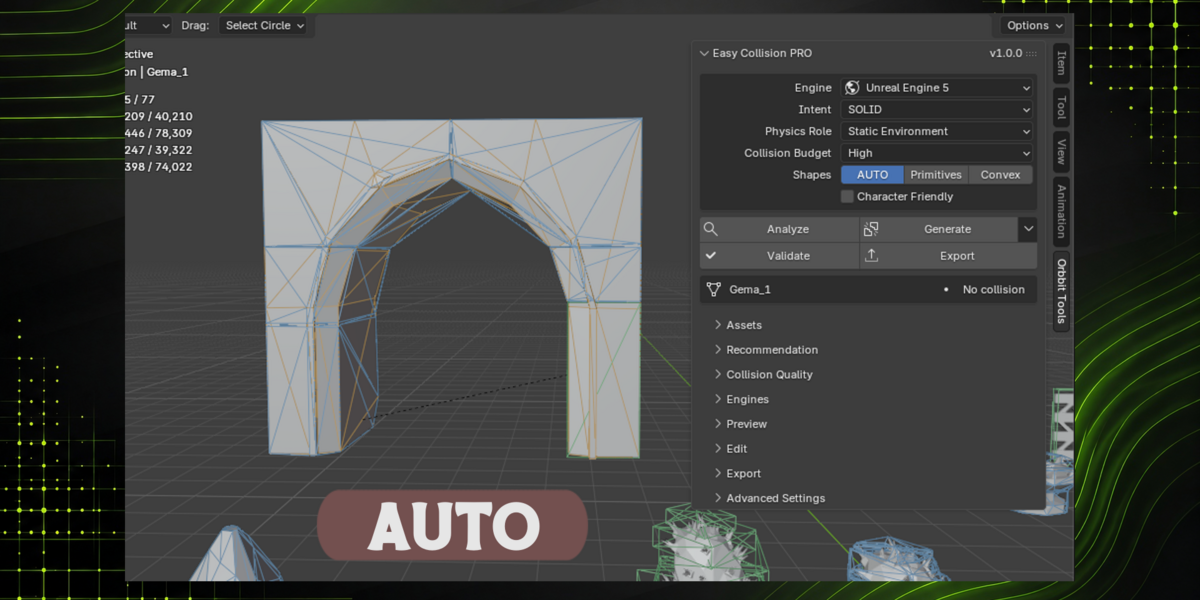
- Shapes: leave AUTO (primitives where they fit, convex hulls elsewhere).
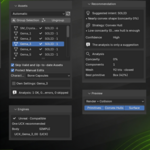
Analyze (optional): read the suggestion in Recommendation. It is only a suggestion. You decide the gameplay intent.
-
Generate. The collision appears in the
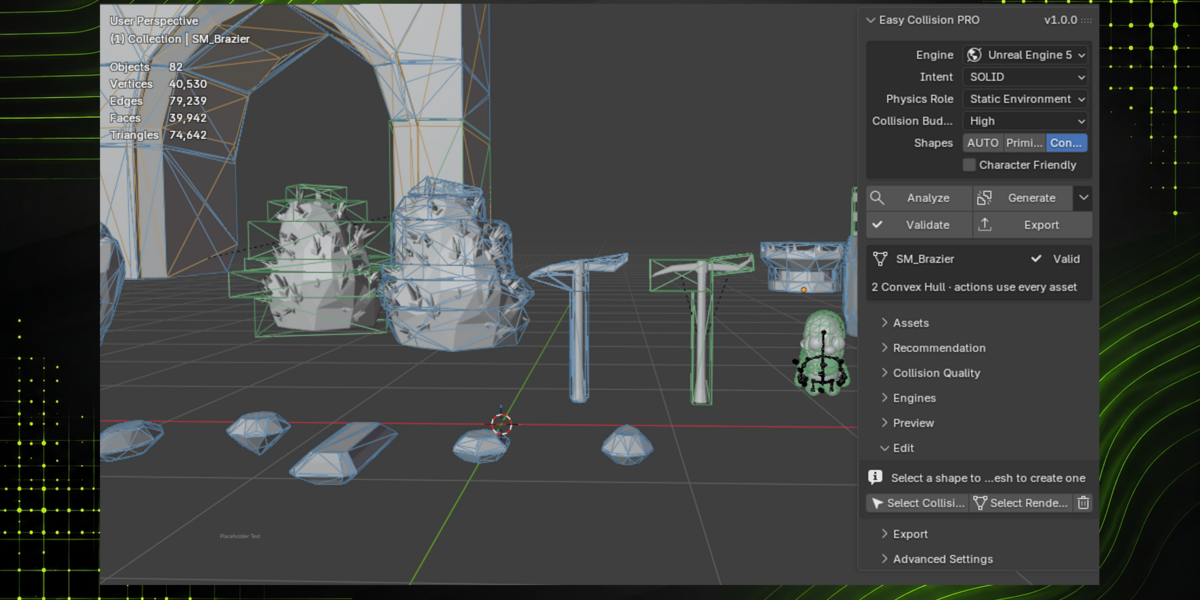
COLLISIONcollection:COLLISION ├── Collision_SM_Rock_00 ├── Collision_SM_Rock_01 └── Collision_SM_Rock_02Each shape is a separate object, a child of your asset. Colors: green = primitive, blue = convex hull, orange = surface. Engine names (
UCX_…) are only applied when exporting. Validate: the Collision Quality panel shows the status (VALID / warnings / INVALID) and a ✓ ⚠ ✗ per engine.
-
Export: open Export, pick a Folder, press Export.
/
├── Unreal/  SM_Rock.fbx
├── Unity/   SM_Rock.fbx   Editor/EasyCollisionPostprocessor.cs
└── Godot/   SM_Rock.glb   SM_Rock.tscn
The status bar shows the exported size (
SM_Rock → Unreal: 212 × 180 × 95 cm) so you can compare it with Blender before importing.
Nothing selected = every asset of the scene. This is how you process a whole pack.
3. The panel
| Part | What it is for |
|---|---|
| Engine, Intent, Physics Role, Collision Budget, Shapes, Character Friendly | The main decisions (see Concepts) |
| Analyze / Generate ▾ / Validate / Export | The four actions. ▾ holds the regenerate options |
| Asset card | The active asset, its status and shape count |
| Assets | The asset list, groups, batch options and per-asset settings |
| Recommendation | What AUTO suggests, and why |
| Collision Quality | The report: shapes, errors, character friendliness, openings |
| Engines | What each engine will receive |
| Preview | What to show in the viewport, including Engine Preview |
| Edit | Lock, convert, split, merge, rebuild and select shapes |
| Export | Folder, options and FBX Settings |
| Advanced Settings | Shape Count, resolution, limits, decomposition backend |
When the active object is a character, the panel shows a character card instead (see Characters).
4. Concepts
Shapes
| Shape | Use |
|---|---|
| Primitive (Box, Sphere, Capsule, Cylinder) | Cheapest and most stable. Used whenever it fits |
| Convex hull | A convex piece. Concave objects get several |
| Surface mesh | Triangle collision for big static structures (caves, tunnels) |
Shapes selector (main panel): which kind of shapes the collision uses.
| Shapes | Result |
|---|---|
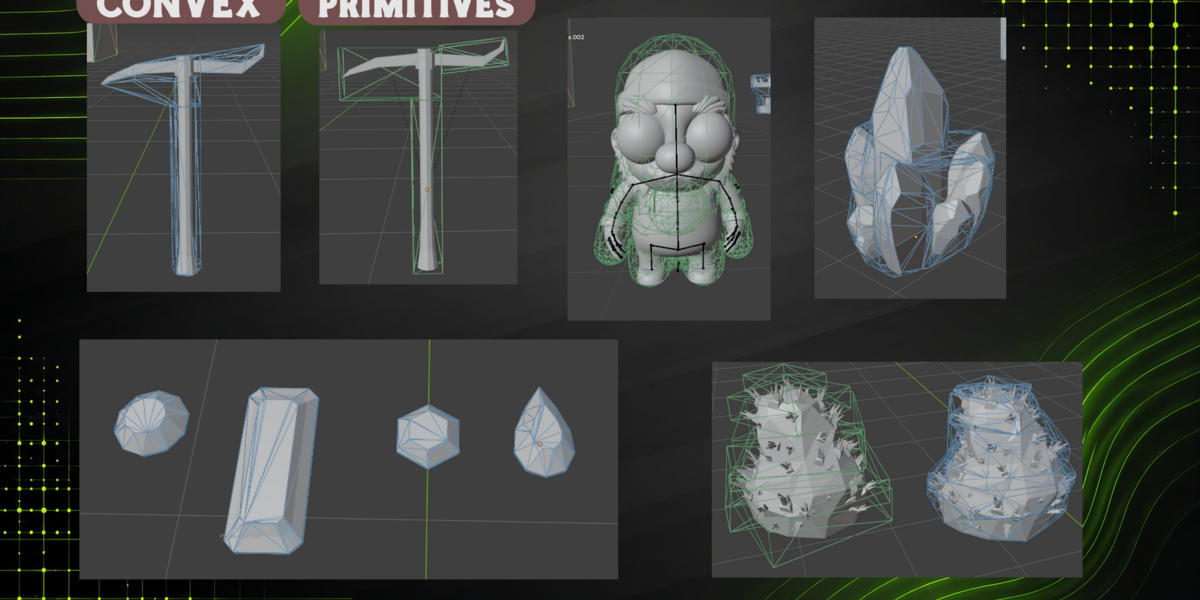
| AUTO | Each part gets a primitive when it fits well (little extra air, close to the real surface) and a convex hull otherwise |
| Primitives | Only Box, Sphere and Capsule (and Cylinder when the engine has one: Godot, or All Engines). A part stays convex only if a primitive would block an ENTERABLE opening; the report says so |
| Convex | Only convex hulls |
Advanced Settings → Shape Count decides how many shapes: Automatic, One Shape, Several Shapes or Surface.
Intent: what the collision must do
| Intent | Use it when | Result |
|---|---|---|
| AUTO | You want a suggestion | Looks at cavities, openings and shape, and picks one of the others |
| SOLID | The inside does not matter (a hollow log, a jar on a shelf) | Holes are filled: fewer, simpler shapes |
| ENTERABLE | Things go inside or through (tunnels, doors, windows, wells) | Openings stay free: hulls are built around them, never across |
| PRECISION | The surface must be followed closely | Higher resolution and more hulls |
An opening is walkable when a character fits through it (Advanced Settings → Character Radius, 0.35 m by default).
Physics Role
| Role | Effect |
|---|---|
| Static Environment | Surface (triangle) collision allowed when useful |
| Character Interaction | Smooth, stable shapes on a static body |
| Dynamic Object | Only primitives and convex shapes (physics engines require it) |
| Unknown | The safest choice for every engine |
Collision Budget
A target, not a hard rule:
| Budget | Hulls (target) | Safety limit | Vertices per hull |
|---|---|---|---|
| Low | 4 | 16 | 32 |
| Medium | 12 | 48 | 48 |
| High | 32 | 64 | 64 |
| Unlimited | 64 | 128 | 100 |
ENTERABLE may go above the target to keep openings free, up to the safety limit.
Character Friendly
Smooths the collision: fills small teeth, steps and dents that snag a character. It never works next to a protected opening, so doorways are not narrowed.
Validation
- Geometry: closed, convex, no degenerate faces, correct normals, sensible size.
- Gameplay: accidental holes, blocked openings, too many shapes.
- Engine: names, primitive rules, Unity's 255-triangle limit, concave shapes on dynamic bodies.
A collision can be valid geometry and still be wrong for one engine. The report shows both separately.
Versions
Each solution remembers the add-on version, the algorithm version, the mesh and the settings. If the mesh changes, Validate says so. If the algorithm is older, the asset shows OUTDATED.
5. Engines
Choose one engine, All Engines (one solution, read by each engine its own way) or Universal (a conservative solution all three use as is).
| Shape | Unreal Engine 5 | Unity 6 | Godot 4 |
|---|---|---|---|
| Box | UBX_ |
BoxCollider | BoxShape3D |
| Sphere | USP_ |
SphereCollider | SphereShape3D |
| Capsule | UCP_ |
CapsuleCollider | CapsuleShape3D |
| Cylinder |
UCX_ (no cylinder in UE) |
Convex MeshCollider | CylinderShape3D |
| Convex hull | UCX_ |
Convex MeshCollider | ConvexPolygonShape3D |
| Surface | Complex Collision mesh | Non-convex MeshCollider (static) | ConcavePolygonShape3D (static) |
Tip: Preview → Engine Preview colors every shape by how the chosen engine reads it and writes its engine name in the viewport.
Unreal Engine 5
Files: Unreal/.fbx (+ _ComplexCollision.fbx for Surface).
- One FBX per asset: the mesh plus
UCX__00,_01… (or UBX / USP / UCP). SeveralUCX_are normal: Unreal keeps simple collision as a list. - Same size as a classic File → Export → FBX at scale 1.0: a 2 m object arrives as 200 cm.
- Native Unreal axes (Z up), no -90° rotations.
Import with Auto Generate Collision off. Check Collision → Simple Collision in the Static Mesh editor.
Surface: set Collision Complexity → Use Complex Collision As Simple, or import _ComplexCollision.fbx and assign it as Complex Collision Mesh.
Unity 6
Files: Unity/.fbx and Unity/Editor/EasyCollisionPostprocessor.cs.
- Drag the
Unityfolder intoAssets. The editor script comes with it. - On import, each collision object becomes a collider and loses its renderer. Dynamic assets get a Rigidbody.
- The setup travels inside the FBX; there are no extra files.
- Convex MeshColliders stay under Unity's 255-triangle limit.
- Importing a second pack into the same project? Skip its
Editorfolder, or turn off Include Unity Editor Script. - Tried an earlier build? Delete
CollisionAuthoringPostprocessor.csfrom your project so colliders are not created twice.
Godot 4
Files: Godot/.glb and .tscn.
Open or instance .tscn: a StaticBody3D (or RigidBody3D for dynamic assets) with one CollisionShape3D per shape, and the .glb inside. Keep both files in the same folder.
Export options
- Export at Origin: exports the asset at 0,0,0.
- FBX Settings → Axes: Automatic per Engine (default) or manual Forward / Up.
- FBX Settings → Use My FBX Settings: reuse the options of your last File → Export → FBX.
-
Save Manifest: also writes
_Manifests/.collision_manifest.jsonfor tools and pipelines. Never import it into an engine.
6. Packs of assets
- Select nothing (whole scene) or the assets you want.
- Generate runs as a batch: progress in the status bar, ESC cancels. With AUTO, each asset picks its own intent.
- Export writes one file per asset in each engine folder. Drag one folder into your engine to import the whole pack.
One failing asset never stops the batch. The final report counts OK / warnings / errors / skipped and names the assets with problems.
Assets panel:
- The list shows every asset and its status. Click a row to select it.
- Skip Valid and Up-to-date Assets: generating again only redoes what changed.
- Own Settings: give one asset its own Intent, Role, Budget or Character Friendly (for example the one cave in a rock pack).
- Two assets with the same export name: the second is skipped and reported.
Assets made of several meshes. By default every mesh is its own asset. Group only when one asset is made of pieces (a lamp = pole + arm + head):
- Group Selection: select the pieces and press it. They move into a new collection with the name you choose (or their shared parent is used). The group exports as one mesh with its collision.
- Ungroup: every piece becomes an asset again.
7. Editing collision
Regenerate
The ▾ next to Generate:
| Option | Does |
|---|---|
| Regenerate Invalid | Only assets whose collision has errors |
| Regenerate Outdated | Only assets whose mesh, settings or algorithm changed |
| Regenerate Selected Shapes | Only the selected shapes; the rest is kept |
LOCKED shapes
- The lock icon (Edit panel): a LOCKED shape is never changed or deleted by a regeneration. New shapes only fill what it does not cover.
- Protect Manual Edits (Assets panel, on by default): shapes you edited by hand are kept too.
The Edit panel
It only shows what you can do with your current selection:
| You have | You can |
|---|---|
| Nothing selected | Select collision / Select Render Mesh / Remove |
| Edit Mode on your mesh | Create Shape ▾: select faces, pick Box, Sphere, Capsule, Cylinder, Convex Hull or Best Fit. The shape is made around the selection and locked |
| One shape | Convert ▾, Split, Rebuild, lock icon |
| Two or more shapes | The same, plus Merge |
One rule: Split, Merge and Rebuild keep the type; only Convert changes it.
| Tool | Does |
|---|---|
| Convert | Replace the shape by Best Fit, a chosen primitive, or a convex hull |
| Split | Cut in two across the longest side. A box gives two boxes, a capsule two capsules… |
| Merge | Join shapes of one asset into one: the same type if they all share it, otherwise the best fit |
| Rebuild | Make a hand-edited shape valid again: a hull becomes convex, a stretched box an exact box |
| Create Shape | A new shape around the faces you selected in Edit Mode |
Convert, Split and Merge fit the real mesh under the shape, not the old shape: converting box → sphere → box gives the same tight box every time. Rebuild uses the shape as you edited it.
Edited and created shapes are locked automatically. You can also move, rotate, scale or edit shapes like any Blender object; Validate checks the result.
Preview
Render + Collision, Render Only, Collision Only, X-Ray, Wireframe, filters per shape type, and Engine Preview.
8. Characters
Characters collide with one capsule per bone (a ragdoll or "physics asset"), not with static-mesh collision.
What counts as a character: an armature and every mesh it deforms (Armature modifier or armature parent). Selecting the rig or any of its meshes gives the same character. Its name is the armature's name, or the main mesh's name when the armature keeps Blender's default name ("Armature").
How to
- Click the character (the rig or any of its meshes).
- The panel shows the character card: name, meshes, bones.
- Press Generate Bone Capsules.
- Press Export.
That's it. No intent, role or budget is needed.
The capsules:
- fit the vertices each bone moves, from the skin weights;
- merge small bones into their parent: fingers join the hand, toes the foot (like Unreal's Min Bone Size);
- are children of their bones, so they follow any pose or animation;
- can be edited, locked and validated like any other shape.
The card shows how much of the body they cover. A warning appears below 60 %.
What each engine gets
| Engine | Files | In the engine |
|---|---|---|
| Unity |
Unity/.fbx with the capsules on the bones |
The editor script turns them into CapsuleColliders on the bone transforms, ready for a ragdoll |
| Unreal |
Unreal/.fbx (Skeletal Mesh) |
Import as Skeletal Mesh with Create Physics Asset on. Unreal builds the bone capsules itself: FBX cannot carry a Physics Asset |
| Godot | Godot/.glb |
Select the Skeleton3D → Create Physical Skeleton
|
In Unreal and Godot, the capsules in Blender are a preview of what the engine builds.
Characters: Skip (Assets panel) leaves characters out of batches. The card's own button still works.
9. Troubleshooting
| Message / symptom | Why | What to do |
|---|---|---|
| Blocked cavity | The budget was not enough to build hulls around an opening | Raise the Collision Budget, or use SURFACE for large static assets |
| Budget exceeded to keep the openings free | ENTERABLE keeps openings free first | Informational. Use SOLID if the inside is not playable |
| Accidental holes | Part of the volume has no collision | Raise the budget or Vertices per Hull |
| The Render Mesh is open | Missing faces (e.g. the bottom of a rock) | Treated as a surface; AUTO lowers its confidence |
| Unapplied non-uniform scale | Different scale per axis | Ctrl+A → Scale. Until then hulls are used instead of primitives |
| The Render Mesh changed since generation | You edited the model | Generate again |
| OUTDATED | Generated with an older algorithm | Generate ▾ → Regenerate Outdated |
| Hull is not convex / no longer an exact primitive | A shape was edited by hand | Select it → Edit → Rebuild |
| Primitives only: … part(s) stay convex | A primitive would block an ENTERABLE opening | Informational. Use SOLID if the inside is not playable |
| Export skipped because of compatibility errors | That engine cannot use the solution (e.g. concave on a dynamic object) | Check the Engines panel; change the role or strategy |
| Save the .blend file… | Relative export folder (//) with an unsaved file |
Save, or pick an absolute folder |
| Bone capsules cover only …% | Few vertices weighted to the bones | Check the skin weights, then generate again |
Unreal
- Asset 100× smaller: you are importing an old file, or Unreal reimports from its old path. Delete the asset and import the new FBX, or use Reimport With New File.
-
"DataTable Options" dialog: you are importing a
.json. Engine folders never contain JSON. - Collision not recognized: turn off Auto Generate Collision and do not rename objects inside the FBX.
Unity
-
No colliders: the script must be inside an
Editorfolder. Then Reimport the model. - Duplicate class error: the editor script was imported twice; keep one copy.
Godot
-
The scene cannot find the .glb: keep the
.tscnand.glbin the same folder.
10. Technical notes
Architecture
easy_collision_pro/
├── core/       Engine agnostic: never knows UCX, Colliders or Shape3D
│   ├── analysis.py      topology, voxels, cavities, passages, primitive fits
│   ├── strategy.py      AUTO intent + strategy, with reasons and confidence
│   ├── primitives.py    Box / Sphere / Capsule / Cylinder fitting
│   ├── hull.py          convex hull behind a replaceable backend
│   ├── decomposition.py voxel-based approximate convex decomposition (+ optional CoACD)
│   ├── optimize.py      box faces snapped to the real planar faces
│   ├── surface.py       surface collision mesh
│   ├── edit.py          convert / split / merge
│   ├── skeletal.py      per-bone capsules
│   ├── validation.py    geometry and gameplay checks
│   ├── manifest.py      engine-agnostic serialization
│   └── pipeline.py      Analyze → Intent → Strategy → Generate → Optimize → Validate
├── engines/    One adapter per engine + capability matrix
├── blender/    Properties, preferences, operators, UI, preview, scene I/O, export
├── texts.py    Every visible string (English source)
└── i18n.py     Translations (Spanish)
The core only receives neutral constraints from the engine (cylinders allowed, maximum vertices or triangles per hull). Adding an engine means one adapter and one row in the capability matrix.
Algorithms
| Task | Implementation |
|---|---|
| Convex hull | Blender's bmesh.ops.convex_hull (Qhull via SciPy when installed) |
| Oriented boxes |
mathutils.geometry.box_fit_2d over hull face normals |
| Hull simplification | Farthest-point insertion with a vertex limit |
| Convex decomposition | Voxel-based, V-HACD style: plane cuts that minimize hull volume, one-level lookahead, merge pass |
| Openings | 6-axis visibility, exterior flood fill, connected components, free radius by erosion |
| Surface | Weld, clean, Blender Decimate (collapse); vertex clustering fallback |
| Characters | Dominant skin weight per bone, small bones and digits merged into their parent, capsule along the bone |
Voxels handle open, non-manifold or self-intersecting meshes, and make "empty space inside a hull" measurable. Final hulls use the real surface, not voxel corners.
Performance
- Vectorized NumPy; no
bpy.opsin the core. - The cut search uses volume-only hulls and coarse-to-fine positions.
- Analyses and stored data are cached, and collision objects are indexed, so panel redraws never scan the whole scene.
- Typical times: primitives 0.05–0.3 s, rocks and doors 0.3–1.5 s, hollow ENTERABLE objects 2–6 s.
Safety
- Your meshes are never modified. Exports use temporary copies; renamed objects are always restored.
- No
eval/exec, no network, no subprocesses. - Export file names are sanitized (letters, digits,
_,-; reserved Windows names avoided), so nothing is written outside the export folder. - Data stored in a
.blendis treated as untrusted: size limits, tolerant parsing, settings clamped to the UI limits.
Versioning
version.py holds ADDON_VERSION and ALGORITHM_VERSION. Any core change that can change a result must raise ALGORITHM_VERSION; older solutions then show as OUTDATED.
Tests
blender -b --factory-startup --python tests/run_tests.py
About 2,700 automatic checks: 20 reference assets × every intent × static and dynamic, per-engine compatibility, export files, packs, editing tools, characters, translations and hostile-data safety. Add -- --quick for a faster run.
License
GPL-3.0-or-later (required for Blender add-ons). No mandatory external dependencies.