Easy Fishes
 phamduyson


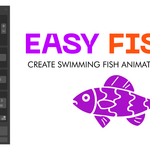
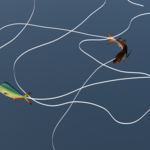
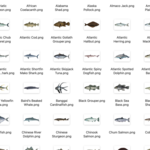
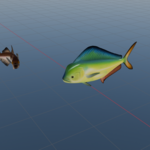
Easy Fishes
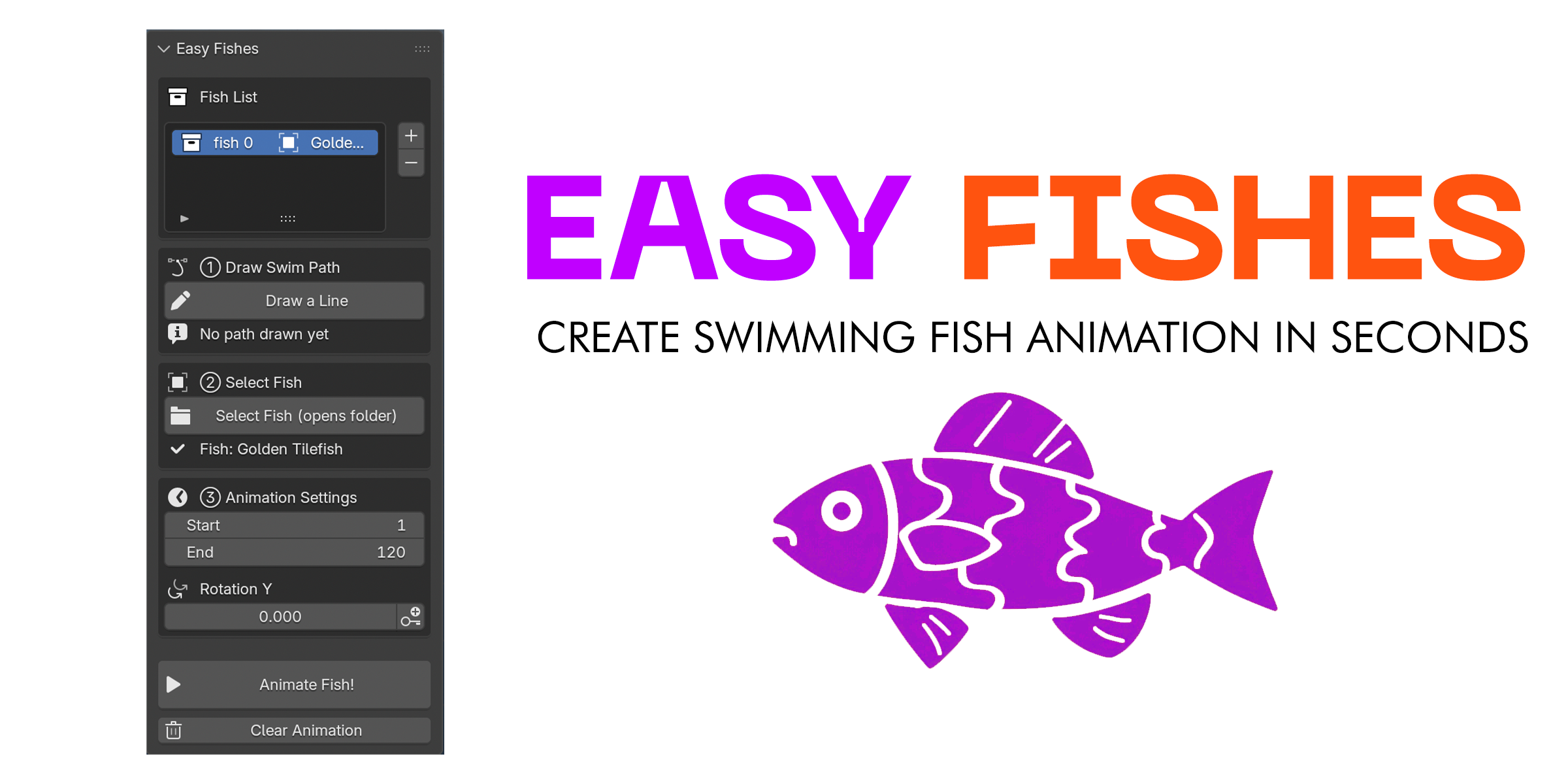
A Blender addon that lets you animate fish (or any model) swimming along a hand-drawn path, with just a few clicks.
Features
- Draw a custom swim path directly in the 3D viewport
- Import fish models in `.obj`, `.fbx`, `.gltf`, `.glb`, or `.blend` format
- Apply a natural S-curve wiggle to the path
- Animate the fish along the path with correct orientation tracking
- Manage multiple fish slots independently
- Insert rotation keyframes manually for fine control
- Clear animation and reset the fish at any time
Requirements
- Blender 5.0 or later (tested on Blender 5.x)
- Fish models in a supported format (see above)
Installation
1. Download or clone the addon folder.
2. Open Blender and go to **Edit → Preferences → Add-ons**.
3. Click **Install**, then select the `fish_swim.py` file.
4. Enable the addon by checking the box next to **Easy Fishes**.
5. The panel will appear in the **3D Viewport → Sidebar (N key) → Easy Fishes** tab.
How to Use
Step 1 — Add a Fish Slot
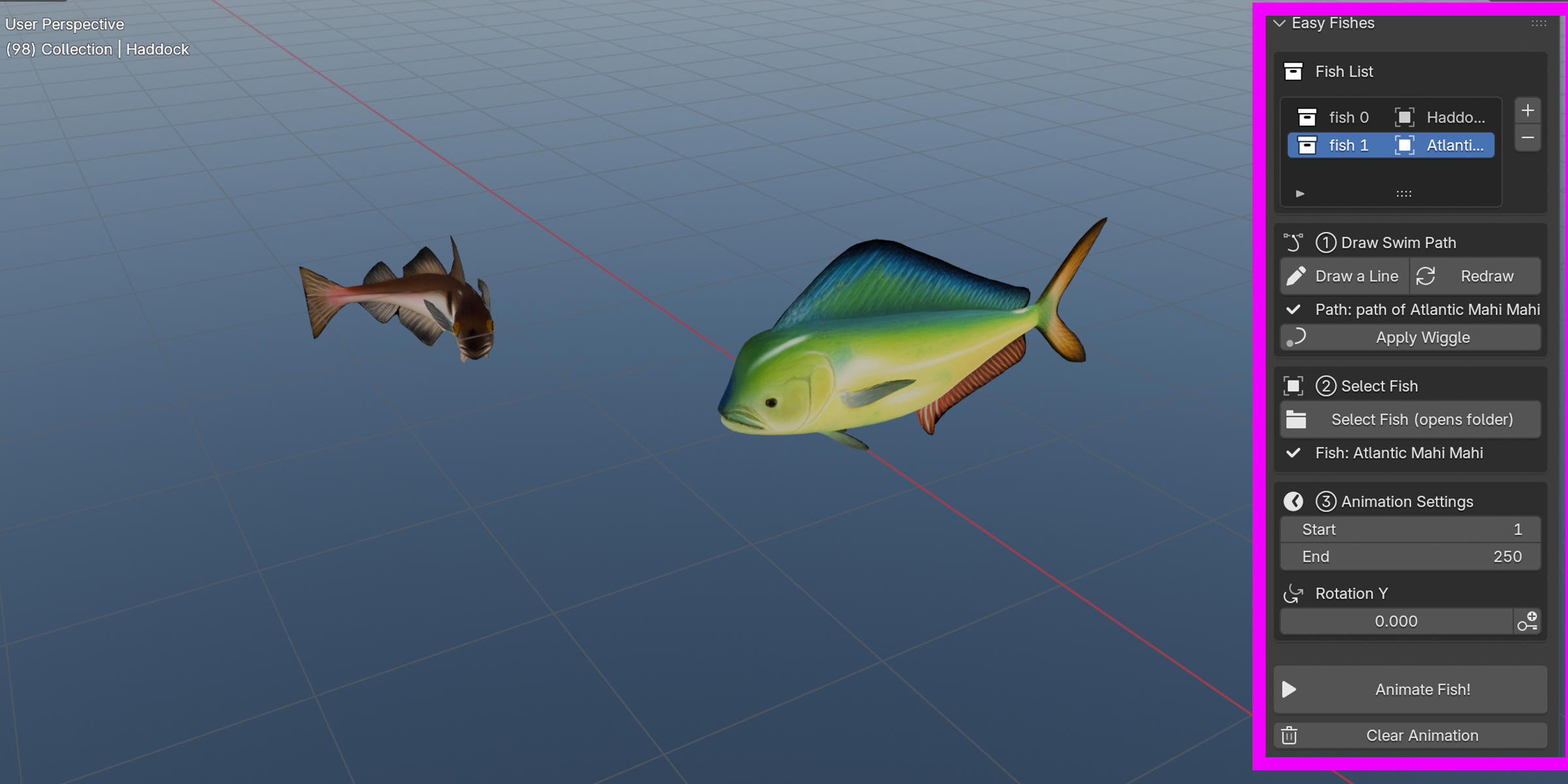
In the **Easy Fishes** panel, click the **+** button to create a new fish slot. Each slot manages one fish and its swim path independently.
Step 2 — Draw a Swim Path
Click **Draw a Line**. The viewport will switch to top-down view and activate the draw tool. Draw your path freehand, then press **Tab** to finish and exit edit mode.
- Click **Redraw** to delete the current path and draw a new one.
- Click **Apply Wiggle** to add a gentle S-curve to the path, making the swim look more natural.
Step 3 — Select a Fish Model
Click **Select Fish (opens folder)**. A file browser will open — select your fish model file. The model will be imported and assigned to the active slot automatically.
> The addon looks for a `fishes model/` folder next to the addon file and opens it by default.
Step 4 — Set Animation Range
In the **Animation Settings** section, set the **Start Frame** and **End Frame** for the swim animation.
You can also adjust the **Rotation Y** value and insert keyframes manually using the key icon button.
Step 5 — Animate
Click the **Animate Fish!** button. The fish will be positioned on the path and keyframed to travel from start to end over the specified frame range, with its orientation following the curve direction automatically.
Clearing Animation
Click **Clear Animation** to remove all keyframes and modifiers from the fish and reset it to the origin.
Contact:
For more information or feedbacks please contact [email protected]
Have questions about this product?
Login to message
| Sales | 10+ |
| Published | 7 months ago |
| Blender Version | 5.0 |
| Extension Type | N/A |
| Render Engine Used | Cycles, Eevee |
| License | GPL |
Discover more products like this
3D Fish Model 3D Fish Animation 3D Fish Asset 3D Animated Fish