Easy Layout
 VP.studio3d


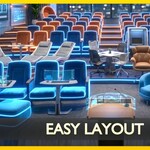
Easy Layout – Official Documentation
Version: 8.2.0 Author: VP Studio 3D Target Software: Blender 5.1.0+ Category: Object / 3D Viewport
1. Introduction
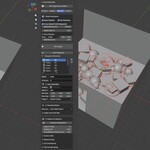
Easy Layout VPs is a powerful procedural scattering and layout generation add-on designed for ArchViz, level design, and environmental art. It allows users to distribute objects along curves, scatter them across surfaces, and procedurally generate complex interior layouts using rule-based categories and AI assistance.
The add-on panel is located in the 3D Viewport's N-Panel under the Easy Layout tab.
2. Core Layout Modes
The tool operates in four distinct modes, selectable from the top of the main panel:
A. On Curves
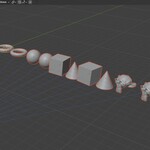
Distributes selected objects along one or multiple curves.
Base Distance: Sets the minimum spacing between objects.
-
Orientation Mode:
Track Empty: All objects look at an automatically generated central target.
Follow Direction: Objects align to the curve's tangent based on the specified Forward Axis.
Random Z: Applies random Z-axis rotation.
Animation: Automatically keyframes the
Offset Factorof the Follow Path constraints.
B. Scatter on Surface
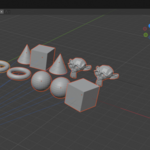
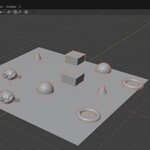
Raycasts objects downward onto a designated mesh surface.
Align to Normal: Orients the spawned objects to match the slope/normal of the surface.
Fill Space: Automatically duplicates your source objects to cover the entire designated area based on the spacing settings.
C. Room Procedural
An advanced engine that reads the room's bounds and places categorized objects based on a hierarchy of rules.
Force Random vs. Grid Direction: Choose between organic scatter or rigid grid-based placement (X, -X, Y, -Y axes).
Grid Margin: Keeps structured rows at a safe distance from walls.
D. AI Room Agent
Converts your 3D room into a 2D ASCII text map, allowing Large Language Models (like ChatGPT or Claude) to act as interior designers.
Copy Prompt: Scans the room (detecting walls, doors, and windows via raycasts) and copies a strict prompt with your current categories to the clipboard.
Paste & Apply: Reads the AI's generated ASCII response from your clipboard and spawns the objects in the 3D scene at the exact coordinates.
3. Operations & Workflow
Essential Operators
Set Target Curve / Mesh: Assigns the currently selected curve or mesh as the layout boundary/path. It automatically organizes these into the
Layoutcollection.Apply Layout / Run Engine: Executes the generation script based on the selected mode.
Rebuild Layout: Forces a regeneration of the currently active procedural setup.
Unlink & Keep Position: Bakes the procedural generation. It removes constraints (like Follow Path) and locks the objects in their final transform state.
Load Categories: Wipes the current category list and loads factory presets (Beds, Tables, Chairs, Sofas, Trash Piles, etc.) complete with pre-configured rules.
4. Categories Hierarchy (Procedural & AI Modes(Beta))
When using Room Procedural or AI Room Agent, placement is governed by Categories. You can add, remove, and reorder categories. Objects are sorted into these categories via filters.
1. Filters (Identity)
Collection / Name Contains: Identifies which objects belong to this category based on their source collection or name.
Min/Max Size: Filters assets based on their physical bounding box dimensions.
Origin Position: Ensures only objects with correct pivot points (e.g., Bottom Center, Back Center) are selected for specific placement rules.
2. Placement Rules
-
Placement Base:
Floor (Structured / Random): Placed freely on the ground.
Near Walls (Floor): Raycasts outward to find walls, placing the object on the floor flush against the wall.
On Walls (Float): Raycasts higher up to place floating objects (decals, cabinets, sockets).
Relative: Spawns the object relative to another category (e.g., placing a Chair Behind a Table).
Origin Flush with Wall: Assumes the object's origin should strictly touch the wall surface (ideal for flat decals).
3. Options & Collisions
Fill Space (Duplicates): If enabled, the engine will duplicate the source objects to fill up to the specified Density (%).
Priority: Order of generation. Higher priority items spawn first and reserve space.
Padding (m): Extra collision radius to prevent objects from clipping into each other.
Door/Window Clearance: Prevents objects from blocking exits by keeping a safe distance from detected openings.
Jitter & Scale: Introduces procedural variation in rotation and size.
Can Overlap: Disables collision checks completely for this specific category (useful for trash, debris, or small decor).
5. Add-on Scene Organization
To keep the outliner clean, Easy Layout VPs automatically generates a collection hierarchy under the master Layout collection:
Layout_Curves/Layout_Surface(Targets)Layout_Duplicates(Hidden instances)Layout_Engine(Final spawned results)
Have questions about this product?
Login to message
| Blender Extension Compatible | Yes |
| Published | 3 months ago |
| Blender Version | 5.0 - 5.2 |
| Extension Type | Add-on |
| Render Engine Used | Cycles |
| License | GPL |
