 Blender fusion
Product Documentation: Procedural Easy Road Generator with Geometry Nodes in Blender
Compatibility and Render Engine
. It is optimized for use with the Cycles render engine, ensuring realistic and high-quality results in your projects.
Product Overview
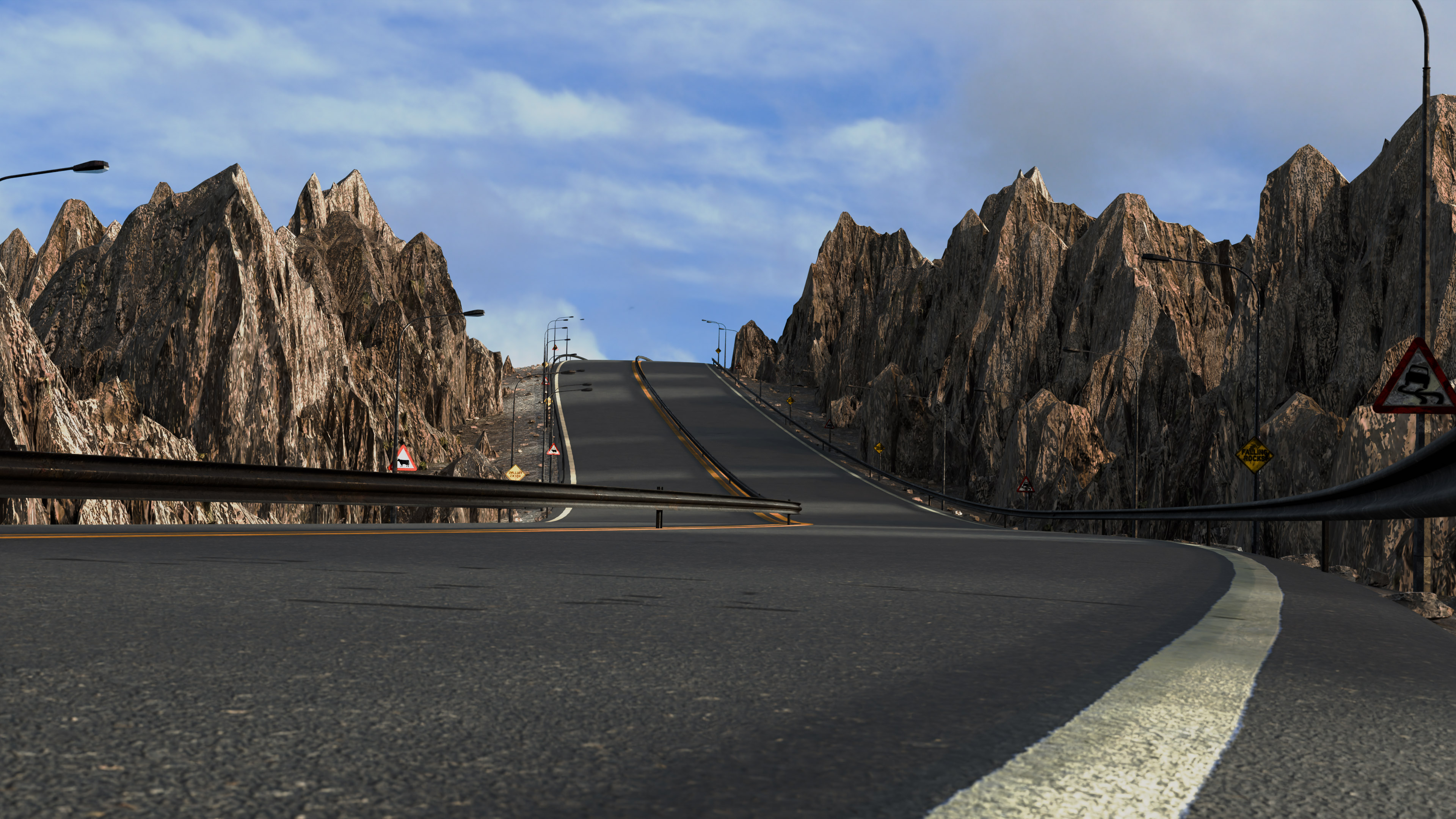
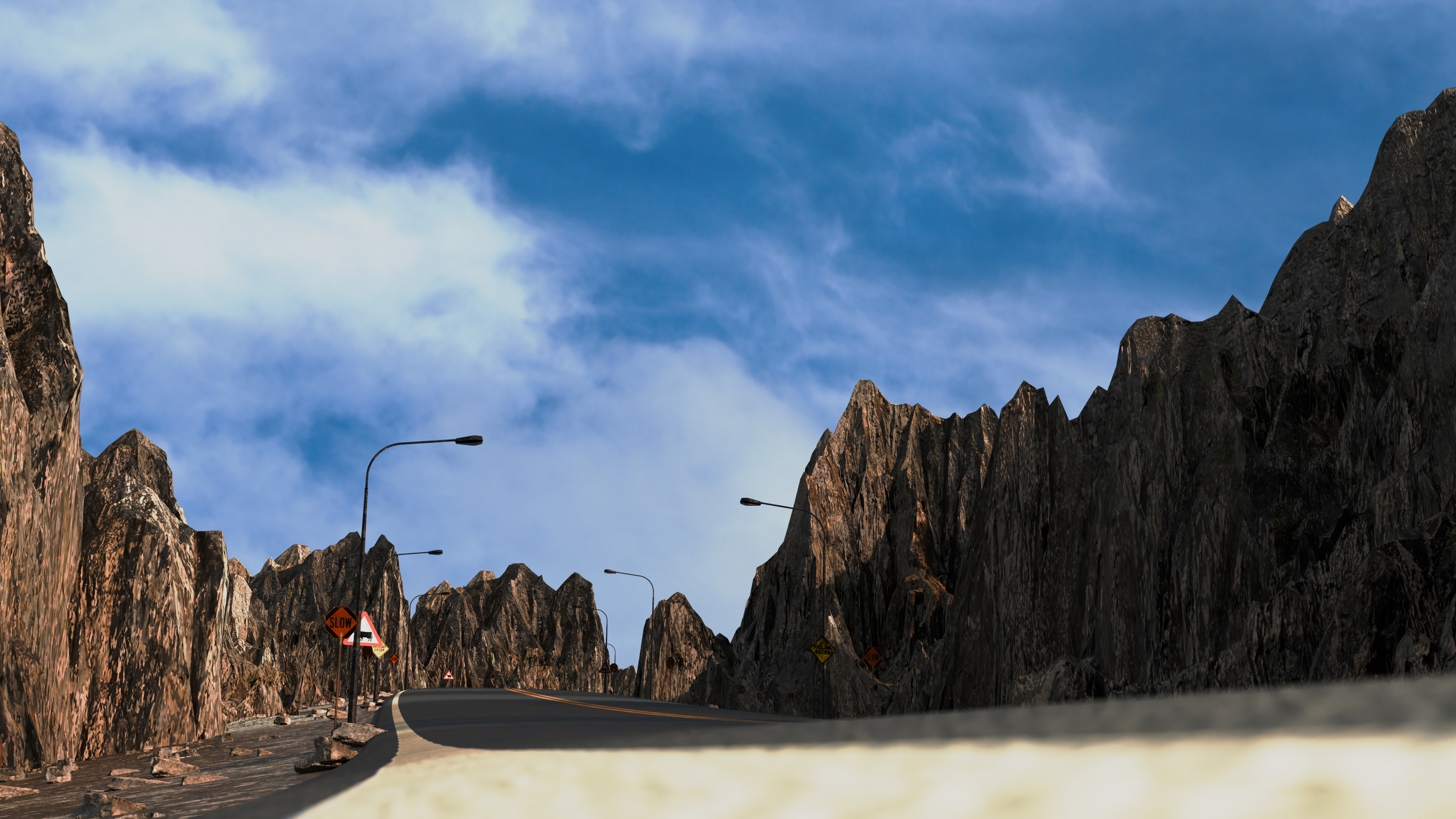
The Easy Road Generator is a procedural Geometry Nodes setup for Blender that allows users to create a realistic mountain road by simply drawing a Curve. The road includes various details such as guardrails, rocks, different terrain types, and streetlights, all of which can be easily managed through adjustable settings.
How to use :
Key Features
- Detail Control: Users can toggle procedural details like guardrails, rocks, and other elements of the road on or off.
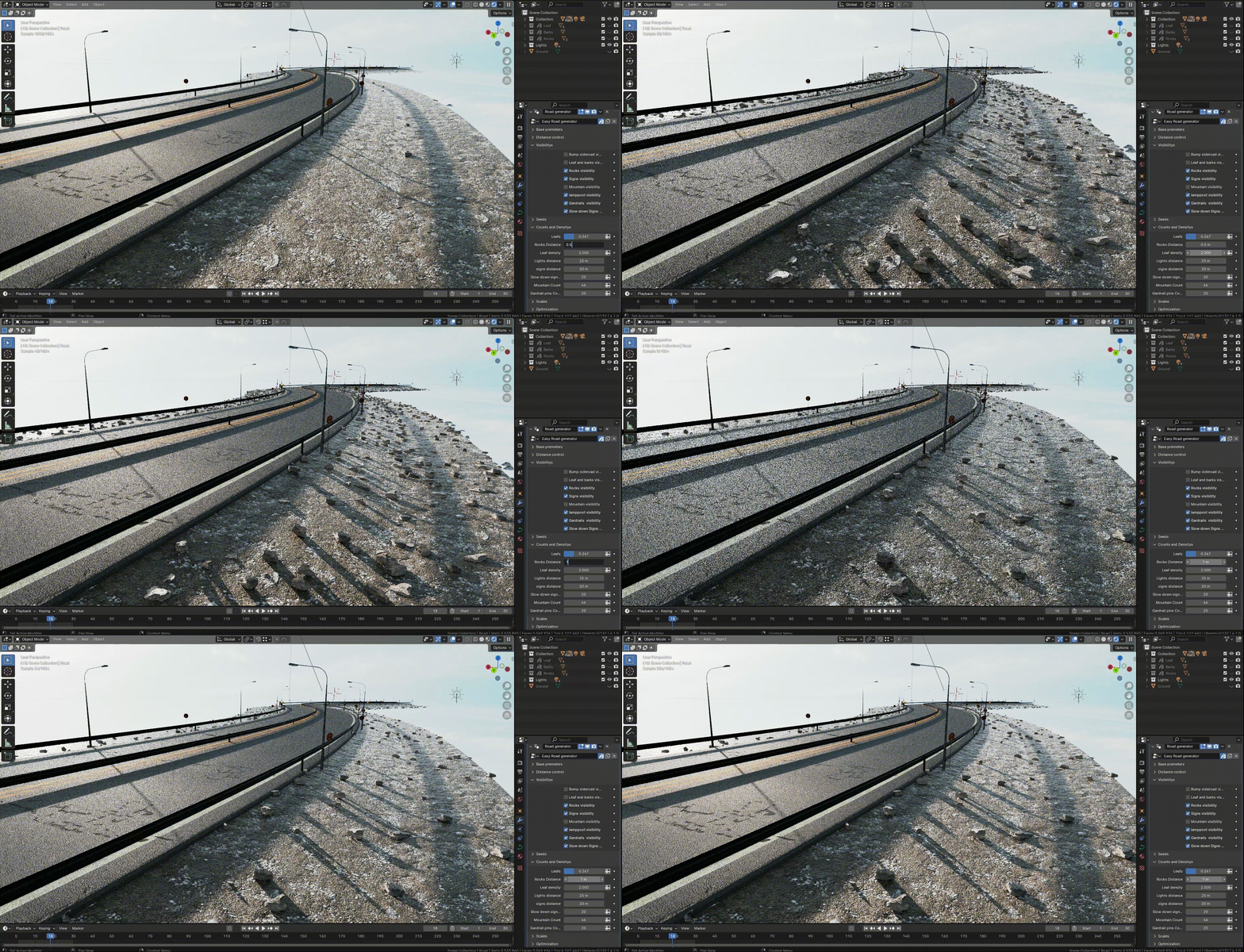
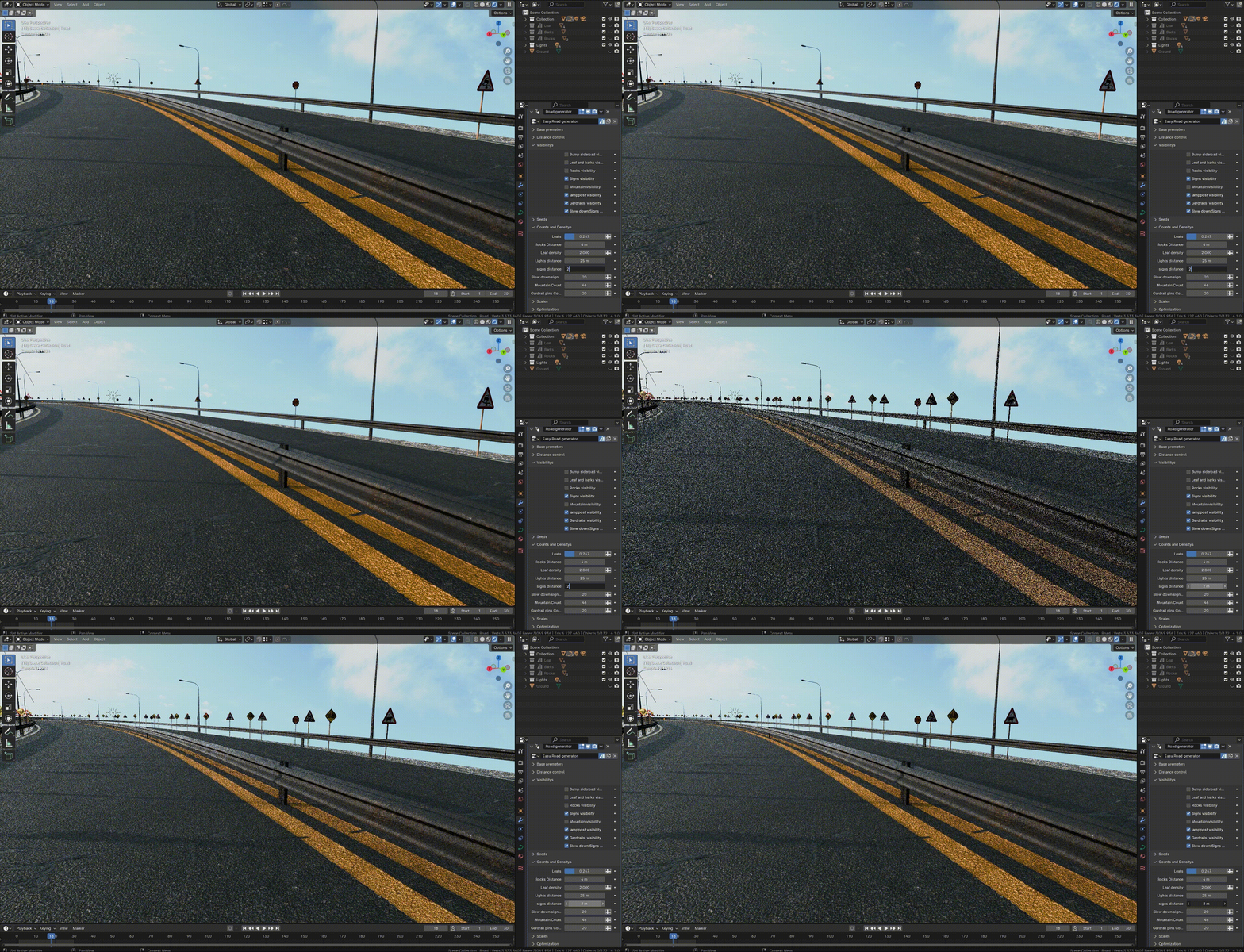
- Adjustable Size and Placement: The size, number, and random placement of various procedural elements can be customized.
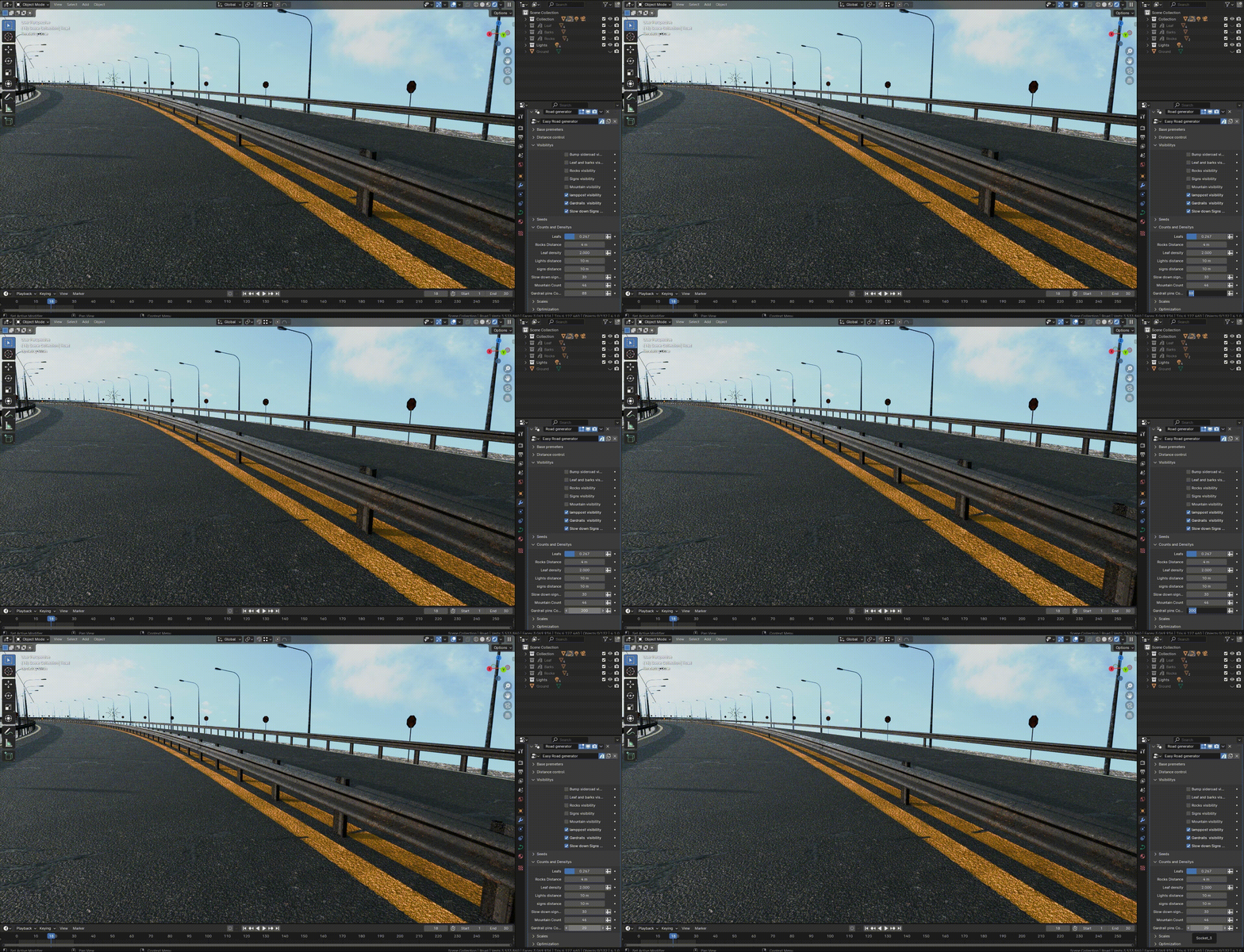
- Road Width: The width of the road and the number of lanes can be adjusted.
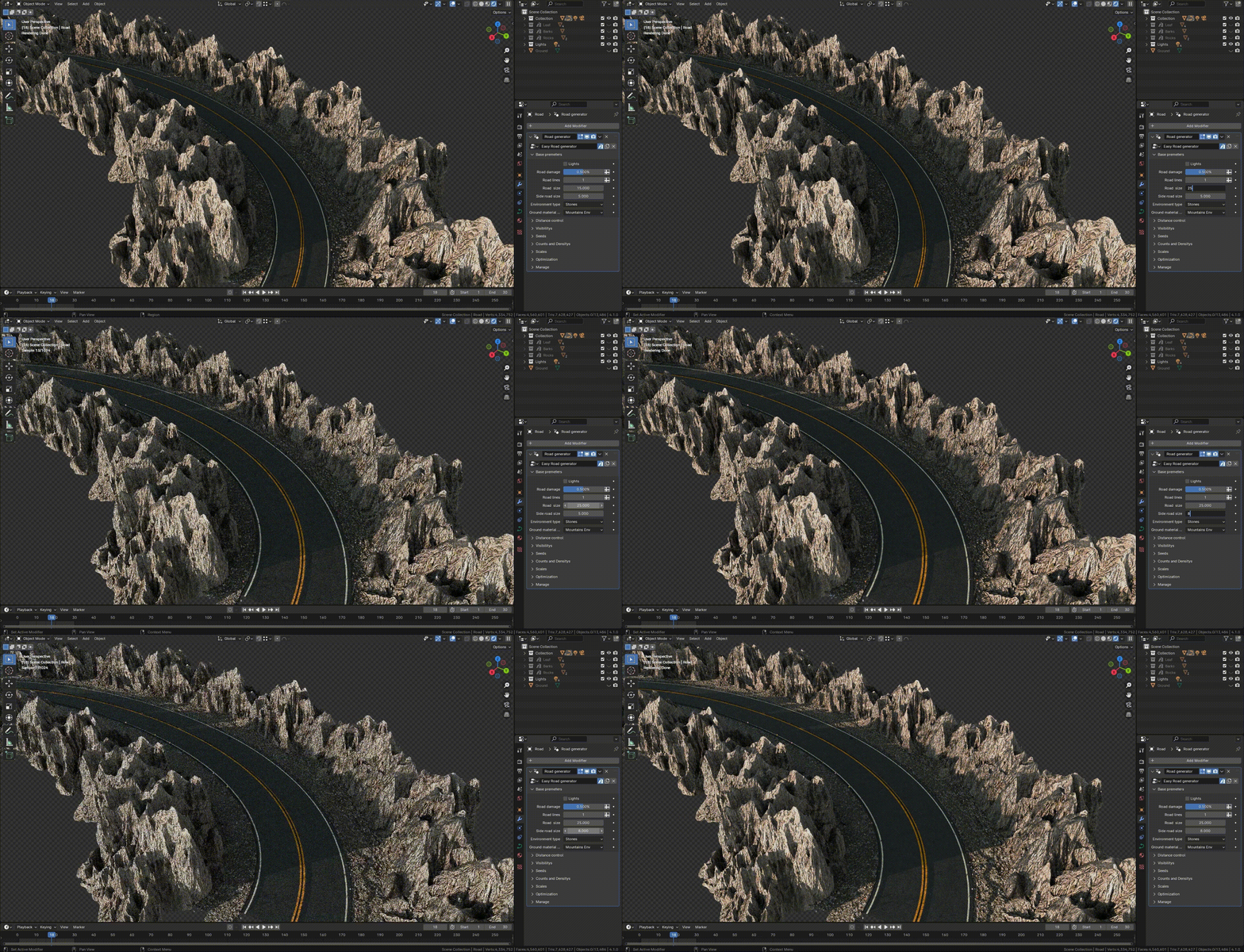
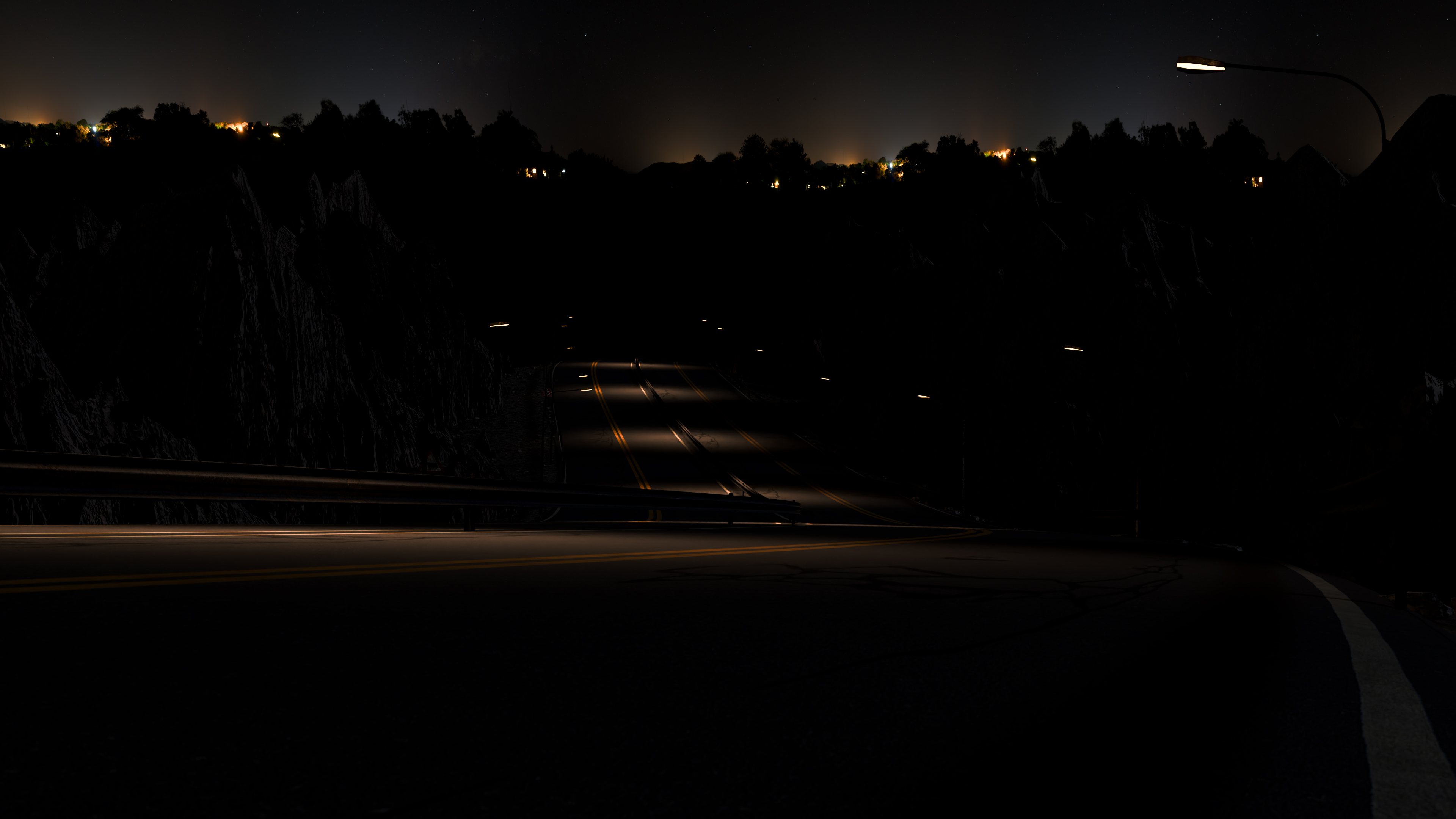
- Streetlight Spacing and Lighting: The spacing between streetlights is configurable. Additionally, you can enable or disable the streetlights to create a night-time scene by turning them on or off.
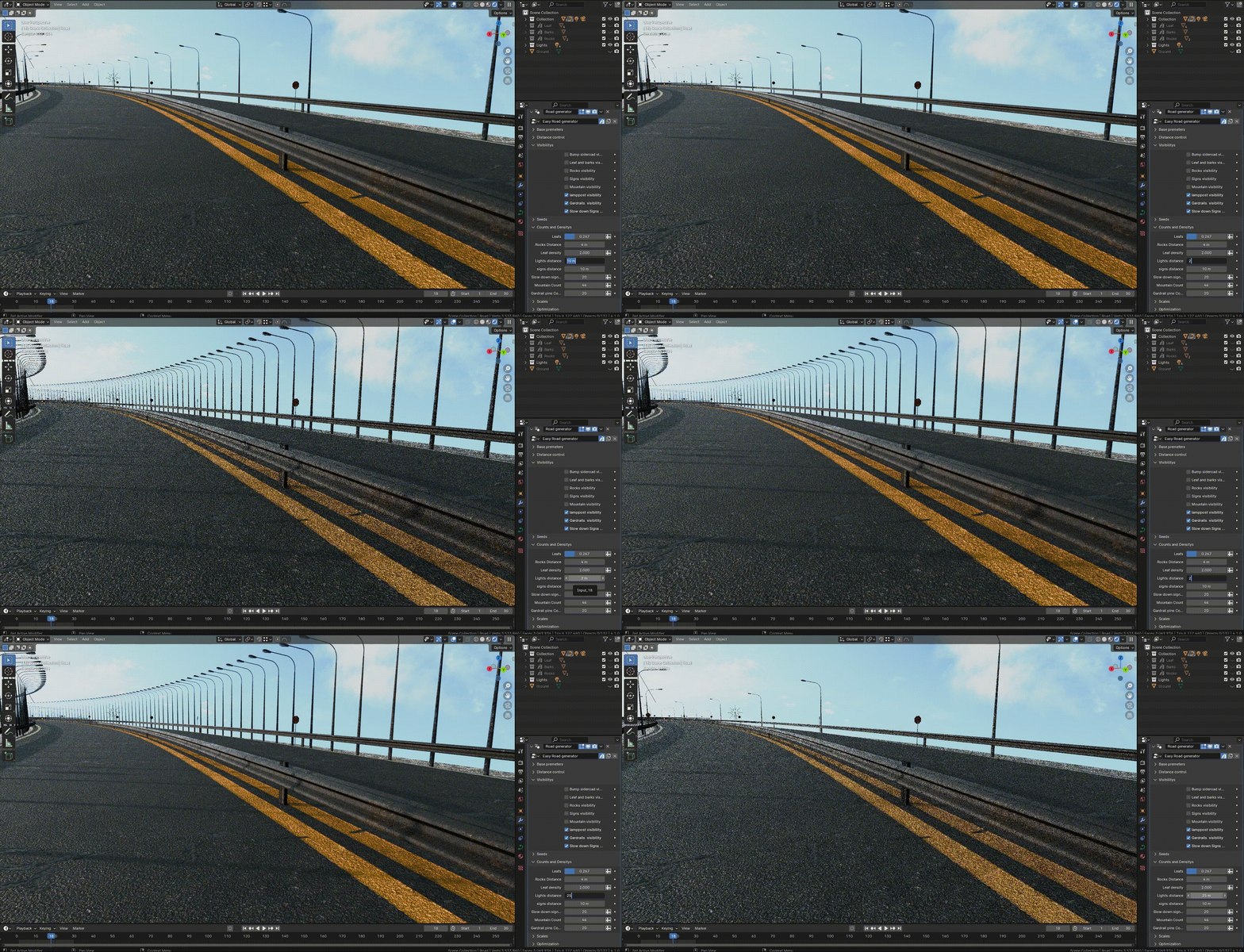
- Terrain Styles:
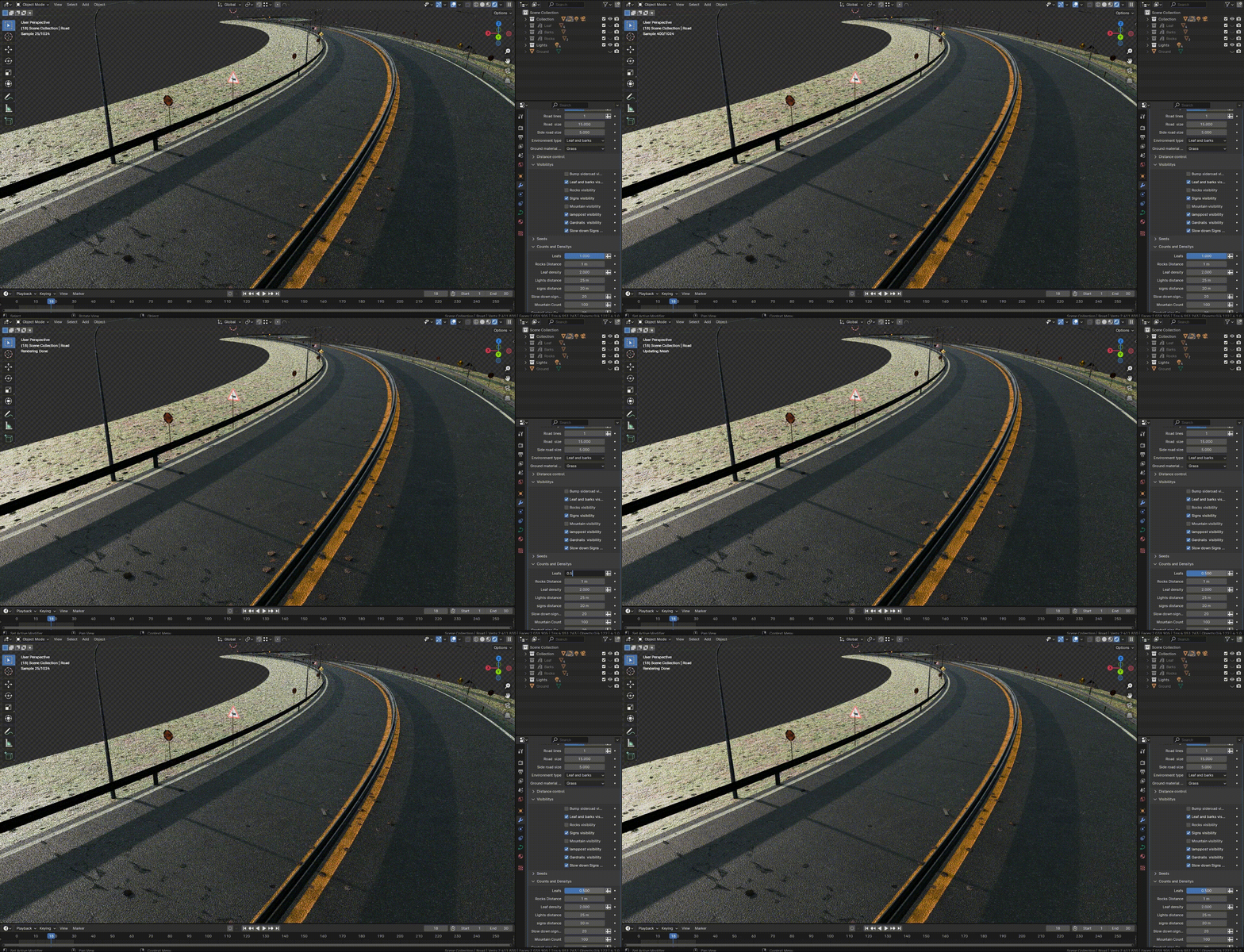
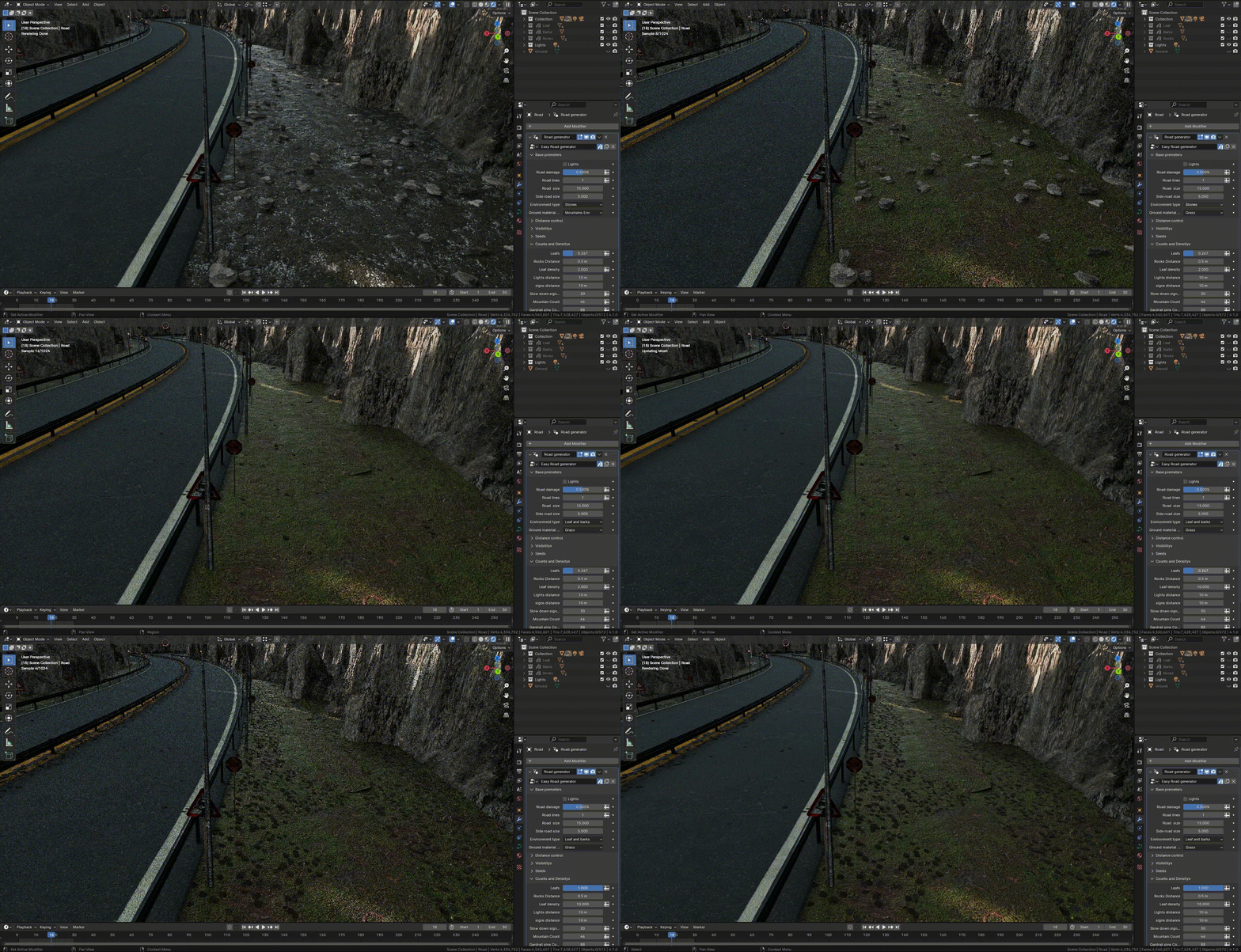
Style 1: Grass-covered terrain with scattered leaves and twigs along the road.
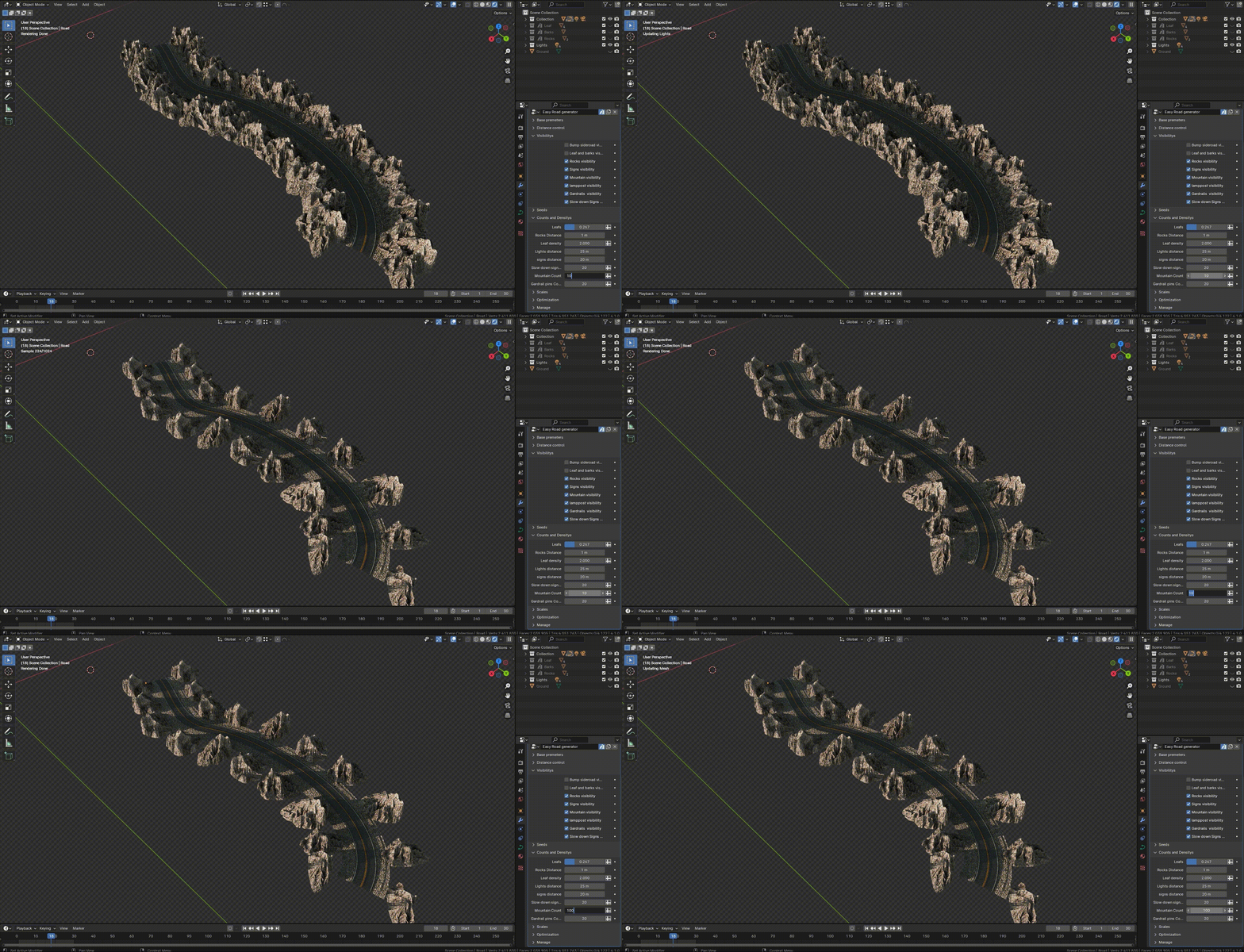
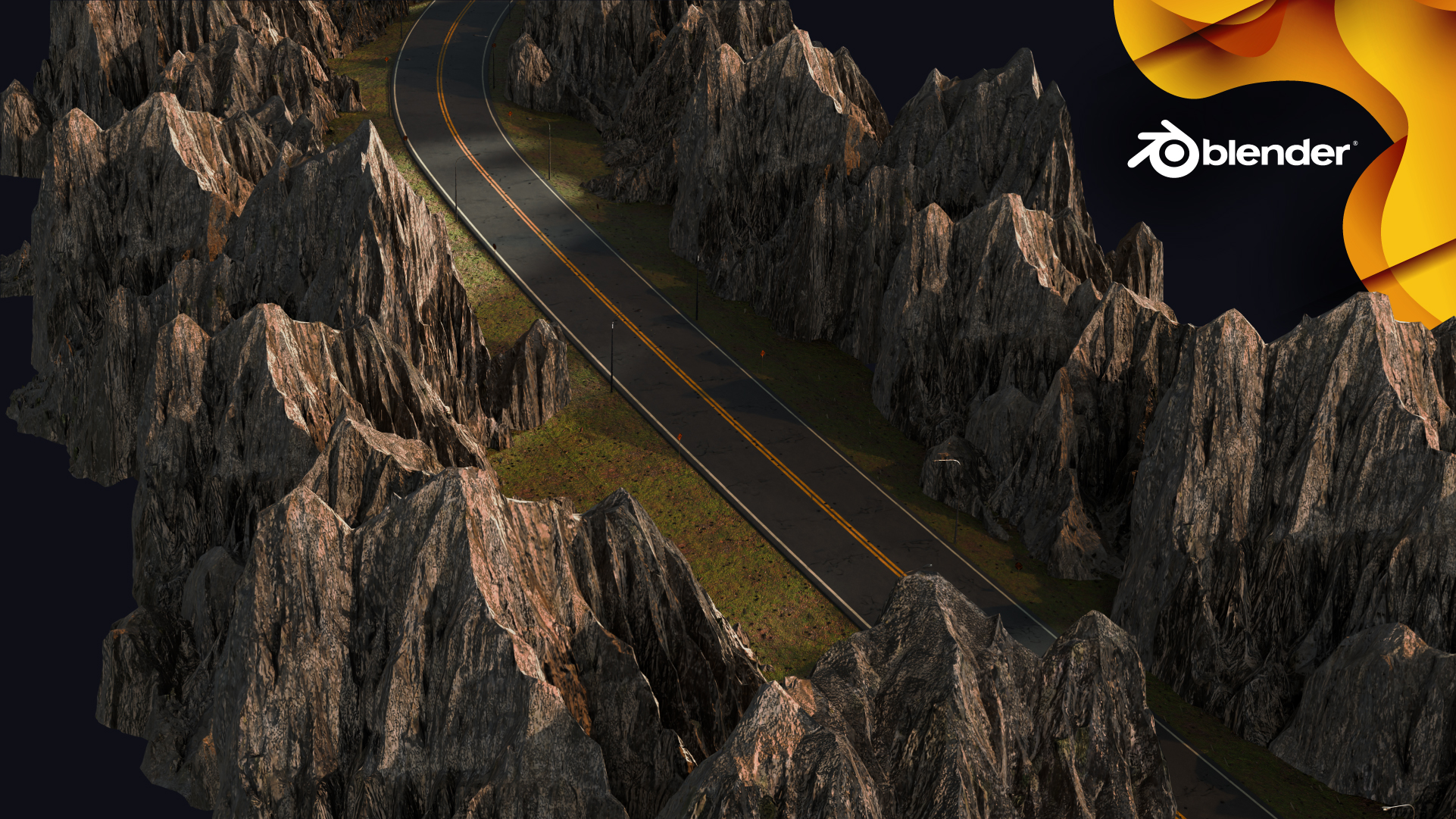
Style 2: Mountainous terrain with scattered rocks around the road.
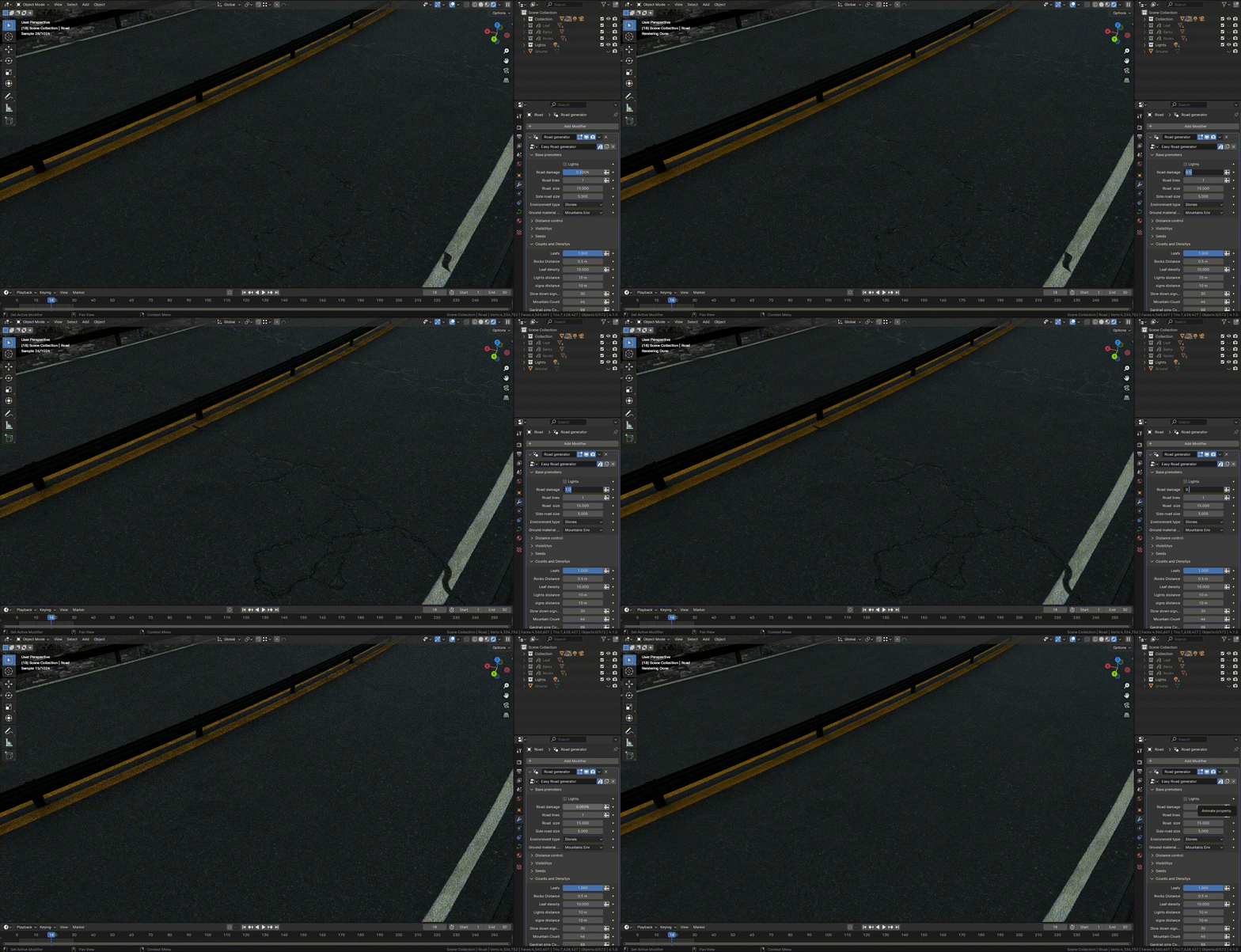
- Cracks on the Road: Users can adjust the percentage of procedural cracks on the road surface.
- Night Mode: Switch to night mode by turning on the streetlights, creating a realistic night-time environment along the road.
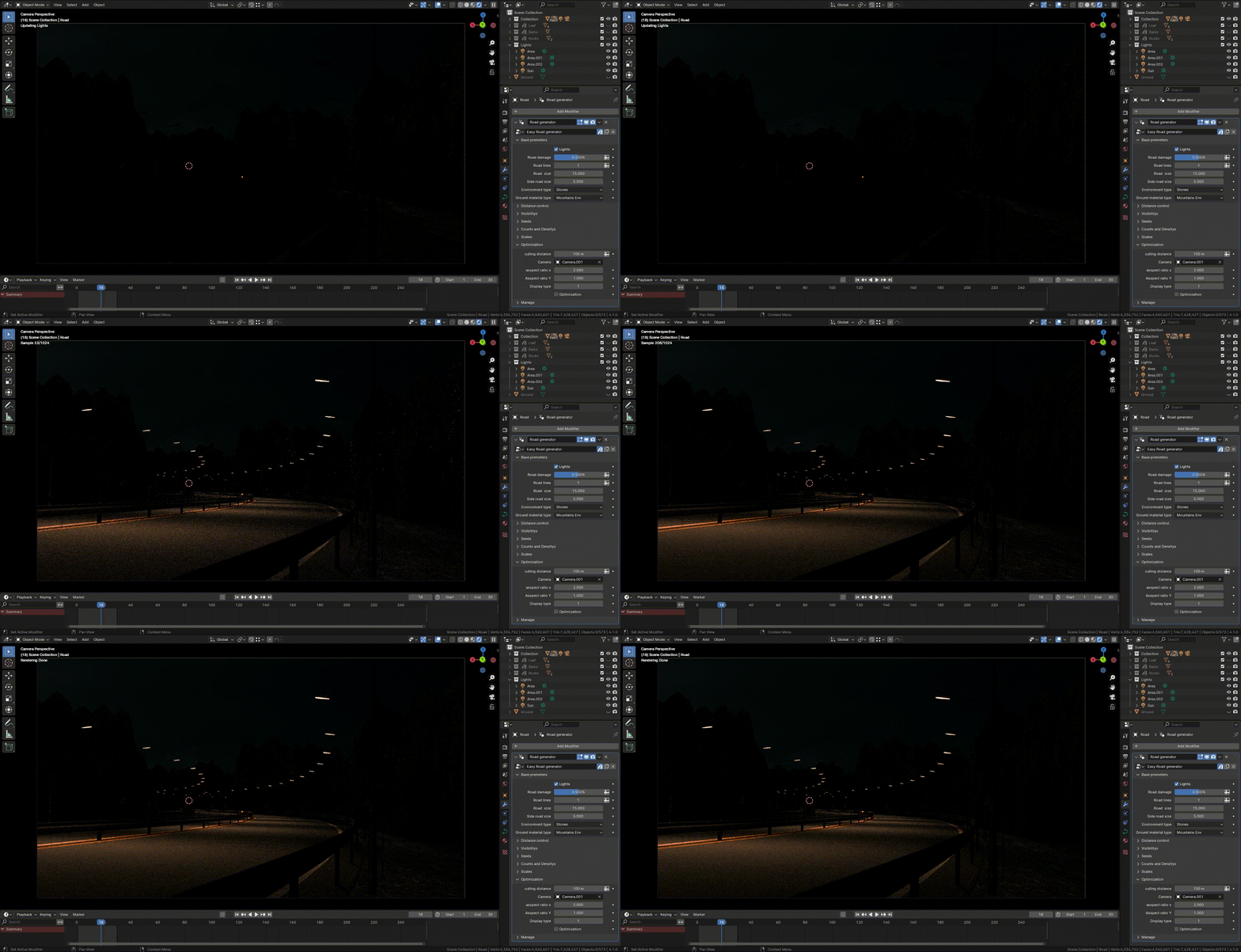
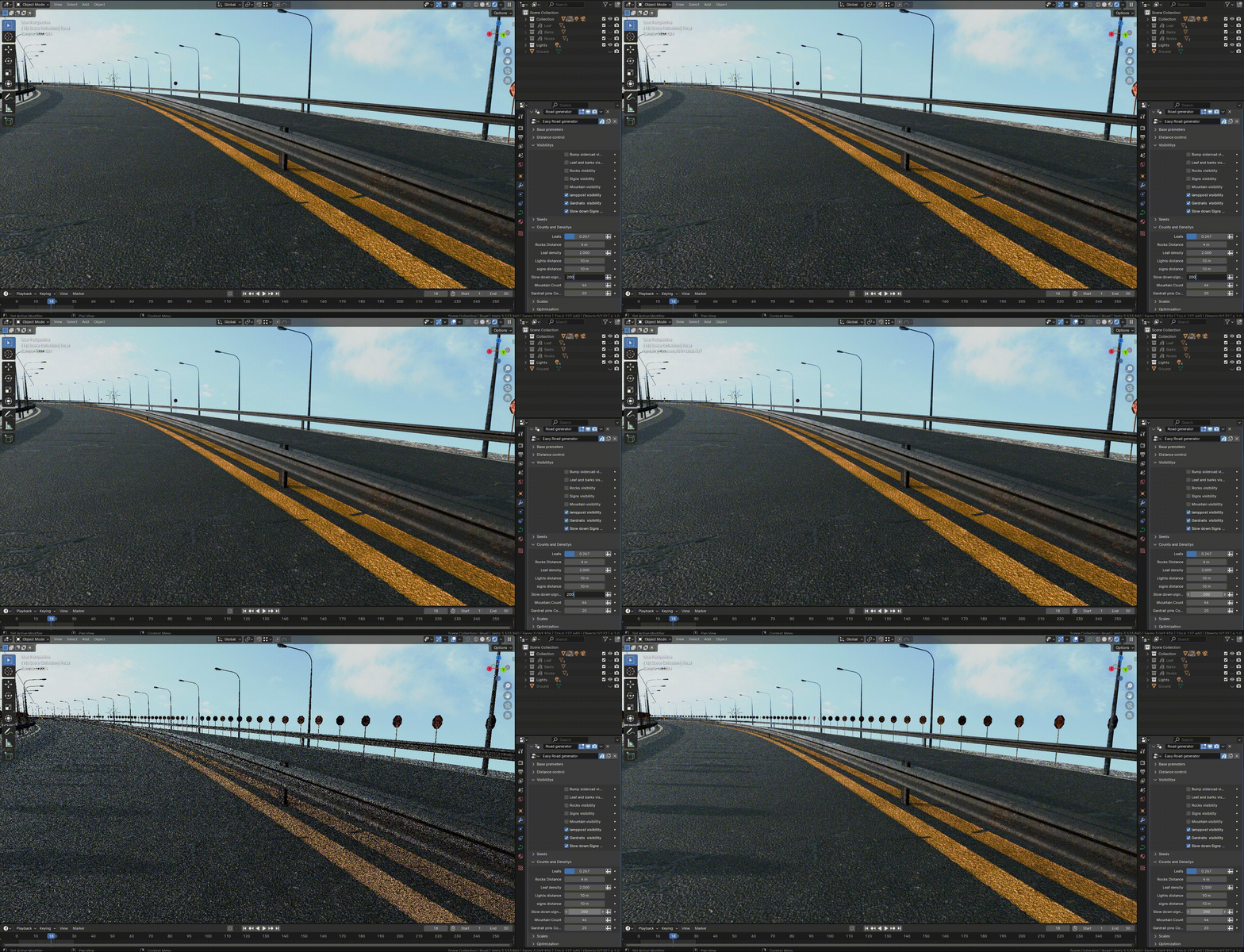
- Occlusion Culling: This feature allows users with lower-end systems to optimize performance by rendering only the objects within the camera view. (Note: The camera must be linked to the Geometry Nodes setup, and the object display distance from the camera must be defined.)
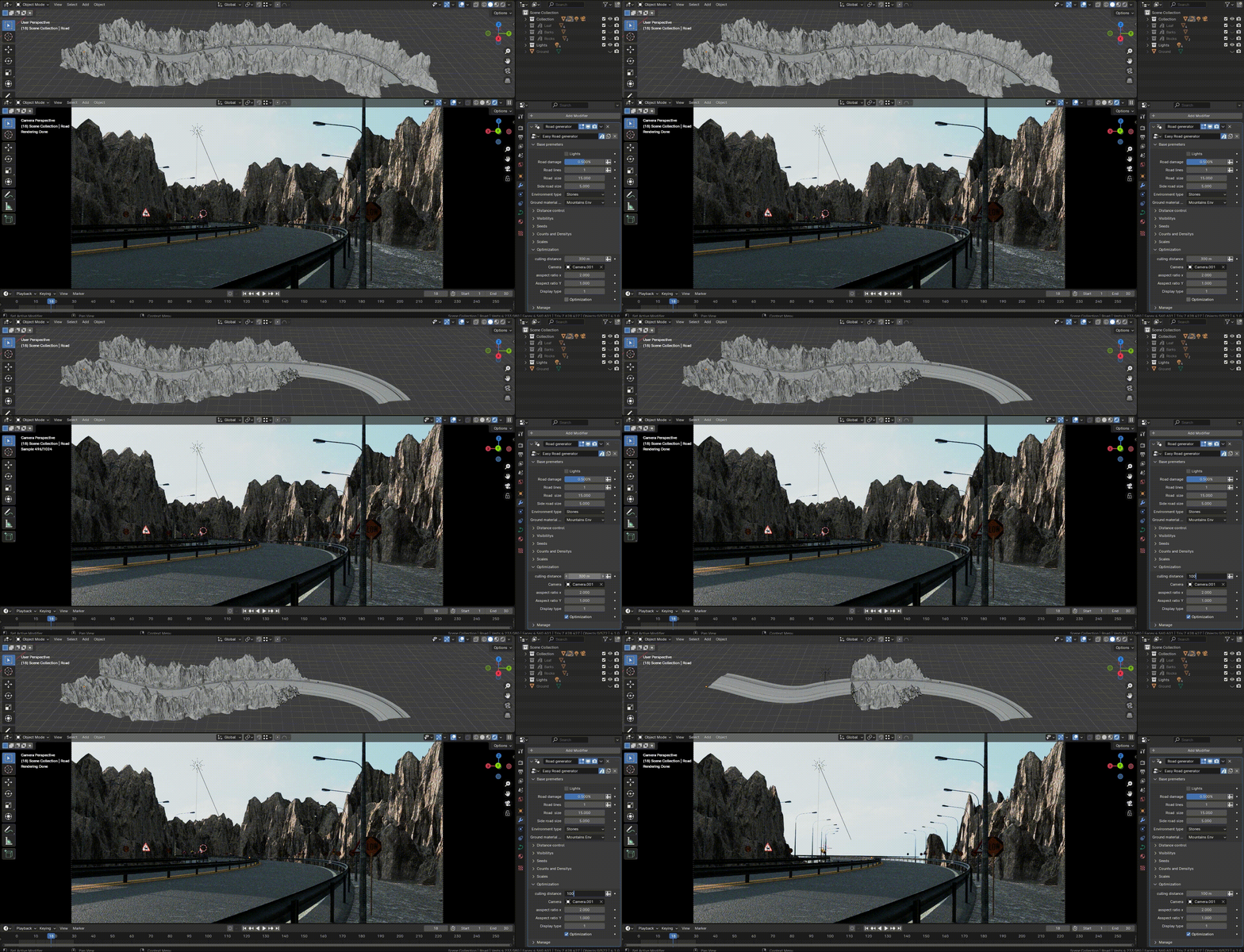
- Limitations: Currently, the Occlusion Culling feature is dynamic and cannot be baked. Also, the full modifier cannot be applied; only the road, roadside, and guardrails can be applied.
- Asset Sources: Some assets used in this product are sourced from Quixel Bridge.
- Usage Guide
- Adding the Node Group to Your Scene:
-
Add Geometry Node Modifier:
- Select the curve that you want to apply the procedural Geometry Nodes to.
- Go to the Modifier Properties panel on the right side of the screen.
- Click Add Modifier and select Geometry Nodes from the list.
- In the Geometry Nodes modifier, click on the dropdown menu and choose the imported node group from the list.
- Main Settings:
- Toggle Details On/Off: Use the settings panel within the Geometry Nodes modifier to activate or deactivate procedural details such as guardrails, rocks, and other road elements.
- Adjust Road Width: Modify the road width and the number of lanes according to your needs.
- Streetlight Spacing and Lighting: Adjust the spacing between streetlights. For night scenes, enable the streetlights to turn them on and switch to night mode.
- Switching Terrain Styles: Use the settings in the Node Group to switch between the grass-covered terrain and the mountainous terrain.
- Occlusion Culling Feature:
- Linking the Camera to the Node Group: Introduce your camera to the Node Group and define the object display distance to minimize unnecessary system calculations.
- Dynamic Use: Note that this feature is dynamic and cannot be baked.
- some other features: