Easy Stone Kit
 Onion365studio
Documentation
Installation
- Download the ZIP from your purchases.
- In Blender, open Edit > Preferences > Add-ons, open the ▼ menu at the top right and choose Install from Disk…, then pick the ZIP.
- Enable Easy Stone Kit.
- Open the 3D Viewport sidebar (
N) and select the Stone Kit tab.
- Requires
Blender 5.2 or newer.
N) and select the Stone Kit tab.Blender 5.2 or newer.Quick start
- Place the 3D cursor where you want the rock.
- Click Generate. A rock appears at the cursor, and every slider in the panel now edits it live.
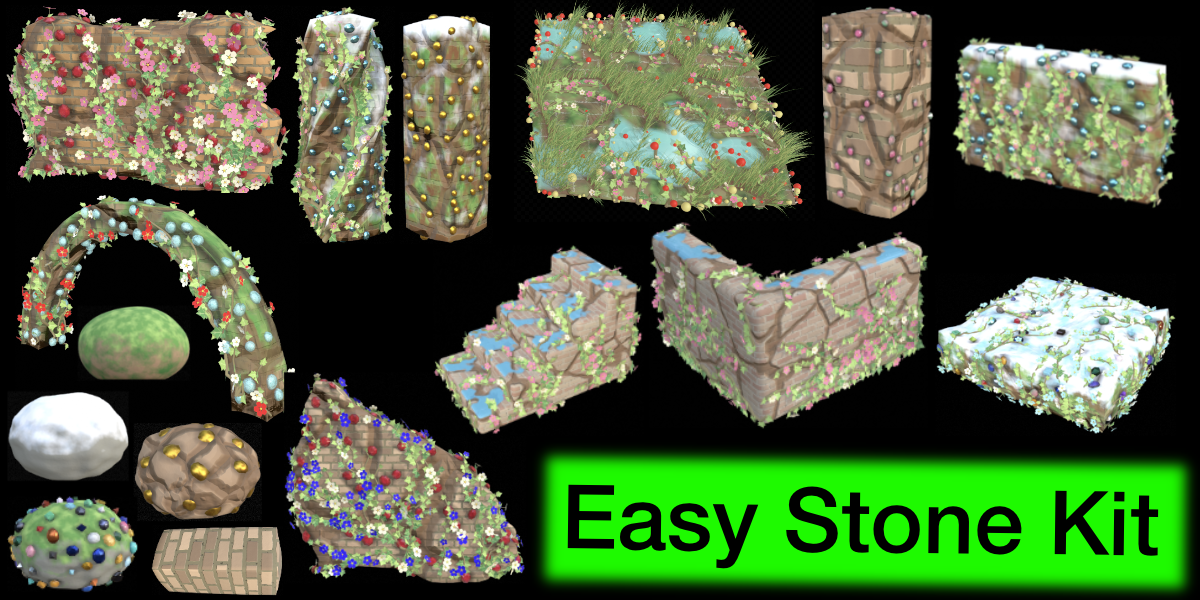
- Pick a shape preset (Rock, Wall, Square Ground, Round Ground, Cylinder, Square Pillar, L Wall, Stairs).
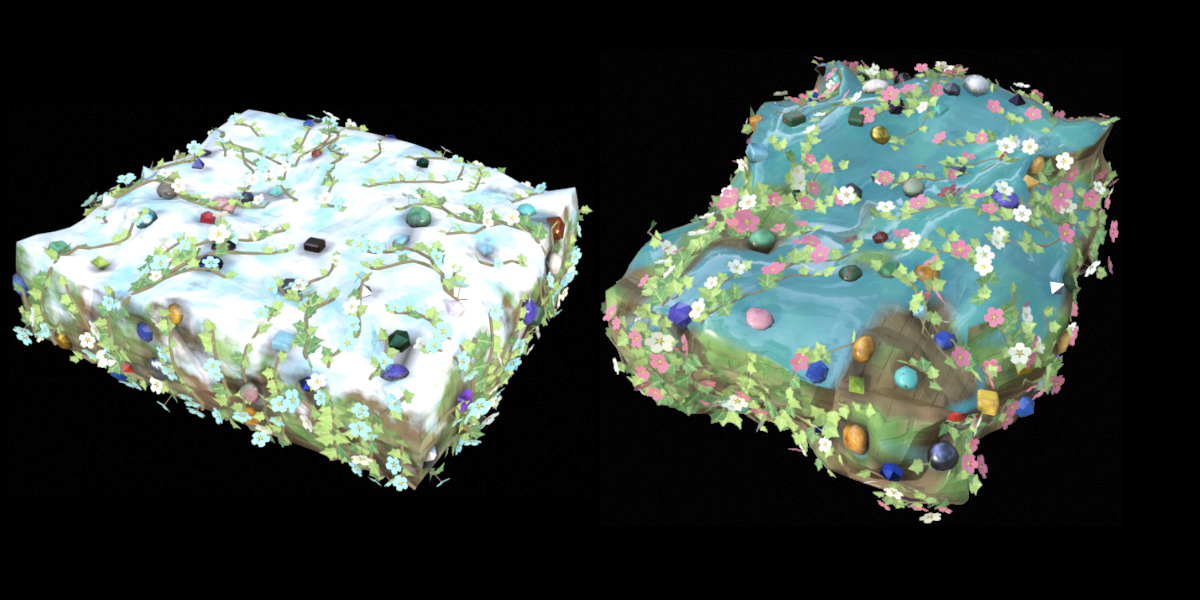
- Turn on layers (Cracks, Brick, Algae, Moss, Snow, Puddle), Ore, Vines, Weeds and Mushrooms, and adjust to taste.
- Click Mark Seam (optional), then Bake + Export GLB.
How the panel works
- The panel edits the active rock. The current rock is shown under the preset buttons. Selecting a rock’s vines, weeds or mushrooms also selects its rock for editing.
- With no rock selected, the panel’s values only decide how the next rock is generated.
- Randomize re-rolls every seed (shape, cracks, brick, ore, algae, moss, snow, puddle, vines, weeds, mushrooms).
- The round arrow next to Generate resets all settings. The small arrow on each box title resets just that group.
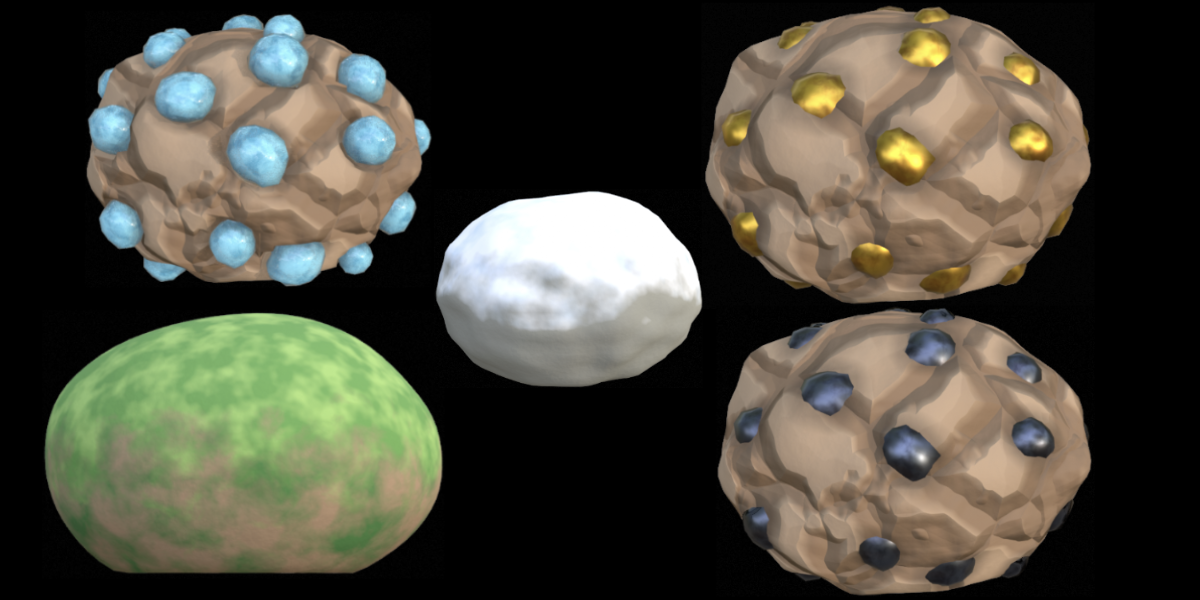
- Every group (Cracks, Brick, Algae, Moss, Snow, Puddle, Ore, Vines, Weeds, Mushrooms) has its own on/off button, seed and two-color blend.
Shapes
- The shape presets under Generate are Rock, Wall, Square Ground, Round Ground, Cylinder, Square Pillar, L Wall and Stairs. They only change the shape. The seed and everything else stay as they are.
- Shape Type switches the body between Block, L Wall and Stairs. Arm Thickness sets how thick the L Wall is, and Steps (
2–32) sets the number of steps.
- Left Break, Right Break, Front Break, Back Break, Top Break and Bottom Break make a side look like a ruined wall: chunks go missing and the edge turns ragged. A higher Segments value gives finer chips. On stairs, every step breaks on its own.
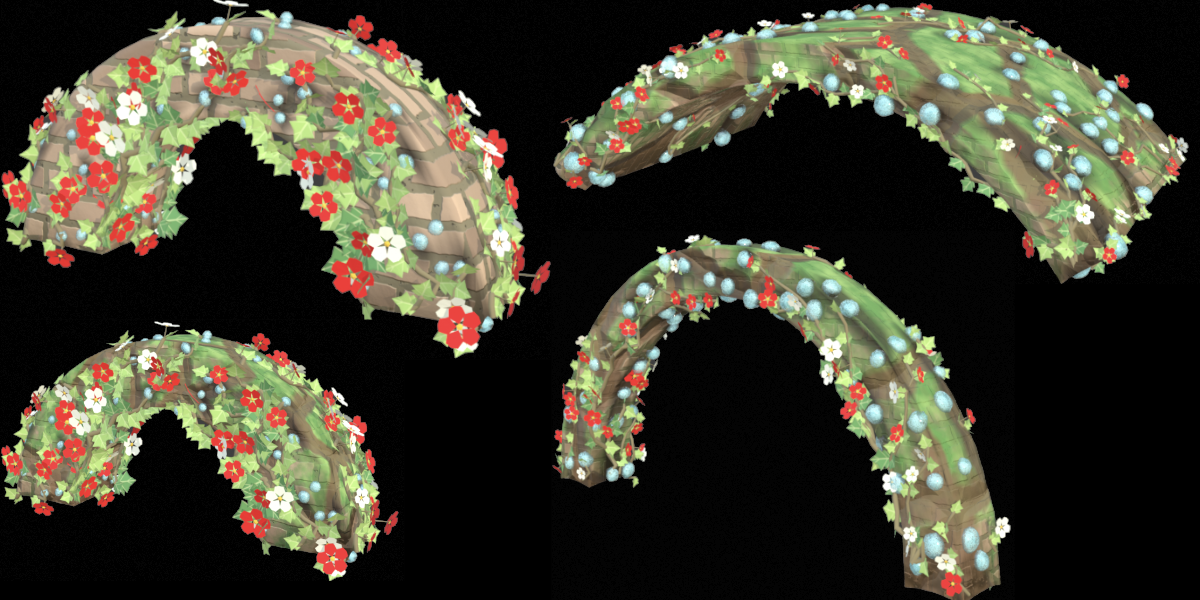
- Bend bends the shape along its width. A positive bend makes an arch with both feet on the ground, a negative bend makes a bowl. Raise Width for a wider opening.
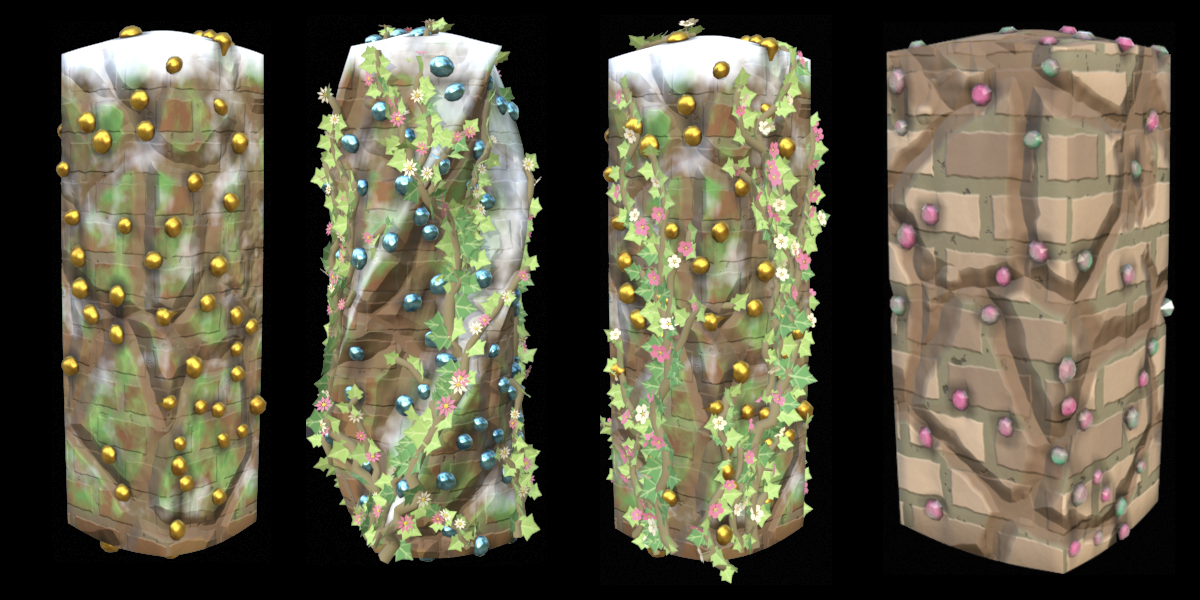
- Twist, Spiral Count and Spiral Depth turn a column into a twisted or ridged column.
2–32) sets the number of steps.Ore
- Choose one of
54 ore & gem types and one of 6 shapes (Round, Cut Gem, Nugget, Rhombus, Hex Crystal, Cube).
- Changing the type applies sensible Metallic, Roughness, Opacity and Dent values, and you can still change them afterwards.
- Mix All Ores gives each lump a random type from the whole list (
0 = all the selected type, 1 = every lump random).
- Inner Shell adds a solid core inside see-through stones.
54 ore & gem types and one of 6 shapes (Round, Cut Gem, Nugget, Rhombus, Hex Crystal, Cube).0 = all the selected type, 1 = every lump random).Vines
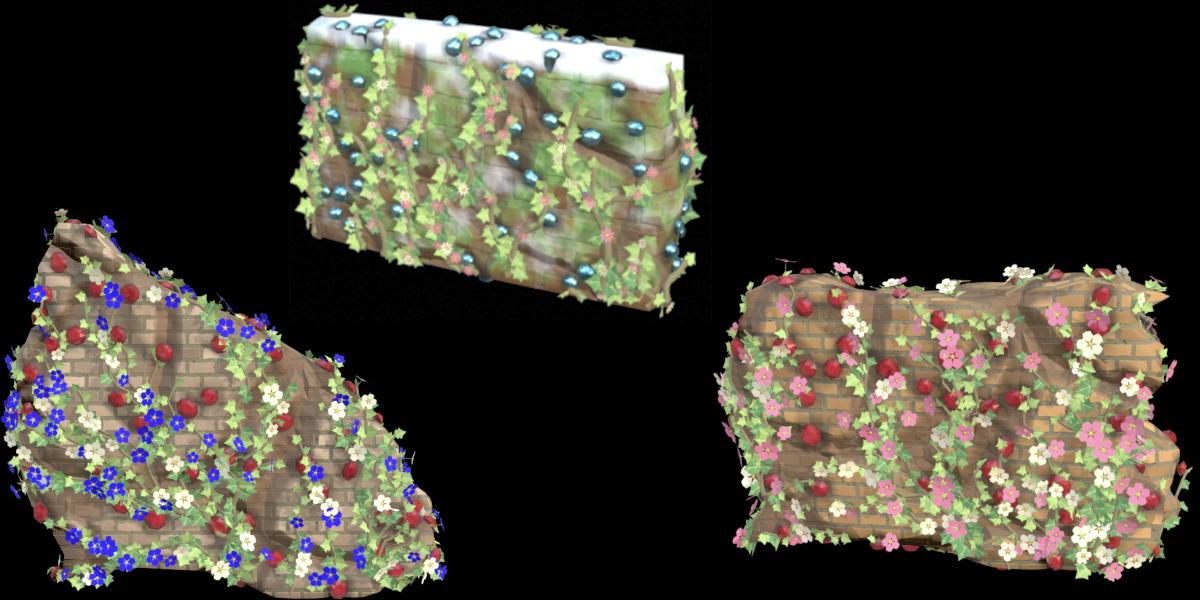
- Switch on Vines. Use the refresh button next to it for a new growth pattern.
- Roots Start On (Front / Back / Left / Right) decides where the vines begin. Over Ore lets them cover the ore lumps too.
- Leaf Shape (Ivy, Pointed, Round) and Leaf Pattern (Flat, Veins, Pale Edge, Speckles) set the look of the leaves. Flower Type (Blossom, Daisy, Trumpet, Bell, Mixed) sets the flowers.
- Leaf Model / Flower Model: pick your own mesh object. Keep it low poly, because it is copied onto every leaf or flower.
- Leaf: its origin is the attachment point,
+Y runs along the leaf and +Z points away from the surface.
- Flower: its origin is the end of the stalk and it opens toward
+Z.
- The model keeps its own material and UVs.
- Animation adds a looping sway to leaves and flowers (Leaf Swing, Flower Sway, Flower Bloom, Period). It is included in the GLB export.
+Y runs along the leaf and +Z points away from the surface.+Z.Weeds
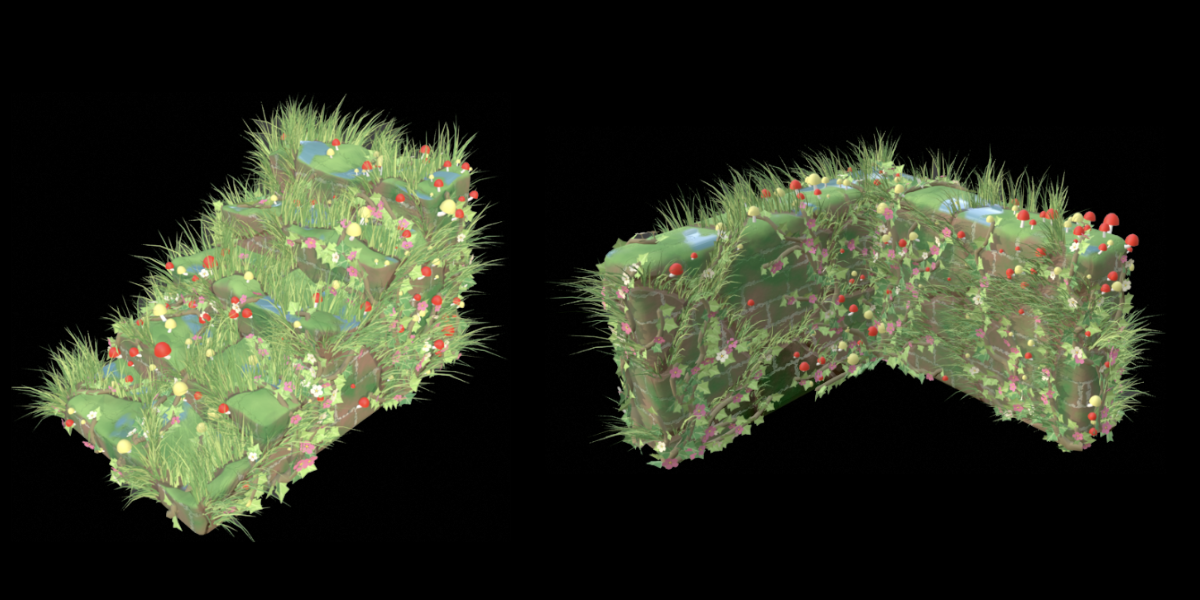
- Weeds are grass tufts that grow out of the cracks, so Cracks must be switched on too.
- Switch on Weeds. Use New next to it to plant the weeds again in other places.
- Density sets how full the cracks are (
0 = a few tufts, 1 = full of grass).
- Blades per Tuft, Height, Height Random, Blade Width, Upright, Droop, Messy and Segments shape the blades. Segments
2 gives a very low poly blade.
- Weed and Weed 2 are the two blade colors. Second Color sets how many blades use the second one.
- Animate makes the blades sway in the wind in a loop. Sway sets how far they lean, Wind Direction where the wind blows, Wave how much the sway runs over the rock like a gust, and Period (s) the length of one loop. The sway is included in the GLB export.
- A rock carries at most
20,000 blades.
0 = a few tufts, 1 = full of grass).2 gives a very low poly blade.20,000 blades.Mushrooms
- Mushrooms grow on the sides of a wall, outside the cracks. The stems curve up and the caps look up.
- Switch on Mushrooms. Use New next to it to grow them again in other places.
- Top lets mushrooms grow on top of the rock too (the top of a wall, a pillar or the ground). Top Share sets how many of the groups grow there.
- Clusters, Per Cluster and Spread decide how many groups grow and how they are spread out.
- Cap Width, Size Random, Stem Length, Stem Width, Bend, Cap Height, Messy and Sides shape the mushrooms. Sides
5 gives a very low poly mushroom.
- Cap and Cap 2 are the two cap colors, Stem is the color of the stems and the underside of the caps. Second Color sets how many mushrooms use the second cap color.
- Glow makes the caps give off light in their own color. Glow Strength sets how bright, and Glow Stem makes the stems and the underside of the caps glow too, softer than the caps.
- Mushrooms do not move. A rock carries at most
400 mushrooms.
- If the panel says “No free wall surface to grow on”, the rock has no free side to plant. Turn Top on or use a bigger shape.
5 gives a very low poly mushroom.400 mushrooms.Puddles
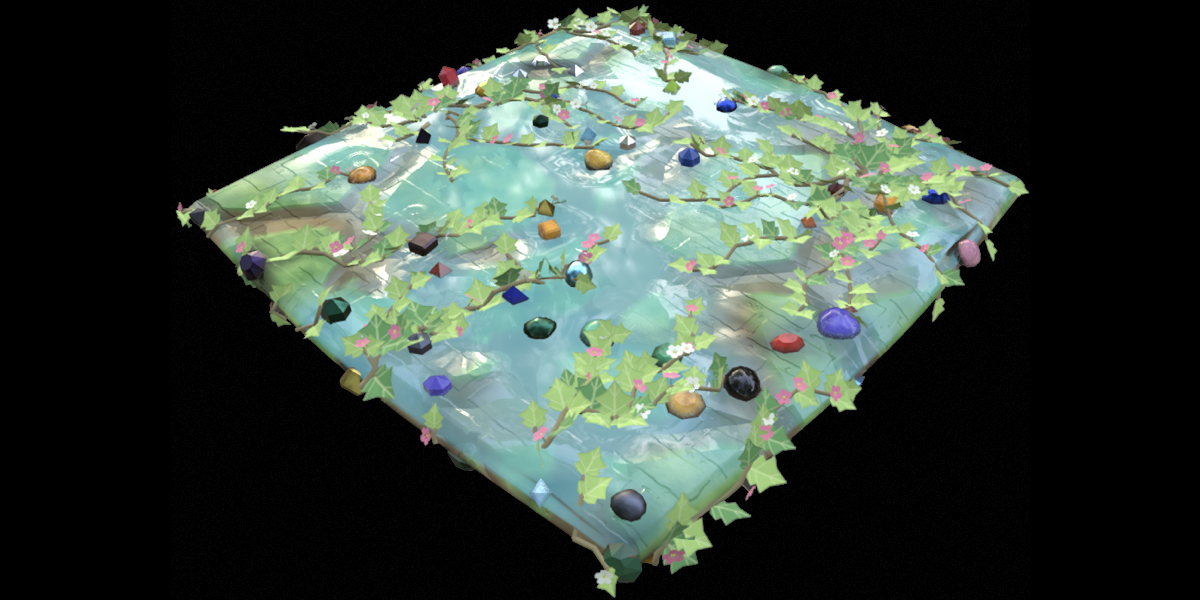
- Puddles fill flat ground.
- With Animate on, raindrop ripples play with the timeline in Material Preview or Rendered view.
- The GLB export bakes the current frame as a still image (see the Godot section below).
Exporting
- Select the rock and click Bake + Export GLB. Vines, weeds and mushrooms are exported together with the rock.
-
In the file window, choose a path and set:
- Bake Resolution:
256 to 8192, default 1024.
- Samples and Margin.
- Save PNG Texture: saves the three baked textures next to the GLB.
- Keep Baked Material: keeps the baked material on the rock afterwards.
- Godot Ripple Shader: shown only when animated puddle ripples are active.
- Confirm. The button turns into a progress bar while it bakes color, metal/roughness and a normal map. Your scene’s render settings are restored when it finishes.
- If the rock has no UV map yet, it is unwrapped automatically. Mark Seam splits the rock into a front half and a back half and unwraps it, if you want to do that yourself first.
- Bake Resolution:
256to8192, default1024. - Samples and Margin.
- Save PNG Texture: saves the three baked textures next to the GLB.
- Keep Baked Material: keeps the baked material on the rock afterwards.
- Godot Ripple Shader: shown only when animated puddle ripples are active.
Godot: animated puddle ripples
- A GLB cannot carry moving ripples, so the add-on writes a
.gdshader next to the GLB.
- Copy the
.gdshader and the three PNG files into your Godot project.
- Create a ShaderMaterial and select the shader.
- Drag the PNGs into
albedo_tex (_baked.png), orm_tex (_metal_rough.png) and normal_tex (_normal.png).
- Assign the material to the rock’s Surface Material Override 0.
- Ripple speed, size and strength can be changed on the material.
.gdshader next to the GLB..gdshader and the three PNG files into your Godot project.albedo_tex (_baked.png), orm_tex (_metal_rough.png) and normal_tex (_normal.png).Using Easy Stone Kit in Godot 4
1. Export from Blender
- Select your rock and click Bake + Export GLB.
- Choose a save path. A resolution of
1024 is a good start for most props.
- Keep Save PNG Texture on. If your rock has animated puddle ripples, also keep Godot Ripple Shader on.
-
Wait for the progress bar to finish. You get:
YourRock.glbYourRock_baked.png, YourRock_metal_rough.png and YourRock_normal.pngYourRock_ripple.gdshader (only with animated puddle ripples)
1024 is a good start for most props.YourRock.glbYourRock_baked.png,YourRock_metal_rough.pngandYourRock_normal.pngYourRock_ripple.gdshader(only with animated puddle ripples)
2. Import into Godot
- Copy the whole set of files into your Godot project folder.
- Godot imports the GLB automatically. It shows up in the FileSystem dock.
- Right-click the
.glb and choose New Inherited Scene. This gives you an editable scene, so you can change materials and add nodes.
- The baked color, metal/roughness and normal textures are already applied, so the rock should look right straight away.
.glb and choose New Inherited Scene. This gives you an editable scene, so you can change materials and add nodes.3. Translucent gems
- Crystals, ice and see-through gems are exported as separate surfaces with an alpha-blended material, and Godot reads this correctly.
- If you want to tweak one, open the mesh’s Surface Material Override list and change the material of that surface.
4. Vine and weed sway animation
- If Vines > Animation or Weeds > Animate was on, the GLB contains a looping sway for each of them: one on the vine mesh (a child node named like
YourRock_Vines) and one on the weed mesh (YourRock_Weeds).
- Godot loops animations whose name ends in
_loop, and the sway animations follow that name, so they are set to loop on import.
- Godot does not play them on its own, so start them from a script. An AnimationPlayer plays one animation at a time, so the script gives every extra sway its own player.
- Attach this to your root node, and replace
Rock with the name of your rock node:
YourRock_Vines) and one on the weed mesh (YourRock_Weeds)._loop, and the sway animations follow that name, so they are set to loop on import.Rock with the name of your rock node:extends Node3D
@onready var rock: Node = $Rock
func _ready() -> void:
var player := rock.find_child("AnimationPlayer", true, false) as AnimationPlayer
if player == null:
return
var first := true
for anim_name in player.get_animation_list():
if not anim_name.ends_with("_loop"):
continue
if first:
player.play(anim_name)
first = false
else:
var extra := AnimationPlayer.new()
player.get_parent().add_child(extra)
extra.root_node = player.root_node
extra.add_animation_library("", player.get_animation_library(""))
extra.play(anim_name)
5. Glowing mushrooms- The mushroom glow is exported as plain emission, so it shows up in Godot without any setup.
- To make it bloom, switch on Glow in the
WorldEnvironment.
- Glow Strength in Blender is exported as the emissive strength.
6. Animated puddle ripples- A GLB can only hold a still image of the ripples, so the add-on writes a Godot shader for the moving version.
- In the FileSystem dock, create a ShaderMaterial (right-click > Create New > Resource > ShaderMaterial).
- Set its Shader to
YourRock_ripple.gdshader.
- Drag the PNG files into the shader parameters:
albedo_tex ← YourRock_baked.png
orm_tex ← YourRock_metal_rough.png
normal_tex ← YourRock_normal.png
- Select the rock’s
MeshInstance3D and assign the material to Surface Material Override 0.
- Ripples run only where the puddle is. You can change
ripple_speed, ripple_cells (drop size) and ripple_strength right on the material.
- If you used see-through gems, they stay on their own surfaces and keep their baked materials.
WorldEnvironment.YourRock_ripple.gdshader.albedo_tex ← YourRock_baked.pngorm_tex ← YourRock_metal_rough.pngnormal_tex ← YourRock_normal.pngMeshInstance3D and assign the material to Surface Material Override 0.ripple_speed, ripple_cells (drop size) and ripple_strength right on the material.- Select the rock’s
MeshInstance3D, open the Mesh menu in the toolbar and choose Create Collision Shape….
- A convex shape suits rocks and pillars, and a trimesh suits ground tiles and walls.
- The vines or weeds don’t move: the animations must be started from a script (step 4). Check the animation name ends in
_loop.
- Only one of the vine and weed animations plays: use the script from step 4. It starts each sway on its own
AnimationPlayer.
- The mushrooms don’t glow: check that Glow is switched on in Blender, then switch on Glow in the
WorldEnvironmentin Godot.
- The ripples don’t move: the shader must be on Surface 0 and the three textures must be assigned. They only appear where the puddle mask is above
0, so a rock without a Puddle layer has nothing to animate.
- The ripples look different from Blender: set
ripple_cells,ripple_strengthandripple_speedon the material, since the defaults come from your Blender settings at export time.
- Unity: the GLB imports through a glTF importer package such as
glTFast. The ripple shader is for Godot only.
- The vine and weed sway animation names end in
_loop, so Godot loops them automatically. In Unity, enable Loop Time on each clip.
- Translucent gems export as alpha-blended materials.
- The mushroom glow is exported as an emissive material. Mushrooms themselves are not animated.
Shift+Dcopies keep their own settings, materials, vines, weeds and mushrooms, so editing a copy never changes the original.
New
- Added Weeds: grass tufts that grow out of the cracks and sway in a loop. The sway is included in the GLB export.
- Added Mushrooms: mesh mushrooms that grow on the sides and on top of walls, with optional glow.
- Weed and mushroom seeds are now part of Randomize.
New
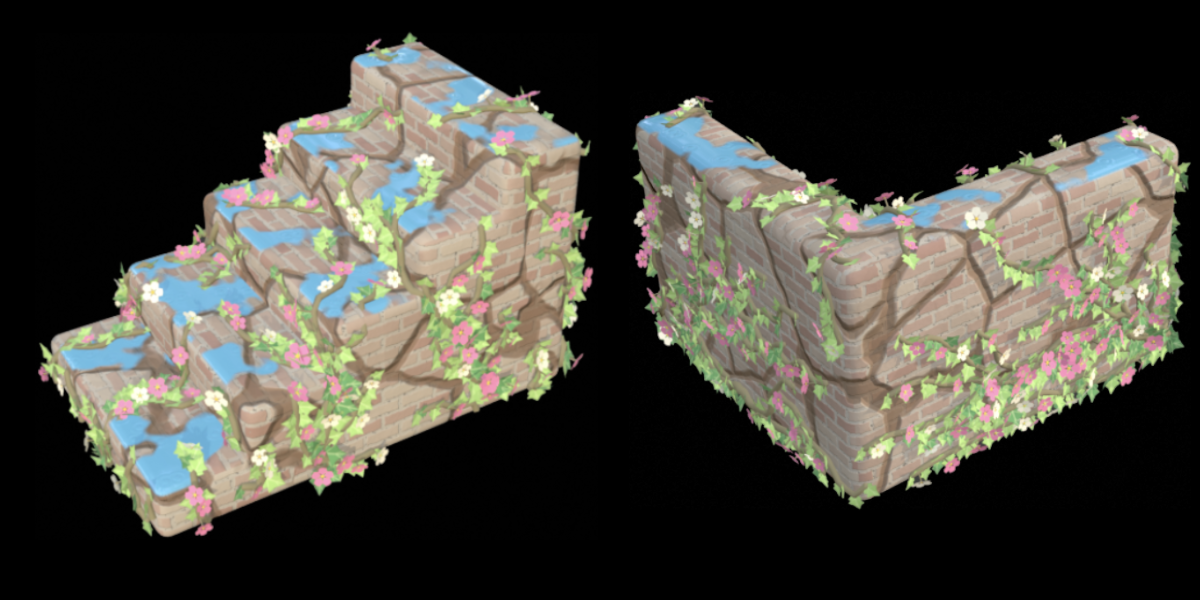
- Added L Wall and Stairs shape buttons.
- New Shape Type switch (Block / L Wall / Stairs) in the Shape panel.
- Arm Thickness slider for the L Wall, Steps slider (
2–32) for the Stairs.
Which Blender versions are supported?
Blender 5.2or newer.
- No. Everything is procedural and generated inside Blender.
- For a broken wall, pick Wall and raise the Break sliders on the sides you want to ruin.
- For an arch, pick Wall, raise Width and give it a positive Bend.
- For stairs, pick Stairs and set Steps.
- Then add Cracks, Moss, Vines and Weeds to age them.
- Yes. Export to GLB and import it with a glTF importer package such as
glTFast.
- Enable Loop Time on the sway clips.
- The Godot ripple shader is Godot-only.
- Check that Vines is switched on.
- Vines need
NumPy, which is bundled with Blender. If it is missing, the panel shows “NumPy is missing: no vines”.
- Weeds grow in the cracks, so Cracks must be switched on as well. The panel shows “Turn Cracks on: weeds grow in them” when it is off.
- Weeds also need
NumPy, which is bundled with Blender.
- Check that Mushrooms is switched on.
- Mushrooms grow on the sides of the rock, outside the cracks, so a flat ground tile only gets mushrooms when Top is on.
- The panel shows “No free wall surface to grow on” when there is nothing to plant.
- Mushrooms also need
NumPy, which is bundled with Blender.
- The weeds sway in a loop when Animate is on, and the sway is exported in the GLB.
- The mushrooms do not move, but they can glow.
- Godot does not play animations on its own. Start them with the script in the Godot section above.
- The glow is exported as emission. Switch on Glow in the
WorldEnvironmentto make it bloom.
- The GLB only contains a still frame. Use the exported
.gdshader(see the Godot section above).
- Switch the viewport to Material Preview or Rendered view and play the timeline.
- Up to
20,000grass blades and400mushrooms. This keeps the viewport and the GLB light.
- Lower the bake resolution or the sample count. The normal map is the slowest of the three bakes.
- Baking temporarily uses Cycles. Your render settings and the rock’s original material are restored afterwards, unless you turn on Keep Baked Material.
- Yes. Select it (or its vines, weeds or mushrooms) and the panel shows its settings.
- If nothing is selected, the panel only controls the next rock.
- Yes. Assets you generate belong to you and can be used in personal and commercial projects.
Have questions about this product?
Login to message
| Blender Extension Compatible | Yes |
| Dev Fund Contributor | |
| Published | about 19 hours ago |
| Blender Version | 5.2 - 5.3 |
| Extension Type | Add-on |
| Render Engine Used | Cycles, Eevee |
| License | GPL |