 Easy Team


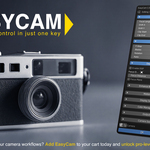
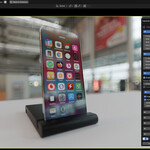
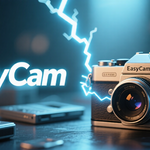
EasyCam is a powerful Blender addon developed by EasyTeam, designed to
streamline camera management in your 3D workflows. It provides quick
access to essential camera settings, including focal length adjustments,
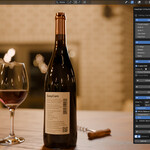
Depth of Field (DOF), customizable bokeh effects (exclusive to Cycles),
motion blur, composition guides, color management, and rendering output
controls. Additionally, it allows you to save and recall camera
positions, switch between multiple cameras, and visualize a focus plane
for precise DOF setup.
This addon is perfect for 3D artists, virtual
photographers, and animators working with complex camera setups, saving
you time and enhancing your creative process.
Why Choose EasyCam?
EasyCam
transforms Blender's camera interface into an intuitive quick-access
panel, reducing clicks and boosting productivity. Whether you're setting
up cinematic shots, architectural visualizations, or product renders,
this addon puts professional-grade controls at your fingertips. It's
lightweight, uses only built-in Blender libraries, and integrates
seamlessly without requiring external dependencies.
Installation Guide
1. Download the ZIP file from SuperHive Market.
2. In Blender, go to Edit > Preferences > Add-ons.
3. Click Install... and select the ZIP.
4. Search for EasyCam and enable it.
5. Save preferences to keep it active.
Note: If it doesn't appear, ensure Blender is 4.2+ and restart the software.
Access and Shortcuts
Main
Shortcut: Press W (default) or right-click with a camera selected.
Customize in addon preferences (options: W, Shift+W, Ctrl+W, D).
Context Menu: Right-click a selected camera in the 3D viewport and choose EasyCam Menu from the Object Context menu.
The Camera Quick Box pops up only when a camera is selected and active.
Main Features
The
addon features a customizable popup menu (Camera Quick Box) with
expandable sections for easy navigation. Here's a breakdown:
1. Camera Settings
Focal Length: Adjust lens in mm for precise framing.
Shift X/Y: Horizontal/vertical shift for perspective corrections.
Clip Start/End: Set near/far clipping distances.
2. Aperture Controls
F-Stop: Control depth of field (low for shallow DOF, high for sharp focus).
Blades: Customize diaphragm blade count for unique bokeh shapes.
Rotation: Rotate blades for artistic effects.
Ratio: Adjust aperture aspect ratio.
3. Depth of Field (DOF)
Enable DOF: Toggle the effect on/off.
Focus Object: Select an object as the focus point.
Focus Distance: Manually set focus distance in Blender units.
Show
Focus Plane: Display a semi-transparent red plane in the viewport to
visualize focus distance (updates in real-time, adapts to FOV and render
aspect ratio).
Subsection: Enhance Bokeh Effect (Cycles-only):
Enable Bokeh: Activate EasyCam's bokeh for enhanced defocus realism.
Auto Size Bokeh: Automatically scales bokeh based on focal length (8mm to 500mm range).
Intensity (Alpha): Adjust bokeh opacity (0-1).
Bokeh Size: Manual size control (when Auto Size is off).
4. Motion Blur
Enable Motion Blur: Toggle for realistic movement blur in renders.
Motion Blur Steps: Set steps for smoother blur (higher values increase render time).
Shutter: Define shutter duration in frames.
5. Display Settings
Passepartout Alpha: Control opacity of the dark border around camera view.
Sensor Fit: Options: Auto, Horizontal, Vertical.
Sensor Size: Set sensor dimensions in mm.
6. Composition Guides
Safe Areas: Enable TV/film safe zones.
Center/Crosshair: Display central guides or crosshairs.
Thirds/Golden: Rule of thirds or golden ratio overlays.
7. Color Management
View Transform/Look: Select color presets (e.g., Filmic, Standard).
Exposure: Global exposure adjustment.
White Balance: (Blender 4.3+): Enable and tweak Temperature (K) and Tint, with indicators for Warm/Neutral/Cool tones.
8. Output Settings
Resolution: Set X/Y dimensions and percentage scale.
Frame Range: Define start/end frames and FPS.
File Output: Specify path, format (e.g., PNG, FFMPEG), color mode, depth, and compression.
FFMPEG Settings: (If selected) Container, video/audio codecs, bitrate.
Quick Buttons: Render single frame or full animation directly.
9. Camera Saves (Position Bookmarks)
Add: Save the current camera position.
Saved List: Filtered per camera; view, recall, or manage saves.
Single Click: Recall position and switch to camera view.
Double Click: Rename the save.
Refresh: Update with current position.
X: Delete.
Note: Saves are camera-specific (not global).
10. Camera Switcher and General Controls
Bottom menu shows active camera with a dropdown to switch between all scene cameras (checkmark for active).
Lock Camera: Lock the camera view (non-rotatable).
View Center Camera: Center the viewport on the camera.
Tips and Notes
Requirements: Best in Cycles for bokeh effects; EEVEE supports DOF but without custom bokeh.
Debugging Errors: If you see "No valid camera selected," ensure a camera is active. Check Blender's console for logs.
Customization: Change the main shortcut in addon preferences.
Uninstallation: Disable in Preferences > Add-ons and remove.
Limitations: No external package installs (uses built-in libs only). Focus plane is viewport-only (hidden in renders).
Compatibility and Requirements
Blender Versions: 4.2.0+
Render Engines: Full features in Cycles; partial in EEVEE.
Support and Updates
Documentation: Included README with detailed guides.
Updates: Free lifetime updates via SuperHive Market.
Contact: Reach out to EasyTeam for bugs, features, or custom requests.
Ready to elevate your camera workflows? Add EasyCam to your cart today and unlock pro-level control in Blender!
Discover more products like this
3D camera tools focal length camera switch photo camera-render bokeh depth of field #MotionBlur photorealistic dof camera control Advanced camera CameraSaves camera FocusPlane